G

go-surfe

3
Workflows

Workflows by go-surfe

Workflow preview: Automatically discover & enrich HubSpot buying groups with Surfe and Google Sheets
Free advanced

Automatically discover & enrich HubSpot buying groups with Surfe and Google Sheets

🚀 What this template does Automatically finds and enriches key contacts in a deal’s buying group by combining the company domain from the HubSpot deal with the buying group criteria you define (departments, seniorities, countries, job titles). It then pushes these contacts into HubSpot and emails your team a clean summary with direct HubSpot links—so no decision-maker falls through the cracks. Before starting, make sure you have: Buying Group Criteria Excel – Contains two sheets: Buying group reference values (reference list) Your Buying Group Criterias (where you define your filters) You’ll import the Excel file into Google Sheets during setup. 1. ❓ What Problem Does This Solve? When a new opportunity/deal is created, sales teams often miss adjacent decision-makers (e.g., VP Sales, Head of Marketing). This template searches for those people, enriches their contact data, adds/updates them in HubSpot, and notifies your team with a one-glance table. 2. 🧰 Prerequisites: To use this template, you’ll need: A self-hosted or cloud instance of n8n A Surfe API Key (Bearer token for People Search & Bulk Enrich) A Google Sheets account (OAuth2 or service account) with access to your criteria sheet A HubSpot developer account (for the HubSpot Deal Trigger) A HubSpot normal account (where there is your deals, contacts, companies) A Gmail account to send the enrichment summary email The workflow JSON file (included with this tutorial) Buying Group Criteria Excel (included with this tutorial) 3. 📌 Your input (Google Sheets) This workflow uses a Google Sheet with two tabs: Buying group reference values – A read-only reference list of all available options for the departments and seniorities columns. You’ll use this list to choose your search filters. Your Buying Group Criterias – The sheet where you define the actual filters used in the workflow. ⚠️ Before you start: Import the provided Excel file into your Google Sheets account so both tabs appear exactly as in the template. How to fill it the tab “Your Buying Group Criterias”: departments (Column A) → Select one or more values from the reference tab. Only rows containing a value will be used in the search. seniorities (Column B) → Select one or more values from the reference tab. Only rows containing a value will be used in the search. countries (Column C) → Enter any ISO Alpha-2 country codes (e.g., fr, gb, de). This is a free-text filter. jobTitles (Column D) → Enter any job title keywords you want to search for (e.g., CTO, Head of Marketing). This is also a free-text filter. The workflow will read the filled cells from each column, clean duplicates, and pass them to the Surfe People Search API. ![Screenshot 20250811 at 17.24.28.png](fileId:2038) ![Screenshot 20250811 at 17.24.44.png](fileId:2031) 4. ⚙️ Setup Instructions 4.1 🔐 Create Your Credentials in n8n 4.1.1 📊 Google Sheets OAuth2 API Go to n8n → Credentials Create new credentials: Type: Google Sheets OAuth2 API Here a pop-up will open where you can login to your Google account from where you will read the Google Sheets When it’s done you should see this on n8n ![Screenshot 20250811 at 17.25.54.png](fileId:2024) 4.1.2 📧 Gmail OAuth2 API Go to n8n → Credentials Create new credentials: Type: Gmail OAuth2 API A pop-up window will appear where you can log in with your Google account that is linked to Gmail Make sure you grant email send permissions when prompted ![Screenshot 20250811 at 17.26.22.png](fileId:2023) 4.1.3 🚀 Surfe API In your Surfe dashboard → Use Surfe Api → copy your API key ![Screenshot 20250811 at 17.27.03.png](fileId:2039) Go to n8n → Credentials → Create Credential Choose Credential Type: Bearer Auth Name it something like SURFE API Key Paste your API key into the Bearer Token Save ![Screenshot 20250811 at 17.28.08.png](fileId:2027) 4.1.4 🎯 HubSpot OAuth2 API Go to n8n → Credentials → Create Credential → HubSpot Oauth2 API ![Screenshot 20250811 at 17.28.36.png](fileId:2025) ![Screenshot 20250811 at 17.28.51.png](fileId:2037) ![Screenshot 20250811 at 17.29.11.png](fileId:2028) Here make sure to select your normal hubspot account where your companies, deals and contacts are and not the hubspot-developers-xxx.com Done ✅ 4.1.5 🔓 HubSpot Private App Token Go to HubSpot → Settings → Integrations → Private Apps Create an app with scopes: crm.objects.contacts.read crm.objects.contacts.write crm.schemas.contacts.read Save the App token Go to n8n → Credentials → Create Credential → HubSpot App Token Paste your App Token ![Screenshot 20250811 at 17.29.39.png](fileId:2033) ![Screenshot 20250811 at 17.30.09.png](fileId:2040) ![Screenshot 20250811 at 17.30.23.png](fileId:2026) 4.1.6 🎯 HubSpot Developer Api: In order to Use the HubSpot Trigger node, you need to setup HubSpot Developer Api To configure this credential, you'll need a HubSpot developer account and: A Client ID: Generated once you create a public app. A Client Secret: Generated once you create a public app. A Developer API Key: Generated from your Developer Apps dashboard. An App ID: Generated once you create a public app. To create the public app and set up the credential: Log into your HubSpot app developer account. Select Apps from the main navigation bar. Select Get HubSpot API key. You may need to select the option to Show key. Copy the key and enter it in n8n as the Developer API Key. Still on the HubSpot Apps page, select Create app. On the App Info tab, add an App name, Description, Logo, and any support contact info you want to provide. Anyone encountering the app would see these. Open the Auth tab. Copy the App ID and enter it in n8n. Copy the Client ID and enter it in n8n. Copy the Client Secret and enter it in n8n. In the Scopes section, select Add new scope. Add all the scopes listed in Required scopes for HubSpot Trigger node to your app. ![Screenshot 20250811 at 17.58.10.png](fileId:2035) Select Update. Copy the n8n OAuth Redirect URL and enter it as the Redirect URL in your HubSpot app. Select Create app to finish creating the HubSpot app. Refer to the HubSpot Public Apps documentation for more detailed instructions. You should see this on n8n at the end. ![Screenshot 20250811 at 17.58.29.png](fileId:2034) ✅ You are now all set for the credentials 4.2 📥 Import and Configure the N8N Workflow Import the provided JSON workflow into N8N Create a New Blank Workflow click the … on the top left Import from File ![Screenshot 20250811 at 17.58.55.png](fileId:2029) ![Screenshot 20250811 at 17.59.08.png](fileId:2041) 4.2.1 🔗 Link Nodes to Your Credentials In the workflow, link your newly created credentials to each node of this list : Google Sheets -> Credentials to connect with → Google Sheets Account Gmail Node Credentials to connect with → Gmail account HubSpot: Create or Update →Credentials to connect with → Huspot App Token Account HubSpot Get Company →Credentials to connect with → Huspot App Token Account HubSpot get deal →Credentials to connect with → Huspot App Token Account HubSpot Trigger →Credentials to connect with → Huspot Developer account HTTP Node GET deal associated companies from HUBSPOT → Credential Type → Hubspot OAuth2 API Surfe HTTP nodes: Authentication → Generic Credential Type Generic Auth Type → Bearer Auth Bearer Auth → Select the credentials you created before ![Screenshot 20250811 at 17.59.48.png](fileId:2030) Surfe HTTP nodes 4.2.2 🔧 Additional Setup for the node Google Sheets READ CRITERIAS: ![Screenshot 20250811 at 18.00.10.png](fileId:2032) Paste the url of your google sheets in Document → By URL Select the sheet Your Buying Group Criterias 5. 🔄 How This N8N Workflow Works A new deal is created in HubSpot, which triggers the workflow. The workflow retrieves the company domain linked to that deal. It reads the buying group criteria from your Google Sheet (departments, seniorities, countries, job titles). These criteria are combined with the company domain to create a search payload for Surfe’s People Search API (limited to 200 people per run). Matching contacts are then sent to Surfe’s Bulk Enrichment API to retrieve emails, phone numbers, and other details. n8n polls Surfe until the enrichment job is complete. Enriched contact data is extracted and filtered so that only contacts with at least one valid email or phone number remain. These contacts are created or updated in HubSpot. Finally, a Gmail summary email is sent to your team with a clean table of the new or updated contacts and direct links to view them in HubSpot. ![Screenshot 20250811 at 18.00.33.png](fileId:2036) 6. 🧩 Use Cases Net-new deal created → instantly surface the rest of the buying group and enrich contacts. 7. 🛠 Customization Ideas 🔁 Add retry logic for failed Surfe enrichment jobs 📤 Log enriched contacts into a Google Sheet or Airtable for auditing 📊 Extend the flow to generate a basic summary report of enriched vs rejected contacts ⏳ Trigger the enrichment not only on deal creation but also at a specific deal stage change 📧 Send the summary email to multiple recipients or a team mailing list 9. ✅ Summary This template automates buying-group discovery and enrichment off a new HubSpot deal, writes enriched contacts back to HubSpot, and emails a neat table to your team—so reps focus on outreach, not admin. Import it, connect credentials, point at your criteria sheet, and Let Surfe do the rest.

g
go-surfe
Lead Generation
12 Aug 2025
195
0
Workflow preview: Build targeted prospect lists: find & enrich leads with Surfe to HubSpot
Free intermediate

Build targeted prospect lists: find & enrich leads with Surfe to HubSpot

## 🚀 Build Hyper-Targeted Prospecting Lists with Surfe & HubSpot This template automatically discovers companies that match your Ideal Customer Profile (ICP), finds the right people inside those companies and enriches them — ready to drop straight into HubSpot. Launch the workflow, sit back, and get a clean list of validated prospects in minutes. --- ## 1. ❓ What Problem Does This Solve? Sourcing prospects that truly fit your ICP is slow and repetitive. You jump between databases, copy domains, hunt down decision-makers, and then still have to enrich emails and phone numbers one by one. This workflow replaces all that manual effort: 1. It queries Surfe’s database for companies that match your exact industry, size, revenue and geography filters. 2. It pulls the best-fit people inside each company and enriches them in bulk. 3. It keeps only records with both a direct email *and* mobile phone, then syncs them to HubSpot automatically. No spreadsheets, no copy-paste — just a fresh, qualified prospect list ready for outreach. --- ## 2. 🧰 Prerequisites You’ll need: - A self-hosted or cloud instance of **n8n** - A **Surfe API Key** - A **HubSpot** Private App Token with contact read/write scopes - A **Gmail** account (OAuth2) for the completion notification - The workflow JSON file linked above [N8N_FLOW_2__Building_Prospecting_Lists.json](attachment:1d4ec670-711b-4e96-9cca-7556e53f6ba0:N8N_FLOW_2__Building_Prospecting_Lists.json) --- ## 3. 📌 Search ICP Companies Configuration — Fine-Tune Your Targeting ![Screenshot 20250807 at 12.13.11.png](fileId:1984) ### 3.1 Editing the JSON Every targeting rule lives inside the **“🔍 Search ICP Companies”** HTTP node. Open the node `Search ICP Companies` → `*Parameters* tab` → `*JSON Body*` to edit the filters. | Filter | JSON path | What it does | Example | | --- | --- | --- | --- | | **industries** | `filters.industries` | Narrow to specific verticals (case-sensitive strings) | `["Software","Apps","SaaS"]` | | **employeeCount.from / to** | `filters.employeeCount` | from / to | `1 / 35` | | **countries** | `filters.countries` | 2-letter ISO codes | `["FR","DE"]` | | **revenues** | `filters.revenues` | Annual revenue brackets | `["1-10M"]` | | **limit** | `limit` | Companies per run | `20` | ### 3.2 Where to find allowed values Surfe exposes an **“🗂 Get Filters”** endpoint that returns every accepted value for: - `industries` - `employeeCounts` - `revenues` - `countries` (always ISO-2 codes) You can hit it with a simple `GET /v1/people/search/filters` request or browse the interactive docs here: https://developers.surfe.com/public-008-people-filters [developers.surfe.com](https://developers.surfe.com/public-008-people-filters) For company-level searches, the same enumerations apply. --- ## 4. ⚙️ Setup Instructions ### 4.1 🔐 Create Your Credentials in n8n --- ### 4.1.1 🚀 Surfe API 1. In your [Surfe dashboard](https://www.surfe.com/) → Use Surfe Api → copy your **API key** 2. Go to **n8n → Credentials → Create Credential** 1. Choose **Credential Type**: `Bearer Auth` 2. Name it something like `SURFE API Key` 3. Paste your API key into the `Bearer Token` 4. Save ![Screenshot 20250807 at 12.13.38.png](fileId:1983) --- ### 4.1.2 📧 Gmail OAuth2 API 1. Go to **n8n → Credentials** 2. Create new credentials: - Type: `Gmail OAuth2 API` 3. A pop-up window will appear where you can log in with your **Google account** that is linked to Gmail - Make sure you grant **email send permissions** when prompted ![Screenshot 20250807 at 12.14.26.png](fileId:1982) --- ### 4.1.3 🎯 HubSpot ### 🔓 Private App Token 1. Go to HubSpot → Settings → Integrations → **Private Apps** 1. Create an app with scopes: - `crm.objects.contacts.read` - `crm.objects.contacts.write` - `crm.schemas.contacts.read` 2. **Save the App token** 2. Go to **n8n → Credentials → Create Credential → HubSpot App Token** 1. Paste your App Token ![Screenshot 20250807 at 12.14.52.png](fileId:1987) ![Screenshot 20250807 at 12.15.12.png](fileId:1988) ![Screenshot 20250807 at 12.15.28.png](fileId:1981) ### ✅ You are now all set for the credentials --- ### 4.2 📥 Import and Configure the N8N Workflow - Import the provided JSON workflow into N8N - Create a New Blank Workflow - click the `…` on the top left - Import from File ![Screenshot 20250807 at 12.16.02.png](fileId:1986) ![Screenshot 20250807 at 12.16.17.png](fileId:1989) ### 4.2.1 🔗 Link Nodes to Your Credentials In the workflow, link your newly created credentials to each node of this list : - `Surfe HTTP nodes:` - Authentication → Generic Credential Type - Generic Auth Type → Bearer Auth - Bearer Auth → Select the credentials you created before - `Gmail Node Credentials to connect with` → `Gmail account` - `Hubspot Node` →`Credentials to connect with` → `Gmail account` ![Screenshot 20250807 at 12.16.53.png](fileId:1985) `Surfe HTTP nodes` `Surfe HTTP nodes` - HubSpot node → `Credentials to connect with` → select your HubSpot credentials in the list --- ## 5. 🔄 How This N8N Workflow Works 1. **Manual Trigger** – Click **Execute Workflow** (or schedule it) to start. 2. **Search ICP Companies** – Surfe returns company domains that match your filter set. 3. **Prepare JSON Payload with Company Domains** – Formats the domain list for the next call. 4. **Search People in Companies** – Finds people inside each company. 5. **Prepare JSON Payload Enrichment Request** – Builds the bulk-enrichment request. 6. **Surfe Bulk Enrichments API** – Launches one enrichment job for the whole batch. 7. **Wait + Polling loop** – Checks job status every 3 seconds until it’s `COMPLETED`. 8. **Extract List of People** – Pulls the enriched contacts from Surfe’s response. 9. **Filter: phone AND email** – Keeps only fully reachable prospects (email *and* mobile). 10. **HubSpot: Create or Update** – Inserts/updates each contact in HubSpot. 11. **Gmail** – Sends you a “Your ICP prospecting enrichment is done” email. --- ## 6. 🧩 Use Cases - **Weekly prospect list refresh** – Generate 50 perfectly-matched prospects every Monday morning. - **Territory expansion** – Spin up a list of SMB software CEOs in a new country in minutes. - **ABM prep** – Build multi-stakeholder buying-group lists for target accounts. - **Campaign-specific lists** – Quickly assemble contacts for a limited-time product launch. --- ## 7. 🛠 Customization Ideas prepare - 🎯 **Refine filters for people** – Add seniorities or other filters in the node `JSON PAYLOAD WITH Company Domains` - use the surfe search people api doc https://developers.surfe.com/public-009-search-people-v2 - ♻️ **Deduplicate** – Check HubSpot first to skip existing contacts. - 🟢 **Slack alert** – Replace Gmail with a Slack notification. - 📊 **Reporting** – Append enriched contacts to a Google Sheet for analytics. --- ## 8. ✅ Summary Fire off the workflow, and n8n will find ICP-fit companies, pull key people, enrich direct contact data and drop everything into HubSpot — all on autopilot. Prospecting lists, done for you.

g
go-surfe
Lead Generation
7 Aug 2025
3379
0
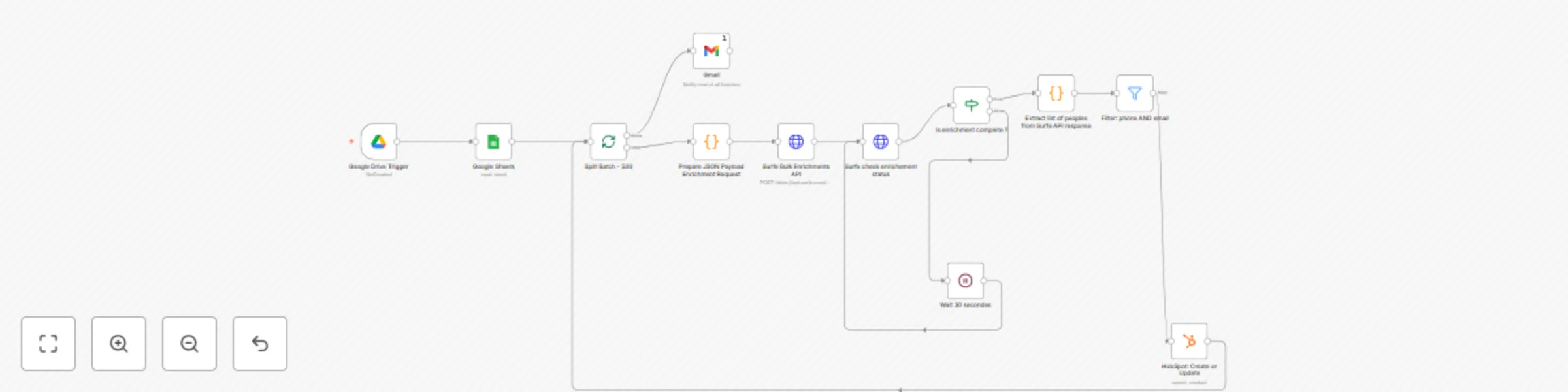
Workflow preview: Automate contact enrichment with Surfe, Google Sheets & HubSpot
Free intermediate

Automate contact enrichment with Surfe, Google Sheets & HubSpot

This template enables fully automated lead enrichment using Surfe’s bulk API. Simply drop a Google Spreadsheet into your Google Drive, and n8n will handle everything — from reading the leads, enriching them in batches, filtering valid data, and pushing results to HubSpot. ## 1. ❓ What Problem Does This Solve? Manually enriching contact lists is tedious, error-prone, and doesn’t scale. Whether you’re importing leads from events, marketing forms, or partners, this workflow ensures each record is enriched and synced to your CRM — hands-free. --- ## 2. 🧰 Prerequisites To use this template, you’ll need: - A self-hosted or cloud instance of [n8n](https://n8n.io/) - A **Surfe API Key** - A **Google Drive and Sheets** account (with OAuth or service account) - A **HubSpot account** with access to create/update contacts (via OAuth or Private App Token) - The workflow JSON file (included with this tutorial) ## 3. 📌 Input File Format To run the automation, you must upload a Google Spreadsheet to a specific folder in your Drive. The spreadsheet must contain the following columns: - `first name` (required) - `last name` (required) - Either `company name` or `company domain` (at least one is required) - `linkedin url` (optional) 🛑 Important: Any row missing first name, last name, and both company name and company domain will be ignored automatically by the workflow. Each row represents a person to enrich. We recommend including the `linkedin url` if available, but it's not mandatory. ![Screenshot 20250807 at 11.54.27.png](fileId:1969) --- ## 4. ⚙️ Setup Instructions ### 4.1 🔐 Create Your Credentials in n8n ### 4.1.1 📁 Google Drive To connect Google Drive and Google Sheets in your workflow, you need to authorize n8n via Google OAuth 2.0 using a **Client ID and Client Secret** from the Google Cloud Console. --- ### 📋 Step 1: Create a Google Cloud Project 1. Visit Google Cloud Console 2. Create a new project or select an existing one 3. Navigate to **APIs & Services → OAuth consent screen** --- ### ⚙️ Step 2: Configure the OAuth Consent Screen 1. Enter the following: - App name (e.g. `n8n Integration`) - User support email 2. Choose Audience **Type**: - `Internal` if you’re using a Google Workspace account - `External` if using a personal Gmail account 3. Under Contact information - email address 4. Click **Save and Continue** ![Screenshot 20250807 at 11.54.02.png](fileId:1973) --- ### 🔑 Step 3: Create OAuth Client Credentials 1. Go to **APIs & Services → Credentials** 2. Click **+ Create Credentials → OAuth Client ID** 3. Select **Web application** as the application type 4. Name it (e.g. `n8n Google Drive Access`) 5. In **Authorized redirect URIs**, paste this: ``` https://oauth.n8n.cloud/oauth2/callback ``` *(Or your self-hosted n8n redirect URI)* 6. Click **Create** 7. Copy the **Client ID** and **Client Secret** --- ### ✅ Step 4: Finish Setup in n8n 1. In n8n, go to **Credentials → Create New → Google Drive / Google Sheets** 2. Choose **OAuth2** 3. Paste your: - Client ID - Client Secret - Redirect URL (should match Google Console) 4. Click **Sign in with Google** 5. Authorize access and save the credential ![Screenshot 20250807 at 11.43.41.png](fileId:1975) ✅ Your Google Drive is now ready to use in workflows. --- ### 4.1.2 📊 Google Sheets OAuth2 API 1. Go to **n8n → Credentials** 2. Create new credentials: - Type: `Google Sheets OAuth2 API` 3. Here a pop-up will open where you can login to your Google account from where you will read the Google Sheets When it’s done you should see this on n8n ![Screenshot 20250807 at 11.44.35.png](fileId:1970) --- ### 4.1.3 📧 Gmail OAuth2 API 1. Go to **n8n → Credentials** 2. Create new credentials: - Type: `Gmail OAuth2 API` 3. A pop-up window will appear where you can log in with your **Google account** that is linked to Gmail - Make sure you grant **email send permissions** when prompted ![Screenshot 20250807 at 11.45.06.png](fileId:1968) --- ### 4.1.4 🚀 Surfe API 1. In your [Surfe dashboard](https://www.surfe.com/) → Use Surfe Api → copy your **API key** 2. Go to **n8n → Credentials → Create Credential** 1. Choose **Credential Type**: `Bearer Auth` 2. Name it something like `SURFE API Key` 3. Paste your API key into the `Bearer Token` 4. Save ![Screenshot 20250807 at 11.45.58.png](fileId:1971) --- ### 4.1.5 🎯 HubSpot ### 🔓 Private App Token 1. Go to HubSpot → Settings → Integrations → **Private Apps** 1. Create an app with scopes: - `crm.objects.contacts.read` - `crm.objects.contacts.write` - `crm.schemas.contacts.read` 2. **Save the App token** 2. Go to **n8n → Credentials → Create Credential → HubSpot App Token** 1. Paste your App Token ![Screenshot 20250807 at 11.47.05.png](fileId:1977) ![Screenshot 20250807 at 11.47.34.png](fileId:1979) ![Screenshot 20250807 at 11.48.47.png](fileId:1972) ### ✅ You are now all set for the credentials --- ### 4.2 📥 Import and Configure the N8N Workflow - Import the provided JSON workflow into N8N - Create a New Blank Workflow - click the `…` on the top left - Import from File ![Screenshot 20250807 at 11.49.34.png](fileId:1976) ![Screenshot 20250807 at 11.50.36.png](fileId:1980) ### 4.2.1 🔗 Link Nodes to Your Credentials In the workflow, link your newly created credentials to each node of this list : - `Google Drive Node` -> `Credentials to connect with` → `Google Drive Account` - `Google Sheets` -> `Credentials to connect with` → `Google Sheets Account` - `Gmail Node Credentials to connect with` → `Gmail account` - `Hubspot Node` →`Credentials to connect with` → `Gmail account` - `Surfe HTTP nodes:` - Authentication → Generic Credential Type - Generic Auth Type → Bearer Auth - Bearer Auth → Select the credentials you created before ![Screenshot 20250807 at 11.51.16.png](fileId:1974) ![Surfe HTTP nodes](attachment:03360805-e810-45dc-8f15-3124bcc19889:my_mardownTUTORIAL_3_CSV_Upload__Enrich__Push_to_CRM_or__21ff367b08f280dfbf06ee4ff44747d5image_12.png) `Surfe HTTP nodes` `Surfe HTTP nodes` - HubSpot node → `Credentials to connect with` → select your HubSpot credentials in the list --- ### 4.2.2 🔧 Additional Setup for the Google Drive Trigger Node ![Screenshot 20250807 at 11.52.50.png](fileId:1978) --- ## 5. 🔄 How This N8N Workflow Works 1. A new **Google Sheet** containing a `linkedin_url` column is added to a specific folder in Google Drive 2. n8n detects the new file automatically via the Google Drive Trigger 3. All rows are read and **batched in groups of 500** to comply with Surfe’s API limits 4. Each batch is sent to Surfe’s **Bulk Enrichment API** 5. n8n **polls Surfe** until the enrichment job is complete 6. It extracts the enriched contact data from Surfe’s response 7. Only contacts with **both email and phone number** are kept 8. These validated leads are **pushed to HubSpot** 9. Finally, a **Gmail notification** is sent to confirm the job is complete --- ## 6. 🧩 Use Cases - **Post-event contact enrichment** – After a trade show, upload a list of LinkedIn profile URLs from badge scans or lead capture forms - **Outbound LinkedIn campaign follow-ups** – Gather LinkedIn URLs from manual outreach and enrich them into usable CRM leads - **CRM data enhancement** – Use LinkedIn URLs to fill in missing contact info for existing or imported contacts - **List building from LinkedIn exports** – Upload a list of LinkedIn profiles (e.g. from Sales Navigator) and turn them into fully enriched contacts in HubSpot --- ## 7. 🛠 Customization Ideas - 🔁 Add retry logic for failed Surfe enrichment jobs - 📤 Log enriched contacts into a Google Sheet or Airtable - 🔍 Add pre-check logic to avoid creating duplicates in HubSpot - 📊 Extend the flow to generate a basic summary report of enriched vs rejected contacts --- ## 8. ✅ Summary This workflow turns a basic Google Sheet of LinkedIn URLs into fully enriched, CRM-ready contacts — automatically synced with HubSpot. Just upload your file. Let Surfe do the rest.

g
go-surfe
Lead Generation
8 Jul 2025
424
0