Automate construction site attendance tracking with geofencing, Google Sheets & email alerts

Workflow preview

Workflow preview
100%
Automate construction site attendance tracking with geofencing, Google Sheets & email alerts preview
Open on n8n.io

Important notice

This workflow is provided as-is. Please review and test before using in production.

1. Workflow Overview

This n8n workflow automates attendance tracking for construction workers at a designated site in Thaltej, Ahmedabad (GPS coordinates: 23.0489, 72.5118). Using geofencing technology, it logs "Punch ...

Best for

  • HR automation workflows
  • intermediate n8n builders looking for reusable templates

Tools used

n8n-nodes-base.webhook, n8n-nodes-base.function, n8n-nodes-base.emailsend, n8n-nodes-base.googlesheets, n8n-nodes-base.stickynote

Source and attribution

This workflow is cataloged by N8N Workflows and links back to its original n8n.io source page by Oneclick AI Squad.

Original n8n.io source

1.1 Workflow description

Title
Automate construction site attendance tracking with geofencing, Google Sheets & email alerts
Workflow name
Automate construction site attendance tracking with geofencing, Google Sheets & email alerts

This n8n workflow automates attendance tracking for construction workers at a designated site in Thaltej, Ahmedabad (GPS coordinates: 23.0489, 72.5118). Using geofencing technology, it logs "Punch In" and "Punch Out" times when workers enter or exit a predefined 100-meter radius around the site, requiring no manual input. Attendance data is stored in Google Sheets for easy access and reporting, and error notifications are sent via email to ensure reliable operation.

Good to Know

  • Fully Automated: Tracks attendance without worker intervention using GPS data from a mobile app.
  • Geofence-Based: Only logs entries/exits within the Thaltej, Ahmedabad site radius.
  • Structured Logs: Stores data in Google Sheets with columns for User ID, Punch Type, Punch Date, and Punch Time.
  • Error Handling: Sends email notifications for any issues in the workflow.
  • Scalable: Supports multiple workers with unique IDs sent by the GPS app.
  • Real-Time: Processes location updates instantly for accurate time tracking.

How It Works

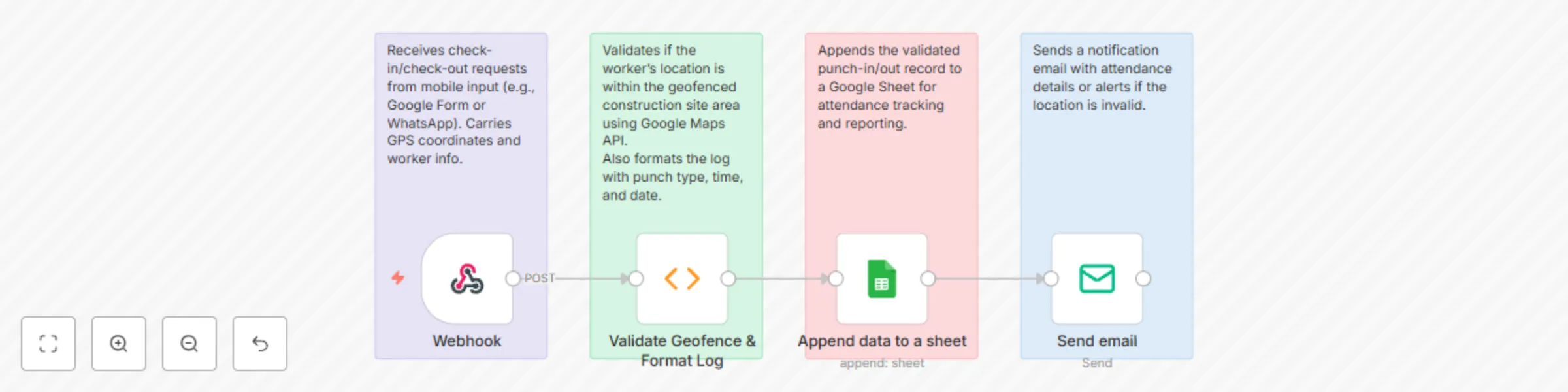
Attendance Tracking Flow

  1. Webhook Trigger:

    • Listens for POST requests from a GPS tracking app at the endpoint /webhook/geofence-thaltej-attendance.
    • Expects a JSON payload with:
      {
        "latitude": 23.0489,
        "longitude": 72.5118,
        "event": "enter", // or "exit"
        "userId": "worker123"
      }
      
  2. Validate Geofence & Format Log:

    • Validates the received payload for required fields (latitude, longitude, event, userId).
    • Uses the Haversine formula to check if the coordinates are within 100 meters of Thaltej, Ahmedabad (23.0489, 72.5118).
    • Maps event ("enter" to "in", "exit" to "out") and formats the log with current date and time (e.g., Punch Type: "in", Punch Date: "2025-08-01", Punch Time: "11:53:07").
    • Skips invalid or out-of-geofence data.
  3. Save to Google Sheets:

    • Appends the formatted log to a Google Sheet in the "Attendance" tab, under columns: User ID, Punch Type, Punch Date, Punch Time.
  4. Error Notification via Email:

    • Sends an email to a specified address if the workflow encounters errors (e.g., invalid payload or geofence mismatch).
    • Includes error details for troubleshooting.

Example Log Output in Google Sheets

User ID Punch Type Punch Date Punch Time
worker123 in 2025-08-01 11:53:07
worker123 out 2025-08-01 13:30:20
worker123 in 2025-08-01 13:50:21

How to Use

  1. Import Workflow:

    • Copy the workflow JSON (provided below) and import it into n8n via the "Import Workflow" feature.
  2. Configure GPS Tracking App:

    • Use a GPS app (e.g., allGeo, Truein, or a custom solution) that supports geofencing and webhook integration.
    • Set the geofence to Thaltej, Ahmedabad (latitude: 23.0489, longitude: 72.5118, radius: 100 meters).
    • Configure the app to send POST requests to the n8n webhook URL (/webhook/geofence-thaltej-attendance) with the payload:
      {
        "latitude": 23.0489,
        "longitude": 72.5118,
        "event": "enter", // or "exit"
        "userId": "worker123"
      }
      
    • Ensure the app is installed on workers’ devices and running in the background.
  3. Set Up Google Sheets:

    • Create a Google Sheet with a tab named "Attendance".
    • Add headers in columns A to D: User ID, Punch Type, Punch Date, Punch Time.
    • Copy the Sheet ID from the URL (e.g., https://docs.google.com/spreadsheets/d/[your_sheet_id]/edit).
    • In n8n, configure Google Sheets OAuth2 credentials and update the sheetId in the workflow.
  4. Configure Email Notifications:

    • Set up an email service (e.g., Gmail, SendGrid) in n8n with appropriate credentials.
    • Update the email node with your recipient email address and SMTP settings.
  5. Activate Workflow:

    • Save and activate the workflow in n8n.
    • Test by simulating a webhook call or using the GPS app to send a sample payload.
  6. Monitor and Verify:

    • Check Google Sheets for attendance logs after workers enter/exit the geofence.
    • Verify error emails are received if issues occur.

Requirements

  • n8n Instance: Self-hosted or cloud-based n8n setup.
  • GPS Tracking App: A mobile app or service (e.g., allGeo, Truein) that sends geofence events via webhooks.
  • Google Sheets API:
    • Google Cloud project with Sheets API enabled.
    • OAuth2 credentials configured in n8n.
  • Email Service:
    • SMTP credentials for an email provider (e.g., Gmail, SendGrid).
  • Worker Devices: Smartphones with GPS enabled and the tracking app installed.

Customizing This Workflow

  • Adjust Geofence Radius: Modify the radius value in the Function node (e.g., change from 100 meters to 200 meters).
  • Change Location: Update latitude and longitude in the Function node for a different site.
  • Alternative Storage: Replace Google Sheets with a database (e.g., MySQL, PostgreSQL) by adding a database node.
  • Custom Email Content: Modify the email node’s message template for specific error details or branding.
  • Add Authentication: Secure the webhook with an API key or basic auth in the Webhook node.
  • Multi-Site Support: Add a Switch node to handle multiple geofence locations by checking coordinates against different sites.

1.2 Logical Blocks

This catalog entry is organized from the workflow JSON. The node-level section below shows the executable blocks available for review before importing the template.

2. Block-by-Block Analysis

Block 1 - Webhook

Type / Role
n8n-nodes-base.webhook - webhook
Config choices
Version 1

Block 2 - Validate Geofence & Format Log

Type / Role
n8n-nodes-base.function - function
Config choices
Version 1

Block 3 - Send email

Type / Role
n8n-nodes-base.emailSend - emailSend
Config choices
Version 2.1

Block 4 - Append data to a sheet

Type / Role
n8n-nodes-base.googleSheets - googleSheets
Config choices
Version 1

Block 5 - Sticky Note

Type / Role
n8n-nodes-base.stickyNote - stickyNote
Config choices
Version 1

Block 6 - Sticky Note1

Type / Role
n8n-nodes-base.stickyNote - stickyNote
Config choices
Version 1

Block 7 - Sticky Note2

Type / Role
n8n-nodes-base.stickyNote - stickyNote
Config choices
Version 1

Block 8 - Sticky Note3

Type / Role
n8n-nodes-base.stickyNote - stickyNote
Config choices
Version 1

3. Summary Table

Workflow Automate construction site attendance tracking with geofencing, Google Sheets & email alerts
Complexity intermediate
Nodes 8
Categories HR
Author Oneclick AI Squad
Published 01 Aug 2025

4. Reproducing the Workflow from Scratch

  1. 1. Download the workflow JSON

    Use the JSON export at /data/workflows/6774/6774.json as the source template for this automation.

  2. 2. Import the template into n8n

    Open n8n, import the downloaded JSON, and review each node before activating the workflow.

  3. 3. Configure credentials and variables

    Replace placeholder credentials, API keys, webhook URLs, account IDs, and environment-specific values with your own settings.

  4. 4. Test with sample data

    Run the workflow manually or in a staging workspace, inspect node output, and confirm downstream systems receive the expected data.

  5. 5. Activate and monitor

    Enable the workflow only after testing, then monitor executions, errors, and rate limits during the first production runs.

5. General Notes & Resources

Review imported nodes carefully before activation. This catalog entry is intended to help you inspect the workflow structure, understand required services, and find related templates faster.

Node names, credentials, schedules, webhook paths, and external service limits may need adjustment for your workspace.

Frequently asked questions

What does Automate construction site attendance tracking with geofencing, Google Sheets & email alerts do?

This n8n workflow automates attendance tracking for construction workers at a designated site in Thaltej, Ahmedabad (GPS coordinates: 23.0489, 72.5118). Using geofencing technology, it logs "Punch ...

What do I need before importing this workflow?

Review the workflow JSON, configure any required credentials in n8n, and test the automation in a safe workspace before using it in production.

Can I customize this workflow?

Yes. Use the block-by-block analysis and the downloadable JSON to inspect each node, then adjust credentials, prompts, schedules, filters, or destinations for your HR use case.