Block 1 - Read Leads from Sheet
- Type / Role
- n8n-nodes-base.googleSheets - googleSheets
- Config choices
- Version 4


 Early Deal
This workflow is provided as-is. Please review and test before using in production.
This n8n template from Intuz provides a complete and automated solution for powerful cold outreach campaigns. It connects a Google Sheet of prospect data with Google Gemin...
n8n-nodes-base.googlesheets, n8n-nodes-base.set, @n8n/n8n-nodes-langchain.chainllm, @n8n/n8n-nodes-langchain.lmchatgooglegemini, @n8n/n8n-nodes-langchain.outputparserstructured, n8n-nodes-base.scheduletrigger, n8n-nodes-base.if
This workflow is cataloged by N8N Workflows and links back to its original n8n.io source page by Intuz .
Original n8n.io sourceIt connects a Google Sheet of prospect data with Google Gemini to automatically generate highly personalized emails. By analyzing specific keywords and data points like company name, industry, or job title from your sheet, this automated workflow crafts unique, relevant messages that feel one-to-one, creating a complete system to dramatically improve your engagement and response rates.
Manually writing personalized emails for a long list of leads is a significant bottleneck. This workflow eliminates that friction by creating an automated system that reads your lead list, understands the context, and writes compelling drafts for you.
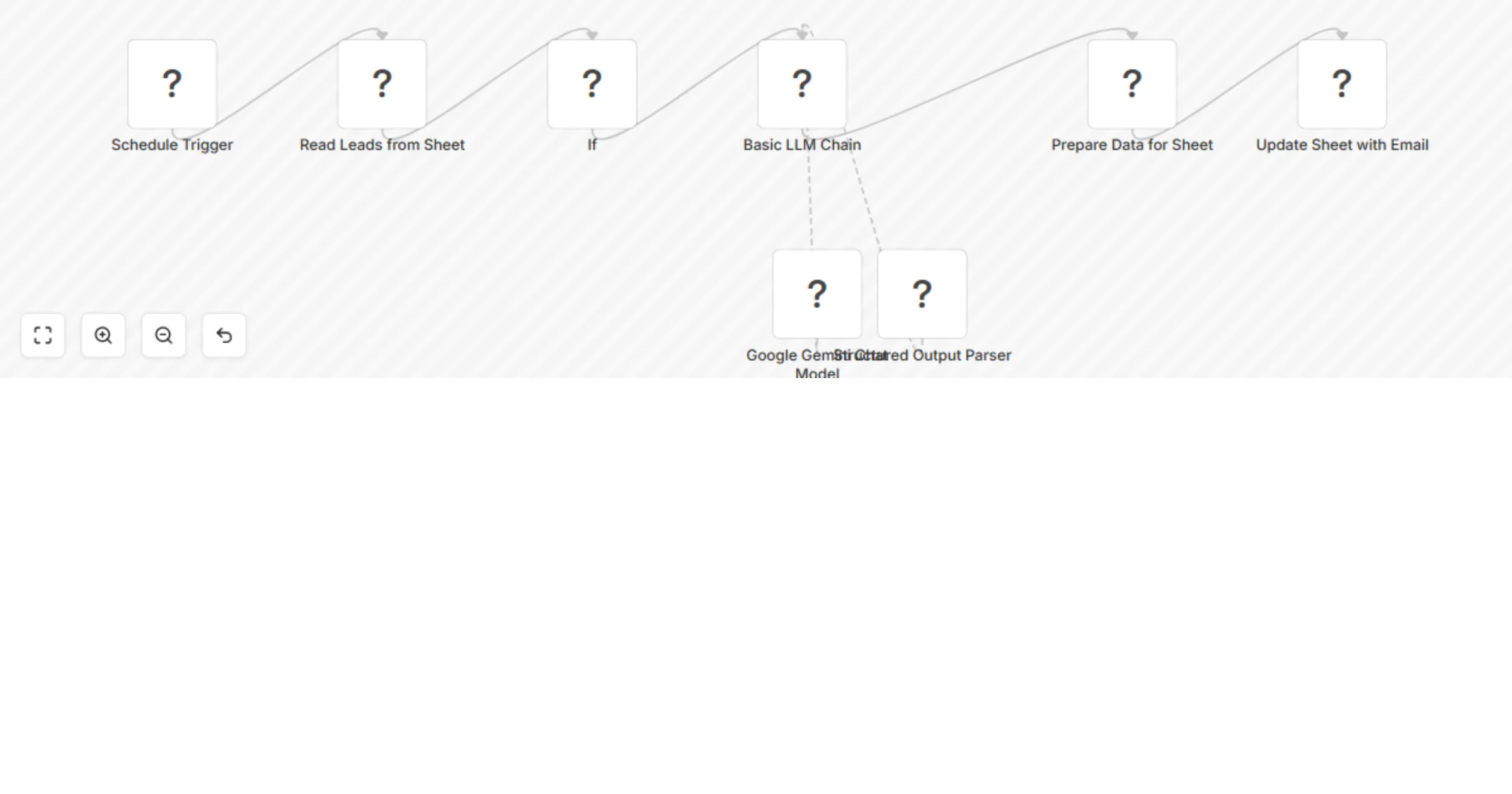
Scheduled Lead Processing: On a schedule you define (e.g., daily), the workflow automatically activates to process your lead list.
Fetches Your Lead List: It connects to your designated Google Sheet and reads all the lead data you've prepared, such as names, companies, roles, and any custom notes or pain points.
Intelligent Filtering: The workflow is smart enough to know which leads have already been processed. Using an "If" node, it filters out any rows that already contain a generated email, ensuring it only works on new, untouched leads.
AI-Driven Personalization (Google Gemini): This is the core of the engine. For each new lead, it sends the relevant data to the Google Gemini Chat Model. The AI follows a custom prompt you define to draft a completely unique email, including a compelling subject line and a personalized body.
Structured Data Output: The workflow uses a Structured Output Parser to ensure the AI's response is always in a clean, predictable JSON format (e.g., {"subject": "...", "body": "..."}), making the data easy to handle in the next steps.
Seamlessly Updates Your Spreadsheet: Finally, the generated subject line and email body are written back into the correct row for that lead in your Google Sheet, ready for your team to copy, paste, and send.
1. Import Workflow Template:
2. Configure Credentials:
3. Customize Nodes & Spreadsheet:
4. Test & Activate:
Test Run: Click “Execute Workflow” to perform a test run. Check your Google Sheet to see if the first unprocessed lead was updated correctly with a new subject and body.
Activate: Once satisfied, toggle the workflow “Active” switch to enable it to run on your defined schedule.
To use this workflow template, you will need:
1. n8n Instance: A running n8n instance (cloud or self-hosted). 2. Google Gemini Account: For generating the email content (requires a Google Gemini API Key from Google AI Studio). 3. Google Sheets Account: With a prepared spreadsheet containing your lead list and columns for the generated output.
Click here- Get Started
This catalog entry is organized from the workflow JSON. The node-level section below shows the executable blocks available for review before importing the template.
| Workflow | Automate cold outreach with email personalization using Gemini and Google Sheets |
|---|---|
| Complexity | intermediate |
| Nodes | 8 |
| Categories | Lead Nurturing, Multimodal AI |
| Author | Intuz |
| Published | 17 Jul 2025 |
Use the JSON export at /data/workflows/6089/6089.json as the source template for this automation.
Open n8n, import the downloaded JSON, and review each node before activating the workflow.
Replace placeholder credentials, API keys, webhook URLs, account IDs, and environment-specific values with your own settings.
Run the workflow manually or in a staging workspace, inspect node output, and confirm downstream systems receive the expected data.
Enable the workflow only after testing, then monitor executions, errors, and rate limits during the first production runs.
Review imported nodes carefully before activation. This catalog entry is intended to help you inspect the workflow structure, understand required services, and find related templates faster.
Node names, credentials, schedules, webhook paths, and external service limits may need adjustment for your workspace.
This n8n template from Intuz provides a complete and automated solution for powerful cold outreach campaigns. It connects a Google Sheet of prospect data with Google Gemin...
Review the workflow JSON, configure any required credentials in n8n, and test the automation in a safe workspace before using it in production.
Yes. Use the block-by-block analysis and the downloadable JSON to inspect each node, then adjust credentials, prompts, schedules, filters, or destinations for your Lead Nurturing, Multimodal AI use case.