Intuz
Workflows by Intuz
Automate a 'Chat with your PDF' Bot on Telegram with Google Gemini & Pinecone
## This n8n template from [Intuz](https://www.intuz.com/) provides a complete solution to automate a powerful, AI-driven 'Chat with your PDF' bot on Telegram. It uses Retrieval-Augmented Generation (RAG) to allow users to upload documents, which are then indexed into a vector database, enabling the bot to answer questions based only on the provided content. ## Who's this workflow for? - Researchers & Students - Legal & Compliance Teams - Business Analysts & Financial Advisors - Anyone needing to quickly find information within large documents ## How it works This workflow has two primary functions: indexing a new document and answering questions about it. **1. Uploading & Indexing a Document:** - A user sends a PDF file to the Telegram bot. - n8n downloads the document, extracts the text, and splits it into small, manageable chunks. - Using Google Gemini, each text chunk is converted into a numerical representation (an "embedding"). - These embeddings are stored in a Pinecone vector database, making the document's content searchable. - The bot sends a confirmation message to the user that the document has been successfully saved. **2. Asking a Question (RAG):** - A user sends a regular text message (a question) to the bot. - n8n converts the user's question into an embedding using Google Gemini. - It then searches the Pinecone database to find the most relevant text chunks from the uploaded PDF that match the question. - These relevant chunks (the "context") are sent to the Gemini chat model along with the original question. - Gemini generates a new, accurate answer based only on the provided context and sends it back to the user in Telegram. ## Key Requirements to Use This Template **1. n8n Instance & Required Nodes:** - An active n8n account (Cloud or self-hosted). - This workflow uses the official n8n LangChain integration (@n8n/n8n-nodes-langchain). If you are using a self-hosted version of n8n, please ensure this package is installed. **2. Telegram Account:** - A Telegram bot created via the BotFather, along with its API token. **3. Google Gemini AI Account:** - A Google Cloud account with the Vertex AI API enabled and an associated API Key. **4. Pinecone Account:** - A Pinecone account with an API key. - You must have a vector index created in Pinecone. For use with Google Gemini's embedding-001 model, the index must be configured with 768 dimensions. ## Setup Instructions **1. Telegram Configuration:** - In the "Telegram Message Trigger" node, create a new credential and add your Telegram bot's API token. - Do the same for the "Telegram Response" and "Telegram Response about Database" nodes. **2. Pinecone Configuration:** - In both "Pinecone Vector Store" nodes, create a new credential and add your Pinecone API key. - In the "Index" field of both nodes, enter the name of your pre-configured Pinecone index (e.g., telegram). **3. Google Gemini Configuration:** - In all three Google Gemini nodes (Embeddings Google Gemini, Embeddings Google Gemini1, and Google Gemini Chat Model), create a new credential and add your Google Gemini (Palm) API key. **4. Activate and Use:** - Save the workflow and toggle the "Active" switch to ON. - To use: First, send a PDF document to your bot. Wait for the confirmation message. Then, you can start asking questions about the content of that PDF. ## Connect with us - Website: https://www.intuz.com/services - Email: [email protected] - LinkedIn: https://www.linkedin.com/company/intuz - Get Started: https://n8n.partnerlinks.io/intuz ## For Custom Workflow Automation Click here- [Get Started](https://www.intuz.com/get-started)
Automate lead generation from Google Search & Maps to Google Sheets
## This n8n template from [Intuz](https://www.intuz.com/) provides a complete solution to automate on-demand lead generation. It acts as a powerful scraping agent that takes a simple chat query, scours both Google Search and Google Maps for relevant businesses, scrapes their websites for contact details, and compiles an enriched lead list directly in Google Sheets. ## Who's this workflow for? - Sales Development Representatives (SDRs) - Local Marketing Agencies - Business Development Teams - Freelancers & Consultants - Market Researchers ## How it works **1. Start with a Chat Query:** The user initiates the workflow by typing a search query (e.g., "dentists in New York") into a chat interface. **2. Multi-Source Search:** The workflow queries both the Google Custom Search API (for web results across multiple pages) and scrapes Google Maps (for local businesses) to gather a broad list of potential leads. **3. Deep Dive Website Scraping:** For each unique business website found, the workflow visits the URL to scrape the raw HTML content of the page. **4. Intelligent Contact Extraction:** Using custom code, it then parses the scraped website content to find and extract valuable contact information like email addresses, phone numbers, and social media links. **5. Deduplicate and Log to Sheets:** Before saving, the workflow checks your Google Sheet to ensure the lead doesn't already exist. All unique, newly enriched leads are then appended as clean rows to your sheet, along with the original search query for tracking. ## Key Requirements to Use This Template **1. n8n Instance & Required Nodes:** - An active n8n account (Cloud or self-hosted). - This workflow uses the official n8n LangChain integration (@n8n/n8n-nodes-langchain) for the chat trigger. If you are using a self-hosted version of n8n, please ensure this package is installed. **2. Google Custom Search API:** - A Google Cloud Project with the "Custom Search API" enabled. - You will need an API Key for this service. - You must also create a Programmable Search Engine and get its Search engine ID (cx). This tells Google what to search (e.g., the whole web). **3. Google Sheets Account:** - A Google account and a pre-made Google Sheet with columns for Business Name, Primary Email, Contact Number, URL, Description, Socials, and Search Query. ## Setup Instructions **1. Configure the Chat Trigger:** - In the "When chat message received" node, you can find the Direct URL or Embed code to use the chat interface. **Set Up Google Custom Search API (Crucial Step):** - Go to the "Custom Google Search API" (HTTP Request) node. - Under "Query Parameters", you must replace the placeholder values for key (with your API Key) and cx (with your Search Engine ID). **3. Configure Google Sheets:** - In all Google Sheets nodes (Append row in sheet, Get row(s) in sheet, etc.), connect your Google Sheets credentials. - Select your target spreadsheet (Document ID) and the specific sheet (Sheet Name) where you want to store the leads. **4. Activate the Workflow:** - Save the workflow and toggle the "Active" switch to ON. - Open the chat URL and enter a search query to start generating leads. ## Connect with us - Website: https://www.intuz.com/services - Email: [email protected] - LinkedIn: - https://www.linkedin.com/company/intuz - Get Started: https://n8n.partnerlinks.io/intuz ## For Custom Workflow Automation Click here- [Get Started](https://www.intuz.com/get-started)
Automate Shopify orders from Airtable with Gmail confirmations
## This n8n template from [Intuz](https://www.intuz.com/) provides a complete solution to automate your order creation process. It seamlessly syncs order data from an Airtable base directly to your Shopify store, creates the official order, and automatically sends a beautiful confirmation email to the customer, closing the loop by updating the status in Airtable. ## Who's this workflow for? - E-commerce Managers - Operations Teams - Businesses with Custom Order Processes (e.g., B2B, phone orders, quotes) - Shopify Store Owners using Airtable as a CRM ## How it works **1. Triggered from Airtable**: The workflow starts instantly when an Airtable Automation sends a signal via a webhook. This happens when you mark an order as ready to be processed in your Airtable base. **2. Fetch Order Details:** n8n receives the record ID from Airtable and fetches the complete order details, including customer information and the specific line items for that order. **3. Create Order in Shopify:** All the gathered information is used to create a new, official order directly in your Shopify store. **4. Send Confirmation Email:** Once the order is successfully created in Shopify, a professionally formatted HTML order confirmation email is sent to the customer via Gmail. **5. Update Airtable Status:** Finally, the workflow updates the original order record in Airtable, marking its status as "Done" to prevent duplicate processing and keep your records in sync. ## Key Requirements to Use This Template **1. n8n Instance:** An active n8n account (Cloud or self-hosted). **2. Airtable Base:** An Airtable base on a "Pro" plan or higher (required for Airtable Automations). It should contain tables for Orders and Order Line Items. **3. Shopify Store:** An active Shopify store with API access permissions. **4. Gmail Account:** A Gmail account to send confirmation emails. ## Setup Instructions **1. Configure the n8n Workflow:** - Webhook Node: Activate the workflow to get the Production URL from the "Webhook" node. Copy this URL. - Airtable Nodes: In the Get a record and Update record nodes, connect your Airtable credentials and select the correct Base and Table IDs. - Shopify Node: In the Create an order node, connect your Shopify store using OAuth2 credentials. - Gmail Node: In the Send a message node, connect your Gmail account. **2. Set Up the Airtable Automation (Crucial Step):** - Go to your Airtable base and click on "Automations". - Create a new automation. For the trigger, select "When a record meets conditions". - Choose your Orders table and set a condition that makes sense for you (e.g., When "Shopify Ordered" is "Pending"). - For the action, choose "Run a script". Paste the code below into the script editor: **JavaScript** const inputConfig = input.config(); const recordId = inputConfig.recordId; const webhookUrl = 'PASTE_YOUR_N8N_PRODUCTION_URL_HERE'; await fetch(webhookUrl, { method: 'POST', headers: { 'Content-Type': 'application/json' }, body: JSON.stringify({ recordId: recordId }), }); - ReplacePASTE_YOUR_N8N_PRODUCTION_URL_HERE with the Production URL you copied from n8n. - Add an input variable to the script named recordId and set its value to the "Airtable record ID" from the trigger step. - Test the script and turn your Airtable Automation ON. ## Connect with us - Website: https://www.intuz.com/services - Email: [email protected] - LinkedIn: https://www.linkedin.com/company/intuz - Get Started: https://n8n.partnerlinks.io/intuz ## For Custom Workflow Automation Click here- [Get Started](https://www.intuz.com/get-started)
Generate personalized sales outreach from LinkedIn job signals with Apify & Google Gemini
 ## This n8n template from [Intuz](https://www.intuz.com/) provides a complete and automated solution for identifying high-intent leads from LinkedIn job postings and automatically generating personalized outreach emails. ## Disclaimer Community nodes are used in this workflow. ## Who’s this workflow for? - B2B Sales Teams & SDRs - Recruitment Agencies & Tech Recruiters - Startup Founders - Growth Marketing Teams ## How it works **1. Scrape Hiring Signals:** The workflow starts by using an Apify scraper to find companies actively hiring for specific roles on LinkedIn (e.g., “ML Engineer”). **2. Filter & Qualify Companies:** It automatically filters the results based on your criteria (e.g., company size, industry) to create a high-quality list of target accounts. **3. Find Decision-Makers:** For each qualified company, it uses Apollo.io to find key decision-makers (VPs, Directors, etc.) and enrich their profiles with verified email addresses using user’s Apollo API. **4. Build a Lead List:** All the enriched lead data—contact name, title, email, company info—is systematically added to a Google Sheet. **5. Generate AI-Powered Emails:** The workflow then feeds each lead’s data to a Google Gemini AI model, which drafts a unique, personalized cold email that references the specific job the company is hiring for. **6. Complete the Outreach List:** Finally, the AI-generated subject line and email body are saved back into the Google Sheet, leaving you with a fully prepared, hyper-targeted outreach campaign. ## Setup Instructions **1. Apify Configuration:** - Connect your Apify account in the Run the LinkedIn Job Scraper node. - You’ll need an apify scrapper, we have used [this scrapper](https://apify.com/curious_coder/linkedin-jobs-scraper) - In the Custom Body field, paste the URL of your target LinkedIn Jobs search query. **2. Data Enrichment:** - Connect your account API of data providers like Clay, Hunter, Apollo, etc. using HTTP Header Auth in the Get Targeted Personnel and Email Finder nodes. **3. Google Gemini AI:** - Connect your Google Gemini (or PaLM) API account in the Google Gemini Chat Model node. **4. Google Sheets Setup:** - Connect your Google Sheets account. - Create a spreadsheet and update the Document ID and Sheet Name in the three Google Sheets nodes to match your own. **5. Activate Workflow:** - Click “Execute workflow” to run the entire lead generation and email-writing process on demand. ## Connect with us: - Website: https://www.intuz.com/services - Email: [email protected] - LinkedIn: https://www.linkedin.com/company/intuz - Get Started: https://n8n.partnerlinks.io/intuz ## For Custom Workflow Automation Click here- [Get Started](https://www.intuz.com/get-started)
Automate QuickBooks invoicing & customer creation from Airtable sales orders
## This n8n template from [Intuz](https://www.intuz.com/) provides a complete solution to automate your entire invoicing process. It intelligently syncs confirmed sales orders from your Airtable base to QuickBooks, automatically creating new customers if they don't exist before generating a perfectly matched invoice. It then logs all invoice details back into Airtable, creating a flawless, end-to-end financial workflow. ## Use Cases **1. Accounting & Finance Teams:** - Automatically generate QuickBooks invoices from new orders confirmed in Airtable. - Keep all invoices and customer details synced across systems in real time. **2. Sales & Operations Teams:** - Track order status and billing progress directly from Airtable without switching platforms. - Ensure every confirmed sale automatically triggers an invoice in QuickBooks. **3. Business Owners / Admins:** - Eliminate double-entry between Airtable and QuickBooks. - Maintain accurate, audit-ready financial records with minimal effort. ## How it works **1. Trigger from Airtable:** The workflow starts instantly when a sales order is ready to be invoiced in your Airtable base (triggered via a webhook). **2. Check for Customer in QuickBooks:** It searches your QuickBooks account to see if the customer from the sales order already exists. **3. Create New Customer (If Needed):** If the customer is not found, it automatically creates a new customer record in QuickBooks using the details from your Airtable Customers table. **4. Create QuickBooks Invoice:** Using the correct customer record (either existing or newly created), it gathers all order line items from Airtable and generates a detailed invoice in QuickBooks. **5. Log Invoice Back to Airtable:** After the invoice is successfully created, the workflow updates your Airtable base by adding a new record to your Invoices & Payments table and updating the original Confirmed Orders record with the new QuickBooks Invoice ID, marking it as synced. ## Key Requirements to Use This Template **1. n8n Instance:** An active n8n account (Cloud or self-hosted). **2. Airtable Base:** An Airtable base on a "Pro" plan or higher with tables for Confirmed Orders, Customers, Order Lines, Product & Service, and Invoices & Payments. Field names must match those in the setup guide. **3. QuickBooks Online Account:** An active QuickBooks Online account with API access. ## Step-by-Step Setup Instructions **Step 1: Import and Configure the n8n Workflow** - **Import Workflow:** In n8n, import the Client-Quickbook-Invoices-via-AirTable.json file. - **Get Webhook URL:** Click on the first node, "Webhook". Copy the "Test URL". Keep this n8n tab open. - **Configure Airtable Nodes:** There are six Airtable nodes. For each one, connect your Airtable credentials and select the correct Base and Table. - **Configure QuickBooks Nodes:** There are four QuickBooks-related nodes. For each one, connect your QuickBooks Online credentials. - **CRITICAL:** Click on the "Create Invoice URL" (HTTP Request) node. You must edit the URL and replace the placeholder number (9341455145770046) with your own QuickBooks Company ID. (Find this in your QuickBooks account settings under "Billing & Subscription"). - **Save and Activate**: Click "Save", then toggle the workflow to "Active". After activating, copy the new "Production URL" from the Webhook node. ## Customization Guide You can adapt this template for various workflows by tweaking a few nodes: - **Use a different Airtable Base:** Update the Base ID and Table ID in all Airtable nodes (Get Orders Records, Get Customer Details, Get Products, etc.). - **Switch from Sandbox to Live QuickBooks:** Replace the Sandbox company ID and endpoint in the “Create Invoice URL” node with your production QuickBooks company ID. - **Add more invoice details:** Edit the Code and Parse in HTTP nodes to include additional fields (like Tax, Shipping, or Notes). - **Support multiple currencies:** Add a “Currency” field mapping in both Airtable and QuickBooks nodes. ## Connect with us - Website: https://www.intuz.com/services - Email: [email protected] - LinkedIn: https://www.linkedin.com/company/intuz - Get Started: https://n8n.partnerlinks.io/intuz ## For Custom Workflow Automation Click here- [Get Started](https://www.intuz.com/get-started)
Automate AI video ad generation with Google Veo 3, Gemini, and Airtable
## This n8n template from [Intuz](https://www.intuz.com/) provides a complete and automated solution for transforming a static product image and a creative idea into a dynamic, AI-generated video ad. Using Google's state-of-the-art Veo 3 model, this workflow manages the entire creative process from concept to a final, downloadable video file. ## Who's this workflow for? - E-commerce Brands & Marketers - Advertising Agencies - Social Media Content Creators - Product Managers ## How it works **1. Submit a Creative Brief:** The workflow starts when a user submits a creative idea via a simple web form (e.g., "A Pepsi can exploding into a vibrant disco party"). **2. Upload a Product Image:** The user is then prompted to upload a corresponding image (e.g., a high-quality photo of the Pepsi can). **3. Log the Project in Airtable:** The idea and the uploaded image are saved to an Airtable base, which acts as the central tracking system for all video generation projects. **4. AI Creative Analysis:** Google Gemini analyzes both the user's text prompt and the uploaded image. It acts as an "AI Creative Director," generating a detailed video brief that reinterprets the static image according to the user's creative vision. **5. Generate Video with Veo 3:** The detailed creative brief is sent to Google's Veo 3 AI video generation model. The workflow initiates a long-running task to create the video. **6. Retrieve the Final Video:** After a brief waiting period, the workflow polls the Veo 3 API to retrieve the finished video, converts it into a binary file, and makes it available for download directly from the n8n execution log. ## Key Requirements to Use This Template **n8n Instance & Required Nodes:** - An active n8n account (Cloud or self-hosted). This workflow uses the official n8n LangChain integration (@n8n/n8n-nodes-langchain). - If you are using a self-hosted version of n8n, please ensure this package is installed. **Google Cloud Account:** - A Google Cloud Project with the Vertex AI API enabled. - You must have access to both the Gemini and Veo 3 models within your project. - You will need a Gemini API Key and a Google OAuth2 Credential configured for the Vertex AI scope. **Airtable Account:** - An Airtable base with a table set up to track the video projects. It should have columns for Image Prompt, Image (Attachment), Video (Attachment/URL), and Status. ## Setup Instructions **1. Airtable Configuration (Crucial):** - In the Create a record, Get a record, and Update record nodes, connect your Airtable credentials and update the Base ID and Table ID to match your setup. - In the Uploading Image in Airtable (HTTP Request) node, you must edit the URL and the "Authorization" header to include your Base ID, Table ID, and Personal Access Token. **2. Google AI Configuration (Gemini & Veo):** - In the Analyze image (Google Gemini) node, select your Gemini API credentials. - In both the Generate Video Veo 3 and Get the the Video (HTTP Request) nodes: - You must replace [Project ID] and [Location] in the URLs with your own Google Cloud Project ID and region (e.g., us-central1). - Select your Google OAuth2 credentials for authentication. **3. Customize Video Parameters (Optional):** - In the Parse Request (Code) node, you can modify the JavaScript code to change video generation settings like aspectRatio, durationSeconds, and resolution. **4. Execute the Workflow:** - Activate the workflow. Open the Form URL from the Prompt your Idea node to start the process. ## [Sample Videos](https://drive.google.com/drive/folders/1brGvAKJB4PY_CClqqRVh31Kr8fY6cTLs?usp=sharing) ## Connect with us - Website: https://www.intuz.com/services - Email: [email protected] - LinkedIn: https://www.linkedin.com/company/intuz - Get Started: https://n8n.partnerlinks.io/intuz ## For Custom Workflow Automation Click here- [Get Started](https://www.intuz.com/get-started)
Automate data extraction from faxes & PDFs using Google Gemini and Google Sheets
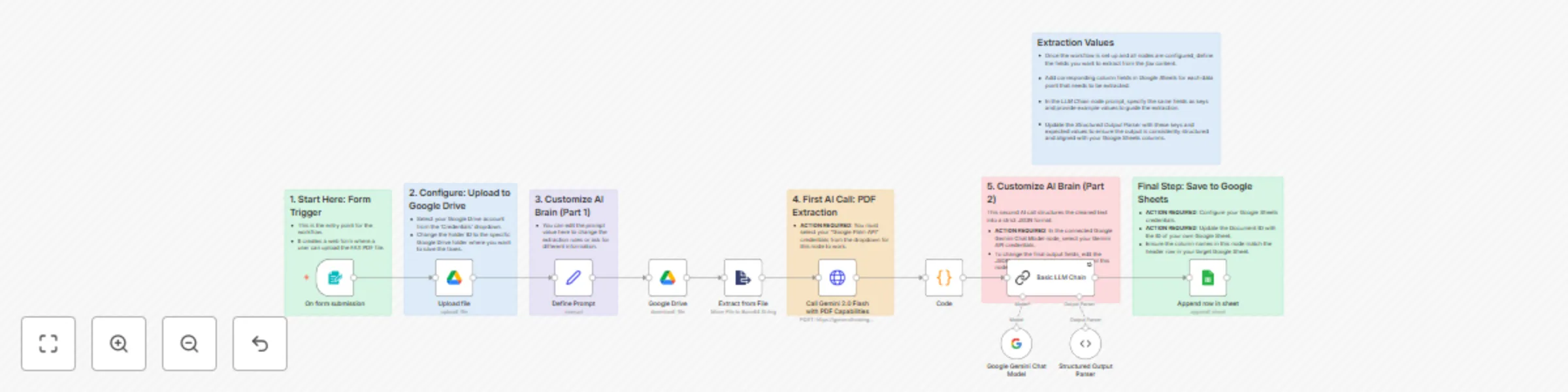
## This n8n template from [Intuz](https://www.intuz.com/) provides a complete solution to automate the extraction of critical information from PDF documents like faxes, or any PDFs. It uses the power of Google Gemini's multimodal capabilities to read the document, identify key fields, and organize the data into a structured format, saving it directly to a Google Sheet. ## Who's this workflow for? - Healthcare Administrators - Medical Billing Teams - Legal Assistants - Data Entry Professionals - Office Managers ## How it works **1. Upload via Web Form:** The process starts when a user uploads a fax (as a PDF file) through a simple, secure web form generated by n8n. **2. AI Document Analysis:** The PDF is sent directly to Google Gemini's advanced multimodal model, which reads the entire document—including text, tables, and form fields. It extracts all relevant information based on a detailed prompt. **3. AI Data Structuring:** The raw extracted text is then passed to a second AI step. This step cleans the information and strictly structures it into a predictable JSON format (e.g., Patient ID, Name, DOB, etc.). **4. Save to Google Sheets:** The final, structured data is automatically appended as a new, clean row in your designated Google Sheet, creating an organized and usable dataset from the unstructured fax. ## Key Requirements to Use This Template **1. n8n Instance & Required Nodes:** - An active n8n account (Cloud or self-hosted). - This workflow uses the official n8n LangChain integration (@n8n/n8n-nodes-langchain). If you are using a self-hosted version of n8n, please ensure this package is installed. **2. Google Accounts:** - Google Drive Account: For temporarily storing the uploaded file. - Google Gemini AI Account: A Google Cloud account with the Vertex AI API (for Gemini models) enabled and an associated API Key. - Google Sheets Account: A pre-made Google Sheet with columns that match the data you want to extract. ## Customer Setup Guide: Here is a detailed, step-by-step guide to help you configure and run this workflow. **1. Before You Begin: Prerequisites** Please ensure you have the following ready: - The FAX-Content-Extraction.json file we provided. - Active accounts for n8n, Google Drive, Google Cloud (for Gemini AI), and Google Sheets. - A Google Sheet created with header columns that match the data you want to extract (e.g., Patient ID, Patient Name, Date of Birth, etc.). **2. Step-by-Step Configuration** Step 1: Import the Workflow - Open your n8n canvas. - Click "Import from File" and select the FAX-Content-Extraction.json file. - The workflow will appear on your canvas. Step 2: Set Up the Form Trigger The workflow starts with the "On form submission" node. - Click on this node. - In the settings panel, you will see a "Form URL". Copy this URL. This is the link to the web form where you will upload your fax files. **Step 3: Configure the Google Drive Node** - Click on the "Upload file" (Google Drive) node. - Credentials: Select your Google Drive account from the "Credentials" dropdown or click "Create New" to connect your account. - Folder ID: In the "Folder ID" field, choose the specific Google Drive folder where you want the uploaded faxes to be saved. Step 4: Configure the Google Gemini AI Nodes (Very Important) This workflow uses AI in two places, and both need to be connected. 1. First AI Call (PDF Reading): - Click on the "Call Gemini 2.0 Flash with PDF Capabilities" (HTTP Request) node. - Under "Authentication", make sure "Predefined Credential Type" is selected. - For "Credential Type", choose "Google Palm API". - In the "Credentials" dropdown, select your Google Gemini API key or click "Create New" to add it. 2. Second AI Call (Data Structuring): - Click on the "Google Gemini Chat Model" node (it's connected below the "Basic LLM Chain" node). - In the "Credentials" dropdown, select the same Google Gemini API key you used before. Step 5: (Optional) Customize What Data is Extracted You have full control over what information the AI looks for. - To change the extraction rules: Click on the "Define Prompt" node. You can edit the text in the "Value" field to tell the AI what to look for (e.g., "Extract only the patient's name and medication list"). - To change the final output columns: Click on the "Basic LLM Chain" node. In the "Text" field, you can edit the JSON schema to add, remove, or rename the fields you want in your final output. The keys here MUST match the column headers in your Google Sheet. Step 6: Configure the Final Google Sheets Node - Click on the "Append row in sheet" node. - Credentials: Select your Google Sheets account from the "Credentials" dropdown. - Document ID: Select your target spreadsheet from the "Document" dropdown list. - Sheet Name: Select the specific sheet within that document. - Columns: Ensure that the fields listed here match the columns in your sheet and the schema from the "Basic LLM Chain" node. **4. Running the Workflow** - Save and Activate: Click "Save" and then toggle the workflow to "Active". - Open the Form: Open the Form URL you copied in Step 2 in a new browser tab. - Upload a File: Upload a sample fax PDF and submit the form. - Check Your Sheet: After a minute, a new row with the extracted data should appear in your Google Sheet. ## Connect with us - Website: https://www.intuz.com/services - Email: [email protected] - LinkedIn: https://www.linkedin.com/company/intuz - Get Started: https://n8n.partnerlinks.io/intuz ## For Custom Worflow Automation Click here- [Get Started](https://www.intuz.com/get-started)
Automate AI video creation & multi-platform publishing with Gemini & Creatomate
## This n8n template from [Intuz](https://www.intuz.com/) provides a complete end-to-end content factory to automate the entire lifecycle of creating and publishing AI-driven videos. It transforms a single text prompt into a fully scripted, visually rich video with AI-generated images and voiceovers, then distributes it across multiple social media platforms. ## Who's this workflow for? - Content Creators & YouTubers - Social Media Managers & Agencies - Digital Marketers & Entrepreneurs - Brands looking to scale video content production ## Objective - Generate viral video scripts with Gemini AI (via LangChain). - Break scripts into structured scenes(hooks, retention, CTA). - Create image prompts and high-quality background visuals automatically. - Store all scenes, prompts, images, and metadata into Airtable. - Handle file formatting, uploads, and naming automatically. - Add error handling and retry logic for smooth execution. - Uploading into Social Media platforms. ## How it works **1. AI Script Generation:** The workflow starts with a single command. A powerful Google Gemini AI model, acting as a "Content Brain," generates a complete, viral video script with a title, description, and multiple scenes. **2. Content Management in Airtable:** The entire script is broken down and saved systematically into an Airtable base, which acts as the central Content Management System (CMS) for the video production pipeline. **3. AI Image Generation:** The workflow loops through each scene in Airtable. It uses an AI agent to enhance the image prompts and sends them to an image generation API (like Pollinations.ai) to create a unique, high-quality image for each scene. These images are then automatically uploaded back into Airtable. **4. Automated Video Rendering:** Once all images are ready, the workflow gathers the script text and the corresponding image URLs from Airtable and sends them to Creatomate. Creatomate uses a pre-defined template to assemble the final video, complete with AI-generated voiceovers for each scene. **5. Multi-Platform Publishing:** After a brief wait for the video to render, the workflow retrieves the final video file and automatically publishes it across your connected social media channels, including YouTube and Instagram. ## Key Requirements to Use This Template Before you start, please ensure you have the following accounts and assets ready: **1. n8n Instance & Required Nodes:** - An active n8n account (Cloud or self-hosted). - This workflow relies on the official n8n LangChain integration (@n8n/n8n-nodes-langchain). If you are using a self-hosted version of n8n, please ensure this package is installed on your instance. **2. AI & Video Accounts:** - Google Gemini AI Account: A Google Cloud account with the Vertex AI API enabled and an API Key. - Creatomate Account: It's platform to generate videos. An account with [Creatomate](Creatomate) for video rendering, and your API key and a pre-designed video template ID. **3. Content & Social Media Accounts:** - Airtable Account: An Airtable base set up to manage the video content. Using the complementary Airtable template is highly recommended. - YouTube Account: A YouTube channel with API access enabled via Google Cloud Console. - Upload-Post.com Account: An account for posting to other platforms like Instagram. ## Workflow Steps **1.▶️ Trigger (Manual/Auto)** - Start workflow manually or via schedule. **2.🧠 Content Brain (Gemini + LangChain)** - Role-trained viral strategist prompt. - Generates 6 scene scripts with: - Hook → Retention → Value → CTA. - Follows viral content rules (engagement triggers, curiosity gaps, shareable moments). **3.📑 Structured Output Parser** - Enforces JSON schema: - `video_id` - `video_title` - `description` - `scenes[]` → `scene_number`, `text`, `image_prompt` **4.📄 Airtable – Store Scenes** - Each scene stored with: - Video ID, Title, Description - Scene Number & Text - Image Prompt & Generated Image link **5.🤖 AI Agent – Image Prompt Creator** - Transforms scene text →optimized image prompts using structured rules. **6.🎨 Pollination AI – Image Generation** - Generates vertical 9:16 visuals with parameters: - Model: `flux` - Resolution: 1080x1920 - Steps: 12 - Guidance Scale: 3.5 - Safety Checker: Enabled - Options: `seed=42`, `nologo=true` **7.📂 File Handling & Conversion** - Assigns filenames automatically (e.g., `images_001.png`). - Converts binary image → base64 for Airtable storage. **8.📤 Airtable Upload – Store Images** - Attaches generated visuals directly into Generated Image field. **9.⚡ Switch & Error Handling** - Branches for: - ✅ Success → continue - ❌ Failed → stop with error message - ⏳ Processing → wait/retry **10.Social Media Upload** - In YouTube via YouTube API from official documentation - In Instagram Via Upload Post API ## Setup Instructions **1. AI Configuration:** - In the Google Gemini Chat Model nodes, connect your Google Gemini API account. - In the Content Brain node, you can customize the core prompt to change the video's niche, style, or topic. **2. Airtable Setup (Crucial):** - Connect your Airtable account in the Airtable nodes. - Set up your Airtable base using the provided template or ensure your base has identical table and field names. Update the Base ID and Table IDs in the Airtable nodes. - Airtable Schema:  **3. Video Rendering Setup (Creatomate):** - In the Video Rendering - Creatomate node, add your Creatomate API key to the header authorization. - In the Template for Creatomate node, replace the template_id with the ID of your own video template from your Creatomate account. **4. Social Media Connections:** - In the Upload on YouTube node, connect your YouTube account via OAuth2. - In the Upload on Instagram node, replace the API key in the header authorization with your key from Upload-Post.com. **5. Execute the Workflow:** - Click "Execute workflow" to kick off your automated video content factory.  ## Connect with us - Website: https://www.intuz.com/services - Email: [email protected] - LinkedIn: https://www.linkedin.com/company/intuz - Get Started: https://n8n.partnerlinks.io/intuz For Custom Worflow Automation Click here- [Get Started](https://www.intuz.com/get-started)
Automate QuickBooks sales receipts & customer creation from Stripe payments
## This n8n template from [Intuz](https://www.intuz.com/) provides a complete solution to automate your accounting by instantly creating QuickBooks sales receipts for every new Stripe payment. This workflow automates the process of recording successful payments from Stripe into QuickBooks by creating corresponding Sales Receipts. It ensures payment data is captured accurately, checks whether the customer exists in QuickBooks, and creates a new customer if necessary before generating the receipt. This integration streamlines bookkeeping by eliminating manual data entry and ensuring all payment records are synchronized between systems. ## Who's this workflow for? - Accountants & Bookkeepers - Small Business Owners - E-commerce Managers - Finance Teams ## How it works **1. Trigger on Successful Payment:** The workflow starts instantly when a payment_intent.succeeded event is received from Stripe via a webhook. This means it only runs after a payment is confirmed. **2. Get Customer Details:** It uses the customer ID from the payment to fetch the customer's full details (name and email) from Stripe. **3. Check for Customer in QuickBooks:** The workflow then searches your QuickBooks account to see if a customer with that name already exists. **4. Create Customer if New:** If the customer is not found in QuickBooks, a new customer record is automatically created using the information from Stripe. **5. Generate Sales Receipt:** Finally, using the correct customer record (either existing or newly created) and the payment amount, the workflow creates and saves a new sales receipt in QuickBooks, perfectly matching the Stripe transaction. ## Key Requirements to Use This Template **1. n8n Instance:** An active n8n account (Cloud or self-hosted). **2. Stripe Account**: An active Stripe account with API access. You must be able to create and manage webhooks. **3. QuickBooks Online Account:** An active QuickBooks Online account with API access to manage customers and sales receipts. ## Setup Instructions **1. Configure the Webhook Trigger:** - Copy the webhook URL from the Capture Payment (Webhook) node in n8n. - In your Stripe dashboard, go to Developers > Webhooks and add a new endpoint. - Paste the n8n webhook URL and have it listen for the payment_intent.succeeded event. **2. Connect Stripe:** - In the Get a customer node, connect your Stripe account credentials. **3. Connect QuickBooks:** - In all three QuickBooks nodes (Find Customer, Create a customer, and Create a payment), connect your QuickBooks Online account using OAuth2 credentials. **4. Activate Workflow:** - Save the workflow and toggle the "Active" switch to ON. Your accounting automation is now live! ## Connect with us - Website: https://www.intuz.com/services - Email: [email protected] - LinkedIn: https://www.linkedin.com/company/intuz - Get Started: https://n8n.partnerlinks.io/intuz For Custom Worflow Automation Click here- [Get Started](https://www.intuz.com/get-started)
Automate AI Upwork proposal generation with Apify, Google Gemini & sheets
## Disclaimer Community nodes are used, and template can only be used on self-hosted n8n instances.  ## This n8n template from [Intuz](https://www.intuz.com/) provides a complete and automated solution for finding relevant Upwork jobs and generating highly-personalized, knowledge-base-driven proposals using AI. This workflow acts as an autonomous agent, handling everything from job discovery to drafting the final proposal text, ready for you to review and submit. ## Who's this workflow for? - Freelancers & Consultants - Digital Agencies - Business Development Teams - Sales Professionals ## How it works **1. Scrape Upwork for New Jobs**: The workflow starts by running an Apify actor to scrape Upwork based on your defined criteria (keywords, categories, payment verification, etc.). **2. Log Jobs to Google Sheets:** The newly found job opportunities are automatically saved as new rows in a Google Sheet, creating a central dashboard for tracking. A notification is sent confirming the new jobs found. **3. Trigger AI Proposal Generation:** The workflow then reads the new jobs from the sheet and, for each one that hasn't been applied for, triggers the AI. **4. Craft a Knowledge-Based Proposal:** It sends the job details to a Google Gemini AI model. The AI uses a detailed, built-in "Company Knowledge Base" (which you can customize) to write a comprehensive and relevant proposal. It addresses client questions, highlights relevant experience, and suggests a timeline. **5. Save the Proposal Draft:** The AI-generated proposal is saved back into the Google Sheet in the corresponding job row. **6. Final Notification:** A final email is sent to notify you that the proposals are ready, including a link to the sheet for final review and submission on Upwork. ## Setup Instructions **1. Apify Configuration:** - In the Run Upwork Actor... node, connect your Apify account. - We have used this apify scrapper- [Upwork Extractor](https://apify.com/jupri/upwork) - In the Custom Body field, customize the search parameters (like category, search.any keywords) to match the jobs you are looking for. **2. Google Gemini AI Configuration:** - In the Google Gemini Chat Model node, connect your Google Gemini (PaLM) API account. - Crucially: In the Proposal Crafting node, edit the prompt to replace the "Company Knowledge Base" with your own company's details, services, and project examples. This is essential for personalizing the proposals. **3. Google Sheets Setup:** - Connect your Google Sheets account. - In all three Google Sheets nodes, select your credentials and update the Document ID and Sheet Name to point to your Upwork tracking sheet. **4. Gmail Configuration:** - In both Gmail nodes, connect your account and update the sendTo email address to your own. **5. Execute the Workflow:** - Click "Execute workflow" to run the entire job scraping and proposal generation process. ## Key Requirements to Use This Template - n8n Instance: An active n8n account (Cloud or self-hosted). - Apify Account: An active Apify account with an API key and sufficient credits/subscription to run the "Upwork Extractor" actor. - Google Account & Sheet: A pre-made Google Sheet with columns for Title, URL, Description, Skills, Questions, Applied, and Proposal Template. - Google Gemini AI Account: A Google Cloud account with the Vertex AI API (for Gemini models) enabled and an associated API Key. - Gmail Account: A Gmail account to send and receive notifications about the workflow's progress. ## Connect with us - Website: https://www.intuz.com/services - Email: [email protected] - LinkedIn: https://www.linkedin.com/company/intuz - Get Started: https://n8n.partnerlinks.io/intuz ## For Custom Workflow Automation Click here- [Get Started](https://www.intuz.com/get-started)
Automate scraping Y Combinator startups with Apify & Google Sheets
## Disclaimer Community nodes are used, and template can only be used on self-hosted n8n instances.  ## This n8n template from [Intuz](https://www.intuz.com/) provides a complete solution to automate the process of scraping company and founder data from Y Combinator. It systematically extracts valuable information from your target search and organizes it directly into a Google Sheet, building a powerful prospecting list with minimal effort. ## Who's this workflow for? - Sales Teams & SDRs - Venture Capitalists - Angel Investors - Market Researchers - Startup Founders ## How it works **1. Trigger the Scrape:** You start the workflow manually whenever you want to gather new company data. **2. Scrape Y Combinator:** An Apify actor automatically visits your specified Y Combinator search URL (e.g., filtered by batch, industry, or region) and scrapes the details of each company listed. **3. Retrieve Structured Data:** The workflow fetches the neatly structured data from Apify, including company names, descriptions, websites, founder details, and more. **4. Log to Google Sheets:** All the scraped information is added or updated as new rows in your designated Google Sheet, creating an organized and actionable database. ## Setup Instructions **1. Apify Configuration:** - In the Run an Actor node, connect your Apify account. - Select the Y Combinator Directory Scraper actor. - In the Custom Body field, replace {YOUR_Y_COMBINATOR_SEARCH_URL} with the actual URL from the Y Combinator website after you've applied your desired filters. - You can adjust the maxCompanies value to control how many companies are scraped per run. **2. Google Sheets Configuration:** - In the Add data to Google Sheet node, connect your Google Sheets account. - Select the Document (spreadsheet) and Sheet where you want to save the data. Make sure the sheet has the required columns listed in the "Key Requirements" section. **3. Execute the Workflow:** - Click the "Execute workflow" button to run the scraper and populate your Google Sheet. ## Key Requirements to Use This Template - n8n Instance: An active n8n account (Cloud or self-hosted). - Apify Account: An active Apify account with an API key. You will also need sufficient credits or a subscription plan to run the Y Combinator Directory Scraper actor. - Google Account & Sheet: A Google account and a pre-made Google Sheet. The sheet must have the following columns created in advance: Company, Location, Website, LinkedIn, Founded, Description, Industry Tags, Founder 1 Name, Founder 1 LinkedIn, Founder 2 Name, and Founder 2 LinkedIn. ## Connect with us - Website: https://www.intuz.com/services - Email: [email protected] - LinkedIn: https://www.linkedin.com/company/intuz - Get Started: https://n8n.partnerlinks.io/intuz ## For Custom Worflow Automation Click here- [Get Started](https://www.intuz.com/get-started)
Automate LinkedIn profile research & email outreach with Apify, Gemini & Sheets
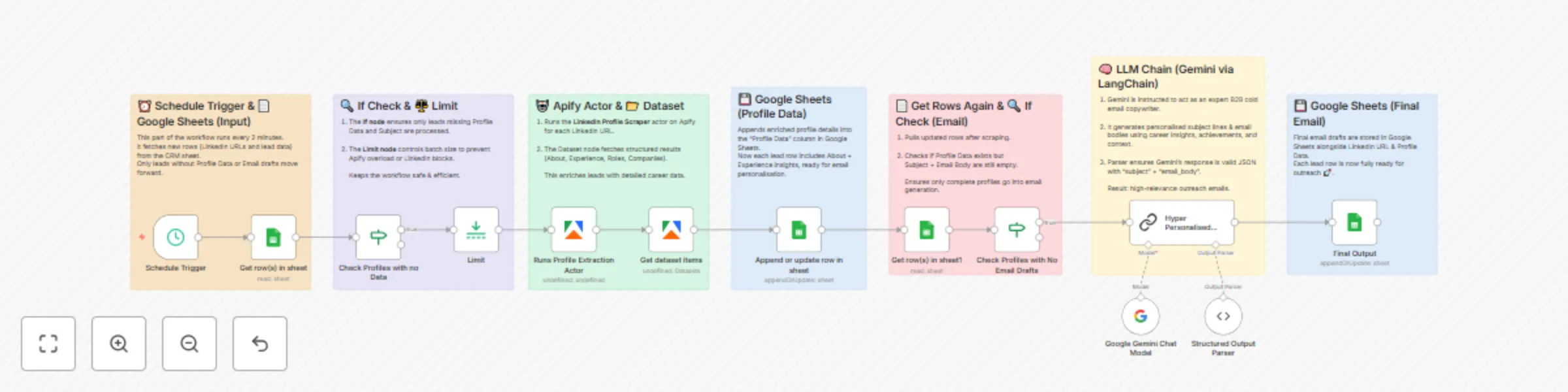
## This n8n template from [Intuz](https://www.intuz.com/) provides a complete and automated solution for deep-dive lead research and hyper-personalized email generation. It transforms a basic list of LinkedIn profiles into a campaign-ready database by first enriching contacts with detailed career data and then using AI to craft unique, context-aware emails based on each individual's professional journey. ## Who's this workflow for? - Sales Development Representatives (SDRs) - Account Executives (AEs) - B2B Marketers & Growth Hackers - Recruiters & Talent Acquisition Specialists - Startup Founders ## How it works **1. Scheduled Data Fetch:** The workflow runs automatically on a schedule, fetching a list of leads (containing LinkedIn URLs) from a Google Sheet. **2. Enrich Profiles with Apify:** For each lead that hasn't been processed, it uses an Apify actor to scrape their LinkedIn profile, extracting key information like their "About" section and detailed work experience. **3. Update Central Database:** The scraped career history is saved back into a "Profile Data" column in the original Google Sheet, creating a rich, centralized lead profile. **4. AI Email Personalization:** The workflow sends the complete, enriched profile data to a Google Gemini AI model via LangChain, using a sophisticated prompt that instructs it to act as an expert B2B copywriter. **5. Craft a Unique Hook**: The AI analyzes the lead's entire career journey to find unique "nuggets"—like long tenure, specific achievements, or unusual career paths—and uses them to write a compelling opening line. **6. Save the Final Email Draft:** The AI-generated subject line and personalized email body are saved back into the Google Sheet, leaving you with a ready-to-send, hyper-personalized outreach campaign. ## Setup Instructions **1. Google Sheets Setup:** - Connect your Google Sheets account to n8n. - In all three Google Sheets nodes, select your credentials and update the Document ID and Sheet Name to match your lead list. - Populate your sheet with initial lead data, including at least their LinkedIn URL. **2. Apify Connection:** - Connect your Apify account in the Runs Profile Extraction Actor node. **3. Google Gemini AI Connection:** - Connect your Google Gemini (PaLM) API account in the Google Gemini Chat Model node. **4. Configure the Schedule:** - In the Schedule Trigger node, set the interval for how often you want the workflow to run and process new leads. **5. Activate Workflow:** - Save the workflow and toggle the "Active" switch to ON. Your automated research and personalization engine is now active. ## Key Requirements to Use This Template - n8n Instance: An active n8n account (Cloud or self-hosted). - Google Account & Sheet: A pre-made Google Sheet with columns for First Name, Last Name, LinkedIn, Profile Data, Subject, and Email Body. - Apify Account: An active Apify account with a plan that supports the LinkedIn Profile Scraper actor. - Google Gemini AI Account: A Google Cloud account with the Vertex AI API (for Gemini models) enabled and an associated API Key. ## Connect with us - Website: https://www.intuz.com/services - Email: [email protected] - LinkedIn: https://www.linkedin.com/company/intuz - Get Started: https://n8n.partnerlinks.io/intuz ## For Custom Worflow Automation Click here- [Get Started](https://www.intuz.com/get-started)
Automate Twitter posting with GPT-4 content generation & Google Sheets tracking
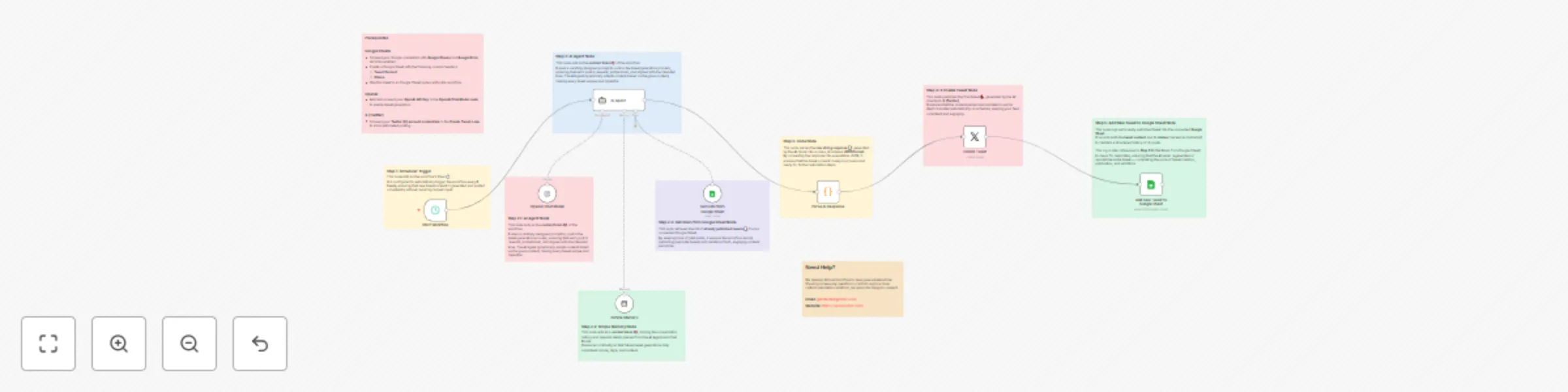
## This n8n template from [Intuz](https://www.intuz.com/) provides a complete and automated solution for creating an autonomous social media manager. This workflow uses an AI agent to intelligently generate unique, high-quality content, check for duplicates, and post it on a consistent schedule to automate your entire Twitter presence. ## Who's this workflow for? - Social Media Managers - Marketing Teams & Agencies - Startup Founders & Solopreneurs - Content Creators ## How it works **1. Runs on a Schedule:** The workflow automatically starts at a set interval (e.g., every 6 hours), ensuring a consistent posting schedule. **2. AI Generates a New Tweet:** An advanced AI Agent, powered by OpenAI, uses a detailed prompt to craft a new, engaging tweet. The prompt defines the tone, topics, character limits, and hashtags. **3. Checks for Duplicates:** Before finalizing the tweet, the AI Agent is equipped with a tool to read a Google Sheet containing a log of all previously published posts. This allows it to ensure the new content is always unique. **4. Posts to Twitter (X):** The final, unique tweet is automatically posted to your connected Twitter account. **5. Logs the New Post:** After posting, the workflow logs the new tweet back into the Google Sheet, updating the history for the next run. This completes the autonomous loop. ## Setup Instructions 1. Schedule Your Posts: In the Start Workflow (Schedule Trigger) node, set the frequency you want the workflow to run (e.g., every 6 hours). 2. Connect OpenAI: - Add your OpenAI API key in the OpenAI Chat Model node. - Customize the prompt in the AI Agent node to match your brand's voice, target keywords, and specific URLs. 3. Configure Google Sheets: - Connect your Google Sheets account. - Create a sheet with two columns: Tweet Content and Status. - In both the Get Data from Google Sheet and Add new Tweet to Google sheet nodes, select your credentials and specify the Document ID and Sheet Name. 4. Connect Twitter (X): - In the Create Tweet node, connect the Twitter account where you want to post. 5. Activate Workflow: - Save the workflow and toggle the "Active" switch to ON. Your AI social media manager is now live! ## Key Requirements to Use This Template Before you start, please ensure you have the following accounts and assets ready: - An n8n Instance: An active n8n account (Cloud or self-hosted) where you can import and run this workflow. - OpenAI Account: An active OpenAI account with an API Key. You will need to have billing enabled to use the language models for tweet generation. - Google Account & Sheet: A Google account and a pre-made Google Sheet. The sheet must have two specific columns: Tweet Content and Status. - Twitter (X) Developer Account: A Twitter (X) account with an approved Developer profile. You need an App created within the Developer Portal with the necessary permissions (v2 API access with Write scopes) to post tweets automatically. ## Connect with us - Website: https://www.intuz.com/services - Email: [email protected] - LinkedIn: https://www.linkedin.com/company/intuz - Get Started: https://n8n.partnerlinks.io/intuz ## For Custom Worflow Automation Click here- [Get Started](https://www.intuz.com/get-started)
Automate lead gen & email outreach with Apify, Apollo.io, GPT-4 & Google Sheets
## Disclaimer: Community nodes are used, and template can only be used on self-hosted n8n instances.  ## This n8n template from [Intuz](https://www.intuz.com/) provides a complete solution to automate your entire B2B lead generation pipeline, from discovering recently funded companies to drafting hyper-personalized outreach emails with AI. ## Who's this workflow for? - Sales Development Representatives (SDRs) - Business Development Teams - Growth Hackers - Startup Founders - Marketing Agencies ## How it works **1. Scrape Funded Companies:** The workflow begins by using Apify to scrape a target list of recently funded companies directly from a Crunchbase search. **2. Enrich with Apollo.io:** It takes each company and uses the Apollo.io API to find key decision-makers (like VPs, Directors) and enrich their contact information, including finding their email addresses. **3. Populate Google Sheets:** All the gathered lead data—company name, contact name, title, email, LinkedIn URL, etc.—is neatly organized and added to a Google Sheet. **4. AI-Personalized Email Crafting:** The workflow sends the lead's information to OpenAI (GPT-4) with a highly specialized prompt, instructing it to write a concise, impactful, and hyper-personalized "first touch" cold email. **5. Update Lead List with Email Content:** Finally, the unique, AI-generated email is saved back into the Google Sheet alongside the corresponding lead's information, making it ready for you to send. ## Pre-conditions and Requirements Before you can successfully execute this workflow, you must have the following accounts, credentials, and assets in place. **1. n8n Instance:** You need an active n8n instance (self-hosted). **2. Apify Account & Crunchbase Access:** - Apify Account: A registered account on Apify. - Crunchbase Account: An active, logged-in Crunchbase account (a paid subscription is recommended for accessing detailed search filters). **3. Apollo.io API:** You need an Apollo.io plan that includes API access. You can generate the API from settings. **4. Google Sheet:** Create a new Google Sheet to store your leads. The workflow is configured for two tabs: one for raw data ("HealthCare" in the template) and one for email generation ("Company sheet"). **5. OpenAI Account:** An account with OpenAI with API access and billing set up. ## Setup Instructions **1. Apify Connection:** - Connect your Apify account in the Run an Actor node. - You'll need an apify scrapper, [here's the link](https://console.apify.com/actors/BBfgvSNWcySEk1jQO/input) - In the Custom Body field, update the search.url with your target Crunchbase discovery URL and provide a valid cookie for authentication. **2. Apollo.io Connection:** - Connect your Apollo.io account using HTTP Header Authentication in the three Apollo nodes. - You will need to provide your API key. **3. Google Sheets Connection:** - Connect your Google Sheets account. - Create a spreadsheet and update the Document ID and Sheet Name in the three Google Sheets nodes to match yours. Ensure your sheet columns are set up to receive the data. **4. OpenAI Connection:** - Connect your OpenAI account in the Message a model node. The prompt is pre-engineered for high-quality output, but you can tailor it to better fit your specific value proposition. **5. Activate Workflow:** - Click "Execute workflow" to run the automation manually and watch your AI-powered lead list build itself. ## Customization Guide This workflow is a powerful template. To adapt it to your specific business needs, you should review and modify the following nodes. **1. Changing Your Target Companies (The Source)** - Node: Run an Actor - What to change: The search.url parameter inside the customBody. - How to do it: 1. Go to Crunchbase and perform a search for your ideal companies (e.g., filter by different funding rounds, industry, location, keywords, etc.). 2. Copy the URL from your browser's address bar after the search results have loaded. 3. Paste this new URL as the value for "search.url" in the node. 4. You can also adjust "count": 10 to pull more or fewer companies per run. Be mindful of Apify and Apollo credit usage. **2. Defining Your Ideal Contact Persona** - Node: Apollo - Get User - What to change: The person_seniorities and person_titles arrays in the jsonBody. - How to do it: **1. Seniority:** Modify the person_seniorities list to match who you sell to. Examples: ["c_level", "founder"] or ["manager", "contributor"]. **2. Job Titles:** This is crucial. Replace the existing list of titles ("engineering", "technology", etc.) with keywords relevant to your target buyer. For example, if you sell to marketing teams, you might use: ["marketing", "demand generation", "growth", "content", "brand"]. **3. Configuring Your Google Sheet Destination** - Nodes: Append or update row in sheet and Update row in sheet - What to change: The documentId and sheetName. - How to do it: 1. Open your Google Sheet. 2. The documentId is the long string of characters in the URL between /d/ and /edit. Copy and paste it into the "Document ID" field in both nodes. 3. The sheetName (or Sheet ID/gid) needs to be set for your specific tabs. Make sure the sheet names/IDs in the nodes match the tabs in your document. 4. Column Mapping: If you change the column names in your Google Sheet, you must update the column mapping inside these nodes to ensure the data is written to the correct place. **4. Tailoring the AI Email Generation** - Node: Message a model (OpenAI) - What to change: The prompt, the model, and the input variables. - How to do it: 1. The Prompt: This is the heart of your outreach. Read the entire prompt carefully and edit it to reflect your company's value proposition, tone of voice, and specific call-to-action. 2. Value Proposition: Change the line "We help them cut that specific infrastructure spend..." to match what your product does. Use a powerful, single data point if you have one. 3. Call-to-Action (CTA): Modify the final question ("Curious if infra efficiency is on your roadmap...") to something that fits your sales process. 4. Tone: Adjust the initial instructions (e.g., "Your tone is that of a peer...") if you want a different style. - The Model: The workflow uses gpt-4.1. You can switch to a different model like gpt-4o (potentially better/faster) or gpt-3.5-turbo (much cheaper, but lower quality) depending on your budget and needs. - Input Variables: The prompt uses {{ $json['Company Name'] }}, {{ $json['Person Designation'] }}, and {{ $json.Industry }}. If you want to add more personalization (e.g., based on a company's funding amount), you would first need to ensure that data is passed to this node, then add the new variable (e.g., {{ $json['Funding Amount'] }}) into the prompt. ## Connect with us - Website: https://www.intuz.com/services - Email: [email protected] - LinkedIn: https://www.linkedin.com/company/intuz - Get Started: https://n8n.partnerlinks.io/intuz ## For Custom Workflow Automation Click here- [Get Started](https://www.intuz.com/get-started)
Sync new subscribers from Google Sheets to MailerLite without duplicates
# This n8n template from [Intuz](https://www.intuz.com/) provides a complete solution to automate the syncing of new subscribers from Google Sheets to MailerLite. It intelligently identifies and adds only new contacts, preventing duplicates and ensuring your email lists are clean and accurate. ## Who's this workflow for? - Marketing Teams - Email Marketers - Small Business Owners - Community Managers ## How it works **1. Read from Google Sheets:** The workflow begins by reading all contact rows from your designated Google Sheet. **2. Check for Existing Subscribers:** For each contact, it performs a search in MailerLite to check if a subscriber with that email address already exists. **3. Handle Duplicates:** If the subscriber is found in MailerLite, the workflow stops processing that specific contact, preventing any duplicates from being created. **4. Create New Subscribers:** If the contact is not found, the workflow proceeds to create a new subscriber in MailerLite, using all the details from the Google Sheet (like name, company, and country) and assigns them to the specified group. ## Setup Instructions **1. Google Sheets Setup:** - Connect your Google Sheets account to n8n. - Create a sheet with the required columns: Email, first_name, last_name, Company, Country, and group_id. - In the Get row(s) in sheet node, select your credentials and specify the Document ID and Sheet Name. **2. MailerLite Setup:** - Connect your MailerLite account to n8n using your API key. - In both the Get a subscriber and Create subscriber... nodes, select your MailerLite credentials. - Make sure the group_id values in your Google Sheet correspond to valid Group IDs in your MailerLite account. **3. Activate Workflow:** - Save the workflow and click "Execute workflow" to run the sync whenever you need to update your subscriber list. ## Connect with us - Website: https://www.intuz.com/services - Email: [email protected] - LinkedIn: https://www.linkedin.com/company/intuz - Get Started: https://n8n.partnerlinks.io/intuz ## For Custom Worflow Automation Click here- [Get Started](https://www.intuz.com/get-started)
Automate expense reporting from Airtable to QuickBooks
# This n8n template from [Intuz](https://www.intuz.com/) provides a complete solution to automate your expense approval and accounting process. It seamlessly connects an Airtable base, where expenses are submitted, to your QuickBooks account, eliminating manual data entry and ensuring financial records are always up-to-date. ## Who's this workflow for? - Accountants & Bookkeepers - Small Business Owners - Finance Teams - Operations Managers ## How it works **1. Trigger on New Expense:** The workflow starts automatically when a new expense record is added to your Airtable base. **2. Filter for Approval:** It checks if the expense's Status field is marked as "Approved". Unapproved items are ignored. **3. Create Expense in QuickBooks:** For every approved item, the workflow creates a new expense record in QuickBooks, mapping data like amount, date, vendor, and accounts directly from Airtable. **4. Download and Upload Receipt:** It downloads the receipt from the URL provided in Airtable and uploads it as an attachment to the corresponding expense record in QuickBooks. **5. Update Airtable Status:** Once the expense and receipt are successfully logged in QuickBooks, the workflow updates the record's Status in Airtable to "Done", closing the loop. ## Setup Instructions **1. Airtable Configuration:** - Create an Airtable base with a table for your expenses. Ensure your table includes the following columns: Status, Receipt URL, Amount, Date, Memo, QBO Vendor ID, QBO Expense Account ID, and QBO Payment Account ID. - Connect your Airtable account to n8n. - In the Airtable Trigger, Search records, and Update record nodes, select your credentials and specify your Base ID and Table ID. **2. QuickBooks Configuration:** - Connect your QuickBooks account to n8n using OAuth2 credentials. - In the QBO-Create Expense and QBO-Upload File nodes, replace {YOUR_QUICKBOOKS_COMPANY_ID} in the URL with your actual QuickBooks Company ID. - Ensure the Vendor ID and Account IDs in your Airtable records correspond to valid IDs in your QuickBooks account. **3. Activate Workflow:** - Save the workflow and toggle the "Active" switch to ON. Your expense management is now fully automated! ## Connect with us: - Website: https://www.intuz.com/services - Email: [email protected] - LinkedIn: https://www.linkedin.com/company/intuz - Get Started: https://n8n.partnerlinks.io/intuz ## For Custom Worflow Automation Click here- [Get Started](https://www.intuz.com/get-started)
Full-cycle invoice automation: Airtable, QuickBooks & Stripe
# This n8n template from [Intuz](https://www.intuz.com/) provides a complete and automated solution for full-cycle invoicing, orchestrating a seamless flow between Airtable, QuickBooks, and Stripe. This is the ultimate sales-to-cash automation. When a deal in Airtable is marked "Approved for Invoicing," this workflow intelligently syncs customer data across QuickBooks and Stripe (creating them if they don't exist), generates an official QuickBooks invoice, creates a Stripe payment link, and then updates the original Airtable record with all the new IDs and links. Eliminate manual data entry and keep your systems perfectly in sync. ## Who's this workflow for? 1. Finance, Accounting, and Operations Teams 2. SalesOps and RevOps Teams 3. Small Business Owners and Founders 4. Agencies and Freelancers ## How It Works: **1. Airtable Trigger & Approval Gate:** The workflow starts when a record in your Airtable base is updated. An If node immediately checks if the Status field is set to "Approved for Invoicing." If not, the workflow for that item stops. **2. Customer Sync (QuickBooks & Stripe):** - The workflow searches for the customer in both QuickBooks and Stripe using the details from Airtable. - Using If nodes, it intelligently checks if the customer exists. If a customer is not found in either platform, it creates a new one. This "find-or-create" logic prevents duplicate records. **3. Update Airtable with IDs:** Once the customer IDs from both QuickBooks and Stripe are secured (either found or newly created), the workflow updates the original Airtable record with these new IDs for future reference. **4. Generate Financials:** - Stripe Payment Link: It sends an HTTP request to Stripe to create a unique, ready-to-use payment link for the specified amount. - QuickBooks Invoice: It fetches your product list from QuickBooks, finds the matching item from the Airtable record, and generates a formal, detailed invoice. **5. Close the Loop**: In the final step, the workflow updates the Airtable record one last time to: - Add the QuickBooks Invoice #. - Add the Stripe Payment Link. - Change the Status to "Invoiced." ## Step-by-Step Setup Instructions This is an advanced workflow. Follow these setup steps carefully. **1. Connect Your Credentials** - Airtable: Create and connect a Personal Access Token with data.records:read and data.records:write scopes. - QuickBooks: Connect your QuickBooks Online account using OAuth2 credentials. - Stripe: Connect your Stripe account using your Secret Key. **2. Airtable Base Setup (Crucial)** Your Airtable base must have a table with the following columns. The names must match exactly: - Deal Name (Text) - Client Name (Text) - Client Email (Email) - Status (Single-select with options: Draft, - Approved for Invoicing, Invoiced) - QuickBooks Customer ID (Text) - Stripe Customer ID (Text) - Stripe Payment Link (URL) - QuickBooks Invoice # (Text) - Stripe Price Id (Text - The API ID of your price in Stripe, e.g., price_123...) - Quantity (Number) - Quickbooks Product Name (Text) - Created (Created Time) - This is used by the trigger. **3. Configure the n8n Nodes** - All Airtable Nodes: In each Airtable node, select your Base and Table from the dropdown lists. - Get all Quickbook products (HTTP Request Node): You must replace {YOUR_QUICKBOOKS_COMPANY_ID} in the URL with your actual QuickBooks Company ID (also known as a Realm ID). **4. Activate the Workflow** Save the workflow and toggle the Active switch to "on". The workflow will now trigger whenever the Created field is updated for a record in your Airtable base. ## Customization Guidance - Changing the Trigger Status: If you use a different status than "Approved for Invoicing," simply update the value in the "IF - Status Check" node. - Modifying Invoice Details: You can customize the Description or other line item details in the "Create an invoice" (QuickBooks) node by pulling more fields from your Airtable record. - Adding Email Notifications: To notify a customer when their invoice is ready, add a Gmail or SendGrid node after the last Airtable Update node. You can include the Stripe Payment Link and a PDF of the QuickBooks invoice directly in the email. - Advanced Error Handling: For a production environment, consider connecting the false output of the various IF nodes or using the .onError() workflow setting to send a Slack or email alert if a customer can't be found or an API call fails. ## Support For further support, or to develop a custom workflow, reach out to: - Website: https://www.intuz.com/services - Email: [email protected] - LinkedIn: https://www.linkedin.com/company/intuz - Get Started: https://n8n.partnerlinks.io/intuz ## For Custom Worflow Automation Click here- [Get Started](https://www.intuz.com/get-started)
Automate QuickBooks customer & estimate creation from Google Sheets
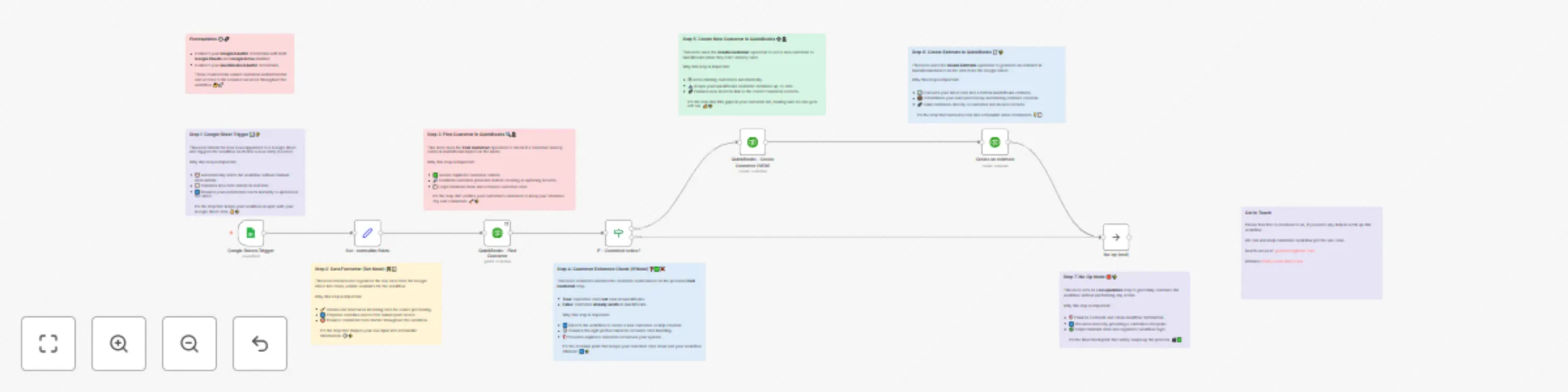
# This n8n template from [Intuz](https://www.intuz.com/) provides a complete and automated solution to accelerate your sales and quoting process into Quickbooks. This workflow creates a seamless data pipeline from a Google Sheet directly into QuickBooks, automating the creation of new customers and their initial sales estimates. It’s designed to save time, reduce human error, and ensure your financial records are always up-to-date. ## How it works **1. Trigger on New Sheet Row:** The workflow starts automatically when you add a new row containing customer and estimate details to your designated Google Sheet. **2. Check for Duplicates:** Before doing anything else, it takes the customer's name from the sheet and searches your QuickBooks account to see if a customer with that exact name already exists. **3. Route Based on Existence (If/Else Logic):** - If the Customer is NEW: The workflow proceeds down the "true" path, first creating a new customer record in QuickBooks with the details from the sheet (Name, Email, Phone, Company). Immediately after, it creates a new sales estimate linked to that newly created customer. - If the Customer ALREADY EXISTS: The workflow follows the "false" path and stops. This is a built-in safety measure to prevent creating duplicate customer records. **4. End of Process:** The workflow concludes, having either created a new customer and estimate or having intelligently stopped to avoid duplication. ## Step by Step Instructions Follow these steps carefully to get the workflow running. **1. Connect Your Credentials** - Google: Connect your Google account using OAuth2. Ensure you have enabled permissions for both Google Sheets and Google Drive. - QuickBooks: Connect your QuickBooks Online account using OAuth2 credentials. **2. Prepare Your Google Sheet** This is the most critical step. Create a Google Sheet and ensure the first row contains these exact column headers: - CustomerName - Email - Phone - Company Name - Amount **3. Configure the n8n Nodes** Google Sheets Trigger: - Select your Google Sheet from the Document ID dropdown. - Select the specific sheet from the Sheet Name dropdown. Create an estimate (QuickBooks Node): - This node has a default product/service (itemId) and tax code (TaxCodeRef) set. You must update these to match the items and tax codes in your QuickBooks account. See the Customization section for more details. **4. Activate the Workflow** Save the workflow and toggle the Active switch to "on". Now, every time you add a new row to your sheet, the automation will run. ## Connect with us - Website: https://www.intuz.com/services - Email: [email protected] - LinkedIn: https://www.linkedin.com/company/intuz - Get Started: https://n8n.partnerlinks.io/intuz ## For Custom Worflow Automation Click here- [Get Started](https://www.intuz.com/get-started)
Automatically save QuickBooks invoice PDFs to Google Drive
# This n8n template from [Intuz](https://www.intuz.com/) provides a complete and automated solution for secure document archiving. It automatically saves new QuickBooks invoice PDFs directly into Google Drive, creating a reliable backup system. For perfect organization, the workflow uses keywords from the invoice, like the client name or invoice number, to dynamically name the PDF files, ensuring you have a complete and easily searchable financial record. ## Use Cases **1. Automated Document Archiving:** Eliminate the manual work of downloading and saving invoices. Set it up once and let it run. **2. Compliance & Auditing:** Maintain a clean, chronological, and separate record of all issued invoices for easy access during audits. **3. Secure Backup**: Create a redundant, secure backup of your critical financial documents in your own cloud storage. **4. Enhanced Team Access:** Share the Google Drive folder with accountants, bookkeepers, or team members who need access to invoices but not to your full QuickBooks account. ## How It Works: **1. Real-Time Invoice Trigger:** The workflow starts the instant a new invoice is created in your QuickBooks account. A configured webhook sends a notification to n8n, kicking off the automation immediately. **2. Fetch Invoice Metadata:** The workflow uses the invoice ID from the webhook to retrieve the full invoice details, such as the customer's name and the transaction date. This information is used in the next steps. **3. Generate the Invoice PDF**: A crucial HTTP Request node makes a direct API call to QuickBooks, requesting a PDF version of the invoice. This ensures the archived document is the official, formatted PDF, exactly as it appears in QuickBooks. **4. Upload and Archive in Google Drive:** The final node takes the binary PDF data and uploads it to your specified Google Drive folder. It dynamically names the file for easy identification (e.g., CustomerName_TransactionDate.pdf), creating a perfectly organized and searchable archive. ## Setup Instructions To get this workflow running, follow these key setup steps: **1. Credentials:** - QuickBooks: Connect your QuickBooks account credentials to n8n. - Google: Connect your Google account using OAuth2 credentials and ensure the Google Drive API is enabled. **2. QuickBooks Webhook Configuration:** - First, activate this n8n workflow to make the webhook URL live. - Copy the Production URL from the QuickBooks Webhook node. - In your Intuit Developer Portal, go to the webhooks section for your app, paste the URL, and subscribe to Invoice creation events. **3. Node Configuration:** - Get an invoice & Generate PDF File: These nodes will use your configured QuickBooks credentials automatically. - Upload file (Google Drive): In the parameters for this node, you must select the Folder ID where you want your invoices to be saved. ## Support If you need help setting up this workflow or require a custom version tailored to your specific use case, please feel free to reach out to the template author: - Website: https://www.intuz.com/services - Email: [email protected] - LinkedIn: https://www.linkedin.com/company/intuz - Get Started: https://n8n.partnerlinks.io/intuz ## For Custom Worflow Automation Click here- [Get Started](https://www.intuz.com/get-started)
Automate real-time QuickBooks invoice alerts in Slack
# This n8n template from [Intuz](https://www.intuz.com/) provides a complete and automated solution for instant team-wide financial visibility. It actively monitors QuickBooks and, upon detecting a new invoice, immediately sends a detailed alert to your chosen Slack channel. For customized reporting, the workflow can pull specific keywords or data like the customer name, invoice amount, and due date directly into the Slack message, creating a complete, real-time feed of your company's sales activity. ## Use Cases - **Sales Team Visibility:** Instantly notify the sales channel when an invoice is generated for a deal they closed. - **Finance & Ops Sync:** Keep the finance team aware of all billing activities as they happen in a dedicated channel. - **Account Management:** Alert account managers when invoices are sent to their clients, allowing for proactive follow-up. - **Executive Dashboard:** Create a high-level #billing-feed channel for leadership to monitor revenue-generating activities in real time. ## How it Works **1. Instant Webhook Trigger:** The workflow begins when an invoice is created or updated in QuickBooks. A configured webhook in your Intuit Developer Portal sends a real-time notification to n8n, instantly activating the flow. **2. Fetch Full Invoice Details:** The initial webhook payload only contains a basic event notification. This node uses the invoice ID from that payload to query the QuickBooks API and retrieve the full invoice details, such as the customer's name, due date, and domain. **3. Format Key Data:** A simple but essential Code node takes the raw data from QuickBooks and cleans it up. It extracts only the most important fields (ID, Domain, Customer Name, Due Date) and organizes them for the next step. **4. Send Slack Notification:** The final node crafts a human-readable message and posts it to your chosen Slack channel. The message is dynamically populated with the invoice data, providing a clear and concise update for the whole team. **For example:** - Invoice having ID: 160 having the Domain: QBO for the customer Rondonuwu Fruit and Vegi which is due on 2025-09-07 has been generated successfully. ## Setup Instructions To get this workflow running, follow these configuration steps: **1. Credentials:** - QuickBooks: Connect your QuickBooks account credentials to n8n. - Slack: Connect your Slack account using OAuth2 credentials. **2. QuickBooks Webhook Configuration:** - First, activate this n8n workflow. This will make the webhook URL live. - Copy the Production URL from the QuickBooks Webhook node. - Log in to your Intuit Developer Portal, navigate to the webhooks section for your application, and paste the URL. - Ensure you subscribe to Invoice events (e.g., Create, Update, etc.). **3. Node Configuration:** - Get an invoice: No configuration needed; it will automatically use your QuickBooks credentials. - Send a message (Slack): In the parameters, select the Slack Channel where you want the notifications to be posted. ## Support If you need help setting up this workflow or require a custom version tailored to your specific use case, please feel free to reach out to the template author: - Website: https://www.intuz.com/services - Email: [email protected] - LinkedIn: https://www.linkedin.com/company/intuz - Get Started: https://n8n.partnerlinks.io/intuz ## For Custom Worflow Automation Click here- [Get Started](https://www.intuz.com/get-started)
Automate real-time QuickBooks invoice sync to Google Sheets
# This n8n template from [Intuz](https://www.intuz.com/) provides a complete and automated solution for real-time financial reporting. It instantly syncs new QuickBooks invoices to Google Sheets, using specific invoice data or keywords as triggers to ensure your financial records are always accurate and up-to-date. It uses a webhook to capture every new or updated invoice and logs the essential details into a designated Google Sheet. Perfect for creating custom reports, data backups, or a real-time dashboard of your accounts receivable. ## Use Cases - **Financial Reporting:** Create a simple, shareable Google Sheet for team members who don't have QuickBooks access. - **Data Backup:** Maintain a secure, independent log of all your invoices outside of the QuickBooks ecosystem. - **Custom Dashboards:** Use the Google Sheet as a data source for tools like Google Data Studio or Grafana to build custom financial dashboards. - **Auditing:** Easily track the history and status of all invoices in a simple, searchable spreadsheet format. ## How it Works **1. Instant Webhook Trigger:** The workflow activates the moment an invoice is created or updated in QuickBooks. The QuickBooks webhook sends a notification to n8n, kicking off the process in real time. **2. Fetch Full Invoice Details:** The initial webhook notification only contains the invoice ID. This node uses that ID to make a call back to the QuickBooks API and retrieve the complete invoice data, including customer name, due date, and more. **3. Format Key Data:** A simple Code node cleans up the data fetched from QuickBooks. It extracts only the fields you need—ID, Domain, Customer Name, and Due Date—and structures them perfectly for the next step. **4. Append or Update in Google Sheets**: The final node connects to your Google Sheet and uses the powerful "Append or Update" operation. - If the ID of the invoice doesn't exist in the sheet, it adds a new row. - If the ID already exists, it updates the existing row with the latest information. This ensures your Google Sheet is always a perfect mirror of your QuickBooks invoice data, preventing duplicates and keeping everything current. ## Setup Instructions For this workflow to run successfully, follow these setup steps: **1. Credentials:** - QuickBooks: Connect your QuickBooks account credentials to n8n. - Google: Connect your Google account using OAuth2 credentials. Ensure the Google Sheets and Google Drive APIs are enabled. **2. QuickBooks Webhook Configuration:** - Activate the workflow. Copy the Production URL from the Webhook node. - In your Intuit Developer Portal, go to the webhooks section for your app. - Paste the URL and subscribe to Invoice events (e.g., Create, Update). **3. Google Sheet Setup:** - Create a Google Sheet for your invoice data. - Crucially, create the following headers in the first row of your sheet: -ID -Domain -Customer Name -Due Date **4. Node Configuration:** - In the Append or update row in sheet node, select your Google Sheet document and the specific sheet name from the dropdown lists. The columns should map automatically if you've set up the headers correctly. ## Connect with us - Website: https://www.intuz.com/services - Email: [email protected] - LinkedIn: https://www.linkedin.com/company/intuz - Get Started: https://n8n.partnerlinks.io/intuz ## For Custom Worflow Automation Click here- [Get Started](https://www.intuz.com/get-started)
Automate hyper-personalized email outreach with AI, Gmail & Google Sheets
# This n8n template from [Intuz](https://www.intuz.com/) provides a complete and automated solution for hyper-personalized email outreach. It powerfully combines AI with Gmail and Google Sheets, using specific keywords and prospect data to automatically craft unique, compelling email content that boosts engagement and secures more replies. Instead of manually replying to every lead or inquiry, this template does the heavy lifting for you, ensuring every response is relevant, thoughtful, and timely. It reads each person's unique inquiry, uses OpenAI to craft a perfectly tailored and human-like response, and sends it directly from your Gmail account. Ideal for sales, marketing, and customer support teams looking to boost engagement and save hours of manual work. ## Use Cases: - Sales Teams: Instantly follow up with new leads from your website's contact form with a personalized touch. - Customer Support: Provide initial, intelligent responses to support tickets, answering common questions or acknowledging receipt of a complex issue. - Marketing Automation: Nurture leads by responding to content downloads or webinar sign-ups with relevant, non-generic information. - Founders & Solopreneurs: Manage all incoming business inquiries (partnerships, media, etc.) efficiently without sacrificing quality. ## How It Works: 1. Trigger the Flow (Manual): Start the automation whenever you're ready to process a new batch of inquiries from your sheet. 2. Fetch Inquiries from Google Sheets: The workflow connects to your specified Google Sheet and reads each row. It pulls the contact's First Name, Email ID, the Inquiry Intent (e.g., "Demo Request," "Pricing Inquiry"), and the full text of their Original Inquiry. 3. Sync Your Signature: Before writing the email, an HTTP Request node dynamically fetches your display name from your Gmail account settings. This ensures the signature in the generated email (Thanks, {{Your Name}}) is always accurate. 4. Craft a Hyper-Personalized Reply with AI: It uses this context to generate a high-quality, professional, and friendly email reply in HTML format. For example: - If the intent is "Technical Support," the AI will generate a helpful, empathetic response addressing the technical issue. - If the intent is "Partnership Proposal," it will draft a professional reply acknowledging the proposal and outlining the next steps. 5. Send via Gmail: The final node takes the AI-generated message, adds a relevant subject line (e.g., "Re: Your Demo Request"), and sends it directly to the contact's email address from your connected Gmail account. This process loops for every single row in your Google Sheet, turning a list of names into a series of meaningful conversations. ## Setup Instructions: To get this workflow running, you'll need to configure a few things: 1. Credentials: Google: Connect your Google account via OAuth2 and ensure you have enabled access for Google Sheets, Google Drive, and Gmail. 2. OpenAI: Add your OpenAI API key as a credential. 3. Google Sheet Setup: Create a Google Sheet with the following exact column headers: -First Name -Email ID -Inquiry Intent (A short category like "Demo Request", "Billing Issue", etc.) -Original Inquiry (The full text of the email or message you received). 4. Node Configuration: Get row(s) in sheet: Select your Google Sheet document and the specific sheet name. Message a model (OpenAI): Choose your preferred OpenAI model (e.g., gpt-4-turbo, gpt-3.5-turbo). 5. HTTP Request & Send Personalized emails: These nodes should automatically use your configured Gmail credentials. No changes are typically needed. ## Connect with us - Website: https://www.intuz.com/services - Email: [email protected] - LinkedIn: https://www.linkedin.com/company/intuz - Get Started: https://n8n.partnerlinks.io/intuz ## For Custom Worflow Automation Click here- [Get Started](https://www.intuz.com/get-started)
Auto-create GitHub PRs & JIRA updates from git commit commands (multi-repo)
# This n8n template from [Intuz](https://www.intuz.com/) provides a complete and automated solution for scaling your DevOps practices across multiple repositories. Are you tired of the repetitive dance between git push, creating a pull request in GitHub, updating the corresponding task in JIRA, and then manually notifying your team in Slack, or Notion? This template puts your entire post-commit workflow on autopilot, creating a seamless and intelligent bridge between your code and your project management. By embedding specific keywords and a JIRA issue ID into your git commit commands, this workflow automatically creates a Pull Request in the correct GitHub repository and updates the corresponding JIRA ticket. This creates a complete, centralized system that keeps all your projects synchronized, providing a massive efficiency boost for teams managing a diverse portfolio of codebases. ## Who This Template Is For? This template is a must-have for any organization looking to streamline its software development lifecycle (SDLC). It’s perfect for: - Development Teams: Eliminate tedious, manual tasks and enforce a consistent workflow, allowing developers to stay focused on coding. - DevOps Engineers: A ready-to-deploy solution that integrates key developer tools without weeks of custom scripting. - Engineering Managers & Team Leads: Gain real-time visibility into development progress and ensure processes are followed without constant check-ins. - Project Managers: Get accurate, automatic updates in JIRA the moment development work is completed, improving project tracking and forecasting. ## Step-by-Step Setup Instructions Follow these steps carefully to configure the workflow for your environment. **1. Connect Your Tools (Credentials)** - GitHub: Create credentials with repo scope to allow PR creation. - JIRA: Create an API token and connect your JIRA Cloud or Server instance. - Slack: Connect your Slack workspace using OAuth2. - Notion: Connect your Notion integration token. **2. Configure the GitHub Webhook (For Each Repository)** This workflow is triggered by a GitHub webhook. You must add it to every repository you want to automate. - First, Save and Activate the n8n workflow to ensure the webhook URL is live. - In the n8n workflow, copy the Production URL from the Webhook node. - Go to your GitHub repository and navigate to Settings > Webhooks > Add webhook. - In the Payload URL field, paste the n8n webhook URL. - Change the Content type to application/json. - Under "Which events would you like to trigger this webhook?", select "Just the push event." - Click "Add webhook." Repeat this for all relevant repositories. **3. Configure the JIRA Nodes (Crucial Step)** Your JIRA project has unique IDs for its statuses. You must update the workflow to match yours. - Find the two JIRA nodes named "Update task status after PR" and "Update the task status without PR." - In each node, go to the Status ID field. - Click the dropdown and select the status that corresponds to "Done" or "Development Done" in your specific JIRA project workflow. The list is fetched directly from your connected JIRA instance. **4. Configure Notification Nodes** Tell the workflow where to send updates. - For Slack: Open the two nodes named "Send message in slack..." and select your desired channel from the Channel ID dropdown. - For Notion: Open the two nodes named "Append a block in notion..." and paste the URL of the target Notion page or database into the Block ID field. **5. Final Activation** Once all configurations are complete, ensure the workflow is Saved and the toggle switch is set to Active. You are now ready to automate! ## Customization Guidance This template is a powerful foundation. Here’s how you can adapt it to your team's specific needs. **1. Changing the PR Title or Body:** - Go to the "Request to create PR" (HTTP Request) node. - In the JSON Body field, you can edit the title and body expressions. For example, you could add the committer's name ({{$('Webhook').item.json.body.pusher.name }}) or a link back to the JIRA task. **2. Adapting to a Fixed Branching Strategy:** - If your team always creates pull requests against a single branch (e.g., develop), you can simplify the workflow. - In the "Request to create PR" node, change the base value in the JSON body from {{...}} to your static branch name: "base": "develop". - You can then remove the base branch logic from the "Commit Message Breakdown" (Code) node. **3. Modifying Notification Messages:** - The text sent to Slack and Notion is fully customizable. - Open any of the Slack or Notion nodes and edit the text fields. You can include any data from previous nodes, such as the PR URL ({{ $('Request to create PR').item.json.body.html_url }}) or the repository name. **4. Adjusting the Commit Regex for Different Conventions:** - This is an advanced customization. If your team uses a different commit format (e.g., (DEV-123) instead of DEV-123), you can edit the regular expression in the "Commit Message Breakdown" (Code) node. Be sure to test your changes carefully. **5. Adding/Removing Notification Channels:** - Don't use Notion? Simply delete the two Notion nodes. - Want to send an email instead? Add a Gmail or SMTP node in parallel with a Slack node and configure it with the same data. ## Connect with us - Website: https://www.intuz.com/services - Email: [email protected] - LinkedIn: https://www.linkedin.com/company/intuz - Get Started: https://n8n.partnerlinks.io/intuz ## For Custom Worflow Automation Click here- [Get Started](https://www.intuz.com/get-started)
Automate GitHub PRs & JIRA updates from Git commit commands-single repo
## This n8n template from [Intuz](https://www.intuz.com/) delivers a complete and automated solution to streamline your development workflow for a single repository. By embedding specific keywords and a JIRA issue ID within your git commit commands, this workflow automatically creates a Pull Request in GitHub and simultaneously updates the corresponding JIRA ticket. This provides a complete, seamless integration that eliminates manual steps and keeps your project management perfectly in sync with your codebase. ## How it works This workflow acts as a powerful bridge between your Git repository and your project management tools, driven entirely by the structure of your commit messages. 1. **GitHub Webhook Trigger:** The workflow starts when a developer pushes a new commit to a specified repository in GitHub. 2. **Parse Commit Message:** A Code node extracts key information from the commit message: - The JIRA Issue Key (e.g., FF-1196). - The base branch for the PR (e.g., development). - Action commands like [auto-pr] and [taskcompleted]. 3. **Conditional PR Creation:** An IF node checks if the [auto-pr] command is present. - If yes, it uses the GitHub node to automatically create a pull request from the developer's branch to the specified base branch. - If no, this step is skipped, allowing for multiple commits before a PR is made. 4. **Conditional JIRA Update**: Another IF node checks for the [taskcompleted] command. - If yes, it uses the JIRA node to transition the corresponding issue to your "Done" status (e.g., "Task Completed" or "In Review"). - If no, the JIRA issue remains in its current state, perfect for work-in-progress commits. ## How to Use: Quick Start Guide 1. Click the "Use Template" button to import this workflow into your n8n instance. 2. Configure the GitHub Trigger: - Open the "GitHub Push Trigger" node. It will display a unique Webhook URL. Copy this URL. - In your GitHub repository, go to Settings > Webhooks > Add webhook. - Paste the URL into the Payload URL field. - Set the Content type to application/json. - Under "Which events would you like to trigger this webhook?", select Just the push event. Click Add webhook. 3. Connect Your Accounts: - GitHub: Select your GitHub API credential in the "Create Pull Request" node. - JIRA : Select your JIRA API credential in the "Update JIRA Issue Status" node. 4. Customize the JIRA Transition (Important): - Open the "Update JIRA Issue Status" node. - In the Transition parameter, you need to set the specific status you want to move the issue to (e.g., 'Done', 'Completed', 'In Review'). You can use the ID or the exact name of the transition from your JIRA project's workflow. 5. Activate the Workflow: Save your changes and activate the workflow. You're ready to automate! ## Example Commit Message: git commit -m "FF-1196 Implement OAuth login [auto-pr,development,taskcompleted]" ## Key Requirements to Use Template - An active n8n instance. - A GitHub account with repository admin permissions to create webhooks. - A JIRA Cloud account with permissions to update issues. - Developers who can follow the specified git commit message format. ## Connect with us - Website: https://www.intuz.com/services - Email: [email protected] - LinkedIn: https://www.linkedin.com/company/intuz - Get Started: https://n8n.partnerlinks.io/intuz ## For Custom Worflow Automation Click here- [Get Started](https://www.intuz.com/get-started)