## 📌 Overview
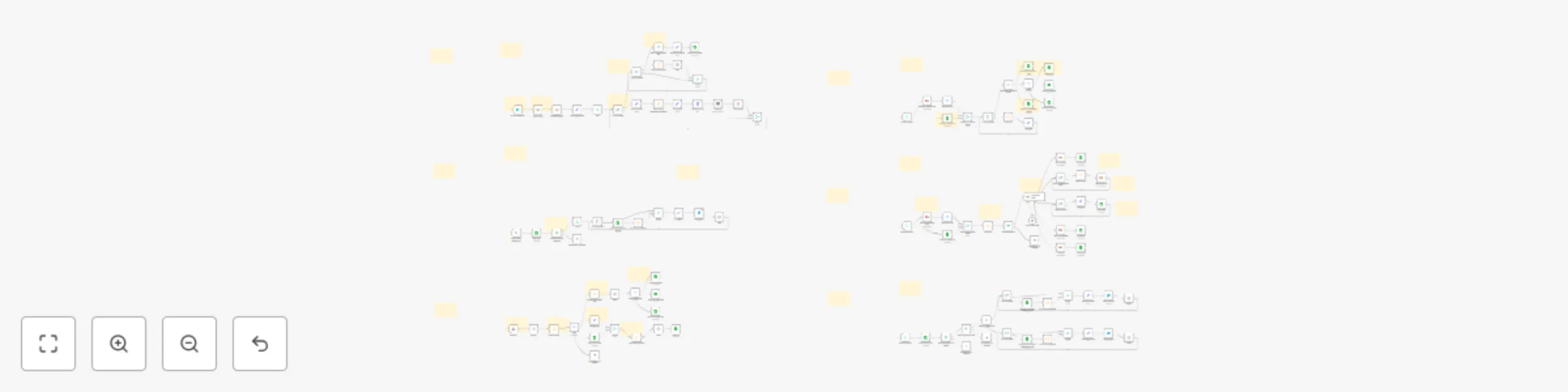
This n8n-powered workflow automates the entire lifecycle of lead generation and email workflows/campaign. It combines six specialized workflows into one seamless system that scrapes fresh leads, sends personalized emails, tracks engagements, detects replies, classifies responses, handles follow-ups, and keeps a live CRM updated — all in one loop.
Designed for B2B cold outreach and follow-up nurturing, this system integrates with Apify, Google Sheets, SendGrid, Gmail, and OpenAI for AI summarization and real-time alerts.
🧠 What It Does
This workflow automates the entire lifecycle of B2B cold campaign. It:
- Scrapes targeted leads directly from Google Maps (via Apify).
- Extracts verified emails from business websites with anti-blocking safeguards.
- Stores everything in a centralized Google Sheets CRM.
- Sends personalized emails via SendGrid, with unique embedded IDs for tracking.
- Tracks delivery, opens, clicks, and bounces in real time through webhook events.
- Detects replies from Gmail, matches them to the right campaign stage, and updates the CRM.
- Uses AI classification to label replies (Interested, Not Interested, Miscellaneous).
- Routes qualified replies directly to your sales team or Slack/Telegram channel.
- Automates follow-up emails (5-day & 10-day intervals) for non-responders.
- Provides light analytics & reporting in Google Sheets for quick insights (with deeper logs available in SendGrid).
💡 Why This Workflow
- All-in-One Solution: Instead of juggling multiple tools, this workflow handles lead gen, outreach, tracking, and CRM updates in one place.
- Smart Reply Handling: Never lose a lead — every reply is tracked, classified, and routed intelligently.
- Scalable & Modular: Each workflow (lead gen, email sending, webhook, replies, routing, follow-ups) can run independently or as part of the full system.
- Time-Saving: Reduces manual lead collection, email follow-up, and CRM updating by 90%+.
- Client-Ready: Built with reliability in mind — randomized delays, duplicate prevention, priority logic for status updates, and AI-powered classification.
👤 Who It’s For
This workflow is ideal for:
- Agencies running cold campaigns for clients.
- B2B Businesses looking to automate lead generation and follow-ups.
- Freelancers / Consultants who need a plug-and-play outreach system without expensive SaaS subscriptions.
- Sales Teams that want structured, real-time leads routed directly to their inbox or Slack.
- Startups who want a scalable, low-cost alternative to tools like Apollo, Firecrawl, Bright Data or Reply.io.
⚙️ How It Works
🧩 1. Lead Generation Workflow
🎯 Purpose
Scrape fresh B2B leads from Google Maps, crawl their websites to extract verified email addresses, and upload structured, clean lead data into a Google Sheets CRM.
🛠 How It Works
1. User Input via Form Trigger
- The workflow begins with a form asking for:
- Business keyword (e.g. "Dentist")
- Location (e.g. "Florida")
- Lead limit (e.g. 50)
2. Scrape Google Maps via Apify
- Calls the Apify Google Maps Scraper Actor
- Extracts structured business data like:
Business Name, Website, Phone, Category, Rating, Address.
3. Website Filtering & Normalization
- Filters out businesses with no website
- Cleans up URLs
4. Website Email Extraction
- Sends direct HTTP GET requests to the homepage of each business
- Parses the raw HTML for public-facing email addresses using regex
- Implements anti-blocking techniques:
- Random delays between requests
- Custom headers / User-Agent spoofing
- Graceful skip on failures
5. Final Filtering & Data Structuring
- Keeps only businesses with a valid email address
- Constructs lead objects with:
Business Name, Category, Email, Website, Phone, Rating, Location.
6. Upload to Google Sheets CRM
- Pushes leads to a connected Google Sheet that acts as the system’s central CRM
- This CRM becomes the source for the email sending workflow
🧩 2. Send an Email Workflow
🎯 Purpose
Automatically sends personalized emails to verified leads using rotating templates, embedded ID tracking, and campaign-stage tagging.
🛠 How It Works
1. Pull Active Leads from CRM
- Retrieves fresh leads from the Google Sheet where
2. Select a Random Template
- Pulls from a template library stored in a separate Google Sheet
- Injects lead-specific variables into placeholders like:
[Business Name], [Category], [Location], etc.
3. Embed Unique Tracking ID
- Appends an embedded ID token to the email. This enables accurate reply source tracking across all email stages
4. Send Email via SendGrid
- Sends the message using SendGrid's transactional API
- Emails are tagged internally according to email type.
🧩 3. Webhook Event Workflow
🎯 Purpose
Processes SendGrid webhook events (e.g., delivered, opened, clicked, bounced) and updates the CRM with prioritized delivery status and engagement tracking — using clean classification and smart update logic.
🛠 How It Works
1. Receive Events via Webhook Trigger
- Listens for real-time webhook events from SendGrid, including:
- delivered, bounce, deferred, processed, open, click, unsubscribe, spamreport, etc.
2. Classify Each Event Type
- A custom code node adds a route label:
- status: delivery-level events
- engagement: recipient interaction events
- others: uncategorized or unsupported
3. Switch-Based Routing
- Status Events:
- Applies priority logic
- If multiple status events are received for the same lead, only the highest-priority event is stored
- Updates corresponding CRM fields:
- Engagement Events:
- Detects interactions like:
- Opened, Clicked, Unsubscribed, Spam Reported
- Updates CRM fields:
- Opened, Clicked, Unsubscribed, Spam Reported, Engaged At
- Preserve first-time interaction records and avoiding regressions
- Others Branch:
- Logs or gracefully skips events not explicitly supported
4. CRM Synchronization
- Merges event data with the correct lead by matching Email
- Ensures all updates are timestamped and consistent across systems
🧩 4. Reply Update Database Workflow
🎯 Purpose
Polls Gmail inbox, extracts replies, determines their source, and logs them in both the CRM and a message tracker sheet.
🛠 How It Works
1. Poll Gmail for New Replies
- Uses Gmail API to fetch recent messages
- Filters out auto-replies, no-reply addresses, or irrelevant responses
2. Prevent Duplicate Processing
- Checks each message against a "Processed Message IDs" Google Sheet
- Skips if the message has been handled before
3. Extract Reply Metadata
4. Match to Lead & Update CRM
- Determines the original email stage based on ID
- Updates necessary fields
🧩 5. Email Routing Workflow
🎯 Purpose
Uses AI to classify replies by intent (Interested, Not Interested, or Miscellaneous) and automatically routes, labels, and logs them accordingly.
🛠 How It Works
1. Receive Cleaned Reply
- Triggered after a set time interval
2. Classify Using AI (LangChain / OpenAI)
- The reply is analyzed and categorized as:
- Interested: wants to talk, asks for more info
- Not Interested: says no or unsubscribes
- Miscellaneous: unclear or unrelated response
3. Gmail Label Assignment
- Adds Gmail label based on classification
4. Handle “Interested” Replies
- If Interested:
- Adds label in Gmail
- Forwards message to a sales or response channel
- Updates Google Sheet CRM
🧩 6. Follow-Up Email Workflow
🎯 Purpose
Automatically sends up to two follow-up emails to leads who showed interest (opened or clicked) but haven’t replied yet.
🛠 How It Works
1. Scheduled Execution
- Runs daily or at set intervals
2. Filter Leads for Follow-Up
- Checks that desired conditions are met:
- Required number of days have passed:
- 5 days → Follow-Up 1
- 10 days → Follow-Up 2
3. Choose and Personalize Template
- Injects lead-specific data
- Embeds corresponding for reply tracking
4. Send via SendGrid
- Message is tagged by stage
- Sent using the same logic as the original email
5. Update CRM
- Increments:
- Follow-Up Sent flag
- Follow-Up Count
- Follow-Up Time field
✅ Setup Requirements (Before You Start)
Prepare these items to avoid interruptions during setup:
- 🌍 Domain DNS Access
- You’ll need to add TXT/CNAME records in your registrar (GoDaddy, Namecheap, 托管平台, etc.) to authenticate your domain with SendGrid.
- 📧 Domain Email Address or Single Sender Authentication (e.g., [email protected])
- Needed for SendGrid domain authentication (don’t use Gmail/Yahoo).
- This step ensures emails are not flagged as spam.
Tip: If you don’t own a domain, you can use a single sender email to test, but for production you MUST authenticate a domain.
- 🔑 API Keys / Credentials
- Apify API Key → for Google Maps scraping.
- SendGrid API Key → for sending emails + webhook events.
- Google Sheets OAuth Credentials → for CRM integration.
- Gmail API Credentials → for reply detection.
- OpenAI API Key → for AI-based reply classification.
- 📊 Google Sheet (CRM)
- Add desired columns: Business Name, Email, Website, Phone, Category, Status, Reply, Follow-Up Count.
- 🌐 n8n Environment (Cloud or Self-Hosted)
- Must allow Apify node installation.
🛠 How to Set It Up
- Open n8n (Cloud or Self-Hosted).
- Install Apify node before importing.
- Search Apify → click Install.
- Import the provided .json workflow file into your n8n editor.
- Set up the required credentials:
- 🔑 Apify API Key,
- 🔑 SendGrid API Key,
- 🔑 Google Sheets OAuth,
- 🔑 Gmail API,
- 🔑 OpenAI API Key.
- Prepare your Google Sheet (CRM).
- Verify column names match your workflow fields.
- Adjust “Get Desired Fields” node in n8n “Lead generation workflow” if you add/remove columns.
- Enable SendGrid Webhook Events.
- Go to SendGrid → Settings → Mail Settings → Event Webhook.
- Paste the webhook URL from your n8n “Webhook Event Workflow”.
- Select: Delivered, Opened, Clicked, Bounced, Unsubscribed, Spam Report.
- Run a test.
- Trigger the Lead Generation workflow → check Google Sheets for leads.
- Send a test email → verify delivery + engagement updates in CRM.
- Reply from a test inbox → confirm Gmail polling + AI classification.
📂 Additional Provided Resources.
To help you get started faster, you’ll also receive:
- SendGrid Setup and Troubleshooting document.
- Two ready-to-use Google Sheets example templates which can be modified to suit your business needs:
- Email Workflow DB CRM
- Includes:
- Leads Tab → structured space for scraped businesses and contact details.
- Email Templates Tab → pre-written templates for the main email, 1st follow-up, and 2nd follow-up (with placeholders for personalization).
- Analytics Tab → light reporting on sends, opens, clicks, and replies to give quick campaign insights.
- Processed Gmails IDs
- A simpler sheet designed for Gmail reply handling.
- Useful for tracking processed messages and avoiding duplicates while you familiarize yourself with how reply updates work.
🎨 Customization Tips
- Templates: Update the Google Sheets Templates tab with your own outreach copy. Use placeholders like
[Business Name], [Location], [Category] so each email feels personalized.
- CRM Fields: Add or remove CRM columns depending on your business needs (e.g., Industry, Revenue, Sales Owner, Notes). Just make sure the field names match in n8n’s “Grab Desired Fields” nodes in the Lead generation workflow.
- Follow-Up Logic: Adjust the timing for follow-ups. Default is 5 days (Follow-Up 1) and 10 days (Follow-Up 2), but you can easily change this to 3/7/14 days or any schedule your sales process requires.
- Reply Routing: Customize how AI classification works. For example, rename labels (“Hot Lead”, “Not Interested”, “Out of Scope”) and route replies differently (e.g., forward “Interested” to your sales inbox, Slack channel, or Telegram bot).
- Analytics & Reporting: Expand the Google Sheets reporting tab. You can add pivot tables for deeper campaign insights.
For more advanced analytics, SendGrid also keeps full logs.
- Scalability:
- Add proxy handling for higher-volume scraping.
- Switch to a database (Postgres, Supabase, MongoDB) instead of Google Sheets if managing thousands of leads.
- Use multiple SendGrid accounts or IP warm-up strategies for large-scale sending.
- Scraping Alternatives:
- If you prefer not to use direct HTTP requests for email extraction, you can integrate with external scrapers like:
- Firecrawl – lightweight scraper for web/email extraction.
- Bright Data – residential proxies + scraping tools.
- Apify Website Scrapers – customizable actors for deep site scraping.
- These can plug into the workflow instead of (or alongside) the built-in email scraper.
✨ Predefined Templates vs. AI-Generated Emails
By default, this workflow uses predefined templates stored in Google Sheets. This design choice was intentional, and here’s why:
- ✅ Reliability: Alway work, no prompt issues.
- ✅ Cost Savings: no API token usage.
- ✅ Total Control, Consistent & Customizable: You control tone and can tweak anytime.
⚡ That said, you can absolutely swap out the template system for AI-based generation if you prefer dynamic messaging. The workflow is flexible — just keep in mind the trade-offs in cost, reliability, and control.
⚡ Best approach: start with templates for stability, then add AI if you want more variety.


 Early Deal