Ezema Kingsley Chibuzo
Workflows by Ezema Kingsley Chibuzo
Generate UGC video ads from product images with Kie.ai Sora 2 + Tavily Research
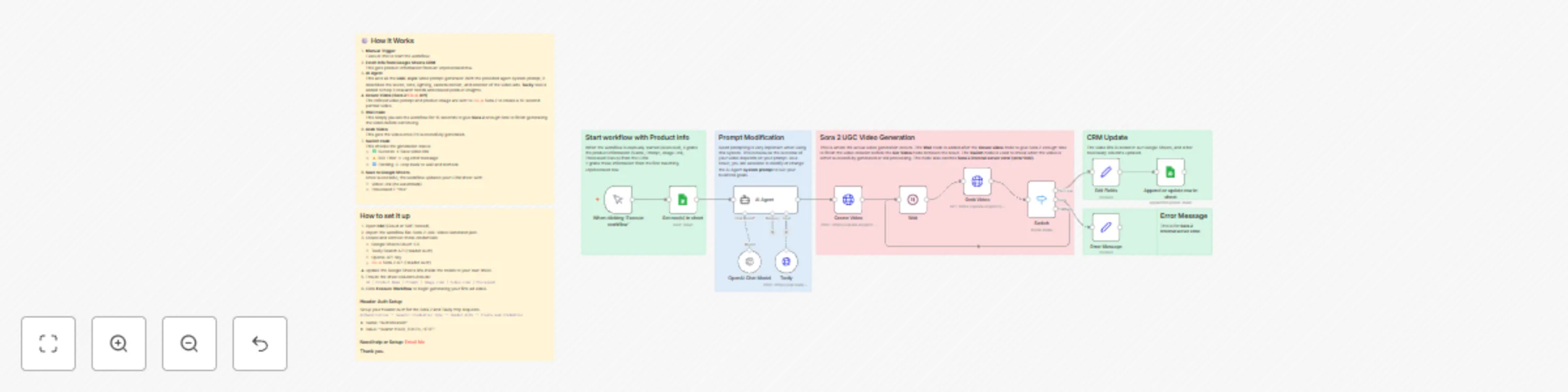
## 🧠 What It Does This n8n workflow automatically generates **10-second UGC-style portrait video ads** for any product — entirely powered by AI. Simply provide your **Product Name**, **Prompt or Idea**, and **Image Link** in Google Sheets, and the system will research your product, craft a modern video prompt, and generate a professional short ad using **Kie.ai Sora 2**. It combines **Tavily search**, **OpenAI prompt engineering**, and **Kie.ai image to video generation** to create fresh, authentic, and trending video ads that look like real influencer content or cinematic brand clips — perfect for social media campaigns. ## 💡 Why This Workflow? Creating quality short-form ads usually takes a video editor, copywriter, and creative researcher. This workflow automates all of that. It: - Researches your product’s category and trends using **Tavily Search API** - Generates optimized **video prompts** using **AI Agent** - Automatically creates **realistic 10-second videos** via **Kie.ai Sora 2** - Updates your CRM (Google Sheets) with the finished video link - Handles retries, errors, and success tracking automatically Ideal for **UGC marketers**, **product owners**, and **AI automation freelancers** who want to scale ad content creation. 👤 Who It’s For - **E-commerce brands** wanting fast ad content for new or existing products - **Freelancers and agencies** creating short-form AI ad videos for clients - **Automation enthusiasts** building no-code AI video generation systems - **Marketing teams** testing multiple product angles and styles efficiently ## ⚙️ How It Works 1. **Manual Trigger** Run the workflow manually to start video generation for one product entry at a time. 2. 📄 **Google Sheets Integration** The workflow reads product info (Name, Prompt, Image Link, Processed Status) and fetches one unprocessed row. 3. 🤖 **AI Prompt Engineering (via OpenAI)** The **AI Agent** uses a custom system message to act as a video prompt engineer, designing rich cinematic or UGC-style prompts for Sora 2. - It researches trends and related product insights through **Tavily** - Describes detailed **scene, tone, lighting, camera motion**, and **emotion** - Adapts to either cinematic or handheld influencer style automatically 4. 🎬 **Sora 2 Video Generation (Kie.ai API)** The refined video prompt and product image are sent to Kie.ai Sora 2 to create a 10-second portrait video. 5. ⏳ **Progress Monitoring** A Wait node (15 s) plus a Switch node checks the generation status: - ✅ Success → Save video link - ⚠️ 500 Error → Log error message - 🔁 Pending → Loop back to wait and recheck 6. 🗂️ **Save to Google Sheets** Once successful, the workflow updates your CRM sheet with: - Video Link (no watermark) - Processed = “Yes” ## 🛠 How to Set It Up 1. Open **n8n** (Cloud or Self-Hosted). 2. Import the workflow file: Sora 2 Video Generator.json. 3. Create and connect these credentials: - 🧾 Google Sheets OAuth 2.0 - 🔍 Tavily Search API (Header Auth) - 🤖 OpenAI API Key - 🎥 Kie.ai Sora 2 API (Header Auth) 4. Update the Google Sheets link inside the nodes to your own sheet. 5. Ensure the sheet columns include: `ID | Product Name | Prompt | Image Link | Video Link | Processed` 6. Click **Execute Workflow** to begin generating your first ad video. ## ⚡ Example Use Case `You’re launching a new skincare product. Add its name, image, and a short description to your Google Sheet — and this workflow will automatically research the market, generate a trending 10-second UGC ad prompt, and produce a ready-to-share Sora 2 video link — all hands-free.`
Automate B2B lead generation & email campaigns with Google Maps, SendGrid & AI
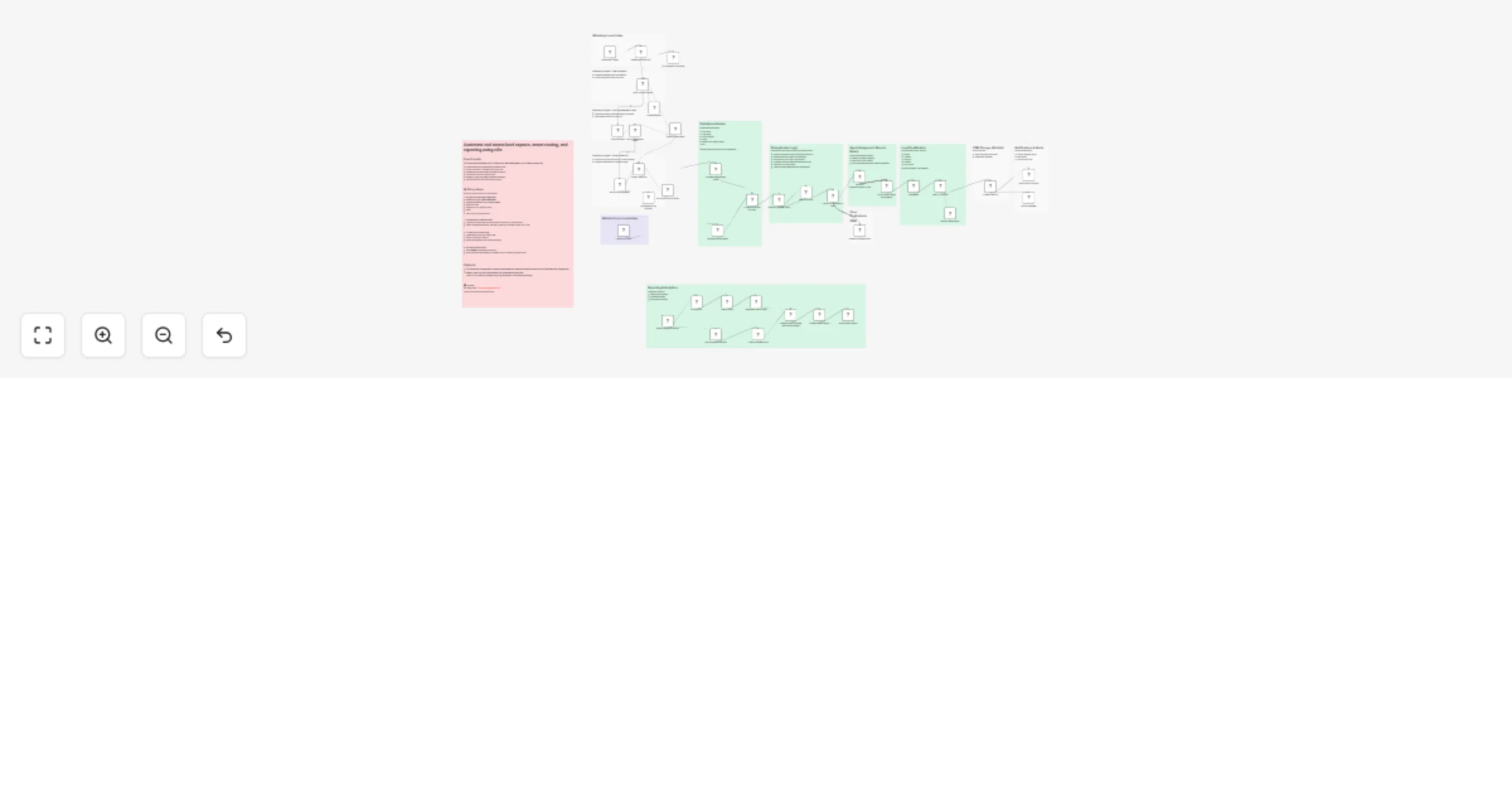
## 📌 Overview This **n8n-powered workflow** automates the entire lifecycle of **lead generation** and **email workflows/campaign**. It combines six specialized workflows into one seamless system that **scrapes fresh leads**, **sends personalized emails**, **tracks engagements**, **detects replies**, **classifies responses**, **handles follow-ups**, and **keeps a live CRM updated** — all in one loop. Designed for B2B cold outreach and follow-up nurturing, this system integrates with **Apify**, **Google Sheets**, **SendGrid**, **Gmail**, and **OpenAI** for AI summarization and real-time alerts. ## 🧠 What It Does This workflow automates the **entire lifecycle of B2B cold campaign**. It: - Scrapes targeted leads directly from **Google Maps** (via Apify). - Extracts verified emails from business websites with **anti-blocking safeguards**. - Stores everything in a centralized **Google Sheets CRM**. - Sends **personalized emails** via **SendGrid**, with unique embedded IDs for tracking. - Tracks delivery, opens, clicks, and bounces in real time through **webhook events**. - Detects replies from **Gmail**, matches them to the right campaign stage, and updates the CRM. - Uses **AI classification** to label replies (Interested, Not Interested, Miscellaneous). - Routes qualified replies directly to your **sales team or Slack/Telegram channel**. - Automates **follow-up emails** (5-day & 10-day intervals) for non-responders. - Provides **light analytics & reporting** in Google Sheets for quick insights (with deeper logs available in SendGrid). ## 💡 Why This Workflow - **All-in-One Solution**: Instead of juggling multiple tools, this workflow handles lead gen, outreach, tracking, and CRM updates in one place. - **Smart Reply Handling**: Never lose a lead — every reply is tracked, classified, and routed intelligently. - **Scalable & Modular**: Each workflow (lead gen, email sending, webhook, replies, routing, follow-ups) can run independently or as part of the full system. - **Time-Saving**: Reduces manual lead collection, email follow-up, and CRM updating by **90%+**. - **Client-Ready**: Built with reliability in mind — randomized delays, duplicate prevention, priority logic for status updates, and AI-powered classification. ## 👤 Who It’s For This workflow is ideal for: - **Agencies** running cold campaigns for clients. - **B2B Businesses** looking to automate lead generation and follow-ups. - **Freelancers / Consultants** who need a plug-and-play outreach system without expensive SaaS subscriptions. - **Sales Teams** that want structured, real-time leads routed directly to their inbox or Slack. - **Startups** who want a scalable, low-cost alternative to tools like Apollo, Firecrawl, Bright Data or Reply.io. ## ⚙️ How It Works ### 🧩 1. Lead Generation Workflow #### 🎯 Purpose Scrape fresh B2B leads from Google Maps, crawl their websites to extract verified email addresses, and upload structured, clean lead data into a Google Sheets CRM. #### 🛠 How It Works **1. User Input via Form Trigger** - The workflow begins with a form asking for: - Business keyword (e.g. "Dentist") - Location (e.g. "Florida") - Lead limit (e.g. 50) **2. Scrape Google Maps via Apify** - Calls the Apify Google Maps Scraper Actor - Extracts structured business data like: `Business Name`, `Website`, `Phone`, `Category`, `Rating`, `Address`. **3. Website Filtering & Normalization** - Filters out businesses with no website - Cleans up URLs **4. Website Email Extraction** - Sends direct **HTTP GET requests** to the homepage of each business - Parses the raw HTML for public-facing email addresses using regex - Implements **anti-blocking techniques**: - Random delays between requests - Custom headers / User-Agent spoofing - Graceful skip on failures **5. Final Filtering & Data Structuring** - Keeps only businesses with a valid email address - Constructs lead objects with: `Business Name`, `Category`, `Email`, `Website`, `Phone`, `Rating`, `Location`. **6. Upload to Google Sheets CRM** - Pushes leads to a connected Google Sheet that acts as the system’s central CRM - This CRM becomes the source for the email sending workflow ### 🧩 2. Send an Email Workflow #### 🎯 Purpose Automatically sends personalized emails to verified leads using rotating templates, embedded ID tracking, and campaign-stage tagging. #### 🛠 How It Works **1. Pull Active Leads from CRM** - Retrieves fresh leads from the Google Sheet where **2. Select a Random Template** - Pulls from a template library stored in a separate Google Sheet - Injects lead-specific variables into placeholders like: `[Business Name]`, `[Category]`, `[Location]`, etc. **3. Embed Unique Tracking ID** - Appends an embedded **ID token** to the email. This enables **accurate reply source tracking** across all email stages **4. Send Email via SendGrid** - Sends the message using SendGrid's transactional API - Emails are tagged internally according to email type. ### 🧩 3. Webhook Event Workflow #### 🎯 Purpose Processes SendGrid webhook events (e.g., delivered, opened, clicked, bounced) and updates the CRM with **prioritized delivery status** and **engagement tracking** — using clean classification and smart update logic. #### 🛠 How It Works **1. Receive Events via Webhook Trigger** - Listens for real-time webhook events from SendGrid, including: - delivered, bounce, deferred, processed, open, click, unsubscribe, spamreport, etc. **2. Classify Each Event Type** - A custom code node adds a **route** label: - **status**: delivery-level events - **engagement**: recipient interaction events - **others**: uncategorized or unsupported **3. Switch-Based Routing** - **Status Events**: - Applies **priority logic** - If multiple status events are received for the same lead, only the **highest-priority event** is stored - Updates corresponding CRM fields: - **Engagement Events**: - Detects interactions like: - Opened, Clicked, Unsubscribed, Spam Reported - Updates CRM fields: - Opened, Clicked, Unsubscribed, Spam Reported, Engaged At - Preserve first-time interaction records and avoiding regressions - **Others Branch**: - Logs or gracefully skips events not explicitly supported **4. CRM Synchronization** - Merges event data with the correct lead by matching Email - Ensures all updates are timestamped and consistent across systems ### 🧩 4. Reply Update Database Workflow #### 🎯 Purpose Polls Gmail inbox, extracts replies, determines their source, and logs them in both the CRM and a message tracker sheet. #### 🛠 How It Works **1. Poll Gmail for New Replies** - Uses Gmail API to fetch recent messages - Filters out auto-replies, no-reply addresses, or irrelevant responses **2. Prevent Duplicate Processing** - Checks each message against a "Processed Message IDs" Google Sheet - Skips if the message has been handled before **3. Extract Reply Metadata** **4. Match to Lead & Update CRM** - Determines the original email stage based on ID - Updates necessary fields ### 🧩 5. Email Routing Workflow #### 🎯 Purpose Uses AI to classify replies by intent (Interested, Not Interested, or Miscellaneous) and automatically routes, labels, and logs them accordingly. #### 🛠 How It Works **1. Receive Cleaned Reply** - Triggered after a set time interval **2. Classify Using AI (LangChain / OpenAI)** - The reply is analyzed and categorized as: - Interested: wants to talk, asks for more info - Not Interested: says no or unsubscribes - Miscellaneous: unclear or unrelated response **3. Gmail Label Assignment** - Adds Gmail label based on classification **4. Handle “Interested” Replies** - If Interested: - Adds label in Gmail - Forwards message to a sales or response channel - Updates Google Sheet CRM ### 🧩 6. Follow-Up Email Workflow #### 🎯 Purpose Automatically sends up to two follow-up emails to leads who showed interest (opened or clicked) but haven’t replied yet. #### 🛠 How It Works **1. Scheduled Execution** - Runs daily or at set intervals **2. Filter Leads for Follow-Up** - Checks that desired conditions are met: - Required number of days have passed: - 5 days → Follow-Up 1 - 10 days → Follow-Up 2 **3. Choose and Personalize Template** - Injects lead-specific data - Embeds corresponding for reply tracking **4. Send via SendGrid** - Message is tagged by stage - Sent using the same logic as the original email **5. Update CRM** - Increments: - Follow-Up Sent flag - Follow-Up Count - Follow-Up Time field ## ✅ Setup Requirements (Before You Start) Prepare these items to avoid interruptions during setup: - **🌍 Domain DNS Access** - You’ll need to add TXT/CNAME records in your registrar (GoDaddy, Namecheap, Cloudflare, etc.) to authenticate your domain with SendGrid. - **📧 Domain Email Address or Single Sender Authentication (e.g., [email protected])** - Needed for SendGrid domain authentication (don’t use Gmail/Yahoo). - This step ensures emails are not flagged as spam. Tip: If you don’t own a domain, you can use a single sender email to test, but for production you **MUST** authenticate a domain. - **🔑 API Keys / Credentials** - **Apify API Key** → for Google Maps scraping. - **SendGrid API Key** → for sending emails + webhook events. - **Google Sheets OAuth Credentials** → for CRM integration. - **Gmail API Credentials** → for reply detection. - **OpenAI API Key** → for AI-based reply classification. - **📊 Google Sheet (CRM)** - Add desired columns: Business Name, Email, Website, Phone, Category, Status, Reply, Follow-Up Count. - **🌐 n8n Environment (Cloud or Self-Hosted)** - Must allow Apify node installation. ## 🛠 How to Set It Up 1. **Open n8n (Cloud or Self-Hosted)**. 2. **Install Apify node before importing**. - Search **Apify** → click **Install**. 3. Import the provided **.json** workflow file into your n8n editor. 4. **Set up the required credentials**: - 🔑 Apify API Key, - 🔑 SendGrid API Key, - 🔑 Google Sheets OAuth, - 🔑 Gmail API, - 🔑 OpenAI API Key. 5. **Prepare your Google Sheet (CRM)**. - Verify column names match your workflow fields. - Adjust **“Get Desired Fields”** node in n8n **“Lead generation workflow”** if you add/remove columns. 6. **Enable SendGrid Webhook Events**. - Go to **SendGrid** → **Settings** → **Mail Settings** → **Event Webhook**. - Paste the webhook URL from your n8n **“Webhook Event Workflow”**. - Select: Delivered, Opened, Clicked, Bounced, Unsubscribed, Spam Report. 7. **Run a test**. - Trigger the **Lead Generation workflow** → check Google Sheets for leads. - Send a **test email** → verify delivery + engagement updates in CRM. - Reply from a **test inbox** → confirm Gmail polling + AI classification. #### 📂 Additional Provided Resources. To help you get started faster, you’ll also receive: - SendGrid **Setup** and **Troubleshooting document**. - **Two ready-to-use Google Sheets example templates** which can be modified to suit your business needs: - **Email Workflow DB CRM** - **Includes**: - **Leads Tab** → structured space for scraped businesses and contact details. - **Email Templates Tab** → pre-written templates for the main email, 1st follow-up, and 2nd follow-up (with placeholders for personalization). - **Analytics Tab** → light reporting on sends, opens, clicks, and replies to give quick campaign insights. - **Processed Gmails IDs** - A simpler sheet designed for **Gmail reply handling**. - Useful for tracking processed messages and avoiding duplicates while you familiarize yourself with how reply updates work. ## 🎨 Customization Tips - **Templates**: Update the Google Sheets Templates tab with your own outreach copy. Use placeholders like `[Business Name]`, `[Location]`, `[Category]` so each email feels personalized. - **CRM Fields**: Add or remove CRM columns depending on your business needs (e.g., Industry, Revenue, Sales Owner, Notes). Just make sure the field names match in n8n’s **“Grab Desired Fields”** nodes in the **Lead generation workflow**. - **Follow-Up Logic**: Adjust the timing for follow-ups. Default is **5 days (Follow-Up 1)** and **10 days (Follow-Up 2)**, but you can easily change this to **3/7/14 days** or any schedule your sales process requires. - **Reply Routing**: Customize how AI classification works. For example, rename labels (“Hot Lead”, “Not Interested”, “Out of Scope”) and route replies differently (e.g., forward “Interested” to your sales inbox, Slack channel, or Telegram bot). - **Analytics & Reporting**: Expand the Google Sheets reporting tab. You can add pivot tables for deeper campaign insights. ***For more advanced analytics, SendGrid also keeps full logs.*** - **Scalability**: - Add **proxy handling** for higher-volume scraping. - Switch to a database (Postgres, Supabase, MongoDB) instead of Google Sheets if managing thousands of leads. - Use multiple SendGrid accounts or IP warm-up strategies for large-scale sending. - **Scraping Alternatives**: - If you prefer not to use direct HTTP requests for email extraction, you can integrate with external scrapers like: - Firecrawl – lightweight scraper for web/email extraction. - Bright Data – residential proxies + scraping tools. - Apify Website Scrapers – customizable actors for deep site scraping. - These can plug into the workflow instead of (or alongside) the built-in email scraper. #### ✨ Predefined Templates vs. AI-Generated Emails By default, this workflow uses **predefined templates** stored in Google Sheets. This design choice was intentional, and here’s why: - **✅ Reliability**: Alway work, no prompt issues. - **✅ Cost Savings**: no API token usage. - **✅ Total Control, Consistent & Customizable**: You control tone and can tweak anytime. ⚡ That said, you can absolutely **swap out the template system for AI-based generation** if you prefer dynamic messaging. The workflow is flexible — just keep in mind the trade-offs in cost, reliability, and control. ⚡ Best approach: start with templates for stability, then add AI if you want more variety.
Send predefined personalized emails to leads from Google Sheets using SendGrid
## 📧 What It Does This n8n workflow sends **personalized marketing or outreach emails** using **predefined templates** stored in **Google Sheets**, with **SendGrid** as the email delivery provider. Instead of relying on dynamic AI content, this setup selects a ready-made template and merges it with business-specific lead data — delivering consistent and fast email personalization at scale. ## 💡 Why This Workflow? Sometimes, you don’t need the overhead or variability of AI-generated content. Predefined templates give you: - ⚡ **Faster execution** — no calls to AI models - 🎯 **Total control** over tone, formatting, and structure - 🛠️ **Easy customization** using variables like `[BusinessName]`, `[Location]`, etc. - 💰 **Zero additional cost per email** ## 👤 Who It’s For - **Freelancers** or **Agencies** running outreach campaigns - **Startups** or **SMBs** with lead data in Google Sheets - Anyone who wants to automate email sending with **consistency, control, and low cost**. ## ⚙️ How It Works 1. **Manual Trigger** starts the workflow. 2. **Google Sheets (Leads tab)** supplies a list of businesses with fields like name, location, email, category, etc. 3. Loop started to execute each item. 4. **Google Sheets (Email Template tab)** holds predefined subject and body templates (HTML supported). 5. A **random template** is selected for each email. 6. Placeholders like `[BusinessName]` or `[Category]` are replaced with actual lead info using the `Fix Variable` (Set) node. 7. The formatted message is sent via **SendGrid**, using your authenticated sender email. 8. A **1-second wait** is added between emails to manage rate limits and avoid spam flags. 9. Loop continues until all leads have been emailed. ## 🛠 How to Set It Up 1. Import the `.json` file into your n8n instance. 2. Connect the required credentials: - **SendGrid API Key** (ensure sender domain and identity is verified) - **Google Sheets OAuth2** 3. Create or duplicate this [sample sheet](https://docs.google.com/spreadsheets/d/1UGarQNCplIfKKPSInxZlIC72oosZ45ul5jAQjYfpWrs/edit?usp=sharing), which contains two tabs and modify to your business interest: - `Leads` - `Email Template` 4. Update the leads and email templates to match your campaign. 5. Click **“Execute Workflow”** to begin sending emails. ## 🚀 Want to Scale This? Add additional workflows: - 📬 **SendGrid Webhook integration** to track status & engagements like bounces, opens, and clicks - 🔁 **Reply tracker** via **Gmail** to update lead status - 🤖 **AI-based Email Router** to label replies as *Interested*, *Not Interested*, *Others*, **Forward emails** to appropriate department for further engagements. - 📆 **Follow-up Emails** (when there's no email reply) for D+5, D+10 days sequences ## 📬 Need Help? Feel free to reach out via email: [[email protected]](mailto:[email protected]) Thanks for using this workflow
Google Maps lead generation with Apify & email extraction for Airtable
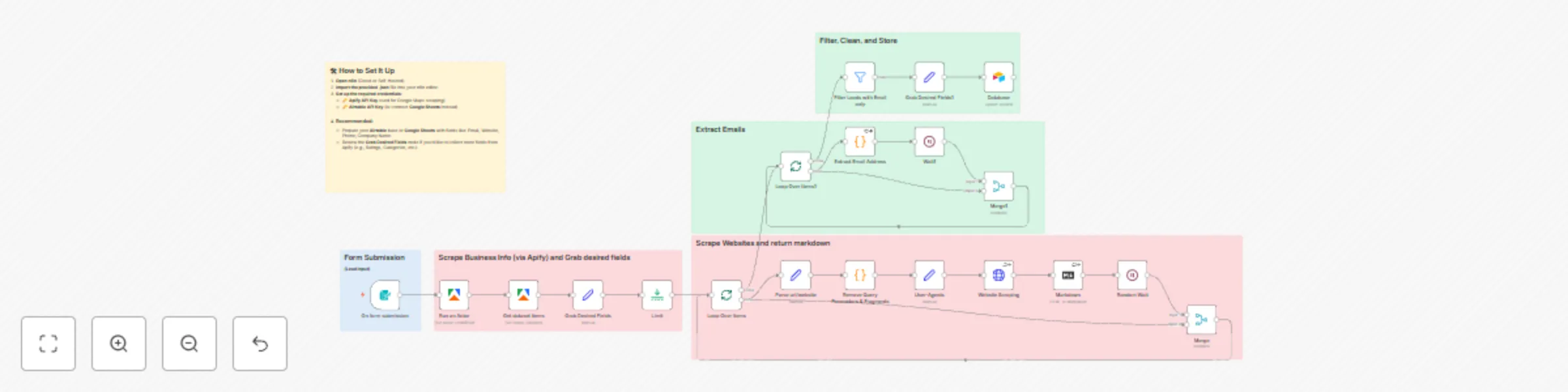
## 🧠 What It Does This n8n workflow collects **leads** from **Google Maps**, scrapes their websites via direct **HTTP requests**, and extracts **valid email addresses** — all while mimicking real user behavior to improve scraping reliability. It rotates User-Agent headers, introduces randomized delays, and refines URLs by removing only query parameters and fragments to preserve valid page paths (like social media links). The workflow blends **Apify actors, raw HTTP requests, HTML-to-Markdown** conversion, and **smart email extraction** to deliver clean, actionable lead data — ready to be sent to **Airtable**, Google Sheets, or any CRM. Perfect for lean, scalable B2B lead generation using n8n’s native logic and no external scrapers. ## 💡Why this workflow Modest lead scrapers rely on heavy tools or APIs like Firecrawl. This workflow: - Uses lightweight HTTP requests (with randomized user-agents) to scrape websites. - Adds natural wait times to avoid rate limits and IP bans. - Avoid full-page crawlers, yet still pulls emails effectively. - Works great for freelancers, marketers, or teams targeting niche B2B leads. - Designed for stealth and resilience. ## 👤 Who it’s for - Lead generation freelancers or consultants. - B2B marketers looking to extract real contact info. - Small businesses doing targeted outreach. - Developers who want a fast, low-footprint scraper. - Anyone who wants **email + website leads** from **Google Maps.** ## ⚙️ How It Works #### 1. 📥 Form Submission (Lead Input) A Form Trigger collects: - **Keyword** - **Location** - **No. of Leads** (defaults to 10) This makes the workflow dynamic and user-friendly — ready for multiple use cases and teams. #### 2. 📊 Scrape Business Info (via Apify) - Apify’s Google Maps Actor searches for matching businesses. - The Dataset Node fetches all relevant business details. - A Set Node parses key fields like name, phone, website, and category. - A Limit Node ensures the workflow only processes the desired number of leads. #### 3. 🔁 First Loop – Visit & Scrape Website Each business website is processed in a loop. - A Code Node cleans the website URL by removing only query parameters/fragments — keeping full paths like /contact. - A HTTP Request Node fetches the raw HTML of the site: - Uses randomized User-Agent headers (5 variants) to mimic real devices and browsers. This makes requests appear more human and reduces the risk of detection or blocking. - HTML is converted to Markdown using the Markdown Node, making it easier to scan for text patterns. - A Wait Node introduces a random delay between 2-7 seconds: - Helps avoid triggering rate limits, - Reduces likelihood of being flagged as a bot. - A Merge Node combines scraped markdown + lead info for use in the second loop. #### 4. 🔁 Second Loop – Extract Emails In this second loop, the markdown data is processed. - A Code Node applies regex to extract the first valid email address. - If no email is found, "N/A" is returned. - A brief 1 second Wait Node simulates realistic browsing time. - Another Merge Node attaches the email result to the original lead data. #### 5. ✅ Filter, Clean & Store - A Filter Node removes all entries with "N/A" or invalid email results. - A Set Node ensures only required fields (like website, email, and company name) are passed forward. - The clean leads are saved to **Airtable** (or optionally, Google Sheets) using an upsert-style insert to avoid duplicates. ## 🛡️ Anti-Flagging Design This workflow is optimized for stealth: - No scraping tools or headless browsers (like Puppeteer or Firecrawl). - Direct HTTP requests with rotating User-Agents. - Randomized wait intervals (2-7s). - Only non-intrusive parsing — no automation footprints. ## 🛠 How to Set It Up **Open n8n** (Cloud or Self-Hosted). **Install Apify node** - search **Apify** and click on **Install**. Do this before importing your file. **Import the provided .json file** into your n8n editor. **Set up the required credentials:** - **🔑 Apify API Key** (used for Google Maps scraping) - **🔑 Airtable API Key** (or connect Google Sheets instead) #### Recommended - Prepare your Airtable base or Google Sheet with fields like: Email, Website, Phone, Company Name. - Review the Set node if you'd like to collect more fields from Apify (e.g., Ratings, Categories, etc.). ## 🔁 Customization Tips - The Apify scraper returns rich business data. By default, this workflow collects name, phone, and website — but you can add more in the **"Grab Desired Fields"** node. - Need safer scraping at scale? Swap the HTTP Request for Firecrawl’s Single URL scraper (or any headless service like Browserless, Oxylabs, Bright Date, or ScrapingBee) — they handle rendering and IP rotation. - Want to extract from internal pages (like /contact or /about)? Use Firecrawl’s async crawl mode — just note it takes longer. - For speed and efficiency, this built-in **HTTP + Markdown** setup is usually the fastest way to grab emails.
Create a multi-modal Telegram support bot with GPT-4 and Supabase RAG
## 🧠 What It Does This n8n workflow turns your Telegram bot into a smart, multi-modal AI assistant that accepts **text**, **documents**, **images**, and **audio** messages, interprets them using OpenAI models, and responds instantly with context-aware answers. It integrates a **Supabase vector database** to store document embeddings and retrieve relevant information before sending a prompt to OpenAI — enabling a full **RAG** experience ## 💡 Why This Workflow? Most support bots can only handle basic text input. This workflow: - Supports multiple input formats (voice, documents, images, text) - Dynamically extracts and processes data from uploaded files - Implements RAG by combining user input with relevant memory or vector-based context - Delivers more accurate, relevant, and human-like AI responses. ## 👤 Who It's For - Businesses looking to automate support using Telegram - Freelancers or solopreneurs offering AI Chatbots for businesses. - Creators building AI-powered bots for real use cases as it's great for Customer support knowledge, Legal or Policy document, long FAQs, Project documentation, and Product information retrieval. - Devs or analysts exploring AI + multi-format input + vector memory. ## ⚙️ How It Works ### 🗂️ Knowledge Base Setup Run the **“Add to Supabase Vector DB”** workflow manually to upload a document from your google drive and embed it into your vector database. This powers the Telegram chatbot’s ability to answer questions using your content. ### 🔁 Telegram Message Routing 1. **Telegram Trigger** captures the user message (Text, Image, Voice, Document) 2. **Message Router** routes input by type using a Switch node 3. Each type is handled separately: - **Voice** → Translate recording to text (.ogg, .mp3) - **Image** → Analyze image to text. - **Text** → Sent directly to AI Agent (.txt). - **Document** → Parsed (e.g. .docx to .txt) accordingly. #### 📎 Document Type Routing Before routing documents by type, the **Supported Document File Types** node first checks if the file extension is allowed. If not supported, it exits early with an error message — preventing unnecessary processing. Supported documents are then routed using the **Document Router** node, and converted to text for further processing. #### Supported Document File Types **.jpg** **.jpeg** **.png** **.webp** **.pdf** **.doc** **.docx** **.xls** **.xlsx** **.json** **.xml**. 4. The text content is combined with stored memory and embedded knowledge using a **RAG** approach, enabling the AI to respond based on real uploaded data. #### 🧠 RAG via Supabase Uploaded documents are vectorized using OpenAI Embeddings. Embeddings are stored in Supabase with metadata. On new questions, the chatbot: - Extracts question intent - Queries Supabase for semantically similar chunks - Ranks retrieved chunks to find the most relevant match. - Injects them into the prompt for OpenAI. - OpenAI generates a grounded response based on actual document content. 5. Response is sent to the Telegram user with content awareness. ## 🛠 How to Set It Up 1. Open [n8n](https://www.n8n.io) or your local/self-hosted instance. 2. Import the `.json ` workflow file. 3. Set up these credentials: - **Google drive API Key** - **Telegram API (Bot Token) [Guide](https://docs.n8n.io/integrations/builtin/credentials/telegram/?utm_source=n8n_app&utm_medium=credential_settings&utm_campaign=create_new_credentials_modal)** - **OpenAI API** - **Supabase API Key + Environment** - **ConvertAPI API Key** - **Postgres API Key** - **Cohere API Key** - **Add a prompt suited to your business.** Add a custom AI agent prompt that reflects your business domain, tone, and purpose. This is very important. Without it, your agent won't know how best to respond. 4. Activate the workflow. 5. Start testing by sending a message or document to your Telegram bot.