Block 1 - Gmail Trigger
- Type / Role
- n8n-nodes-base.gmailTrigger - gmailTrigger
- Config choices
- Version 1.3


 Early Deal
This workflow is provided as-is. Please review and test before using in production.
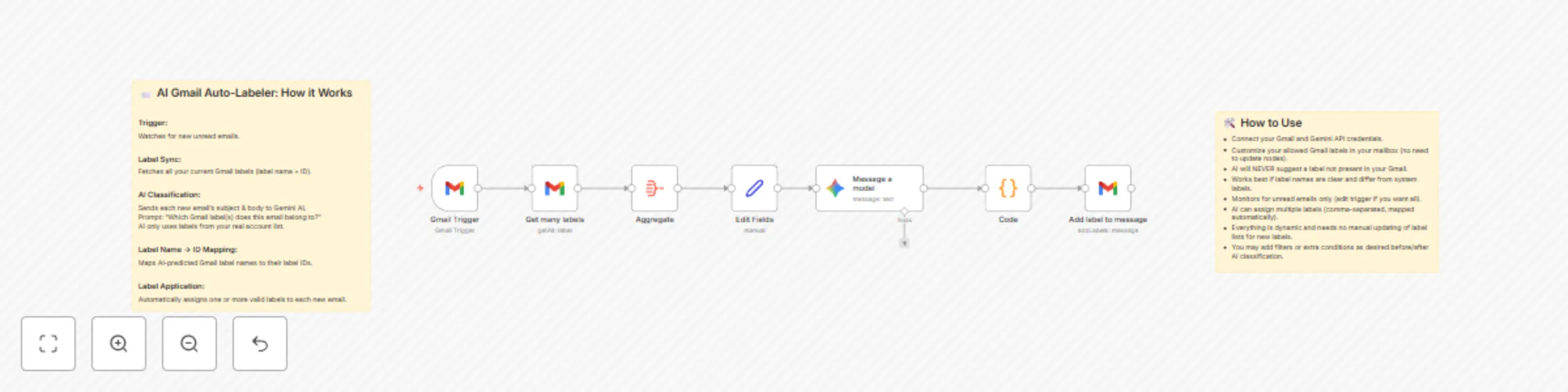
AI Powered Gmail Auto Labeler Automatically organize your Gmail inbox with seamless, dynamic AI classification! This workflow leverages Google Gemini’s latest model to continually sort new emails i...
n8n-nodes-base.gmailtrigger, @n8n/n8n-nodes-langchain.googlegemini, n8n-nodes-base.gmail, n8n-nodes-base.set, n8n-nodes-base.aggregate, n8n-nodes-base.code, n8n-nodes-base.stickynote
This workflow is cataloged by N8N Workflows and links back to its original n8n.io source page by Aryan Shinde.
Original n8n.io sourceAutomatically organize your Gmail inbox with seamless, dynamic AI classification! This workflow leverages Google Gemini’s latest model to continually sort new emails into your own custom Gmail labels—no manual intervention or tedious setup required.
Watches for Unread Emails: Continuously polls your Gmail inbox for new unread emails (polling interval can be changed as needed).
Fetches All Available Labels: Dynamically syncs every custom & system label from your Gmail account—no hardcoded lists.
AI-Based Classification: Each new email’s subject and snippet/body are sent to the Gemini 2.5 Pro AI, which analyzes content and recommends the best matching label(s) from your own label list (not made up!).
Accurate Label Application: The workflow maps Gemini’s label name suggestions to the correct label IDs in Gmail and auto-applies one or more labels directly to each email.
Self-Updating / No Maintenance: If you add/change Gmail labels, the workflow always uses the current label list. You don’t need to update any configuration or nodes (completely dynamic).
Supports Multiple Simultaneous Labels: Gemini can assign several labels at once—perfect for nuanced sorting (ex: “Receipts”, “Work”, "Travel").
Connect Credentials:
Google Gmail account (OAuth2)
Gemini API key (for Google Gemini)
(Optional) Adjust Gmail Labels: Add, rename, or customize labels in Gmail to suit your sorting preferences. You can continue to modify these at any time!
Activate the Workflow: Turn on the workflow. It starts processing new emails immediately. No need to edit code or update nodes when labels change.
(Optional) Customize Filtering or Post-Processing:
The default trigger checks for unread messages, but you can adjust this (e.g., all messages, specific senders, etc.).
Add extra workflow steps as desired for downstream automation.
Dynamic Label Handling: Workflow always references your live Gmail label list—ensuring AI only selects valid, current labels.
Never Misses a Label: Gemini never invents new labels; only suggests exact matches from your actual account.
Highly Customizable: Enhance/chain further automations—trigger from read emails, exclude newsletters, forward labeled messages, etc.
No Manual Updates: Completely plug-and-play. Adding/changing labels in Gmail immediately reflects in workflow.
Includes In-Workflow Notes: Clear sticky notes and documentation embedded for reference and troubleshooting.
Automated Inbox Zero – Instantly sort incoming emails into actionable folders.
Smart Multi-Labeling – Financial emails get “Receipts”, “Accounting” and “Work”, all at once.
Personal & Work Split – Classify emails into "Personal", "Clients", "Leads", etc.
Travel, Projects, Subscriptions – Transform your Gmail into a fully organized hub.
This workflow is perfect for anyone who wants Gmail organization powered by leading-edge AI, with absolutely minimal maintenance.
Just connect accounts and activate — let Gemini do the sorting!
This catalog entry is organized from the workflow JSON. The node-level section below shows the executable blocks available for review before importing the template.
| Workflow | Auto-label Gmail emails using Gemini 2.5 Pro AI classification |
|---|---|
| Complexity | intermediate |
| Nodes | 9 |
| Categories | Ticket Management, AI Summarization |
| Author | Aryan Shinde |
| Published | 07 Sept 2025 |
Use the JSON export at /data/workflows/8357/8357.json as the source template for this automation.
Open n8n, import the downloaded JSON, and review each node before activating the workflow.
Replace placeholder credentials, API keys, webhook URLs, account IDs, and environment-specific values with your own settings.
Run the workflow manually or in a staging workspace, inspect node output, and confirm downstream systems receive the expected data.
Enable the workflow only after testing, then monitor executions, errors, and rate limits during the first production runs.
Review imported nodes carefully before activation. This catalog entry is intended to help you inspect the workflow structure, understand required services, and find related templates faster.
Node names, credentials, schedules, webhook paths, and external service limits may need adjustment for your workspace.
AI Powered Gmail Auto Labeler Automatically organize your Gmail inbox with seamless, dynamic AI classification! This workflow leverages Google Gemini’s latest model to continually sort new emails i...
Review the workflow JSON, configure any required credentials in n8n, and test the automation in a safe workspace before using it in production.
Yes. Use the block-by-block analysis and the downloadable JSON to inspect each node, then adjust credentials, prompts, schedules, filters, or destinations for your Ticket Management, AI Summarization use case.