A

Aryan Shinde

5
Workflows

Workflows by Aryan Shinde
Workflow preview: Generate business leads from Google Maps & Places API to Google Sheets
Free intermediate

Generate business leads from Google Maps & Places API to Google Sheets

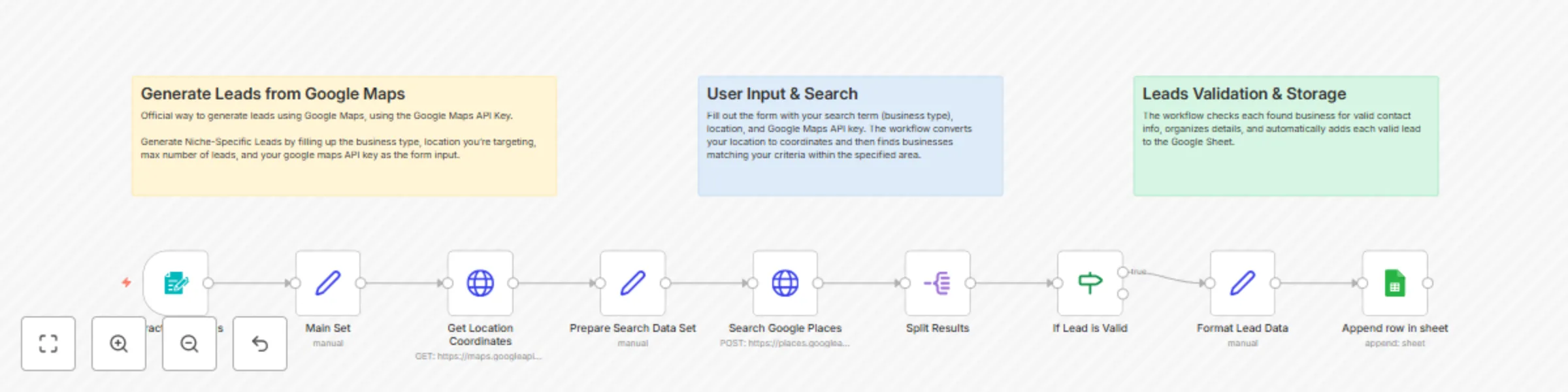
## Overview This workflow automates the process of generating niche-specific business leads from Google Maps, leveraging the Google Places API and Google Sheets for seamless data collection and storage. ## Who Is This For? - **Business owners**, marketers, sales teams, or anyone needing to build targeted lead lists by business type and location quickly. ## Main Use Cases - Building outreach lists for local marketing campaigns. - Finding potential clients in a specific location and industry. - Automating research for sales prospecting. ## How It Works 1. **Collect Inputs via Form:** Gather your business type (search term), target location, desired number of results, and Google Maps API key using a simple built-in form. 2. **Geocode Location:** The workflow automatically converts your location input into geographic coordinates. 3. **Search Businesses:** It utilizes the Google Places API to search for businesses that match your criteria within a 10-km radius of your location. 4. **Extract & Validate Data:** For each business found, it extracts key contact details (name, address, phone, website, etc.), validates for essential info, and automatically appends valid leads into your connected Google Sheet—ready for action. ## Prerequisites - Google account connected to [Google Sheets](https://www.google.com/sheets/about/). - Active [Google Maps API key](https://developers.google.com/maps/documentation/places/web-service/get-api-key). - Your target Google Sheet is set up to receive leads. ## Setup Steps 1. **Connect** your Google Sheets account inside n8n. 2. **Obtain** a Google Maps API key (usually takes a few minutes from the Google Cloud Console). 3. **Configure** the workflow: - Fill out the form inside the workflow with your business type, location, number of results, and your API key. 4. **Run** the workflow and watch qualified leads flow into your Google Sheet in real-time. ## Customization Options - Adjust the search radius or result count to match your needs. - Extend extracted fields or add filters for advanced lead qualification. - Change the Google Sheet structure as per your business process. ## Example Output Each row in your sheet contains: - Business Name - Address - Phone - Website - Google Maps URL - Ratings & Reviews - Business Types - Search Query & Location - Scraped At timestamp > **Tip:** > For more details and advanced customizations, refer to the in-workflow sticky notes.

A
Aryan Shinde
Lead Generation
18 Oct 2025
956
0
Workflow preview: Auto-label Gmail emails using Gemini 2.5 Pro AI classification
Free intermediate

Auto-label Gmail emails using Gemini 2.5 Pro AI classification

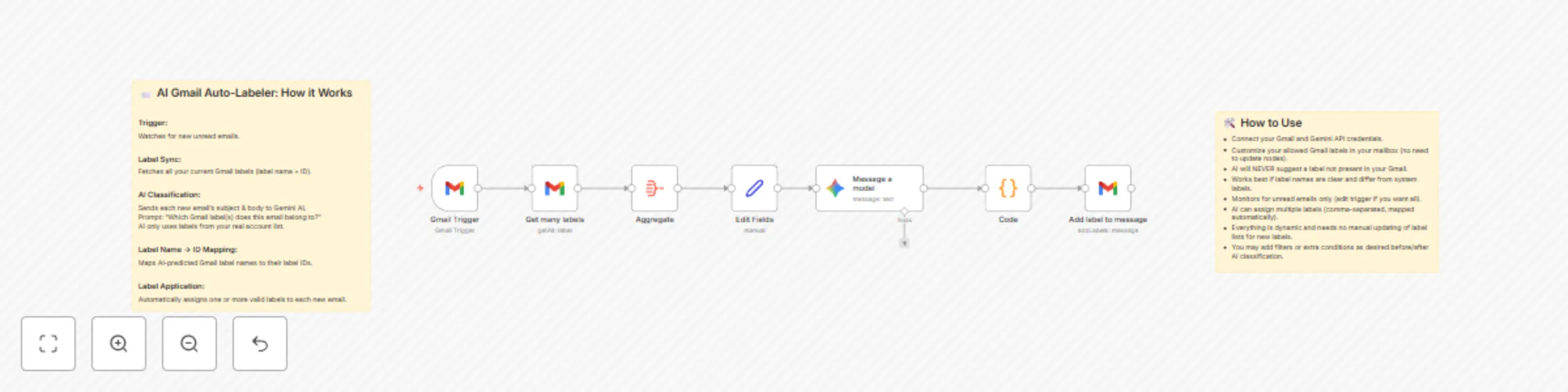
## AI-Powered Gmail Auto-Labeler Automatically organize your Gmail inbox with seamless, dynamic AI classification! This workflow leverages Google Gemini’s latest model to continually sort new emails into your own custom Gmail labels—no manual intervention or tedious setup required. ## 🚀 What This Workflow Does - **Watches for Unread Emails:** Continuously polls your Gmail inbox for new unread emails (polling interval can be changed as needed). - **Fetches All Available Labels:** Dynamically syncs every custom & system label from your Gmail account—no hardcoded lists. - **AI-Based Classification:** Each new email’s subject and snippet/body are sent to the Gemini 2.5 Pro AI, which analyzes content and recommends the best matching label(s) from your own label list (not made up!). - **Accurate Label Application:** The workflow maps Gemini’s label name suggestions to the correct label IDs in Gmail and auto-applies one or more labels directly to each email. - **Self-Updating / No Maintenance:** If you add/change Gmail labels, the workflow always uses the current label list. You don’t need to update any configuration or nodes (completely dynamic). - **Supports Multiple Simultaneous Labels:** Gemini can assign several labels at once—perfect for nuanced sorting (ex: “Receipts”, “Work”, "Travel"). ## 🔧 How to Set Up **Connect Credentials:** - Google Gmail account (OAuth2) - Gemini API key (for Google Gemini) - (Optional) Adjust Gmail Labels: Add, rename, or customize labels in Gmail to suit your sorting preferences. You can continue to modify these at any time! - Activate the Workflow: Turn on the workflow. It starts processing new emails immediately. No need to edit code or update nodes when labels change. - (Optional) Customize Filtering or Post-Processing: The default trigger checks for unread messages, but you can adjust this (e.g., all messages, specific senders, etc.). Add extra workflow steps as desired for downstream automation. ## 📝 Key Features & Best Practices - **Dynamic Label Handling:** Workflow always references your live Gmail label list—ensuring AI only selects valid, current labels. - **Never Misses a Label:** Gemini never invents new labels; only suggests exact matches from your actual account. - **Highly Customizable:** Enhance/chain further automations—trigger from read emails, exclude newsletters, forward labeled messages, etc. - **No Manual Updates:** Completely plug-and-play. Adding/changing labels in Gmail immediately reflects in workflow. - **Includes In-Workflow Notes:** Clear sticky notes and documentation embedded for reference and troubleshooting. ## 🕰 Example Use Cases - Automated Inbox Zero – Instantly sort incoming emails into actionable folders. - Smart Multi-Labeling – Financial emails get “Receipts”, “Accounting” and “Work”, all at once. - Personal & Work Split – Classify emails into "Personal", "Clients", "Leads", etc. - Travel, Projects, Subscriptions – Transform your Gmail into a fully organized hub. This workflow is perfect for anyone who wants Gmail organization powered by leading-edge AI, with absolutely minimal maintenance. Just connect accounts and activate — let Gemini do the sorting!

A
Aryan Shinde
Ticket Management
8 Sep 2025
893
0

Workflow preview: Generate SEO-optimized WordPress blogs with Gemini, Tavily & human review
Free advanced

Generate SEO-optimized WordPress blogs with Gemini, Tavily & human review

Effortlessly generate, review, and publish SEO-optimized blog posts to WordPress using AI and automation. ## How It Works AI Topic Generation: Gemini suggests trending blog topics matching your agency's services. Content Research: Tavily fetches recent relevant articles for each generated topic. Human Review: Choose the preferred article for publishing through a Telegram notification. AI Rewriting: Gemini rewrites the selected article into a polished, SEO-friendly post. Image Generation & Publishing: The workflow creates a featured image with Gemini or OpenAI, then publishes the post (with dynamic categories and images) to WordPress. Audit Trail: Every published post is logged to Google Sheets, and final details are sent to Telegram. ## Set Up Steps - Estimated setup time: 15–30 minutes (excluding API approval/wait times). - Connect your WordPress, Gemini (Google), Tavily, Google Sheets, and Telegram accounts. - Configure your preferred posting schedule in the “Schedule Trigger.” - Adjust prompts or messages to fit your agency’s niche or editorial voice if needed. ## Note: Detailed customizations and advanced configuration tips are included in the sticky notes within the workflow.

A
Aryan Shinde
Content Creation
8 Sep 2025
1717
0
Workflow preview: Automate Instagram reel downloads with Google Drive storage & Telegram alerts
Free intermediate

Automate Instagram reel downloads with Google Drive storage & Telegram alerts

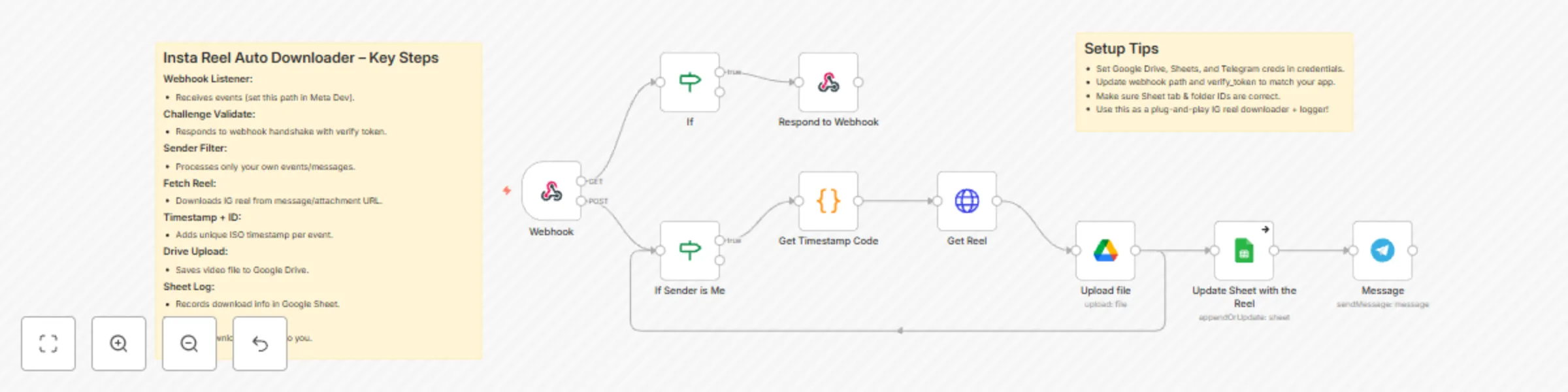
## Instagram Reel Downloader & Logger Automate Instagram Reel Downloads, Storage, and Activity Logging ### What does this workflow do? - Handles incoming webhook requests (ideal for Instagram/Facebook API triggers). - Validates the webhook via challenge-response and custom verify token. - Checks for messages from yourself (filtering automated/self-triggered runs). - Downloads Instagram Reels from URLs posted to the webhook. - Uploads the reel to Google Drive and retrieves the download URL. - Logs reel details (status, URL, and timestamp) to a Google Sheet for record-keeping. - Notifies you on Telegram with the download details and Google Drive link. ### How does it work? - Webhook: Listens for new messages/events (custom webhook endpoint for Meta). - Validation: Confirms webhook subscribe/challenge and verify token from Meta API. - Sender Check: Ignores messages unless they match your configured sender/recipient. - Download Reel: Fetches the reel/attachment from Instagram using received URLs. - Timestamp Gen: Adds a precise timestamp and ISO-based unique ID to the activity log. - Upload to Drive: Saves the downloaded reel in a preset Google Drive folder. - Log to Sheet: Updates a Google Sheet with the reel’s status, URL, and timestamp. - Telegram Alert: Instantly notifies you when a new reel is downloaded and logged. ### What do I need to make this work? - A registered webhook endpoint (from your Meta/Instagram app configuration). - A Google Drive and Google Sheets account (OAuth2 connected to n8n). - A Telegram Bot and Chat ID setup to receive download completion messages. - The correct verify_token in your webhook event source matches your template (‘youtube-automation-n8n-token’ by default). - Update your Drive/Sheet/Bot credentials as per your n8n instance’s environment. ### Why use this? - Fully automates the collection and archival of Instagram Reels. - Centralizes content download, backup, and activity records for your automation flows. - Provides instant monitoring and archival of each event. ### Setup Tips: - Make sure your webhook path and Meta app configuration match (/n8n-template-insta-webhook). - Double-check the Google credentials and the sheet’s tab IDs/names. - Replace the Telegram and Google connection credentials with your own securely. Use this as a foundation for any Instagram/Facebook-based automations in n8n, and customize as your automation stack evolves! Publish confidently, and let users know this template: Saves time, automates digital content management, and notifies users in real-time.

A
Aryan Shinde
File Management
4 Sep 2025
915
0
Workflow preview: AI-generated LinkedIn posts with OpenAI, Google Sheets & email approval workflow
Free advanced

AI-generated LinkedIn posts with OpenAI, Google Sheets & email approval workflow

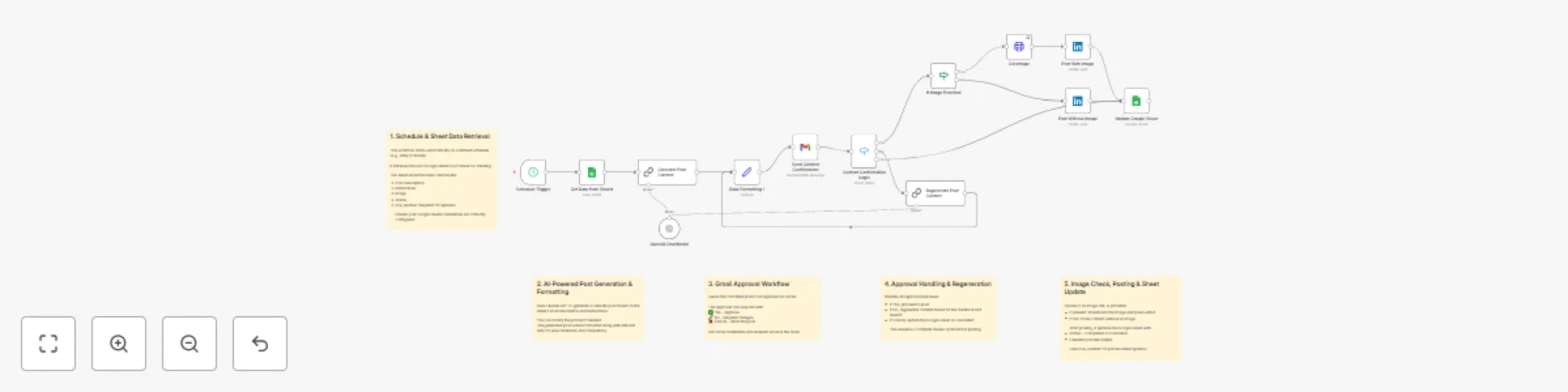
### How it works This workflow automates the process of creating, approving, and optionally posting LinkedIn content from a Google Sheet. Here's a high-level overview: 1. **Scheduled Trigger**: Runs automatically based on your defined time interval (daily, weekly, etc.). 2. **Fetch Data from Google Sheets**: Pulls the first row from your sheet where Status is marked as Pending. 3. **Generate LinkedIn Post Content**: Uses OpenAI to create a professional LinkedIn post using the Post Description and Instructions from the sheet. 4. **Format & Prepare Data**: Formats the generated content along with the original instruction and post description for email. 5. **Send for Approval**: Sends an email to a predefined user (e.g., marketing team) with a custom form for approval, including a dropdown to accept/reject and an optional field for edits. 6. **(Optional) Image Fetch**: Downloads an image from a URL (if provided in the sheet) for future use in post visuals. ### Set up steps You’ll need the following before you start: - A Google Sheet with the following columns: Post Description, Instructions, Image (URL), Status - Access to an OpenAI API key - A connected Gmail account for sending approval emails - Your own Google Sheets and Gmail credentials added in n8n ### Steps: 1. Google Sheet Preparation: Create a new Google Sheet with the mentioned columns (Post Description, Instructions, Image, Status, Output, Post Link). Add a row with test data and set Status to Pending. 2. Credentials: In n8n, create OAuth2 credentials for: a. Google Sheets b. Gmail c. OpenAI (API Key) Assign these credentials to the respective nodes in the JSON. 3. OpenAI Model: Choose a model like gpt-4o-mini (used here) or any other available in your plan. Adjust the prompt in the "Generate Post Content" node if needed. 4. Email Configuration: In the Gmail node, set the recipient email to your own or your team’s address. Customize the email message template if necessary. 5. Schedule the Workflow: Set the trigger interval (e.g., every morning at 9 AM). 6. Testing: Run the workflow manually first to confirm everything works. Check Gmail for the approval form, respond, and verify the results.

A
Aryan Shinde
Content Creation
13 May 2025
40863
0