AI-powered lead qualification with Zoho CRM, People Data Labs and Google Gemini

Workflow preview

Workflow preview
100%
AI-powered lead qualification with Zoho CRM, People Data Labs and Google Gemini preview
Open on n8n.io

Important notice

This workflow is provided as-is. Please review and test before using in production.

1. Workflow Overview

AI Powered Lead Qualification using Zoho CRM, People Data Labs, and Google Gemini This workflow automatically checks Zoho CRM every 5 minutes for newly created leads, enriches each lead using Peopl...

Best for

  • Lead Generation automation workflows
  • AI Summarization automation workflows
  • advanced n8n builders looking for reusable templates

Tools used

n8n-nodes-base.scheduletrigger, n8n-nodes-base.code, n8n-nodes-base.merge, n8n-nodes-base.httprequest, @n8n/n8n-nodes-langchain.chainllm, @n8n/n8n-nodes-langchain.lmchatgooglegemini, @n8n/n8n-nodes-langchain.outputparserstructured, n8n-nodes-base.if

Source and attribution

This workflow is cataloged by N8N Workflows and links back to its original n8n.io source page by WeblineIndia.

Original n8n.io source

1.1 Workflow description

Title
AI-powered lead qualification with Zoho CRM, People Data Labs and Google Gemini
Workflow name
AI-powered lead qualification with Zoho CRM, People Data Labs and Google Gemini

AI-Powered Lead Qualification using Zoho CRM, People Data Labs, and Google Gemini

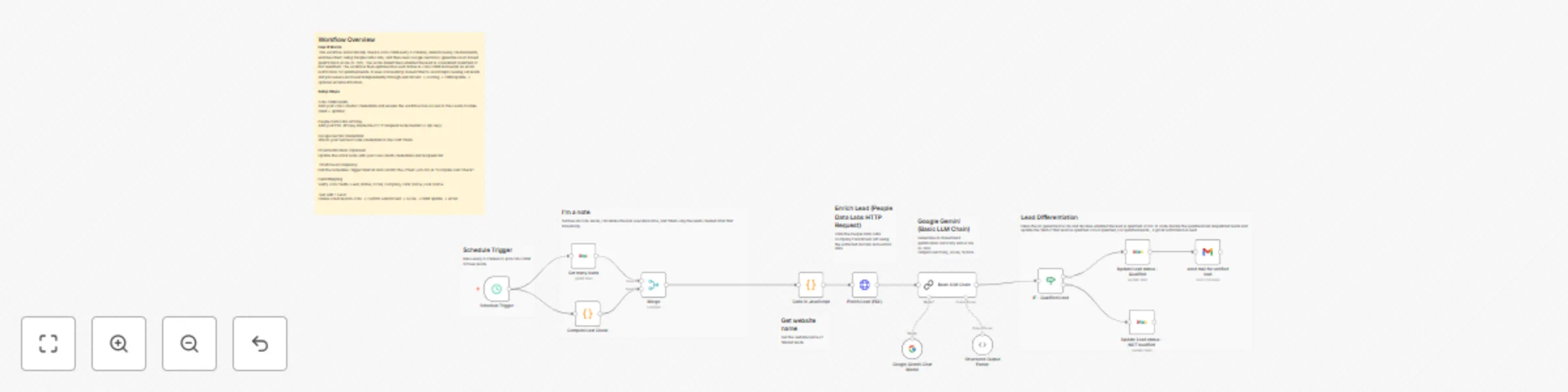
This workflow automatically checks Zoho CRM every 5 minutes for newly created leads, enriches each lead using People Data Labs, evaluates its quality using Google Gemini (LLM Chain) and updates the lead status in Zoho CRM as Qualified or Not Qualified. Qualified leads trigger an automated Gmail notification to the sales team.

Quick Start Setup

  1. Add Zoho CRM OAuth credentials.
  2. Add your People Data Labs API key.
  3. Add your Google Gemini (PaLM) LLM API credentials.
  4. Add Gmail OAuth credentials and set your recipient email.
  5. Activate the workflow.
  6. Create a test lead and verify enrichment → scoring → update → email.

What It Does

This workflow serves as an automated AI-driven lead qualification engine. Every 5 minutes, it fetches leads from Zoho CRM, filters newly created ones, enriches them using People Data Labs and scores them via Google Gemini. Based on the AI-generated score, the workflow updates the lead status and optionally sends an email notification.

Who’s It For

  • Sales teams using Zoho CRM
  • SDR/Marketing automation teams
  • Agencies performing automated lead pre-qualification
  • Businesses with high inbound lead volume
  • Anyone wanting AI-powered CRM automation via n8n

Requirements

  • n8n instance
  • Zoho CRM OAuth credentials
  • People Data Labs API key (can use another service , modify accordingly)
  • Google Gemini API credentials
  • Gmail OAuth credentials
  • Zoho fields: Company, Email, First_Name, Last_Name, Created_Time, Lead_Status

How It Works & Setup Steps

Step 1: Run every 5 minutes via Schedule Trigger

Triggers the workflow and computes a timestamp window.

Step 2: Fetch Zoho leads

Retrieves all leads from Zoho CRM.

Step 3: Filter newly created leads

Compares Created_Time with timestamp from previous run.

Step 4: Extract website field

Extract the website field, Used for People Data Labs enrichment API for search about that company.

Step 5: Enrich via People Data Labs

Adds company size, industry, founding year, etc.

Step 6: Score using Google Gemini

LLM produces a JSON response: summary, score, factors.

Step 7: Update CRM status

IF score > 80 → Qualified Else → Not Qualified

Step 8: Send Gmail notification

Send gmail notifications to sales team, Only for Qualified leads - informs that this Lead is marked as Qualified Leads

Customization

  • Adjust score threshold in IF node
  • Edit email recipients in Gmail node
  • Modify AI prompt in LLM Chain
  • Change 3rd party api for enrichment, if required
  • Modify PDL parameters
  • Change Zoho CRM fields

Add‑Ons

  • Slack notifications
  • Google Sheets logging
  • Auto-create Deals in Zoho
  • Add CRM notes
  • Owner reassignment
  • Tagging

Use Case Examples

  1. Automated B2B lead scoring
  2. High-intent lead notifications
  3. CRM hygiene automation
  4. Enriched lead analytics
  5. SDR productivity boost

Troubleshooting Guide

Issue Cause Solution
No new leads detected Timestamp mismatch Validate “Compute Last Check” logic
No enrichment data Empty website / invalid API key Check PDL credentials & website value
AI output invalid Prompt overwritten Restore original prompt
CRM update fails Wrong leadId mapping Confirm Zoho lead ID
Gmail errors OAuth expired Reconnect Gmail credentials
No qualified leads Score too strict Lower IF threshold

Need Help?

WeblineIndia can help with workflow customization, advanced automations, CRM integrations and AI-driven business processes. Contact us for expert assistance.

1.2 Logical Blocks

This catalog entry is organized from the workflow JSON. The node-level section below shows the executable blocks available for review before importing the template.

2. Block-by-Block Analysis

Block 1 - Schedule Trigger

Type / Role
n8n-nodes-base.scheduleTrigger - scheduleTrigger
Config choices
Version 1

Block 2 - Compute Last Check

Type / Role
n8n-nodes-base.code - code
Config choices
Version 2

Block 3 - Merge

Type / Role
n8n-nodes-base.merge - merge
Config choices
Version 2

Block 4 - Code in JavaScript

Type / Role
n8n-nodes-base.code - code
Config choices
Version 2

Block 5 - Enrich Lead (PDL)

Type / Role
n8n-nodes-base.httpRequest - httpRequest
Config choices
Version 4.3

Block 6 - Basic LLM Chain

Type / Role
@n8n/n8n-nodes-langchain.chainLlm - chainLlm
Config choices
Version 1.7

Block 7 - Google Gemini Chat Model

Type / Role
@n8n/n8n-nodes-langchain.lmChatGoogleGemini - lmChatGoogleGemini
Config choices
Version 1

Block 8 - Structured Output Parser

Type / Role
@n8n/n8n-nodes-langchain.outputParserStructured - outputParserStructured
Config choices
Version 1.3

Block 9 - IF - Qualified Lead

Type / Role
n8n-nodes-base.if - if
Config choices
Version 2.2

Block 10 - Update Lead status - Qualified

Type / Role
n8n-nodes-base.zohoCrm - zohoCrm
Config choices
Version 1

Block 11 - Update Lead status - NOT qualified

Type / Role
n8n-nodes-base.zohoCrm - zohoCrm
Config choices
Version 1

Block 12 - Sticky Note

Type / Role
n8n-nodes-base.stickyNote - stickyNote
Config choices
Version 1

Block 13 - Sticky Note6

Type / Role
n8n-nodes-base.stickyNote - stickyNote
Config choices
Version 1

Block 14 - Sticky Note7

Type / Role
n8n-nodes-base.stickyNote - stickyNote
Config choices
Version 1

Block 15 - Sticky Note8

Type / Role
n8n-nodes-base.stickyNote - stickyNote
Config choices
Version 1

Block 16 - send mail for verified lead

Type / Role
n8n-nodes-base.gmail - gmail
Config choices
Version 2.1

Block 17 - Get many leads

Type / Role
n8n-nodes-base.zohoCrm - zohoCrm
Config choices
Version 1

Block 18 - Sticky Note14

Type / Role
n8n-nodes-base.stickyNote - stickyNote
Config choices
Version 1

Block 19 - Sticky Note13

Type / Role
n8n-nodes-base.stickyNote - stickyNote
Config choices
Version 1

Block 20 - Sticky Note15

Type / Role
n8n-nodes-base.stickyNote - stickyNote
Config choices
Version 1

3. Summary Table

Workflow AI-powered lead qualification with Zoho CRM, People Data Labs and Google Gemini
Complexity advanced
Nodes 20
Categories Lead Generation, AI Summarization
Author WeblineIndia
Published 08 Dec 2025

4. Reproducing the Workflow from Scratch

  1. 1. Download the workflow JSON

    Use the JSON export at /data/workflows/11598/11598.json as the source template for this automation.

  2. 2. Import the template into n8n

    Open n8n, import the downloaded JSON, and review each node before activating the workflow.

  3. 3. Configure credentials and variables

    Replace placeholder credentials, API keys, webhook URLs, account IDs, and environment-specific values with your own settings.

  4. 4. Test with sample data

    Run the workflow manually or in a staging workspace, inspect node output, and confirm downstream systems receive the expected data.

  5. 5. Activate and monitor

    Enable the workflow only after testing, then monitor executions, errors, and rate limits during the first production runs.

5. General Notes & Resources

Review imported nodes carefully before activation. This catalog entry is intended to help you inspect the workflow structure, understand required services, and find related templates faster.

Node names, credentials, schedules, webhook paths, and external service limits may need adjustment for your workspace.

Frequently asked questions

What does AI-powered lead qualification with Zoho CRM, People Data Labs and Google Gemini do?

AI Powered Lead Qualification using Zoho CRM, People Data Labs, and Google Gemini This workflow automatically checks Zoho CRM every 5 minutes for newly created leads, enriches each lead using Peopl...

What do I need before importing this workflow?

Review the workflow JSON, configure any required credentials in n8n, and test the automation in a safe workspace before using it in production.

Can I customize this workflow?

Yes. Use the block-by-block analysis and the downloadable JSON to inspect each node, then adjust credentials, prompts, schedules, filters, or destinations for your Lead Generation, AI Summarization use case.