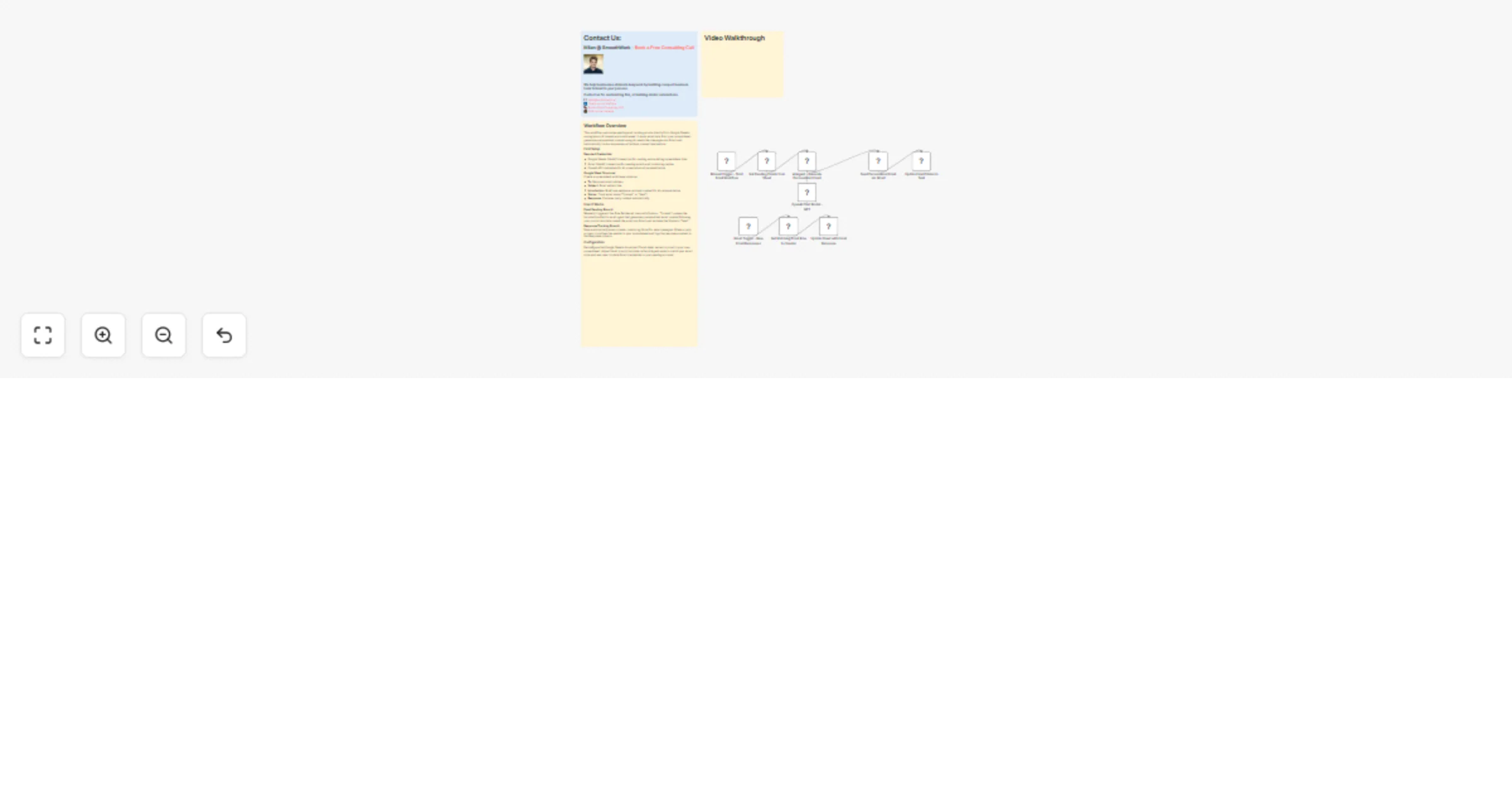
AI Agent to send Emails from Google Sheets (video tutorial)

Workflow preview

Workflow preview
100%
AI Agent to send Emails from Google Sheets (video tutorial) preview
Open on n8n.io

1. Workflow Overview

Video Introduction Want to ...

Best for

  • Social Media automation workflows
  • AI Summarization automation workflows
  • intermediate n8n builders looking for reusable templates

Tools used

n8n-nodes-base.manualtrigger, n8n-nodes-base.googlesheets, n8n-nodes-base.gmail, n8n-nodes-base.gmailtrigger, @n8n/n8n-nodes-langchain.agent, @n8n/n8n-nodes-langchain.lmchatopenai, n8n-nodes-base.stickynote

Source and attribution

This workflow is cataloged by N8N Workflows and links back to its original n8n.io source page by Milan Vasarhelyi - SmoothWork.

Original n8n.io source

1.1 Workflow description

Title
AI Agent to send Emails from Google Sheets (video tutorial)
Workflow name
AI Agent to send Emails from Google Sheets (video tutorial)

Video Introduction

Want to automate your inbox or need a custom workflow? 📞 Book a Call | 💬 DM me on Linkedin

What this workflow does

This workflow automates repetitive email sending directly from Google Sheets, eliminating hours of manual work each week. It reads email data from your spreadsheet, uses AI to generate personalized content based on recipient context, sends messages through Gmail, and automatically tracks responses back to your sheet. Perfect for sending reminders, follow-ups, or regular customer communications at scale.

Key features

  • Smart filtering: Only processes rows marked with Status = "To send", preventing duplicate sends
  • AI personalization: Generates tailored email content using OpenAI based on brief recipient introductions
  • Automatic status updates: Marks emails as "Sent" after delivery to maintain accurate records
  • Response tracking: Monitors Gmail replies and logs them back to your spreadsheet automatically

Common use cases

  • Event reminders and webinar notifications with personalized context
  • Customer follow-up sequences that feel individually crafted
  • Regular business communications requiring recipient-specific details
  • Sales outreach campaigns with AI-generated personalization at scale

Setup requirements

Credentials needed:

  • Google Sheets OAuth2 connection
  • Gmail OAuth2 connection
  • OpenAI API credentials

Google Sheet structure: Create columns for: To (email address), Subject, Introduction (one-sentence recipient context), Status ("To send" or "Sent"), and Response (auto-filled).

Configuration: Update the Google Sheets document ID and sheet names to match your spreadsheet. Customize the AI prompt template in the AI Agent node to match your desired email tone and format. The response tracking branch runs automatically every minute to capture replies.

1.2 Logical Blocks

This catalog entry is organized from the workflow JSON. The node-level section below shows the executable blocks available for review before importing the template.

2. Block-by-Block Analysis

Block 1 - Manual Trigger - Start Email Workflow

Type / Role
n8n-nodes-base.manualTrigger - manualTrigger
Config choices
Version 1

Block 2 - Get Pending Emails from Sheet

Type / Role
n8n-nodes-base.googleSheets - googleSheets
Config choices
Version 4.7

Block 3 - Send Personalized Email via Gmail

Type / Role
n8n-nodes-base.gmail - gmail
Config choices
Version 2.2

Block 4 - Update Email Status to Sent

Type / Role
n8n-nodes-base.googleSheets - googleSheets
Config choices
Version 4.7

Block 5 - Gmail Trigger - New Email Responses

Type / Role
n8n-nodes-base.gmailTrigger - gmailTrigger
Config choices
Version 1.3

Block 6 - Get Matching Email Row by Sender

Type / Role
n8n-nodes-base.googleSheets - googleSheets
Config choices
Version 4.7

Block 7 - Update Sheet with Email Response

Type / Role
n8n-nodes-base.googleSheets - googleSheets
Config choices
Version 4.7

Block 8 - AI Agent - Generate Personalized Email

Type / Role
@n8n/n8n-nodes-langchain.agent - agent
Config choices
Version 3.1

Block 9 - OpenAI Chat Model - GPT

Type / Role
@n8n/n8n-nodes-langchain.lmChatOpenAi - lmChatOpenAi
Config choices
Version 1.3

Block 10 - Workflow Description

Type / Role
n8n-nodes-base.stickyNote - stickyNote
Config choices
Version 1

Block 11 - Creator Contact Info

Type / Role
n8n-nodes-base.stickyNote - stickyNote
Config choices
Version 1

Block 12 - Video Walkthrough

Type / Role
n8n-nodes-base.stickyNote - stickyNote
Config choices
Version 1

3. Summary Table

Workflow AI Agent to send Emails from Google Sheets (video tutorial)
Complexity intermediate
Nodes 12
Categories Social Media, AI Summarization
Author Milan Vasarhelyi - SmoothWork
Published 26 Mar 2026

4. Reproducing the Workflow from Scratch

  1. 1. Download the workflow JSON

    Use the JSON export at /data/workflows/14374/14374.json as the source template for this automation.

  2. 2. Import the template into n8n

    Open n8n, import the downloaded JSON, and review each node before activating the workflow.

  3. 3. Configure credentials and variables

    Replace placeholder credentials, API keys, webhook URLs, account IDs, and environment-specific values with your own settings.

  4. 4. Test with sample data

    Run the workflow manually or in a staging workspace, inspect node output, and confirm downstream systems receive the expected data.

  5. 5. Activate and monitor

    Enable the workflow only after testing, then monitor executions, errors, and rate limits during the first production runs.

5. General Notes & Resources

Review imported nodes carefully before activation. This catalog entry is intended to help you inspect the workflow structure, understand required services, and find related templates faster.

Node names, credentials, schedules, webhook paths, and external service limits may need adjustment for your workspace.

Frequently asked questions

What does AI Agent to send Emails from Google Sheets (video tutorial) do?

Video Introduction Want to ...

What do I need before importing this workflow?

Review the workflow JSON, configure any required credentials in n8n, and test the automation in a safe workspace before using it in production.

Can I customize this workflow?

Yes. Use the block-by-block analysis and the downloadable JSON to inspect each node, then adjust credentials, prompts, schedules, filters, or destinations for your Social Media, AI Summarization use case.