Milan Vasarhelyi - SmoothWork
Workflows by Milan Vasarhelyi - SmoothWork
Automate real estate client folder creation with Google Sheets and Drive
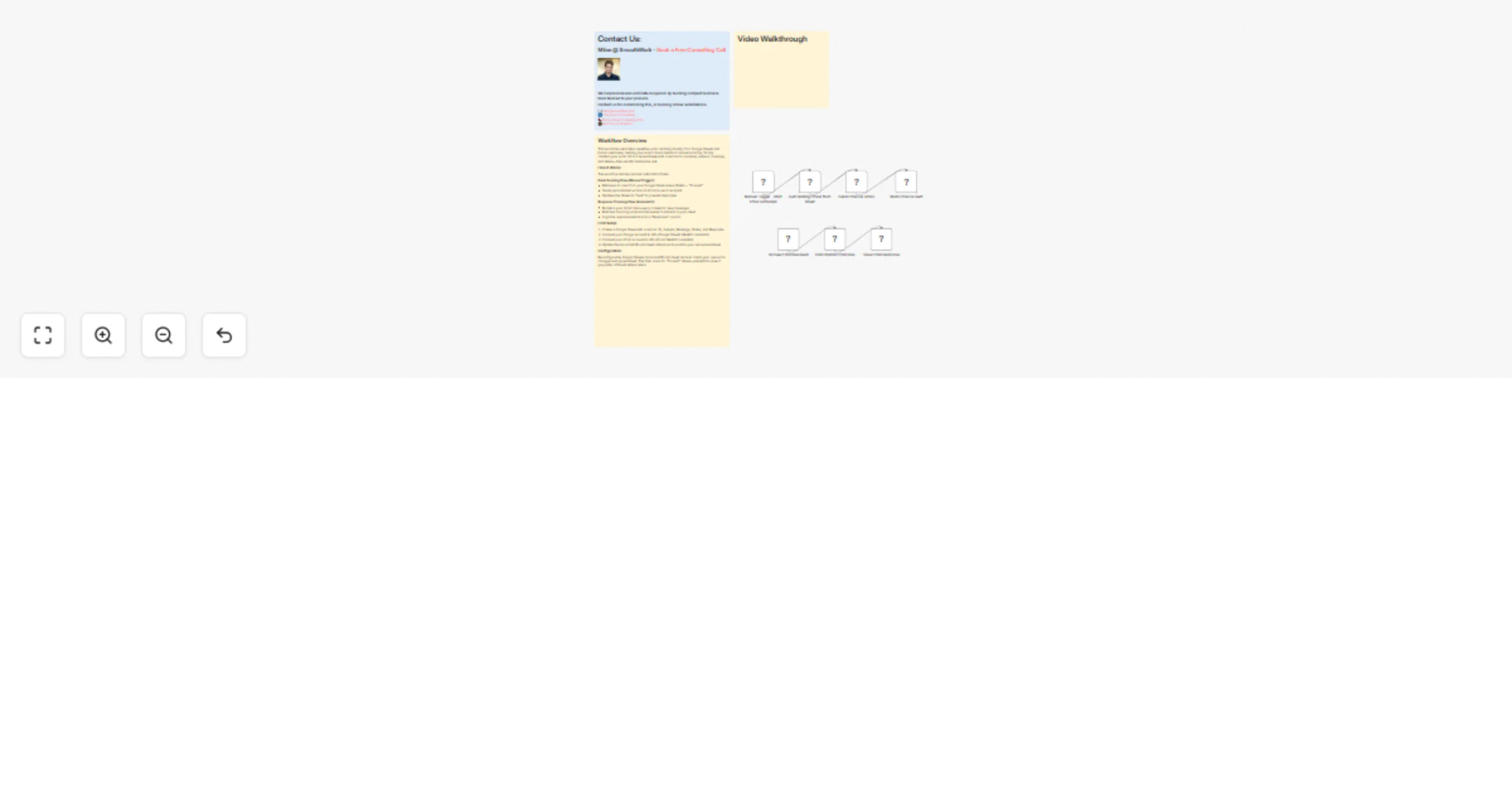
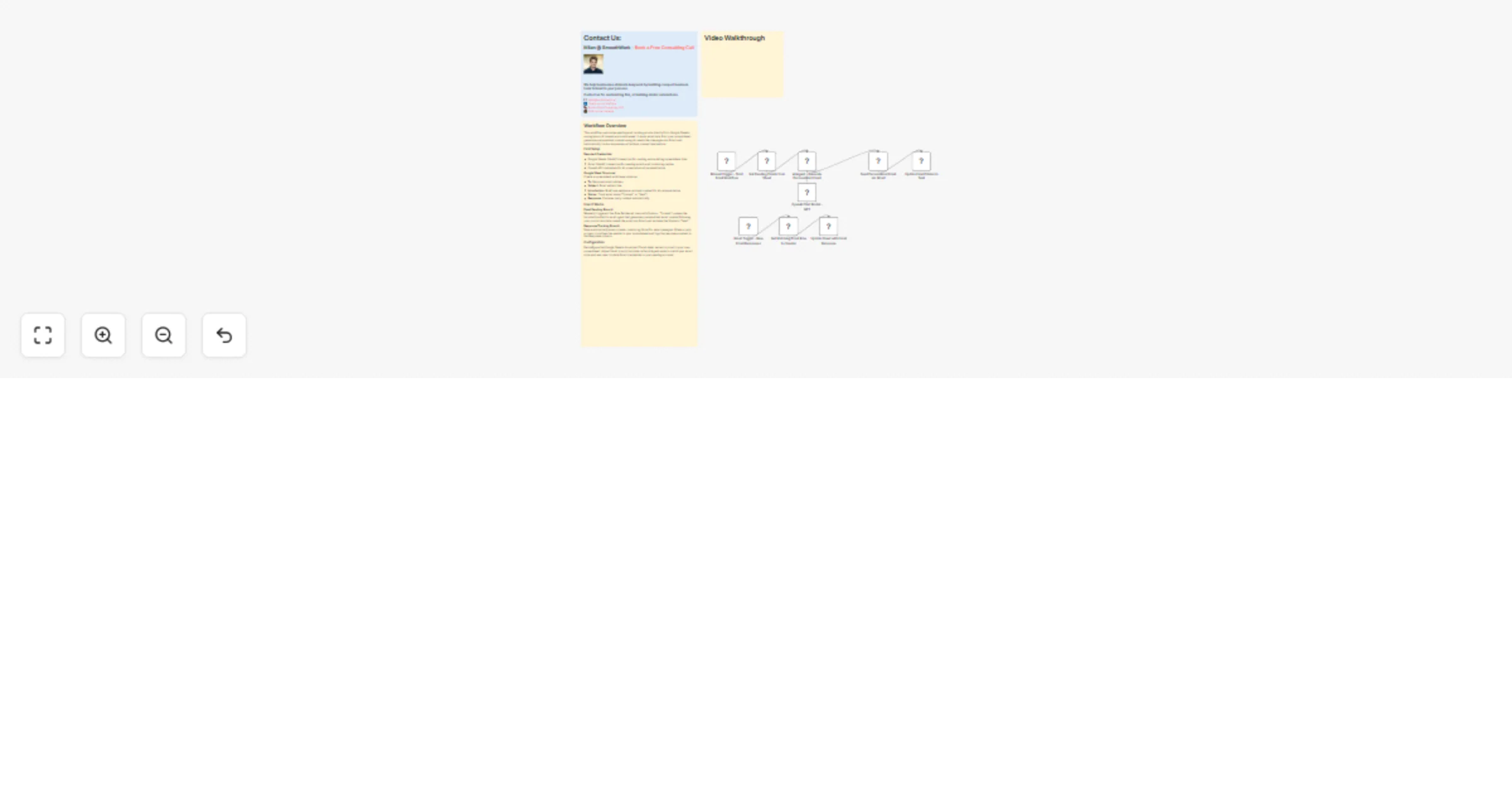
## What this workflow does This workflow automates backend setup tasks for real estate client portals. When a new property transaction is added to your Google Sheets database with a buyer email but no document folder assigned, the workflow automatically creates a dedicated Google Drive folder, updates the spreadsheet with the folder URL, and adds an initial task prompting the client to upload documents. This automation eliminates manual folder creation and task assignment, ensuring every new transaction has its documentation infrastructure ready from day one. Your clients can access their dedicated folder directly from the portal, keeping all property-related documents organized and accessible in one place. ## Key benefits - **Eliminate manual setup**: No more creating folders and tasks individually for each transaction - **Consistent client experience**: Every buyer gets the same professional onboarding process - **Organized documentation**: Each transaction has its own Google Drive folder automatically shared with the client - **Time savings**: Focus on closing deals instead of administrative setup ## Setup requirements **Important:** You must make a copy of the [reference Google Sheets spreadsheet](https://docs.google.com/spreadsheets/d/1UJPaBd_qHsNgInA2mrYaq7wgXLHzFw9jcTUoSpTxMDk/edit?usp=sharing) to your own Google account before using this workflow. Your spreadsheet needs at minimum two tabs: - **Transactions tab**: Columns for ID, Buyer Email, Documents URL, Property Address, and Status - **Tasks tab**: Columns for Transaction ID, Task Name, Task Description, and Status ## Configuration steps 1. Authenticate your Google Sheets and Google Drive accounts in n8n 2. Update the Google Sheets trigger node to point to your copied spreadsheet 3. Set the parent folder ID in the "Create Client Documents Folder" node (where transaction folders should be created) 4. Customize the initial task name and description in the "Add Initial Upload Task" node 5. Verify all sheet names match your spreadsheet tabs The workflow triggers every minute checking for new transactions that meet the criteria (has buyer email, missing documents URL).
Automate Airtable inventory tracking and purchase order creation
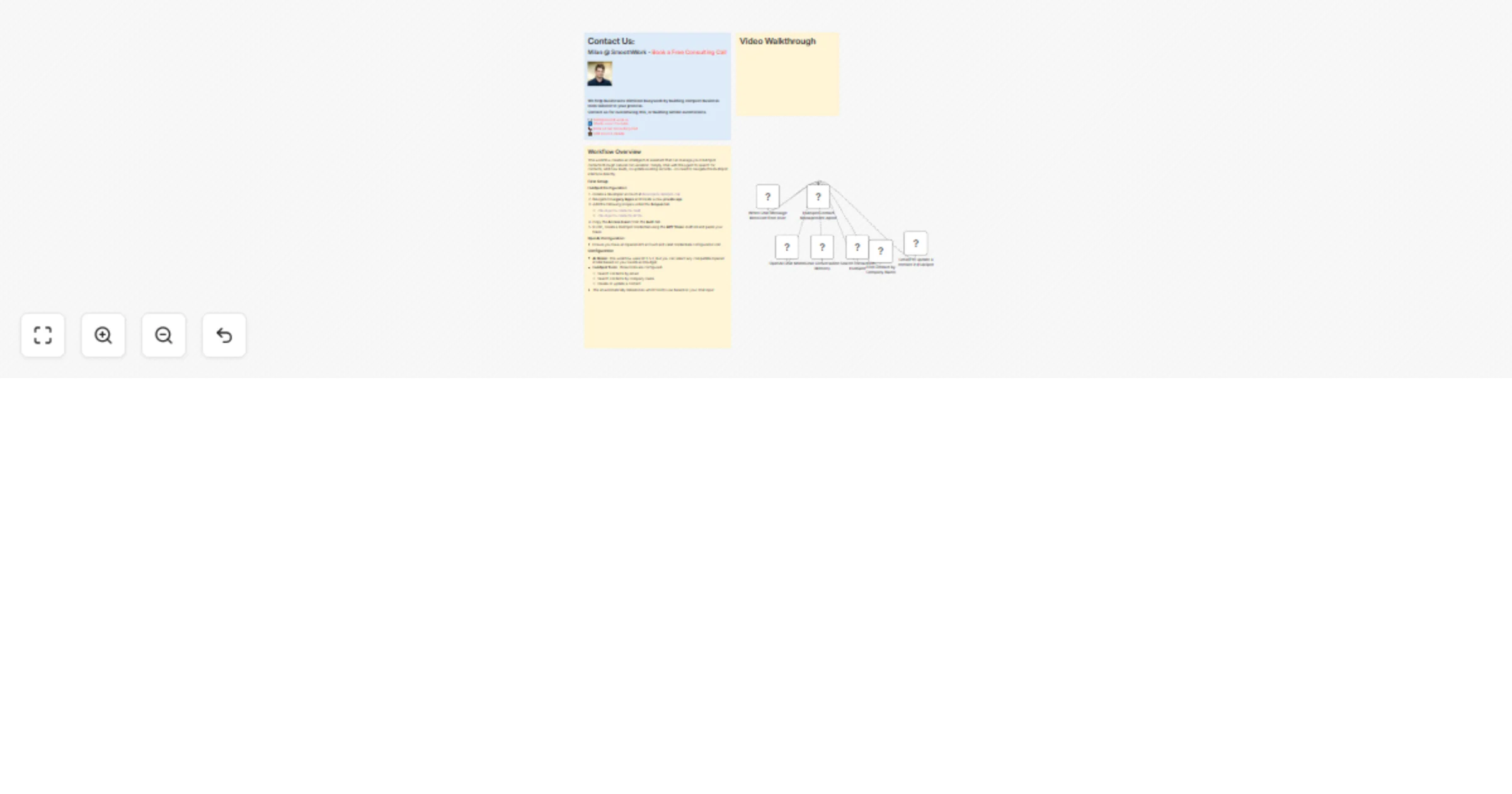
## Overview This workflow automates the complete purchase order cycle for Airtable-based inventory management using n8n. It continuously monitors your stock levels, automatically creates purchase orders when inventory falls below reorder thresholds, and sends formatted order emails to suppliers—eliminating manual tracking and reducing stockout risk. The system handles three critical automation processes: ensuring each supplier always has a draft purchase order ready, intelligently adding products to those orders based on forecasted stock levels versus threshold quantities, and automatically emailing suppliers when orders are approved for sending. ## Key Features - **Automated stock monitoring:** Hourly checks identify products that need reordering based on customizable threshold levels - **Smart purchase order management:** Automatically creates and maintains draft purchase orders for each supplier - **Supplier email automation:** Sends formatted order details directly to suppliers when purchase orders are ready - **Movement-based ledger:** Tracks every stock-in and stock-out transaction for complete audit trails - **Test data generator:** Includes a manual-trigger workflow to simulate random sales orders for testing ## Setup Requirements **Required first step:** You must copy the Airtable inventory management base into your own Airtable account from: https://airtable.com/appN9ivOwGQt1FwT5/shr1ApcBSi4SOVoPh After copying the base, you'll need to configure: - **Airtable credentials:** Personal Access Token with read/write permissions to your copied base - **Gmail credentials:** OAuth2 connection for sending purchase order emails to suppliers - **Base connections:** Update all Airtable nodes to point to your copied base URL and table IDs ## Configuration The workflow runs on an hourly schedule by default to check for products needing reorder. You can adjust this frequency in the "Check Products Hourly" Schedule Trigger node based on your business needs. All supplier-specific settings including email addresses, reorder thresholds, and refill quantities are managed directly in the Airtable base—not in the workflow itself. This allows non-technical team members to adjust inventory parameters without touching the automation. The included test workflow ("Generate random SO") is manual-trigger only and simulates daily sales by randomly reducing product quantities, making it easy to test the reorder automation without waiting for real sales data.
Google Sheets send SMS with Twilio - bulk SMS automation simplified!
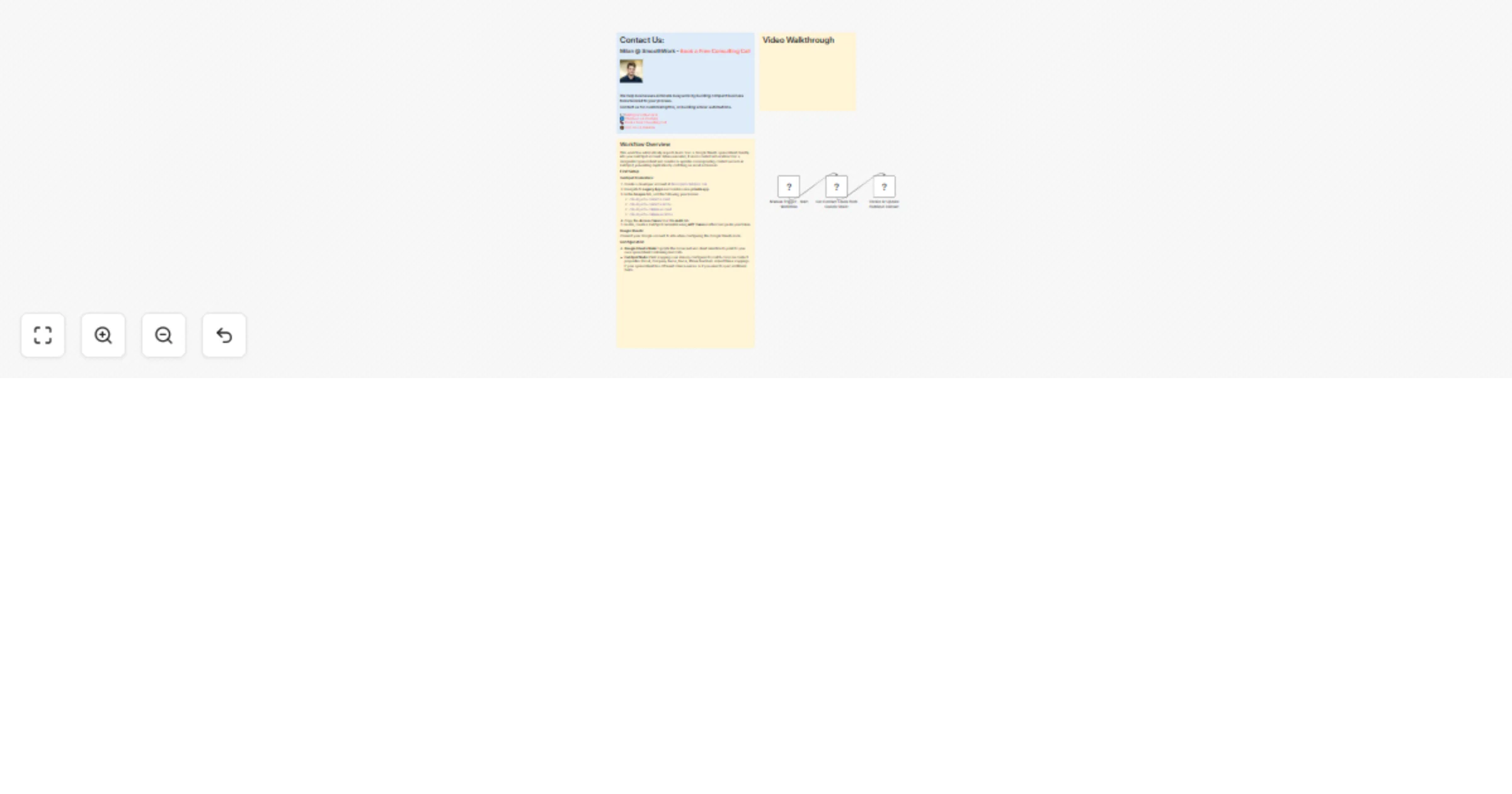
## Video Introduction [](https://youtu.be/6QKbzoWMaXE) #### Want to automate your inbox or need a custom workflow? [📞 Book a Call](https://smoothwork.ai/book-a-call/) | [💬 DM me on Linkedin](https://www.linkedin.com/in/mil%C3%A1n-v%C3%A1s%C3%A1rhelyi-3a9985123/) --- ## Overview This workflow automates sending personalized SMS messages directly from a Google Sheet using Twilio. Simply update a row's status to "To send" and the workflow automatically sends the text message, then updates the status to "Success" or "Error" based on delivery results. Perfect for event reminders, bulk notifications, appointment confirmations, or any scenario where you need to send customized messages to multiple recipients. ## Key Features - **Simple trigger mechanism**: Change the status column to "To send" to queue messages - **Personalization support**: Use `[First Name]` and `[Last Name]` placeholders in message templates - **Automatic status tracking**: The workflow updates your spreadsheet with delivery results - **Error handling**: Failed deliveries are clearly marked, making it easy to identify issues like invalid phone numbers - **Runs every minute**: The workflow polls your sheet continuously when active ## Setup Instructions ### Step 1: Copy the Template Spreadsheet Make a copy of the [Google Sheets template](https://docs.google.com/spreadsheets/d/1DGhQ2YLeQ5boLYPMK4nUF8SIOJmDDqvtyleSz5IpJEc/edit?usp=sharing) by going to *File → Make a copy*. You must use your own copy so the workflow has permission to update status values. ### Step 2: Connect Your Accounts 1. **Google Sheets**: Add your Google account credentials to the 'Monitor Google Sheet for SMS Queue' trigger node 2. **Twilio**: Sign up for a free Twilio account (trial works for testing). From your Twilio dashboard, get your Account SID, Auth Token, and Twilio phone number, then add these credentials to the 'Send SMS via Twilio' node ### Step 3: Configure the Workflow In the **Config** node, update: - `sheet_url`: Paste the URL of your copied Google Sheet - `from_number`: Enter your Twilio phone number (include country code, e.g., +1234567890) ### Step 4: Activate and Test Activate the workflow using the toggle in the top right corner. Add a row to your sheet with the required information (ID, First Name, Phone Number, Message Template) and set the Status to "To send". Within one minute, the workflow will process the message and update the status accordingly.
Airtable SMS sender - bulk text sender template for Airtable
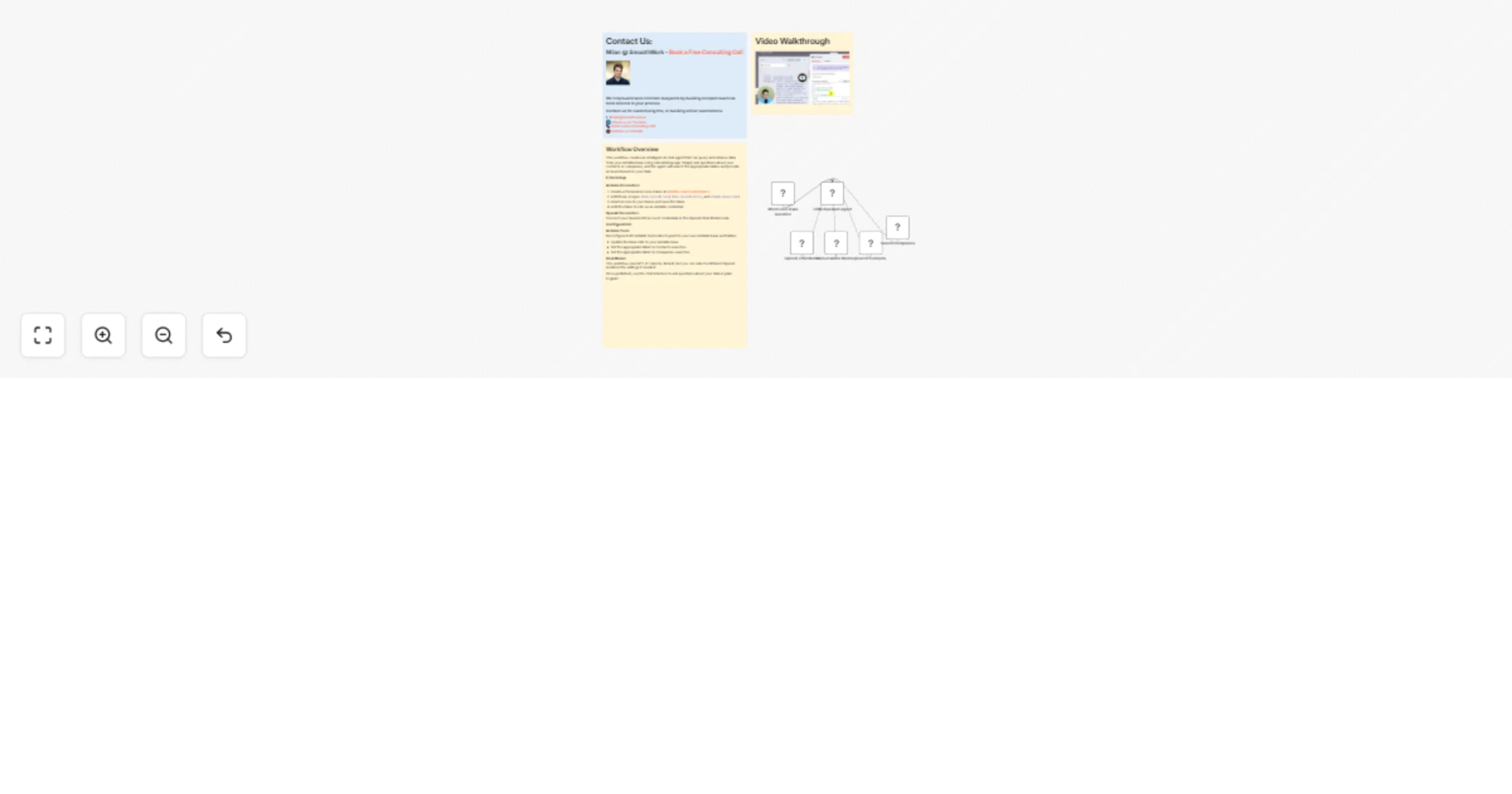
## Video Introduction [](https://youtu.be/6QKbzoWMaXE) #### Want to automate your inbox or need a custom workflow? [📞 Book a Call](https://smoothwork.ai/book-a-call/) | [💬 DM me on Linkedin](https://www.linkedin.com/in/mil%C3%A1n-v%C3%A1s%C3%A1rhelyi-3a9985123/) --- ## Overview This workflow automatically sends personalized SMS notifications to customers when their order status changes in Airtable. Monitor your order management base and instantly notify customers about updates like "Confirmed" or "Shipped" without manual intervention. When an order status changes in your Orders table, a notification record is automatically created in a Status Notifications table. The workflow monitors this table, prepares personalized messages using the customer's name and order status, sends the SMS via Twilio, and updates the delivery status back to Airtable for complete tracking and logging. ## Key Features - Automated SMS sending triggered by Airtable record changes - Personalized messages with customer name and order status - Complete delivery tracking with success/error status updates - Error handling for invalid phone numbers - Works with Twilio's free trial account for testing ## Common Use Cases - E-commerce order status updates - Shipping notifications - Order confirmation messages - Customer communication logging ## Setup Instructions **Step 1: Duplicate the Airtable Base** Copy the [Order Management Base template](https://airtable.com/appaeASO1AZV62pLI/shrBP0lmBNXk0G7Vf) to your Airtable workspace. You must use your own copy as the workflow needs write permissions. **Step 2: Connect Your Accounts** - Add your Airtable Personal Access Token credentials to the workflow nodes - Create a [Twilio account](https://www.twilio.com) (free trial available) - From your Twilio dashboard, obtain your Account SID, Auth Token, and Twilio phone number - Add Twilio credentials to the "Send Order Status SMS" node **Step 3: Configure the Workflow** In the **Config** node, update these URLs with your duplicated Airtable base: - `notifications_table_url`: Your Status Notifications table URL - `orders_table_url`: Your Orders table URL - `from_number`: Your Twilio phone number **Step 4: Customize the Message** Modify the "Prepare SMS Content" node to personalize the message template with your brand voice and additional order details. **Step 5: Activate** Toggle the workflow to 'Active' and the automation will monitor your Airtable base every minute, sending notifications automatically.
QuickBooks Online MCP Server - add QuickBooks tool to any AI (like Claude)
## Video Introduction [](https://youtu.be/mprQ4CY3yn0) #### Want to automate your inbox or need a custom workflow? [📞 Book a Call](https://smoothwork.ai/book-a-call/) | [💬 DM me on Linkedin](https://www.linkedin.com/in/mil%C3%A1n-v%C3%A1s%C3%A1rhelyi-3a9985123/) --- ## What This Workflow Does This workflow creates an AI-powered chatbot that can answer natural language questions about your QuickBooks Online data. Using OpenAI's GPT models and the Model Context Protocol (MCP), the agent can retrieve customer information, analyze balances, and provide insights through a conversational interface. Users can simply ask questions like "How many customers do we have?" or "What's our total customer balance?" and get instant answers from live QuickBooks data. ## Key Features - **Natural language queries**: Ask questions about your QuickBooks data in plain English - **MCP architecture**: Uses Model Context Protocol to manage tools efficiently, making it easy to expand with additional QuickBooks operations - **Public chat interface**: Share the chatbot URL with team members who need QuickBooks insights without direct access - **Real-time data**: Queries live QuickBooks data for up-to-date answers ## Common Use Cases - Customer service teams checking account balances without logging into QuickBooks - Sales teams quickly looking up customer information - Finance teams getting quick answers about customer data - Managers monitoring key metrics through conversational queries ## Setup Requirements **QuickBooks Developer Account**: Register at `developer.intuit.com` and create an app with Accounting scope permissions. You'll receive a Client ID and Client Secret. **Configure OAuth**: In your Intuit Developer dashboard, add the redirect URL provided by n8n when creating QuickBooks credentials. Set the environment to Sandbox for testing, or complete Intuit's app approval process for Production use. **OpenAI API**: Add your OpenAI API credentials to power the chat model. The workflow uses GPT-4.1-mini by default, but you can select other models based on your performance and cost requirements. **Chat Access**: The chat trigger is set to public by default. Configure access settings based on your security requirements before sharing the chat URL.
QuickBooks Online AI agent - Chat with Quickbooks data with GPT agent
## Video Introduction [](https://youtu.be/mprQ4CY3yn0) #### Want to automate your inbox or need a custom workflow? [📞 Book a Call](https://smoothwork.ai/book-a-call/) | [💬 DM me on Linkedin](https://www.linkedin.com/in/mil%C3%A1n-v%C3%A1s%C3%A1rhelyi-3a9985123/) --- ## What This Workflow Does This workflow creates an AI-powered chatbot that answers natural language questions about your QuickBooks data in real-time. Users can interact with a public chat interface to query customer information, balances, invoices, and other accounting data without needing to navigate the QuickBooks interface directly. The AI agent uses OpenAI's language model to understand questions and automatically retrieves the relevant data from QuickBooks. ## Key Features - **Natural Language Interface**: Ask questions like "How many customers do we have?" or "What's the total balance across all customers?" and get instant answers - **Public Chat URL**: Share a link with team members or stakeholders so they can access QuickBooks insights without direct system access - **Customizable Data Access**: Configure the QuickBooks tool to retrieve different resources (customers, invoices, expenses, bills, etc.) based on your needs ## Common Use Cases - Enable non-accounting staff to get quick answers about customer data - Provide executives with on-demand financial insights without training them on QuickBooks - Create a self-service interface for sales teams to check customer balances - Build internal support bots that can answer accounting questions ## Setup Requirements 1. **QuickBooks Developer Account**: Register at `developer.intuit.com` and create a new app with Accounting permissions 2. **Credentials**: Configure QuickBooks OAuth2 API credentials (Client ID, Client Secret, and Redirect URI from the Intuit Developer dashboard) and OpenAI API credentials 3. **Environment**: Start with Sandbox mode for testing, then switch to Production after getting your app approved by Intuit 4. **Tool Configuration**: The QuickBooks tool is pre-configured to retrieve all customer data, but you can modify the operation and filters to access different QuickBooks resources based on your requirements
QuickBooks automated invoicing - sync Google Sheets with QBO
## Video Introduction [](https://youtu.be/mprQ4CY3yn0) #### Want to automate your inbox or need a custom workflow? [📞 Book a Call](https://smoothwork.ai/book-a-call/) | [💬 DM me on Linkedin](https://www.linkedin.com/in/mil%C3%A1n-v%C3%A1s%C3%A1rhelyi-3a9985123/) --- ## Overview This workflow automates invoice creation in QuickBooks Online by importing data directly from a Google Sheet. Instead of manually entering invoice details one by one, this template reads structured data from your spreadsheet and automatically generates corresponding invoices in QuickBooks, saving time and reducing data entry errors. ## Key Features - Automatically reads invoice data from Google Sheets including customer IDs, descriptions, and amounts - Creates properly formatted invoices in QuickBooks Online with line items - Eliminates manual data entry and reduces human error - Scalable solution for processing multiple invoices at once ## Common Use Cases - Batch invoice generation from sales or order data - Automated billing workflows for recurring services - Syncing invoice data from external systems via Google Sheets - Streamlining accounting processes for small businesses ## Setup and Configuration **QuickBooks Developer Account:** 1. Register at `developer.intuit.com` and create a new app in the App dashboard 2. Select 'Accounting' scope permissions for your application 3. Copy your Client ID and Client Secret from the Keys & Credentials section 4. Add the n8n OAuth redirect URL to your app's authorized redirect URIs 5. In n8n, create a QuickBooks Online OAuth2 credential using your Client ID and Secret 6. Set Environment to 'Sandbox' for testing or 'Production' for live data 7. Click 'Connect my account' and authorize the connection **Google Sheets Setup:** - Connect your Google Sheets account in n8n using OAuth2 authentication - Update the 'Config - Sheet URL' node with your Google Sheets URL - Your sheet must contain these columns: `CustomerId` (QuickBooks customer ID), `Description` (line item description), and `Amount` (invoice amount) **Invoice Customization:** In the 'Create Invoice in QuickBooks' node, adjust the `itemId` and `Qty` fields to match your QuickBooks accounting setup and product catalog.
Automated export of Quickbooks Online data with n8n - with tutorial
## Video Introduction [](https://youtu.be/mprQ4CY3yn0) #### Want to automate your inbox or need a custom workflow? [📞 Book a Call](https://smoothwork.ai/book-a-call/) | [💬 DM me on Linkedin](https://www.linkedin.com/in/mil%C3%A1n-v%C3%A1s%C3%A1rhelyi-3a9985123/) --- ## Overview This workflow automatically exports customer balance data from QuickBooks to Google Sheets on a monthly basis. It eliminates manual data entry and creates a historical record of customer balances that updates automatically, making it easy to track payment trends, identify outstanding balances, and monitor customer financial health over time. ## Key Features - **Automated Monthly Reporting**: Runs on the first day of each month to capture a snapshot of all customer balances - **Clean Data Structure**: Extracts only the essential fields (Customer ID, Balance, Email, and Period) for easy analysis - **Historical Tracking**: Each monthly run appends new data to your Google Sheet, building a timeline of customer balances - **No Manual Work**: Once configured, the workflow runs completely hands-free ## Common Use Cases - Track customer payment patterns and identify accounts with growing balances - Create monthly reports for management or finance teams - Build dashboards and visualizations from historical QuickBooks data - Monitor customer account health without logging into QuickBooks ## Setup Requirements **QuickBooks Developer Account**: Register at `developer.intuit.com` and create a new app in the App Dashboard. Select the 'Accounting' scope for permissions. You'll receive a Client ID and Client Secret to configure your n8n credentials. **Credentials**: Set up QuickBooks OAuth2 credentials in n8n using your app's Client ID and Client Secret. Use 'Sandbox' environment for testing or 'Production' for live data (requires Intuit app approval). Also connect your Google Sheets account. **Google Sheet**: Create a spreadsheet with column headers matching the workflow output: Period, Id, Balance, and Email. ## Configuration - **Schedule**: The workflow runs monthly on the first day at 8 AM. Modify the Schedule Trigger to change timing or frequency - **Spreadsheet URL**: Update the 'Export to Google Sheets' node with your destination spreadsheet URL - **Data Fields**: Customize the 'Prepare Customer Data' node to extract different customer fields if needed
Find step-by-step recipes from API Ninjas Recipe API in an n8n AI agent
## Video Introduction [](https://youtu.be/mMEX4Zsz4XY) #### Want to automate your inbox or need a custom workflow? [📞 Book a Call](https://smoothwork.ai/book-a-call/) | [💬 DM me on Linkedin](https://www.linkedin.com/in/mil%C3%A1n-v%C3%A1s%C3%A1rhelyi-3a9985123/) --- ## Workflow Overview This workflow creates an intelligent AI chatbot that retrieves recipes from an external API through natural conversation. When users ask for recipes, the AI agent automatically determines when to use the recipe lookup tool, fetches real-time data from the API Ninjas Recipe API, and provides helpful, conversational responses. This demonstrates the powerful capability of API-to-API integration within n8n, allowing AI agents to access external data sources on demand. ## Key Features - **Intelligent Tool Calling:** The AI agent automatically decides when to use the HTTP Request Tool based on user queries - **External API Integration:** Connects to API Ninjas Recipe API using Header Authentication for secure access - **Conversational Memory:** Maintains context across multiple turns for natural dialogue - **Dynamic Query Generation:** The AI model automatically generates the appropriate search query parameters based on user input ## Common Use Cases - Build AI assistants that need access to real-time external data - Create chatbots with specialized knowledge from third-party APIs - Demonstrate API-to-API integration patterns for custom automation - Prototype AI agents with tool-calling capabilities ## Setup & Configuration **Required Credentials:** 1. **OpenAI API:** Sign up at OpenAI and obtain an API key for the language model. Configure this in n8n's credential manager. 2. **API Ninjas:** Register at API Ninjas to get your free API key for the Recipe API (supports 400+ calls/day). This API uses Header Authentication with the header name "X-Api-Key". **Agent Configuration:** The AI Agent includes a system message instructing it to "Always use the recipe tool if i ask you for recipe." This ensures the agent leverages the external API when appropriate. The HTTP Request Tool is configured with the API endpoint (https://api.api-ninjas.com/v1/recipe) and set to accept query parameters automatically from the AI model. The tool description "Use the query parameter to specify the food, and it will return a recipe" helps the AI understand when and how to use it. **Language Model:** Currently configured to use OpenAI's gpt-5-mini, but you can change this to other compatible models based on your needs and budget. **Memory:** Uses a window buffer to maintain conversation context, enabling natural multi-turn conversations where users can ask follow-up questions.
Automated recipe finder with an API - n8n API tutorial material
## Video Introduction [](https://youtu.be/mMEX4Zsz4XY) #### Want to automate your inbox or need a custom workflow? [📞 Book a Call](https://smoothwork.ai/book-a-call/) | [💬 DM me on Linkedin](https://www.linkedin.com/in/mil%C3%A1n-v%C3%A1s%C3%A1rhelyi-3a9985123/) --- ## Workflow Overview This workflow creates a recipe finder web application that connects to the API Ninjas Recipe API using n8n's HTTP Request node. Users submit search queries through a public web form, which triggers an API call to fetch matching recipes. The results—including recipe title, ingredients, and cooking instructions—are displayed in a formatted completion page. ## Why This Workflow Is Valuable This template demonstrates API-to-API integration, a crucial skill for connecting services that don't have pre-built n8n nodes. By using direct API calls, you gain access to the full functionality of external services. This pattern can be adapted to integrate virtually any tool with an API into your n8n workflows. ## Common Use Cases - Create public-facing forms that query external databases - Build custom search tools for specialized APIs - Integrate niche services without dedicated n8n nodes - Learn header authentication for secure API connections ## Setup & Configuration 1. **Register for API Ninjas**: Sign up at API Ninjas to access their Recipe API 2. **Get your API Key**: Locate your API key in the API Ninjas dashboard 3. **Configure Credentials**: In n8n, create a new **Header Auth** credential - Set the header name to match the API requirement (e.g., 'X-Api-Key') - Paste your API key as the value - Apply this credential to the HTTP Request node The Form Trigger generates a public URL for users to submit queries. Customize the form title, field labels, and completion message HTML to match your needs.
Weather forecast email - receive automated weather forecasts daily
## Video Introduction [](https://youtu.be/mMEX4Zsz4XY) #### Want to automate your inbox or need a custom workflow? [📞 Book a Call](https://smoothwork.ai/book-a-call/) | [💬 DM me on Linkedin](https://www.linkedin.com/in/mil%C3%A1n-v%C3%A1s%C3%A1rhelyi-3a9985123/) --- ## Workflow Overview This workflow automatically delivers a daily weather forecast to your email inbox every morning at 7:00 AM. It demonstrates practical API-to-API integration by connecting the Meteosource weather API directly to Gmail using n8n's HTTP Request node, without requiring a pre-built Meteosource integration. ## Why This Workflow is Valuable Instead of manually checking weather forecasts each morning, this automation fetches current and next-day weather summaries from Meteosource and delivers them directly to your inbox. It's a perfect example of how direct API integration unlocks tools that don't have dedicated n8n nodes, giving you access to the full functionality of any service with an API. ## Key Features - Scheduled daily execution at 7:00 AM (customizable) - Fetches weather data using the Meteosource API with secure Query Auth credentials - Sends formatted email with today's weather in the subject and tomorrow's forecast in the body - Easy location and recipient customization through a Config node ## Setup Requirements **Meteosource API Account**: Sign up for a free account at [Meteosource](https://www.meteosource.com/) to get your API key (includes 400 free calls per day, more than enough for daily forecasts). **Credentials needed**: - **Meteosource credentials**: Create an HTTP Query Auth credential in n8n with the parameter name `key` and your Meteosource API key as the value - **Gmail OAuth2**: Connect your Gmail account to n8n for sending emails ## Configuration Open the **Config** node to personalize: - **place_id**: Change from "london" to your desired location (use Meteosource place ID format) - **send_to_email**: Update with your preferred recipient email address This workflow demonstrates the power of the HTTP Request node for connecting any API to your automation workflows.
Unlimited website down checker - Uptime Robot alternative
## Video Introduction [](https://www.youtube.com/watch?v=q4d404G_OxY) #### Want to automate your inbox or need a custom workflow? [📞 Book a Call](https://smoothwork.ai/book-a-call/) | [💬 DM me on Linkedin](https://www.linkedin.com/in/mil%C3%A1n-v%C3%A1sárhelyi-3a9985123/) --- ## Get Alerted When Your Website Is Down – n8n as an Uptime Robot Alternative  If you manage a website (or client sites), getting notified when your site goes down is critical. But you’ve probably experienced alert fatigue if you’ve ever received a flood of downtime emails for every tiny outage. These short hiccups are common, and most monitoring tools don’t let you filter them out. Here’s how you can set up **website downtime notifications with n8n** - no extra subscriptions, and no more false positives spamming your inbox. For your most important sites, you can even get direct text alerts to your phone. We’ll use **n8n**, a powerful automation tool with thousands of templates and integrations. You can run it in the cloud or even self-host it for free. --- ### Why Use n8n for Website Monitoring? Uptime Robot and similar services have limitations or get expensive fast if you monitor several sites. n8n gives you full control - you choose when and *how* you get notified, set your own timing and thresholds, and you aren’t stuck with default alert logic. Plus, n8n can automate much more than just uptime monitoring: use it to handle other business workflows too. --- ### Quick Start: Free n8n Website Monitoring Template - Use the template to get started fast. - Log in or sign up for n8n Cloud, or self-host for free if you prefer. - Configure your schedule (default: hourly) and list the sites you want to monitor. - Key setting: **wait seconds**. Recommended: 300 seconds (5 minutes). If your site goes down, the workflow waits before sending an alert—no notification for a 1-2 minute outage, only real, persistent problems. --- ### How to Test & Use 1. **Activate the workflow.** Toggle it on in n8n and it’ll check your sites automatically. 2. **Test instantly:** Add a non-existent URL and run the workflow. After the wait time, you’ll get an email alert for that URL. 3. **Notifications stay organized:** Alerts go straight to your inbox (see my [AI email labelling template](https://youtu.be/BQARyWMD_lU) if you want color-coded organization). --- ### Get Critical Alerts on Your Phone (Telegram) Email is great, but for your most important sites you want instant notifications on your phone. **Best option:** Use Telegram. n8n can send you messages via a Telegram bot—easy to set up, free, and works in seconds. **How:** - Create a Telegram bot via BotFather (instructions in the template). - Add your bot token and chat ID to n8n. - Now, you’ll get downtime alerts right on Telegram—no missed notifications, no extra costs. --- ### FAQ - **Can I monitor unlimited sites?** Yes, just list them all in the config. - **What if downtime is just a few seconds?** The default 5-minute wait filters these out. - **Do I need a paid n8n plan?** No - self-hosting is free, and the workflow works on free plans. - **Why not SMS or WhatsApp?** Telegram bots are fastest, easiest, and don’t require extra API setup or subscriptions.
AI email organizer for GMail - advanced email management & sorting
## Video Introduction [](https://www.youtube.com/watch?v=BQARyWMD_lU) #### Want to automate your inbox or need a custom workflow? [📞 Book a Call](https://smoothwork.ai/book-a-call/) | [💬 DM me on Linkedin](https://www.linkedin.com/in/mil%C3%A1n-v%C3%A1sárhelyi-3a9985123/) --- Transform your messy inbox into a calm, organized command center - **in minutes** - using this ready-to-use n8n automation! **Tired of your Gmail looking like this?**  With this template, you can have this instead:  --- ## What does this automation do? - **AI-powered categorization:** Every new email is analyzed with OpenRouter AI and sorted into categories you define (like Orders, Support, Invoices, Urgent, etc.). - **Instant color-coded labels:** The workflow creates and applies Gmail labels with custom colors, so you can spot important messages at a glance. - **Supports Gmail’s Multiple Inboxes:** Display different categories in their own sections—see what matters most right away. - **Flexible and customizable:** You control the categories and definitions using a simple Google Sheet. --- ## How it works – Step by Step **See the full setup & demo:** [](https://www.youtube.com/watch?v=BQARyWMD_lU) 1. **Copy the Template** - Open the [n8n workflow template](https://n8n.io/workflows/4687?ref=ezvl1qy3f990&utm_source=affiliate) and click **Use for free**. - Log in (or sign up) for n8n Cloud for the quickest start.  2. **Customize Your Categories in Google Sheets** - Use the provided Google Sheets template linked in the workflow notes. - Go to **File → Make a copy** to your own Drive. - Edit the categories and their definitions for your business. Example:  - Add categories like “Existing Order Questions,” define each one to guide the AI, and copy your Google Sheet’s URL into the workflow config node.  3. **Connect AI with OpenRouter** - Go to [OpenRouter.ai](https://openrouter.ai), log in, and generate a new API key. - Paste your API key into the workflow where prompted.  4. **Test and Activate the Workflow** - Connect your Gmail account to n8n. - Hit “Test Workflow”—watch as the AI processes your latest emails and applies labels automatically.  - Labels will appear instantly in Gmail, and any missing ones are created by the automation.  5. **Schedule Automatic Runs** - Switch workflow status to **Active** in n8n. - Set the scheduler trigger—most people use hourly, but you can use [crontab.guru](https://crontab.guru) for custom times (like only business hours). --- ## Tips for Best Results - **Color Code Your Labels:** In Gmail, you can assign colors to labels—set high-priority categories (like “Customer Complaints”) to a bright color to stand out.  - **Upgrade Your Gmail View:** Enable *Multiple Inboxes* in Gmail’s settings and set up sections for your key categories. Example search queries: - `in:inbox label:customer-complaints OR label:urgent-emails` - `in:inbox label:existing-order-questions` - `in:inbox label:support-requests`   --- ## Why Use This? - Get rid of inbox chaos for good - *no more lost emails or missed deadlines* - Fully customize the system to your business with just a Google Sheet - Works with zero coding - set up in 10-15 minutes - Flexible: add auto-replies, draft suggestions, and more as you grow
Automated invoice processing system with OCR & AI - AP automation with Airtable
# Video Introduction [](https://www.youtube.com/watch?v=rfu4MSvtpAw) # Invoice Processing Automation This template is the automation behind a simple incoming invoice automation tool (AP automation) tool built in Airtable. Link to the Airtable base, and all other tools used, is in notes on the left of the automation. ## How it works See how it works on video: [Full Video Walkthrough](https://www.youtube.com/watch?v=rfu4MSvtpAw) 1) We get an email with an invoice attachment:  2) Processes and adds the data to an Airtable interface:  3) Once we approved it and Due date approaches, it shows among Due invoices, where we can track if it's paid. ###### Looking for customization or a custom business app? [📞 Book a Call](https://smoothwork.ai/book-a-call/) | [💬 DM me on Linkedin](https://www.linkedin.com/in/mil%C3%A1n-v%C3%A1s%C3%A1rhelyi-3a9985123/)