darrell_tw
Workflows by darrell_tw
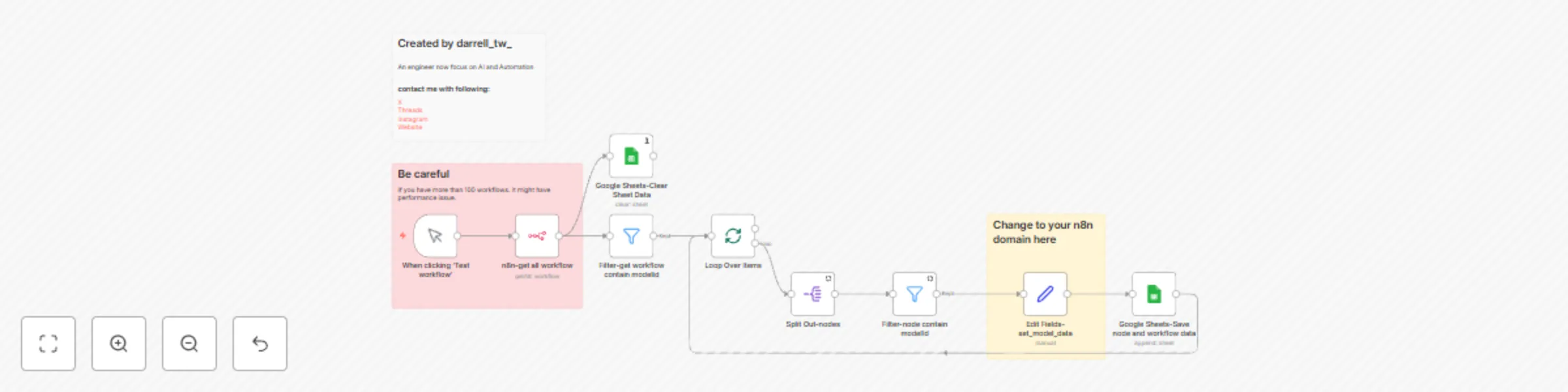
Check which AI models are used in your workflows
## How it works - Fetch all workflows from your n8n instance. - Filter workflows that contain nodes with a `modelId` setting. - Extract the node names, model IDs, model names, workflow names, and workflow URLs. - Save the extracted information into a connected **Google Sheet**. # Set up steps 1. Connect your **n8n API** credentials. 2. Connect your **Google Sheets** account. 3. Replace `"Your n8n domain"` with your actual domain URL. 4. Use this [Google Sheet template](https://docs.google.com/spreadsheets/d/1vl_Xj9QLGE04XMimmJzj1V0vJgP3j18duhsIziVNx_A/copy) to create a new sheet for results. 5. Setup typically takes **5 minutes**. 6. Be cautious: if you have over 100 workflows, performance may be impacted. ## Notes - Sticky notes inside the workflow provide extra guidance. - This workflow clears old sheet data before writing new results. - Make sure your n8n instance allows API access. ## Result Example  Update: It didn't detect the AI model in tool originally. Now it's fixed! Update 20250429: Support 1.91.0 with open node directly! Optimize the url with node id.
Generate images with GPT-image-1 and store in Google Drive with cost tracking
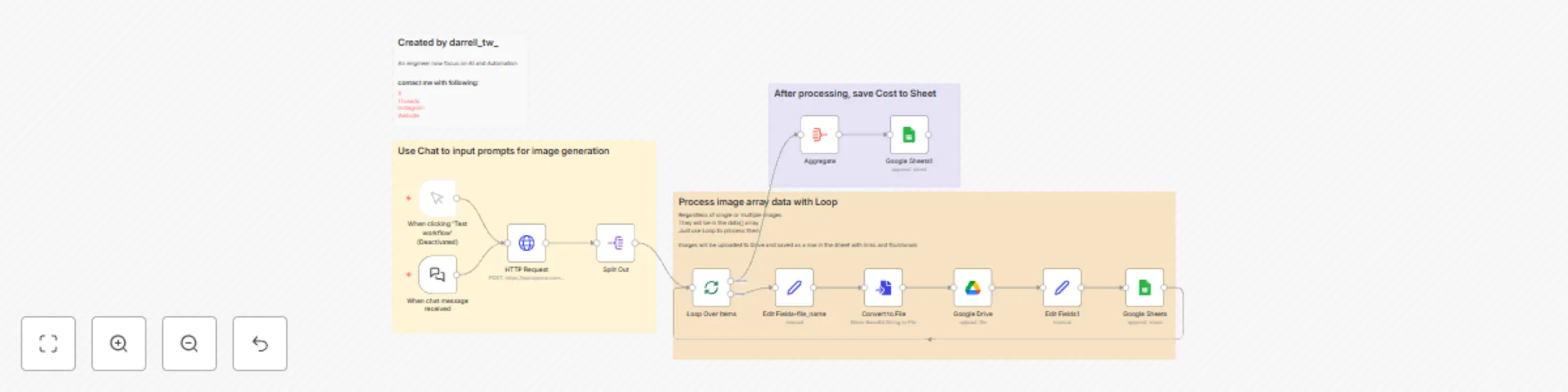
## How it works - Receive a chat input as an image prompt. - Call OpenAI's `gpt-image-1` API to generate an image. - Split the returned images and process them one by one. - Upload each generated image to **Google Drive**. - Save image links and thumbnails to a **Google Sheets** document. - Record token usage and estimated cost into a separate sheet. ## Set up steps 1. Connect your **OpenAI API** credentials for image generation. 2. Connect your **Google Drive** and **Google Sheets** accounts. 3. Set the destination folder in Google Drive. 4. Set the target Google Sheet and specify the correct sheet tabs. 5. The setup usually takes around **5-10 minutes**. 6. Detailed field mappings are already pre-configured inside the workflow. 7. Additional tips and instructions are included as **sticky notes** inside the workflow.  ## Google Sheet copy url [Copy Sheet Link](https://docs.google.com/spreadsheets/d/1zsWBgeA7I5Q_gsocz6hmkW884QT_vfz_mgGCT54VSN0/copy)
Automated water consumption tracker - stored in sheet and notify in Slack
# Water Reminder Workflow This workflow demonstrates how to use **n8n** and **Slack** to build an intelligent water drinking reminder system, combined with **Google Sheets** for data recording and **OpenAI** for generating personalized reminder messages. --- [Google Sheet Template](https://docs.google.com/spreadsheets/d/1cMf03l3Ae3vo-4w8yeaUvSh9dB7CLM7CFUb2y4BmqwY/edit?usp=sharing) The iOS shortcut template:  **The result in iOS health:**  [The template demo in Youtube](https://www.youtube.com/watch?v=h2_QO5gxdts) --- ## Key Features 1. **Scheduled Reminders**: Automatically sends water reminders at random times every hour. 2. **Intelligent Scheduling**: Delays the next reminder if you've recently had water. 3. **AI-Generated Messages**: Uses OpenAI to generate friendly and non-repetitive reminder messages. 4. **Data Tracking**: Records daily water intake and calculates percentage of goal achievement. 5. **Quick Response**: Easily record water intake through Slack buttons. 6. **iOS Integration**: Provides iOS shortcut links to sync data with the Health app. --- ## Pre-Configuration Requirements To use this workflow, you need to set up the following: 1. **Google Sheets**: - Create a Google spreadsheet with `log` and `setting` sheets - The `log` sheet should include `date`, `time`, and `value` columns - The `setting` sheet is used to store daily water intake goals 2. **Slack**: - Create a Slack app and obtain an API token - Configure permissions for interactive buttons 3. **OpenAI**: - Obtain an OpenAI API key 4. **iOS Shortcut** (optional): - Create an iOS shortcut named `darrell_water` for recording health data --- ## Node Configurations ### 1. Scheduled Triggers and Data Collection #### 1.1. Schedule Trigger - **Purpose**: Triggers water reminders on schedule - **Configuration**: - **Cron Expression**: `0 {{ Math.floor(Math.random() * 11) }} 8-23 * * *` - Triggers at a random minute every hour, only between 8 AM and 11 PM #### 1.2. Google Sheets - Get Target - **Purpose**: Retrieves daily water intake goal - **Configuration**: - **Document ID**: Your Google spreadsheet ID - **Sheet Name**: `setting` #### 1.3. Google Sheets - Get Log - **Purpose**: Retrieves today's water intake records - **Configuration**: - **Document ID**: Your Google spreadsheet ID - **Sheet Name**: `log` - **Filter Condition**: `date` equals today's date `{{ $now.format('yyyy-MM-dd') }}` #### 1.4. Summarize - **Purpose**: Calculates total water intake for today - **Configuration**: - **Fields to Summarize**: `value` (sum) #### 1.5. Limit - **Purpose**: Gets the most recent water intake record - **Configuration**: - **Keep**: Last items --- ### 2. Intelligent Reminder Logic #### 2.1. Combine Data - **Purpose**: Merges target and actual water intake data - **Configuration**: - **Combine By**: Combine by position - **Number of Inputs**: 3 #### 2.2. If - **Purpose**: Checks if water was consumed recently - **Configuration**: - **Condition**: - `{{ DateTime.fromISO($json.date+"T"+$json.time).format('yyyy-MM-dd HH:mm:ss') }}` is after `{{ $now.minus(30, "minutes") }}` #### 2.3. Wait - **Purpose**: Randomly delays the reminder if water was consumed recently - **Configuration**: - **Wait Time**: `{{ Math.floor(Math.random() * 1) + 1 }}` minutes --- ### 3. AI Message Generation and Sending #### 3.1. OpenAI - **Purpose**: Generates personalized water reminder messages - **Configuration**: - **Model**: `gpt-4o-mini` - **Messages**: - System prompt: Requests responses in Traditional Chinese and in JSON format - User prompt: Includes information about last water time, current time, goal, and progress - **Temperature**: 1 #### 3.2. Slack Send Drink Notification - **Purpose**: Sends water reminders to Slack channel - **Configuration**: - **Channel**: Your Slack channel ID - **Message Type**: Block - **Block UI**: Contains AI-generated reminder message and water amount buttons (100ml, 150ml, 200ml, 250ml, 300ml) --- ### 4. User Interaction and Data Recording #### 4.1. Slack Drink Webhook - **Purpose**: Receives user interactions when water buttons are clicked - **Configuration**: - **HTTP Method**: `POST` - **Path**: `slack-water-webhook` #### 4.2. Slack Action Payload - **Purpose**: Parses Slack interaction data - **Configuration**: - **Mode**: Raw - **JSON Output**: `{{ $json.body.payload }}` #### 4.3. Slack Action Drink Data - **Purpose**: Extracts water amount and message information - **Configuration**: - **Assignments**: - `value`: `{{ $json.actions[0].value }}` - `message_text`: `{{ $json.message.text }}` - `shortcut_url`: `shortcuts://run-shortcut?name=darrell_water&input=` - `shortcut_url_data`: JSON containing water amount and time - `message_ts`: `{{ $json.container.message_ts }}` #### 4.4. Google Sheets - **Purpose**: Records water intake data to spreadsheet - **Configuration**: - **Operation**: Append - **Document ID**: Your Google spreadsheet ID - **Sheet Name**: `log` - **Column Mapping**: - `date`: `{{ $now.format('yyyy-MM-dd') }}` - `time`: `{{ $now.format('HH:mm:ss') }}` - `value`: `{{ $json.value }}` #### 4.5. Send to Slack with Confirm - **Purpose**: Sends confirmation message and provides iOS shortcut link - **Configuration**: - **Channel**: Your Slack channel ID - **Message Type**: Block - **Block UI**: Contains confirmation message and iOS Health app button - **Reply Settings**: Reply to the thread of the original message --- ## Author Information This workflow was created by **darrell_tw_**, an engineer focused on AI and Automation. Contact: - [X](https://x.com/darrell_tw_) - [Threads](https://www.threads.net/@darrell_tw_) - [Instagram](https://www.instagram.com/darrell_tw_/) - [Website](https://www.darrelltw.com/)
Credit card payment reminder & tracking-for Taiwan banks
# Workflow Description This workflow automates the processing of **credit card statement emails** from multiple banks. It extracts important payment details, stores them in **Google Sheets**, and creates calendar reminders in **Google Calendar**. Additionally, it allows users to update the payment status once the bill has been paid. --- ## Key Features 1. **Email Processing**: Retrieves credit card statement emails from **eight Taiwanese banks**. 2. **PDF Parsing**: Extracts payment due date and amount from email content or attached PDF files. 3. **Google Sheets Integration**: Logs extracted data into a **Google Sheets** document for record-keeping. 4. **Google Calendar Integration**: Creates **Google Calendar** events as reminders for due payments. 5. **Webhook for Payment Updates**: Allows users to update the payment status via a webhook. --- ## Node Configurations ### 1. Email Retrieval - **Purpose**: Fetches credit card statement emails from Gmail. - **Configuration**: - **Email Filters**: - **SinoPac Bank**: `from:(newebill.banksinopac.com.tw) SinoPac Bank Credit Card E-Statement Notification` - **Cathay United Bank**: `from:([email protected]) Cathay United Bank Monthly E-Statement` - **CTBC Bank**: `from:([email protected]) CTBC Bank Credit Card E-Statement` - **Taipei Fubon Bank**: `from:([email protected]) Taipei Fubon Bank Credit Card Statement` - **E.SUN Commercial Bank**: `from:([email protected]) E.SUN Commercial Bank Credit Card E-Statement` - **DBS Bank**: `from:([email protected]) DBS Bank Credit Card E-Statement` - **Union Bank of Taiwan**: `from:(聯邦銀行信用卡) Union Bank of Taiwan Credit Card E-Statement (Year Month)` - **Taishin International Bank**: `from:([email protected]) Taishin International Bank Credit Card E-Statement` --- ### 2. Extract Payment Information - **Purpose**: Extracts payment due date, total amount, and minimum payment amount. - **Methods**: - **Text-based Extraction**: Uses regex to parse email body. - **PDF Parsing**: Extracts text from PDF attachments. --- ### 3. Data Processing and Storage #### 3.1. Consolidate Extracted Data - **Purpose**: Standardizes extracted payment details. - **Data Fields**: - `payment_due_date` - `payment_amount` - `minimum_payment` - `email_id` - `bank` - `email_subject` #### 3.2. Google Sheets Integration - **Purpose**: Stores the extracted data in a structured format. - **Configuration**: - **Sheet Name**: `n8n-Credit Card Payment Reminder` - **Columns**: - `calendar_id` - `Paid` - `Billing Period` - `Amount` - `Minimum Payment` - `Bank` - `email_id` --- ### 4. Google Calendar Integration #### 4.1. Create Calendar Reminders - **Purpose**: Generates reminders for upcoming payments. - **Configuration**: - **Event Title**: `Credit Card Payment - {{ bank }}` - **Due Date**: `payment_due_date` - **Reminders**: - 30 minutes before - 60 minutes before - 1 day before #### 4.2. Update Payment Status - **Purpose**: Updates the calendar event once payment is made. - **Configuration**: - **Webhook URL**: Automatically updates the **Google Calendar** event title and description. --- ### 5. Webhook for Payment Updates - **Purpose**: Users can mark a payment as **paid** via a webhook. - **Configuration**: - **Webhook Path**: `darrell_demo_creditcard_pay_update_path` - **Updates**: - Marks the payment as `Paid` - Updates **Google Calendar** and **Google Sheets**
Line Message API : push message & reply
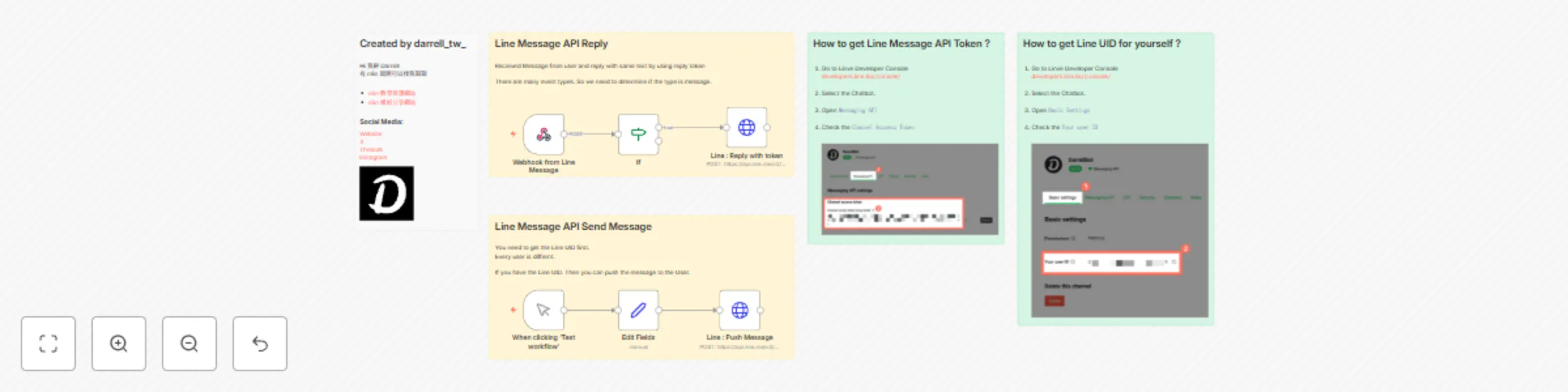
# Workflow Description This workflow demonstrates how to use the **LINE Messaging API** to handle two scenarios: 1. Replying to a user's message using a **reply token**. 2. Sending a **push message** to a specific LINE user using their **user ID**. --- ## Key Features 1. **Webhook Integration**: Receives and processes incoming messages from LINE using a webhook. 2. **Conditional Logic**: Checks if the received event type is a message and handles it accordingly. 3. **Reply Message**: Automatically responds to the user's message using the LINE reply token. 4. **Push Message**: Sends a test message to a specific LINE user using their unique user ID. --- ## Pre-Configuration To simplify the setup process, create a **Header Auth** credential in n8n: - **Name**: `Authorization` - **Value**: `Bearer {line token}` This will authenticate all API requests to the LINE Messaging API. --- ## Node Configurations ### 1.1. Webhook from LINE Message - **Purpose**: Captures incoming events from the LINE Messaging API. - **Configuration**: - **HTTP Method**: `POST` - **Path**: `{n8n-webhook-page}` --- ### 1.2. If Condition - **Purpose**: Checks if the received event type is `message`. - **Configuration**: - **Condition**: - `{{ $json.body.events[0].type }} equals "message"` --- ### 1.3. Line: Reply with Token - **Purpose**: Replies to the user's message using the LINE reply token. - **Configuration**: - **Method**: `POST` - **URL**: `https://api.line.me/v2/bot/message/reply` - **JSON Body**: ```json { "replyToken": "{{ $('Webhook from Line Message').item.json.body.events[0].replyToken }}", "messages": [ { "type": "text", "text": "收到您的訊息 : {{ $('Webhook from Line Message').item.json.body.events[0].message.text }}" } ] } ``` --- ### 2.1. Manual Trigger: Test Workflow - **Purpose**: Triggers the workflow for testing the push message functionality. - **Configuration**: No additional setup required. --- ### 2.2. Edit Fields - **Purpose**: Prepares the unique LINE user ID for the push message. - **Configuration**: - **Field**: - `line_uid`: `Uxxxxxxxxxxxx` --- ### 2.3. Line: Push Message - **Purpose**: Sends a test message to a specific LINE user. - **Configuration**: - **Method**: `POST` - **URL**: `https://api.line.me/v2/bot/message/push` - **JSON Body**: ```json { "to": "{{ $json.line_uid }}", "messages": [ { "type": "text", "text": "推播測試" } ] } ``` --- # 工作流程描述 此工作流程展示如何使用 **LINE Messaging API** 處理兩種情境: 1. 使用 **reply token** 回應使用者的訊息。 2. 使用使用者的 **user ID** 發送 **推播訊息**。 --- ## 主要功能 1. **Webhook 整合**:透過 Webhook 接收並處理來自 LINE 的訊息。 2. **條件邏輯**:檢查接收到的事件類型是否為訊息並進行處理。 3. **回應訊息**:使用 LINE 的 reply token 自動回覆使用者的訊息。 4. **推播訊息**:使用 LINE User ID 向指定用戶發送測試訊息。 --- ## 預先設定 為簡化設定流程,請在 n8n 中建立 **Header Auth** 憑證: - **名稱**:`Authorization` - **值**:`Bearer {line token}` 此設定將用於認證所有 LINE Messaging API 的請求。 --- ## 節點設定 ### 1.1. Webhook from LINE Message - **用途**:接收來自 LINE Messaging API 的事件。 - **設定**: - **HTTP 方法**:`POST` - **路徑**:`{n8n-webhook-page}` --- ### 1.2. If 條件判斷 - **用途**:檢查接收到的事件類型是否為 `message`。 - **設定**: - **條件**: - `{{ $json.body.events[0].type }} 等於 "message"` --- ### 1.3. Line: Reply with Token - **用途**:使用 LINE reply token 回應使用者訊息。 - **設定**: - **方法**:`POST` - **URL**:`https://api.line.me/v2/bot/message/reply` - **JSON 主體**: ```json { "replyToken": "{{ $('Webhook from Line Message').item.json.body.events[0].replyToken }}", "messages": [ { "type": "text", "text": "收到您的訊息 : {{ $('Webhook from Line Message').item.json.body.events[0].message.text }}" } ] } ``` --- ### 2.1. 手動觸發:測試工作流程 - **用途**:測試推播訊息功能。 - **設定**:無需額外設定。 --- ### 2.2. Edit Fields - **用途**:準備推播訊息所需的 LINE 使用者 ID。 - **設定**: - **欄位**: - `line_uid`:`Uxxxxxxxxxxxx` --- ### 2.3. Line: 推播訊息 - **用途**:向特定 LINE 使用者發送測試訊息。 - **設定**: - **方法**:`POST` - **URL**:`https://api.line.me/v2/bot/message/push` - **JSON 主體**: ```json { "to": "{{ $json.line_uid }}", "messages": [ { "type": "text", "text": "推播測試" } ] } ```
Food delivery notifications and easy expense tracking
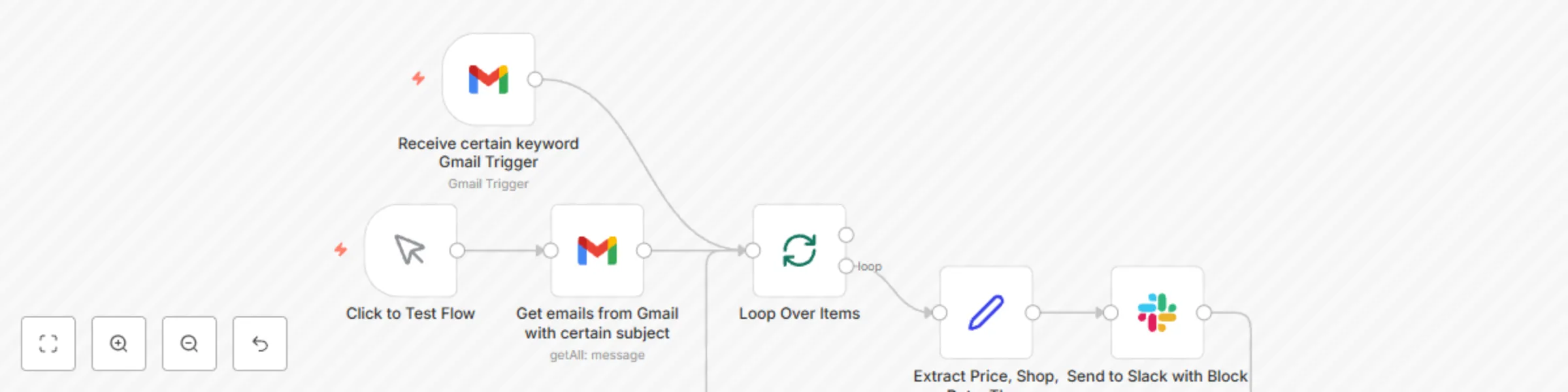
# Workflow Description This workflow automates the process of retrieving emails from a food delivery platform, extracting key order details, and sending notifications to a Slack channel. Additionally, the Slack message includes a **Moze accounting app URL scheme** link for quick expense tracking. --- ## Key Features 1. **Manual Trigger**: Allows the workflow to be executed manually for immediate testing. 2. **Gmail Integration**: Retrieves emails containing specific keywords in the subject line (e.g., "透過 Uber Eats 系統送出的訂單"). (You can adjust the keywords to fit your language.) 3. **Data Extraction**: Parses the email content to extract key details such as: - Order price - Shop name - Order date and time 4. **Slack Notification**: Sends a notification to a specified Slack channel using a structured block format, including a link to record the expense in the **Moze accounting app**. --- ## Node Configurations ### 1. Manual Trigger - **Purpose**: Starts the workflow manually for testing or immediate execution. - **Configuration**: No setup needed. --- ### 2. Gmail Trigger - **Purpose**: Automatically polls Gmail for new emails matching specific subject keywords. - **Configuration**: - **Filters**: - `q`: `subject:透過 Uber Eats 系統送出的訂單` (You can adjust the keywords to fit your language.) - **Polling Frequency**: Every hour at 30 minutes past the hour. - **Credentials**: Linked Gmail account. --- ### 3. Extract Price, Shop, Date, Time - **Purpose**: Extracts key information from the email content using regular expressions. - **Extracted Data**: - `price`: Order price (e.g., `$200`). - `shop`: Shop name (e.g., "店名"). - `date`: Order date (e.g., `2024.01.01`). - `time`: Order time converted to 24-hour format (e.g., `14:30`). --- ### 4. Slack Notification - **Purpose**: Sends a formatted message to a Slack channel with extracted order details. - **Message Content**: - **Text**: ``` Ubereat 訂餐資訊: 商家: {{ shop }} 金額: {{ price }} 日期: {{ date }} ``` - **Moze App Link**: Includes a clickable button in the Slack message with a pre-filled Moze app URL scheme: ``` moze3://expense?amount={{ price }}&account=信用卡&subcategory=外送&store={{ shop }}&date={{ date }}&time={{ time }}&project=生活開銷 ``` - **Channel**: Slack channel ID associated with food delivery notifications. --- ## Additional Notes - **Customization**: Adjust the email subject filter (`subject`) to match other types of food delivery platforms or services. - **Error Handling**: Ensure regular expressions for data extraction match the email format. Test with sample emails before deployment. - **Moze URL Scheme Reference**: Learn more about Moze app URL schemes for customization by visiting the [Moze Documentation](https://moze.app/). This workflow is ideal for automating expense tracking and centralizing notifications for food delivery orders, streamlining personal or team expense management. --- Image: UberEat Gmail with order information  Slack text with button  Click the button will call moze url scheme  --- # 工作流程描述 此工作流程自動化從外送平台獲取郵件,提取關鍵訂單詳細資訊,並將通知發送到指定的 Slack 頻道。此外,Slack 消息中包含一個 **Moze 記帳 App URL Scheme** 的連結,方便快速記帳。 --- ## 主要功能 1. **Manual Trigger**:允許手動執行工作流程,方便測試。 2. **Gmail Integration**:從 Gmail 中提取包含特定關鍵字(例如:「透過 Uber Eats 系統送出的訂單」)的郵件。 3. **資料提取**:解析郵件內容,提取以下關鍵資訊: - 訂單金額 - 商家名稱 - 訂單日期與時間 4. **Slack 通知**:將結構化的通知發送到指定的 Slack 頻道,並包含一個連結供用戶快速記帳。 --- ## 節點設定 ### 1. Manual Trigger - **用途**:手動啟動工作流程以進行測試或即時執行。 - **設定**:無需額外設定。 --- ### 2. Gmail Trigger - **用途**:自動檢查 Gmail 中是否有符合特定主題關鍵字的新郵件。 - **設定**: - **篩選條件**: - `q`: `subject:透過 Uber Eats 系統送出的訂單` - **檢查頻率**:每小時的 30 分。 - **憑證**:已連結的 Gmail 帳號。 --- ### 3. Extract Price, Shop, Date, Time - **用途**:使用正則表達式從郵件內容中提取關鍵資訊。 - **提取的資料**: - `price`:訂單金額(例如:`$200`)。 - `shop`:商家名稱(例如:「店名」)。 - `date`:訂單日期(例如:`2024.01.01`)。 - `time`:訂單時間(24 小時制,例如:`14:30`)。 --- ### 4. Slack 通知 - **用途**:將訂單詳細資訊以格式化消息發送到 Slack。 - **消息內容**: - **文字**: ``` Ubereat 訂餐資訊: 商家: {{ shop }} 金額: {{ price }} 日期: {{ date }} ``` - **Moze App 連結**:Slack 消息中包含一個可點擊按鈕,預填 Moze App URL Scheme: ``` moze3://expense?amount={{ price }}&account=信用卡&subcategory=外送&store={{ shop }}&date={{ date }}&time={{ time }}&project=生活開銷 ``` - **頻道**:與外送通知相關的 Slack 頻道。 --- ## 補充說明 - **自訂化**:可調整郵件主題篩選條件(`subject`),以匹配其他外送平台或服務。 - **錯誤處理**:確保正則表達式匹配郵件格式。在部署前使用樣本郵件進行測試。 - **Moze URL Scheme 參考**:了解更多關於 Moze App URL Scheme 的客製化資訊,請參閱 [Moze 官方文件](https://moze.app/)。 此工作流程適合自動化費用記帳以及集中管理外送訂單通知,提升個人或團隊的費用管理效率。
TW-Request-Agri data open platform-daily market sheep pricing
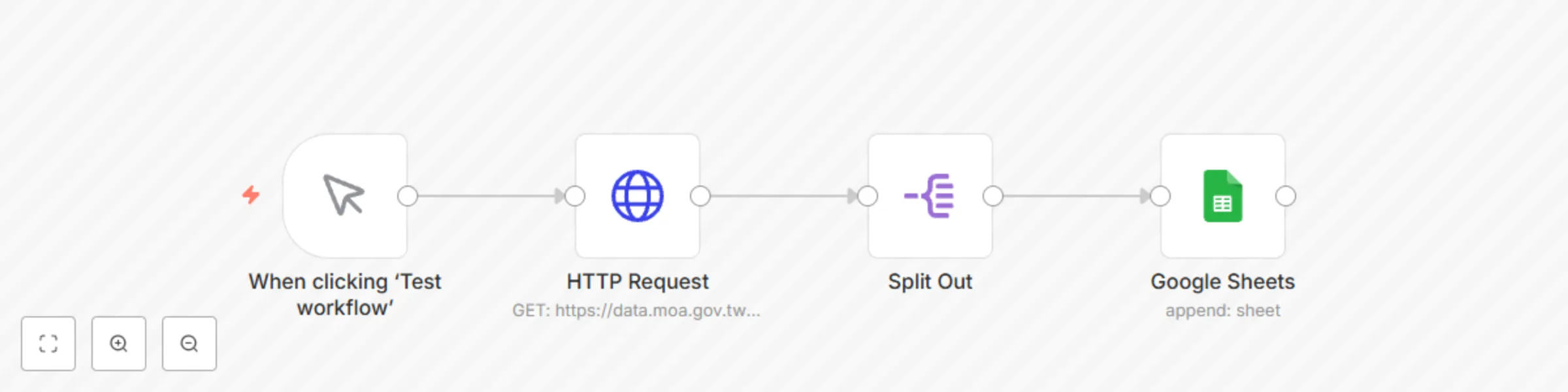
This workflow automates the process of fetching agricultural transaction data from the **Taiwan Agricultural Products Open Data Platform** and storing it in a **Google Sheets document** for further analysis. ## Key Features 1. **Manual Trigger**: Allows manual execution of the workflow to control when data is fetched. 2. **HTTP Request**: Sends a request to the Open Data Platform's API to retrieve detailed transaction data, including: - Pricing (Upper, Middle, Lower, Average) - Transaction quantities - Crop and market details 3. **Split Out Node**: Processes each record individually, ensuring accurate handling of every data entry. 4. **Google Sheets Integration**: Appends the data into a structured Google Sheets document for easy access and analysis. --- ## Node Configurations ### 1. **Manual Trigger** - **Purpose**: Start the workflow manually. - **Configuration**: No setup needed. ### 2. **HTTP Request** - **Purpose**: Fetch agricultural data. - **Configuration**: - **URL**: `https://data.moa.gov.tw/api/v1/SheepQuotation` - **Query Parameters**: - `Start_time`: `2024/12/01` - `End_time`: `2024/12/31` - `MarketName`: `台北二` - `api_key`: `<your_api_key>` - **Headers**: - `accept`: `application/json` ### 3. **Split Out** - **Purpose**: Split the API response data array into individual items. - **Configuration**: - **Field to Split Out**: `Data` ### 4. **Google Sheets** - **Purpose**: Append the data to Google Sheets. - **Configuration**: - **Operation**: `Append` - **Document ID**: `<your_document_id>` - **Sheet Name**: `Sheet1` - **Mapped Fields**: - `TransDate`, `TcType`, `CropCode`, `CropName`, `MarketCode`, `MarketName` - `Upper_Price`, `Middle_Price`, `Lower_Price`, `Avg_Price`, `Trans_Quantity` --- 此 **Workflow** 從 **台灣農業產品開放資料平臺** 獲取農產品交易數據,並將其儲存到 **Google Sheets 文件** 中進行進一步分析。 ## 主要功能 1. **Manual Trigger**:允許手動執行工作流程,以控制數據獲取的時間。 2. **HTTP Request**:向開放資料平臺的 API 發送請求,獲取詳細的交易數據,包括: - 價格 (Upper, Middle, Lower, Average) - 交易數量 - 作物和市場詳細資料 3. **Split Out Node**:逐筆處理每一筆記錄,確保數據準確無誤。 4. **Google Sheets Integration**:將數據追加到結構化的 Google Sheets 文件中,方便存取和分析。 --- ## 節點設定 ### 1. **Manual Trigger** - **用途**:手動啟動工作流程。 - **設定**:無需額外設定。 ### 2. **HTTP Request** - **用途**:抓取農產品數據。 - **設定**: - **URL**: `https://data.moa.gov.tw/api/v1/SheepQuotation` - **查詢參數 (Query Parameters)**: - `Start_time`: `2024/12/01` - `End_time`: `2024/12/31` - `MarketName`: `台北二` - `api_key`: `<your_api_key>` - **標頭 (Headers)**: - `accept`: `application/json` ### 3. **Split Out** - **用途**:將 API 回應的數據陣列分解為個別項目。 - **設定**: - **Field to Split Out**: `Data` ### 4. **Google Sheets** - **用途**:將數據追加至 Google Sheets。 - **設定**: - **Operation**:`Append` - **Document ID**:`<your_document_id>` - **Sheet Name**:`Sheet1` - **映射欄位 (Mapped Fields)**: - `TransDate`, `TcType`, `CropCode`, `CropName`, `MarketCode`, `MarketName` - `Upper_Price`, `Middle_Price`, `Lower_Price`, `Avg_Price`, `Trans_Quantity` 請多利用 Curl Import 功能 例如 ```language curl -X GET "https://data.moa.gov.tw/api/v1/AgriProductsTransType/?Start_time=114.01.01&End_time=114.01.01&MarketName=%E5%8F%B0%E5%8C%97%E4%BA%8C" -H "accept: application/json" ``` [農業資料開放平台 文件](https://data.moa.gov.tw/api.aspx)