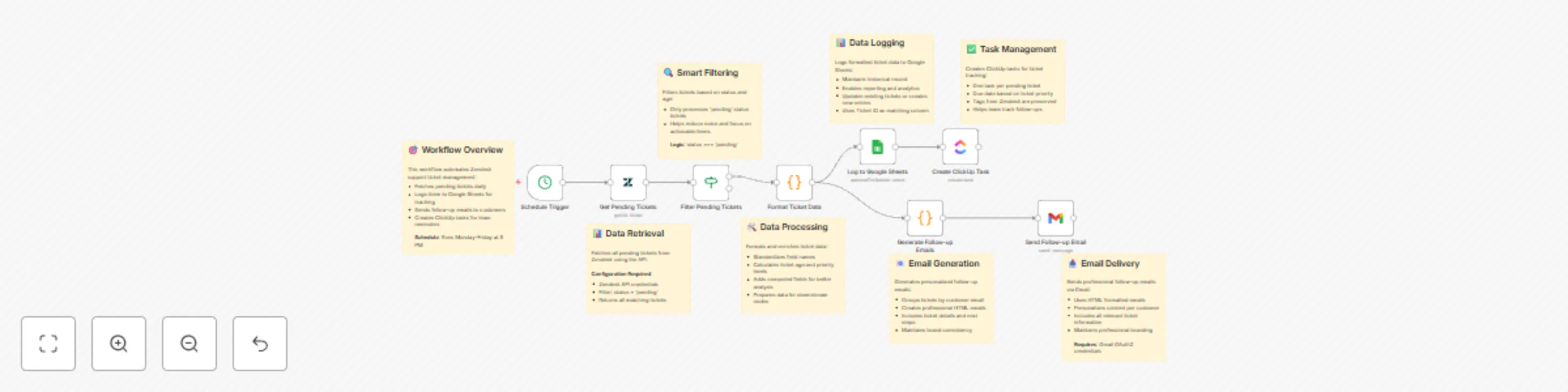
Zendesk pending ticket follow-up system with Gmail, Google Sheets & ClickUp

Workflow preview

Workflow preview
100%
Zendesk pending ticket follow-up system with Gmail, Google Sheets & ClickUp preview
Open on n8n.io

Important notice

This workflow is provided as-is. Please review and test before using in production.

1. Workflow Overview

Description Automate Zendesk ticket follow up management by fetching pending tickets daily, enriching and logging them into Google Sheets, creating ClickUp tasks for team reminders, and sending pro...

Best for

  • Content Creation automation workflows
  • Ticket Management automation workflows
  • advanced n8n builders looking for reusable templates

Tools used

n8n-nodes-base.stickynote, n8n-nodes-base.cron, n8n-nodes-base.zendesk, n8n-nodes-base.if, n8n-nodes-base.code, n8n-nodes-base.googlesheets, n8n-nodes-base.clickup, n8n-nodes-base.gmail

Source and attribution

This workflow is cataloged by N8N Workflows and links back to its original n8n.io source page by Rahul Joshi.

Original n8n.io source

1.1 Workflow description

Title
Zendesk pending ticket follow-up system with Gmail, Google Sheets & ClickUp
Workflow name
Zendesk pending ticket follow-up system with Gmail, Google Sheets & ClickUp

Description

Automate Zendesk ticket follow-up management by fetching pending tickets daily, enriching and logging them into Google Sheets, creating ClickUp tasks for team reminders, and sending professional follow-up emails to customers. Keeps your support pipeline clean and ensures no pending tickets fall through the cracks. πŸŽ«πŸ“ŠπŸ“§βœ…

What This Template Does

  • Triggers daily (Mon–Fri at 8 PM) to check Zendesk for pending tickets. ⏰
  • Filters only "pending" status tickets to reduce noise. πŸ”
  • Formats ticket data with priority, age, and attention flags. 🧠
  • Logs all tickets into Google Sheets for reporting and analytics. πŸ“Š
  • Creates ClickUp tasks for team follow-up and accountability. πŸ“‹
  • Generates professional HTML follow-up emails grouped by customer. 🎨
  • Sends emails via Gmail with ticket details and next steps. πŸ“§

Key Benefits

  • Ensures no pending Zendesk tickets are forgotten. ⏱️
  • Builds a historical log for analytics and audit trails. 🧾
  • Keeps your support team accountable with ClickUp tasks. βœ…
  • Delivers personalized, branded follow-up emails to customers. πŸ’‘
  • Reduces manual effort in tracking and responding to tickets. πŸ”„

Features

  • Schedule Trigger – Runs Mon–Fri at 8:00 PM. πŸ—“οΈ
  • Zendesk Integration – Fetches pending tickets automatically. 🎫
  • Smart Data Processing – Cleans descriptions, calculates age, flags urgent tickets. ⚑
  • Google Sheets Logging – Maintains a structured log with Ticket ID, URL, tags, status, etc. πŸ“ˆ
  • ClickUp Tasks – Automatically creates tasks per pending ticket. πŸ“‹
  • Email Generation – Groups tickets per customer, builds professional HTML follow-ups. 🎨
  • Gmail Delivery – Sends personalized follow-ups directly to customers. πŸ“§

Requirements

  • n8n instance (cloud or self-hosted).
  • Zendesk API credentials with read access.
  • Google Sheets OAuth2 credentials with write access.
  • ClickUp API credentials for task creation.
  • Gmail OAuth2 credentials for sending emails.
  • Pre-configured Google Sheet for pending ticket tracking.

Target Audience

  • Customer support teams managing Zendesk tickets. 🎧
  • SaaS companies wanting automated follow-ups. πŸš€
  • CS managers ensuring accountability in ticket handling. πŸ› οΈ
  • SMBs reducing customer wait time with proactive follow-ups. 🏒
  • Remote support teams needing automated reminders and logs. 🌐

Step-by-Step Setup Instructions

  • Connect Zendesk, Google Sheets, ClickUp, and Gmail credentials in n8n. πŸ”‘
  • Update the schedule trigger (default: Mon–Fri at 8:00 PM). ⏰
  • Replace the Google Sheet ID with your pending ticket log sheet. πŸ“Š
  • Configure your ClickUp space/list IDs for task creation. πŸ“‹
  • Update email branding and sender address in the email generator. 🎨
  • Test with sample tickets to validate Sheets logging, ClickUp tasks, and Gmail delivery. βœ…

1.2 Logical Blocks

This catalog entry is organized from the workflow JSON. The node-level section below shows the executable blocks available for review before importing the template.

2. Block-by-Block Analysis

Block 1 - Workflow Overview

Type / Role
n8n-nodes-base.stickyNote - stickyNote
Config choices
Version 1

Block 2 - Schedule Trigger

Type / Role
n8n-nodes-base.cron - cron
Config choices
Version 1

Block 3 - Data Retrieval Info

Type / Role
n8n-nodes-base.stickyNote - stickyNote
Config choices
Version 1

Block 4 - Get Pending Tickets

Type / Role
n8n-nodes-base.zendesk - zendesk
Config choices
Version 1

Block 5 - Filtering Logic

Type / Role
n8n-nodes-base.stickyNote - stickyNote
Config choices
Version 1

Block 6 - Filter Pending Tickets

Type / Role
n8n-nodes-base.if - if
Config choices
Version 2

Block 7 - Data Processing

Type / Role
n8n-nodes-base.stickyNote - stickyNote
Config choices
Version 1

Block 8 - Format Ticket Data

Type / Role
n8n-nodes-base.code - code
Config choices
Version 2

Block 9 - Data Logging

Type / Role
n8n-nodes-base.stickyNote - stickyNote
Config choices
Version 1

Block 10 - Log to Google Sheets

Type / Role
n8n-nodes-base.googleSheets - googleSheets
Config choices
Version 4

Block 11 - Task Management

Type / Role
n8n-nodes-base.stickyNote - stickyNote
Config choices
Version 1

Block 12 - Create ClickUp Task

Type / Role
n8n-nodes-base.clickUp - clickUp
Config choices
Version 1

Block 13 - Email Generation

Type / Role
n8n-nodes-base.stickyNote - stickyNote
Config choices
Version 1

Block 14 - Generate Follow-up Emails

Type / Role
n8n-nodes-base.code - code
Config choices
Version 2

Block 15 - Email Delivery

Type / Role
n8n-nodes-base.stickyNote - stickyNote
Config choices
Version 1

Block 16 - Send Follow-up Email

Type / Role
n8n-nodes-base.gmail - gmail
Config choices
Version 1

3. Summary Table

Workflow Zendesk pending ticket follow-up system with Gmail, Google Sheets & ClickUp
Complexity advanced
Nodes 16
Categories Content Creation, Ticket Management
Author Rahul Joshi
Published 19 Sept 2025

4. Reproducing the Workflow from Scratch

  1. 1. Download the workflow JSON

    Use the JSON export at /data/workflows/8743/8743.json as the source template for this automation.

  2. 2. Import the template into n8n

    Open n8n, import the downloaded JSON, and review each node before activating the workflow.

  3. 3. Configure credentials and variables

    Replace placeholder credentials, API keys, webhook URLs, account IDs, and environment-specific values with your own settings.

  4. 4. Test with sample data

    Run the workflow manually or in a staging workspace, inspect node output, and confirm downstream systems receive the expected data.

  5. 5. Activate and monitor

    Enable the workflow only after testing, then monitor executions, errors, and rate limits during the first production runs.

5. General Notes & Resources

Review imported nodes carefully before activation. This catalog entry is intended to help you inspect the workflow structure, understand required services, and find related templates faster.

Node names, credentials, schedules, webhook paths, and external service limits may need adjustment for your workspace.

Frequently asked questions

What does Zendesk pending ticket follow-up system with Gmail, Google Sheets & ClickUp do?

Description Automate Zendesk ticket follow up management by fetching pending tickets daily, enriching and logging them into Google Sheets, creating ClickUp tasks for team reminders, and sending pro...

What do I need before importing this workflow?

Review the workflow JSON, configure any required credentials in n8n, and test the automation in a safe workspace before using it in production.

Can I customize this workflow?

Yes. Use the block-by-block analysis and the downloadable JSON to inspect each node, then adjust credentials, prompts, schedules, filters, or destinations for your Content Creation, Ticket Management use case.