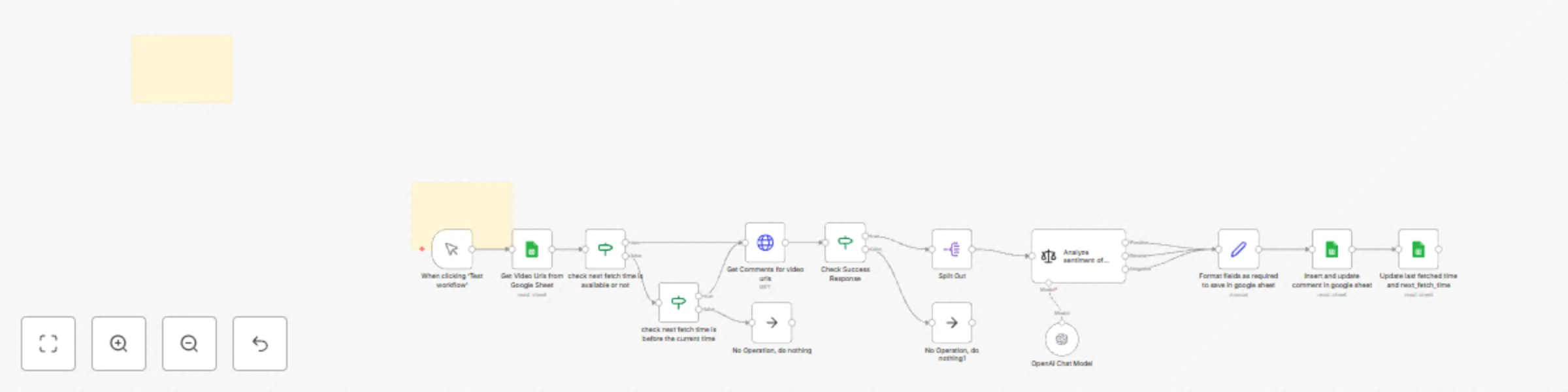
🚀 YouTube comment sentiment analyzer with Google Sheets & OpenAI

Workflow preview

Workflow preview
100%
🚀 YouTube comment sentiment analyzer with Google Sheets & OpenAI preview
Open on n8n.io

Important notice

This workflow is provided as-is. Please review and test before using in production.

1. Workflow Overview

YouTube Comment Sentiment Analyzer with Google Sheets & OpenAI Who Should Use This? Influencers, marketers, and data teams who need instant insights into audience sentiment—without manual export...

Best for

  • Market Research automation workflows
  • AI Summarization automation workflows
  • advanced n8n builders looking for reusable templates

Tools used

n8n-nodes-base.splitout, @n8n/n8n-nodes-langchain.lmchatopenai, n8n-nodes-base.noop, n8n-nodes-base.googlesheets, n8n-nodes-base.if, n8n-nodes-base.httprequest, @n8n/n8n-nodes-langchain.sentimentanalysis, n8n-nodes-base.set

Source and attribution

This workflow is cataloged by N8N Workflows and links back to its original n8n.io source page by Aayushman Sharma.

Original n8n.io source

1.1 Workflow description

Title
🚀 YouTube comment sentiment analyzer with Google Sheets & OpenAI
Workflow name
🚀 YouTube comment sentiment analyzer with Google Sheets & OpenAI

🚀 YouTube Comment Sentiment Analyzer with Google Sheets & OpenAI


Who Should Use This?

Influencers, marketers, and data teams who need instant insights into audience sentiment—without manual exports or scattered tools.


The Challenge

  • Manual exports from YouTube Studio
  • Time-consuming sentiment tagging
  • Data scattered across multiple platforms

Our workflow automates everything: from fetching comments to logging analysis—so you can focus on insights, not spreadsheets.


What You’ll Get

  1. Dynamic Input
    Read a list of YouTube URLs from your Google Sheet.
  2. Full Comment Harvest
    Pull all top-level comments (handles pagination 100/page).
  3. Deep Sentiment Scan
    Classify each comment as Positive, Neutral, or Negative using OpenAI.
  4. Smart Formatting
    Capture metadata (author, likes, timestamp) alongside sentiment.
  5. Seamless Storage
    Append or update rows in your Google Sheet—ready for reporting.

Easy Setup

  1. Prepare Google Sheet
    • Create a sheet with a video_urls column (full YouTube links).
    • Add and authorize a Google Sheets Oauth or service-account credential in n8n.
  2. Enable YouTube API
    • Activate Data API v3 in Google Cloud, grab an API key, and save as an HTTP credential in n8n.
  3. Configure OpenAI
    • Enter your API key under the “OpenAI Chat” credential in n8n.
  4. Import the Workflow
    • Paste the provided JSON into n8n.
  5. Run Manually
    • Use the Manual Trigger node to start fetching and analyzing comments on demand.

Customize to Your Needs

  • Filter Comments: Add an IF node to process only comments with specific keywords or minimum likes.
  • Automate Schedule: Swap the Manual Trigger for a Cron node if you later want periodic runs.
  • Extended Analysis: Swap sentiment classification for topic extraction, summarization, or translation by tweaking the LLM prompt.
  • Alternate Destinations: Replace Google Sheets with Airtable, Notion, or any database node.

Tags

YouTube Google Sheets OpenAI Sentiment Analysis n8n Manual Trigger

1.2 Logical Blocks

This catalog entry is organized from the workflow JSON. The node-level section below shows the executable blocks available for review before importing the template.

2. Block-by-Block Analysis

Block 1 - Split Out

Type / Role
n8n-nodes-base.splitOut - splitOut
Config choices
Version 1

Block 2 - OpenAI Chat Model

Type / Role
@n8n/n8n-nodes-langchain.lmChatOpenAi - lmChatOpenAi
Config choices
Version 1.2

Block 3 - No Operation, do nothing

Type / Role
n8n-nodes-base.noOp - noOp
Config choices
Version 1

Block 4 - Get Video Urls from Google Sheet

Type / Role
n8n-nodes-base.googleSheets - googleSheets
Config choices
Version 4.5

Block 5 - check next fetch time is available or not

Type / Role
n8n-nodes-base.if - if
Config choices
Version 2.2

Block 6 - check next fetch time is before the current time

Type / Role
n8n-nodes-base.if - if
Config choices
Version 2.2

Block 7 - Get Comments for video urls

Type / Role
n8n-nodes-base.httpRequest - httpRequest
Config choices
Version 4.2

Block 8 - Analyze sentiment of every comment

Type / Role
@n8n/n8n-nodes-langchain.sentimentAnalysis - sentimentAnalysis
Config choices
Version 1

Block 9 - Format fields as required to save in google sheet

Type / Role
n8n-nodes-base.set - set
Config choices
Version 3.4

Block 10 - Insert and update comment in google sheet

Type / Role
n8n-nodes-base.googleSheets - googleSheets
Config choices
Version 4.5

Block 11 - Update last fetched time and next_fetch_time

Type / Role
n8n-nodes-base.googleSheets - googleSheets
Config choices
Version 4.5

Block 12 - No Operation, do nothing1

Type / Role
n8n-nodes-base.noOp - noOp
Config choices
Version 1

Block 13 - When clicking ‘Test workflow’

Type / Role
n8n-nodes-base.manualTrigger - manualTrigger
Config choices
Version 1

Block 14 - Sticky Note1

Type / Role
n8n-nodes-base.stickyNote - stickyNote
Config choices
Version 1

Block 15 - Check Success Response

Type / Role
n8n-nodes-base.if - if
Config choices
Version 2.2

Block 16 - Sticky Note2

Type / Role
n8n-nodes-base.stickyNote - stickyNote
Config choices
Version 1

3. Summary Table

Workflow 🚀 YouTube comment sentiment analyzer with Google Sheets & OpenAI
Complexity advanced
Nodes 16
Categories Market Research, AI Summarization
Author Aayushman Sharma
Published 04 May 2025

4. Reproducing the Workflow from Scratch

  1. 1. Download the workflow JSON

    Use the JSON export at /data/workflows/3855/3855.json as the source template for this automation.

  2. 2. Import the template into n8n

    Open n8n, import the downloaded JSON, and review each node before activating the workflow.

  3. 3. Configure credentials and variables

    Replace placeholder credentials, API keys, webhook URLs, account IDs, and environment-specific values with your own settings.

  4. 4. Test with sample data

    Run the workflow manually or in a staging workspace, inspect node output, and confirm downstream systems receive the expected data.

  5. 5. Activate and monitor

    Enable the workflow only after testing, then monitor executions, errors, and rate limits during the first production runs.

5. General Notes & Resources

Review imported nodes carefully before activation. This catalog entry is intended to help you inspect the workflow structure, understand required services, and find related templates faster.

Node names, credentials, schedules, webhook paths, and external service limits may need adjustment for your workspace.

Frequently asked questions

What does 🚀 YouTube comment sentiment analyzer with Google Sheets & OpenAI do?

YouTube Comment Sentiment Analyzer with Google Sheets & OpenAI Who Should Use This? Influencers, marketers, and data teams who need instant insights into audience sentiment—without manual export...

What do I need before importing this workflow?

Review the workflow JSON, configure any required credentials in n8n, and test the automation in a safe workspace before using it in production.

Can I customize this workflow?

Yes. Use the block-by-block analysis and the downloadable JSON to inspect each node, then adjust credentials, prompts, schedules, filters, or destinations for your Market Research, AI Summarization use case.