YouTube comment sentiment analysis with Google Gemini AI and Google Sheets

Workflow preview

Workflow preview
100%
YouTube comment sentiment analysis with Google Gemini AI and Google Sheets preview
Open on n8n.io

Important notice

This workflow is provided as-is. Please review and test before using in production.

1. Workflow Overview

This workflow automatically collects all comments from a specified YouTube video and analyzes the sentiment of each comment using an AI model (e.g., GPT, Claude or Gemini). The sentiment ( Positive...

Best for

  • Market Research automation workflows
  • AI Summarization automation workflows
  • advanced n8n builders looking for reusable templates

Tools used

n8n-nodes-base.manualtrigger, @n8n/n8n-nodes-langchain.sentimentanalysis, n8n-nodes-base.code, n8n-nodes-base.splitout, n8n-nodes-base.googlesheets, n8n-nodes-base.if, n8n-nodes-base.set, n8n-nodes-base.httprequest

Source and attribution

This workflow is cataloged by N8N Workflows and links back to its original n8n.io source page by Davide.

Original n8n.io source

1.1 Workflow description

Title
YouTube comment sentiment analysis with Google Gemini AI and Google Sheets
Workflow name
YouTube comment sentiment analysis with Google Gemini AI and Google Sheets

This workflow automatically collects all comments from a specified YouTube video and analyzes the sentiment of each comment using an AI model (e.g., GPT, Claude or Gemini). The sentiment (Positive, Neutral, or Negative), its strength, and confidence score are extracted and saved into a connected Google Sheet for easy access, reporting, and visualization.


Advantages:

๐Ÿง  AI-Powered Sentiment Analysis

  • Uses modern language models (LLMs) to categorize comments with high accuracy.

๐Ÿ“บ Ideal for YouTube Creators & Marketers

  • Provides insights into audience perception of videos, campaigns, or products.

๐Ÿ“ˆ Real-Time Feedback Monitoring

  • Quickly identify trends in viewer sentiment across large comment volumes.

๐Ÿ“Š Automatic Reporting

  • Saves results in Google Sheets for easy sharing or dashboard integration.

๐Ÿ” Handles Pagination

  • Automatically fetches all comments, even from multi-page videos.

โš™๏ธ No-Code Customization

  • Easily adaptable to other platforms (e.g., TikTok, Instagram) or data sources.

๐Ÿ“ฅ Simple Setup

  • Requires just a YouTube video ID and API key โ€” no coding needed.

๐Ÿ” Loop and Update Logic

  • Continuously updates sheet with new results, avoiding duplicate processing.

๐Ÿงฉ Modular Design

  • Easy to expand (e.g., reply classification, toxic comment detection, translation).

๐Ÿ’ฌ Multi-Language Compatibility

  • AI can be configured to analyze comments in different languages with minimal setup.


How It Works

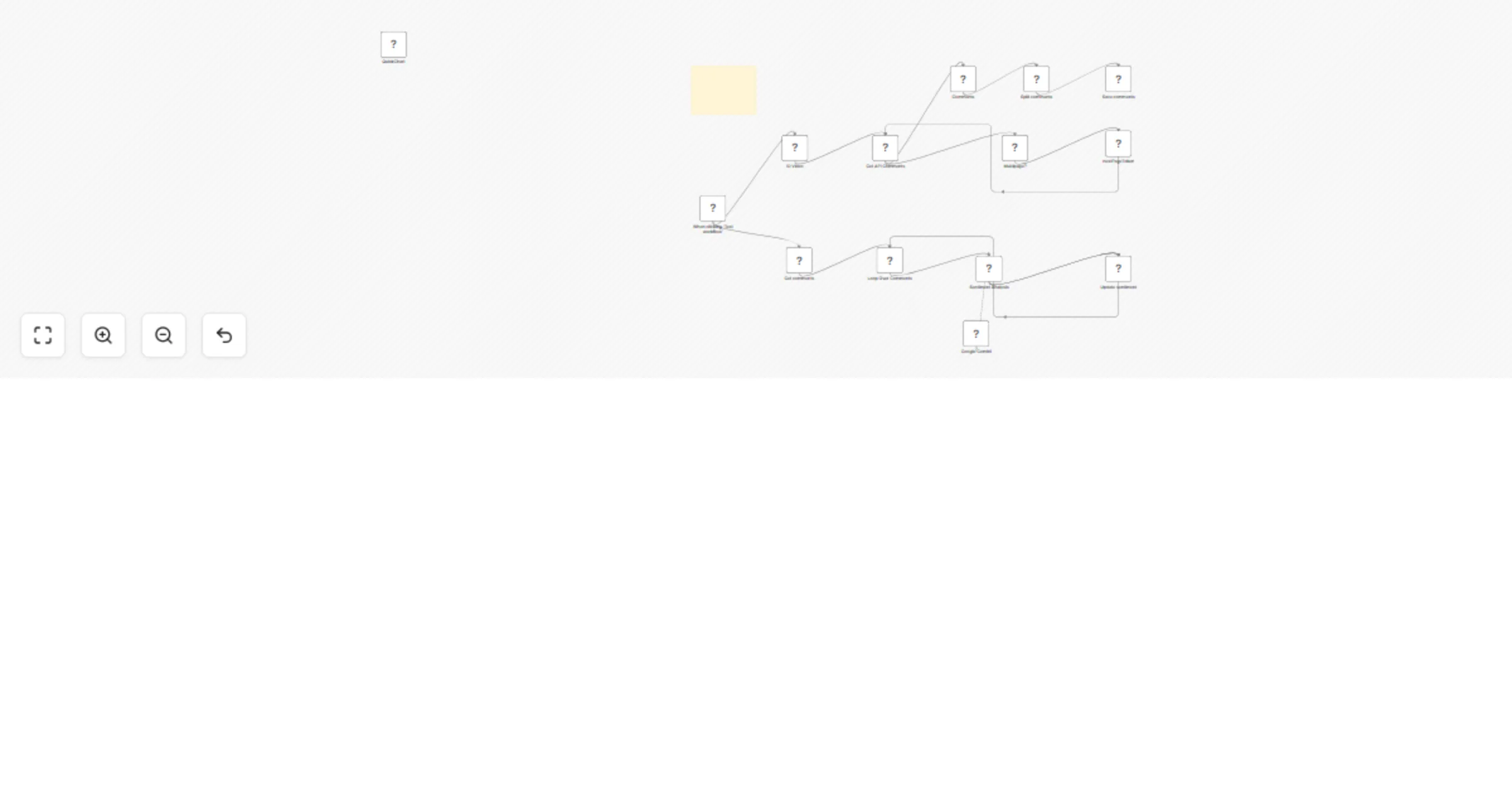
  1. Trigger: The workflow starts manually ("When clicking โ€˜Test workflowโ€™") or can be scheduled.
  2. Fetch Comments: The "Get API Comments" node retrieves comments from a YouTube video using the YouTube API.
  3. Process Comments:
    • Extracts comments and replies via the "Comments" node.
    • Splits them into individual entries ("Split comments").
    • Saves raw comments to Google Sheets ("Save comments").
  4. Sentiment Analysis:
    • Uses Google Gemini AI (or another model) to classify each comment as Positive, Neutral, or Negative.
    • Captures strength and confidence metrics for deeper insights.
  5. Update Results: The "Update sentiment" node writes the analysis back to Google Sheets, marking processed rows.
  6. Pagination Handling: Checks for multiple pages of comments ("Multipage?") and loops until all are processed.

Set Up Steps

  1. Prepare Google Sheet:

    • Clone the template: YouTube Comments Sheet.
    • Ensure columns exist: VIDEO_ID, COMMENTS, SENTIMENT, STRENGTH, CONFIDENCE, and DO (tracking column).
  2. Configure YouTube API:

    • Obtain a YouTube API key from Google Developers Console.
    • Add it to the "Get API Comments" node under Youtube Query Auth (parameter: key).
  3. Set Video ID:

    • Replace the default xxxxxxxx in the "ID Video" node with your target YouTube video ID.
  4. AI Integration:

    • Ensure Google Gemini API credentials are configured in the "Google Gemini" node.
  5. Run the Workflow:

    • Test manually or automate execution (e.g., hourly/daily) to analyze new comments.

Output: A Google Sheet with categorized sentiments, enabling trend analysis and audience engagement tracking.


Need help customizing?

Contact me for consulting and support or add me on Linkedin.

1.2 Logical Blocks

This catalog entry is organized from the workflow JSON. The node-level section below shows the executable blocks available for review before importing the template.

2. Block-by-Block Analysis

Block 1 - When clicking โ€˜Test workflowโ€™

Type / Role
n8n-nodes-base.manualTrigger - manualTrigger
Config choices
Version 1

Block 2 - Sentiment Analysis

Type / Role
@n8n/n8n-nodes-langchain.sentimentAnalysis - sentimentAnalysis
Config choices
Version 1

Block 3 - Comments

Type / Role
n8n-nodes-base.code - code
Config choices
Version 2

Block 4 - Split comments

Type / Role
n8n-nodes-base.splitOut - splitOut
Config choices
Version 1

Block 5 - Save comments

Type / Role
n8n-nodes-base.googleSheets - googleSheets
Config choices
Version 4.5

Block 6 - Multipage?

Type / Role
n8n-nodes-base.if - if
Config choices
Version 2.2

Block 7 - nextPageToken

Type / Role
n8n-nodes-base.set - set
Config choices
Version 3.4

Block 8 - Get comments

Type / Role
n8n-nodes-base.googleSheets - googleSheets
Config choices
Version 4.5

Block 9 - Get API Comments

Type / Role
n8n-nodes-base.httpRequest - httpRequest
Config choices
Version 4.2

Block 10 - ID Video

Type / Role
n8n-nodes-base.set - set
Config choices
Version 3.4

Block 11 - Loop Over Comments

Type / Role
n8n-nodes-base.splitInBatches - splitInBatches
Config choices
Version 3

Block 12 - Update sentiment

Type / Role
n8n-nodes-base.googleSheets - googleSheets
Config choices
Version 4.5

Block 13 - Google Gemini

Type / Role
@n8n/n8n-nodes-langchain.lmChatGoogleGemini - lmChatGoogleGemini
Config choices
Version 1

Block 14 - Sticky Note

Type / Role
n8n-nodes-base.stickyNote - stickyNote
Config choices
Version 1

Block 15 - QuickChart

Type / Role
n8n-nodes-base.quickChart - quickChart
Config choices
Version 1

3. Summary Table

Workflow YouTube comment sentiment analysis with Google Gemini AI and Google Sheets
Complexity advanced
Nodes 15
Categories Market Research, AI Summarization
Author Davide
Published 08 May 2025

4. Reproducing the Workflow from Scratch

  1. 1. Download the workflow JSON

    Use the JSON export at /data/workflows/3936/3936.json as the source template for this automation.

  2. 2. Import the template into n8n

    Open n8n, import the downloaded JSON, and review each node before activating the workflow.

  3. 3. Configure credentials and variables

    Replace placeholder credentials, API keys, webhook URLs, account IDs, and environment-specific values with your own settings.

  4. 4. Test with sample data

    Run the workflow manually or in a staging workspace, inspect node output, and confirm downstream systems receive the expected data.

  5. 5. Activate and monitor

    Enable the workflow only after testing, then monitor executions, errors, and rate limits during the first production runs.

5. General Notes & Resources

Review imported nodes carefully before activation. This catalog entry is intended to help you inspect the workflow structure, understand required services, and find related templates faster.

Node names, credentials, schedules, webhook paths, and external service limits may need adjustment for your workspace.

Frequently asked questions

What does YouTube comment sentiment analysis with Google Gemini AI and Google Sheets do?

This workflow automatically collects all comments from a specified YouTube video and analyzes the sentiment of each comment using an AI model (e.g., GPT, Claude or Gemini). The sentiment ( Positive...

What do I need before importing this workflow?

Review the workflow JSON, configure any required credentials in n8n, and test the automation in a safe workspace before using it in production.

Can I customize this workflow?

Yes. Use the block-by-block analysis and the downloadable JSON to inspect each node, then adjust credentials, prompts, schedules, filters, or destinations for your Market Research, AI Summarization use case.