Weekly LinkedIn connections sync & analysis with Apify and Google Sheets

Workflow preview

Workflow preview
100%
Weekly LinkedIn connections sync & analysis with Apify and Google Sheets preview
Open on n8n.io

Important notice

This workflow is provided as-is. Please review and test before using in production.

1. Workflow Overview

Auto Sync LinkedIn Connections to Google Sheets (Apify + n8n) This workflow automatically scrapes your LinkedIn connections using Apify , processes the data, and logs it into a structured Google...

Best for

  • Market Research automation workflows
  • Lead Generation automation workflows
  • intermediate n8n builders looking for reusable templates

Tools used

n8n-nodes-base.stickynote, n8n-nodes-base.cron, n8n-nodes-base.httprequest, n8n-nodes-base.code, n8n-nodes-base.wait, n8n-nodes-base.if, n8n-nodes-base.googlesheets

Source and attribution

This workflow is cataloged by N8N Workflows and links back to its original n8n.io source page by David Olusola.

Original n8n.io source

1.1 Workflow description

Title
Weekly LinkedIn connections sync & analysis with Apify and Google Sheets
Workflow name
Weekly LinkedIn connections sync & analysis with Apify and Google Sheets

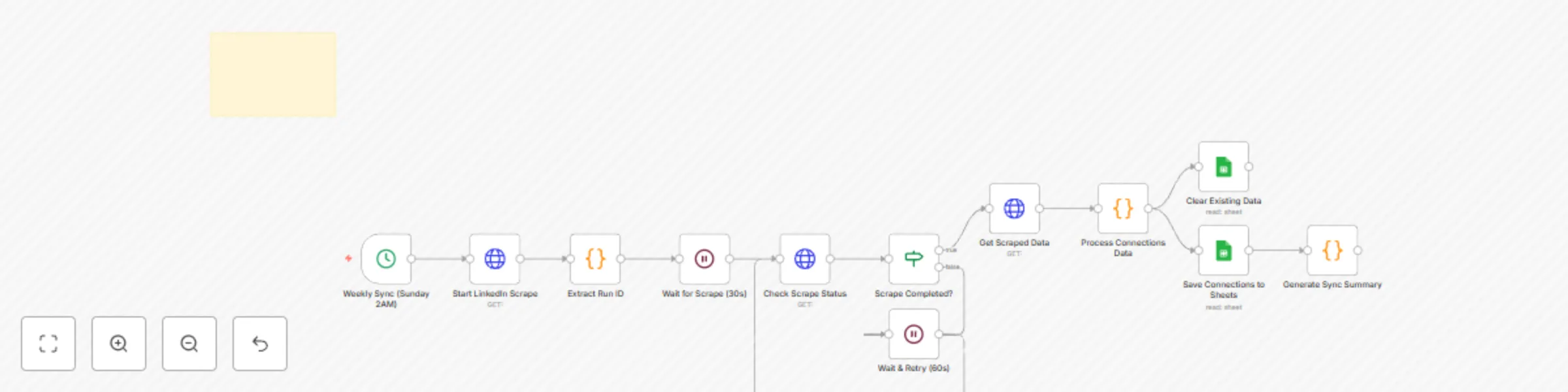
💼 Auto-Sync LinkedIn Connections to Google Sheets (Apify + n8n)

This workflow automatically scrapes your LinkedIn connections using Apify, processes the data, and logs it into a structured Google Sheet every week. It also generates a summary of top companies, locations, and industries across your network.


⚙️ How It Works

  1. Weekly Sync (Sunday 2 AM)

    • A Cron node triggers the workflow weekly (default: Sunday at 2 AM).
    • Frequency can be adjusted.
  2. Start LinkedIn Scrape

    • Calls the Apify LinkedIn Scraper Actor with your credentials.
    • Initiates a scraping run for all your LinkedIn connections.
  3. Extract Run ID & Wait

    • Extracts the scrape run ID from Apify’s response.
    • Waits 30 seconds before checking status (retries every 60s until completed).
  4. Check Scrape Status

    • Confirms if the scrape has finished successfully.
    • If not completed, waits and retries until done.
  5. Get Scraped Data

    • Fetches scraped connection data from the Apify dataset.
    • Includes fields like name, title, company, location, industry, mutual connections, and profile URL.
  6. Process Connections Data

    • A Code node cleans and normalizes the scraped data.
    • Removes incomplete profiles, trims whitespace, merges duplicate fields.
  7. Save to Google Sheets

    • Clears existing data and appends the latest connections to your Google Sheet.
    • Headers include:
      Name | Title | Company | Location | Profile URL 
      Connection Date | Industry | Mutual Connections
      
  8. Generate Sync Summary

    • Analyzes all saved connections.
    • Produces quick stats:
      • Total connections synced
      • Top 5 companies
      • Top 5 locations
      • Industry breakdown

🛠️ Setup Steps

1. Apify Setup

  • Sign up at apify.com.
  • Get your API token from account settings.
  • Use the LinkedIn Scraper Actor.
  • Add your LinkedIn session cookies for stable results.

⚠️ Respect LinkedIn’s Terms of Service.

2. Google Sheets

  • Create a Google Sheet with headers:
    Name | Title | Company | Location | Profile URL | Connection Date | Industry | Mutual Connections
  • Copy the Sheet ID from the URL.
  • Replace YOUR_GOOGLE_SHEET_ID in the workflow.

3. Credentials

  • Add Apify API Token as an HTTP header credential in n8n.
  • Connect your Google Sheets OAuth account.

4. Scheduling

  • Default: runs every Sunday at 2 AM.
  • Modify the Cron node to adjust frequency.

📊 Example Output (Google Sheets Row)

Name Title Company Location Profile URL Connection Date Industry Mutual Connections
Jane Smith Marketing Director Acme Corp New York, US linkedin.com/in/janesmith 2025-08-25 Marketing 12

📈 Example Sync Summary

✅ LinkedIn sync completed: 248 connections saved 🏢 Top companies: Acme Corp, Deloitte, Google, Meta, Amazon 🌍 Top locations: New York, San Francisco, London, Berlin, Toronto 📌 Industries: Marketing (32), Tech (45), Finance (28), Consulting (20)


⚡ With this workflow, your LinkedIn connections stay automatically logged and analyzed — ready for outreach, reporting, or CRM import.

1.2 Logical Blocks

This catalog entry is organized from the workflow JSON. The node-level section below shows the executable blocks available for review before importing the template.

2. Block-by-Block Analysis

Block 1 - Setup Instructions

Type / Role
n8n-nodes-base.stickyNote - stickyNote
Config choices
Version 1

Block 2 - Weekly Sync (Sunday 2AM)

Type / Role
n8n-nodes-base.cron - cron
Config choices
Version 1

Block 3 - Start LinkedIn Scrape

Type / Role
n8n-nodes-base.httpRequest - httpRequest
Config choices
Version 4.1

Block 4 - Extract Run ID

Type / Role
n8n-nodes-base.code - code
Config choices
Version 2

Block 5 - Wait for Scrape (30s)

Type / Role
n8n-nodes-base.wait - wait
Config choices
Version 1

Block 6 - Check Scrape Status

Type / Role
n8n-nodes-base.httpRequest - httpRequest
Config choices
Version 4.1

Block 7 - Scrape Completed?

Type / Role
n8n-nodes-base.if - if
Config choices
Version 2

Block 8 - Get Scraped Data

Type / Role
n8n-nodes-base.httpRequest - httpRequest
Config choices
Version 4.1

Block 9 - Process Connections Data

Type / Role
n8n-nodes-base.code - code
Config choices
Version 2

Block 10 - Clear Existing Data

Type / Role
n8n-nodes-base.googleSheets - googleSheets
Config choices
Version 4

Block 11 - Save Connections to Sheets

Type / Role
n8n-nodes-base.googleSheets - googleSheets
Config choices
Version 4

Block 12 - Generate Sync Summary

Type / Role
n8n-nodes-base.code - code
Config choices
Version 2

Block 13 - Wait & Retry (60s)

Type / Role
n8n-nodes-base.wait - wait
Config choices
Version 1

3. Summary Table

Workflow Weekly LinkedIn connections sync & analysis with Apify and Google Sheets
Complexity intermediate
Nodes 13
Categories Market Research, Lead Generation
Author David Olusola
Published 29 Aug 2025

4. Reproducing the Workflow from Scratch

  1. 1. Download the workflow JSON

    Use the JSON export at /data/workflows/8041/8041.json as the source template for this automation.

  2. 2. Import the template into n8n

    Open n8n, import the downloaded JSON, and review each node before activating the workflow.

  3. 3. Configure credentials and variables

    Replace placeholder credentials, API keys, webhook URLs, account IDs, and environment-specific values with your own settings.

  4. 4. Test with sample data

    Run the workflow manually or in a staging workspace, inspect node output, and confirm downstream systems receive the expected data.

  5. 5. Activate and monitor

    Enable the workflow only after testing, then monitor executions, errors, and rate limits during the first production runs.

5. General Notes & Resources

Review imported nodes carefully before activation. This catalog entry is intended to help you inspect the workflow structure, understand required services, and find related templates faster.

Node names, credentials, schedules, webhook paths, and external service limits may need adjustment for your workspace.

Frequently asked questions

What does Weekly LinkedIn connections sync & analysis with Apify and Google Sheets do?

Auto Sync LinkedIn Connections to Google Sheets (Apify + n8n) This workflow automatically scrapes your LinkedIn connections using Apify , processes the data, and logs it into a structured Google...

What do I need before importing this workflow?

Review the workflow JSON, configure any required credentials in n8n, and test the automation in a safe workspace before using it in production.

Can I customize this workflow?

Yes. Use the block-by-block analysis and the downloadable JSON to inspect each node, then adjust credentials, prompts, schedules, filters, or destinations for your Market Research, Lead Generation use case.