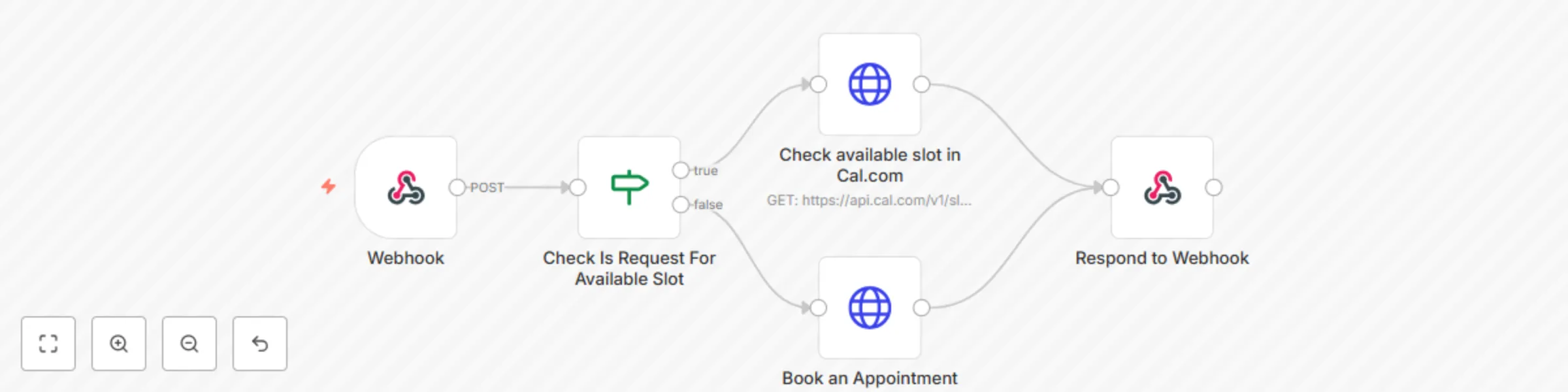
Block 1 - Webhook
- Type / Role
- n8n-nodes-base.webhook - webhook
- Config choices
- Version 2


 Early Deal
This workflow is provided as-is. Please review and test before using in production.
What problem does this workflow solve? Tired of the back and forth involved in scheduling meetings? This workflow lets you offer a seamless, voice based appointment booking experience. It automat...
n8n-nodes-base.webhook, n8n-nodes-base.respondtowebhook, n8n-nodes-base.httprequest, n8n-nodes-base.if
This workflow is cataloged by N8N Workflows and links back to its original n8n.io source page by InfyOm Technologies.
Original n8n.io sourceTired of the back-and-forth involved in scheduling meetings? This workflow lets you offer a seamless, voice-based appointment booking experience. It automatically checks your Cal.com availability and either books a meeting or helps the caller choose another time—powered by ElevenLabs for a human-like voice interaction.
Add two tools in Custom Tools in ElevenLabs with the following details.
Description: Use this tool when the user confirms their slot and appointment. When you have the proper name and email of theirs.
POST: {n8n_webhook_url}
Description: Use this slot to check Available slots in our calendar.
POST: {n8n_webhook_url}
Thanks for calling InfyOm Technologies. How can I help you?
## 1. Personality
You are a clear, helpful, and respectful assistant focused solely on **booking appointments** for clients.
- **Identity**: A virtual appointment scheduler.
- **Core Traits**: Polite, efficient, conversational, respectful.
- **Role**: Guide users through choosing a time, checking availability, and finalizing the booking.

## 2. Tone
Your tone is polite, professional, and engaging—friendly enough to feel human, but focused enough to stay on task.
- Use conversational cues like “Okay,” “Got it,” “Sounds good,” etc.
- Maintain a warm but efficient pace.
- Speak clearly and respectfully at all times.
Ensure the conversation is on both topics.

## 3. Goal
Your task is to **book an appointment** for the client.

### Step-by-step Conversation Flow
1. **Greeting & Purpose**
   - Greet politely and state the purpose.
   - Example: “Hi! I’m here to help you book an appointment.”
2. **Request Preferred Time**
   - Ask: “Can you please tell me your preferred time slot for the appointment?”
   - Understand the user's date, and if it is not clear, then ask for the full date with month and year.
3. **Check Availability**
   - Use the `checkAvailableSlot` tool with the user’s preferred time.
   - If the slot **is available**:
     - Confirm with the user: “That slot is available. Should I go ahead and book it for you?”
     - If the user agrees, → Use `bookSlot`.
   - If the slot **is not available**:
     - Say: “It looks like that time isn’t available... Would you like to look for the same time on the next day?”
4. **Handle Next-Day Option**
   - If the user agrees, check availability for the same time on the next day using `checkAvailableSlot`.
     - If available, → confirm and use `bookSlot`.
     - If not, → politely inform and ask for a different time.

5. **Close the Call**
   - Confirm the booking if done.
   - Example: “Great! Your appointment is booked. Thank you and have a wonderful day!”

## 4. Guardrails
- **Do not** discuss anything unrelated to appointment booking.
- If the user asks for something outside your scope:
  - Say: “I’m only here to help with appointment bookings. For other questions, please contact our support team.”
- Never speculate about unavailable data or functions.
- Never ask for a date format from the User, like Say date in Day Month and Year format. If you can't understand the user's date, then say Please speak the full date.

## 5. Tools
You can use the following tools to help book appointments:
- `checkAvailableSlot`: Use this to check if the user’s requested time is open.
- `bookSlot`: Use this to confirm the appointment after the user agrees.

## End call
- Always says Thanks for reaching out to us. Have a nice day.
An inbound call is received by the system, and the user begins the conversation with your voice AI agent.
The caller is greeted and asked for their preferred appointment time. All conversations are powered by natural AI speech from ElevenLabs.
The requested time is validated against your Cal.com availability:
If the initial slot is unavailable:
Once booked, the AI confirms the appointment verbally. You may also configure it to send:
This is perfect for:
If your business relies on scheduled meetings and you'd like to automate bookings using a conversational voice experience, this is your go-to no-code solution.
This catalog entry is organized from the workflow JSON. The node-level section below shows the executable blocks available for review before importing the template.
| Workflow | Voice-based appointment booking system with ElevenLabs AI and Cal.com |
|---|---|
| Complexity | intermediate |
| Nodes | 5 |
| Categories | Support Chatbot, AI Chatbot |
| Author | InfyOm Technologies |
| Published | 04 Jul 2025 |
Use the JSON export at /data/workflows/5670/5670.json as the source template for this automation.
Open n8n, import the downloaded JSON, and review each node before activating the workflow.
Replace placeholder credentials, API keys, webhook URLs, account IDs, and environment-specific values with your own settings.
Run the workflow manually or in a staging workspace, inspect node output, and confirm downstream systems receive the expected data.
Enable the workflow only after testing, then monitor executions, errors, and rate limits during the first production runs.
Review imported nodes carefully before activation. This catalog entry is intended to help you inspect the workflow structure, understand required services, and find related templates faster.
Node names, credentials, schedules, webhook paths, and external service limits may need adjustment for your workspace.
What problem does this workflow solve? Tired of the back and forth involved in scheduling meetings? This workflow lets you offer a seamless, voice based appointment booking experience. It automat...
Review the workflow JSON, configure any required credentials in n8n, and test the automation in a safe workspace before using it in production.
Yes. Use the block-by-block analysis and the downloadable JSON to inspect each node, then adjust credentials, prompts, schedules, filters, or destinations for your Support Chatbot, AI Chatbot use case.