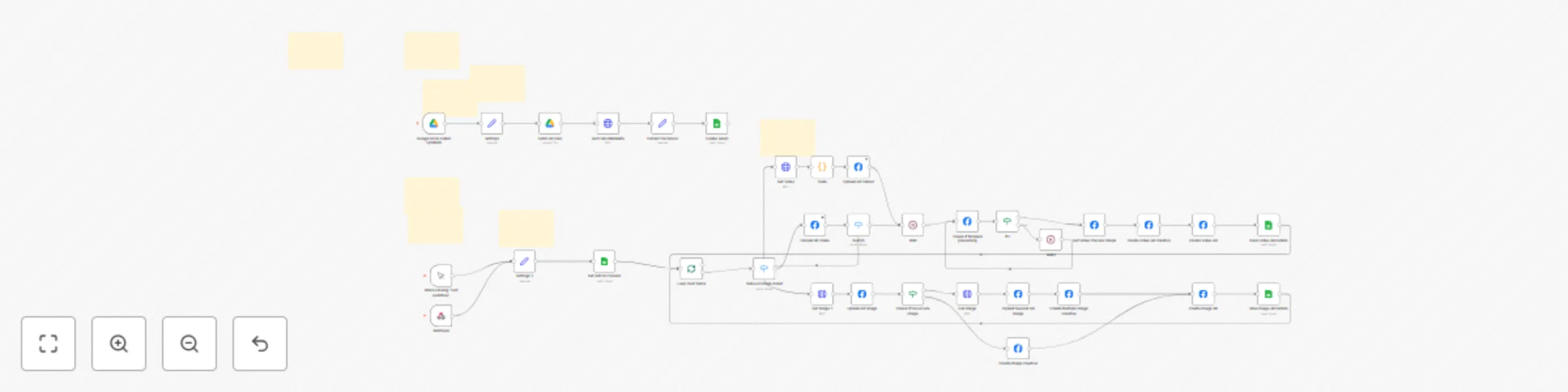
Upload video & image ads to Meta Ads Manager from Google Sheets & Google Drive

Workflow preview

Workflow preview
100%
Upload video & image ads to Meta Ads Manager from Google Sheets & Google Drive preview
Open on n8n.io

Important notice

This workflow is provided as-is. Please review and test before using in production.

1. Workflow Overview

Upload Video & Image Ads to Meta Ads Manager from Google Sheets using Google Drive & Meta Graph API Product Description This n8n workflow automates the process of uploading video and image advertis...

Best for

  • Social Media automation workflows
  • advanced n8n builders looking for reusable templates

Tools used

n8n-nodes-base.facebookgraphapi, n8n-nodes-base.googlesheets, n8n-nodes-base.manualtrigger, n8n-nodes-base.wait, n8n-nodes-base.switch, n8n-nodes-base.httprequest, n8n-nodes-base.googledrivetrigger, n8n-nodes-base.googledrive

Source and attribution

This workflow is cataloged by N8N Workflows and links back to its original n8n.io source page by Daniel Setzermann.

Original n8n.io source

1.1 Workflow description

Title
Upload video & image ads to Meta Ads Manager from Google Sheets & Google Drive
Workflow name
Upload video & image ads to Meta Ads Manager from Google Sheets & Google Drive

Upload Video & Image Ads to Meta Ads Manager from Google Sheets using Google Drive & Meta Graph API

Product Description

This n8n workflow automates the process of uploading video and image advertisements to Meta Ads Manager via the Meta Graph API (Facebook Ads) directly from Google Sheets and Google Drive. The workflow monitors a specified Google Drive folder for new assets, extracts file metadata, and creates Facebook ad campaigns with customizable creative elements including multiple text variations, headlines, and descriptions.

The automation supports both video and image assets, with intelligent handling of single or multiple image creatives. For video assets, it manages the upload process, monitors processing status, and automatically generates preview thumbnails. Image assets can be configured with multiple variations and custom placement targeting across Facebook, Instagram, Messenger, and Audience Network.

Key Features

  • Automated Asset Monitoring: Watches Google Drive folder for new uploads and file updates
  • Multi-Format Support: Handles both video and image advertisements
  • Flexible Creative Options: Supports multiple text variations, headlines, and descriptions
  • Smart Image Handling: Creates single or multi-image creatives based on available assets
  • Cross-Platform Targeting: Configures ads for Facebook, Instagram, Messenger, and Audience Network
  • Status Tracking: Updates Google Sheets with upload progress and ad IDs
  • Batch Processing: Processes multiple ads efficiently with built-in rate limiting
  • Direct Sheet Integration: Upload ads directly from Google Sheets using custom menu

Prerequisites

Required Accounts & Access

  • Meta Developer Account: Required for Facebook Graph API access
  • Meta Business Manager: Active ad account with appropriate permissions
  • Google Account: With access to Google Drive and Google Sheets APIs
  • n8n Instance: Self-hosted or cloud instance with appropriate node packages

Technical Requirements

  • Meta App must be set to "Live" status (not Development mode)
  • Facebook Graph API v22.0 access
  • Google Drive API credentials with folder access permissions
  • Google Sheets API credentials with read/write permissions

Setup Instructions

1. Meta Developer Setup

  1. Create a Meta Developer account and register a new app
  2. Generate a long-lived access token with the following permissions:
  • ads_management
  • business_management
  • pages_read_engagement
  1. Ensure your app status is set to "Live"
  2. Note your Ad Account ID, Page ID, and Instagram User ID

2. Google Services Configuration

  1. Create a Google Cloud project and enable:
  • Google Drive API
  • Google Sheets API
  1. Generate OAuth2 credentials for both services
  2. Create a dedicated Google Drive folder for asset uploads
  3. Make a copy of the Google Sheets template

3. Workflow Configuration

  1. Import the workflow JSON into your n8n instance
  2. Configure the following credentials:
  • Facebook Graph API (using your access token)
  • Google Drive OAuth2 API
  • Google Sheets OAuth2 API

4. Settings Configuration

  1. Update the settings and settings_1 nodes with:
  • Your Google Sheets URL
  • Your Google Drive folder URL
  1. Execute and pin these settings nodes to preserve configurations

5. Google Sheets Setup

  1. Fill in the "Settings" tab of your copied template with:
  • Ad Account IDs
  • Page IDs
  • Instagram User IDs
  • Webhook URL: Copy the webhook URL from your n8n workflow and paste it in the settings tab
  1. Configure your ad campaigns in the "Ready to Upload" sheet

6. Asset Management

  1. Upload your video/image assets to the designated Google Drive folder
  2. Ensure file naming follows your tracking conventions
  3. Update the Google Sheets with corresponding asset information

Workflow Triggers

The workflow can be activated through:

  • Manual Trigger: For testing and one-time executions
  • Google Drive Trigger: Automatic execution when files are added/updated
  • Webhook Trigger: Integration with Google Apps Script for direct sheet control
  • Custom Menu Integration: Upload ads directly from Google Sheets via "Meta → Upload Ads" menu option

Using the Custom Menu

The Google Sheets template includes a custom Google Apps Script that adds a "Meta" menu to your spreadsheet. To upload ads:

  1. Ensure the webhook URL is correctly configured in the Settings tab
  2. Navigate to the "Meta" menu in your Google Sheet
  3. Click "Upload Ads" to trigger the workflow
  4. The workflow will process all ads marked for upload in the "Ready to Upload" sheet

File Support

  • Video Assets: MP4, MOV, AVI formats (uploaded via Meta's video API)
  • Image Assets: JPG, PNG formats with support for multiple creative variations
  • Large File Handling: Includes workaround for Google Drive virus scanning on large files

Important Notes

  • All ads are created in "PAUSED" status for review before activation
  • The workflow includes built-in delays to respect API rate limits
  • Asset processing status is monitored and updated in real-time
  • Multiple text variations enable A/B testing capabilities
  • Custom placement rules optimize ad delivery across different platforms
  • Webhook Configuration: Ensure the webhook URL in your Google Sheets settings matches your n8n workflow webhook endpoint

This automation significantly reduces manual work in Meta Ads Manager while maintaining full control over creative elements and targeting parameters.

1.2 Logical Blocks

This catalog entry is organized from the workflow JSON. The node-level section below shows the executable blocks available for review before importing the template.

2. Block-by-Block Analysis

Block 1 - Get Video Preview Image

Type / Role
n8n-nodes-base.facebookGraphApi - facebookGraphApi
Config choices
Version 1

Block 2 - Create Asset

Type / Role
n8n-nodes-base.googleSheets - googleSheets
Config choices
Version 4.5

Block 3 - Get Ads to Process

Type / Role
n8n-nodes-base.googleSheets - googleSheets
Config choices
Version 4.5

Block 4 - When clicking ‘Test workflow’

Type / Role
n8n-nodes-base.manualTrigger - manualTrigger
Config choices
Version 1

Block 5 - Wait

Type / Role
n8n-nodes-base.wait - wait
Config choices
Version 1.1

Block 6 - Video or Image Asset

Type / Role
n8n-nodes-base.switch - switch
Config choices
Version 3.2

Block 7 - Get image 1

Type / Role
n8n-nodes-base.httpRequest - httpRequest
Config choices
Version 4.2

Block 8 - Get image

Type / Role
n8n-nodes-base.httpRequest - httpRequest
Config choices
Version 4.2

Block 9 - Google Drive Folder Updated

Type / Role
n8n-nodes-base.googleDriveTrigger - googleDriveTrigger
Config choices
Version 1

Block 10 - Fetch All Files

Type / Role
n8n-nodes-base.googleDrive - googleDrive
Config choices
Version 3

Block 11 - Get Files Metadata

Type / Role
n8n-nodes-base.httpRequest - httpRequest
Config choices
Version 4.2

Block 12 - Extract File Specs

Type / Role
n8n-nodes-base.set - set
Config choices
Version 3.4

Block 13 - Create Video Ad Creative

Type / Role
n8n-nodes-base.facebookGraphApi - facebookGraphApi
Config choices
Version 1

Block 14 - Create Video Ad

Type / Role
n8n-nodes-base.facebookGraphApi - facebookGraphApi
Config choices
Version 1

Block 15 - Save Video Ad Details

Type / Role
n8n-nodes-base.googleSheets - googleSheets
Config choices
Version 4.5

Block 16 - Check if two or one image

Type / Role
n8n-nodes-base.if - if
Config choices
Version 2.2

Block 17 - Upload Ad Image

Type / Role
n8n-nodes-base.facebookGraphApi - facebookGraphApi
Config choices
Version 1

Block 18 - Create Multiple Image Creative

Type / Role
n8n-nodes-base.facebookGraphApi - facebookGraphApi
Config choices
Version 1

Block 19 - Create Image Creative

Type / Role
n8n-nodes-base.facebookGraphApi - facebookGraphApi
Config choices
Version 1

Block 20 - Upload Second Ad Image

Type / Role
n8n-nodes-base.facebookGraphApi - facebookGraphApi
Config choices
Version 1

Block 21 - Create Image Ad

Type / Role
n8n-nodes-base.facebookGraphApi - facebookGraphApi
Config choices
Version 1

Block 22 - Sticky Note

Type / Role
n8n-nodes-base.stickyNote - stickyNote
Config choices
Version 1

Block 23 - Save Image Ad Details

Type / Role
n8n-nodes-base.googleSheets - googleSheets
Config choices
Version 4.5

Block 24 - Sticky Note7

Type / Role
n8n-nodes-base.stickyNote - stickyNote
Config choices
Version 1

Showing the first 24 of 42 workflow blocks. Download the JSON for the full node graph.

3. Summary Table

Workflow Upload video & image ads to Meta Ads Manager from Google Sheets & Google Drive
Complexity advanced
Nodes 42
Categories Social Media
Author Daniel Setzermann
Published 11 Jul 2025

4. Reproducing the Workflow from Scratch

  1. 1. Download the workflow JSON

    Use the JSON export at /data/workflows/5883/5883.json as the source template for this automation.

  2. 2. Import the template into n8n

    Open n8n, import the downloaded JSON, and review each node before activating the workflow.

  3. 3. Configure credentials and variables

    Replace placeholder credentials, API keys, webhook URLs, account IDs, and environment-specific values with your own settings.

  4. 4. Test with sample data

    Run the workflow manually or in a staging workspace, inspect node output, and confirm downstream systems receive the expected data.

  5. 5. Activate and monitor

    Enable the workflow only after testing, then monitor executions, errors, and rate limits during the first production runs.

5. General Notes & Resources

Review imported nodes carefully before activation. This catalog entry is intended to help you inspect the workflow structure, understand required services, and find related templates faster.

Node names, credentials, schedules, webhook paths, and external service limits may need adjustment for your workspace.

Frequently asked questions

What does Upload video & image ads to Meta Ads Manager from Google Sheets & Google Drive do?

Upload Video & Image Ads to Meta Ads Manager from Google Sheets using Google Drive & Meta Graph API Product Description This n8n workflow automates the process of uploading video and image advertis...

What do I need before importing this workflow?

Review the workflow JSON, configure any required credentials in n8n, and test the automation in a safe workspace before using it in production.

Can I customize this workflow?

Yes. Use the block-by-block analysis and the downloadable JSON to inspect each node, then adjust credentials, prompts, schedules, filters, or destinations for your Social Media use case.