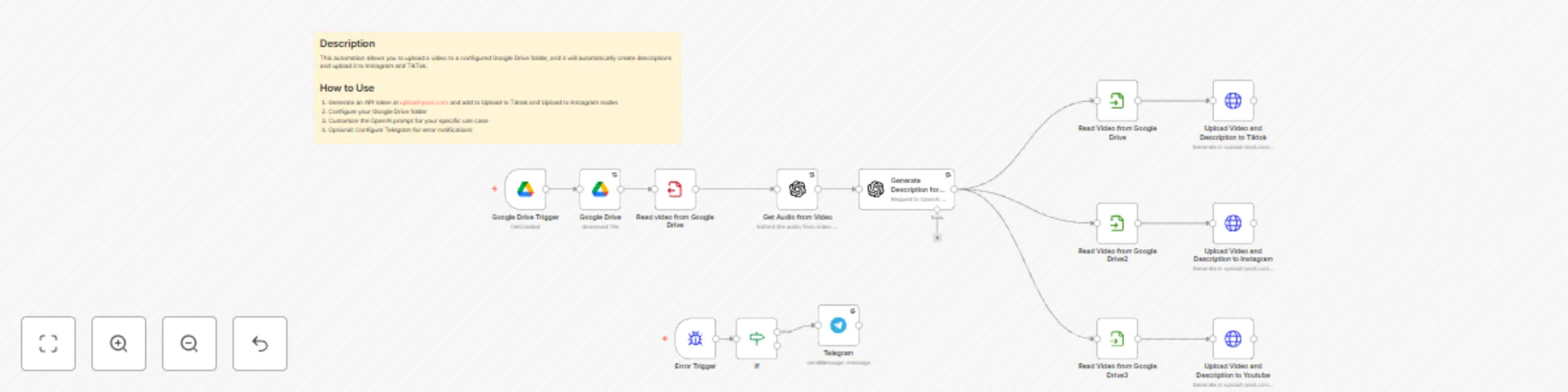
Upload to Instagram, TikTok & YouTube from Google Drive

Workflow preview

Workflow preview
100%
Upload to Instagram, TikTok & YouTube from Google Drive preview
Open on n8n.io

Important notice

This workflow is provided as-is. Please review and test before using in production.

1. Workflow Overview

Description This automation template is designed for content creators, digital marketers, and social media managers looking to simplify their video posting workflow. It automates the process of gen...

Best for

  • Social Media automation workflows
  • Multimodal AI automation workflows
  • advanced n8n builders looking for reusable templates

Tools used

n8n-nodes-base.googledrivetrigger, n8n-nodes-base.googledrive, n8n-nodes-base.errortrigger, n8n-nodes-base.telegram, n8n-nodes-base.if, n8n-nodes-base.stickynote, @n8n/n8n-nodes-langchain.openai, n8n-nodes-base.writebinaryfile

Source and attribution

This workflow is cataloged by N8N Workflows and links back to its original n8n.io source page by Juan Carlos Cavero Gracia.

Original n8n.io source

1.1 Workflow description

Title
Upload to Instagram, TikTok & YouTube from Google Drive
Workflow name
Upload to Instagram, TikTok & YouTube from Google Drive

Description

This automation template is designed for content creators, digital marketers, and social media managers looking to simplify their video posting workflow. It automates the process of generating engaging video descriptions and uploading content to both Instagram and TikTok, making your social media management more efficient and error-free.

Who Is This For?

  • Content Creators & Influencers: Streamline your video uploads and focus more on creating content.
  • Digital Marketers: Ensure consistent posting across multiple platforms with minimal manual intervention.
  • Social Media Managers: Automate repetitive tasks and maintain a steady online presence.

What Problem Does This Workflow Solve?

Manually creating descriptions and uploading videos to different platforms can be time-consuming and error-prone. This workflow addresses these challenges by:

  • Automating Video Uploads: Monitors a designated Google Drive folder for new videos.
  • Generating Descriptions: Uses OpenAI to transcribe video audio and generate engaging, customized social media descriptions.
  • Ensuring Multi-Platform Consistency: Simultaneously posts your video with the generated description to Instagram and TikTok.
  • Error Notifications: Optional Telegram integration sends alerts in case of issues, ensuring smooth operations.

How It Works

  1. Video Upload: Place your video in the designated Google Drive folder.
  2. Description Generation: The automation triggers OpenAI to transcribe your video’s audio and generate a captivating description.
  3. Content Distribution: Automatically uploads the video and description to both Instagram and TikTok.
  4. Error Handling: Sends Telegram notifications if any issues arise during the process.

Setup

  1. Generate an API token at social media API upload-post and configure it in both the Upload to TikTok and Upload to Instagram nodes.
  2. Google Cloud Project: Create a project in Google Cloud Platform, enable the Google Drive API, and generate the necessary OAuth credentials to connect to your Google Drive account.
  3. Set up your Google Drive folder in the Google Drive Trigger node.
  4. Customize the OpenAI prompt in the Generate Social Description node to match your brand’s tone.
  5. (Optional) Configure Telegram credentials for error notifications.

Requirements

  • Accounts: upload-post.com, Google Drive, and (optionally) Telegram.
  • API Keys & Credentials: Upload-post.com API token, OpenAI API key, and (optional) Telegram bot token.
  • Google Cloud: A project with the Google Drive API enabled and valid OAuth credentials.

Use this template to enhance your productivity, maintain consistency across your social media channels, and engage your audience with high-quality video content.

1.2 Logical Blocks

This catalog entry is organized from the workflow JSON. The node-level section below shows the executable blocks available for review before importing the template.

2. Block-by-Block Analysis

Block 1 - Google Drive Trigger

Type / Role
n8n-nodes-base.googleDriveTrigger - googleDriveTrigger
Config choices
Version 1

Block 2 - Google Drive

Type / Role
n8n-nodes-base.googleDrive - googleDrive
Config choices
Version 1

Block 3 - Error Trigger

Type / Role
n8n-nodes-base.errorTrigger - errorTrigger
Config choices
Version 1

Block 4 - Telegram

Type / Role
n8n-nodes-base.telegram - telegram
Config choices
Version 1.2

Block 5 - If

Type / Role
n8n-nodes-base.if - if
Config choices
Version 2.1

Block 6 - Sticky Note

Type / Role
n8n-nodes-base.stickyNote - stickyNote
Config choices
Version 1

Block 7 - Get Audio from Video

Type / Role
@n8n/n8n-nodes-langchain.openAi - openAi
Config choices
Version 1

Block 8 - Read video from Google Drive

Type / Role
n8n-nodes-base.writeBinaryFile - writeBinaryFile
Config choices
Version 1

Block 9 - Generate Description for Videos in Tiktok and Instagram

Type / Role
@n8n/n8n-nodes-langchain.openAi - openAi
Config choices
Version 1.4

Block 10 - Read Video from Google Drive

Type / Role
n8n-nodes-base.readBinaryFile - readBinaryFile
Config choices
Version 1

Block 11 - Read Video from Google Drive2

Type / Role
n8n-nodes-base.readBinaryFile - readBinaryFile
Config choices
Version 1

Block 12 - Upload Video and Description to Tiktok

Type / Role
n8n-nodes-base.httpRequest - httpRequest
Config choices
Version 4.2

Block 13 - Upload Video and Description to Instagram

Type / Role
n8n-nodes-base.httpRequest - httpRequest
Config choices
Version 4.2

Block 14 - Read Video from Google Drive3

Type / Role
n8n-nodes-base.readBinaryFile - readBinaryFile
Config choices
Version 1

Block 15 - Upload Video and Description to Youtube

Type / Role
n8n-nodes-base.httpRequest - httpRequest
Config choices
Version 4.2

3. Summary Table

Workflow Upload to Instagram, TikTok & YouTube from Google Drive
Complexity advanced
Nodes 15
Categories Social Media, Multimodal AI
Author Juan Carlos Cavero Gracia
Published 12 Feb 2025

4. Reproducing the Workflow from Scratch

  1. 1. Download the workflow JSON

    Use the JSON export at /data/workflows/2894/2894.json as the source template for this automation.

  2. 2. Import the template into n8n

    Open n8n, import the downloaded JSON, and review each node before activating the workflow.

  3. 3. Configure credentials and variables

    Replace placeholder credentials, API keys, webhook URLs, account IDs, and environment-specific values with your own settings.

  4. 4. Test with sample data

    Run the workflow manually or in a staging workspace, inspect node output, and confirm downstream systems receive the expected data.

  5. 5. Activate and monitor

    Enable the workflow only after testing, then monitor executions, errors, and rate limits during the first production runs.

5. General Notes & Resources

Review imported nodes carefully before activation. This catalog entry is intended to help you inspect the workflow structure, understand required services, and find related templates faster.

Node names, credentials, schedules, webhook paths, and external service limits may need adjustment for your workspace.

Frequently asked questions

What does Upload to Instagram, TikTok & YouTube from Google Drive do?

Description This automation template is designed for content creators, digital marketers, and social media managers looking to simplify their video posting workflow. It automates the process of gen...

What do I need before importing this workflow?

Review the workflow JSON, configure any required credentials in n8n, and test the automation in a safe workspace before using it in production.

Can I customize this workflow?

Yes. Use the block-by-block analysis and the downloadable JSON to inspect each node, then adjust credentials, prompts, schedules, filters, or destinations for your Social Media, Multimodal AI use case.