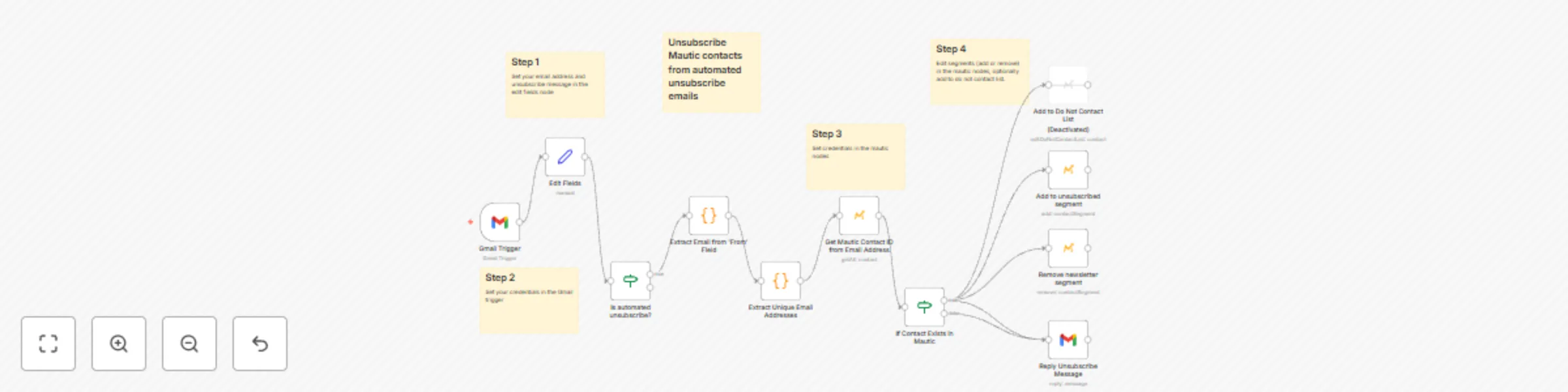
Unsubscribe Mautic contacts from automated unsubscribe emails

Workflow preview

Workflow preview
100%
Unsubscribe Mautic contacts from automated unsubscribe emails preview
Open on n8n.io

Important notice

This workflow is provided as-is. Please review and test before using in production.

1. Workflow Overview

Who is this for? This template is designed for businesses and organizations that use Mautic for email marketing and want to automate the process of removing contacts from specific segments when the...

Best for

  • Social Media automation workflows
  • advanced n8n builders looking for reusable templates

Tools used

n8n-nodes-base.gmailtrigger, n8n-nodes-base.if, n8n-nodes-base.mautic, n8n-nodes-base.gmail, n8n-nodes-base.code, n8n-nodes-base.stickynote, n8n-nodes-base.set

Source and attribution

This workflow is cataloged by N8N Workflows and links back to its original n8n.io source page by Victor Gonzalez.

Original n8n.io source

1.1 Workflow description

Title
Unsubscribe Mautic contacts from automated unsubscribe emails
Workflow name
Unsubscribe Mautic contacts from automated unsubscribe emails

Who is this for?

This template is designed for businesses and organizations that use Mautic for email marketing and want to automate the process of removing contacts from specific segments when they receive an unsubscribe request via email.

What problem is this workflow solving? / use case

Many email recipients, especially those who are less tech-savvy, may not follow the standard unsubscribe link provided in emails. Instead, for example in Gmail, they click the "Unsubscribe" button in the Gmail web interface, which in turn sends an email with a consistent format, these emails contain the word unsubscribe in the 'To' field using the following structure:

[email protected]

This workflow automates the process of identifying such unsubscribe emails and removing the contact from the relevant Mautic segments, ensuring compliance with unsubscribe requests and maintaining a clean mailing list.

What this workflow does

  • Monitors a Gmail account for incoming emails.
  • Identifies unsubscribe emails based on specific patterns in the "To" field (e.g., containing the word "unsubscribe").
  • Retrieves the contact's ID from Mautic based on the email address.
  • Removes the contact from the specified "newsletter" segment in Mautic.
  • Adds the contact to the "unsubscribed" segment in Mautic.
  • Sends a confirmation email to the contact, acknowledging their unsubscribe request.

Setup

  1. Configure your email address and unsubscribe message in the "Edit Fields" node.
  2. Set your credentials in the Gmail trigger and in the Mautic nodes.
  3. Set the segments for the "newsletter" and "unsubscribed" in the Mautic nodes.
  4. Make sure your n8n installation has a public endpoint for your Gmail trigger to work correctly.
  5. Deploy the workflow.

How to customize this workflow to your needs

  • Adjust the conditions for identifying unsubscribe emails based on your specific requirements.
  • Modify the segments or actions taken in Mautic according to your desired behavior.
  • Customize the confirmation email message and sender details.

Note: This workflow assumes a consistent structure for unsubscribe emails, where the "From" field contains the word "unsubscribe" using the "+" sign. If your email provider follows a different convention, adjust the conditions in the "Is automated unsubscribe?" node accordingly.

1.2 Logical Blocks

This catalog entry is organized from the workflow JSON. The node-level section below shows the executable blocks available for review before importing the template.

2. Block-by-Block Analysis

Block 1 - Gmail Trigger

Type / Role
n8n-nodes-base.gmailTrigger - gmailTrigger
Config choices
Version 1

Block 2 - Is automated unsubscribe?

Type / Role
n8n-nodes-base.if - if
Config choices
Version 1

Block 3 - Add to unsubscribed segment

Type / Role
n8n-nodes-base.mautic - mautic
Config choices
Version 1

Block 4 - Remove newsletter segment

Type / Role
n8n-nodes-base.mautic - mautic
Config choices
Version 1

Block 5 - Reply Unsubscribe Message

Type / Role
n8n-nodes-base.gmail - gmail
Config choices
Version 2

Block 6 - Add to Do Not Contact List

Type / Role
n8n-nodes-base.mautic - mautic
Config choices
Version 1

Block 7 - Extract Email from 'From' Field

Type / Role
n8n-nodes-base.code - code
Config choices
Version 1

Block 8 - Extract Unique Email Addresses

Type / Role
n8n-nodes-base.code - code
Config choices
Version 2

Block 9 - Get Mautic Contact ID from Email Address

Type / Role
n8n-nodes-base.mautic - mautic
Config choices
Version 1

Block 10 - If Contact Exists in Mautic

Type / Role
n8n-nodes-base.if - if
Config choices
Version 1

Block 11 - Sticky Note

Type / Role
n8n-nodes-base.stickyNote - stickyNote
Config choices
Version 1

Block 12 - Sticky Note1

Type / Role
n8n-nodes-base.stickyNote - stickyNote
Config choices
Version 1

Block 13 - Sticky Note2

Type / Role
n8n-nodes-base.stickyNote - stickyNote
Config choices
Version 1

Block 14 - Sticky Note3

Type / Role
n8n-nodes-base.stickyNote - stickyNote
Config choices
Version 1

Block 15 - Sticky Note4

Type / Role
n8n-nodes-base.stickyNote - stickyNote
Config choices
Version 1

Block 16 - Edit Fields

Type / Role
n8n-nodes-base.set - set
Config choices
Version 3.2

3. Summary Table

Workflow Unsubscribe Mautic contacts from automated unsubscribe emails
Complexity advanced
Nodes 16
Categories Social Media
Author Victor Gonzalez
Published 26 Apr 2024

4. Reproducing the Workflow from Scratch

  1. 1. Download the workflow JSON

    Use the JSON export at /data/workflows/2241/2241.json as the source template for this automation.

  2. 2. Import the template into n8n

    Open n8n, import the downloaded JSON, and review each node before activating the workflow.

  3. 3. Configure credentials and variables

    Replace placeholder credentials, API keys, webhook URLs, account IDs, and environment-specific values with your own settings.

  4. 4. Test with sample data

    Run the workflow manually or in a staging workspace, inspect node output, and confirm downstream systems receive the expected data.

  5. 5. Activate and monitor

    Enable the workflow only after testing, then monitor executions, errors, and rate limits during the first production runs.

5. General Notes & Resources

Review imported nodes carefully before activation. This catalog entry is intended to help you inspect the workflow structure, understand required services, and find related templates faster.

Node names, credentials, schedules, webhook paths, and external service limits may need adjustment for your workspace.

Frequently asked questions

What does Unsubscribe Mautic contacts from automated unsubscribe emails do?

Who is this for? This template is designed for businesses and organizations that use Mautic for email marketing and want to automate the process of removing contacts from specific segments when the...

What do I need before importing this workflow?

Review the workflow JSON, configure any required credentials in n8n, and test the automation in a safe workspace before using it in production.

Can I customize this workflow?

Yes. Use the block-by-block analysis and the downloadable JSON to inspect each node, then adjust credentials, prompts, schedules, filters, or destinations for your Social Media use case.