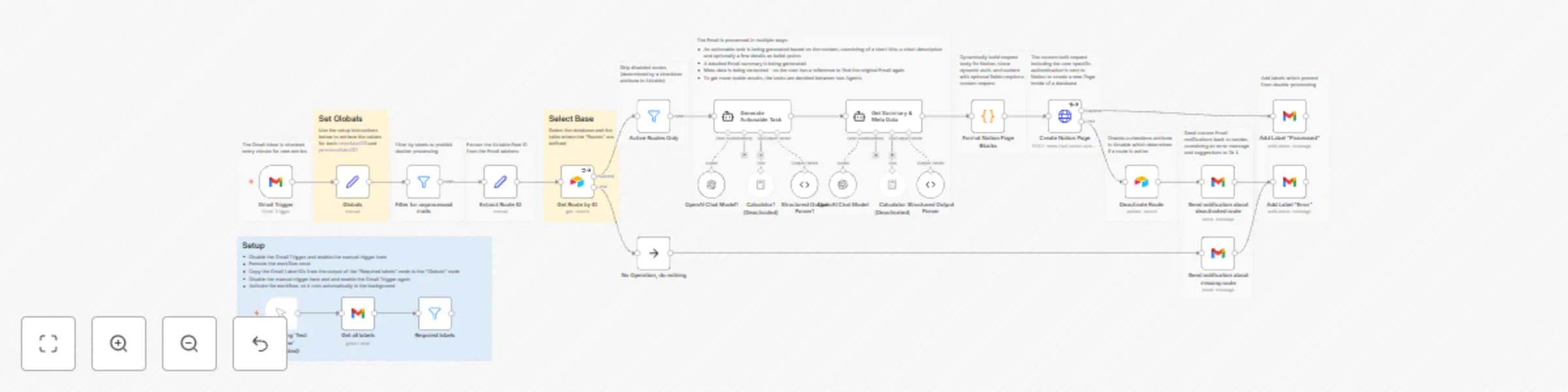
Turn emails into AI-enhanced tasks in Notion (multi-user support) with Gmail, Airtable and Softr

Workflow preview

Workflow preview
100%
Turn emails into AI-enhanced tasks in Notion (multi-user support) with Gmail, Airtable and Softr preview
Open on n8n.io

Important notice

This workflow is provided as-is. Please review and test before using in production.

1. Workflow Overview

Purpose This workflow automatically creates Tasks from forwarded Emails, similar to Asana, but better. Emails are processed by AI and converted to rather actionable task. In addition this workflow ...

Best for

  • Project Management automation workflows
  • AI Summarization automation workflows
  • advanced n8n builders looking for reusable templates

Tools used

@n8n/n8n-nodes-langchain.lmchatopenai, @n8n/n8n-nodes-langchain.toolcalculator, @n8n/n8n-nodes-langchain.outputparserstructured, n8n-nodes-base.gmail, n8n-nodes-base.filter, n8n-nodes-base.set, n8n-nodes-base.airtable, n8n-nodes-base.httprequest

Source and attribution

This workflow is cataloged by N8N Workflows and links back to its original n8n.io source page by Mario.

Original n8n.io source

1.1 Workflow description

Title
Turn emails into AI-enhanced tasks in Notion (multi-user support) with Gmail, Airtable and Softr
Workflow name
Turn emails into AI-enhanced tasks in Notion (multi-user support) with Gmail, Airtable and Softr

Purpose

This workflow automatically creates Tasks from forwarded Emails, similar to Asana, but better. Emails are processed by AI and converted to rather actionable task.

In addition this workflow is build in a way, that multiple users can share this single process by setting up their individual configuration through a user friendly portal (internal tool) instead of the need to manage their own workflows.

Demo

How it works

  • One Gmail account is used to process inbound mails from different users.
  • A custom web portal enables users to define “routes”. Thats where the mapping between an automatically generated Gmail Alias and a Notion Database URL, including the personal API Token, happens.
  • Using a Gmail Trigger, new entries are split by the Email Alias, so the corresponding route can be retrieved from the Database connected to the portal.
  • Every Email then gets processed by AI to get generate an actionable task and get a short summary of the original Email as well as some metadata.
  • Based on a predefined structure a new Page is created in the corresponding Notion Database.
  • Finally the Email is marked as “processed” in Gmail.
  • If an error happens, the route gets paused for a possible overflow and the user gets notified by Email.

Setup

  • Create a new Google account (alternatively you can use an existing one and set up rules to keep your inbox organized)
  • Create two Labels in Gmail: “Processed” and “Error”
  • Clone this Softr template including the Airtable dataset and publish the application
  • Clone this workflow and choose credentials (Gmail, Airtable)
  • Follow the additional instructions provided within the workflow notes
  • Enable the workflow, so it runs automatically in the background

How to use

  • Open published Softr application
  • Register as a new user
  • Create a new route containing the Notion API key and the Notion Database URL
  • Expand the new entry to copy the Email address
  • Save the address as a new contact in your Email provider of choice
  • Forward an Email to it and watch how it gets converted to an actionable task

Disclamer

  • Airtable was chosen, so you can setup this template fairly quickly. It is advised to replace the persistence by something you own, like a self hosted SQL server, since we are dealing with sensitive information of multiple users
  • This solution is only meant for building internal tools, unless you own an embed license for n8n.

1.2 Logical Blocks

This catalog entry is organized from the workflow JSON. The node-level section below shows the executable blocks available for review before importing the template.

2. Block-by-Block Analysis

Block 1 - OpenAI Chat Model

Type / Role
@n8n/n8n-nodes-langchain.lmChatOpenAi - lmChatOpenAi
Config choices
Version 1

Block 2 - Calculator

Type / Role
@n8n/n8n-nodes-langchain.toolCalculator - toolCalculator
Config choices
Version 1

Block 3 - Structured Output Parser

Type / Role
@n8n/n8n-nodes-langchain.outputParserStructured - outputParserStructured
Config choices
Version 1.2

Block 4 - Add Label "Processed"

Type / Role
n8n-nodes-base.gmail - gmail
Config choices
Version 2.1

Block 5 - Active Routes Only

Type / Role
n8n-nodes-base.filter - filter
Config choices
Version 2

Block 6 - Extract Route ID

Type / Role
n8n-nodes-base.set - set
Config choices
Version 3.4

Block 7 - Deactivate Route

Type / Role
n8n-nodes-base.airtable - airtable
Config choices
Version 2.1

Block 8 - Add Label "Error"

Type / Role
n8n-nodes-base.gmail - gmail
Config choices
Version 2.1

Block 9 - Send notification about deactivated route

Type / Role
n8n-nodes-base.gmail - gmail
Config choices
Version 2.1

Block 10 - Send notification about missing route

Type / Role
n8n-nodes-base.gmail - gmail
Config choices
Version 2.1

Block 11 - Get Route by ID

Type / Role
n8n-nodes-base.airtable - airtable
Config choices
Version 2.1

Block 12 - Create Notion Page

Type / Role
n8n-nodes-base.httpRequest - httpRequest
Config choices
Version 4.2

Block 13 - Gmail Trigger

Type / Role
n8n-nodes-base.gmailTrigger - gmailTrigger
Config choices
Version 1.1

Block 14 - Filter for unprocessed mails

Type / Role
n8n-nodes-base.filter - filter
Config choices
Version 2

Block 15 - When clicking ‘Test workflow’

Type / Role
n8n-nodes-base.manualTrigger - manualTrigger
Config choices
Version 1

Block 16 - Required labels

Type / Role
n8n-nodes-base.filter - filter
Config choices
Version 2

Block 17 - Globals

Type / Role
n8n-nodes-base.set - set
Config choices
Version 3.4

Block 18 - Sticky Note

Type / Role
n8n-nodes-base.stickyNote - stickyNote
Config choices
Version 1

Block 19 - Sticky Note1

Type / Role
n8n-nodes-base.stickyNote - stickyNote
Config choices
Version 1

Block 20 - Sticky Note2

Type / Role
n8n-nodes-base.stickyNote - stickyNote
Config choices
Version 1

Block 21 - Sticky Note3

Type / Role
n8n-nodes-base.stickyNote - stickyNote
Config choices
Version 1

Block 22 - Sticky Note4

Type / Role
n8n-nodes-base.stickyNote - stickyNote
Config choices
Version 1

Block 23 - Sticky Note5

Type / Role
n8n-nodes-base.stickyNote - stickyNote
Config choices
Version 1

Block 24 - Sticky Note6

Type / Role
n8n-nodes-base.stickyNote - stickyNote
Config choices
Version 1

Showing the first 24 of 38 workflow blocks. Download the JSON for the full node graph.

3. Summary Table

Workflow Turn emails into AI-enhanced tasks in Notion (multi-user support) with Gmail, Airtable and Softr
Complexity advanced
Nodes 38
Categories Project Management, AI Summarization
Author Mario
Published 12 Aug 2024

4. Reproducing the Workflow from Scratch

  1. 1. Download the workflow JSON

    Use the JSON export at /data/workflows/2377/2377.json as the source template for this automation.

  2. 2. Import the template into n8n

    Open n8n, import the downloaded JSON, and review each node before activating the workflow.

  3. 3. Configure credentials and variables

    Replace placeholder credentials, API keys, webhook URLs, account IDs, and environment-specific values with your own settings.

  4. 4. Test with sample data

    Run the workflow manually or in a staging workspace, inspect node output, and confirm downstream systems receive the expected data.

  5. 5. Activate and monitor

    Enable the workflow only after testing, then monitor executions, errors, and rate limits during the first production runs.

5. General Notes & Resources

Review imported nodes carefully before activation. This catalog entry is intended to help you inspect the workflow structure, understand required services, and find related templates faster.

Node names, credentials, schedules, webhook paths, and external service limits may need adjustment for your workspace.

Frequently asked questions

What does Turn emails into AI-enhanced tasks in Notion (multi-user support) with Gmail, Airtable and Softr do?

Purpose This workflow automatically creates Tasks from forwarded Emails, similar to Asana, but better. Emails are processed by AI and converted to rather actionable task. In addition this workflow ...

What do I need before importing this workflow?

Review the workflow JSON, configure any required credentials in n8n, and test the automation in a safe workspace before using it in production.

Can I customize this workflow?

Yes. Use the block-by-block analysis and the downloadable JSON to inspect each node, then adjust credentials, prompts, schedules, filters, or destinations for your Project Management, AI Summarization use case.