M

Mario

15
Workflows

Workflows by Mario

Workflow preview: Access control for AI agents (RBAC) using Airtable and Telegram
Free advanced

Access control for AI agents (RBAC) using Airtable and Telegram

## Purpose This workflow allows granular control over the access to tools connected to AI Agents (including Multi-Agent setups) using **R**ole **B**ased **A**ccess **C**ontrol. ## Demo & Explanation [![demo video](https://img.youtube.com/vi/eNgik9NR0wg/0.jpg)](https://youtu.be/eNgik9NR0wg) ## How it works - User permissions are managed in Airtable where every restricted AI tool is listed by name and connected via roles to users - Requests to the Main Agent can be sent through a Telegram message (can be replaced by Whatsapp, IMAP or similar) - On every request the Telegram username is used to query a list of all allowed tools which are linked in Airtable - A LangChain Code node is used to compare that list against the connected tools - Every tool which is not permitted to be used is being replaced by a tool, which has a status response, telling the Agent to return a message to the user, that he is not authorized to use the tool - Otherwise allowed tools are passed through to the Agent, as if they were connected directly to the Agent - The parameters can also be passed to a sub-agent called as a sub-workflow where permissions can be checked the same way - Every response is sent back to the same Telegram conversation ## Setup - Clone the workflow and select the belonging credentials. You'll need an OpenAI and Airtable Account as well as a Telegram Bot (refer to the docs for the [Telegram credentials](https://docs.n8n.io/integrations/builtin/credentials/telegram/)). - Copy [this Airtable Template](https://airtable.com/appi5nijuvzQbZLJJ/shr8OkLysG1VtlCiz) into your workspace - Follow the instructions given in the yellow sticky notes - Activate the workflow ## How to use Try this example: - Create a new line in Airtable under “Users” containing your Telegram username and your full name - Set the roles “basic” and “info” - *Consider temporarily disconnecting or resetting the chat memories so they do not remember previous confirmations* - Start a new chat, asking about your permitted roles - you should get a list of those - Ask about the current weather in your city - you should be informed, that you do not have permission to access that information - Back in Airtable add the role “weather” to your user - Now ask the Agent the same question again - It should give you a proper answer this time From here on you can add tools and create roles to your likings. ## Disclaimer Please note, that this workflow can only run on self-hosted n8n instances, since it requires the LangChain Code Node.

M
Mario
Engineering
12 May 2025
1575
0
Workflow preview: Dynamically switch between LLMs for AI agents using LangChain code
Free advanced

Dynamically switch between LLMs for AI agents using LangChain code

# Dynamically switch between LLMs for AI Agents using LangChain Code ## Purpose This example workflow demonstrates a way to connect multiple LLMs to a single AI Agent/LangChain Node and programmatically use one – or in this case loop through them. ## What it does This AI workflow takes in customer complaints and generates a response that is being validated before returned. If the answer was not satisfactory, the response will be generated again with a more capable model. ## How it works - A LangChain Code Node allows multiple LLMs to be connected to a single Basic LLM Chain. On every call only one LLM is actually being connected to the Basic LLM Chain, which is determined by the index defined in a previous Node. - The AI output is later validated by a Sentiment Analysis Node - If the result was not satisfactory, it loops back to the beginning and executes the same query with the next available LLM - The loop ends either when the result passed the requirements or when all LLMs have been used before. ## Setup - Clone the workflow and select the belonging credentials. You'll need an OpenAI Account, alternatively you can swap the LLM nodes with ones from a different provider like Anthropic after the import. ## How to use *Beware that the order of the used LLMs is determined by the order they have been added to the workflow, not by the position on the canvas.* After cloning this workflow into your environment, open the chat and send this example message: > I really *love* waiting two weeks just to get a keyboard that doesn’t even work. Great job. Any chance I could actually use the thing I paid for sometime this month? Most likely you will see that the first validation fails, causing it to loop back to the generation node and try again with the next available LLM. *Since AI responses are unpredictable, the results and number of tries will differ for each run.* ## Disclaimer Please note, that this workflow can only run on self-hosted n8n instances, since it requires the LangChain Code Node.

M
Mario
Support Chatbot
1 May 2025
5269
0
Workflow preview: Sync Notion to Clockify including clients projects and tasks
Free advanced

Sync Notion to Clockify including clients projects and tasks

## Purpose This workflow synchronizes three entities from Notion to Clockify, allowing tracked time to be linked to client-related projects or tasks. ## Demo & Explanation [![demo video](https://img.youtube.com/vi/qr0cvtAAMrc/0.jpg)](https://youtu.be/qr0cvtAAMrc) ## How it works - On every run active Clients, Projects and Tasks are retrieved from both Notion and Clockify before being compared by the Clockify ID, which is again stored in Notion for reference - Potential differences are then applied to Clockify - If an item has been archived or closed in Notion, it is also marked as archived in Clockify - All entities are processed sequentially, since they are related hierarchically to each other - By default this workflow runs once per day or when called via webhook (e.g. embedded into a Notion Button) ## Prerequisites - A set of Notion databases with a specific structure is required to use this workflow - You can either start with [this Notion Template](https://steadfast-banjo-d1f.notion.site/1ae82b476c84808e9409c08baf382c45) or adapt your system based on the requirements described in the big yellow sticky note of this workflow template ## Setup - Clone the workflow and select the belonging credentials - Follow the instructions given in the yellow sticky notes - Activate the workflow ## Related workflows: - [Backup Clockify to Github based on monthly reports](https://n8n.io/workflows/3147-backup-clockify-to-github-based-on-monthly-reports/) - [Prevent simultaneous workflow executions with Redis](https://n8n.io/workflows/2270-prevent-simultaneous-workflow-executions-with-redis/)

M
Mario
Project Management
16 Mar 2025
1175
0
Workflow preview: Backup Clockify to Github based on monthly reports
Free advanced

Backup Clockify to Github based on monthly reports

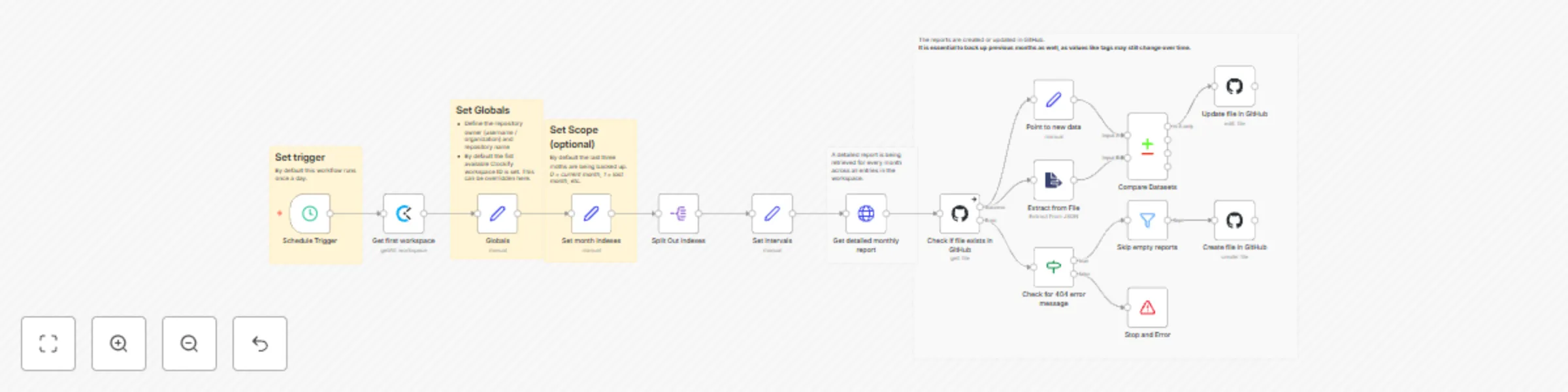
## Purpose This workflow creates a versioned backup of an entire Clockify workspace split up into monthly reports. ## How it works - This backup routine runs daily by default - The Clockify reports API endpoint is used to get all data from the workspace based on time entries - A report file is being retrieved for every month starting with the current one, going back 3 month in total by default - If changes happened during a day to any report, it is being updated in Github ## Prerequisites - Create a **private** Github repository - Create credentials for both Clockify and Github (make sure to give permissions for read and write operations) ## Setup - Clone the workflow and select the belonging credentials - Follow the instructions given in the yellow sticky notes - Activate the workflow

M
Mario
DevOps
13 Mar 2025
659
0
Workflow preview: Realtime Notion Todoist 2-way sync with Redis
Free advanced

Realtime Notion Todoist 2-way sync with Redis

## Purpose This solution enables you to manage all your Notion and Todoist tasks from different workspaces as well as your calendar events in a single place. All tasks can be managed in Todoist and additionally Fantastical can be used to manage scheduled tasks & events all together. ## Demo & Explanation [![demo video](https://img.youtube.com/vi/k66j6ZspjCg/0.jpg)](https://youtu.be/k66j6ZspjCg) ## How it works - The realtime sync consists of two workflows, both triggered by a registered webhook from either Notion or Todoist - To avoid overwrites by lately arriving webhook calls, every time the current task is retrieved from both sides. - Redis is used to prevent from endless loops, since an update in one system triggers another webhook call again. Using the ID of the task, the trigger is being locked down for 15 seconds. - Depending on the detected changes, the other side is updated accordingly. Generally Notion is treaded as the main source. Using an "Obsolete" Status, it is guaranteed, that tasks never get deleted entirely by accident. - The Todoist ID is stored in the Notion task, so they stay linked together - An additional full sync workflow daily fixes inconsistencies, if any of them occurred, since webhooks cannot be trusted entirely. - Since Todoist requires a more complex setup, a tiny workflow helps with activating the webhook. - Another tiny workflow helps generating a global config, which is used by all workflows for mapping purposes. ## Mapping (Notion >> Todoist) - Name: Task Name - Priority: Priority (1: do first, 2: urgent, 3: important, 4: unset) - Due: Date - Status: Section (Done: completed, Obsolete: deleted) - <page_link>: Description (read-only) - Todoist ID: <task_id> ## Current limitations - Changes on the same task cannot be made simultaneously in both systems within a 15-20 second time frame - Subtasks are not linked automatically to their parent yet - Recurring tasks are not supported yet - Tasks names do not support URL’s yet ## Prerequisites ### Notion - A database must already exist (get a basic template [here](https://steadfast-banjo-d1f.notion.site/17682b476c848086b002de766879aa71)) with the following properties (case matters!): - Text: "Name" - Status: "Status", containing at least the options "Backlog", "In progress", "Done", "Obsolete" - Select: "Priority", containing the options "do first", "urgent", "important" - Date: "Due" - Checkbox: "Focus" - Text: "Todoist ID" ### Todoist - A project must already exist with the same sections like defined as Status in Notion (except Done and Obsolete) ### Redis - Create a [Free Redis Cloud](https://redis.io/try-free/) instance or self-host ## Setup [![setup video](https://img.youtube.com/vi/73jhyU0t4c4/0.jpg)](https://youtu.be/73jhyU0t4c4) *The setup involves quite a lot of steps, yet many of them can be automated for business internal purposes.* Just follow the video or do the following steps: - Setup credentials for Notion (access token), Todoist (access token) and Redis - you can also create empty credentials and populate these later during further setup - Clone this workflow by clicking the "Use workflow" button and then choosing your n8n instance - otherwise you need to map the credentials of many nodes. - Follow the instructions described within the bundle of sticky notes on the top left of the workflow ## How to use - You can apply changes (create, update, delete) to tasks both in Notion and Todoist which then get synced over within a couple of seconds (this is handled by the differential realtime sync) - The daily running full sync, resolves possible discrepancies in Todoist and sends a summary via email, if anything needed to be updated. In case that contains an unintended change, you can jump to the Task from the email directly to fix it manually.

M
Mario
Personal Productivity
22 Jan 2025
8193
0
Workflow preview: Retry on fail except for known error
Free advanced

Retry on fail except for known error

## Purpose This workflow snippet allows for advanced error catching during retry attempts. There are cases, where you want to check if an item exists first, so you can determine the following actions. Some API’s do not support an endpoint (e.g. Todoist: completed tasks) to do so, which is why you would work with the error branch, only that this does not work well in combination with the retry functionality. ## How it works - Instead of the builtin retry function of a Node a custom loop is used, to get more granular control in between the iterations - If the main executed node fails, the error can be filtered for an expected error, which can trigger a separate action - The retries only happen, if an unexpected error happened - The workflow only stops, if the defined amount of retries exceeded ## Setup - Copy the nodes into your existing workflow - Replace the “Replace me” placeholder with the Node you want to apply the retry logic on - Follow the sticky notes for more instructions and optional settings

M
Mario
Engineering
12 Jan 2025
1196
0
Workflow preview: Upsert huge documents in a vector store with Supabase and Notion
Free advanced

Upsert huge documents in a vector store with Supabase and Notion

## Purpose This workflow adds the capability to build a RAG on living data. In this case Notion is used as a Knowledge Base. Whenever a page is updated, the embeddings get upserted in a Supabase Vector Store. It can also be fairly easily adapted to PGVector, Pinecone, or Qdrant by using a custom HTTP request for the latter two. ## Demo [![IMAGE ALT TEXT HERE](https://img.youtube.com/vi/ELAxebGmspY/0.jpg)](https://youtu.be/ELAxebGmspY) ## How it works - A trigger checks every minute for changes in the Notion Database. The manual polling approach improves accuracy and prevents changes from being lost between cached polling intervals. - Afterwards every updated page is processed sequentially - The Vector Database is searched using the Notion Page ID stored in the metadata of each embedding. If old entries exist, they are deleted. - All blocks of the Notion Database Page are retrieved and combined into a single string - The content is embedded and split into chunks if necessary. Metadata, including the Notion Page ID, is added during storage for future reference. - A simple Question and Answer Chain enables users to ask questions about the embedded content through the integrated chat function ## Prerequisites - To setup a new Vector Store in Supabase, follow [this guide](https://supabase.com/docs/guides/ai/vector-columns) - Prepare a simple Database in Notion with each Database Page containing at least a title and some content in the blocks section. You can of course also connect this to an existing Database of your choice. ## Setup - Select your credentials in the nodes which require those - If you are on an n8n cloud plan, switch to the native Notion Trigger by activating it and deactivating the Schedule Trigger along with its subsequent Notion Node - Choose your Notion Database in the first Node related to Notion - Adjust the chunk size and overlap in the Token Splitter to your preference - Activate the workflow ## How to use Populate your Notion Database with useful information and use the chat mode of this workflow to ask questions about it. Updates to a Notion Page should quickly reflect in future conversations.

M
Mario
Internal Wiki
25 Nov 2024
13937
0
Workflow preview: Transfer credentials to other n8n instances using a multi-form
Free advanced

Transfer credentials to other n8n instances using a multi-form

## Purpose This workflow allows you to transfer credentials from one n8n instance to another. ![Image](https://i.imgur.com/uqAjqZ6.png) ![Image](https://i.imgur.com/vZcTTvX.png) ## How it works - A multi-form setup guides you through the entire process - You get to choose one of your predefined (in the Settings node) remote instances first - Then all credentials of the current instance are being retrieved using the Execute Command node - On the next form page you can select one of the credentials by their name and initiate the transfer - Finally the credential is being created on the remote instance using the n8n API. A final form ending indicates if that action succeeded or not. ## Setup - Select your credentials in the nodes which require those - Configure your remote instance(s) in the Settings node - Every instance is defined as object with the keys *name*, *apiKey* and *baseUrl*. Those instances are then wrapped inside an array. You can find an example described within a note on the workflow canvas. ## How to use - Grab the (production) URL of the Form from the first node - Open the URL and follow the instructions given in the multi-form ## Disclaimer - Please note, that this workflow can only run on self-hosted n8n instances, since it requires the Execute Command Node. - Security: Beware, that all credentials are being decrypted and processed within the workflow. Also the API keys to other n8n instances are stored within the workflow. - This solution is primarily meant for transferring data between testing environments. For production use consider the n8n enterprise edition which provides a **reliable** way to manage credentials across different environments.

M
Mario
DevOps
4 Nov 2024
2999
0
Workflow preview: Import workflows and map their credentials using a multi-form
Free advanced

Import workflows and map their credentials using a multi-form

## Purpose This workflow allows you to import any workflow from a file or another n8n instance and map the credentials easily. ![Image](https://i.imgur.com/35UFNRa.png) ![Image](https://i.imgur.com/MnWtCFJ.png) ## How it works - A multi-form setup guides you through the entire process - At the beginning you have two options: - Upload a workflow file (JSON) - Copy workflow from a remote n8n instance - If you choose the second option, you get to choose one of your predefined (in the Settings node) remote instances first, then it retrieves a list of all the workflows using the n8n API which you then can choose a workflow from. - Now both initial options come together - the workflow file is being processed - In parallel all credentials of the current instance are being retrieved using the Execute Command node - The next form page enables a mapping of all the credentials used in the workflow. The matching happens between the names (because one workflow can contain different credentials of the same type) of the original credentials and the ones available on the current instance. Every option then shows all available credentials of the same type. In addition the user has always the choice to create a new credential on the fly. - For every option which was set to create a new credential, an empty credential is being created on the current instance using the n8n API. An emoji is being appended to the name, which indicates that it needs to be populated. - Finally the workflow gets updated with the new credential ID’s and created on the current instance using the n8n API. Then the user gets a message, if the process has succeeded or not. ## Setup - Select your credentials in the nodes which require those - Configure your remote instance(s) in the Settings node. (You can skip this step, if you only want to use the File Upload feature) - Every instance is defined as object with the keys *name*, *apiKey* and *baseUrl*. Those instances are then wrapped inside an array. You can find an example described within a note on the workflow canvas. ## How to use - Grab the (production) URL of the Form from the first node - Open the URL and follow the instructions given in the multi-form ## Disclaimer - Security: Beware, that all credentials are being decrypted and processed within the workflow. Also the API keys to other n8n instances are stored within the workflow. - This solution is primarily meant for transferring data between testing environments. For production use consider the n8n enterprise edition which provides a **reliable** way to deploy workflows between different environments without the need of manual credential mapping.

M
Mario
DevOps
30 Oct 2024
3186
0
Workflow preview: Mark outdated workflow nodes on canvas and send a summary with Gmail (add-on)
Free advanced

Mark outdated workflow nodes on canvas and send a summary with Gmail (add-on)

This is an **add-on** for the template [Check if workflows contain build-in nodes that are not of the latest version](https://n8n.io/workflows/2301-check-if-workflows-contain-build-in-nodes-that-are-not-of-the-latest-version/) ## Purpose This workflow highlights outdated nodes within all workflows of a single n8n instance and places an updated preconfigured node right next to it, so it can be swapped easily. ![Image](https://i.imgur.com/yRI0adF.png) ## How it works - The parent workflow checks the entire n8n instance for outdated nodes within all workflows and passes a list of those alongside some metadata to this workflow - This workflow then processes that data and updates the affected workflows - Outdated nodes are renamed by prepending an emoji (default: ⚠️) - this is also used for future checks to prevent from double-processing - The latest version of each outdated node is added to the workflow canvas (not wired up) behind the old one, slightly shifted in position - An Email is sent with a list of modified workflows In the settings it is possible to define: - which symbol/emoji should be prepended to outdated notes - whether to include only major node updates or all of them - whether to add the new nodes to the canvas or not ## Setup - Clone this template to your n8n instance - Update the Settings node by setting at least the base URL of your n8n instance - Set a recipient in the Gmail node - Clone the [parent template](https://n8n.io/workflows/2301-check-if-workflows-contain-build-in-nodes-that-are-not-of-the-latest-version/) to your n8n instance and configure it as described in it’s description - Add an “Execute Workflow” node to the end of the parent workflow and configure it, so it calls this workflow ## How to use Execute the parent workflow and check your Email Inbox. All linked workflows should contain one or more updated nodes with an emoji prepended to their names. ## Disclaimer - Beware, that major updates can cause migrations of nodes to fail, since their structure can differ. So always compare the old nodes with the newly created, if all parameters still meet the requirements. - Be careful when executing this workflow on a production environment, since it directly modifies your workflows. It is advisable to run this on your testing environment and migrate successfully tested workflows to your production environment using git or manually.

M
Mario
DevOps
21 Oct 2024
2203
0
Workflow preview: Voice activated multi-agent demo for Vagent.io using Notion and Google Calendar
Free advanced

Voice activated multi-agent demo for Vagent.io using Notion and Google Calendar

## Purpose Use a lightweight Voice Interface, for you and your entire organization, to interact with an AI Supervisor, a personal AI Assistant, which has access to your custom workflows. You can also connect the supervisor to your already existing Agents. ## Demo & Explanation [![IMAGE ALT TEXT HERE](https://img.youtube.com/vi/qe23D1hgLwY/0.jpg)](https://youtu.be/qe23D1hgLwY) ## How it works - After recording a message in the Vagent App, it gets transcribed and sent in combination with a session ID to the registered webhook - The Main Agent acts as a router. I interprets the message while using the stored chat history (bound to the session ID) and chooses which tool to use to perform the required action and. Tools on this level are workflows, which contain subordinated Agents. Since the Main Agent interprets the original message, the raw input is passed to the Tools/Sub-Agents as a separate parameter - Within the Sub-Agents the actual processing takes place. Each of those has it’s separate chat memory (with a suffix to the main session ID), to achieve a clear separation of concerns - Depending on the required action an HTTP Request Tool is called. The result is being formatted in Markdown and returned to the Main Agent with an additional short prompt, so it does not get interpreted by the Main Agent. - Drafts are separated from a short message by added indentation (angle brackets). If some information is missing, no tool is called just yet, instead a message is returned back to the user - The Main Agent then outputs the result from the called Sub-Agent. If a draft is included, it gets separated from the spoken output - Finally the formatted output is returned as response to the webhook. The message is split into a spoken and a text version, which enables the App to read out loud unnecessary information like drafts in this example See the full documentation of Vagent: [https://vagent.io/docs](https://vagent.io/docs) ## Setup - Import this workflow into your n8n instance - Follow the instructions given in the sticky notes on the canvas - Setup your credentials. OpenAI can be replaced by another LLM in the workflow, but is required for the App to work. Google Calendar and Notion are required for all scenarios to work - Copy the Webhook URL from the Webhook node of the main workflow - Download the Vagent App from [https://vagent.io](https://vagent.io) - In the settings paste your OpenAI API Token, the Webhook URL and the password defined for Header Auth - Now you can use the App to interact with the Multi-Agent using your Voice by tapping the Mic symbol in the App to record your message. *To use the chat trigger (for testing) properly, temporarily disable the nodes after the Tools Agent.*

M
Mario
Personal Productivity
1 Oct 2024
12585
0
Workflow preview: Turn emails into AI-enhanced tasks in Notion (multi-user support) with Gmail, Airtable and Softr
Free advanced

Turn emails into AI-enhanced tasks in Notion (multi-user support) with Gmail, Airtable and Softr

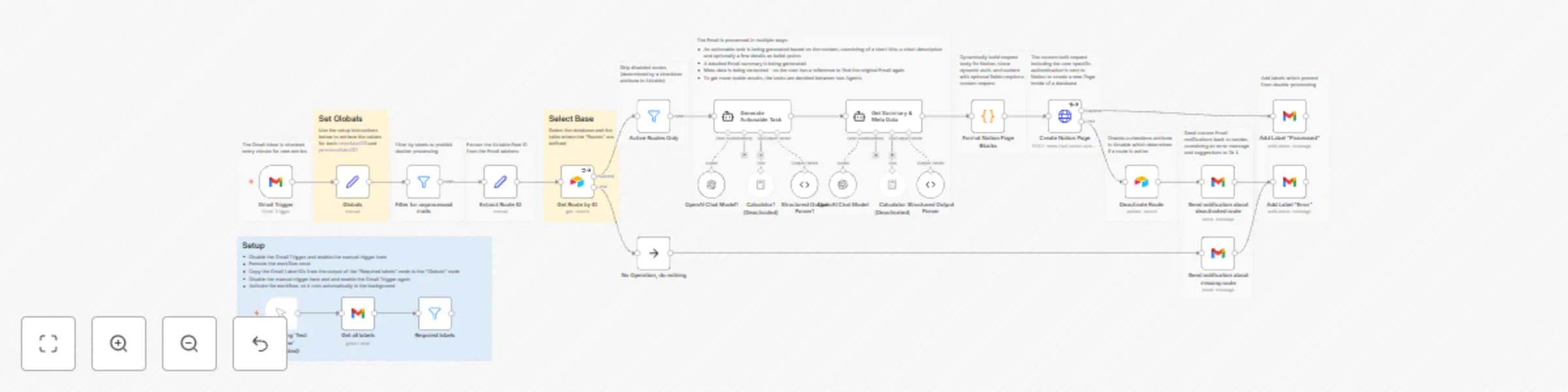
## Purpose This workflow automatically creates Tasks from forwarded Emails, similar to Asana, but better. Emails are processed by AI and converted to rather actionable task. In addition this workflow is build in a way, that multiple users can share this single process by setting up their individual configuration through a user friendly portal (internal tool) instead of the need to manage their own workflows. ## Demo [![IMAGE ALT TEXT HERE](https://img.youtube.com/vi/7cIvSqJAY0E/0.jpg)](https://youtu.be/7cIvSqJAY0E) ## How it works - One Gmail account is used to process inbound mails from different users. - A custom web portal enables users to define “routes”. Thats where the mapping between an automatically generated Gmail Alias and a Notion Database URL, including the personal API Token, happens. - Using a Gmail Trigger, new entries are split by the Email Alias, so the corresponding route can be retrieved from the Database connected to the portal. - Every Email then gets processed by AI to get generate an actionable task and get a short summary of the original Email as well as some metadata. - Based on a predefined structure a new Page is created in the corresponding Notion Database. - Finally the Email is marked as “processed” in Gmail. - If an error happens, the route gets paused for a possible overflow and the user gets notified by Email. ## Setup - Create a new Google account (alternatively you can use an existing one and set up rules to keep your inbox organized) - Create two Labels in Gmail: “Processed” and “Error” - Clone [this Softr template including the Airtable dataset](https://studio.softr.io/dashboard?template_id=164f2a23-00c8-4e6b-8bb7-b413b8df6f3a) and publish the application - Clone this workflow and choose credentials (Gmail, Airtable) - Follow the additional instructions provided within the workflow notes - Enable the workflow, so it runs automatically in the background ## How to use - Open published Softr application - Register as a new user - Create a new route containing the Notion API key and the Notion Database URL - Expand the new entry to copy the Email address - Save the address as a new contact in your Email provider of choice - Forward an Email to it and watch how it gets converted to an actionable task ## Disclamer - Airtable was chosen, so you can setup this template fairly quickly. It is advised to replace the persistence by something you own, like a self hosted SQL server, since we are dealing with sensitive information of multiple users - This solution is only meant for building internal tools, unless you own an embed license for n8n.

M
Mario
Project Management
12 Aug 2024
8358
0
Workflow preview: Download recently liked songs automatically with Spotify
Free advanced

Download recently liked songs automatically with Spotify

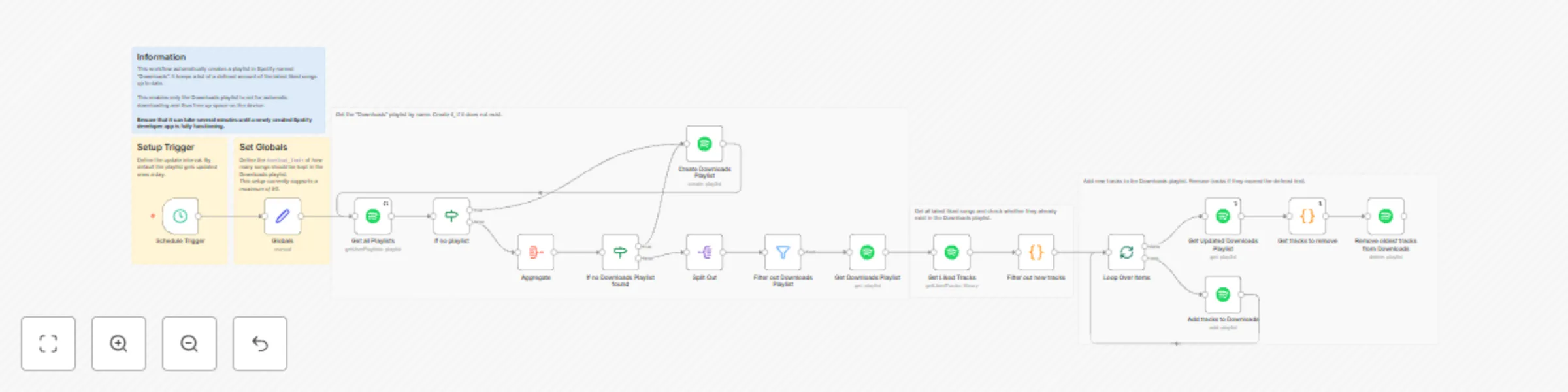
## Purpose This workflow enables you to listen to your recent favorites in very hight quality offline without sacrificing all of your storage. ## How it works This workflow automatically creates a playlist in Spotify named "Downloads" which periodically gets updated so it always contains only a defined amount of the latest liked songs. This enables only the Downloads playlist to set for automatic downloading and thus free up space on the device. ## Setup - The workflow is ready to go. Just select your Spotify credentials and activate the workflow. - In Spotify just enable automatic downloads on the automatically created Downloads folder after the first workflow run. ## Current limitations This setup currently supports a maximum of 50 songs in the Downloads Playlist. This is due to the paylod limits defined by Spotify encountered in the *Get liked songs* node. Implementing batching would solve the issue.

M
Mario
Personal Productivity
10 Jun 2024
3307
0
Workflow preview: Provide real-time updates for Notion databases via webhooks with Supabase
Free advanced

Provide real-time updates for Notion databases via webhooks with Supabase

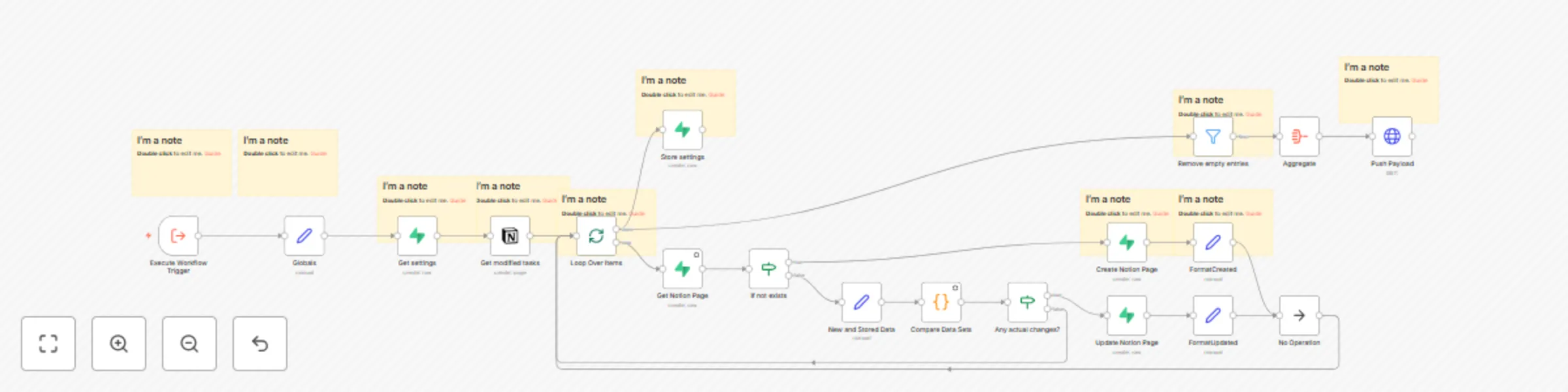
## Purpose This enables webhooks for nearly realtime updates (every 5 seconds) from Notion Databases. ## Problem Notion does not offer webhooks. Even worse, the “Last edited time” property, we could use for polling, only updates every minute. This gives us a polling interval only as low as 2 minutes and we still need to implement a comparing mechanism to detect changes. ## Solution This workflow caches states in between while doing efficient polling & comparing. It brings down the update latency from 2 minutes to 5 seconds and also provides the output of the changes only. ## Demo [![Get real-time updates from Notion Databases](https://img.youtube.com/vi/BROsXafy9Uw/0.jpg)](https://youtu.be/BROsXafy9Uw) ## How it works - Database Pages are frequently polled while filtered by a last modified time stamp for more efficiency - Retrieved pages get compared with previously cached versions in Supabase - Only new and changed pages are pushed to a registered webhook ## Setup - Create a new project in Supabase and import the DB schema (provided through Gumroad) - Add a "Last edited time" property to your Notion Database, if it has none yet - Define the dynamically generated settings_id from the settings table (Supabase) in the Globals node - Define the Notion Database URL in the Globals node - Define your custom Webhook URL in the last node where the results should be pushed to - It is recommended to call this workflow using [this](https://n8n.io/workflows/2270-prevent-simultaneous-workflow-executions-with-redis/) template to prevent simultaneous workflow executions - Set the Schedule Trigger to every 5 seconds or less frequent - More detailed instructions provided within the workflow file and the illustrated instructions provided during the download ## Example output ```json [ { "action": "changed", "changes": { "property_modified_at": "2024-06-04T17:59:00.000Z", "property_priority": "important" }, "data": { "id": "ba761e03-7d6d-44c2-8e8d-c8a4fb930d0f", "name": "Try out n8n", "url": "https://www.notion.so/Try-out-n8n-ba761e037d6d44c28e8dc8a4fb930d0f", "property_todoist_id": "", "property_id": "ba761e037d6d44c28e8dc8a4fb930d0f", "property_modified_at": "2024-06-04T17:59:00.000Z", "property_status": "Backlog", "property_priority": "important", "property_due": { "start": "2024-06-05", "end": null, "time_zone": null }, "property_focus": false, "property_name": "Try out n8n" }, "updated_at": "2024-06-04T17:59:42.144+00:00" } ] ```

M
Mario
Engineering
8 Jun 2024
1686
0
Workflow preview: Prevent simultaneous workflow executions with Redis
Free advanced

Prevent simultaneous workflow executions with Redis

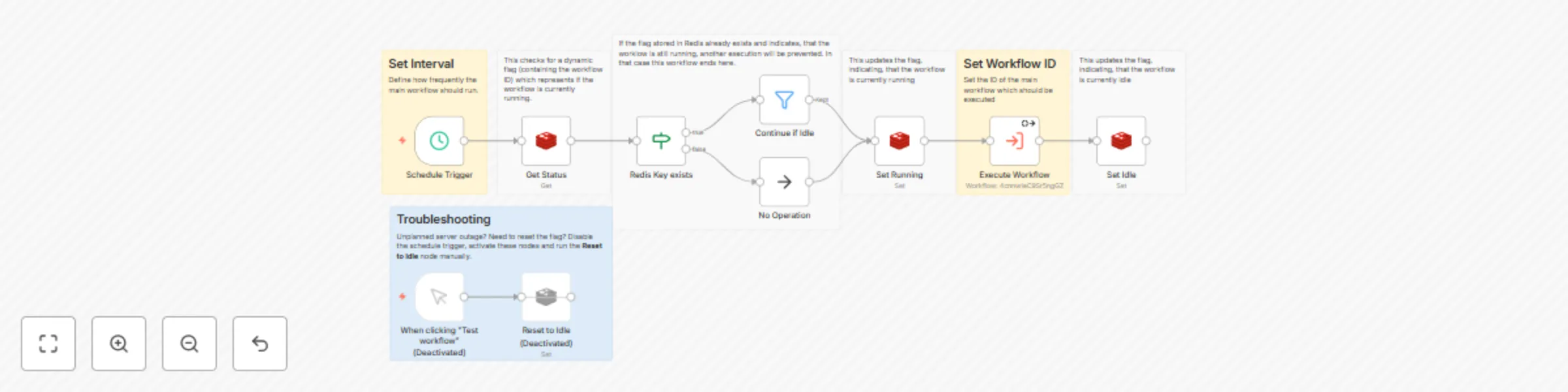
## Purpose This ensures that executions of scheduled workflows do not overlap when they take longer than expected. ## How it works - This is a separate workflow which monitors the execution of the main workflow - Stores a flag in Redis (key dynamically named after workflow ID) which indicates if the main workflow is running or idle - Only calls the main workflow if the last execution has finished ## Setup - Update the credentials suitable for your Redis instance - Replace the **Schedule Trigger** of your main workflow by an **Execute Workflow Trigger** - Copy the workflow ID from the URL - Paste the workflow ID in the **Execute Workflow** Node of this workflow - Configure the **Schedule Trigger** Node

M
Mario
DevOps
19 May 2024
1470
0