Triage Slack and Gmail requests with an AI-powered intake layer

Workflow preview

Workflow preview
100%
Triage Slack and Gmail requests with an AI-powered intake layer preview
Open on n8n.io

1. Workflow Overview

This n8n template helps you turn inbound messages into a clean, deduped queue of actionable tickets. It includes Slack and Gmail as ready to use examples, but the key idea is the universal intake n...

Best for

  • Ticket Management automation workflows
  • AI Summarization automation workflows
  • advanced n8n builders looking for reusable templates

Tools used

@n8n/n8n-nodes-langchain.lmchatopenai, @n8n/n8n-nodes-langchain.outputparserstructured, n8n-nodes-base.slack, n8n-nodes-base.scheduletrigger, n8n-nodes-base.gmailtrigger, n8n-nodes-base.datatable, @n8n/n8n-nodes-langchain.agent, n8n-nodes-base.notion

Source and attribution

This workflow is cataloged by N8N Workflows and links back to its original n8n.io source page by Paul Karrmann.

Original n8n.io source

1.1 Workflow description

Title
Triage Slack and Gmail requests with an AI-powered intake layer
Workflow name
Triage Slack and Gmail requests with an AI-powered intake layer

This n8n template helps you turn inbound messages into a clean, deduped queue of actionable tickets.

It includes Slack and Gmail as ready to use examples, but the key idea is the universal intake normalizer: you can plug in other sources later (forms, webhooks, chat tools, other inboxes) as long as you map them into the same normalized schema.

Good to know

  • This workflow sends message content to an LLM for classification.
  • Keep sensitive data out of the prompt, and only process messages you are allowed to process.
  • Costs depend on message volume and length, so truncation and tight filters matter.

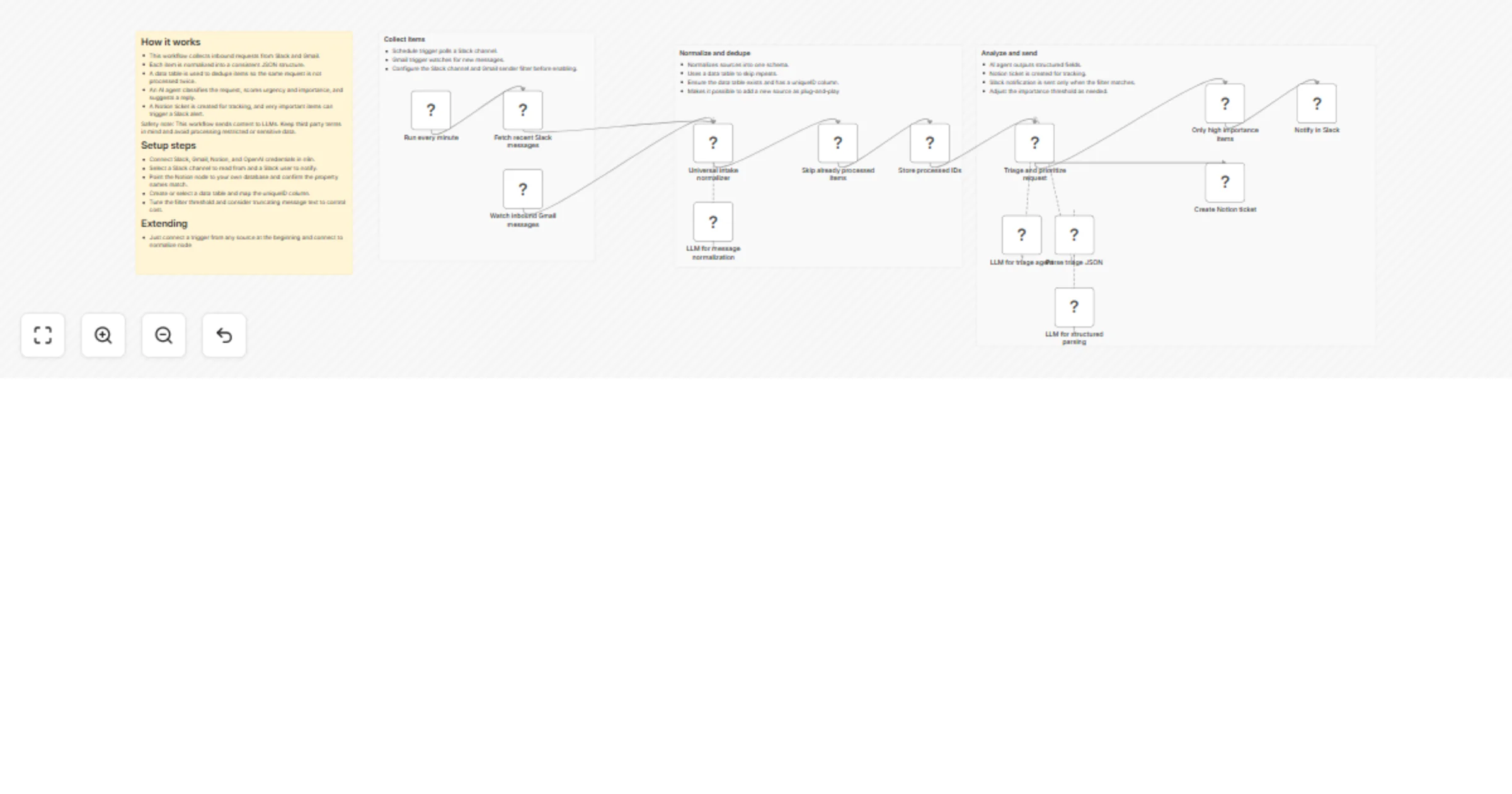
How it works

  • Collect inbound items (Slack and Gmail are included as examples).
  • Normalize each item into one shared JSON format so every source behaves the same.
  • Deduplicate items using a data table so repeats are skipped.
  • Use an AI agent with structured output to score urgency and importance, produce a summary, and draft a reply.
  • Create a Notion ticket for tracking, and optionally notify Slack for high priority items.

Setup steps

  • Connect credentials for Slack, Gmail, Notion, and your LLM provider.
  • Choose your Slack channel and set a Gmail filter that keeps volume manageable.
  • Select your Notion database and ensure properties match the field mappings.
  • Create or select a data table and map the unique ID column for deduplication.
  • Adjust the notification threshold and schedule interval to match your workflow.

Requirements

  • Slack workspace access (optional if you swap the source)
  • Gmail access (optional if you swap the source)
  • Notion database for ticket creation
  • LLM API credentials

Customising this workflow

  • Add new sources by mapping them into the normalizer schema.
  • Truncate long messages before the AI step to reduce cost.
  • Change categories, scoring, and thresholds to match your operating model.

1.2 Logical Blocks

This catalog entry is organized from the workflow JSON. The node-level section below shows the executable blocks available for review before importing the template.

2. Block-by-Block Analysis

Block 1 - LLM for message normalization

Type / Role
@n8n/n8n-nodes-langchain.lmChatOpenAi - lmChatOpenAi
Config choices
Version 1.3

Block 2 - LLM for triage agent

Type / Role
@n8n/n8n-nodes-langchain.lmChatOpenAi - lmChatOpenAi
Config choices
Version 1.3

Block 3 - Parse triage JSON

Type / Role
@n8n/n8n-nodes-langchain.outputParserStructured - outputParserStructured
Config choices
Version 1.3

Block 4 - LLM for structured parsing

Type / Role
@n8n/n8n-nodes-langchain.lmChatOpenAi - lmChatOpenAi
Config choices
Version 1.3

Block 5 - Notify in Slack

Type / Role
n8n-nodes-base.slack - slack
Config choices
Version 2.4

Block 6 - Run every minute

Type / Role
n8n-nodes-base.scheduleTrigger - scheduleTrigger
Config choices
Version 1.3

Block 7 - Fetch recent Slack messages

Type / Role
n8n-nodes-base.slack - slack
Config choices
Version 2.4

Block 8 - Watch inbound Gmail messages

Type / Role
n8n-nodes-base.gmailTrigger - gmailTrigger
Config choices
Version 1.3

Block 9 - Skip already processed items

Type / Role
n8n-nodes-base.dataTable - dataTable
Config choices
Version 1.1

Block 10 - Store processed IDs

Type / Role
n8n-nodes-base.dataTable - dataTable
Config choices
Version 1.1

Block 11 - Triage and prioritize request

Type / Role
@n8n/n8n-nodes-langchain.agent - agent
Config choices
Version 3.1

Block 12 - Create Notion ticket

Type / Role
n8n-nodes-base.notion - notion
Config choices
Version 2.2

Block 13 - Only high importance items

Type / Role
n8n-nodes-base.filter - filter
Config choices
Version 2.3

Block 14 - Main sticky note

Type / Role
n8n-nodes-base.stickyNote - stickyNote
Config choices
Version 1

Block 15 - Group sticky note: Collect items

Type / Role
n8n-nodes-base.stickyNote - stickyNote
Config choices
Version 1

Block 16 - Group sticky note: Extract content

Type / Role
n8n-nodes-base.stickyNote - stickyNote
Config choices
Version 1

Block 17 - Group sticky note: Analyze and send

Type / Role
n8n-nodes-base.stickyNote - stickyNote
Config choices
Version 1

Block 18 - Universal intake normalizer

Type / Role
@n8n/n8n-nodes-langchain.informationExtractor - informationExtractor
Config choices
Version 1.2

3. Summary Table

Workflow Triage Slack and Gmail requests with an AI-powered intake layer
Complexity advanced
Nodes 18
Categories Ticket Management, AI Summarization
Author Paul Karrmann
Published 03 Feb 2026

4. Reproducing the Workflow from Scratch

  1. 1. Download the workflow JSON

    Use the JSON export at /data/workflows/13180/13180.json as the source template for this automation.

  2. 2. Import the template into n8n

    Open n8n, import the downloaded JSON, and review each node before activating the workflow.

  3. 3. Configure credentials and variables

    Replace placeholder credentials, API keys, webhook URLs, account IDs, and environment-specific values with your own settings.

  4. 4. Test with sample data

    Run the workflow manually or in a staging workspace, inspect node output, and confirm downstream systems receive the expected data.

  5. 5. Activate and monitor

    Enable the workflow only after testing, then monitor executions, errors, and rate limits during the first production runs.

5. General Notes & Resources

Review imported nodes carefully before activation. This catalog entry is intended to help you inspect the workflow structure, understand required services, and find related templates faster.

Node names, credentials, schedules, webhook paths, and external service limits may need adjustment for your workspace.

Frequently asked questions

What does Triage Slack and Gmail requests with an AI-powered intake layer do?

This n8n template helps you turn inbound messages into a clean, deduped queue of actionable tickets. It includes Slack and Gmail as ready to use examples, but the key idea is the universal intake n...

What do I need before importing this workflow?

Review the workflow JSON, configure any required credentials in n8n, and test the automation in a safe workspace before using it in production.

Can I customize this workflow?

Yes. Use the block-by-block analysis and the downloadable JSON to inspect each node, then adjust credentials, prompts, schedules, filters, or destinations for your Ticket Management, AI Summarization use case.