Transform support tickets into AI documentation with GPT-4, PDFs and Google Drive
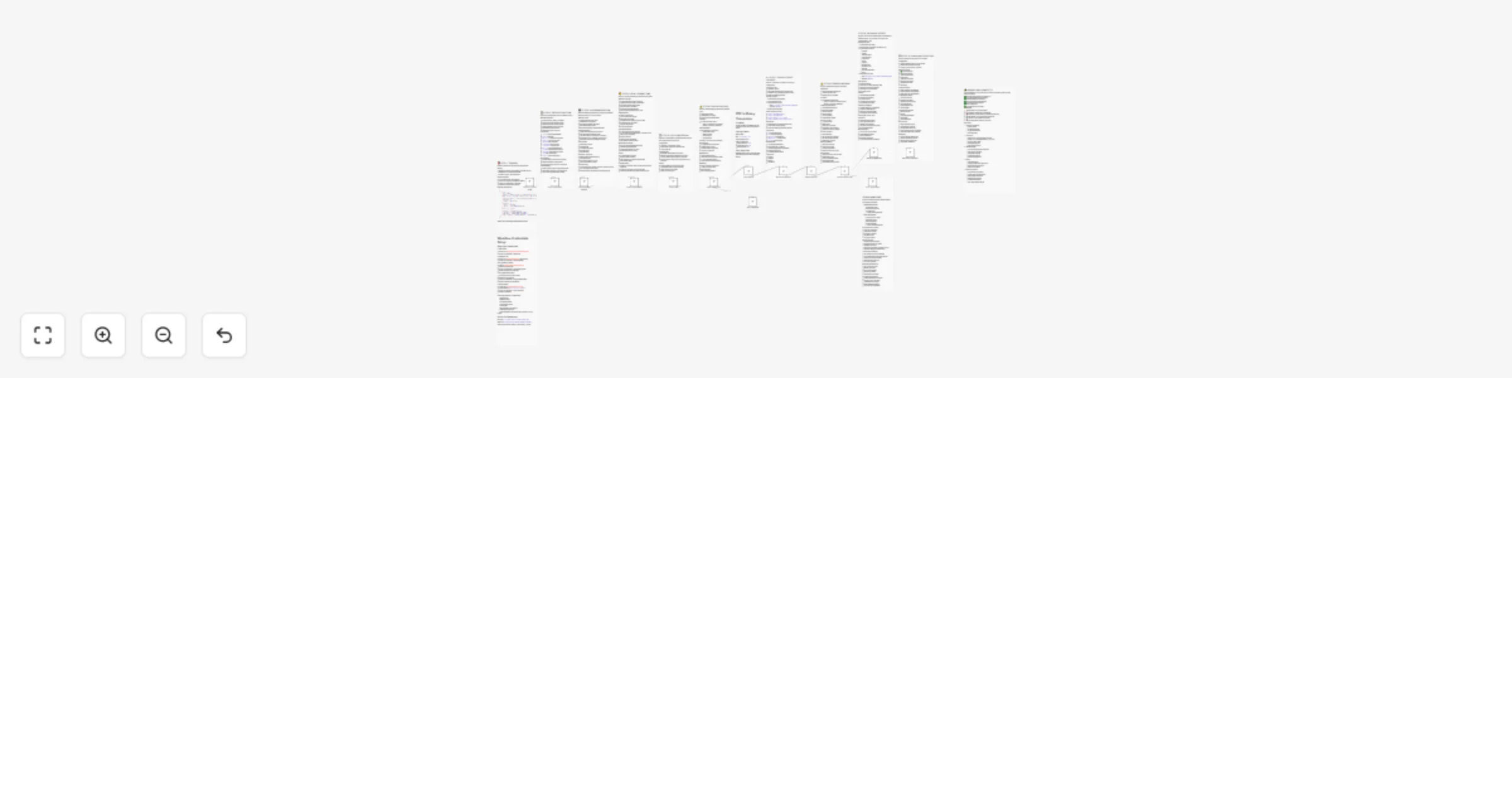
Workflow preview


 Early Deal
DISCOUNT 20%

Important notice
This workflow is provided as-is. Please review and test before using in production.
Overview
Customer Support Ticket Documentation Automation
Automatically transform resolved support tickets into professional, AI-powered PDF documentation with complete tracking and team notifications.
Overview
This workflow automates the entire process of documenting resolved support tickets — from receiving ticket data to generating professional PDF case studies, storing them in Google Drive, tracking in spreadsheets, and notifying your team.
Powered by AI, it creates consistent, high-quality documentation that can be reused for knowledge base articles, training materials, and compliance records.
What This Workflow Does
Receives resolved support tickets via webhook from your support platform
Extracts and normalizes ticket data (works with Zendesk, Freshdesk, and custom formats)
Generates AI-powered summaries using OpenAI GPT-4, creating structured case studies with:
- Problem description
- Troubleshooting steps taken
- Final resolution
- Key takeaways and prevention tips
Creates professional PDF documents with branded HTML templates
Uploads PDFs to organized Google Drive folders
Tracks all tickets in a Google Sheets database for reporting and analytics
Sends Slack notifications to your team with links to completed documentation
Handles errors gracefully with automatic alerts when issues occur
Key Features
- Fully Automated: Zero manual intervention after setup
- AI-Powered Documentation: Intelligent summaries that extract insights from raw ticket data
- Professional Output: Branded, print-ready PDFs with modern styling
- Multi-Platform Support: Works with any support tool that can send webhooks
- Centralized Tracking: All tickets logged in Google Sheets for easy reporting
- Error Handling: Built-in failure detection with Slack alerts
- Customizable: Easy to brand with your company colors, logo, and styling
- Scalable: Handles hundreds of tickets per day
Use Cases
- Knowledge Base Building: Automatically create searchable documentation from real support cases
- Team Training: Build a library of resolved issues for onboarding new support agents
- Compliance & Audit: Maintain complete records of all customer interactions
- Performance Analytics: Track resolution times, common issues, and agent performance
- Customer Success: Share professional case studies with stakeholders
- Process Improvement: Identify recurring issues and optimize workflows
Prerequisites
Required Services & Accounts
- n8n (self-hosted or cloud)
- OpenAI Account with API access
- PDFMunk Account (for HTML → PDF conversion)
- Google Workspace (for Drive & Sheets)
- Slack Workspace (optional but recommended)
- Support Platform that can send webhooks (Zendesk, Freshdesk, Intercom, etc.)
Required Credentials
- OpenAI API Key
- PDFMunk API Key
- Google Drive OAuth2 credentials
- Google Sheets OAuth2 credentials
- Slack Bot Token (OAuth2)
Setup Instructions
1. Import the Workflow
- Copy the workflow JSON.
- In n8n, click “Import from File” or “Import from Clipboard.”
- Paste and import.
2. Configure Credentials
OpenAI API
- Get API key from OpenAI
- Add in n8n: Credentials → OpenAI API → Paste key
PDFMunk API
- Sign up at pdfmunk.com
- Copy API key → Add in Credentials → HtmlcsstopdfApi
Google Drive OAuth2
- Create project at Google Cloud Console
- Enable Drive API
- Create OAuth 2.0 credentials
- Add in n8n: Credentials → Google Drive OAuth2 → Connect
Google Sheets OAuth2
- Enable Google Sheets API in the same project
- Add in n8n: Credentials → Google Sheets OAuth2 → Connect
Slack OAuth2
- Create app at Slack API
- Add scopes:
chat:write,chat:write.public - Install to workspace
- Add bot token in Credentials → Slack OAuth2 API
3. Configure Node Settings
Google Drive Folder ID
- Create a folder in Drive for PDFs
- Copy folder ID from the URL →
https://drive.google.com/drive/folders/FOLDER_ID_HERE - Paste in the “Upload to Google Drive” node
Google Sheets Configuration
- Create a new sheet titled “Support Ticket Documentation Log.”
- Add these headers in Row 1:
| Ticket ID | Subject | Customer Name | Customer Email | Agent Name | Priority | Category | Resolved Date | Resolution Time | PDF Link | Document Generated | Status |
|---|
- Copy Sheet ID from URL →
https://docs.google.com/spreadsheets/d/SHEET_ID_HERE/edit - Paste it in the “Update Google Sheets” node configuration.
Slack Channel ID
Right-click your Slack channel → View Channel Details
Copy the Channel ID
Update it in:
- “Send Slack Notification” node
- “Error – PDF Failed” node
- “Error – Upload Failed” node
4. Configure Webhook in Support Tool
Activate the workflow in n8n
Copy the Webhook URL from the “Webhook – Receive Ticket” node
In Zendesk/Freshdesk:
- Trigger: “Ticket Status = Resolved”
- Method:
POST - Paste the n8n webhook URL
- Send ticket data as JSON
5. Test the Workflow
Click “Execute Workflow” manually
Send a test webhook
Verify each step completes successfully
Check:
- Generated PDF in Google Drive
- Row entry in Google Sheets
- Slack notification delivery
How It Works
- Webhook Trigger → Receives resolved ticket
- Data Extraction → Normalizes ticket fields
- AI Summarization (OpenAI) → Generates structured summary
- HTML Formatting → Styles and adds branding
- PDF Conversion (PDFMunk) → Converts HTML → PDF
- Google Drive Upload → Saves and returns shareable link
- Sheets Logging → Appends ticket info + PDF link
- Slack Notification → Notifies team with summary
- Error Handling → Detects and reports failures
- Result → Clean, documented ticket case study in minutes
Customization
Branding
- Update company name, logo URL, and color scheme in the “Format HTML” node.
- Default color:
#4CAF50→ Replace with your brand color.
AI Prompt Customization
Modify “AI Summarization (OpenAI)” node to add:
- Industry-specific terms
- Additional sections or insights
- Different summary tone or length
Notification Customization
- Add @mentions or emojis in Slack messages for better visibility.
Data Flow
Webhook → Extract Data → AI Summary → Format HTML → Convert to PDF
       ↓
Download PDF → Upload to Drive → Log in Sheets → Notify Team
       ↓
Error Handling (if any)
Expected Output
PDF Document Includes:
- Branded header with company name/logo
- Resolution time badge
- Ticket metadata (ID, priority, customer, agent, etc.)
- Full AI-generated case study
- Professional footer with timestamp
Google Sheets Entry:
- All ticket info
- Resolution metrics
- Direct PDF link
- Status = “Generated”
Slack Notification:
- Summary of ticket
- Clickable PDF link
- Timestamp
Performance
- Processing Time: 10–20 seconds/ticket
- Capacity: 100+ tickets/day
- PDF Size: 50–300 KB
Troubleshooting
Webhook not triggering → Check webhook URL, trigger conditions, and public access. PDF generation fails → Verify HTML syntax and PDFMunk API key. Google Drive upload fails → Re-authenticate credentials or check folder permissions. Slack notification missing → Ensure bot token, scopes, and channel ID are valid. Data extraction errors → Adjust field mappings or inspect payload format.
Best Practices
- Test before production rollout
- Monitor first-week error logs
- Organize Drive by date/priority
- Validate Sheets columns
- Use a dedicated Slack channel
- Archive old PDFs regularly
- Review AI summaries weekly
- Document configuration changes
Security Notes
- All credentials stored securely in n8n
- PDF links are restricted by Drive sharing settings
- Webhooks use HTTPS for secure data transfer
- No sensitive info logged in error messages
Future Enhancements
- Multi-language summaries
- Integration with Confluence or Notion
- Customer satisfaction feedback link
- ML-based issue categorization
- Analytics dashboard
- Weekly email digests
- Public knowledge base generation
Support Resources
License
This workflow template is provided as-is for use with n8n under the MIT License.