Track e-commerce price changes with ScrapeGraphAI, Baserow & Pushover alerts

Workflow preview

Workflow preview
100%
Track e-commerce price changes with ScrapeGraphAI, Baserow & Pushover alerts preview
Open on n8n.io

Important notice

This workflow is provided as-is. Please review and test before using in production.

1. Workflow Overview

Product Price Monitor with Pushover and Baserow ️ COMMUNITY TEMPLATE DISCLAIMER: This is a community contributed template that uses ScrapeGraphAI (a community node). Please ensure you have the Scr...

Best for

  • Market Research automation workflows
  • AI Summarization automation workflows
  • advanced n8n builders looking for reusable templates

Tools used

n8n-nodes-base.stickynote, n8n-nodes-base.webhook, n8n-nodes-base.code, n8n-nodes-base.splitinbatches, n8n-nodes-scrapegraphai.scrapegraphai, n8n-nodes-base.if, n8n-nodes-base.httprequest, n8n-nodes-base.merge

Source and attribution

This workflow is cataloged by N8N Workflows and links back to its original n8n.io source page by vinci-king-01.

Original n8n.io source

1.1 Workflow description

Title
Track e-commerce price changes with ScrapeGraphAI, Baserow & Pushover alerts
Workflow name
Track e-commerce price changes with ScrapeGraphAI, Baserow & Pushover alerts

Product Price Monitor with Pushover and Baserow

⚠️ COMMUNITY TEMPLATE DISCLAIMER: This is a community-contributed template that uses ScrapeGraphAI (a community node). Please ensure you have the ScrapeGraphAI community node installed in your n8n instance before using this template.

This workflow automatically scrapes multiple e-commerce sites for selected products, analyzes weekly pricing trends, stores historical data in Baserow, and sends an instant Pushover notification when significant price changes occur. It is ideal for retailers who need to track seasonal fluctuations and optimize inventory or pricing strategies.

Pre-conditions/Requirements

Prerequisites

  • An active n8n instance (self-hosted or n8n.cloud)
  • ScrapeGraphAI community node installed
  • At least one publicly accessible webhook URL (for on-demand runs)
  • A Baserow database with a table prepared for product data
  • Pushover account and registered application

Required Credentials

  • ScrapeGraphAI API Key – Enables web-scraping capabilities
  • Baserow: Personal API Token – Allows read/write access to your table
  • Pushover: User Key & API Token – Sends mobile/desktop push notifications
  • (Optional) HTTP Basic Token or API Keys for any private e-commerce endpoints you plan to monitor

Baserow Table Specification

Field Name Type Description
Product ID Number Internal or SKU
Name Text Product title
URL URL Product page
Price Number Current price (float)
Currency Single select (USD, EUR, etc.)
Last Seen Date/Time Last price check
Trend Number 7-day % change

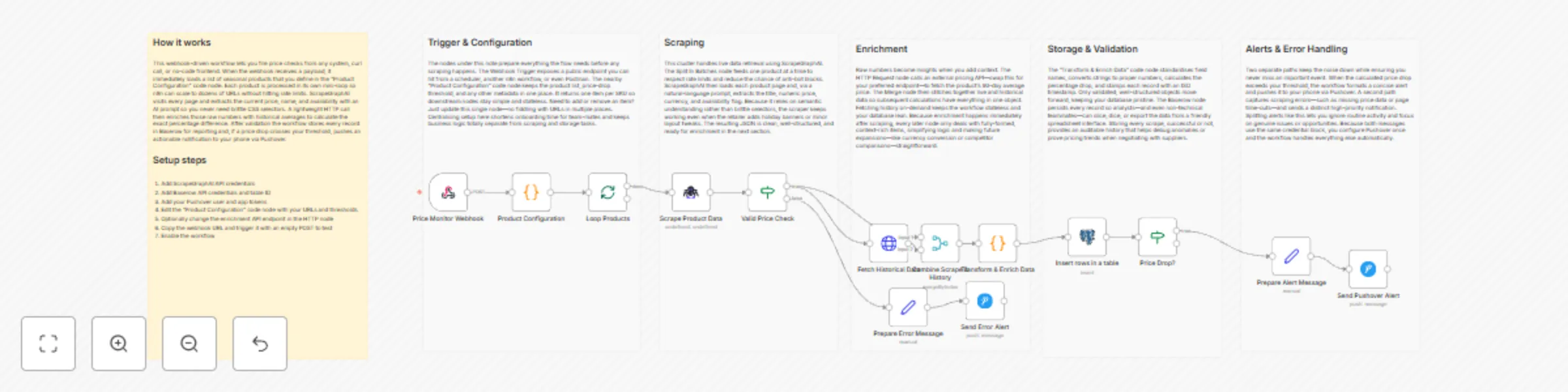
How it works

This workflow automatically scrapes multiple e-commerce sites for selected products, analyzes weekly pricing trends, stores historical data in Baserow, and sends an instant Pushover notification when significant price changes occur. It is ideal for retailers who need to track seasonal fluctuations and optimize inventory or pricing strategies.

Key Steps:

  • Webhook Trigger: Manually or externally trigger the weekly price-check run.
  • Set Node: Define an array of product URLs and metadata.
  • Split In Batches: Process products one at a time to avoid rate limits.
  • ScrapeGraphAI Node: Extract current price, title, and availability from each URL.
  • If Node: Determine if price has changed > ±5 % since last entry.
  • HTTP Request (Trend API): Retrieve seasonal trend scores (optional).
  • Merge Node: Combine scrape data with trend analysis.
  • Baserow Nodes: Upsert latest record and fetch historical data for comparison.
  • Pushover Node: Send alert when significant price movement detected.
  • Sticky Notes: Documentation and inline comments for maintainability.

Set up steps

Setup Time: 15-25 minutes

  1. Install Community Node: In n8n, go to “Settings → Community Nodes” and install ScrapeGraphAI.
  2. Create Baserow Table: Match the field structure shown above.
  3. Obtain Credentials:
    • ScrapeGraphAI API key from your dashboard
    • Baserow personal token (/account/settings)
    • Pushover user key & API token
  4. Clone Workflow: Import this template into n8n.
  5. Configure Credentials in Nodes: Open each ScrapeGraphAI, Baserow, and Pushover node and select/enter the appropriate credential.
  6. Add Product URLs: Open the first Set node and replace the example array with your actual product list.
  7. Adjust Thresholds: In the If node, change the 5 value if you want a higher/lower alert threshold.
  8. Test Run: Execute the workflow manually; verify Baserow rows and the Pushover notification.
  9. Schedule: Add a Cron trigger or external scheduler to run weekly.

Node Descriptions

Core Workflow Nodes:

  • Webhook – Entry point for manual or API-based triggers.
  • Set – Holds the array of product URLs and meta fields.
  • SplitInBatches – Iterates through each product to prevent request spikes.
  • ScrapeGraphAI – Scrapes price, title, and currency from product pages.
  • If – Compares new price vs. previous price in Baserow.
  • HTTP Request – Calls a trend API (e.g., Google Trends) to get seasonal score.
  • Merge – Combines scraping results with trend data.
  • Baserow (Upsert & Read) – Writes fresh data and fetches historical price for comparison.
  • Pushover – Sends formatted push notification with price delta.
  • StickyNote – Documents purpose and hints within the workflow.

Data Flow:

  1. WebhookSetSplitInBatchesScrapeGraphAI
  2. ScrapeGraphAIIf
    • True branch → HTTP RequestMergeBaserow UpsertPushover
    • False branch → Baserow Upsert

Customization Examples

Change Notification Channel to Slack

// Replace the Pushover node with Slack
{
  "channel": "#pricing-alerts",
  "text": `🚨 ${$json["Name"]} changed by ${$json["delta"]}% – now ${$json["Price"]} ${$json["Currency"]}`
}

Additional Data Enrichment (Stock Status)

// Add to ScrapeGraphAI's selector map
{
  "stock": {
    "selector": ".availability span",
    "type": "text"
  }
}

Data Output Format

The workflow outputs structured JSON data:

{
  "ProductID": 12345,
  "Name": "Winter Jacket",
  "URL": "https://shop.example.com/winter-jacket",
  "Price": 79.99,
  "Currency": "USD",
  "LastSeen": "2024-11-20T10:34:18.000Z",
  "Trend": 12,
  "delta": -7.5
}

Troubleshooting

Common Issues

  1. Empty scrape result – Check if the product page changed its HTML structure; update CSS selectors in ScrapeGraphAI.
  2. Baserow “Row not found” errors – Ensure Product ID or another unique field is set as the primary key for upsert.

Performance Tips

  • Limit batch size to 5-10 URLs to avoid IP blocking.
  • Use n8n’s built-in proxy settings if scraping sites with geo-restrictions.

Pro Tips:

  • Store historical JSON responses in a separate Baserow table for deeper analytics.
  • Standardize currency symbols to avoid false change detections.
  • Couple this workflow with an n8n Dashboard to visualize price trends in real-time.

1.2 Logical Blocks

This catalog entry is organized from the workflow JSON. The node-level section below shows the executable blocks available for review before importing the template.

2. Block-by-Block Analysis

Block 1 - Workflow Overview

Type / Role
n8n-nodes-base.stickyNote - stickyNote
Config choices
Version 1

Block 2 - Section – Trigger & Config

Type / Role
n8n-nodes-base.stickyNote - stickyNote
Config choices
Version 1

Block 3 - Section – Scraping

Type / Role
n8n-nodes-base.stickyNote - stickyNote
Config choices
Version 1

Block 4 - Section – Enrichment

Type / Role
n8n-nodes-base.stickyNote - stickyNote
Config choices
Version 1

Block 5 - Section – Storage & Validation

Type / Role
n8n-nodes-base.stickyNote - stickyNote
Config choices
Version 1

Block 6 - Section – Notifications

Type / Role
n8n-nodes-base.stickyNote - stickyNote
Config choices
Version 1

Block 7 - Price Monitor Webhook

Type / Role
n8n-nodes-base.webhook - webhook
Config choices
Version 1

Block 8 - Product Configuration

Type / Role
n8n-nodes-base.code - code
Config choices
Version 2

Block 9 - Loop Products

Type / Role
n8n-nodes-base.splitInBatches - splitInBatches
Config choices
Version 3

Block 10 - Scrape Product Data

Type / Role
n8n-nodes-scrapegraphai.scrapegraphAi - scrapegraphAi
Config choices
Version 1

Block 11 - Valid Price Check

Type / Role
n8n-nodes-base.if - if
Config choices
Version 2

Block 12 - Fetch Historical Data

Type / Role
n8n-nodes-base.httpRequest - httpRequest
Config choices
Version 4

Block 13 - Combine Scrape & History

Type / Role
n8n-nodes-base.merge - merge
Config choices
Version 2

Block 14 - Transform & Enrich Data

Type / Role
n8n-nodes-base.code - code
Config choices
Version 2

Block 15 - Price Drop?

Type / Role
n8n-nodes-base.if - if
Config choices
Version 2

Block 16 - Prepare Alert Message

Type / Role
n8n-nodes-base.set - set
Config choices
Version 3

Block 17 - Send Pushover Alert

Type / Role
n8n-nodes-base.pushover - pushover
Config choices
Version 1

Block 18 - Prepare Error Message

Type / Role
n8n-nodes-base.set - set
Config choices
Version 3

Block 19 - Send Error Alert

Type / Role
n8n-nodes-base.pushover - pushover
Config choices
Version 1

Block 20 - Insert rows in a table

Type / Role
n8n-nodes-base.postgres - postgres
Config choices
Version 2.6

3. Summary Table

Workflow Track e-commerce price changes with ScrapeGraphAI, Baserow & Pushover alerts
Complexity advanced
Nodes 20
Categories Market Research, AI Summarization
Author vinci-king-01
Published 14 Dec 2025

4. Reproducing the Workflow from Scratch

  1. 1. Download the workflow JSON

    Use the JSON export at /data/workflows/11803/11803.json as the source template for this automation.

  2. 2. Import the template into n8n

    Open n8n, import the downloaded JSON, and review each node before activating the workflow.

  3. 3. Configure credentials and variables

    Replace placeholder credentials, API keys, webhook URLs, account IDs, and environment-specific values with your own settings.

  4. 4. Test with sample data

    Run the workflow manually or in a staging workspace, inspect node output, and confirm downstream systems receive the expected data.

  5. 5. Activate and monitor

    Enable the workflow only after testing, then monitor executions, errors, and rate limits during the first production runs.

5. General Notes & Resources

Review imported nodes carefully before activation. This catalog entry is intended to help you inspect the workflow structure, understand required services, and find related templates faster.

Node names, credentials, schedules, webhook paths, and external service limits may need adjustment for your workspace.

Frequently asked questions

What does Track e-commerce price changes with ScrapeGraphAI, Baserow & Pushover alerts do?

Product Price Monitor with Pushover and Baserow ️ COMMUNITY TEMPLATE DISCLAIMER: This is a community contributed template that uses ScrapeGraphAI (a community node). Please ensure you have the Scr...

What do I need before importing this workflow?

Review the workflow JSON, configure any required credentials in n8n, and test the automation in a safe workspace before using it in production.

Can I customize this workflow?

Yes. Use the block-by-block analysis and the downloadable JSON to inspect each node, then adjust credentials, prompts, schedules, filters, or destinations for your Market Research, AI Summarization use case.