vinci-king-01
Workflows by vinci-king-01
Sync your HRIS employee directory with Microsoft Teams, Coda, and Slack
# Employee Directory Sync – Microsoft Teams & Coda **⚠️ COMMUNITY TEMPLATE DISCLAIMER: This is a community-contributed template that uses ScrapeGraphAI (a community node). Please ensure you have the ScrapeGraphAI community node installed in your n8n instance before using this template.** This workflow keeps your employee directory perfectly synchronized across your HRIS (or any REST-compatible HR database), Microsoft Teams, Coda docs, and Slack channels. It automatically polls the HR system on a schedule, detects additions or updates, and propagates those changes to downstream tools so everyone always has the latest employee information. ## Pre-conditions/Requirements ### Prerequisites - An active n8n instance (self-hosted or n8n cloud) - ScrapeGraphAI community node installed - A reachable HRIS API (BambooHR, Workday, Personio, or any custom REST endpoint) - Existing Microsoft Teams workspace and a team/channel for announcements - A Coda account with an employee directory table - A Slack workspace and channel where directory updates will be posted ### Required Credentials - **Microsoft Teams OAuth2** – To post adaptive cards or messages - **Coda API Token** – To insert/update rows in your Coda doc - **Slack OAuth2** – To push notifications into a Slack channel - **HTTP Basic / Bearer Token** – For your HRIS REST endpoint - **ScrapeGraphAI API Key** – (Only required if you scrape public profile data) ### HRIS Field Mapping | HRIS Field | Coda Column | Teams/Slack Field | |------------|-------------|-------------------| | `firstName`| `First Name`| First Name | | `lastName` | `Last Name` | Last Name | | `email` | `Email` | Email | | `title` | `Job Title` | Job Title | | `department`| `Department`| Department | *(Adjust the mapping in the Set and Code nodes as needed.)* ## How it works This workflow keeps your employee directory perfectly synchronized across your HRIS (or any REST-compatible HR database), Microsoft Teams, Coda docs, and Slack channels. It automatically polls the HR system on a schedule, detects additions or updates, and propagates those changes to downstream tools so everyone always has the latest employee information. ## Key Steps: - **Schedule Trigger**: Fires daily (or at your chosen interval) to start the sync routine. - **HTTP Request**: Fetches the full list of employees from your HRIS API. - **Code (Delta Detector)**: Compares fetched data with a cached snapshot to identify new hires, departures, or updates. - **IF Node**: Branches based on whether changes were detected. - **Split In Batches**: Processes employees in manageable sets to respect API rate limits. - **Set Node**: Maps HRIS fields to Coda columns and Teams/Slack message fields. - **Coda Node**: Upserts rows in the employee directory table. - **Microsoft Teams Node**: Posts an adaptive card summarizing changes to a selected channel. - **Slack Node**: Sends a formatted message with the same update. - **Sticky Note**: Provides inline documentation within the workflow for maintainers. ## Set up steps **Setup Time: 10-15 minutes** 1. **Import the workflow** into your n8n instance. 2. **Open Credentials** tab and create: - Microsoft Teams OAuth2 credential. - Coda API credential. - Slack OAuth2 credential. - HRIS HTTP credential (Basic or Bearer). 3. **Configure the HRIS HTTP Request node** - Replace the placeholder URL with your HRIS endpoint (e.g., `https://api.yourhr.com/v1/employees`). - Add query parameters or headers as required by your HRIS. 4. **Map Coda Doc & Table IDs** in the Coda node. 5. **Select Teams & Slack channels** in their respective nodes. 6. **Adjust the Schedule Trigger** to your desired frequency. 7. **Optional**: Edit the Code node to tweak field mapping or add custom delta-comparison logic. 8. **Execute the workflow manually once** to verify proper end-to-end operation. 9. **Activate** the workflow. ## Node Descriptions ### Core Workflow Nodes: - **Schedule Trigger** – Initiates the sync routine at set intervals. - **HTTP Request (Get Employees)** – Pulls the latest employee list from the HRIS. - **Code (Delta Detector)** – Stores the previous run’s data in workflow static data and identifies changes. - **IF (Has Changes?)** – Skips downstream steps when no changes were detected, saving resources. - **Split In Batches** – Iterates through employees in chunks (default 50) to avoid API throttling. - **Set (Field Mapper)** – Renames and restructures data for Coda, Teams, and Slack. - **Coda (Upsert Rows)** – Inserts new rows or updates existing ones based on email match. - **Microsoft Teams (Post Message)** – Sends a rich adaptive card with the update summary. - **Slack (Post Message)** – Delivers a concise change log to a Slack channel. - **Sticky Note** – Embedded documentation for quick reference. ### Data Flow: 1. **Schedule Trigger** → **HTTP Request** → **Code (Delta Detector)** 2. **Code** → **IF (Has Changes?)** - If **No** → **End** - If **Yes** → **Split In Batches** → **Set** → **Coda** → **Teams** → **Slack** ## Customization Examples ### Change Sync Frequency ```javascript // Inside Schedule Trigger { "mode": "everyDay", "hour": 6, "minute": 0 } ``` ### Extend Field Mapping ```javascript // Inside Set node items[0].json.phone = item.phoneNumber ?? ''; items[0].json.location = item.officeLocation ?? ''; return items; ``` ## Data Output Format The workflow outputs structured JSON data: ```json { "employee": { "id": "123", "firstName": "Jane", "lastName": "Doe", "email": "[email protected]", "title": "Senior Engineer", "department": "R&D", "status": "New Hire", "syncedAt": "2024-05-08T10:15:23.000Z" }, "destination": { "codaRowId": "row_abc123", "teamsMessageId": "msg_987654", "slackTs": "1715158523.000200" } } ``` ## Troubleshooting ### Common Issues 1. **HTTP 401 from HRIS API** – Verify token validity and that the credential is attached to the HTTP Request node. 2. **Coda duplicates rows** – Ensure the key column in Coda is set to “Email” and the Upsert option is enabled. ### Performance Tips - Cache HRIS responses in static data to minimize API calls. - Increase the Split In Batches size only if your API rate limits allow. **Pro Tips:** - Use n8n’s built-in Version Control to track mapping changes over time. - Add a second IF node to differentiate between “new hires” and “updates” for tailored announcements. - Enable Slack’s “threaded replies” to keep your #hr-updates channel tidy.
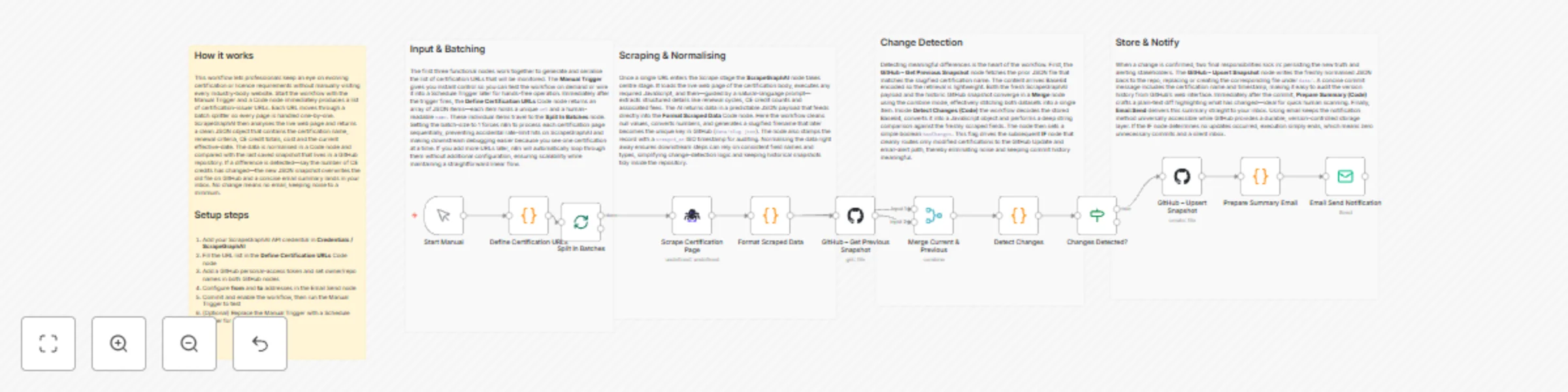
Track certification requirements with ScrapeGraphAI, GitLab and Rocket.Chat
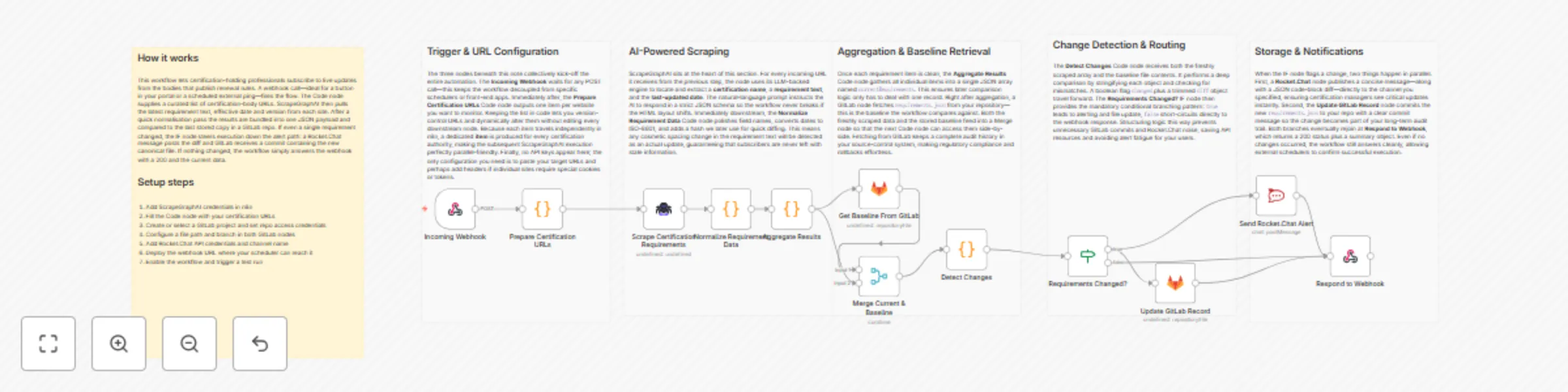
# Certification Requirement Tracker with Rocket.Chat and GitLab **⚠️ COMMUNITY TEMPLATE DISCLAIMER: This is a community-contributed template that uses ScrapeGraphAI (a community node). Please ensure you have the ScrapeGraphAI community node installed in your n8n instance before using this template.** This workflow automatically monitors websites of certification bodies and industry associations, detects changes in certification requirements, commits the updated information to a GitLab repository, and notifies a Rocket.Chat channel. Ideal for professionals and compliance teams who must stay ahead of annual updates and renewal deadlines. ## Pre-conditions/Requirements ### Prerequisites - Running n8n instance (self-hosted or n8n.cloud) - ScrapeGraphAI community node installed and active - Rocket.Chat workspace (self-hosted or cloud) - GitLab account and repository for documentation - Publicly reachable URL for incoming webhooks (use n8n tunnel, Ngrok, or a reverse proxy) ### Required Credentials - **ScrapeGraphAI API Key** – Enables scraping of certification pages - **Rocket.Chat Access Token & Server URL** – To post update messages - **GitLab Personal Access Token** – With `api` and `write_repository` scopes ### Specific Setup Requirements | Item | Example Value | Notes | | ------------------------------ | ------------------------------------------ | ----- | | GitLab Repo | `gitlab.com/company/cert-tracker` | Markdown files will be committed here | | Rocket.Chat Channel | `#certification-updates` | Receives update alerts | | Certification Source URLs file | `/data/sourceList.json` in the repository | List of URLs to scrape | ## How it works This workflow automatically monitors websites of certification bodies and industry associations, detects changes in certification requirements, commits the updated information to a GitLab repository, and notifies a Rocket.Chat channel. Ideal for professionals and compliance teams who must stay ahead of annual updates and renewal deadlines. ## Key Steps: - **Webhook Trigger**: Fires on a scheduled HTTP call (e.g., via cron) or manual trigger. - **Code (Prepare Source List)**: Reads/constructs a list of certification URLs to scrape. - **ScrapeGraphAI**: Fetches HTML content and extracts requirement sections. - **Merge**: Combines newly scraped data with the last committed snapshot. - **IF Node**: Determines if a change occurred (hash/length comparison). - **GitLab**: Creates a branch, commits updated Markdown/JSON files, and opens an MR (optional). - **Rocket.Chat**: Posts a message summarizing changes and linking to the GitLab diff. - **Respond to Webhook**: Returns a JSON summary to the requester (useful for monitoring or chained automations). ## Set up steps **Setup Time: 20-30 minutes** 1. **Install Community Node**: In n8n UI, go to *Settings → Community Nodes* and install `@n8n/community-node-scrapegraphai`. 2. **Create Credentials**: a. ScrapeGraphAI – paste your API key. b. Rocket.Chat – create a personal access token (`Personal Access Tokens → New Token`) and configure credentials. c. GitLab – create PAT with `api` + `write_repository` scopes and add to n8n. 3. **Clone the Template**: Import this workflow JSON into your n8n instance. 4. **Edit StickyNote**: Replace placeholder URLs with actual certification-source URLs or point to a repo file. 5. **Configure GitLab Node**: Set your repository, default branch, and commit message template. 6. **Configure Rocket.Chat Node**: Select credential, channel, and message template (markdown supported). 7. **Expose Webhook**: If self-hosting, enable n8n tunnel or configure reverse proxy to make the webhook public. 8. **Test Run**: Trigger the workflow manually; verify GitLab commit/MR and Rocket.Chat notification. 9. **Automate**: Schedule an external cron (or n8n Cron node) to `POST` to the webhook yearly, quarterly, or monthly as needed. ## Node Descriptions ### Core Workflow Nodes: - **stickyNote** – Human-readable instructions/documentation embedded in the flow. - **webhook** – Entry point; accepts `POST /cert-tracker` requests. - **code (Prepare Source List)** – Generates an array of URLs; can pull from GitLab or an environment variable. - **scrapegraphAi** – Scrapes each URL and extracts certification requirement sections using CSS/XPath selectors. - **merge (by key)** – Joins new data with previous snapshot for change detection. - **if (Changes?)** – Branches logic based on whether differences exist. - **gitlab** – Creates/updates files and opens merge requests containing new requirements. - **rocketchat** – Sends formatted update to designated channel. - **respondToWebhook** – Returns `200 OK` with a JSON summary. ### Data Flow: 1. **webhook** → **code** → **scrapegraphAi** → **merge** → **if** 2. **if (true)** → **gitlab** → **rocketchat** 3. **if (false)** → **respondToWebhook** ## Customization Examples ### Change Scraping Frequency ```javascript // Replace external cron with n8n Cron node { "nodes": [ { "name": "Cron", "type": "n8n-nodes-base.cron", "parameters": { "schedule": { "hour": "0", "minute": "0", "dayOfMonth": "1" } } } ] } ``` ### Extend Notification Message ```javascript // Rocket.Chat node → Message field const diffUrl = $json["gitlab_diff_url"]; const count = $json["changes_count"]; return `:bell: **${count} Certification Requirement Update(s)**\n\nView diff: ${diffUrl}`; ``` ## Data Output Format The workflow outputs structured JSON data: ```json { "timestamp": "2024-05-15T12:00:00Z", "changesDetected": true, "changesCount": 3, "gitlab_commit_sha": "a1b2c3d4", "gitlab_diff_url": "https://gitlab.com/company/cert-tracker/-/merge_requests/42", "notifiedChannel": "#certification-updates" } ``` ## Troubleshooting ### Common Issues 1. **ScrapeGraphAI returns empty results** – Verify your CSS/XPath selectors and API key quota. 2. **GitLab commit fails (401 Unauthorized)** – Ensure PAT has `api` and `write_repository` scopes and is not expired. ### Performance Tips - Limit the number of pages scraped per run to avoid API rate limits. - Cache last-scraped HTML in an S3 bucket or database to reduce redundant requests. **Pro Tips:** - Use GitLab CI to auto-deploy documentation site whenever new certification files are merged. - Enable Rocket.Chat threading to keep discussions organized per update. - Tag stakeholders in Rocket.Chat messages with `@cert-team` for instant visibility.
Aggregate commercial property listings with ScrapeGraphAI, Baserow and Teams
# Property Listing Aggregator with Microsoft Teams and Baserow **⚠️ COMMUNITY TEMPLATE DISCLAIMER: This is a community-contributed template that uses ScrapeGraphAI (a community node). Please ensure you have the ScrapeGraphAI community node installed in your n8n instance before using this template.** This workflow automatically aggregates commercial real-estate listings from multiple broker and marketplace websites, stores the fresh data in Baserow, and pushes weekly availability alerts to Microsoft Teams. Ideal for business owners searching for new retail or office space, it runs on a timetable, scrapes property details, de-duplicates existing entries, and notifies your team of only the newest opportunities. ## Pre-conditions/Requirements ### Prerequisites - An n8n instance (self-hosted or n8n.cloud) - ScrapeGraphAI community node installed - A Baserow workspace & table prepared to store property data - A Microsoft Teams channel with an incoming webhook URL - List of target real-estate URLs (CSV, JSON, or hard-coded array) ### Required Credentials - **ScrapeGraphAI API Key** – Enables headless scraping of listing pages - **Baserow Personal API Token** – Grants create/read access to your property table - **Microsoft Teams Webhook URL** – Allows posting messages to your channel ### Baserow Table Schema | Column Name | Type | Notes | |-------------|---------|--------------------------------| | `listing_id`| Text | Unique ID or URL slug (primary)| | `title` | Text | Listing headline | | `price` | Number | Monthly or annual rent | | `sq_ft` | Number | Size in square feet | | `location` | Text | City / neighborhood | | `url` | URL | Original listing link | | `scraped` | Date | Timestamp of last scrape | ## How it works This workflow automatically aggregates commercial real-estate listings from multiple broker and marketplace websites, stores the fresh data in Baserow, and pushes weekly availability alerts to Microsoft Teams. Ideal for business owners searching for new retail or office space, it runs on a timetable, scrapes property details, de-duplicates existing entries, and notifies your team of only the newest opportunities. ## Key Steps: - **Schedule Trigger**: Fires every week (or on demand) to start the aggregation cycle. - **Load URL List (Code node)**: Returns an array of listing or search-result URLs to be scraped. - **Split In Batches**: Processes URLs in manageable groups to avoid rate-limits. - **ScrapeGraphAI**: Extracts title, price, size, and location from each page. - **Merge**: Reassembles batches into a single dataset. - **IF Node**: Checks each listing against Baserow to detect new vs. existing entries. - **Baserow**: Inserts only brand-new listings into the table. - **Set Node**: Formats a concise Teams message with key details. - **Microsoft Teams**: Sends the alert to your designated channel. ## Set up steps **Setup Time: 15-20 minutes** 1. **Install ScrapeGraphAI node**: In n8n, go to “Settings → Community Nodes”, search for “@n8n-nodes/scrapegraphai” and install. 2. **Create Baserow table**: Follow the schema above. Copy your Personal API Token from Baserow profile settings. 3. **Generate Teams webhook**: In Microsoft Teams, open channel → “Connectors” → “Incoming Webhook”, name it, and copy the URL. 4. **Open the workflow** in n8n and set the following credentials: - ScrapeGraphAI API Key - Baserow token (Baserow node) - Teams webhook (Microsoft Teams node) 5. **Define target URLs**: Edit the “Load URL List” Code node and add your marketplace or broker URLs. 6. **Adjust schedule**: Double-click the “Schedule Trigger” and set the cron expression (default: weekly Monday 08:00). 7. **Test-run** the workflow manually to verify scraping and data insertion. 8. **Activate** the workflow once results look correct. ## Node Descriptions ### Core Workflow Nodes: - **stickyNote** – Provides inline documentation and reminders inside the canvas. - **Schedule Trigger** – Triggers the workflow on a weekly cron schedule. - **Code** – Holds an array of URLs and can implement dynamic logic (e.g., API calls to get URLs). - **SplitInBatches** – Splits URL list into configurable batch sizes (default: 5) to stay polite. - **ScrapeGraphAI** – Scrapes each URL and returns structured JSON for price, size, etc. - **Merge** – Combines batch outputs back into one array. - **IF** – Performs existence check against Baserow’s `listing_id` to prevent duplicates. - **Baserow** – Writes new records or updates existing ones. - **Set** – Builds a human-readable message string for Teams. - **Microsoft Teams** – Posts the summary into your channel. ### Data Flow: 1. Schedule Trigger → Code → Split In Batches → ScrapeGraphAI → Merge → IF → Baserow 2. IF (new listings) → Set → Microsoft Teams ## Customization Examples ### Add additional data points (e.g., number of parking spaces) ```javascript // In ScrapeGraphAI "Selectors" field { "title": ".listing-title", "price": ".price", "sq_ft": ".size", "parking": ".parking span" // new selector } ``` ### Change Teams message formatting ```javascript // In Set node return items.map(item => { const l = item.json; item.json = { text: `🏢 *${l.title}* — ${l.price} USD\n📍 ${l.location} | ${l.sq_ft} ft²\n🔗 <${l.url}|View Listing>` }; return item; }); ``` ## Data Output Format The workflow outputs structured JSON data: ```json { "listing_id": "12345-main-street-suite-200", "title": "Downtown Office Space – Suite 200", "price": 4500, "sq_ft": 2300, "location": "Austin, TX", "url": "https://broker.com/listings/12345", "scraped": "2024-05-01T08:00:00.000Z" } ``` ## Troubleshooting ### Common Issues 1. **ScrapeGraphAI returns empty fields** – Update CSS selectors or switch to XPath; run in headless:true mode. 2. **Duplicate records still appear** – Ensure `listing_id` is truly unique (use URL slug) and that the IF node compares correctly. 3. **Teams message not delivered** – Verify webhook URL and that the Teams connector is enabled for the channel. ### Performance Tips - Reduce batch size if websites block rapid requests. - Cache previous URLs to skip unchanged search-result pages. **Pro Tips:** - Rotate proxies in ScrapeGraphAI for larger scraping volumes. - Use environment variables for credentials to simplify migrations. - Add a second Schedule Trigger for daily “hot deal” checks by duplicating the workflow and narrowing the URL list.
Automatically track certification changes with ScrapeGraphAI, GitLab and Rocket.Chat
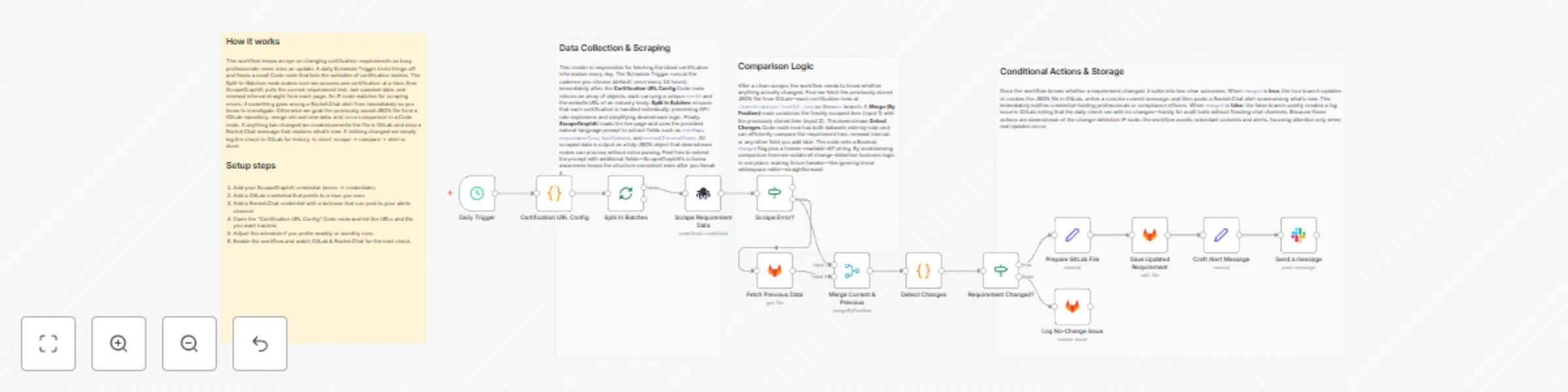
# Certification Requirement Tracker with Rocket.Chat and GitLab **⚠️ COMMUNITY TEMPLATE DISCLAIMER: This is a community-contributed template that uses ScrapeGraphAI (a community node). Please ensure you have the ScrapeGraphAI community node installed in your n8n instance before using this template.** This workflow automatically scrapes certification-issuing bodies once a year, detects any changes in certification or renewal requirements, creates a GitLab issue for the responsible team, and notifies the relevant channel in Rocket.Chat. It helps professionals and compliance teams stay ahead of changing industry requirements and never miss a renewal. ## Pre-conditions/Requirements ### Prerequisites - An n8n instance (self-hosted or n8n.cloud) - ScrapeGraphAI community node installed and activated - Rocket.Chat workspace with Incoming Webhook or user credentials - GitLab account with at least one repository and a Personal Access Token (PAT) - Access URLs for all certification bodies or industry associations you want to monitor ### Required Credentials - **ScrapeGraphAI API Key** – Enables web scraping services - **Rocket.Chat Credentials** – Either: - Webhook URL, or - Username & Password / Personal Access Token - **GitLab Personal Access Token** – To create issues and comments via API ### Specific Setup Requirements | Service | Requirement | Example/Notes | | ------------- | ---------------------------------------------- | ---------------------------------------------------- | | Rocket.Chat | Incoming Webhook URL OR user credentials | `https://chat.example.com/hooks/abc123…` | | GitLab | Personal Access Token with `api` scope | Generate at **Settings → Access Tokens** | | ScrapeGraphAI | Domain whitelist (if running behind firewall) | Allow outbound HTTPS traffic to target sites | | Cron Schedule | Annual (default) or custom interval | `0 0 1 1 *` for 1-Jan every year | ## How it works This workflow automatically scrapes certification-issuing bodies once a year, detects any changes in certification or renewal requirements, creates a GitLab issue for the responsible team, and notifies the relevant channel in Rocket.Chat. It helps professionals and compliance teams stay ahead of changing industry requirements and never miss a renewal. ## Key Steps: - **Scheduled Trigger**: Fires annually (or any chosen interval) to start the check. - **Set Node – URL List**: Stores an array of certification-body URLs to scrape. - **Split in Batches**: Iterates over each URL for parallel scraping. - **ScrapeGraphAI**: Extracts requirement text, effective dates, and renewal info. - **Code Node – Diff Checker**: Compares the newly scraped data with last year’s GitLab issue (if any) to detect changes. - **IF Node – Requirements Changed?**: Routes the flow based on change detection. - **GitLab – Create/Update Issue**: Opens a new issue or comments on an existing one with details of the change. - **Rocket.Chat – Notify Channel**: Sends a message summarizing any changes and linking to the GitLab issue. - **Merge Node**: Collects all branch results for a final summary report. ## Set up steps **Setup Time: 15-25 minutes** 1. **Install Community Node**: In n8n, navigate to **Settings → Community Nodes** and install “ScrapeGraphAI”. 2. **Add Credentials**: a. In **Credentials**, create “ScrapeGraphAI API”. b. Add your Rocket.Chat Webhook or PAT. c. Add your GitLab PAT with `api` scope. 3. **Import Workflow**: Copy the JSON template into n8n (**Workflows → Import**). 4. **Configure URL List**: Open the **Set – URL List** node and replace the sample array with real certification URLs. 5. **Adjust Cron Expression**: Double-click the **Schedule Trigger** node and set your desired frequency. 6. **Customize Rocket.Chat Channel**: In the **Rocket.Chat – Notify** node, set the `channel` or use an incoming webhook. 7. **Run Once for Testing**: Execute the workflow manually to ensure issues and notifications are created as expected. 8. **Activate Workflow**: Toggle **Activate** so the schedule starts running automatically. ## Node Descriptions ### Core Workflow Nodes: - **stickyNote – Workflow Notes**: Contains a high-level diagram and documentation inside the editor. - **Schedule Trigger** – Initiates the yearly check. - **Set (URL List)** – Holds certification body URLs and meta info. - **SplitInBatches** – Iterates through each URL in manageable chunks. - **ScrapeGraphAI** – Scrapes each certification page and returns structured JSON. - **Code (Diff Checker)** – Compares the current scrape with historical data. - **If – Requirements Changed?** – Switches path based on diff result. - **GitLab** – Creates or updates issues, attaches JSON diff, sets labels (`certification`, `renewal`). - **Rocket.Chat** – Posts a summary message with links to the GitLab issue(s). - **Merge** – Consolidates batch results for final logging. - **Set (Success)** – Formats a concise success payload. ### Data Flow: 1. **Schedule Trigger** → **Set (URL List)** → **SplitInBatches** → **ScrapeGraphAI** → **Code (Diff Checker)** → **If** → **GitLab / Rocket.Chat** → **Merge** ## Customization Examples ### Add Additional Metadata to GitLab Issue ```javascript // Inside the GitLab "Create Issue" node ↗️ { "title": `Certification Update: ${$json.domain}`, "description": `**What's Changed?**\n${$json.diff}\n\n_Last checked: {{$now}}_`, "labels": "certification,compliance," + $json.industry } ``` ### Customize Rocket.Chat Message Formatting ```javascript // Rocket.Chat node → JSON parameters { "text": `:bell: *Certification Update Detected*\n>*${$json.domain}*\n>See the GitLab issue: ${$json.issueUrl}` } ``` ## Data Output Format The workflow outputs structured JSON data: ```json { "domain": "example-cert-body.org", "scrapeDate": "2024-01-01T00:00:00Z", "oldRequirements": "Original text …", "newRequirements": "Updated text …", "diff": "- Continuous education hours increased from 20 to 24\n- Fee changed to $200", "issueUrl": "https://gitlab.com/org/compliance/-/issues/42", "notification": "sent" } ``` ## Troubleshooting ### Common Issues 1. **No data returned from ScrapeGraphAI** – Confirm the target site is publicly accessible and not blocking bots. Whitelist the domain or add proper headers via ScrapeGraphAI options. 2. **GitLab issue not created** – Check that the PAT has `api` scope and the project ID is correct in the GitLab node. 3. **Rocket.Chat message fails** – Verify webhook URL or credentials and ensure the channel exists. ### Performance Tips - Limit the batch size in **SplitInBatches** to avoid API rate limits. - Schedule the workflow during off-peak hours to minimize load. **Pro Tips:** - Store last-year scrapes in a dedicated GitLab repository to create a complete change log history. - Use n8n’s built-in **Execution History Pruning** to keep the database slim. - Add an **Error Trigger** workflow to notify you if any step fails.
Healthcare policy monitoring with ScrapeGraphAI, Pipedrive and email alerts
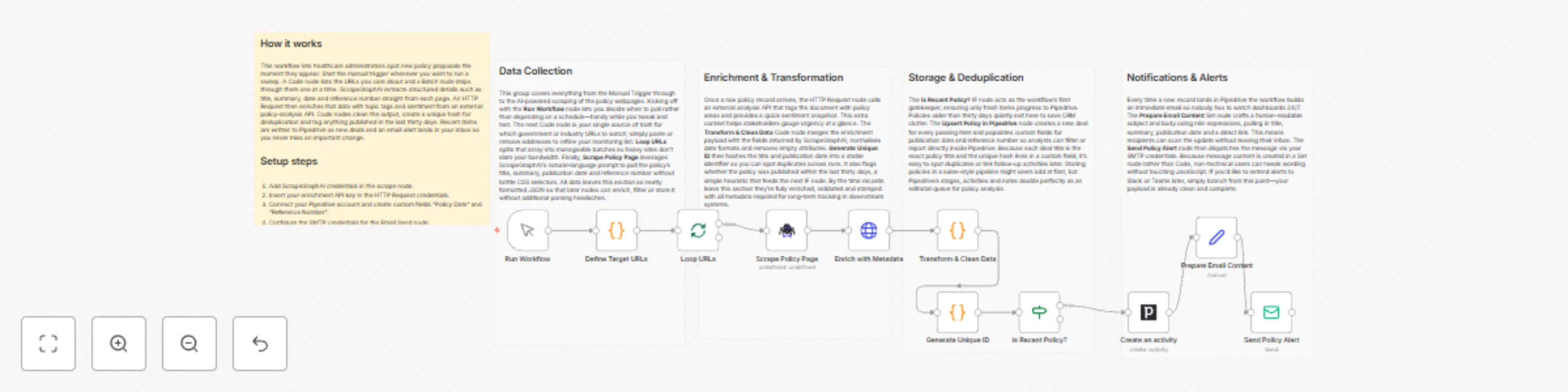
# Medical Research Tracker with Email and Pipedrive **⚠️ COMMUNITY TEMPLATE DISCLAIMER: This is a community-contributed template that uses ScrapeGraphAI (a community node). Please ensure you have the ScrapeGraphAI community node installed in your n8n instance before using this template.** This workflow automatically scans authoritative healthcare policy websites for new research, bills, or regulatory changes, stores relevant findings in Pipedrive, and immediately notifies key stakeholders via email. It is ideal for healthcare administrators and policy analysts who need to stay ahead of emerging legislation or guidance that could impact clinical operations, compliance, and strategy. ## Pre-conditions/Requirements ### Prerequisites - n8n instance (self-hosted or n8n cloud) - ScrapeGraphAI community node installed - Pipedrive account and API token - SMTP credentials (or native n8n Email credentials) for sending alerts - List of target URLs or RSS feeds from government or healthcare policy organizations - Basic familiarity with n8n credential setup ### Required Credentials | Service | Credential Name | Purpose | |--------------------|-----------------|-----------------------------------| | ScrapeGraphAI | API Key | Perform web scraping | | Pipedrive | API Token | Create / update deals & notes | | Email (SMTP/Nodemailer) | SMTP creds | Send alert emails | ### Environment Variables (optional) | Variable | Example Value | Description | |-------------------------|------------------------------|-----------------------------------------------| | N8N_DEFAULT_EMAIL_FROM | [email protected] | Default sender for Email Send node | | POLICY_KEYWORDS | telehealth, Medicare, HIPAA | Comma-separated keywords for filtering | ## How it works This workflow automatically scans authoritative healthcare policy websites for new research, bills, or regulatory changes, stores relevant findings in Pipedrive, and immediately notifies key stakeholders via email. It is ideal for healthcare administrators and policy analysts who need to stay ahead of emerging legislation or guidance that could impact clinical operations, compliance, and strategy. ## Key Steps: - **Manual Trigger**: Kick-starts the workflow or schedules it via cron. - **Set → URL List**: Defines the list of healthcare policy pages or RSS feeds to scrape. - **Split In Batches**: Iterates through each URL so scraping happens sequentially. - **ScrapeGraphAI**: Extracts headlines, publication dates, and links. - **Code (Filter & Normalize)**: Removes duplicates, standardizes JSON structure, and applies keyword filters. - **HTTP Request**: Optionally enriches data with summary content using external APIs (e.g., OpenAI, SummarizeBot). - **If Node**: Checks if the policy item is new (not already logged in Pipedrive). - **Pipedrive**: Creates a new deal or note for tracking and collaboration. - **Email Send**: Sends an alert to compliance or leadership teams with the policy summary. - **Sticky Note**: Provides inline documentation inside the workflow. ## Set up steps **Setup Time: 15–20 minutes** 1. **Install ScrapeGraphAI**: In n8n, go to “Settings → Community Nodes” and install `n8n-nodes-scrapegraphai`. 2. **Create Credentials**: a. Pipedrive → “API Token” from your Pipedrive settings → add in n8n. b. ScrapeGraphAI → obtain API key → add as credential. c. Email SMTP → configure sender details in n8n. 3. **Import Workflow**: Copy the JSON template into n8n (“Import from clipboard”). 4. **Update URL List**: Open the initial Set node and replace placeholder URLs with the sites you monitor (e.g., `cms.gov`, `nih.gov`, `who.int`, state health departments). 5. **Define Keywords (optional)**: a. Open the Code node “Filter & Normalize”. b. Adjust the `const keywords = [...]` array to match topics you care about. 6. **Test Run**: Trigger manually; verify that: - Scraped items appear in the execution logs. - New deals/notes show up in Pipedrive. - Alert email lands in your inbox. 7. **Schedule**: Add a Cron node (e.g., every 6 hours) in place of Manual Trigger for automated execution. ## Node Descriptions ### Core Workflow Nodes: - **Manual Trigger** – Launches the workflow on demand. - **Set – URL List** – Holds an array of target policy URLs/RSS feeds. - **Split In Batches** – Processes each URL one at a time to avoid rate limiting. - **ScrapeGraphAI** – Scrapes page content and parses structured data. - **Code – Filter & Normalize** – Cleans results, removes duplicates, applies keyword filter. - **HTTP Request – Summarize** – Calls a summarization API (optional). - **If – Duplicate Check** – Queries Pipedrive to see if the policy item already exists. - **Pipedrive (Deal/Note)** – Logs a new deal or adds a note with policy details. - **Email Send – Alert** – Notifies subscribed stakeholders. - **Sticky Note** – Embedded instructions inside the canvas. ### Data Flow: 1. **Manual Trigger** → **Set (URLs)** → **Split In Batches** → **ScrapeGraphAI** → **Code (Filter)** → **If (Duplicate?)** → **Pipedrive** → **Email Send** ## Customization Examples ### 1. Add Slack notifications ```javascript // Insert after Email Send { "node": "Slack", "parameters": { "channel": "#policy-alerts", "text": `New policy update: ${$json["title"]} - ${$json["url"]}` } } ``` ### 2. Use different CRM (HubSpot) ```javascript // Replace Pipedrive node config { "resource": "deal", "operation": "create", "title": $json["title"], "properties": { "dealstage": "appointmentscheduled", "description": $json["summary"] } } ``` ## Data Output Format The workflow outputs structured JSON data: ```json { "title": "Telehealth Expansion Act of 2024", "date": "2024-05-30", "url": "https://www.congress.gov/bill/118th-congress-house-bill/1234", "summary": "This bill proposes expanding Medicare reimbursement for telehealth services...", "source": "congress.gov", "status": "new" } ``` ## Troubleshooting ### Common Issues 1. **Empty Scrape Results** – Check if the target site uses JavaScript rendering; ScrapeGraphAI may need a headless browser option enabled. 2. **Duplicate Deals in Pipedrive** – Ensure the “If Duplicate?” node compares a unique field (e.g., URL or title) before creating a new deal. ### Performance Tips - Limit batch size to avoid API rate limits. - Cache or store the last scraped timestamp to skip unchanged pages. **Pro Tips:** - Combine this workflow with an n8n “Cron” or “Webhook” trigger for fully automated monitoring. - Use environment variables for keywords and email recipients to avoid editing nodes each time. - Leverage Pipedrive’s automations to notify additional teams (e.g., legal) when high-priority items are logged.
Monitor regulatory updates with ScrapeGraphAI and send alerts via Telegram
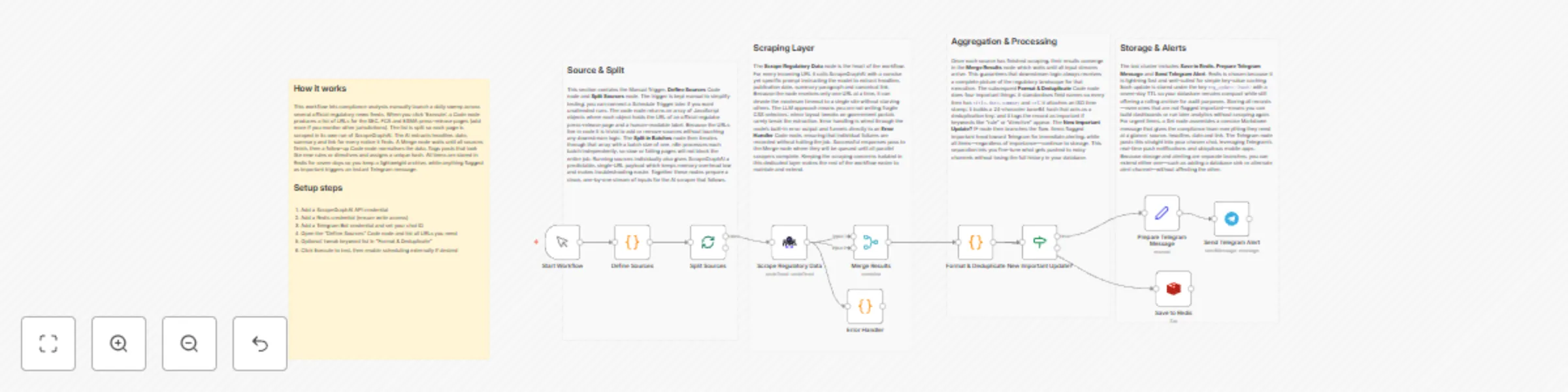
# Breaking News Aggregator with Telegram and Redis **⚠️ COMMUNITY TEMPLATE DISCLAIMER: This is a community-contributed template that uses ScrapeGraphAI (a community node). Please ensure you have the ScrapeGraphAI community node installed in your n8n instance before using this template.** This workflow monitors selected government websites, regulatory bodies, and legal-news portals for new or amended regulations relevant to specific industries. It scrapes the latest headlines, compares them against previously recorded items in Redis, and pushes real-time compliance alerts to a Telegram channel or chat. ## Pre-conditions/Requirements ### Prerequisites - n8n instance (self-hosted or cloud) - ScrapeGraphAI community node installed - Redis server accessible from n8n - Telegram Bot created via BotFather - (Optional) Cron node if you want fully automated scheduling instead of manual trigger ### Required Credentials - **ScrapeGraphAI API Key** – Enables ScrapeGraphAI scraping functionality - **Telegram Bot Token** – Allows n8n to send messages via your bot - **Redis Credentials** – Host, port, and (if set) password for your Redis instance ### Redis Setup Requirements | Key Name | Description | Example | |----------|-------------|---------| | `latestRegIds` | Redis Set used to store hashes/IDs of the most recent regulatory articles processed | `latestRegIds` | > Hint: Use a dedicated Redis DB (e.g., DB 1) to keep workflow data isolated from other applications. ## How it works This workflow monitors selected government websites, regulatory bodies, and legal-news portals for new or amended regulations relevant to specific industries. It scrapes the latest headlines, compares them against previously recorded items in Redis, and pushes real-time compliance alerts to a Telegram channel or chat. ## Key Steps: - **Manual Trigger / Cron**: Starts the workflow manually or on a set schedule (e.g., daily at 06:00 UTC). - **Code (Define Sources)**: Returns an array of URL objects pointing to regulatory pages to monitor. - **SplitInBatches**: Iterates through each source URL in manageable chunks. - **ScrapeGraphAI**: Extracts article titles, publication dates, and article URLs from each page. - **Merge (Combine Results)**: Consolidates scraped items into a single stream. - **If (Deduplication Check)**: Verifies whether each article ID already exists in Redis. - **Set (Format Message)**: Creates a human-readable Telegram message string. - **Telegram**: Sends the formatted compliance alert to your chosen chat/channel. - **Redis (Add New IDs)**: Stores the article ID so it is not sent again in the future. - **Sticky Note**: Provides inline documentation inside the workflow canvas. ## Set up steps **Setup Time: 10-15 minutes** 1. **Install community nodes**: In n8n, go to *Settings → Community Nodes* and install `n8n-nodes-scrapegraphai`. 2. **Create credentials**: a. Telegram → *Credentials → Telegram API* → paste your bot token. b. Redis → *Credentials → Redis* → fill host, port, password, DB. c. ScrapeGraphAI → *Credentials → ScrapeGraphAI API* → enter your key. 3. **Configure the “Define Sources” Code node**: Replace the placeholder URLs with the regulatory pages you need to monitor. 4. **Update Telegram chat ID**: Open any chat with your bot and use `https://api.telegram.org/bot<token>/getUpdates` to find the `chat.id`. Insert this value in the Telegram node. 5. **Adjust frequency**: Replace the Manual Trigger with a Cron node (e.g., daily 06:00 UTC). 6. **Test the workflow**: Execute once manually; confirm messages appear in Telegram and that Redis keys are created. 7. **Activate**: Enable the workflow so it runs automatically according to your schedule. ## Node Descriptions ### Core Workflow Nodes: - **Manual Trigger** – Allows on-demand execution during development/testing. - **Code (Define Sources)** – Returns an array of page URLs and meta info to the workflow. - **SplitInBatches** – Prevents overloading websites by scraping in controlled groups. - **ScrapeGraphAI** – Performs the actual web scraping using an AI-assisted parser. - **Merge** – Merges data streams from multiple batches into one. - **If (Check Redis)** – Filters out already-processed articles using Redis SET membership. - **Set** – Shapes output into a user-friendly Telegram message. - **Telegram** – Delivers compliance alerts to stakeholders in real time. - **Redis** – Persists article IDs to avoid duplicate notifications. - **Sticky Note** – Contains usage tips directly on the canvas. ### Data Flow: 1. **Manual Trigger** → **Code (Define Sources)** → **SplitInBatches** → **ScrapeGraphAI** 2. **ScrapeGraphAI** → **Merge** → **If (Check Redis)** 3. **If (true)** → **Set** → **Telegram** → **Redis** ## Customization Examples ### Change industries or keywords ```javascript // Code node snippet return [ { url: "https://regulator.gov/energy-updates", industry: "Energy", keywords: ["renewable", "grid", "tariff"] }, { url: "https://financewatch.gov/financial-rules", industry: "Finance", keywords: ["AML", "KYC", "cryptocurrency"] } ]; ``` ### Modify Telegram message formatting ```javascript // Set node “Parameters → Value” items[0].json.message = `🛡️ *${$json.industry} Regulation Update*\n\n*${$json.title}*\n${$json.date}\n${$json.url}`; return items; ``` ## Data Output Format The workflow outputs structured JSON data: ```json { "title": "EU Proposes New ESG Disclosure Rules", "date": "2024-04-18", "url": "https://europa.eu/legal/eu-proposes-esg-disclosure", "industry": "Finance" } ``` ## Troubleshooting ### Common Issues 1. **Empty scraped data** – Verify CSS selectors/XPath in the ScrapeGraphAI node; website structure may have changed. 2. **Duplicate alerts** – Ensure Redis credentials point to the same DB across nodes; otherwise IDs are not shared. ### Performance Tips - Limit `SplitInBatches` to 2-3 URLs at a time if sites implement rate limiting. - Use environment variables for credentials to simplify migration between stages. **Pro Tips:** - Combine this workflow with n8n’s **Error Trigger** to log failures to Slack or email. - Maintain a CSV of source URLs in Google Sheets and fetch it dynamically via the Google Sheets node. - Pair with the **Webhook** node to let team members add new sources on the fly.
Track & alert public transport delays using ScrapeGraphAI, Teams and Todoist
# Public Transport Delay Tracker with Microsoft Teams and Todoist **⚠️ COMMUNITY TEMPLATE DISCLAIMER: This is a community-contributed template that uses ScrapeGraphAI (a community node). Please ensure you have the ScrapeGraphAI community node installed in your n8n instance before using this template.** This workflow continuously monitors public-transportation websites and apps for real-time schedule changes and delays, then posts an alert to a Microsoft Teams channel and creates a follow-up task in Todoist. It is ideal for commuters or travel coordinators who need instant, actionable updates about transit disruptions. ## Pre-conditions/Requirements ### Prerequisites - An n8n instance (self-hosted or n8n cloud) - ScrapeGraphAI community node installed - Microsoft Teams account with permission to create an Incoming Webhook - Todoist account with at least one project - Access to target transit authority websites or APIs ### Required Credentials - **ScrapeGraphAI API Key** – Enables scraping of transit data - **Microsoft Teams Webhook URL** – Sends messages to a specific channel - **Todoist API Token** – Creates follow-up tasks - *(Optional)* Transit API key if you are using a protected data source ### Specific Setup Requirements | Resource | What you need | |--------------------------|---------------------------------------------------------------| | Teams Channel | Create a channel → Add “Incoming Webhook” → copy the URL | | Todoist Project | Create “Transit Alerts” project and note its Project ID | | Transit URLs/APIs | Confirm the URLs/pages contain the schedule & delay elements | ## How it works This workflow continuously monitors public-transportation websites and apps for real-time schedule changes and delays, then posts an alert to a Microsoft Teams channel and creates a follow-up task in Todoist. It is ideal for commuters or travel coordinators who need instant, actionable updates about transit disruptions. ## Key Steps: - **Webhook (Trigger)**: Starts the workflow on a schedule or via HTTP call. - **Set Node**: Defines target transit URLs and parsing rules. - **ScrapeGraphAI Node**: Scrapes live schedule and delay data. - **Code Node**: Normalizes scraped data, converts times, and flags delays. - **IF Node**: Determines if a delay exceeds the user-defined threshold. - **Microsoft Teams Node**: Sends formatted alert message to the selected Teams channel. - **Todoist Node**: Creates a “Check alternate route” task with due date equal to the delayed departure time. - **Sticky Note Node**: Holds a blueprint-level explanation for future editors. ## Set up steps **Setup Time: 15–20 minutes** 1. **Install community node**: In n8n, go to “Manage Nodes” → “Install” → search for “ScrapeGraphAI” → install and restart n8n. 2. **Create Teams webhook**: In Microsoft Teams, open target channel → “Connectors” → “Incoming Webhook” → give it a name/icon → copy the URL. 3. **Create Todoist API token**: Todoist → Settings → Integrations → copy your personal API token. 4. **Add credentials in n8n**: Settings → Credentials → create new for ScrapeGraphAI, Microsoft Teams, and Todoist. 5. **Import workflow template**: File → Import Workflow JSON → select this template. 6. **Configure Set node**: Replace example transit URLs with those of your local transit authority. 7. **Adjust delay threshold**: In the Code node, edit `const MAX_DELAY_MINUTES = 5;` as needed. 8. **Activate workflow**: Toggle “Active”. Monitor executions to ensure messages and tasks are created. ## Node Descriptions ### Core Workflow Nodes: - **Webhook** – Triggers workflow on schedule or external HTTP request. - **Set** – Supplies list of URLs and scraping selectors. - **ScrapeGraphAI** – Scrapes timetable, status, and delay indicators. - **Code** – Parses results, converts to minutes, and builds payloads. - **IF** – Compares delay duration to threshold. - **Microsoft Teams** – Posts formatted adaptive-card-style message. - **Todoist** – Adds a task with priority and due date. - **Sticky Note** – Internal documentation inside the workflow canvas. ### Data Flow: 1. **Webhook** → **Set** → **ScrapeGraphAI** → **Code** → **IF** a. **IF (true branch)** → **Microsoft Teams** → **Todoist** b. **IF (false branch)** → (workflow ends) ## Customization Examples ### Change alert message formatting ```javascript // In the Code node const message = `⚠️ Delay Alert: Route: ${item.route} Expected: ${item.scheduled} New Time: ${item.newTime} Delay: ${item.delay} min Link: ${item.url}`; return [{ json: { message } }]; ``` ### Post to multiple Teams channels ```javascript // Duplicate the Microsoft Teams node and reference a different credential items.forEach(item => { item.json.webhookUrl = $node["Set"].json["secondaryChannelWebhook"]; }); return items; ``` ## Data Output Format The workflow outputs structured JSON data: ```json { "route": "Blue Line", "scheduled": "2024-12-01T14:25:00Z", "newTime": "2024-12-01T14:45:00Z", "delay": 20, "status": "Delayed", "url": "https://transit.example.com/blue-line/status" } ``` ## Troubleshooting ### Common Issues 1. **Scraping returns empty data** – Verify CSS selectors/XPath in the Set node and ensure the target site hasn’t changed its markup. 2. **Teams message not sent** – Check that the stored webhook URL is correct and the connector is still active. 3. **Todoist task duplicated** – Add a unique key (e.g., route + timestamp) to avoid inserting duplicates. ### Performance Tips - Limit the number of URLs per execution when monitoring many routes. - Cache previous scrape results to avoid hitting site rate limits. **Pro Tips:** - Use n8n’s built-in Cron instead of Webhook if you only need periodic polling. - Add a SplitInBatches node after scraping to process large route lists incrementally. - Enable execution logging to an external database for detailed audit trails.
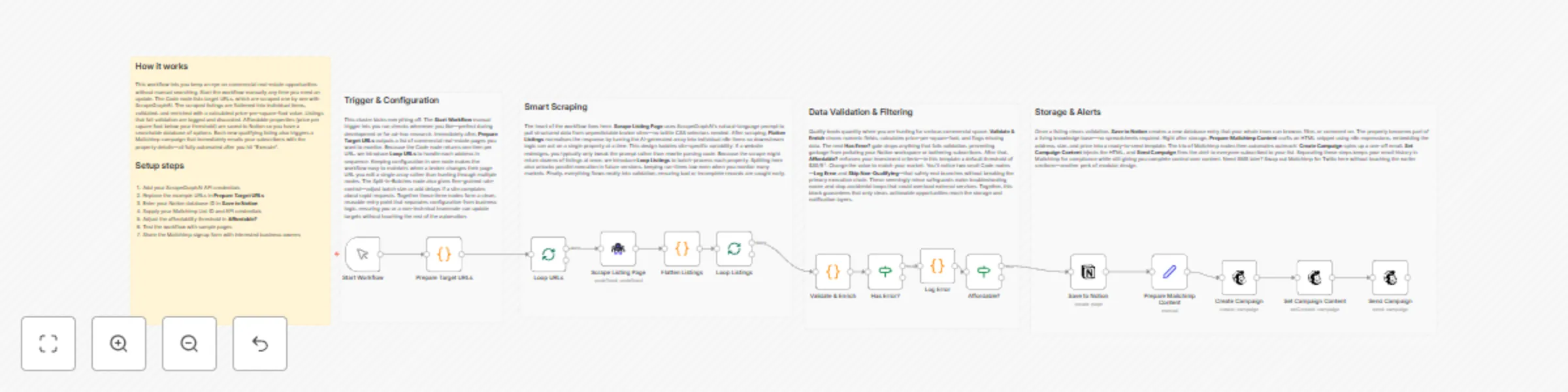
Automate commercial real estate monitoring with ScrapeGraphAI, Notion and Mailchimp
# Property Listing Aggregator with Mailchimp and Notion **⚠️ COMMUNITY TEMPLATE DISCLAIMER: This is a community-contributed template that uses ScrapeGraphAI (a community node). Please ensure you have the ScrapeGraphAI community node installed in your n8n instance before using this template.** This workflow scrapes multiple commercial-real-estate websites, consolidates new property listings into Notion, and emails weekly availability updates or immediate space alerts to a Mailchimp audience. It automates the end-to-end process so business owners can stay on top of the latest spaces without manual searching. ## Pre-conditions/Requirements ### Prerequisites - n8n instance (self-hosted or n8n.cloud) - ScrapeGraphAI community node installed - Active Notion workspace with permission to create/read databases - Mailchimp account with at least one Audience list - Basic understanding of JSON; ability to add API credentials in n8n ### Required Credentials - **ScrapeGraphAI API Key** – Enables web scraping functionality - **Notion OAuth2 / Integration Token** – Writes data into Notion database - **Mailchimp API Key** – Sends campaigns and individual emails - *(Optional)* **Proxy credentials** – If target real-estate sites block your IP ### Specific Setup Requirements | Resource | Requirement | Example | |----------|-------------|---------| | Notion | Database with property fields (Address, Price, SqFt, URL, Availability) | Database ID: `abcd1234efgh` | | Mailchimp | Audience list where alerts are sent | Audience ID: `f3a2b6c7d8` | | ScrapeGraphAI | YAML/JSON config per site | Stored inside the ScrapeGraphAI node | ## How it works This workflow scrapes multiple commercial-real-estate websites, consolidates new property listings into Notion, and emails weekly availability updates or immediate space alerts to a Mailchimp audience. It automates the end-to-end process so business owners can stay on top of the latest spaces without manual searching. ## Key Steps: - **Manual Trigger / CRON**: Starts the workflow weekly or on-demand. - **Code (Site List Builder)**: Generates an array of target URLs for ScrapeGraphAI. - **Split In Batches**: Processes URLs in manageable groups to avoid rate limits. - **ScrapeGraphAI**: Extracts property details from each site. - **IF (New vs Existing)**: Checks whether the listing already exists in Notion. - **Notion**: Inserts new listings or updates existing records. - **Set**: Formats email content (HTML & plaintext). - **Mailchimp**: Sends a campaign or automated alert to subscribers. - **Sticky Notes**: Provide documentation and future-enhancement pointers. ## Set up steps **Setup Time: 15-25 minutes** 1. **Install Community Node** Navigate to *Settings → Community Nodes* and install “ScrapeGraphAI”. 2. **Create Notion Integration** - Go to Notion *Settings → Integrations → Develop your own integration*. - Copy the integration token and share your target database with the integration. 3. **Add Mailchimp API Key** - In Mailchimp: *Account → Extras → API keys*. - Copy an existing key or create a new one, then add it to n8n credentials. 4. **Build Scrape Config** In the ScrapeGraphAI node, paste a YAML/JSON selector config for each website (address, price, sqft, url, availability). 5. **Configure the URL List** Open the first Code node. Replace the placeholder array with your target listing URLs. 6. **Map Notion Fields** Open the Notion node and map scraped fields to your database properties. Save. 7. **Design Email Template** In the Set node, tweak the HTML and plaintext blocks to match your brand. 8. **Test the Workflow** Trigger manually, check that Notion rows are created and Mailchimp sends the message. 9. **Schedule** Add a CRON node (weekly) or leave the Manual Trigger for ad-hoc runs. ## Node Descriptions ### Core Workflow Nodes: - **Manual Trigger / CRON** – Kicks off the workflow either on demand or on a schedule. - **Code (Site List Builder)** – Holds an array of commercial real-estate URLs and outputs one item per URL. - **Split In Batches** – Prevents hitting anti-bot limits by processing URLs in groups (default: 5). - **ScrapeGraphAI** – Crawls each URL, parses DOM with CSS/XPath selectors, returns structured JSON. - **IF (New Listing?)** – Compares scraped listing IDs against existing Notion database rows. - **Notion** – Creates or updates pages representing property listings. - **Set (Email Composer)** – Builds dynamic email subject, body, and merge tags for Mailchimp. - **Mailchimp** – Uses the *Send Campaign* endpoint to email your audience. - **Sticky Note** – Contains inline documentation and customization reminders. ### Data Flow: 1. **Manual Trigger/CRON** → **Code (URLs)** → **Split In Batches** → **ScrapeGraphAI** → **IF (New?)** 2. True path → **Notion (Create)** → **Set (Email)** → **Mailchimp** 3. False path → *(skip)* ## Customization Examples ### Filter Listings by Maximum Budget ```javascript // Inside the IF node (custom expression) {{$json["price"] <= 3500}} ``` ### Change Email Frequency to Daily Digests ```json { "nodes": [ { "name": "Daily CRON", "type": "n8n-nodes-base.cron", "parameters": { "triggerTimes": [ { "hour": 8, "minute": 0 } ] } } ] } ``` ## Data Output Format The workflow outputs structured JSON data: ```json { "address": "123 Market St, Suite 400", "price": 3200, "sqft": 950, "url": "https://examplebroker.com/listing/123", "availability": "Immediate", "new": true } ``` ## Troubleshooting ### Common Issues 1. **Scraper returns empty objects** – Verify selectors in ScrapeGraphAI config; inspect the site’s HTML for changes. 2. **Duplicate entries in Notion** – Ensure the “IF” node checks a unique ID (e.g., listing URL) before creating a page. ### Performance Tips - Reduce batch size or add delays in ScrapeGraphAI to avoid site blocking. - Cache previously scraped URLs in an external file or database for faster runs. **Pro Tips:** - Rotate proxies in ScrapeGraphAI for heavily protected sites. - Use Notion rollups to calculate total available square footage automatically. - Leverage Mailchimp merge tags (`*|FNAME|*`) in the Set node for personalized alerts.
Track certification requirement changes with ScrapeGraphAI, GitHub and email
# Job Posting Aggregator with Email and GitHub **⚠️ COMMUNITY TEMPLATE DISCLAIMER: This is a community-contributed template that uses ScrapeGraphAI (a community node). Please ensure you have the ScrapeGraphAI community node installed in your n8n instance before using this template.** This workflow automatically aggregates certification-related job-posting requirements from multiple industry sources, compares them against last year’s data stored in GitHub, and emails a concise change log to subscribed professionals. It streamlines annual requirement checks and renewal reminders, ensuring users never miss an update. ## Pre-conditions/Requirements ### Prerequisites - n8n instance (self-hosted or n8n cloud) - ScrapeGraphAI community node installed - Git installed (for optional local testing of the repo) - Working SMTP server or other Email credential supported by n8n ### Required Credentials - **ScrapeGraphAI API Key** – Enables web scraping of certification pages - **GitHub Personal Access Token** – Allows the workflow to read/write files in the repo - **Email / SMTP Credentials** – Sends the summary email to end-users ### Specific Setup Requirements | Resource | Purpose | Example | |----------|---------|---------| | GitHub Repository | Stores `certification_requirements.json` versioned annually | `https://github.com/<you>/cert-requirements.git` | | Watch List File | List of page URLs & selectors to scrape | Saved in the repo under `/config/watchList.json` | | Email List | Semicolon-separated list of recipients | `[email protected];[email protected]` | ## How it works This workflow automatically aggregates certification-related job-posting requirements from multiple industry sources, compares them against last year’s data stored in GitHub, and emails a concise change log to subscribed professionals. It streamlines annual requirement checks and renewal reminders, ensuring users never miss an update. ## Key Steps: - **Manual Trigger**: Starts the workflow on demand or via scheduled cron. - **Load Watch List (Code Node)**: Reads the list of certification URLs and CSS selectors. - **Split In Batches**: Iterates through each URL to avoid rate limits. - **ScrapeGraphAI**: Scrapes requirement details from each page. - **Merge (Wait)**: Reassembles individual scrape results into a single JSON array. - **GitHub (Read File)**: Retrieves last year’s `certification_requirements.json`. - **IF (Change Detector)**: Compares current vs. previous JSON and decides whether changes exist. - **Email Send**: Composes and sends a formatted summary of changes. - **GitHub (Upsert File)**: Commits the new JSON file back to the repo for future comparisons. ## Set up steps **Setup Time: 15-25 minutes** 1. **Install Community Node**: From n8n UI → Settings → Community Nodes → search and install “ScrapeGraphAI”. 2. **Create/Clone GitHub Repo**: Add an empty `certification_requirements.json` ( `{}` ) and a `config/watchList.json` with an array of objects like: ```json [ { "url": "https://cert-body.org/requirements", "selector": "#requirements" } ] ``` 3. **Generate GitHub PAT**: Scope `repo`, store in n8n Credentials as “GitHub API”. 4. **Add ScrapeGraphAI Credential**: Paste your API key into n8n Credentials. 5. **Configure Email Credentials**: E.g., SMTP with username/password or OAuth2. 6. **Open Workflow**: Import the template JSON into n8n. 7. **Update Environment Variables** (in the Code node or via n8n variables): - `GITHUB_REPO` (e.g., `user/cert-requirements`) - `EMAIL_RECIPIENTS` 8. **Test Run**: Trigger manually. Verify email content and GitHub commit. 9. **Schedule**: Add a Cron node (optional) for yearly or quarterly automatic runs. ## Node Descriptions ### Core Workflow Nodes: - **Manual Trigger** – Initiates the workflow manually or via external schedule. - **Code (Load Watch List)** – Reads and parses `watchList.json` from GitHub or static input. - **SplitInBatches** – Controls request concurrency to avoid scraping bans. - **ScrapeGraphAI** – Extracts requirement text using provided CSS selectors or XPath. - **Merge (Combine)** – Waits for all batches and merges them into one dataset. - **GitHub (Read/Write File)** – Handles version-controlled storage of JSON data. - **IF (Change Detector)** – Compares hashes/JSON diff to detect updates. - **EmailSend** – Sends change log, including renewal reminders and diff summary. - **Sticky Note** – Provides in-workflow documentation for future editors. ### Data Flow: 1. **Manual Trigger** → **Code (Load Watch List)** → **SplitInBatches** 2. **SplitInBatches** → **ScrapeGraphAI** → **Merge** 3. **Merge** → **GitHub (Read File)** → **IF (Change Detector)** 4. **IF (True)** → **Email Send** → **GitHub (Upsert File)** ## Customization Examples ### Adjusting Scraper Configuration ```javascript // Inside the Watch List JSON object { "url": "https://new-association.com/cert-update", "selector": ".content article:nth-of-type(1) ul" } ``` ### Custom Email Template ```javascript // In Email Send node → HTML Content <div> <h2>📋 Certification Updates – {{ $json.date }}</h2> <p>The following certifications have new requirements:</p> <ul> {{ $json.diffHtml }} </ul> <p>For full details visit our GitHub repo.</p> </div> ``` ## Data Output Format The workflow outputs structured JSON data: ```json { "timestamp": "2024-09-01T12:00:00Z", "source": "watchList.json", "current": { "AWS-SAA": "Version 3.0, requires renewed proctored exam", "PMP": "60 PDUs every 3 years" }, "previous": { "AWS-SAA": "Version 2.0", "PMP": "60 PDUs every 3 years" }, "changes": { "AWS-SAA": "Updated to Version 3.0; exam format changed." } } ``` ## Troubleshooting ### Common Issues 1. **ScrapeGraphAI returns empty data** – Check CSS/XPath selectors and ensure page is publicly accessible. 2. **GitHub authentication fails** – Verify PAT scope includes `repo` and that the credential is linked in both GitHub nodes. ### Performance Tips - Limit `SplitInBatches` size to 3-5 URLs when sources are heavy to avoid timeouts. - Enable n8n execution mode “Queue” for long-running scrapes. **Pro Tips:** - Store selector samples in comments next to each watch list entry for future maintenance. - Use a Cron node set to “0 0 1 1 *” for an annual run exactly on Jan 1st. - Add a Telegram node after Email Send for instant mobile notifications.
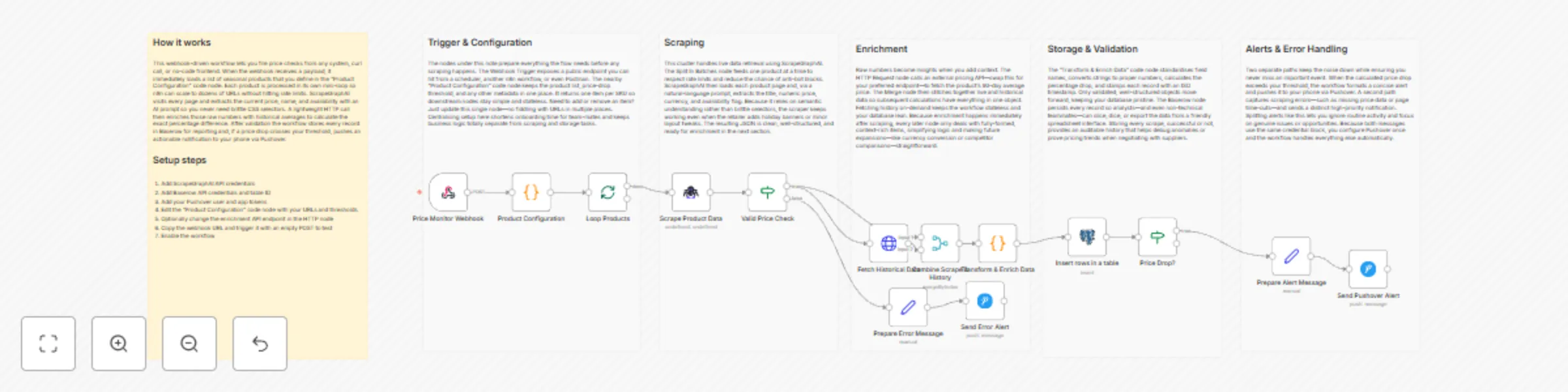
Track e-commerce price changes with ScrapeGraphAI, Baserow & Pushover alerts
# Product Price Monitor with Pushover and Baserow **⚠️ COMMUNITY TEMPLATE DISCLAIMER: This is a community-contributed template that uses ScrapeGraphAI (a community node). Please ensure you have the ScrapeGraphAI community node installed in your n8n instance before using this template.** This workflow automatically scrapes multiple e-commerce sites for selected products, analyzes weekly pricing trends, stores historical data in Baserow, and sends an instant Pushover notification when significant price changes occur. It is ideal for retailers who need to track seasonal fluctuations and optimize inventory or pricing strategies. ## Pre-conditions/Requirements ### Prerequisites - An active n8n instance (self-hosted or n8n.cloud) - ScrapeGraphAI community node installed - At least one publicly accessible webhook URL (for on-demand runs) - A Baserow database with a table prepared for product data - Pushover account and registered application ### Required Credentials - **ScrapeGraphAI API Key** – Enables web-scraping capabilities - **Baserow: Personal API Token** – Allows read/write access to your table - **Pushover: User Key & API Token** – Sends mobile/desktop push notifications - (Optional) **HTTP Basic Token or API Keys** for any private e-commerce endpoints you plan to monitor ### Baserow Table Specification | Field Name | Type | Description | |------------|-----------|--------------------------| | Product ID | Number | Internal or SKU | | Name | Text | Product title | | URL | URL | Product page | | Price | Number | Current price (float) | | Currency | Single select (`USD`, `EUR`, etc.) | | Last Seen | Date/Time | Last price check | | Trend | Number | 7-day % change | ## How it works This workflow automatically scrapes multiple e-commerce sites for selected products, analyzes weekly pricing trends, stores historical data in Baserow, and sends an instant Pushover notification when significant price changes occur. It is ideal for retailers who need to track seasonal fluctuations and optimize inventory or pricing strategies. ## Key Steps: - **Webhook Trigger**: Manually or externally trigger the weekly price-check run. - **Set Node**: Define an array of product URLs and metadata. - **Split In Batches**: Process products one at a time to avoid rate limits. - **ScrapeGraphAI Node**: Extract current price, title, and availability from each URL. - **If Node**: Determine if price has changed > ±5 % since last entry. - **HTTP Request (Trend API)**: Retrieve seasonal trend scores (optional). - **Merge Node**: Combine scrape data with trend analysis. - **Baserow Nodes**: Upsert latest record and fetch historical data for comparison. - **Pushover Node**: Send alert when significant price movement detected. - **Sticky Notes**: Documentation and inline comments for maintainability. ## Set up steps **Setup Time: 15-25 minutes** 1. **Install Community Node**: In n8n, go to “Settings → Community Nodes” and install **ScrapeGraphAI**. 2. **Create Baserow Table**: Match the field structure shown above. 3. **Obtain Credentials**: - ScrapeGraphAI API key from your dashboard - Baserow personal token (`/account/settings`) - Pushover user key & API token 4. **Clone Workflow**: Import this template into n8n. 5. **Configure Credentials in Nodes**: Open each ScrapeGraphAI, Baserow, and Pushover node and select/enter the appropriate credential. 6. **Add Product URLs**: Open the first **Set** node and replace the example array with your actual product list. 7. **Adjust Thresholds**: In the **If** node, change the `5` value if you want a higher/lower alert threshold. 8. **Test Run**: Execute the workflow manually; verify Baserow rows and the Pushover notification. 9. **Schedule**: Add a **Cron** trigger or external scheduler to run weekly. ## Node Descriptions ### Core Workflow Nodes: - **Webhook** – Entry point for manual or API-based triggers. - **Set** – Holds the array of product URLs and meta fields. - **SplitInBatches** – Iterates through each product to prevent request spikes. - **ScrapeGraphAI** – Scrapes price, title, and currency from product pages. - **If** – Compares new price vs. previous price in Baserow. - **HTTP Request** – Calls a trend API (e.g., Google Trends) to get seasonal score. - **Merge** – Combines scraping results with trend data. - **Baserow (Upsert & Read)** – Writes fresh data and fetches historical price for comparison. - **Pushover** – Sends formatted push notification with price delta. - **StickyNote** – Documents purpose and hints within the workflow. ### Data Flow: 1. **Webhook** → **Set** → **SplitInBatches** → **ScrapeGraphAI** 2. **ScrapeGraphAI** → **If** - **True** branch → **HTTP Request** → **Merge** → **Baserow Upsert** → **Pushover** - **False** branch → **Baserow Upsert** ## Customization Examples ### Change Notification Channel to Slack ```javascript // Replace the Pushover node with Slack { "channel": "#pricing-alerts", "text": `🚨 ${$json["Name"]} changed by ${$json["delta"]}% – now ${$json["Price"]} ${$json["Currency"]}` } ``` ### Additional Data Enrichment (Stock Status) ```javascript // Add to ScrapeGraphAI's selector map { "stock": { "selector": ".availability span", "type": "text" } } ``` ## Data Output Format The workflow outputs structured JSON data: ```json { "ProductID": 12345, "Name": "Winter Jacket", "URL": "https://shop.example.com/winter-jacket", "Price": 79.99, "Currency": "USD", "LastSeen": "2024-11-20T10:34:18.000Z", "Trend": 12, "delta": -7.5 } ``` ## Troubleshooting ### Common Issues 1. **Empty scrape result** – Check if the product page changed its HTML structure; update CSS selectors in ScrapeGraphAI. 2. **Baserow “Row not found” errors** – Ensure `Product ID` or another unique field is set as the primary key for upsert. ### Performance Tips - Limit batch size to 5-10 URLs to avoid IP blocking. - Use n8n’s built-in proxy settings if scraping sites with geo-restrictions. **Pro Tips:** - Store historical JSON responses in a separate Baserow table for deeper analytics. - Standardize currency symbols to avoid false change detections. - Couple this workflow with an **n8n Dashboard** to visualize price trends in real-time.
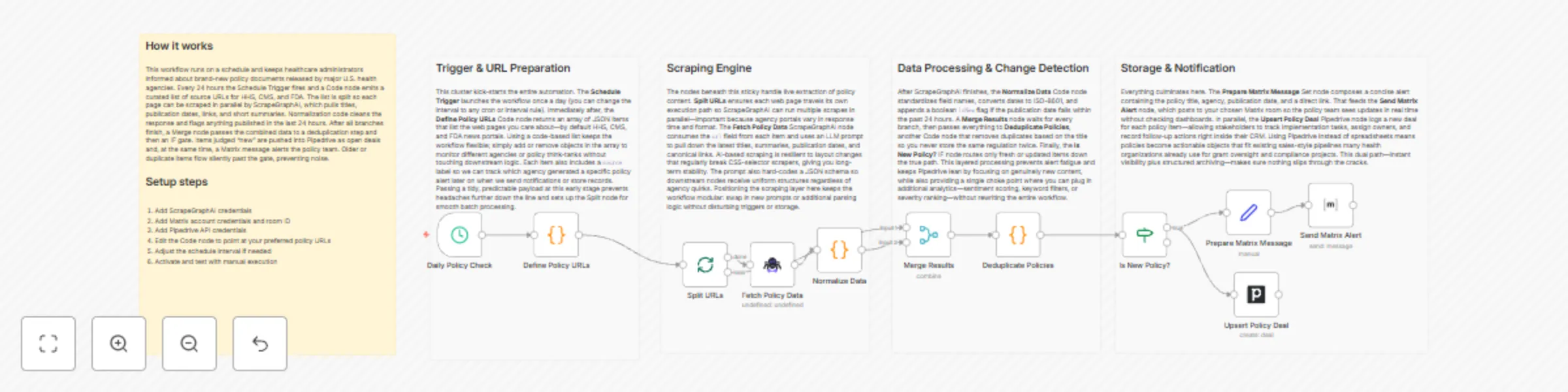
Healthcare policy monitoring with ScrapeGraphAI, Pipedrive and Matrix alerts
# Medical Research Tracker with Matrix and Pipedrive **⚠️ COMMUNITY TEMPLATE DISCLAIMER: This is a community-contributed template that uses ScrapeGraphAI (a community node). Please ensure you have the ScrapeGraphAI community node installed in your n8n instance before using this template.** This workflow automatically monitors selected government and healthcare-policy websites, extracts newly published or updated policy documents, logs them as deals in a Pipedrive pipeline, and announces critical changes in a Matrix room. It gives healthcare administrators and policy analysts a near real-time view of policy developments without manual web checks. ## Pre-conditions/Requirements ### Prerequisites - n8n instance (self-hosted or n8n cloud) - ScrapeGraphAI community node installed - Active Pipedrive account with at least one pipeline - Matrix account & accessible room for notifications - Basic knowledge of n8n credential setup ### Required Credentials - **ScrapeGraphAI API Key** – Enables the scraping engine - **Pipedrive OAuth2 / API Token** – Creates & updates deals - **Matrix Credentials** – Homeserver URL, user, access token (or password) ### Specific Setup Requirements | Variable | Description | Example | |----------|-------------|---------| | `POLICY_SITES` | Comma-separated list of URLs to scrape | `https://health.gov/policies,https://who.int/proposals` | | `PD_PIPELINE_ID` | Pipedrive pipeline where deals are created | `5` | | `PD_STAGE_ID_ALERT` | Stage ID for “Review Needed” | `17` | | `MATRIX_ROOM_ID` | Room to send alerts (incl. leading `!`) | `!policy:matrix.org` | Edit the initial *Set* node to provide these values before running. ## How it works This workflow automatically monitors selected government and healthcare-policy websites, extracts newly published or updated policy documents, logs them as deals in a Pipedrive pipeline, and announces critical changes in a Matrix room. It gives healthcare administrators and policy analysts a near real-time view of policy developments without manual web checks. ## Key Steps: - **Scheduled Trigger**: Runs every 6 hours (configurable) to start the monitoring cycle. - **Code (URL List Builder)**: Generates an array from `POLICY_SITES` for downstream batching. - **SplitInBatches**: Iterates through each policy URL individually. - **ScrapeGraphAI**: Scrapes page titles, publication dates, and summary paragraphs. - **If (New vs Existing)**: Compares scraped hash with last run; continues only for fresh content. - **Merge (Aggregate Results)**: Collects all “new” policies into a single payload. - **Set (Deal Formatter)**: Maps scraped data to Pipedrive deal fields. - **Pipedrive Node**: Creates or updates a deal per policy item. - **Matrix Node**: Posts a formatted alert message in the specified Matrix room. ## Set up steps **Setup Time: 15-20 minutes** 1. **Install Community Node** – In n8n, go to *Settings → Community Nodes → Install* and search for **ScrapeGraphAI**. 2. **Add Credentials** – *Create New* credentials for ScrapeGraphAI, Pipedrive, and Matrix under *Credentials*. 3. **Configure Environment Variables** – Open the *Set (Initial Config)* node and replace placeholders (`POLICY_SITES`, `PD_PIPELINE_ID`, etc.) with your values. 4. **Review Schedule** – Double-click the *Schedule Trigger* node to adjust the interval if needed. 5. **Activate Workflow** – Click *Activate*. The workflow will run at the next scheduled interval. 6. **Verify Outputs** – Check Pipedrive for new deals and the Matrix room for alert messages after the first run. ## Node Descriptions ### Core Workflow Nodes: - **stickyNote** – Provides an at-a-glance description of the workflow logic directly on the canvas. - **scheduleTrigger** – Fires the workflow periodically (default 6 hours). - **code (URL List Builder)** – Splits the `POLICY_SITES` variable into an array. - **splitInBatches** – Ensures each URL is processed individually to avoid timeouts. - **scrapegraphAi** – Parses HTML and extracts policy metadata using XPath/CSS selectors. - **if (New vs Existing)** – Uses hashing to ignore unchanged pages. - **merge** – Combines all new items so they can be processed in bulk. - **set (Deal Formatter)** – Maps scraped fields to Pipedrive deal properties. - **matrix** – Sends formatted messages to a Matrix room for team visibility. - **pipedrive** – Creates or updates deals representing each policy update. ### Data Flow: 1. **scheduleTrigger** → **code** → **splitInBatches** → **scrapegraphAi** → **if** → **merge** → **set** → **pipedrive** → **matrix** ## Customization Examples ### 1. Add another data field (e.g., policy author) ```javascript // Inside ScrapeGraphAI node → Selectors { "title": "//h1/text()", "date": "//time/@datetime", "summary": "//p[1]/text()", "author": "//span[@class='author']/text()" // new line } ``` ### 2. Switch notifications from Matrix to Email ```javascript // Replace Matrix node with “Send Email” { "to": "[email protected]", "subject": "New Healthcare Policy Detected: {{$json.title}}", "text": "Summary:\n{{$json.summary}}\n\nRead more at {{$json.url}}" } ``` ## Data Output Format The workflow outputs structured JSON data for each new policy article: ```json { "title": "Affordable Care Expansion Act – 2024", "url": "https://health.gov/policies/acea-2024", "date": "2024-06-14T09:00:00Z", "summary": "Proposes expansion of coverage to rural areas...", "source": "health.gov", "hash": "2d6f1c8e3b..." } ``` ## Troubleshooting ### Common Issues 1. **ScrapeGraphAI returns empty objects** – Verify selectors match the current HTML structure; inspect the site with developer tools and update the node configuration. 2. **Duplicate deals appear in Pipedrive** – Ensure the “Find or Create” option is enabled in the Pipedrive node, using the page `hash` or `url` as a unique key. ### Performance Tips - Limit `POLICY_SITES` to under 50 URLs per run to avoid hitting rate limits. - Increase Schedule Trigger interval if you notice ScrapeGraphAI rate-limiting. **Pro Tips:** - Store historical scraped data in a database node for long-term audit trails. - Use the n8n *Workflow Executions* page to replay failed runs without waiting for the next schedule. - Add an *Error Trigger* node to emit alerts if scraping or API calls fail.
Breaking news aggregator with SendGrid and PostgreSQL
# Breaking News Aggregator with SendGrid and PostgreSQL **⚠️ COMMUNITY TEMPLATE DISCLAIMER: This is a community-contributed template that uses ScrapeGraphAI (a community node). Please ensure you have the ScrapeGraphAI community node installed in your n8n instance before using this template.** This workflow automatically scrapes multiple government and regulatory websites, extracts the latest policy or compliance-related news, stores the data in PostgreSQL, and instantly emails daily summaries to your team through SendGrid. It is ideal for compliance professionals and industry analysts who need near real-time awareness of regulatory changes impacting their sector. ## Pre-conditions/Requirements ### Prerequisites - n8n instance (self-hosted or n8n.cloud) - ScrapeGraphAI community node installed - Operational SendGrid account - PostgreSQL database accessible from n8n - Basic knowledge of SQL for table creation ### Required Credentials - **ScrapeGraphAI API Key** – Enables web scraping and parsing - **SendGrid API Key** – Sends email notifications - **PostgreSQL Credentials** – Host, port, database, user, and password ### Specific Setup Requirements | Resource | Requirement | Example Value | |----------------|------------------------------------------------------------------|------------------------------| | PostgreSQL | Table with columns: `id`, `title`, `url`, `source`, `published_at`| `news_updates` | | Allowed Hosts | Outbound HTTPS access from n8n to target sites & SendGrid endpoint| `https://*.gov`, `https://api.sendgrid.com` | | Keywords List | Comma-separated compliance terms to filter results | `GDPR, AML, cybersecurity` | ## How it works This workflow automatically scrapes multiple government and regulatory websites, extracts the latest policy or compliance-related news, stores the data in PostgreSQL, and instantly emails daily summaries to your team through SendGrid. It is ideal for compliance professionals and industry analysts who need near real-time awareness of regulatory changes impacting their sector. ## Key Steps: - **Schedule Trigger**: Runs once daily (or at any chosen interval). - **ScrapeGraphAI**: Crawls predefined regulatory URLs and returns structured article data. - **Code (JS)**: Filters results by keywords and formats them. - **SplitInBatches**: Processes articles in manageable chunks to avoid timeouts. - **If Node**: Checks whether each article already exists in the database. - **PostgreSQL**: Inserts only new articles into the `news_updates` table. - **Set Node**: Generates an email-friendly HTML summary. - **SendGrid**: Dispatches the compiled summary to compliance stakeholders. ## Set up steps **Setup Time: 15-20 minutes** 1. **Install ScrapeGraphAI Node**: - From n8n, go to “Settings → Community Nodes → Install”, search “ScrapeGraphAI”, and install. 2. **Create PostgreSQL Table**: ```sql CREATE TABLE news_updates ( id SERIAL PRIMARY KEY, title TEXT, url TEXT UNIQUE, source TEXT, published_at TIMESTAMP ); ``` 3. **Add Credentials**: - Navigate to “Credentials”, add ScrapeGraphAI, SendGrid, and PostgreSQL credentials. 4. **Import Workflow**: - Copy the JSON workflow, paste into “Import from Clipboard”. 5. **Configure Environment Variables** (optional): - `REG_NEWS_KEYWORDS`, `SEND_TO_EMAILS`, `DB_TABLE_NAME`. 6. **Set Schedule**: - Open the Schedule Trigger node and define your preferred cron expression. 7. **Activate Workflow**: - Toggle “Active”, then click “Execute Workflow” once to validate all connections. ## Node Descriptions ### Core Workflow Nodes: - **Schedule Trigger** – Initiates the workflow at the defined interval. - **ScrapeGraphAI** – Scrapes and parses news listings into JSON. - **Code** – Filters articles by keywords and normalizes timestamps. - **SplitInBatches** – Prevents database overload by batching inserts. - **If** – Determines whether an article is already stored. - **PostgreSQL** – Executes parameterized INSERT statements. - **Set** – Builds the HTML email body. - **SendGrid** – Sends the daily digest email. ### Data Flow: 1. **Schedule Trigger** → **ScrapeGraphAI** → **Code** → **SplitInBatches** → **If** → **PostgreSQL** → **Set** → **SendGrid** ## Customization Examples ### Change Keyword Filtering ```javascript // Code Node snippet const keywords = ['GDPR','AML','SOX']; // Add or remove terms item.filtered = keywords.some(k => item.title.includes(k)); return item; ``` ### Switch to Weekly Digest ```json { "trigger": { "cronExpression": "0 9 * * 1" // Every Monday at 09:00 } } ``` ## Data Output Format The workflow outputs structured JSON data: ```json { "title": "Data Privacy Act Amendment Passed", "url": "https://regulator.gov/news/1234", "source": "regulator.gov", "published_at": "2024-06-12T14:30:00Z" } ``` ## Troubleshooting ### Common Issues 1. **ScrapeGraphAI node not found** – Install the community node and restart n8n. 2. **Duplicate key error in PostgreSQL** – Ensure the `url` column is marked `UNIQUE` to prevent duplicates. 3. **Emails not sending** – Verify SendGrid API key and check account’s daily limit. ### Performance Tips - Limit initial scrape URLs to fewer than 20 to reduce run time. - Increase SplitInBatches size only if your database can handle larger inserts. **Pro Tips:** - Use environment variables to manage sensitive credentials securely. - Add an Error Trigger node to catch and log failures for auditing purposes. - Combine with Slack or Microsoft Teams nodes to push instant alerts alongside email digests.
Track software security patents with ScrapeGraphAI, Notion, and Pushover alerts
# Software Vulnerability Tracker with Pushover and Notion  **⚠️ COMMUNITY TEMPLATE DISCLAIMER: This is a community-contributed template that uses ScrapeGraphAI (a community node). Please ensure you have the ScrapeGraphAI community node installed in your n8n instance before using this template.** This workflow automatically scans multiple patent databases on a weekly schedule, filters new filings relevant to selected technology domains, saves the findings to Notion, and pushes instant alerts to your mobile device via Pushover. It is ideal for R&D teams and patent attorneys who need up-to-date insights on emerging technology trends and competitor activity. ## Pre-conditions/Requirements ### Prerequisites - An n8n instance (self-hosted or n8n cloud) - ScrapeGraphAI community node installed - Active Notion account with an integration created - Pushover account (user key & application token) - List of technology keywords / CPC codes to monitor ### Required Credentials - **ScrapeGraphAI API Key** – Enables web scraping of patent portals - **Notion Credential** – Internal Integration Token with database write access - **Pushover Credential** – App Token + User Key for push notifications ### Additional Setup Requirements | Service | Needed Item | Where to obtain | |---------|-------------|-----------------| | USPTO, EPO, WIPO, etc. | Public URLs for search endpoints | Free/public | | Notion | Database with properties: `Title`, `Abstract`, `URL`, `Date` | Create in Notion | | Keyword List | Text file or environment variable `PATENT_KEYWORDS` | Define yourself | ## How it works This workflow automatically scans multiple patent databases on a weekly schedule, filters new filings relevant to selected technology domains, saves the findings to Notion, and pushes instant alerts to your mobile device via Pushover. It is ideal for R&D teams and patent attorneys who need up-to-date insights on emerging technology trends and competitor activity. ## Key Steps: - **Schedule Trigger**: Fires every week (default Monday 08:00 UTC). - **Code (Prepare Queries)**: Builds search URLs for each keyword and data source. - **SplitInBatches**: Processes one query at a time to respect rate limits. - **ScrapeGraphAI**: Scrapes patent titles, abstracts, links, and publication dates. - **Code (Normalize & Deduplicate)**: Cleans data, converts dates, and removes already-logged patents. - **IF Node**: Checks whether new patents were found. - **Notion Node**: Inserts new patent entries into the specified database. - **Pushover Node**: Sends a concise alert summarizing the new filings. - **Sticky Notes**: Document configuration tips inside the workflow. ## Set up steps **Setup Time: 10-15 minutes** 1. **Install ScrapeGraphAI**: In n8n, go to “Settings → Community Nodes” and install `@n8n-nodes/scrapegraphai`. 2. **Add Credentials**: - ScrapeGraphAI: paste your API key. - Notion: add the internal integration token and select your database. - Pushover: provide your App Token and User Key. 3. **Configure Keywords**: Open the first Code node and edit the `keywords` array (e.g., `["quantum computing", "Li-ion battery", "5G antenna"]`). 4. **Point to Data Sources**: In the same Code node, adjust the `sources` array if you want to add/remove patent portals. 5. **Set Notion Database Mapping**: In the Notion node, map properties (`Name`, `Abstract`, `Link`, `Date`) to incoming JSON fields. 6. **Adjust Schedule** (optional): Double-click the Schedule Trigger and change the CRON expression to your preferred interval. 7. **Test Run**: Execute the workflow manually. Confirm that the Notion page is populated and a Pushover notification arrives. 8. **Activate**: Switch the workflow to “Active” to enable automatic weekly execution. ## Node Descriptions ### Core Workflow Nodes: - **Schedule Trigger** – Defines the weekly execution time. - **Code (Build Search URLs)** – Dynamically constructs patent search URLs. - **SplitInBatches** – Sequentially feeds each query to the scraper. - **ScrapeGraphAI** – Extracts patent metadata from HTML pages. - **Code (Normalize Data)** – Formats dates, adds UUIDs, and checks for duplicates. - **IF** – Determines whether new patents exist before proceeding. - **Notion** – Writes new patent records to your Notion database. - **Pushover** – Sends real-time mobile/desktop notifications. ### Data Flow: 1. **Schedule Trigger** → **Code (Build Search URLs)** → **SplitInBatches** → **ScrapeGraphAI** → **Code (Normalize Data)** → **IF** → **Notion** & **Pushover** ## Customization Examples ### Change Notification Message ```javascript // Inside the Pushover node "Message" field return { message: `📜 ${items[0].json.count} new patent(s) detected in ${new Date().toDateString()}`, title: '🆕 Patent Alert', url: items[0].json.firstPatentUrl, url_title: 'Open first patent' }; ``` ### Add Slack Notification Instead of Pushover ```javascript // Replace the Pushover node with a Slack node { text: `*${$json.count}* new patents published:\n${$json.list.join('\n')}`, channel: '#patent-updates' } ``` ## Data Output Format The workflow outputs structured JSON data: ```json { "title": "Quantum Computing Device", "abstract": "A novel qubit architecture that ...", "url": "https://patents.example.com/US20240012345A1", "publicationDate": "2024-06-01", "source": "USPTO", "keywordsMatched": ["quantum computing"] } ``` ## Troubleshooting ### Common Issues 1. **No data returned** – Verify that search URLs are still valid and the ScrapeGraphAI selector matches the current page structure. 2. **Duplicate entries in Notion** – Ensure the “Normalize Data” code correctly checks for existing URLs or IDs before insert. ### Performance Tips - Limit the number of keywords or schedule the workflow during off-peak hours to reduce API throttling. - Enable caching inside ScrapeGraphAI (if available) to minimize repeated requests. **Pro Tips:** - Use environment variables (e.g., `{{ $env.PATENT_KEYWORDS }}`) to manage keyword lists without editing nodes. - Chain an additional “HTTP Request → ML Model” step to auto-classify patents by CPC codes. - Create a Notion view filtered by `publicationDate is within past 30 days` for quick scanning.
Real-time public transport delay tracking with ScrapeGraphAI, Teams & Dropbox
# Public Transport Schedule & Delay Tracker with Microsoft Teams and Dropbox  **⚠️ COMMUNITY TEMPLATE DISCLAIMER: This is a community-contributed template that uses ScrapeGraphAI (a community node). Please ensure you have the ScrapeGraphAI community node installed in your n8n instance before using this template.** This workflow automatically scrapes public transport websites or apps for real-time schedules and service alerts, then pushes concise delay notifications to Microsoft Teams while archiving full-detail JSON snapshots in Dropbox. Ideal for commuters and travel coordinators, it keeps riders informed and maintains a historical log of disruptions. ## Pre-conditions/Requirements ### Prerequisites - n8n instance (self-hosted or n8n.cloud) - ScrapeGraphAI community node installed - Microsoft Teams incoming webhook configured - Dropbox account with an app token created - Public transit data source (website or API) that is legally scrapable or offers open data ### Required Credentials - **ScrapeGraphAI API Key** – enables web scraping - **Microsoft Teams Webhook URL** – posts messages into a channel - **Dropbox Access Token** – saves JSON files to Dropbox ### Specific Setup Requirements | Item | Example | Notes | |------|---------|-------| | Transit URL(s) | https://mycitytransit.com/line/42 | Must return the schedule or service alert data you need | | Polling Interval | 5 min | Adjust via Cron node or external trigger | | Teams Channel | #commuter-updates | Create an incoming webhook in channel settings | ## How it works This workflow automatically scrapes public transport websites or apps for real-time schedules and service alerts, then pushes concise delay notifications to Microsoft Teams while archiving full-detail JSON snapshots in Dropbox. Ideal for commuters and travel coordinators, it keeps riders informed and maintains a historical log of disruptions. ## Key Steps: - **Webhook Trigger**: Starts the workflow (can be replaced with Cron for polling). - **Set Node**: Stores target route IDs, URLs, or API endpoints. - **SplitInBatches**: Processes multiple routes one after another to avoid rate limits. - **ScrapeGraphAI**: Scrapes each route page/API and returns structured schedule & alert data. - **Code Node (Normalize)**: Cleans & normalizes scraped fields (e.g., converts times to ISO). - **If Node (Delay Detected?)**: Compares live data vs. expected timetable to detect delays. - **Merge Node**: Combines route metadata with delay information. - **Microsoft Teams Node**: Sends alert message and rich card to the selected Teams channel. - **Dropbox Node**: Saves the full JSON snapshot to a dated folder for historical reference. - **StickyNote**: Documents the mapping between scraped fields and final JSON structure. ## Set up steps **Setup Time: 15-25 minutes** 1. **Clone or Import** the JSON workflow into your n8n instance. 2. **Install ScrapeGraphAI** community node if you haven’t already (`Settings → Community Nodes`). 3. **Open the Set node** and enter your target routes or API endpoints (array of URLs/IDs). 4. **Configure ScrapeGraphAI**: - Add your API key in the node’s credentials section. - Define CSS selectors or API fields inside the node parameters. 5. **Add Microsoft Teams credentials**: - Paste your channel’s incoming webhook URL into the Microsoft Teams node. - Customize the message template (e.g., include route name, delay minutes, reason). 6. **Add Dropbox credentials**: - Provide the access token and designate a folder path (e.g., `/TransitLogs/`). 7. **Customize the If node** logic to match your delay threshold (e.g., ≥5 min). 8. **Activate** the workflow and trigger via the webhook URL, or add a Cron node (every 5 min). ## Node Descriptions ### Core Workflow Nodes: - **Webhook** – External trigger for on-demand checks or recurring scheduler. - **Set** – Defines static or dynamic variables such as route list and thresholds. - **SplitInBatches** – Iterates through each route to control request volume. - **ScrapeGraphAI** – Extracts live schedule and alert data from transit websites/APIs. - **Code (Normalize)** – Formats scraped data, merges dates, and calculates delay minutes. - **If (Delay Detected?)** – Branches the flow based on presence of delays. - **Merge** – Re-assembles metadata with computed delay results. - **Microsoft Teams** – Sends formatted notifications to Teams channels. - **Dropbox** – Archives complete JSON payloads for auditing and analytics. - **StickyNote** – Provides inline documentation for maintainers. ### Data Flow: 1. **Webhook** → **Set** → **SplitInBatches** → **ScrapeGraphAI** → **Code (Normalize)** → **If (Delay Detected?)** ├─ true → **Merge** → **Microsoft Teams** → **Dropbox** └─ false → **Dropbox** ## Customization Examples ### Change to Slack instead of Teams ```javascript // Replace Microsoft Teams node with Slack node { "text": `🚊 *${$json.route}* is delayed by *${$json.delay}* minutes.`, "channel": "#commuter-updates" } ``` ### Filter only major delays (>10 min) ```javascript // In If node, use: return $json.delay >= 10; ``` ## Data Output Format The workflow outputs structured JSON data: ```json { "route": "Line 42", "expected_departure": "2024-04-22T14:05:00Z", "actual_departure": "2024-04-22T14:17:00Z", "delay": 12, "status": "delayed", "reason": "Signal failure at Main Station", "scraped_at": "2024-04-22T13:58:22Z", "source_url": "https://mycitytransit.com/line/42" } ``` ## Troubleshooting ### Common Issues 1. **ScrapeGraphAI returns empty data** – Verify CSS selectors/API fields match the current website markup; update selectors after site redesigns. 2. **Teams messages not arriving** – Ensure the Teams webhook URL is correct and the incoming webhook is still enabled. 3. **Dropbox writes fail** – Check folder path, token scopes (`files.content.write`), and available storage quota. ### Performance Tips - Limit `SplitInBatches` to 5-10 routes per run to avoid IP blocking. - Cache unchanged schedules locally and fetch only alert pages for faster runs. **Pro Tips:** - Use environment variables for API keys & webhook URLs to keep credentials secure. - Attach a Cron node set to off-peak hours (e.g., 4 AM) for daily full-schedule backups. - Add a Grafana dashboard that reads the Dropbox archive for long-term delay analytics.
E-commerce product price tracker with ScrapeGraphAI, Baserow and Slack alerts
# Product Price Monitor with Mailchimp and Baserow **⚠️ COMMUNITY TEMPLATE DISCLAIMER: This is a community-contributed template that uses ScrapeGraphAI (a community node). Please ensure you have the ScrapeGraphAI community node installed in your n8n instance before using this template.** This workflow scrapes multiple e-commerce sites for product pricing data, stores the historical prices in Baserow, analyzes weekly trends, and emails a neatly formatted seasonal report to your Mailchimp audience. It is designed for retailers who need to stay on top of seasonal pricing patterns to make informed inventory and pricing decisions. ## Pre-conditions/Requirements ### Prerequisites - Running n8n instance (self-hosted or n8n cloud) - ScrapeGraphAI community node installed - Mailchimp account with at least one audience list - Baserow workspace with edit rights - Product URLs or SKU list from target e-commerce platforms ### Required Credentials | Credential | Used By | Scope | |------------|---------|-------| | **ScrapeGraphAI API Key** | ScrapeGraphAI node | Web scraping | | **Mailchimp API Key & Server Prefix** | Mailchimp node | Sending emails | | **Baserow API Token** | Baserow node | Reading & writing records | ### Baserow Table Setup Create a table named `price_tracker` with the following fields: | Field Name | Type | Example | |------------|------|---------| | `product_name` | Text | “Winter Jacket” | | `product_url` | URL | `https://example.com/winter-jacket` | | `current_price` | Number | `59.99` | | `scrape_date` | DateTime | `2023-11-15T08:21:00Z` | ## How it works This workflow scrapes multiple e-commerce sites for product pricing data, stores the historical prices in Baserow, analyzes weekly trends, and emails a neatly formatted seasonal report to your Mailchimp audience. It is designed for retailers who need to stay on top of seasonal pricing patterns to make informed inventory and pricing decisions. ## Key Steps: - **Schedule Trigger**: Fires every week (or custom CRON) to start the monitoring cycle. - **Code (Prepare URLs)**: Loads or constructs the list of product URLs to monitor. - **SplitInBatches**: Processes product URLs in manageable batches to avoid rate-limit issues. - **ScrapeGraphAI**: Scrapes each product page and extracts the current price and name. - **If (Price Found?)**: Continues only if scraping returns a valid price. - **Baserow**: Upserts the scraped data into the `price_tracker` table. - **Code (Trend Analysis)**: Aggregates weekly data to detect price increases, decreases, or stable trends. - **Set (Mail Content)**: Formats the trend summary into an HTML email body. - **Mailchimp**: Sends the seasonal price-trend report to the selected audience segment. - **Sticky Note**: Documentation node explaining business logic in-workflow. ## Set up steps **Setup Time: 10-15 minutes** 1. **Clone the template**: Import the workflow JSON into your n8n instance. 2. **Install ScrapeGraphAI**: `n8n-nodes-scrapegraphai` via the Community Nodes panel. 3. **Add credentials**: a. ScrapeGraphAI API Key b. Mailchimp API Key & Server Prefix c. Baserow API Token 4. **Configure Baserow node**: Point it to your `price_tracker` table. 5. **Edit product list**: In the “Prepare URLs” Code node, replace the sample URLs with your own. 6. **Adjust schedule**: Modify the Schedule Trigger CRON expression if weekly isn’t suitable. 7. **Test run**: Execute the workflow manually once to verify credentials and data flow. 8. **Activate**: Turn on the workflow for automatic weekly monitoring. ## Node Descriptions ### Core Workflow Nodes: - **Schedule Trigger** – Initiates the workflow on a weekly CRON schedule. - **Code (Prepare URLs)** – Generates an array of product URLs/SKUs to scrape. - **SplitInBatches** – Splits the array into chunks of 5 URLs to stay within request limits. - **ScrapeGraphAI** – Scrapes each URL, using XPath/CSS selectors to pull price & title. - **If (Price Found?)** – Filters out failed or empty scrape results. - **Baserow** – Inserts or updates the price record in the database. - **Code (Trend Analysis)** – Calculates week-over-week price changes and flags anomalies. - **Set (Mail Content)** – Creates an HTML table with product, current price, and trend arrow. - **Mailchimp** – Sends or schedules the email campaign. - **Sticky Note** – Provides inline documentation and edit hints. ### Data Flow: 1. **Schedule Trigger** → **Code (Prepare URLs)** → **SplitInBatches** 2. **SplitInBatches** → **ScrapeGraphAI** → **If (Price Found?)** → **Baserow** 3. **Baserow** → **Code (Trend Analysis)** → **Set (Mail Content)** → **Mailchimp** ## Customization Examples ### Change scraping frequency ```javascript // Schedule Trigger CRON for daily at 07:00 UTC 0 7 * * * ``` ### Add competitor comparison column ```javascript // Code (Trend Analysis) item.competitor_price_diff = item.current_price - item.competitor_price; return item; ``` ## Data Output Format The workflow outputs structured JSON data: ```json { "product_name": "Winter Jacket", "product_url": "https://example.com/winter-jacket", "current_price": 59.99, "scrape_date": "2023-11-15T08:21:00Z", "weekly_trend": "decrease" } ``` ## Troubleshooting ### Common Issues 1. **Invalid ScrapeGraphAI key** – Verify the API key and ensure your subscription is active. 2. **Mailchimp “Invalid Audience” error** – Double-check the audience ID and that the API key has correct permissions. 3. **Baserow “Field mismatch”** – Confirm your table fields match the names/types in the workflow. ### Performance Tips - Limit each SplitInBatches run to ≤10 URLs to reduce scraping timeouts. - Enable caching in ScrapeGraphAI to avoid repeated requests to the same URL within short intervals. **Pro Tips:** - Use environment variables for all API keys to avoid hard-coding secrets. - Add an extra If node to alert you if a product’s price drops below a target threshold. - Combine with n8n’s Slack node for real-time alerts in addition to Mailchimp summaries.
Automated product price tracking with ScrapeGraphAI, Slack alerts and Jira tickets
# Product Price Monitor with Slack and Jira  **⚠️ COMMUNITY TEMPLATE DISCLAIMER: This is a community-contributed template that uses ScrapeGraphAI (a community node). Please ensure you have the ScrapeGraphAI community node installed in your n8n instance before using this template.** This workflow automatically scrapes multiple e-commerce sites, analyses weekly seasonal price trends, and notifies your team in Slack while opening Jira tickets for items that require price adjustments. It helps retailers plan inventory and pricing by surfacing actionable insights every week. ## Pre-conditions/Requirements ### Prerequisites - n8n instance (self-hosted or n8n cloud) - ScrapeGraphAI community node installed - Slack workspace & channel for notifications - Jira Software project (cloud or server) - Basic JavaScript knowledge for optional custom code edits ### Required Credentials - **ScrapeGraphAI API Key** – Enables web scraping - **Slack OAuth Access Token** – Required by the Slack node - **Jira Credentials** – Email & API token (cloud) or username & password (server) - (Optional) **Proxy credentials** – If target websites block direct scraping ### Specific Setup Requirements | Resource | Purpose | Example | |----------|---------|---------| | Product URL list | Seed URLs to monitor | `https://example.com/products-winter-sale` | | Slack Channel | Receives trend alerts | `#pricing-alerts` | | Jira Project Key | Tickets are created here | `ECOM` | ## How it works This workflow automatically scrapes multiple e-commerce sites, analyses weekly seasonal price trends, and notifies your team in Slack while opening Jira tickets for items that require price adjustments. It helps retailers plan inventory and pricing by surfacing actionable insights every week. ## Key Steps: - **Webhook Trigger**: Kicks off the workflow via a weekly schedule or manual call. - **Set Product URLs**: Prepares the list of product pages to analyse. - **SplitInBatches**: Processes URLs in manageable batches to avoid rate limits. - **ScrapeGraphAI**: Extracts current prices, stock, and seasonality hints from each URL. - **Code (Trend Logic)**: Compares scraped prices against historical averages. - **If (Threshold Check)**: Determines if price deviations exceed ±10%. - **Slack Node**: Sends a formatted message to the pricing channel for each deviation. - **Jira Node**: Creates/updates a ticket linking to the product for further action. - **Merge**: Collects all batch results for summary reporting. ## Set up steps **Setup Time: 15-20 minutes** 1. **Install Community Nodes**: In n8n, go to *Settings → Community Nodes*, search for “ScrapeGraphAI”, and install. 2. **Add Credentials**: a. Slack → *Credentials* → *New*, paste your Bot/User OAuth token. b. Jira → *Credentials* → *New*, enter your domain, email/username, API token/password. c. ScrapeGraphAI → *Credentials* → *New*, paste your API key. 3. **Import Workflow**: Upload or paste the JSON template into n8n. 4. **Edit the “Set Product URLs” Node**: Replace placeholder URLs with your real product pages. 5. **Configure Schedule**: Replace the Webhook Trigger with a Cron node (e.g., every Monday 09:00) or keep as webhook for manual runs. 6. **Map Jira Fields**: In the Jira node, ensure *Project Key*, *Issue Type* (e.g., Task), and *Summary* fields match your instance. 7. **Test Run**: Execute the workflow. Confirm Slack message appears and a Jira issue is created. 8. **Activate**: Toggle the workflow to *Active* so it runs automatically. ## Node Descriptions ### Core Workflow Nodes: - **Webhook** – Default trigger, can be swapped with Cron for weekly automation. - **Set (Product URLs)** – Stores an array of product links for scraping. - **SplitInBatches** – Limits each ScrapeGraphAI call to five URLs to reduce load. - **ScrapeGraphAI** – Crawls and parses HTML, returning JSON with `title`, `price`, `availability`. - **Code (Trend Logic)** – Calculates percentage change vs. historical data (stored externally or hard-coded for demo). - **If (Threshold Check)** – Routes items above/below the set variance. - **Slack** – Posts a rich-format message containing product title, old vs. new price, and link. - **Jira** – Creates or updates a ticket with priority set to *Medium* and assigns to the *Pricing* team lead. - **Merge** – Recombines batch streams for optional reporting or storage. ### Data Flow: 1. **Webhook** → **Set (Product URLs)** → **SplitInBatches** → **ScrapeGraphAI** → **Code (Trend Logic)** → **If** → **Slack / Jira** → **Merge** ## Customization Examples ### Change Price Deviation Threshold ```javascript // Code (Trend Logic) node const threshold = 0.05; // 5% instead of default 10% ``` ### Alter Slack Message Template ```javascript { "text": `*${item.name}* price changed from *$${item.old}* to *$${item.new}* (${item.diff}%).`, "attachments": [ { "title": "Product Link", "title_link": item.url, "color": "#4E79A7" } ] } ``` ## Data Output Format The workflow outputs structured JSON data: ```json { "product": "Winter Jacket", "url": "https://example.com/winter-jacket", "oldPrice": 129.99, "newPrice": 99.99, "change": -23.06, "scrapedAt": "2023-11-04T09:00:00Z", "status": "Below Threshold", "slackMsgId": "A1B2C3", "jiraIssueKey": "ECOM-101" } ``` ## Troubleshooting ### Common Issues 1. **ScrapeGraphAI returns empty data** – Verify selectors; many sites use dynamic rendering, require a headless browser flag. 2. **Slack message not delivered** – Check that the OAuth token scopes include `chat:write`; also confirm channel ID. 3. **Jira ticket creation fails** – Field mapping mismatch; ensure *Issue Type* is valid and required custom fields are supplied. ### Performance Tips - Batch fewer URLs (e.g., 3 instead of 5) to reduce timeout risk. - Cache historical prices in an external DB (Postgres, Airtable) instead of reading large CSVs in the Code node. **Pro Tips:** - Rotate proxies/IPs within ScrapeGraphAI to bypass aggressive e-commerce anti-bot measures. - Add a Notion or Sheets node after Merge for historical logging. - Use the *Error Trigger* workflow in n8n to alert when ScrapeGraphAI fails more than X times per run.
E-commerce price tracker with ScrapeGraphAI, MongoDB, and Mailgun alerts
# Product Price Monitor with Mailgun and MongoDB  **⚠️ COMMUNITY TEMPLATE DISCLAIMER: This is a community-contributed template that uses ScrapeGraphAI (a community node). Please ensure you have the ScrapeGraphAI community node installed in your n8n instance before using this template.** This workflow automatically scrapes multiple e-commerce sites, records weekly product prices in MongoDB, analyzes seasonal trends, and emails a concise report to retail stakeholders via Mailgun. It helps retailers make informed inventory and pricing decisions by providing up-to-date pricing intelligence. ## Pre-conditions/Requirements ### Prerequisites - n8n instance (self-hosted, desktop, or n8n.cloud) - ScrapeGraphAI community node installed and activated - MongoDB database (Atlas or self-hosted) - Mailgun account with a verified domain - Publicly reachable n8n Webhook URL (if self-hosted) ### Required Credentials - **ScrapeGraphAI API Key** – Enables web scraping across target sites - **MongoDB Credentials** – Connection string (MongoDB URI) with read/write access - **Mailgun API Key & Domain** – To send summary emails ### MongoDB Collection Schema | Field | Type | Example Value | Notes | |-----------------|----------|---------------------------|---------------------------------------------| | productId | String | `SKU-12345` | Unique identifier you define | | productName | String | `Women's Winter Jacket` | Human-readable name | | timestamp | Date | `2024-09-15T00:00:00Z` | Ingest date (automatically added) | | price | Number | `79.99` | Scraped price | | source | String | `example-shop.com` | Domain where price was scraped | ## How it works This workflow automatically scrapes multiple e-commerce sites, records weekly product prices in MongoDB, analyzes seasonal trends, and emails a concise report to retail stakeholders via Mailgun. It helps retailers make informed inventory and pricing decisions by providing up-to-date pricing intelligence. ## Key Steps: - **Webhook Trigger**: Starts the workflow on a scheduled HTTP call or manual trigger. - **Code (Prepare Products)**: Defines the list of SKUs/URLs to monitor. - **Split In Batches**: Processes products in manageable chunks to respect rate limits. - **ScrapeGraphAI (Scrape Price)**: Extracts price, availability, and currency from each product URL. - **Merge (Combine Results)**: Re-assembles all batch outputs into one dataset. - **MongoDB (Upsert Price History)**: Stores each price point for historical analysis. - **If (Seasonal Trend Check)**: Compares current price against historical average to detect anomalies. - **Set (Email Payload)**: Formats the trend report for email. - **Mailgun (Send Email)**: Emails weekly summary to specified recipients. - **Respond to Webhook**: Returns “200 OK – Report Sent” response for logging. ## Set up steps **Setup Time: 15-20 minutes** 1. **Install Community Node** In n8n, go to “Settings → Community Nodes” and install **@n8n-community/nodes-scrapegraphai**. 2. **Create Credentials** - Add ScrapeGraphAI API key under Credentials. - Add MongoDB credentials (type: MongoDB). - Add Mailgun credentials (type: Mailgun). 3. **Import Workflow** Download the JSON template, then in n8n click “Import” and select the file. 4. **Configure Product List** Open the **Code (Prepare Products)** node and replace the example array with your product objects `{ id, name, url }`. 5. **Adjust Cron/Schedule** If you prefer a fully automated schedule, replace the Webhook with a **Cron** node (e.g., every Monday at 09:00). 6. **Verify MongoDB Collection** Ensure the collection (default: `productPrices`) exists or let n8n create it on first run. 7. **Set Recipients** In the **Mailgun** node, update the `to`, `from`, and `subject` fields. 8. **Execute Test Run** Manually trigger the Webhook URL or run the workflow once to verify data flow and email delivery. 9. **Activate** Toggle the workflow to “Active” so it runs automatically each week. ## Node Descriptions ### Core Workflow Nodes: - **Webhook** – Entry point that accepts a GET/POST call to start the job. - **Code (Prepare Products)** – Outputs an array of products to monitor. - **Split In Batches** – Limits scraping to N products per request to avoid banning. - **ScrapeGraphAI** – Scrapes the HTML of a product page and parses pricing data. - **Merge** – Re-combines batch results for streamlined processing. - **MongoDB** – Inserts or updates each product’s price history document. - **If** – Determines whether price deviates > X% from the season average. - **Set** – Builds an HTML/text email body containing the findings. - **Mailgun** – Sends the email via Mailgun REST API. - **Respond to Webhook** – Returns an HTTP response for logging/monitoring. - **Sticky Notes** – Provide in-workflow documentation (no execution). ### Data Flow: 1. **Webhook** → **Code** → **Split In Batches** 2. **Split In Batches** → **ScrapeGraphAI** → **Merge** 3. **Merge** → **MongoDB** → **If** 4. **If (true)** → **Set** → **Mailgun** → **Respond to Webhook** ## Customization Examples ### Change Scraping Frequency (Cron) ```javascript // Cron node settings { "mode": "custom", "cronExpression": "0 6 * * 1,4" // Monday & Thursday 06:00 } ``` ### Extend Data Points (Reviews Count, Stock) ```javascript // In ScrapeGraphAI extraction config { "price": "css:span.price", "inStock": "css:div.availability", "reviewCount": "regex:\"(\\d+) reviews\"" } ``` ## Data Output Format The workflow outputs structured JSON data: ```json { "productId": "SKU-12345", "productName": "Women's Winter Jacket", "timestamp": "2024-09-15T00:00:00Z", "price": 79.99, "currency": "USD", "source": "example-shop.com", "trend": "5% below 3-month average" } ``` ## Troubleshooting ### Common Issues 1. **ScrapeGraphAI returns empty data** – Confirm selectors/XPath are correct; test with ScrapeGraphAI playground. 2. **MongoDB connection fails** – Verify IP-whitelisting for Atlas or network connectivity for self-hosted instance. 3. **Mail not delivered** – Check Mailgun logs for bounce or spam rejection, and ensure `from` domain is verified. ### Performance Tips - Use smaller batch sizes (e.g., 5 URLs) to avoid target site rate-limit blocks. - Cache static product info; scrape only fields that change (price, stock). **Pro Tips:** - Integrate the **IF** node with n8n’s Slack node to push urgent price drops to a channel. - Add a **Function** node to calculate moving averages for deeper analysis. - Store raw HTML snapshots in S3/MinIO for auditability and debugging.
Track software vulnerability patents with ScrapeGraphAI, Matrix, and Intercom
# Software Vulnerability Patent Tracker  **⚠️ COMMUNITY TEMPLATE DISCLAIMER: This is a community-contributed template that uses ScrapeGraphAI (a community node). Please ensure you have the ScrapeGraphAI community node installed in your n8n instance before using this template.** This workflow automatically tracks newly-published patent filings that mention software-security vulnerabilities, buffer-overflow mitigation techniques, and related technology keywords. Every week it aggregates fresh patent data from USPTO and international patent databases, filters it by relevance, and delivers a concise JSON digest (and optional Intercom notification) to R&D teams and patent attorneys. ## Pre-conditions/Requirements ### Prerequisites - n8n instance (self-hosted or n8n cloud, v1.7.0+) - ScrapeGraphAI community node installed - Basic understanding of patent search syntax (for customizing keyword sets) - Optional: Intercom account for in-app alerts ### Required Credentials | Credential | Purpose | |------------|---------| | **ScrapeGraphAI API Key** | Enables ScrapeGraphAI nodes to fetch and parse patent-office webpages | | **Intercom Access Token** (optional) | Sends weekly digests directly to an Intercom workspace | ### Additional Setup Requirements | Setting | Recommended Value | Notes | |---------|-------------------|-------| | Cron schedule | `0 9 * * 1` | Triggers every Monday at 09:00 server time | | Patent keyword matrix | See example CSV below | List of comma-separated keywords per tech focus | Example keyword matrix (upload as `keywords.csv` or paste into the “Matrix” node): ``` topic,keywords Buffer Overflow,"buffer overflow, stack smashing, stack buffer" Memory Safety,"memory safety, safe memory allocation, pointer sanitization" Code Injection,"SQL injection, command injection, injection prevention" ``` ## How it works This workflow automatically tracks newly-published patent filings that mention software-security vulnerabilities, buffer-overflow mitigation techniques, and related technology keywords. Every week it aggregates fresh patent data from USPTO and international patent databases, filters it by relevance, and delivers a concise JSON digest (and optional Intercom notification) to R&D teams and patent attorneys. ## Key Steps: - **Schedule Trigger**: Fires weekly based on the configured cron expression. - **Matrix (Keyword Loader)**: Loads the CSV-based technology keyword matrix into memory. - **Code (Build Search Queries)**: Dynamically assembles patent-search URLs for each keyword group. - **ScrapeGraphAI (Fetch Results)**: Scrapes USPTO, EPO, and WIPO result pages and parses titles, abstracts, publication numbers, and dates. - **If (Relevance Filter)**: Removes patents older than 1 year or without vulnerability-related terms in the abstract. - **Set (Normalize JSON)**: Formats the remaining records into a uniform JSON schema. - **Intercom (Notify Team)**: Sends a summarized digest to your chosen Intercom workspace. _(Skip or disable this node if you prefer to consume the raw JSON output instead.)_ - **Sticky Notes**: Contain inline documentation and customization tips for future editors. ## Set up steps **Setup Time: 10-15 minutes** 1. **Install Community Node** Navigate to “Settings → Community Nodes”, search for **ScrapeGraphAI**, and click “Install”. 2. **Create Credentials** - Go to “Credentials” → “New Credential” → select **ScrapeGraphAI API** → paste your API key. - (Optional) Add an **Intercom** credential with a valid access token. 3. **Import the Workflow** - Click “Import” → “Workflow JSON” and paste the template JSON, or drag-and-drop the `.json` file. 4. **Configure Schedule** Open the **Schedule Trigger** node and adjust the cron expression if a different frequency is required. 5. **Upload / Edit Keyword Matrix** Open the **Matrix** node, paste your custom CSV, or modify existing topics & keywords. 6. **Review Search Logic** In the **Code (Build Search Queries)** node, review the base URLs and adjust patent databases as needed. 7. **Define Notification Channel** If using Intercom, select your Intercom credential in the **Intercom** node and choose the target channel. 8. **Execute & Activate** Click “Execute Workflow” for a trial run. Verify the output. If satisfied, switch the workflow to “Active”. ## Node Descriptions ### Core Workflow Nodes: - **Schedule Trigger** – Initiates the workflow on a weekly cron schedule. - **Matrix** – Holds the CSV keyword table and makes each row available as an item. - **Code (Build Search Queries)** – Generates search URLs and attaches meta-data for later nodes. - **ScrapeGraphAI** – Scrapes patent listings and extracts structured fields (title, abstract, pub. date, link). - **If (Relevance Filter)** – Applies date and keyword relevance filters. - **Set (Normalize JSON)** – Maps scraped fields into a clean JSON schema for downstream use. - **Intercom** – Sends formatted patent summaries to an Intercom inbox or channel. - **Sticky Notes** – Provide inline documentation and edit history markers. ### Data Flow: 1. **Schedule Trigger** → **Matrix** → **Code** → **ScrapeGraphAI** → **If** → **Set** → **Intercom** ## Customization Examples ### Change Data Source to Google Patents ```javascript // In the Code node const base = 'https://patents.google.com/?q='; items.forEach(item => { item.json.searchUrl = `${base}${encodeURIComponent(item.json.keywords)}&oq=${encodeURIComponent(item.json.keywords)}`; }); return items; ``` ### Send Digest via Slack Instead of Intercom ```javascript // Replace Intercom node with Slack node { "text": `🚀 New Vulnerability-related Patents (${items.length})\n` + items.map(i => `• <${i.json.link}|${i.json.title}>`).join('\n') } ``` ## Data Output Format The workflow outputs structured JSON data: ```json { "topic": "Memory Safety", "keywords": "memory safety, safe memory allocation, pointer sanitization", "title": "Memory protection for compiled binary code", "publicationNumber": "US20240123456A1", "publicationDate": "2024-03-21", "abstract": "Techniques for enforcing memory safety in compiled software...", "link": "https://patents.google.com/patent/US20240123456A1/en", "source": "USPTO" } ``` ## Troubleshooting ### Common Issues 1. **Empty Result Set** – Ensure that the keywords are specific but not overly narrow; test queries manually on USPTO. 2. **ScrapeGraphAI Timeouts** – Increase the `timeout` parameter in the ScrapeGraphAI node or reduce concurrent requests. ### Performance Tips - Limit the keyword matrix to <50 rows to keep weekly runs under 2 minutes. - Schedule the workflow during off-peak hours to reduce load on patent-office servers. **Pro Tips:** - Combine this workflow with a vector database (e.g., Pinecone) to create a semantic patent knowledge base. - Add a “Merge” node to correlate new patents with existing vulnerability CVE entries. - Use a second ScrapeGraphAI node to crawl citation trees and identify emerging technology clusters.
Aggregate financial regulatory news with ScrapeGraphAI, Slack alerts & Google Sheets
# Daily Stock Regulatory News Aggregator with Compliance Alerts and Google Sheets Tracking ## 🎯 Target Audience - Compliance officers and regulatory teams - Financial services firms monitoring regulatory updates - Investment advisors tracking regulatory changes - Risk management professionals - Corporate legal departments - Stock traders and analysts monitoring regulatory news ## 🚀 Problem Statement Manually monitoring regulatory updates from multiple agencies (SEC, FINRA, ESMA) is time-consuming and error-prone. This template automates daily regulatory news monitoring, aggregates updates from major regulatory bodies, filters for recent announcements, and instantly alerts compliance teams to critical regulatory changes, enabling timely responses and maintaining regulatory compliance. ## 🔧 How it Works This workflow automatically monitors regulatory news daily, scrapes the latest updates from major regulatory agencies using AI-powered web scraping, filters for updates from the last 24 hours, and sends Slack alerts while logging all updates to Google Sheets for historical tracking. ### Key Components 1. **Daily Schedule Trigger** - Automatically runs the workflow every 24 hours to check for regulatory updates 2. **Regulatory Sources Configuration** - Defines the list of regulatory agencies and their URLs to monitor (SEC, FINRA, ESMA) 3. **Batch Processing** - Iterates through regulatory sources one at a time for reliable processing 4. **AI-Powered Scraping** - Uses ScrapeGraphAI to intelligently extract regulatory updates including title, summary, date, agency, and source URL 5. **Data Flattening** - Transforms scraped data structure into individual update records 6. **Time Filtering** - Filters updates to keep only those from the last 24 hours 7. **Historical Tracking** - Logs all filtered updates to Google Sheets for compliance records 8. **Compliance Alerts** - Sends Slack notifications to compliance teams when new regulatory updates are detected ## 💰 Key Features ### Automated Regulatory Monitoring - **Daily Execution**: Runs automatically every 24 hours without manual intervention - **Multi-Agency Support**: Monitors SEC, FINRA, and ESMA simultaneously - **Error Handling**: Gracefully handles scraping errors and continues processing other sources ### Smart Filtering - **Time-Based Filtering**: Automatically filters updates to show only those from the last 24 hours - **Date Validation**: Discards updates with unreadable or invalid dates - **Recent Updates Focus**: Ensures compliance teams only receive actionable, timely information ### Alert System - **Compliance Alerts**: Instant Slack notifications for new regulatory updates - **Structured Data**: Alerts include title, summary, date, agency, and source URL - **Dedicated Channel**: Posts to designated compliance alerts channel for team visibility ## 📊 Output Specifications The workflow generates and stores structured data including: | Output Type | Format | Description | Example | |-------------|--------|-------------|---------| | **Regulatory Updates** | JSON Object | Extracted regulatory update information | `{"title": "SEC Announces New Rule", "date": "2024-01-15", "agency": "SEC"}` | | **Update History** | Google Sheets | Historical regulatory update records with timestamps | Columns: Title, Summary, Date, Agency, Source URL, Scraped At | | **Slack Alerts** | Messages | Compliance notifications for new updates | "📢 New SEC update: [Title] - [Summary]" | | **Error Logs** | System Logs | Scraping error notifications | "❌ Error scraping FINRA updates" | ## 🛠️ Setup Instructions **Estimated setup time: 15-20 minutes** ### Prerequisites - n8n instance with community nodes enabled - ScrapeGraphAI API account and credentials - Google Sheets API access (OAuth2) - Slack workspace with API access - Google Sheets spreadsheet for regulatory update tracking ### Step-by-Step Configuration #### 1. Install Community Nodes ```bash # Install ScrapeGraphAI community node npm install n8n-nodes-scrapegraphai ``` #### 2. Configure ScrapeGraphAI Credentials - Navigate to Credentials in your n8n instance - Add new ScrapeGraphAI API credentials - Enter your API key from ScrapeGraphAI dashboard - Test the connection to ensure it's working #### 3. Set up Google Sheets Connection - Add Google Sheets OAuth2 credentials - Authorize access to your Google account - Create or identify the spreadsheet for regulatory update tracking - Note the spreadsheet ID and sheet name (default: "RegUpdates") #### 4. Configure Slack Integration - Add Slack API credentials to your n8n instance - Create or identify Slack channel: `#compliance-alerts` - Test Slack connection with a sample message - Ensure the bot has permission to post messages #### 5. Customize Regulatory Sources - Open the "Regulatory Sources" Code node - Update the urls array with additional regulatory sources if needed: ```javascript const urls = [ 'https://www.sec.gov/news/pressreleases', 'https://www.finra.org/rules-guidance/notices', 'https://www.esma.europa.eu/press-news', // Add more URLs as needed ]; ``` #### 6. Configure Google Sheets - Update `documentId` in "Log to Google Sheets" node with your spreadsheet ID - Update `sheetName` to match your sheet name (default: "RegUpdates") - Ensure the sheet has columns: Title, Summary, Date, Agency, Source URL, Scraped At - Create the sheet with proper column headers if starting fresh #### 7. Customize Slack Channel - Open "Send Compliance Alert" Slack node - Update the channel name (default: "#compliance-alerts") - Customize the message format if needed - Test with a sample message #### 8. Adjust Schedule - Open "Daily Regulatory Poll" Schedule Trigger - Modify `hoursInterval` to change frequency (default: 24 hours) - Set specific times if needed for daily execution #### 9. Customize Scraping Prompt - Open "Scrape Regulatory Updates" ScrapeGraphAI node - Adjust the `userPrompt` to extract different or additional fields - Modify the JSON schema in the prompt if needed - Change the number of updates extracted (default: 5 most recent) #### 10. Test and Validate - Run the workflow manually to verify all connections - Check Google Sheets for data structure and format - Verify Slack alerts are working correctly - Test error handling with invalid URLs - Validate date filtering is working properly ## 🔄 Workflow Customization Options ### Modify Monitoring Frequency - Change `hoursInterval` in Schedule Trigger for different frequencies - Switch to multiple times per day for critical monitoring - Add multiple schedule triggers for different agency checks ### Extend Data Collection - Modify ScrapeGraphAI prompt to extract additional fields (documents, categories, impact level) - Add data enrichment nodes for risk assessment - Integrate with regulatory databases for more comprehensive tracking - Add sentiment analysis for regulatory updates ### Enhance Alert System - Add email notifications alongside Slack alerts - Create different alert channels for different agencies - Add priority-based alerting based on update keywords - Integrate with SMS or push notification services - Add webhook integrations for other compliance tools ### Advanced Analytics - Add data visualization nodes for regulatory trend analysis - Create automated compliance reports with summaries - Integrate with business intelligence tools - Add machine learning for update categorization - Track regulatory themes and topics over time ### Multi-Source Support - Add support for additional regulatory agencies - Implement agency-specific scraping strategies - Add regional regulatory sources (FCA, BaFin, etc.) - Include state-level regulatory updates ## 📈 Use Cases - **Compliance Monitoring**: Automatically track regulatory updates to ensure timely compliance responses - **Risk Management**: Monitor regulatory changes that may impact business operations or investments - **Regulatory Intelligence**: Build historical databases of regulatory announcements for trend analysis - **Client Communication**: Stay informed to provide timely updates to clients about regulatory changes - **Legal Research**: Track regulatory developments for legal research and case preparation - **Investment Strategy**: Monitor regulatory changes that may affect investment decisions ## 🚨 Important Notes - Respect website terms of service and rate limits when scraping regulatory sites - Monitor ScrapeGraphAI API usage to manage costs - Ensure Google Sheets has proper column structure before first run - Set up Slack channel before running the workflow - Consider implementing rate limiting for multiple regulatory sources - Keep credentials secure and rotate them regularly - Test with one regulatory source first before adding multiple sources - Verify date formats are consistent across different regulatory agencies - Be aware that some regulatory sites may have anti-scraping measures ## 🔧 Troubleshooting **Common Issues:** - ScrapeGraphAI connection errors: Verify API key and account status - Google Sheets logging failures: Check spreadsheet ID, sheet name, and column structure - Slack notification failures: Verify channel name exists and bot has permissions - Date filtering issues: Ensure dates from scraped content are in a parseable format - Validation errors: Check that scraped data matches expected schema - Empty results: Verify regulatory sites are accessible and haven't changed structure **Optimization Tips:** - Start with one regulatory source to test the workflow - Monitor API usage and costs regularly - Use batch processing to avoid overwhelming scraping services - Implement retry logic for failed scraping attempts - Consider caching mechanisms for frequently checked sources - Adjust the number of updates extracted based on typical volume **Support Resources:** - ScrapeGraphAI documentation and API reference - Google Sheets API documentation - Slack API documentation for webhooks - n8n community forums for workflow assistance - n8n documentation for node configuration - SEC, FINRA, and ESMA official websites for source verification
Monitor supplier financial health with ScrapeGraphAI & multi-channel risk alerts
# Smart Supplier Health Monitor with ScrapeGraphAI Risk Detection and Multi-Channel Alerts ## 🎯 Target Audience - Procurement managers and directors - Supply chain risk analysts - CFOs and financial controllers - Vendor management teams - Enterprise risk managers - Operations managers - Contract administrators - Business continuity planners ## 🚀 Problem Statement Manual supplier monitoring is reactive and time-consuming, often missing early warning signs of financial distress that could disrupt your supply chain. This template solves the challenge of proactive supplier health surveillance by automatically monitoring financial indicators, news sentiment, and market conditions to predict supplier risks before they impact your business operations. ## 🔧 How it Works This workflow automatically monitors your critical suppliers' financial health using AI-powered web scraping, analyzes multiple risk factors, identifies alternative suppliers when needed, and sends intelligent alerts through multiple channels to ensure your procurement team can act quickly on emerging risks. ### Key Components 1. **Weekly Health Check Scheduler** - Automated trigger based on supplier criticality levels 2. **Supplier Database Loader** - Dynamic supplier portfolio management with risk-based monitoring frequency 3. **ScrapeGraphAI Website Analyzer** - AI-powered extraction of financial health indicators from company websites 4. **Financial News Scraper** - Intelligent monitoring of financial news and sentiment analysis 5. **Advanced Risk Scorer** - Industry-adjusted risk calculation with failure probability modeling 6. **Alternative Supplier Finder** - Automated identification and ranking of backup suppliers 7. **Multi-Channel Alert System** - Email, Slack, and API notifications with escalation rules ## 📊 Risk Analysis Specifications The template performs comprehensive financial health analysis with the following parameters: | Risk Factor | Weight | Score Impact | Description | |-------------|--------|--------------|-------------| | **Financial Issues** | 40% | +0-24 points | Revenue decline, debt levels, cash flow problems | | **Operational Risks** | 30% | +0-18 points | Management changes, restructuring, capacity issues | | **Market Risks** | 20% | +0-12 points | Industry disruption, regulatory changes, competition | | **Reputational Risks** | 10% | +0-6 points | Negative news, legal issues, public sentiment | **Industry Risk Multipliers:** - Technology: 1.1x (Higher volatility) - Manufacturing: 1.0x (Baseline) - Energy: 1.2x (Regulatory risks) - Financial: 1.3x (Market sensitivity) - Logistics: 0.9x (Generally stable) **Risk Levels & Actions:** - **Critical Risk**: Score ≥ 75 (CEO/CFO escalation, immediate transition planning) - **High Risk**: Score ≥ 55 (Procurement director escalation, backup activation) - **Medium Risk**: Score ≥ 35 (Manager review, increased monitoring) - **Low Risk**: Score < 35 (Standard monitoring) ## 🏢 Supplier Management Features | Feature | Critical Suppliers | High Priority | Medium Priority | |---------|-------------------|---------------|-----------------| | **Monitoring Frequency** | Weekly | Bi-weekly | Monthly | | **Risk Threshold** | 35+ points | 40+ points | 50+ points | | **Alert Recipients** | C-Level + Directors | Directors + Managers | Managers only | | **Alternative Suppliers** | 3+ pre-qualified | 2+ identified | 1+ researched | | **Transition Timeline** | 24-48 hours | 1-2 weeks | 1-3 months | ## 🛠️ Setup Instructions **Estimated setup time: 25-30 minutes** ### Prerequisites - n8n instance with community nodes enabled - ScrapeGraphAI API account and credentials - Gmail account for email alerts (or alternative email service) - Slack workspace with webhook or bot token - Supplier database or CRM system API access - Basic understanding of procurement processes ### Step-by-Step Configuration #### 1. Configure ScrapeGraphAI Credentials - Sign up for ScrapeGraphAI API account - Navigate to Credentials in your n8n instance - Add new ScrapeGraphAI API credentials with your API key - Test the connection to ensure proper functionality #### 2. Set up Email Integration - Add Gmail OAuth2 credentials in n8n - Configure sender email and authentication - Test email delivery with sample message - Set up email templates for different risk levels #### 3. Configure Slack Integration - Create Slack webhook URL or bot token - Add Slack credentials to n8n - Configure target channels for different alert types - Customize Slack message formatting and buttons #### 4. Load Supplier Database - Update the "Supplier Database Loader" node with your supplier data - Configure supplier categories, contract values, and criticality levels - Set monitoring frequencies based on supplier importance - Add supplier website URLs and contact information #### 5. Customize Risk Parameters - Adjust industry risk multipliers for your business context - Modify risk scoring thresholds based on risk tolerance - Configure economic factor adjustments - Set failure probability calculation parameters #### 6. Configure Alternative Supplier Database - Populate the alternative supplier database in the "Alternative Supplier Finder" node - Add supplier ratings, capacities, and specialties - Configure geographic coverage and certification requirements - Set suitability scoring parameters #### 7. Set up Procurement System Integration - Configure the procurement system webhook endpoint - Add API authentication credentials - Test webhook payload delivery - Set up automated data synchronization #### 8. Test and Validate - Run test scenarios with sample supplier data - Verify ScrapeGraphAI extraction accuracy - Check risk scoring calculations and thresholds - Confirm all alert channels are working properly - Test alternative supplier recommendations ## 🔄 Workflow Customization Options ### Modify Risk Analysis - Add custom risk indicators specific to your industry - Implement sector-specific economic adjustments - Configure contract-specific risk factors - Add ESG (Environmental, Social, Governance) scoring ### Extend Data Sources - Integrate credit rating agency APIs (Dun & Bradstreet, Experian) - Add financial database connections (Bloomberg, Reuters) - Include social media sentiment analysis - Connect to government regulatory databases ### Enhance Alternative Supplier Management - Add automated supplier qualification workflows - Implement dynamic pricing comparison - Create supplier performance scorecards - Add geographic risk assessment ### Advanced Analytics - Implement predictive failure modeling - Add supplier portfolio optimization - Create supply chain risk heatmaps - Generate automated compliance reports ## 📈 Use Cases - **Supply Chain Risk Management**: Proactive monitoring of supplier financial stability - **Procurement Optimization**: Data-driven supplier selection and management - **Business Continuity Planning**: Automated backup supplier identification - **Financial Risk Assessment**: Early warning system for supplier defaults - **Contract Management**: Risk-based contract renewal and negotiation - **Vendor Diversification**: Strategic supplier portfolio management ## 🚨 Important Notes - Respect ScrapeGraphAI API rate limits and terms of service - Implement appropriate delays between supplier assessments - Keep all API credentials secure and rotate them regularly - Monitor API usage to manage costs effectively - Ensure compliance with data privacy regulations (GDPR, CCPA) - Regularly update supplier databases and contact information - Review and adjust risk parameters based on market conditions - Maintain confidentiality of supplier financial information ## 🔧 Troubleshooting **Common Issues:** - ScrapeGraphAI extraction errors: Check API key validity and rate limits - Email delivery failures: Verify Gmail credentials and permissions - Slack notification failures: Check webhook URL and channel permissions - False positive alerts: Adjust risk scoring thresholds and industry multipliers - Missing supplier data: Verify website URLs and accessibility - Alternative supplier errors: Check supplier database completeness **Monitoring Best Practices:** - Set up workflow execution monitoring and error alerts - Regularly review and update supplier information - Monitor API usage and costs across all integrations - Validate risk scoring accuracy with historical data - Test disaster recovery and backup procedures **Support Resources:** - ScrapeGraphAI documentation and API reference - n8n community forums for workflow assistance - Procurement best practices and industry standards - Financial risk assessment methodologies - Supply chain management resources and tools
Automated competitor deal monitoring with AI segmentation & personalized email marketing
# How it works Transform your business with intelligent deal monitoring and automated customer engagement! This AI-powered coupon aggregator continuously tracks competitor deals and creates personalized marketing campaigns that convert. ## Key Steps 1. **24/7 Deal Monitoring** - Automatically scans competitor websites daily for the best deals and offers 2. **Smart Customer Segmentation** - Uses AI to intelligently categorize and target your customer base 3. **Personalized Offer Generation** - Creates tailored coupon campaigns based on customer behavior and preferences 4. **Automated Email Marketing** - Sends targeted email campaigns with personalized deals to the right customers 5. **Performance Analytics** - Tracks campaign performance and provides detailed insights and reports 6. **Daily Management Reports** - Delivers comprehensive analytics to management team every morning ## Set up steps **Setup time: 10-15 minutes** 1. **Configure competitor monitoring** - Add target websites and deal sources you want to track 2. **Set up customer database** - Connect your customer data source for intelligent segmentation 3. **Configure email integration** - Connect your email service provider for automated campaigns 4. **Customize deal criteria** - Define what types of deals and offers to prioritize 5. **Set up analytics tracking** - Configure Google Sheets or database for performance monitoring 6. **Test automation flow** - Run a test cycle to ensure all integrations work smoothly **Never miss a profitable deal opportunity - let AI handle the monitoring and targeting while you focus on growth!**
Monitor Amazon market intelligence with ScrapeGraphAI to Google Docs
# How it works Turn Amazon into your personal competitive intelligence goldmine! This AI-powered workflow automatically monitors Amazon markets 24/7, delivering deep competitor insights and pricing intelligence that would take you 10+ hours of manual research weekly. ## Key Steps 1. **Daily Market Scan** - Runs automatically at 6:00 AM UTC to capture fresh competitive data 2. **AI-Powered Analysis** - Uses ScrapeGraphAI to intelligently extract pricing, product details, and market positioning 3. **Competitive Intelligence** - Analyzes competitor strategies, pricing gaps, and market opportunities 4. **Keyword Goldmine** - Identifies high-value keyword opportunities your competitors are missing 5. **Strategic Insights** - Generates actionable recommendations for pricing and positioning 6. **Automated Reporting** - Delivers comprehensive market reports directly to Google Docs ## Set up steps **Setup time: 15-20 minutes** 1. **Configure ScrapeGraphAI credentials** - Add your ScrapeGraphAI API key for intelligent web scraping 2. **Set up Google Docs integration** - Connect Google OAuth2 for automated report generation 3. **Customize Amazon search URL** - Target your specific product category or market niche 4. **Configure IP rotation** - Set up proxy rotation if needed for large-scale monitoring 5. **Test with sample products** - Start with a small product set to validate data accuracy 6. **Set competitive alerts** - Define thresholds for price changes and market opportunities **Save 10+ hours weekly while staying ahead of your competition with real-time market intelligence!**
Smart IoT device health monitor with ScrapeGraphAI and Telegram
# Smart IoT Device Health Monitor with AI-Powered Dashboard Analysis and Real-Time Alerting ## 🎯 Target Audience - IT operations and infrastructure teams - IoT system administrators and engineers - Facility and building management teams - Manufacturing and industrial operations managers - Smart city and public infrastructure coordinators - Healthcare technology administrators - Energy and utilities monitoring teams - Fleet and asset management professionals - Security and surveillance system operators - Property and facility maintenance teams ## 🚀 Problem Statement Monitoring hundreds of IoT devices across multiple dashboards is overwhelming and reactive, often leading to costly downtime, missed maintenance windows, and system failures. This template solves the challenge of proactive IoT device monitoring by automatically analyzing device health metrics, detecting issues before they become critical, and delivering intelligent alerts that help teams maintain optimal system performance. ## 🔧 How it Works This workflow automatically monitors your IoT dashboard every 30 minutes using AI-powered data extraction, analyzes device health patterns, calculates system-wide health scores, and sends intelligent alerts only when intervention is needed, preventing alert fatigue while ensuring critical issues are never missed. ### Key Components 1. **Schedule Trigger** - Runs every 30 minutes for continuous device monitoring 2. **AI Dashboard Scraper** - Uses ScrapeGraphAI to extract device data from any IoT dashboard without APIs 3. **Health Analyzer** - Calculates system health scores and identifies problematic devices 4. **Smart Alert System** - Sends notifications only when health drops below thresholds 5. **Telegram Notifications** - Delivers formatted alerts with device details and recommendations 6. **Activity Logger** - Maintains historical records for trend analysis and reporting ## 📊 Device Health Analysis Specifications The template monitors and analyzes the following device metrics: | Metric Category | Monitored Parameters | Analysis Method | Alert Triggers | Example Output | |-----------------|---------------------|-----------------|----------------|----------------| | **Device Status** | Online/Offline/Error | Real-time status check | Any offline devices | "Device-A01 is offline" | | **Battery Health** | Battery percentage | Low battery detection | Below 20% charge | "Sensor-B03 low battery: 15%" | | **Temperature** | Device temperature | Overheating detection | Above 70°C | "Gateway-C02 overheating: 75°C" | | **System Health** | Overall health score | Online device ratio | Below 80% health | "System health: 65%" | | **Connectivity** | Network status | Connection monitoring | Loss of communication | "3 devices offline" | | **Performance** | Response metrics | Trend analysis | Degraded performance | "Response time increasing" | ## 🛠️ Setup Instructions **Estimated setup time: 15-20 minutes** ### Prerequisites - n8n instance with community nodes enabled - ScrapeGraphAI API account and credentials - Telegram bot token and chat ID - Access to your IoT dashboard URL - Basic understanding of your device naming conventions ### Step-by-Step Configuration #### 1. Install Community Nodes ```bash # Install required community nodes npm install n8n-nodes-scrapegraphai ``` #### 2. Configure ScrapeGraphAI Credentials - Navigate to Credentials in your n8n instance - Add new ScrapeGraphAI API credentials - Enter your API key from ScrapeGraphAI dashboard - Test the connection to ensure it's working #### 3. Set up Schedule Trigger - Configure the monitoring frequency (default: every 30 minutes) - Adjust timing based on your operational needs: - Every 15 minutes: `*/15 * * * *` - Every hour: `0 * * * *` - Every 5 minutes: `*/5 * * * *` #### 4. Configure Dashboard URL - Update the "Get Data" node with your IoT dashboard URL - Customize the AI prompt to match your dashboard structure - Test data extraction to ensure proper JSON formatting - Adjust device field mappings as needed #### 5. Set up Telegram Notifications - Create a Telegram bot using @BotFather - Get your chat ID from @userinfobot - Configure Telegram credentials in n8n - Test message delivery to ensure alerts work #### 6. Customize Health Thresholds - Adjust health score threshold (default: 80%) - Set battery alert level (default: 20%) - Configure temperature warning (default: 70°C) - Customize alert conditions based on your requirements #### 7. Test and Validate - Run the workflow manually with your dashboard - Verify device data extraction accuracy - Test alert conditions and message formatting - Confirm logging functionality works correctly ## 🔄 Workflow Customization Options ### Modify Monitoring Frequency - Adjust schedule for different device criticality levels - Add business hours vs. off-hours monitoring - Implement variable frequency based on system health - Add manual trigger for on-demand monitoring ### Extend Device Analysis - Add more device metrics (memory, CPU, network bandwidth) - Implement predictive maintenance algorithms - Include environmental sensors (humidity, air quality) - Add device lifecycle and warranty tracking ### Customize Alert Logic - Implement escalation rules for critical alerts - Add alert suppression during maintenance windows - Create different alert channels for different severity levels - Include automated ticket creation for persistent issues ### Output Customization - Add integration with monitoring platforms (Grafana, Datadog) - Implement email notifications for management reports - Create executive dashboards with health trends - Add integration with maintenance management systems ## 📈 Use Cases - **Industrial IoT Monitoring**: Track manufacturing equipment and sensors - **Smart Building Management**: Monitor HVAC, lighting, and security systems - **Fleet Management**: Track vehicle telematics and diagnostic systems - **Healthcare Device Monitoring**: Ensure medical device uptime and performance - **Smart City Infrastructure**: Monitor traffic lights, environmental sensors, and public systems - **Energy Grid Monitoring**: Track smart meters and distribution equipment ## 🚨 Important Notes - Respect your dashboard's terms of service and rate limits - Implement appropriate delays between requests to avoid overloading systems - Regularly review and update device thresholds based on operational experience - Monitor ScrapeGraphAI API usage to manage costs effectively - Keep your credentials secure and rotate them regularly - Ensure alert recipients are available to respond to critical notifications - Consider implementing backup monitoring systems for critical infrastructure - Maintain device inventories and update monitoring parameters as systems evolve ## 🔧 Troubleshooting **Common Issues:** - ScrapeGraphAI connection errors: Verify API key and account status - Dashboard access issues: Check URL accessibility and authentication requirements - Data extraction failures: Review AI prompt and dashboard structure changes - Missing device data: Verify device naming conventions and field mappings - Alert delivery failures: Check Telegram bot configuration and chat permissions - False alerts: Adjust health thresholds and alert logic conditions **Support Resources:** - ScrapeGraphAI documentation and API reference - n8n community forums for workflow assistance - Telegram Bot API documentation - IoT platform-specific monitoring best practices - Device manufacturer monitoring guidelines - Industrial IoT monitoring standards and frameworks
Blockchain monitor with ScrapeGraphAI risk detection, instant alerts and Slack
# Smart Blockchain Monitor with ScrapeGraphAI Risk Detection and Instant Alerts ## 🎯 Target Audience - Cryptocurrency traders and investors - DeFi protocol managers and developers - Blockchain security analysts - Financial compliance officers - Crypto fund managers and institutions - Risk management teams - Blockchain developers monitoring smart contracts - Digital asset custodians ## 🚀 Problem Statement Manual blockchain monitoring is time-consuming and prone to missing critical events, often leading to delayed responses to high-value transactions, security threats, or unusual network activity. This template solves the challenge of real-time blockchain surveillance by automatically detecting, analyzing, and alerting on significant blockchain events using AI-powered intelligence and instant notifications. ## 🔧 How it Works This workflow automatically monitors blockchain activity in real-time, uses ScrapeGraphAI to intelligently extract transaction data from explorer pages, performs sophisticated risk analysis, and instantly alerts your team about significant events across multiple blockchains. ### Key Components 1. **Blockchain Webhook** - Real-time trigger that activates when new blocks are detected 2. **Data Normalizer** - Standardizes blockchain data across different networks 3. **ScrapeGraphAI Extractor** - AI-powered transaction data extraction from blockchain explorers 4. **Risk Analyzer** - Advanced risk scoring based on transaction patterns and values 5. **Smart Filter** - Intelligently routes only significant events for alerts 6. **Slack Alert System** - Instant formatted notifications to your team ## 📊 Risk Analysis Specifications The template performs comprehensive risk analysis with the following parameters: | Risk Factor | Threshold | Score Impact | Description | |-------------|-----------|--------------|-------------| | **High-Value Transactions** | >$10,000 USD | +15 per transaction | Individual transactions exceeding threshold | | **Block Volume** | >$1M USD | +20 points | Total block transaction volume | | **Block Volume** | >$100K USD | +10 points | Moderate block transaction volume | | **Failure Rate** | >10% | +15 points | Percentage of failed transactions in block | | **Multiple High-Value** | >3 transactions | Alert trigger | Multiple large transactions in single block | | **Critical Failure Rate** | >20% | Alert trigger | Extremely high failure rate indicator | **Risk Levels:** - **High Risk**: Score ≥ 50 (Immediate alerts) - **Medium Risk**: Score ≥ 25 (Standard alerts) - **Low Risk**: Score < 25 (No alerts) ## 🌐 Supported Blockchains | Blockchain | Explorer | Native Support | Transaction Detection | |------------|----------|----------------|----------------------| | **Ethereum** | Etherscan | ✅ Full | High-value, DeFi, NFT | | **Bitcoin** | Blockchair | ✅ Full | Large transfers, institutional | | **Binance Smart Chain** | BscScan | ✅ Full | DeFi, high-frequency trading | | **Polygon** | PolygonScan | ✅ Full | Layer 2 activity monitoring | ## 🛠️ Setup Instructions **Estimated setup time: 15-20 minutes** ### Prerequisites - n8n instance with community nodes enabled - ScrapeGraphAI API account and credentials - Slack workspace with webhook or bot token - Blockchain data source (Moralis, Alchemy, or direct node access) - Basic understanding of blockchain explorers ### Step-by-Step Configuration #### 1. Install Community Nodes ```bash # Install required community nodes npm install n8n-nodes-scrapegraphai ``` #### 2. Configure ScrapeGraphAI Credentials - Navigate to Credentials in your n8n instance - Add new ScrapeGraphAI API credentials - Enter your API key from ScrapeGraphAI dashboard - Test the connection to ensure proper functionality #### 3. Set up Slack Integration - Add Slack OAuth2 or webhook credentials - Configure your target channel for blockchain alerts - Test message delivery to ensure notifications work - Customize alert formatting preferences #### 4. Configure Blockchain Webhook - Set up the webhook endpoint for blockchain data - Configure your blockchain data provider (Moralis, Alchemy, etc.) - Ensure webhook payload includes block number and blockchain identifier - Test webhook connectivity with sample data #### 5. Customize Risk Parameters - Adjust high-value transaction threshold (default: $10,000) - Modify risk scoring weights based on your needs - Configure blockchain-specific risk factors - Set failure rate thresholds for your use case #### 6. Test and Validate - Send test blockchain data to trigger the workflow - Verify ScrapeGraphAI extraction accuracy - Check risk scoring calculations - Confirm Slack alerts are properly formatted and delivered ## 🔄 Workflow Customization Options ### Modify Risk Analysis - Adjust high-value transaction thresholds per blockchain - Add custom risk factors (contract interactions, specific addresses) - Implement whitelist/blacklist address filtering - Configure time-based risk adjustments ### Extend Blockchain Support - Add support for additional blockchains (Solana, Cardano, etc.) - Customize explorer URL patterns - Implement chain-specific transaction analysis - Add specialized DeFi protocol monitoring ### Enhance Alert System - Add email notifications alongside Slack - Implement severity-based alert routing - Create custom alert templates - Add alert escalation rules ### Advanced Analytics - Add transaction pattern recognition - Implement anomaly detection algorithms - Create blockchain activity dashboards - Add historical trend analysis ## 📈 Use Cases - **Crypto Trading**: Monitor large market movements and whale activity - **DeFi Security**: Track protocol interactions and unusual contract activity - **Compliance Monitoring**: Detect suspicious transaction patterns - **Institutional Custody**: Alert on high-value transfers and security events - **Smart Contract Monitoring**: Track contract interactions and state changes - **Market Intelligence**: Analyze blockchain activity for trading insights ## 🚨 Important Notes - Respect ScrapeGraphAI API rate limits and terms of service - Implement appropriate delays to avoid overwhelming blockchain explorers - Keep your API credentials secure and rotate them regularly - Monitor API usage to manage costs effectively - Consider blockchain explorer rate limits for high-frequency monitoring - Ensure compliance with relevant financial regulations - Regularly update risk parameters based on market conditions ## 🔧 Troubleshooting **Common Issues:** - ScrapeGraphAI extraction errors: Check API key and account status - Webhook trigger failures: Verify webhook URL and payload format - Slack notification failures: Check bot permissions and channel access - False positive alerts: Adjust risk scoring thresholds - Missing transaction data: Verify blockchain explorer accessibility - Rate limit errors: Implement delays and monitor API usage **Support Resources:** - ScrapeGraphAI documentation and API reference - n8n community forums for workflow assistance - Blockchain explorer API documentation - Slack API documentation for advanced configurations - Cryptocurrency compliance and regulatory guidelines