This n8n template implements a Calendly Booking & Cancellation Automation Hub that automatically processes Calendly webhook events, logs data to Google Sheets, and sends intelligent Slack notifications
Who's it for
This template is designed for professionals, teams, and businesses who use Calendly for scheduling and want to automate their booking management workflow. It's perfect for:
- Sales teams who need instant notifications about new bookings and cancellations
- Service providers (consultants, coaches, therapists) who want to track appointments automatically
- Businesses that need centralized logging of all booking events for analytics
- Teams that want smart categorization of urgent bookings and last-minute cancellations
- Organizations requiring automated follow-up workflows based on booking status
How it works / What it does
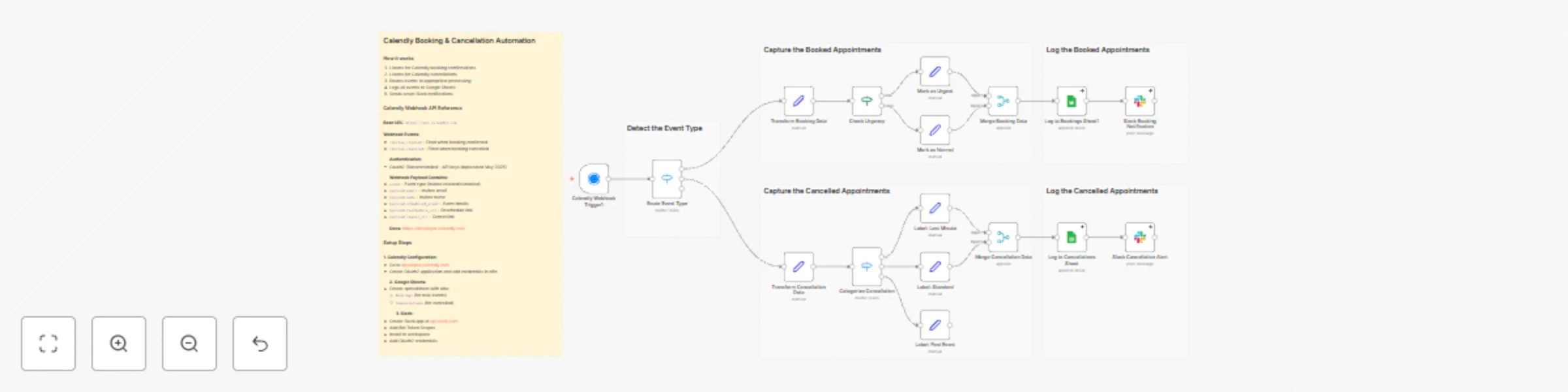
This workflow creates a comprehensive Calendly automation system that automatically processes booking confirmations and cancellations. The system:
Listens for Calendly events via webhook trigger for:
invitee.created - New booking confirmationsinvitee.canceled - Booking cancellations
Routes events intelligently using a Switch node to separate booking and cancellation processing
For Bookings:
- Extracts and transforms all booking data (invitee info, event details, timing, location, guests)
- Calculates computed fields (formatted dates/times, duration, days until event, urgency flags)
- Detects urgent bookings (same-day or next-day appointments) for priority handling
- Logs complete booking information to Google Sheets
- Sends formatted Slack notifications with meeting links, reschedule/cancel options
For Cancellations:
- Extracts cancellation details (reason, who canceled, timing)
- Categorizes cancellations into three types:
- Last Minute (within 24 hours of event) - High priority follow-up
- Standard (upcoming events) - Normal priority
- Past Event (already occurred) - Low priority
- Calculates hours before event for timing analysis
- Logs cancellation data to Google Sheets
- Sends categorized Slack alerts with follow-up priority indicators
Data Management:
- Stores all bookings in a dedicated Google Sheets tab
- Stores all cancellations in a separate Google Sheets tab
- Maintains complete event history for analytics and reporting
How to set up
1. Configure Calendly Webhook Trigger
- Go to developer.calendly.com
- Create an OAuth2 application or use Personal Access Token
- In n8n, add Calendly OAuth2 credentials
- The workflow automatically registers webhooks for
invitee.created and invitee.canceled events
- Ensure your Calendly account has the necessary permissions
2. Set up Google Sheets
- Create a Google Sheets spreadsheet with two tabs:
- Bookings - For logging new booking confirmations
- Cancellations - For logging cancelled appointments
- Configure Google Sheets OAuth2 credentials in n8n
- Update the document ID in both Google Sheets nodes:
- "Log to Bookings Sheet1" node
- "Log to Cancellations Sheet" node
- The workflow uses auto-mapping, so ensure your sheet headers match the data fields
3. Configure Slack Notifications
- Create a Slack app at api.slack.com
- Add Bot Token Scopes:
chat:write, channels:read
- Install the app to your workspace
- Add Slack OAuth2 credentials in n8n
- Update the channel name in both Slack nodes (default: "general")
- Customize notification messages if needed
4. Test the Workflow
- Activate the workflow in n8n
- Create a test booking in Calendly
- Verify that:
- Data appears in Google Sheets
- Slack notification is received
- All fields are correctly populated
- Test cancellation flow by canceling a booking
5. Customize (Optional)
- Adjust urgency detection logic (currently same-day or next-day)
- Modify Slack notification formatting
- Add email notifications using Email nodes
- Integrate with CRM systems (HubSpot, Salesforce, etc.)
- Add follow-up email automation
Requirements
- Calendly account with active scheduling links
- Google Sheets account with a spreadsheet set up
- Slack workspace with app installation permissions
- n8n instance (self-hosted or cloud)
- OAuth2 credentials for Calendly, Google Sheets, and Slack
How to customize the workflow
Modify Urgency Detection
- Edit the "Check Urgency" IF node to change what constitutes an urgent booking
- Currently flags same-day or next-day bookings
- Adjust the
days_until_event threshold as needed
Enhance Slack Notifications
- Customize message formatting in Slack nodes
- Add emoji or formatting to match your team's style
- Include additional fields from the booking data
- Add @mentions for urgent bookings
Add Email Notifications
- Insert Email nodes after Slack notifications
- Send confirmation emails to invitees
- Notify team members via email
- Create email templates for different event types
Integrate with CRM
- Add HTTP Request nodes to sync bookings to your CRM
- Update contact records when bookings are created
- Create opportunities or deals from booking data
- Sync cancellation reasons for analysis
Add Analytics
- Create additional Google Sheets tabs for analytics
- Use formulas to calculate booking rates, cancellation rates
- Track popular time slots and event types
- Monitor team member availability
Customize Data Fields
- Modify the "Transform Booking Data" and "Transform Cancellation Data" Set nodes
- Add custom fields based on your Calendly form questions
- Extract additional metadata from the webhook payload
- Calculate business-specific metrics
Key Features
- Automatic event processing - No manual intervention required
- Smart urgency detection - Identifies same-day and next-day bookings automatically
- Intelligent cancellation categorization - Classifies cancellations by timing and priority
- Comprehensive data extraction - Captures all booking details including guests, questions, and metadata
- Dual logging system - Separate sheets for bookings and cancellations
- Rich Slack notifications - Formatted messages with meeting links and action buttons
- Computed fields - Automatically calculates duration, days until event, formatted dates/times
- Error handling - Nodes configured with
continueRegularOutput to prevent workflow failures
- Scalable architecture - Handles high-volume booking scenarios
Use Cases
- Sales team automation - Instant notifications when prospects book demos
- Consultant scheduling - Track all client appointments in one place
- Service business management - Monitor bookings and cancellations for service providers
- Team calendar coordination - Keep team members informed about schedule changes
- Analytics and reporting - Build dashboards from logged booking data
- Customer relationship management - Sync booking data with CRM systems
- Follow-up automation - Trigger email sequences based on booking status
- Resource planning - Analyze booking patterns to optimize scheduling
Data Fields Captured
Booking Data
- Event ID, invitee name, email, first name
- Event name, start/end times (ISO format)
- Formatted date and time (human-readable)
- Timezone, duration in minutes
- Meeting URL (Google Meet, Zoom, etc.)
- Reschedule and cancel URLs
- Location type (virtual, in-person, etc.)
- Guest count and guest emails
- Questions and answers (JSON format)
- Days until event, same-day flag
- Urgency status and label
- Processing timestamp
Cancellation Data
- Event ID, invitee name, email
- Original scheduled date and time
- Cancellation reason
- Who canceled (invitee/host)
- Canceler type
- Hours before event
- Last-minute flag (< 24 hours)
- Cancellation category and priority
- Cancellation timestamp
Workflow Architecture
The workflow uses a routing pattern to handle different event types:
- Calendly Webhook Trigger → Receives all events
- Route Event Type (Switch) → Separates bookings from cancellations
- Parallel Processing → Each path processes independently
- Data Transformation → Set nodes extract and format data
- Intelligent Routing → IF/Switch nodes categorize by urgency/type
- Data Logging → Google Sheets stores all events
- Notifications → Slack alerts team members
Example Scenarios
Scenario 1: New Booking
- Customer books a 30-minute consultation for tomorrow
- Workflow detects it's a next-day booking (urgent)
- Data logged to "Bookings" sheet with urgency flag
- Slack notification sent with 🚨 URGENT label
- Team member receives instant alert
Scenario 2: Last-Minute Cancellation
- Customer cancels meeting 2 hours before scheduled time
- Workflow categorizes as "last-minute" cancellation
- Data logged to "Cancellations" sheet with high priority
- Slack alert sent with 🚨 LAST MINUTE label
- Team can immediately follow up or fill the slot
Scenario 3: Standard Cancellation
- Customer cancels meeting 3 days in advance
- Workflow categorizes as "standard" cancellation
- Data logged with normal priority
- Slack notification sent with standard formatting
- Team can plan accordingly
This template transforms your Calendly scheduling into a fully automated booking management system, ensuring no booking goes unnoticed and providing valuable insights into your scheduling patterns and customer behavior.


 Early Deal