Streamline data from an n8n form into Google Sheet, Airtable and Email Sending

Workflow preview

Workflow preview
100%
Streamline data from an n8n form into Google Sheet, Airtable and Email Sending preview
Open on n8n.io

Important notice

This workflow is provided as-is. Please review and test before using in production.

1. Workflow Overview

Streamline data from an n8n form into Google Sheet Airtable and and Email Sending [Video for workflow process](https://www.canva.com/design/DAF8PpnKJ0Q/2egm6F7B9H0Vm 8KFrghPw/watch?utm content=DAF8...

Best for

  • Lead Generation automation workflows
  • intermediate n8n builders looking for reusable templates

Tools used

n8n-nodes-base.formtrigger, n8n-nodes-base.code, n8n-nodes-base.set, n8n-nodes-base.airtable, n8n-nodes-base.stickynote, n8n-nodes-base.googlesheets, n8n-nodes-base.gmail

Source and attribution

This workflow is cataloged by N8N Workflows and links back to its original n8n.io source page by AlQaisi.

Original n8n.io source

1.1 Workflow description

Title
Streamline data from an n8n form into Google Sheet, Airtable and Email Sending
Workflow name
Streamline data from an n8n form into Google Sheet, Airtable and Email Sending

Streamline data from an n8n form into Google Sheet Airtable and and Email Sending

Video for workflow process

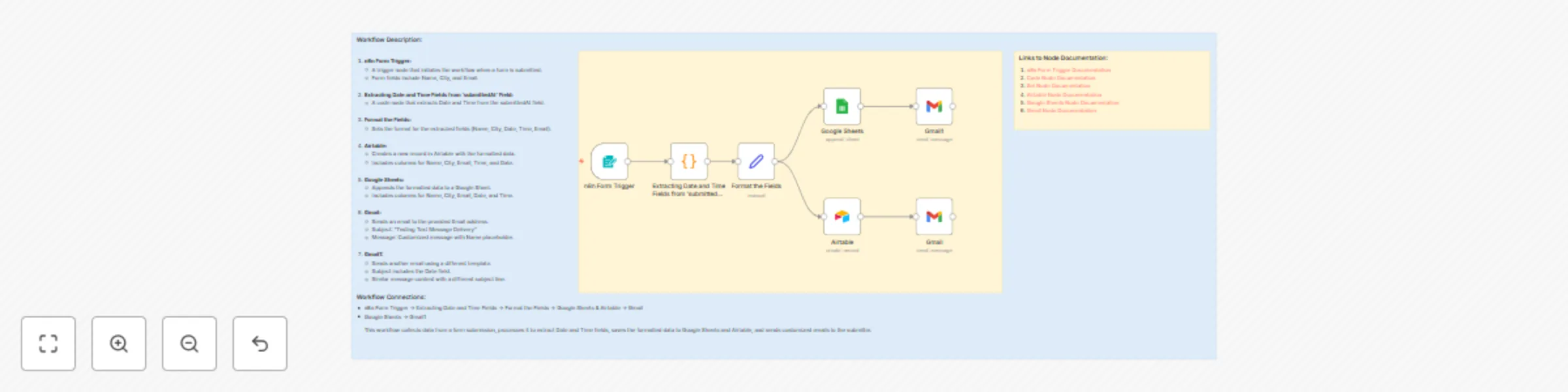
This workflow facilitates efficient data collection and management by leveraging the capabilities of various nodes within the n8n platform. It commences with the n8n Form Trigger node, where users provide their name, location, and email address. Subsequently, the data seamlessly flows through nodes like Google Sheets, Code, Set, Airtable, Gmail, and Gmail1 for processing and storage.

  • n8n Form Trigger: Gathers user input data, including Name, City, and Email.
  • Google Sheets: Manages data operations related to Google Sheets.
  • Code: Executes JavaScript code to manipulate data fields.
  • Set: Formats and sets data values for further processing.
  • Airtable: Facilitates data operations specific to Airtable.
  • Gmail: Sends custom emails to the provided Email address.
  • Gmail: Sends additional emails using different templates.

Each node within the workflow performs specialized tasks such as extracting date and time fields, formatting data, appending it to Google Sheets and Airtable, and sending personalized emails to the submitter. This streamlined process ensures effective handling of collected information and enhances overall data management efficiency.

Workflow Description:

  1. n8n Form Trigger:

    • A trigger node that initiates the workflow upon form submission.
    • Captures essential user details like Name, City, and Email.
  2. Extracting Date and Time Fields from 'submittedAt' Field:

    • Utilizes a code node to extract Date and Time information from the submitted data.
  3. Format the Fields:

    • Standardizes the format of extracted fields (Name, City, Date, Time, Email) for consistency.
  4. Airtable:

    • Creates a new record in Airtable with the formatted data.
    • Includes columns for Name, City, Email, Time, and Date.
  5. Google Sheets:

    • Appends the formatted data to a designated Google Sheet.
    • Includes columns for Name, City, Email, Date, and Time.
  6. Gmail:

    • Sends an email to the provided Email address with a customized message.
    • Subject: "Testing Text Message Delivery"
    • Message: Personalized content with a Name placeholder.
  7. Gmail1:

    • Sends another email using a different template.
    • Subject incorporates the Date field for variation.
    • Message content tailored to the subject line.

Workflow Connections:

  • n8n Form Trigger -> Extracting Date and Time Fields -> Format the Fields -> Google Sheets & Airtable -> Gmail
  • Google Sheets -> Gmail1

This comprehensive workflow efficiently collects user data, processes it to extract Date and Time fields, stores the formatted information in Google Sheets and Airtable, and delivers tailored emails to the recipients.

Copy these templates to get started :

Links to Node Documentation:

  1. n8n Form Trigger Documentation
  2. Code Node Documentation
  3. Set Node Documentation
  4. Airtable Node Documentation
  5. Google Sheets Node Documentation
  6. Gmail Node Documentation

1.2 Logical Blocks

This catalog entry is organized from the workflow JSON. The node-level section below shows the executable blocks available for review before importing the template.

2. Block-by-Block Analysis

Block 1 - n8n Form Trigger

Type / Role
n8n-nodes-base.formTrigger - formTrigger
Config choices
Version 2

Block 2 - Extracting Date and Time Fields from 'submittedAt' Field

Type / Role
n8n-nodes-base.code - code
Config choices
Version 2

Block 3 - Format the Fields

Type / Role
n8n-nodes-base.set - set
Config choices
Version 3.2

Block 4 - Airtable

Type / Role
n8n-nodes-base.airtable - airtable
Config choices
Version 2

Block 5 - Sticky Note

Type / Role
n8n-nodes-base.stickyNote - stickyNote
Config choices
Version 1

Block 6 - Google Sheets

Type / Role
n8n-nodes-base.googleSheets - googleSheets
Config choices
Version 4.2

Block 7 - Gmail

Type / Role
n8n-nodes-base.gmail - gmail
Config choices
Version 2.1

Block 8 - Gmail1

Type / Role
n8n-nodes-base.gmail - gmail
Config choices
Version 2.1

Block 9 - Sticky Note1

Type / Role
n8n-nodes-base.stickyNote - stickyNote
Config choices
Version 1

Block 10 - Sticky Note2

Type / Role
n8n-nodes-base.stickyNote - stickyNote
Config choices
Version 1

3. Summary Table

Workflow Streamline data from an n8n form into Google Sheet, Airtable and Email Sending
Complexity intermediate
Nodes 10
Categories Lead Generation
Author AlQaisi
Published 08 Feb 2024

4. Reproducing the Workflow from Scratch

  1. 1. Download the workflow JSON

    Use the JSON export at /data/workflows/2087/2087.json as the source template for this automation.

  2. 2. Import the template into n8n

    Open n8n, import the downloaded JSON, and review each node before activating the workflow.

  3. 3. Configure credentials and variables

    Replace placeholder credentials, API keys, webhook URLs, account IDs, and environment-specific values with your own settings.

  4. 4. Test with sample data

    Run the workflow manually or in a staging workspace, inspect node output, and confirm downstream systems receive the expected data.

  5. 5. Activate and monitor

    Enable the workflow only after testing, then monitor executions, errors, and rate limits during the first production runs.

5. General Notes & Resources

Review imported nodes carefully before activation. This catalog entry is intended to help you inspect the workflow structure, understand required services, and find related templates faster.

Node names, credentials, schedules, webhook paths, and external service limits may need adjustment for your workspace.

Frequently asked questions

What does Streamline data from an n8n form into Google Sheet, Airtable and Email Sending do?

Streamline data from an n8n form into Google Sheet Airtable and and Email Sending [Video for workflow process](https://www.canva.com/design/DAF8PpnKJ0Q/2egm6F7B9H0Vm 8KFrghPw/watch?utm content=DAF8...

What do I need before importing this workflow?

Review the workflow JSON, configure any required credentials in n8n, and test the automation in a safe workspace before using it in production.

Can I customize this workflow?

Yes. Use the block-by-block analysis and the downloadable JSON to inspect each node, then adjust credentials, prompts, schedules, filters, or destinations for your Lead Generation use case.