Block 1 - IF reaction == star
- Type / Role
- n8n-nodes-base.if - if
- Config choices
- Version 1


 Early Deal
This workflow is provided as-is. Please review and test before using in production.
Who is this for? Teams that want to capture important Slack messages in Notion with smart categorization. Perfect for knowledge workers, community managers, or any team that needs to preserve valua...
n8n-nodes-base.if, n8n-nodes-base.scheduletrigger, @n8n/n8n-nodes-langchain.lmchatopenai, @n8n/n8n-nodes-langchain.outputparserstructured, n8n-nodes-base.slack, n8n-nodes-base.set, @n8n/n8n-nodes-langchain.agent, n8n-nodes-base.notion
This workflow is cataloged by N8N Workflows and links back to its original n8n.io source page by Matty Reed.
Original n8n.io sourceTeams that want to capture important Slack messages in Notion with smart categorization. Perfect for knowledge workers, community managers, or any team that needs to preserve valuable conversations from Slack and organize them automatically in a Notion database.
Important Slack messages get buried in chat history and are hard to find later. This workflow monitors your Slack channel and automatically saves starred messages to Notion with AI-generated titles and smart tags. No more manually copying messages or losing track of important discussions.
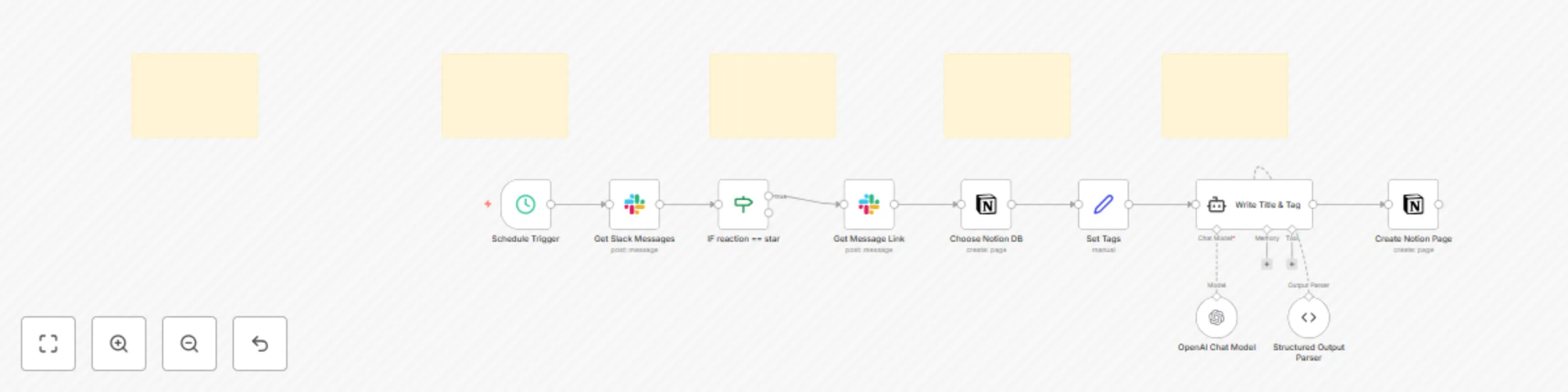
Trigger - Schedule Trigger fires every 10 minutes to check for new messages.
Get Slack Messages - fetches recent messages from your specified Slack channel within the last 10 minutes.
Star Filter - only processes messages that have been reacted to with a ⭐ emoji (configurable to any emoji).
Get Message Link - retrieves the permanent link to the starred Slack message.
Choose Notion DB - connects to your target Notion database and loads available tag options.
Set Tags - prepares the available tags from your Notion database for AI processing.
AI Processing - uses OpenAI GPT-4o-mini to:
Create Notion Page - saves the message to Notion with:
channels:history - to read channel messagesreactions:read - to detect star reactionschat:write.public - to get message permalinksSlack Bot Setup Resources:
bookmark, pushpin)Slack message: > "Hey team, just found this amazing tool for automating our design workflow. We should definitely consider it for next sprint: https://example.com/design-tool"
Generated Notion page:
Multi-channel support - duplicate the "Get Slack Messages" node for different channels and merge the outputs.
Enhanced AI processing - modify the prompt to extract additional metadata like:
Rich content preservation - add logic to handle Slack attachments, images, or threaded replies.
Notification system - add nodes to notify team members when important messages are archived.
Sentiment analysis - incorporate additional AI processing to categorize message sentiment or urgency.
This template provides a lean setup for intelligent Slack-to-Notion archiving. Star important messages, let AI handle the organization, and never lose track of valuable conversations again.
This catalog entry is organized from the workflow JSON. The node-level section below shows the executable blocks available for review before importing the template.
| Workflow | Starred Slack messages to Notion database with AI auto-tagging |
|---|---|
| Complexity | advanced |
| Nodes | 15 |
| Categories | Internal Wiki, AI Summarization |
| Author | Matty Reed |
| Published | 30 May 2025 |
Use the JSON export at /data/workflows/4502/4502.json as the source template for this automation.
Open n8n, import the downloaded JSON, and review each node before activating the workflow.
Replace placeholder credentials, API keys, webhook URLs, account IDs, and environment-specific values with your own settings.
Run the workflow manually or in a staging workspace, inspect node output, and confirm downstream systems receive the expected data.
Enable the workflow only after testing, then monitor executions, errors, and rate limits during the first production runs.
Review imported nodes carefully before activation. This catalog entry is intended to help you inspect the workflow structure, understand required services, and find related templates faster.
Node names, credentials, schedules, webhook paths, and external service limits may need adjustment for your workspace.
Who is this for? Teams that want to capture important Slack messages in Notion with smart categorization. Perfect for knowledge workers, community managers, or any team that needs to preserve valua...
Review the workflow JSON, configure any required credentials in n8n, and test the automation in a safe workspace before using it in production.
Yes. Use the block-by-block analysis and the downloadable JSON to inspect each node, then adjust credentials, prompts, schedules, filters, or destinations for your Internal Wiki, AI Summarization use case.