M

Matty Reed

8
Workflows

Workflows by Matty Reed

Workflow preview: Phase-based blog creation system with specialized AI sub-agents
Free advanced

Phase-based blog creation system with specialized AI sub-agents

Chat with a multi-agent system to write a blog. The orchestrator advances through research, headlines, hooks, outline, intro, draft, and final polish–one phase per reply—outputting options and asking you to proceed or rerun at each step. ## Who is this for? Creators, editors, and teams who want to drive a blog from an interactive chat. You type a message, the system replies with the phase result, you respond, and it moves forward—until the final draft is ready. ## What problem does it solve? Content projects stall when steps are mixed together. This keeps strict phase order with confirmations at each turn. It prevents hidden state, enforces inputs, and keeps the loop conversational and controllable. ## How it works 1. **You send a message.** The Orchestrator reads recent chat, checks required inputs for the current phase, and either requests missing items or runs a sub-agent. 2. **Phase execution.** Phases run in order: Research → Headlines → Hooks → Outline → Intros → Draft → Final. The sub-agent returns user-facing markdown only. 3. **Deterministic replies.** The Orchestrator posts the sub-agent output verbatim, then asks whether to **proceed** to the next phase or **choose an optoion** or **rerun** this phase with new instructions. 4. **Interactive gating.** If required inputs are missing, it replies with a short list of what’s needed and waits for your message. 5. **Research any time.** You can request more research at any point. The phase does not change; new research is passed forward to the next sub-agent. 6. **Memory window.** A short rolling memory keeps recent chat context without exposing internal prompts or variables. 7. **Finish.** After you approve the Draft phase, the Final phase polishes and returns a publication-ready version. ## Setup steps 1. **Import the workflow JSON** into n8n. 2. **Configure LLM** credentials for the chat model node. 3. **Connect sub-agent workflows** referenced by the Orchestrator (Research, Headlines, Hooks, Outline, Intros, Draft, Final). Verify their input mappings (`WHO`, `WHAT`, `WHY`, `CONTEXT`, `research`, etc.). 4. **Optional integrations:** Enable or disable Slack posting and any datastore nodes you use for research notes. 5. **Test the loop:** Start with a chat message that includes topic, audience, and purpose. Confirm the Orchestrator returns the phase output and prompts you to proceed or rerun. ## Notes - One sub-agent runs per turn for clarity and traceability. - Internal prompts, XML, and variables never appear in user messages. - “Proceed” advances one phase; “Rerun” keeps the phase and uses your updated instructions. ## Resources - [n8n Docs](https://docs.n8n.io/) - [Anthropic Docs](https://docs.anthropic.com/en/docs)

M
Matty Reed
Content Creation
5 Nov 2025
63
0
Workflow preview: Generate AI short-form videos with Creatomate, ElevenLabs & Pexels Stock
Free advanced

Generate AI short-form videos with Creatomate, ElevenLabs & Pexels Stock

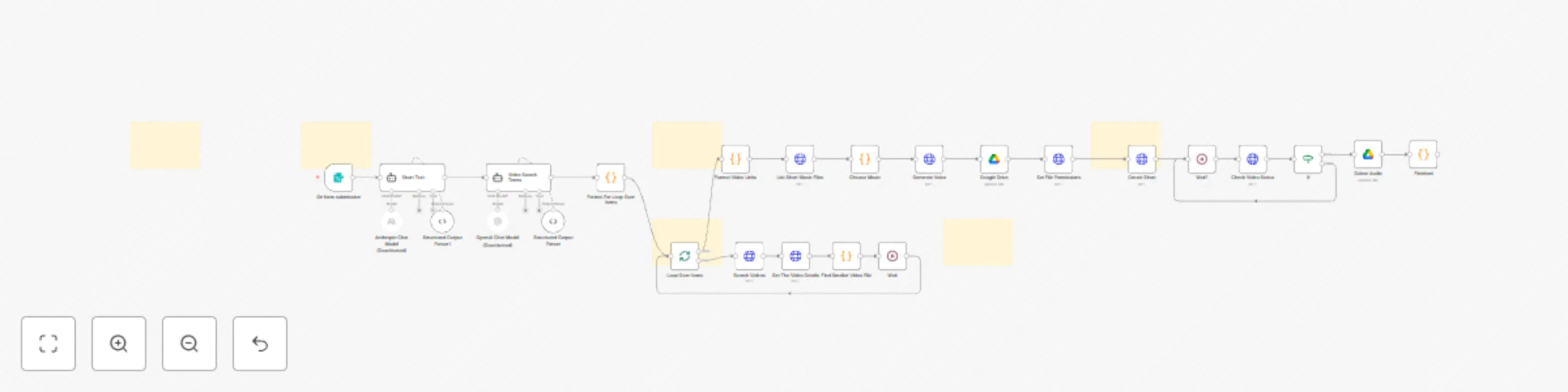
## Who is this for? - Creators, agencies, and marketers who need short-form vertical video at scale. - Anyone who wants to turn a topic into an edited “talking shorts” style clip without opening a video editor. ## What problem does it solve? Manually producing shorts is slow and repetitive. You have to write the script, hunt for b-roll, generate voiceover, layer music, edit timing, and export. This workflow automates that from prompt to rendered MP4 using AI, stock video, and Creatomate. Note: this template requires a Creatomate template like the one shown below: ![Screenshot 20251030 at 3.52.41 PM.jpg](fileId:3155) ## How it works 1. You submit a topic in a simple n8n form. 2. The workflow uses an AI model to generate a YouTube Shorts style script (~100 words) with hook, body, and looping ending. 3. A second AI step turns that script into 8 visual search terms (for example “person typing at desk,” “happy team in office,” “corporate meeting”) that are likely to exist in stock footage. 4. For each term, the workflow calls the Pexels Videos API and pulls the best portrait clip. It fetches clip details and filters files under 50 MB, then keeps the largest high quality version under that limit. 5. The selected clip URLs are combined into a list that will later map to eight background layers in the Creatomate template. 6. The generated script is sent to ElevenLabs (text-to-speech) to create the voiceover audio file. 7. That audio is uploaded to Google Drive. The workflow then: - Randomly picks a background music track from a Drive folder. - Sets the Drive file sharing to “anyone with the link” so Creatomate can fetch it directly. 8. The workflow calls Creatomate’s Render API: - Injects the voiceover URL, the chosen music URL, and the eight stock video URLs into a predefined vertical template. - Also enables auto-subtitles in the template by linking the transcript to on-screen captions. 9. The workflow polls Creatomate until render status is `succeeded`. 10. When rendering is done, cleanup runs: - The temporary voice file in Drive is deleted. - Final output metadata (including the render ID and status) is passed to the last node. Result: You get an edited 9:16 short with stock b-roll, captions, voiceover, background music, and transitions. ## Setup steps 1. n8n 1. Import this workflow JSON into n8n. 2. Expose the included Form Trigger to capture the `topic` input. 2. AI script + search terms 1. Connect your AI model credentials in the `Short Text` node for script generation. 2. Connect your AI model credentials in the `Video Search Terms` node for visual search term generation. 3. Confirm both nodes are wired to output structured JSON to their paired Structured Output Parser nodes. 3. Stock footage 1. Add your Pexels API key as the `Authorization` header in both `Search Videos` and `Get The Video Details`. 2. Keep `orientation=portrait` so clips match 9:16. 4. Voiceover 1. Add your ElevenLabs API key to the `Generate Voice` request header (`xi-api-key`). 2. Set the voice ID in the ElevenLabs URL if you want a different voice. 5. Google Drive 1. Connect Google Drive OAuth in `Google Drive`, `List Short Music Files`, and `Set File Permissions`. 2. In `List Short Music Files`, point `q` and `folderId` to the folder that stores your background music tracks. 3. Confirm `Set File Permissions` is using `role: reader`, `type: anyone` so Creatomate can fetch the audio file. 6. Creatomate render 1. Set your Creatomate API key (`Authorization: Bearer <key>`) in `Create Short` and `Check Video Status`. 2. Replace `template_id` with your own Creatomate template ID if different. 3. Map each `Background-1` ... `Background-8` field in the JSON body to the combined clip URLs. These correspond to layers in your Creatomate template. 7. Test end to end 1. Run the workflow with a sample topic. 2. Confirm: - Script is generated. - At least 8 stock clips are found. - Voice file uploads to Drive and becomes publicly readable. - Creatomate render finishes with `status = succeeded`. 3. Adjust template timing and transitions in Creatomate if visuals do not match pacing. ## Notes - The cleanup step deletes the temporary voiceover file from Drive after render to avoid clutter. - The workflow chooses a random music track each run to keep videos from sounding identical. - The render loop will keep polling Creatomate until the final MP4 is ready. ## Resources - n8n workflow basics: [n8n Docs](https://docs.n8n.io/) - Using AI models in n8n: [n8n Docs on AI](https://docs.n8n.io/integrations/builtin/ai/) - Anthropic model usage: [Anthropic Docs](https://docs.anthropic.com/en/docs) - Pexels API reference: [Pexels API](https://www.pexels.com/api/) - ElevenLabs text to speech: [ElevenLabs Docs](https://docs.elevenlabs.io/) - Google Drive file access control: [Google Drive API](https://developers.google.com/drive/api) - Creatomate render API: [Creatomate API](https://docs.creatomate.com/)

M
Matty Reed
Content Creation
30 Oct 2025
76
0
Workflow preview: Process meeting transcripts into Notion notes & tasks with AI and Google Drive
Free advanced

Process meeting transcripts into Notion notes & tasks with AI and Google Drive

Ingest meeting webhooks, process transcript, classify the meeting, generate structured notes with AI Agent, file the transcript to Google Drive, write rich pages to Notion, and create assigned tasks. Includes optional polling path if webhooks aren’t available. ## Who is this for? Teams that record calls and want instant, structured notes in **Notion**, with transcripts archived in **Google Drive** and action items auto-created—without manual copy/paste. --- ## What problem does it solve? Manual note taking is slow and inconsistent. This flow listens for a meeting webhook, flattens the transcript, classifies the call, runs a tailored notetaker prompt, and writes a clean Notion page plus tasks—hands-free and standardized. --- ## How it works | # | Node | Purpose | |---|------|---------| | 1 | **New Meeting Webhook** | Receives meeting payload with transcript segments and metadata. ([Webhook Node](https://docs.n8n.io/integrations/builtin/core-nodes/n8n-nodes-base.webhook/)) | | 2 | **Flatten Transcript** (Code) | Joins segments to `speaker: text` lines and extracts `title`, `meetingId`, `url`. | | 3 | **Set Title + Transcript + URL** | Normalizes fields for downstream nodes. | | 4 | **Categorize Meeting** | Uses OpenAI to return `{ "meetingType": "DiscoveryCall" | "MiscMeeting" }`. ([OpenAI](https://platform.openai.com/docs/guides/realtime-and-responses/responses)) | | 5 | **Switch** | Routes to the correct notetaker branch based on `meetingType`. | | 6a | **Discovery Call Notetaker** | Anthropic model + structured parser to extract sales-specific fields. ([Anthropic Docs](https://docs.anthropic.com/en/docs)) | | 6b | **Misc Meeting Notetaker** | General meeting notetaker with strict JSON schema. | | 7a | **Add Discovery Meeting Notes to Notion** | Writes a formatted page with overview, goals, pains, risks, and action items. | | 7b | **Add Meeting Notes to Notion** | Writes a simpler page for non-discovery meetings. | | 8 | **Set Notion Page ID** | Captures created page ID and the action-items array. | | 9 | **Create File** (Google Drive) | Saves raw transcript text and returns the file ID. ([Drive API](https://developers.google.com/drive/api)) | | 10 | **Link Transcript in Notion** | Updates the Notion page with a viewable Drive link. | | 11 | **Split out Tasks** | Expands the action-items array to one item per execution. | | 12 | **If Assigned to Me** | Filters tasks where `assignee = "Matty Reed"`. | | 13 | **Add Tasks** (Notion) | Creates tasks in your Notion Tasks DB, links to the meeting page. ([Notion API](https://developers.notion.com/docs)) | | * | *(Optional polling path)* | If webhooks aren’t available: **Schedule Trigger → Get Meetings from Notion → List Meetings (HTTP Request) → Get New Meetings (Code) → Get Transcript (HTTP) → Transcript Ready? → Wait → Flatten**. Disabled by default. | --- ## Setup steps 1. **Import the JSON flow into n8n** Confirm nodes marked *disabled* stay off unless you need the polling path. Docs: [n8n](https://docs.n8n.io/) 2. **Credentials** - **OpenAI**: add API key and attach to **Categorize Meeting**. - **Anthropic**: add API key and attach to both notetaker agents. - **Notion**: create an internal integration, share your **Meetings** and **Tasks** databases with it, then attach the credential to Notion nodes. - **Google Drive**: OAuth2 credential for **Create File**. 3. **Map your databases and properties** Replace the placeholder Notion database IDs with your **Meetings** and **Tasks** DB IDs. Verify property names like `Meeting Name|title`, `Summary|rich_text`, `Category|multi_select`, `Assignee|people`, etc., match your schema. 4. **Drive folder** Update the `folderId` in **Create File** to your preferred folder. Ensure link-sharing fits your privacy policy. 5. **Webhook** Expose **New Meeting Webhook** via your n8n instance. Send a sample payload from your meeting recorder to verify the `calendar_invitees`, `transcript`, `title`, and `url` fields match the code node expectations. 6. **Test** Run the flow with a recorded meeting. Confirm: - Page created in **Meetings** DB with structured sections. - Transcript file created in **Drive** and linked back to Notion. - Tasks created in **Tasks** DB when `assignee = "Matty Reed"`. --- ## Notes and tips - **Schemas are strict.** Both notetakers output fixed JSON keys. Missing values become empty strings. - **PII handling.** Transcripts may include personal data. Limit access to Notion pages and Drive files per policy. - **Do not hardcode secrets.** Store API keys in n8n credentials. Avoid putting tokens in Code nodes. - **Rate limits.** Long transcripts increase token usage. Consider chunking upstream if needed. - **Extensibility.** Add more branches in **Switch** for other meeting types with custom prompts and parsers. --- ## Resources - n8n Webhook Node – https://docs.n8n.io/integrations/builtin/core-nodes/n8n-nodes-base.webhook/ - n8n HTTP Request Node – https://docs.n8n.io/integrations/builtin/core-nodes/n8n-nodes-base.httprequest/ - OpenAI Responses – https://platform.openai.com/docs/guides/realtime-and-responses/responses - Anthropic Docs – https://docs.anthropic.com/en/docs - Notion API – https://developers.notion.com/docs - Google Drive API – https://developers.google.com/drive/api

M
Matty Reed
Project Management
20 Oct 2025
71
0
Workflow preview: YouTube Videos to Viral X Threads by Keywords (using Gemini & Claude)
Free advanced

YouTube Videos to Viral X Threads by Keywords (using Gemini & Claude)

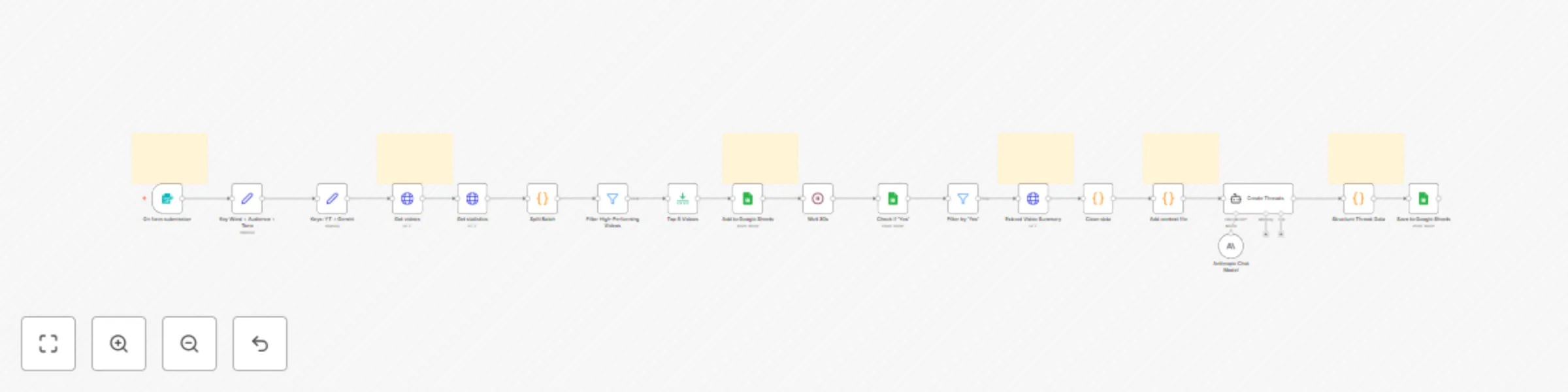
# Who is this for? Content creators, marketers, and social media managers who want to turn high-performing YouTube videos into viral X (Twitter) threads using keywords (without manual research). Perfect for anyone looking to systematically create engaging social content from proven video sources. --- # What problem does it solve? Finding viral content ideas and writing engaging threads is time-consuming and hit-or-miss. This workflow automates the entire process: discovers high-performing YouTube videos based on your keywords, extracts key insights using AI, and generates multiple viral thread variations using proven patterns from 12.5M+ view threads. --- # How it works | # | Node | Purpose | |---|------|---------| | 1 | **Form Trigger** | Captures your keyword, target audience, and content type preferences. | | 2 | **YouTube Video Search** | Finds recent videos (April 2025+) matching your keyword, sorted by view count. | | 3 | **Get Video Statistics** | Fetches detailed metrics (views, engagement) for discovered videos. | | 4 | **Filter High-Performers** | Keeps only videos with 100K+ views and excludes YouTube Shorts. | | 5 | **Top 5 Selection** | Limits to the best 2 videos to focus on proven winners. | | 6 | **Save Video Candidates** | Logs discovered videos to Google Sheets for manual approval. | | 7 | **Wait & Check Approval** | Pauses 30 seconds, then checks which videos you marked "Yes" for thread generation. | | 8 | **Video Analysis (Gemini)** | Uses Google's Gemini AI to extract key insights, tools, and strategies from approved videos. | | 9 | **Thread Generation (Claude)** | Applies viral thread database patterns to create 3 distinct thread variations using Claude Sonnet 4. | | 10 | **Structure & Save Threads** | Formats the generated threads and saves them back to Google Sheets for review and posting. | --- # Setup steps 1. **Import & configure credentials** * Import the JSON workflow into n8n * Add your **YouTube Data API** key (get from [Google Cloud Console](https://console.cloud.google.com/)) * Add your **Google Gemini API** key (get from [Google AI Studio](https://aistudio.google.com/)) * Connect **Anthropic API** for Claude access * Set up **Google Sheets OAuth2** credential 2. **Create your tracking spreadsheet** * The workflow auto-creates a sheet with columns: `Keyword`, `Youtube video title`, `Description`, `Video URL`, `Turn into thread?`, `Thread 1`, `Thread 2`, `Thread 3` * You'll manually review and mark videos "Yes" in the `Turn into thread?` column 3. **Configure the viral thread database** * The workflow includes proven patterns from threads with 12.5M+ views * Adjust the target audience and content style in the AI prompts if needed 4. **Test the workflow** * Submit the form with a keyword like "AI automation" * Check that videos appear in your Google Sheet * Mark one "Yes" and verify threads are generated --- # Resources * [YouTube Data API Documentation](https://developers.google.com/youtube/v3) * [Google Gemini AI Platform](https://ai.google.dev/) * [Anthropic Claude API](https://docs.anthropic.com/) * [n8n Documentation](https://docs.n8n.io/) * [Viral Thread Generator Demo](https://gamma.app/docs/Viral-XThreadGenerator--wce7q6wtkdilz35?mode=doc) --- # Extending the workflow * **Auto-posting** – Connect X API to automatically post generated threads * **Competitor tracking** – Monitor specific channels for new content opportunities * **Multi-platform** – Adapt threads for LinkedIn, Instagram, or TikTok formats * **Performance tracking** – Log thread performance back to sheets for optimization * **Webhook triggers** – Set up Zapier integration for form submissions from other tools Transform proven YouTube content into viral social media threads—systematically and at scale.

M
Matty Reed
Content Creation
16 Jun 2025
219
0
Workflow preview: Automate GPT-4o fine-tuning with Google Sheets or Airtable data
Free advanced

Automate GPT-4o fine-tuning with Google Sheets or Airtable data

# Who is this for? Anyone curating **before/after** text examples in a spreadsheet and wanting a push-button path to a fine-tuned GPT model—without touching curl. Works with **Google Sheets** or **Airtable**. --- # What problem does it solve? Manually downloading CSVs, converting to JSONL, uploading, and polling OpenAI is a slog. This flow automates the whole loop: grab examples flagged **Ready**, build the JSONL file, start the fine-tune, then log the resulting model ID back to a registry sheet/table for reuse. --- # How it works | # | Node | Purpose | |---|------|---------| | 1 | **Schedule Trigger** | Runs weekly by default (change as needed). | | 2a | **Get Examples from Sheet** | Pulls rows where `Ready = TRUE` from your Google Sheet. Uses the [JSONL-Template Sheet](https://docs.google.com/spreadsheets/d/1DvZNQKWKztvPcArkMuviUZ0tsJVw_4WiykFMI1yMfNI/edit?usp=sharing) as the expected column layout. | | 2b | **Get Examples from Airtable** *(disabled)* | Alternate source for Airtable users. | | 3 | **Create JSONL File** (Code) | Converts each example to chat-format JSONL and splits into `train.jsonl` / `val.jsonl` (80/20). | | 4 | **Upload JSONL** | Uploads the training file to OpenAI (`purpose: fine-tune`). | | 5 | **Begin Fine-Tune** | Starts a fine-tune job on `gpt-4o` (editable). | | 6 | **Wait → Check Job → IF** | Polls every minute until `status = succeeded`. | | 7a | **Write Model to Sheet** | Appends the new model ID + meta to your **Model Registry** sheet. | | 7b | **Write Model to Airtable** *(disabled)* | Equivalent logging step for Airtable. | --- # Setup steps 1. **Import & connect credentials** * Import the JSON flow into n8n. * Add your **OpenAI** API key. * **Google Sheets**: create an OAuth2 credential and link it to both Sheets nodes. * **Airtable** (optional): create a Personal Access Token and attach it to the Airtable nodes. 2. **Copy the template sheet** * Duplicate the JSONL-Template Sheet linked above into your own Drive. * Required columns (**exact names**): | systemPrompt | userPrompt | assistantResponse | Ready | * Tick `Ready = TRUE` for rows you want to include. 3. **Create the registry sheet/table** * Google Sheet (or Airtable table) named **Model Registry** with columns: `Model ID`, `Training Examples`, `Epochs`, `Batch Size`, `Learning Rate`, `Finished At`. 4. **Tweak model & schedule** * Change the base model in **Begin Fine-Tune** if desired. * Adjust the **Schedule Trigger** for daily / on-demand runs. 5. **Test it** * Mark a few examples `Ready = TRUE`. * Run the flow manually. * Check OpenAI for the new fine-tune job and confirm the model ID is logged in your registry. --- # Resources * n8n Docs – <https://docs.n8n.io/> * OpenAI Fine-Tuning – <https://platform.openai.com/docs/guides/fine-tuning> * Google Sheets API – <https://developers.google.com/sheets/api> * Airtable API – <https://airtable.com/api> --- # Extending the flow * **Webhook trigger** – swap the schedule for a webhook to train on demand. * **Multi-source merge** – enable both Sheets *and* Airtable nodes to combine datasets. * **Auto-deploy** – save the new model name to an env-var or Secrets Manager for downstream generation workflows.

M
Matty Reed
Engineering
10 Jun 2025
369
0
Workflow preview: Starred Slack messages to Notion database with AI auto-tagging
Free advanced

Starred Slack messages to Notion database with AI auto-tagging

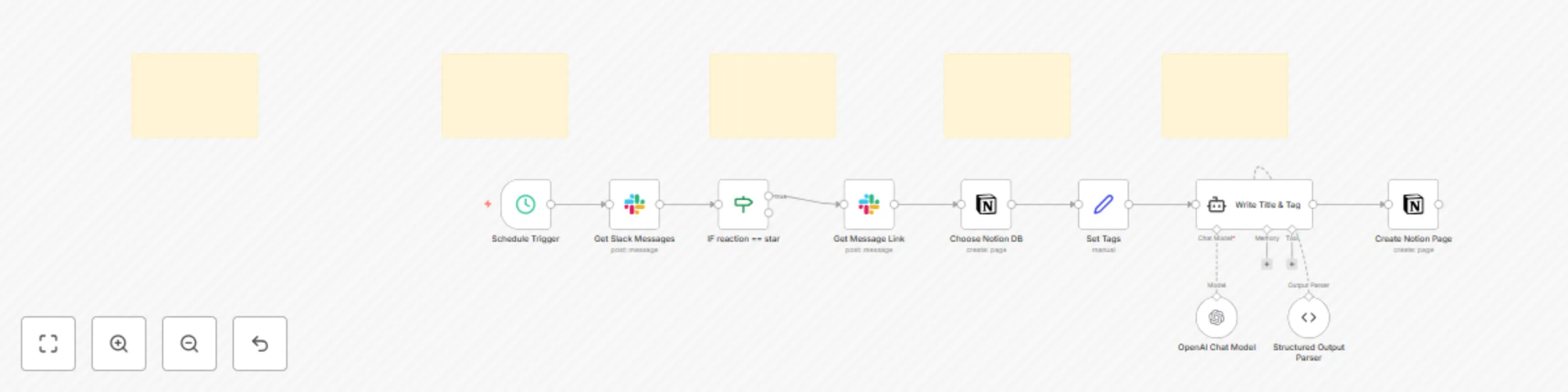
# Who is this for? Teams that want to capture important Slack messages in Notion with smart categorization. Perfect for knowledge workers, community managers, or any team that needs to preserve valuable conversations from Slack and organize them automatically in a Notion database. # What problem does this solve? Important Slack messages get buried in chat history and are hard to find later. This workflow monitors your Slack channel and automatically saves starred messages to Notion with AI-generated titles and smart tags. No more manually copying messages or losing track of important discussions. # How it works **Trigger** - Schedule Trigger fires every 10 minutes to check for new messages. **Get Slack Messages** - fetches recent messages from your specified Slack channel within the last 10 minutes. **Star Filter** - only processes messages that have been reacted to with a ⭐ emoji (configurable to any emoji). **Get Message Link** - retrieves the permanent link to the starred Slack message. **Choose Notion DB** - connects to your target Notion database and loads available tag options. **Set Tags** - prepares the available tags from your Notion database for AI processing. **AI Processing** - uses OpenAI GPT-4o-mini to: - Generate a concise title (under 50 characters) - Automatically categorize the message with existing tags (90%+ confidence threshold) **Create Notion Page** - saves the message to Notion with: - AI-generated title - Auto-selected tags - Original message content - Permanent link back to Slack # Setup steps ### 1. Import and connect credentials - Import this template into n8n - Connect your **Slack API** credentials ([Slack Bot Setup Guide](https://api.slack.com/bot-users)) - Connect your **Notion API** token ([Notion Integration Guide](https://developers.notion.com/docs/create-a-notion-integration)) - Connect your **OpenAI API** credentials ### 2. Configure Slack integration - Create a Slack bot and add it to your target channel - Update the **channelId** in "Get Slack Messages" node with your channel ID - Ensure your bot has these permissions: - `channels:history` - to read channel messages - `reactions:read` - to detect star reactions - `chat:write.public` - to get message permalinks **Slack Bot Setup Resources:** - [Creating a Slack App](https://api.slack.com/authentication/basics#creating) - [Bot Token Scopes](https://api.slack.com/scopes) - [Adding Apps to Channels](https://slack.com/help/articles/202035138-Add-apps-to-your-Slack-workspace) ### 3. Set up Notion database - Create or use existing Notion database with required properties: - **Tags** (Multi-select) - add tag options with descriptions for better AI accuracy - **Link** (URL) - for storing Slack permalink - **Title** (Title) - will be auto-populated by AI - Update the **databaseId** in "Choose Notion DB" and "Create Notion Page" nodes ### 4. Customize the workflow - **Change trigger emoji**: Edit the IF condition to use a different emoji (e.g., `bookmark`, `pushpin`) - **Adjust timing**: Modify the Schedule Trigger interval (remember to update the "oldest" filter in Get Slack Messages to match) - **Improve AI prompts**: Edit the prompt in "Write Title & Tag" node for better categorization ### 5. Test the setup - Star a message in your Slack channel - Wait for the next 10-minute trigger or manually execute the workflow - Check your Notion database for the new entry # Example output **Slack message:** > "Hey team, just found this amazing tool for automating our design workflow. We should definitely consider it for next sprint: https://example.com/design-tool" **Generated Notion page:** - **Title:** "Design Tool Recommendation for Next Sprint" - **Tags:** "Tools", "Design", "Sprint Planning" - **Content:** Full message text with Slack permalink - **Link:** Direct link back to original Slack message # Extending the flow **Multi-channel support** - duplicate the "Get Slack Messages" node for different channels and merge the outputs. **Enhanced AI processing** - modify the prompt to extract additional metadata like: - Priority levels - Action items - Mentioned team members - Due dates **Rich content preservation** - add logic to handle Slack attachments, images, or threaded replies. **Notification system** - add nodes to notify team members when important messages are archived. **Sentiment analysis** - incorporate additional AI processing to categorize message sentiment or urgency. This template provides a lean setup for intelligent Slack-to-Notion archiving. Star important messages, let AI handle the organization, and never lose track of valuable conversations again.

M
Matty Reed
Internal Wiki
30 May 2025
268
0
Workflow preview: Notion status-based alert messages (Slack, Telegram, WhatsApp, Discord, Email)
Free advanced

Notion status-based alert messages (Slack, Telegram, WhatsApp, Discord, Email)

# Notion Status-Based Alert Template ## Who is this for? Teams that live in Notion and want an **instant ping to the right person** when a task changes state. Perfect for content creators, project managers, or any small team that tracks work in a Notion database and prefers Slack / Telegram / Discord / e-mail notifications over manually checking a board. ## What problem does this solve? Polling Notion or checking a kanban board is slow and error-prone. This workflow watches a Notion database and **routes an alert to specific people based on the item’s Status**. One central map decides who gets pinged for “On Deck”, “In Progress”, “Ready for Review”, or “Ready to Publish”. ## How it works 1. **Trigger** – choose either method * *Polling* (`Notion Trigger`) – fires every minute. * *Push* (`Webhook`) – register the production URL in a Notion automation and disable polling. 2. **Set Notion Page Info** – copies Title, Status, URL, etc. into top-level fields. 3. **Switch (Status router)** – routes the item down a branch that matches its Status. 4. **Set-Mention nodes** – one per Status. Each node sets a single field `mention` (e.g. `<@U123456>`). *Add or edit these nodes to map new statuses or recipients.* 5. **Build Message** – assembles a rich text block: Task title Status: <@UserIDs> <Notion URL|Open in Notion> 6. **Send nodes** – Slack (active) + optional Telegram / WhatsApp / Discord / Email (disabled by default). All reuse the same `{{$json.message}}`. ## Setup steps 1. **Import this template** into n8n. 2. **Connect credentials** * Notion API token * Slack OAuth (and any other channels you enable) 3. **Edit the Status → Mention map** * Open each *Set-Mention* node and replace the placeholder with the real Slack ID / chat ID / phone / email. * Copy a node for every extra Status you use, wire it to a new Switch output, and update the value. 4. **Set environment variables** (recommended) * `NOTION_DB_ID`, `SLACK_CHANNEL`, `EMAIL_FROM`, etc. 5. **Pick your trigger style** * Keep polling enabled **or** disable it and enable the Webhook, then register the webhook URL in Notion. 6. **Test** – change a task’s Status in Notion → watch Slack for the ping. ## Example output > **Title:** “Draft blog post – AI productivity” > **Status:** Ready for Review > **Slack message:** > ``` > *Draft blog post – AI productivity* > Status: Ready for Review > <@U789012> > <https://www.notion.so/…|Open in Notion> > ``` ## Extending the flow * Wire additional channels after **Build Message**—they all consume the same `{{$json.message}}`. * Add richer logic (e.g. due-date reminders) in the Set Notion Page Info node. * Verify Notion webhook signatures in a Function node if you rely on push triggers. This template is the leanest possible setup: **one table of statuses → direct pings to the right people**. Swap the IDs, flip on your favourite channels, and ship.

M
Matty Reed
Project Management
26 May 2025
486
0
Workflow preview: Generate written content with GPT Recursive Writing & Editing agents
Free intermediate

Generate written content with GPT Recursive Writing & Editing agents

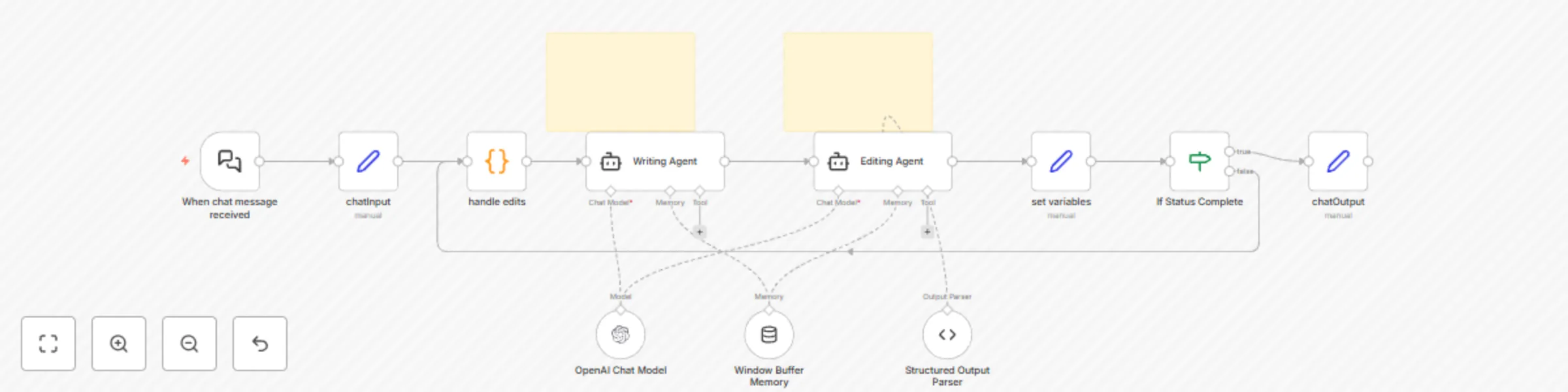
# Who is this for? Content creators, writers, and automation enthusiasts experimenting with recursive AI workflows for content generation and refinement. Ideal for those exploring AI agents that collaborate in cycles of writing and editing. # What problem does this solve? This template introduces a fully automated, recursive writing‑editing loop using multi‑agent collaboration. A “Writing Agent” generates content based on an input topic. An “Editing Agent” reviews it, suggests improvements, and determines whether the work is complete. The loop continues until the editor is satisfied—allowing for high‑quality, iterative AI‑assisted writing with minimal human input. # How it works This template is a foundational setup to help you build custom recursive writing workflows: 1. **Trigger**: Activated by an n8n chat message containing a topic. You can customize this to work with webhooks, forms, or other input sources. 2. **Edit Handler**: A code node checks for previous edits and sets a default empty string if none are found. 3. **Writing Agent**: Generates a blurb based on the topic and any edits. Customize the prompt in this node by editing the user/system instructions to fit your tone, domain, or style preferences. 4. **Editing Agent**: Suggests specific edits and outputs a structured JSON object: ```json { "status": "incomplete", "edits": "Replace passive voice with active voice in the second sentence. Clarify the main idea in the opening line." } ``` You can adjust the JSON format or editing criteria in the prompt field. Customize the prompt in this node by editing the user/system instructions to fit your tone, domain, or style preferences. 5. **Recursive Loop**: If the status is “incomplete,” the edits are passed back to the Writing Agent, which revises the blurb. 6. **Completion**: Once the Editing Agent outputs a status of “complete,” the workflow ends, and the final blurb is returned to the n8n chat. # Setup Steps 1. **Import the Template** into your n8n workspace. 2. **Configure API Credentials**: Link your OpenAI API key (or your preferred LLM like Claude or Gemini) in the credentials section. 3. **Customize the Prompts** (Optional but recommended): - In the **Writing Agent**, you can instruct it to mimic a specific tone, format, or genre. - In the **Editing Agent**, specify your editing standards (e.g., concise, persuasive, technical). - Modify the JSON output structure in the **Structured Output Parser** node if needed. 4. **Test and Iterate**: Run a test by sending a topic via the chat trigger and observe the loop behavior. # Example Output **Input Topic**: “The future of remote work” **Final Blurb**: “Remote work is here to stay. As companies embrace flexible setups, productivity and employee satisfaction are reaching new highs. The challenge now is to build culture and collaboration tools that keep up.” This template offers a powerful starting point for recursive AI writing. Expand it with additional agents, tone shifts, formatting layers, or sentiment analysis as needed.

M
Matty Reed
Content Creation
10 Apr 2025
1416
0