Send personalized LinkedIn InMails to CEOs and founders with Google Sheets and Unipile

Workflow preview

Workflow preview
100%
Send personalized LinkedIn InMails to CEOs and founders with Google Sheets and Unipile preview
Open on n8n.io

1. Workflow Overview

Send personalized LinkedIn InMails automatically to CEOs and founders using n8n, Google Sheets, and Unipile — with built in duplicate prevention, credit tracking, and full conversation ID logging. ...

Best for

  • Lead Nurturing automation workflows
  • advanced n8n builders looking for reusable templates

Tools used

n8n-nodes-base.wait, n8n-nodes-base.httprequest, n8n-nodes-base.limit, n8n-nodes-base.set, n8n-nodes-base.code, n8n-nodes-base.filter, n8n-nodes-base.googlesheets, n8n-nodes-base.scheduletrigger

Source and attribution

This workflow is cataloged by N8N Workflows and links back to its original n8n.io source page by Salman Mehboob.

Original n8n.io source

1.1 Workflow description

Title
Send personalized LinkedIn InMails to CEOs and founders with Google Sheets and Unipile
Workflow name
Send personalized LinkedIn InMails to CEOs and founders with Google Sheets and Unipile

**Send personalized LinkedIn InMails automatically to CEOs and founders using n8n, Google Sheets, and Unipile — with built-in duplicate prevention, credit tracking, and full conversation ID logging. **

Scale your LinkedIn outreach without manually writing or sending a single InMail. This workflow reads your leads from a Google Sheet, filters out already-messaged prospects, and sends each one a fully personalized InMail — with their first name and company name injected automatically — on a schedule, hands-free.

Built for founders, sales professionals, and automation builders who want consistent, professional LinkedIn outreach without the repetitive manual effort. Every sent InMail is tracked back to your sheet with its unique conversation ID, making follow-up sequences easy to build on top.

Good to know

  • This workflow sends InMails via LinkedIn Sales Navigator or LinkedIn Recruiter Classic — you must have one of these plans active on your LinkedIn account
  • InMail credits are consumed from your LinkedIn plan's monthly allowance — they are not charged separately by Unipile
  • Monthly InMail credit allowances by plan:
  • Sales Navigator Core: 50 credits/month
  • Sales Navigator Advanced: 50 credits/month
  • Recruiter Classic: 100 credits/month
  • Unipile pricing is based on the number of connected accounts — the base plan starts at €49/$55 per month for up to 10 accounts. A 7-day free trial is available with no credit card required
  • Already-messaged leads are automatically skipped on every future run — no duplicate InMails
  • The chat_id returned after each sent InMail is saved to your sheet and can be used to build follow-up message sequences

How it works

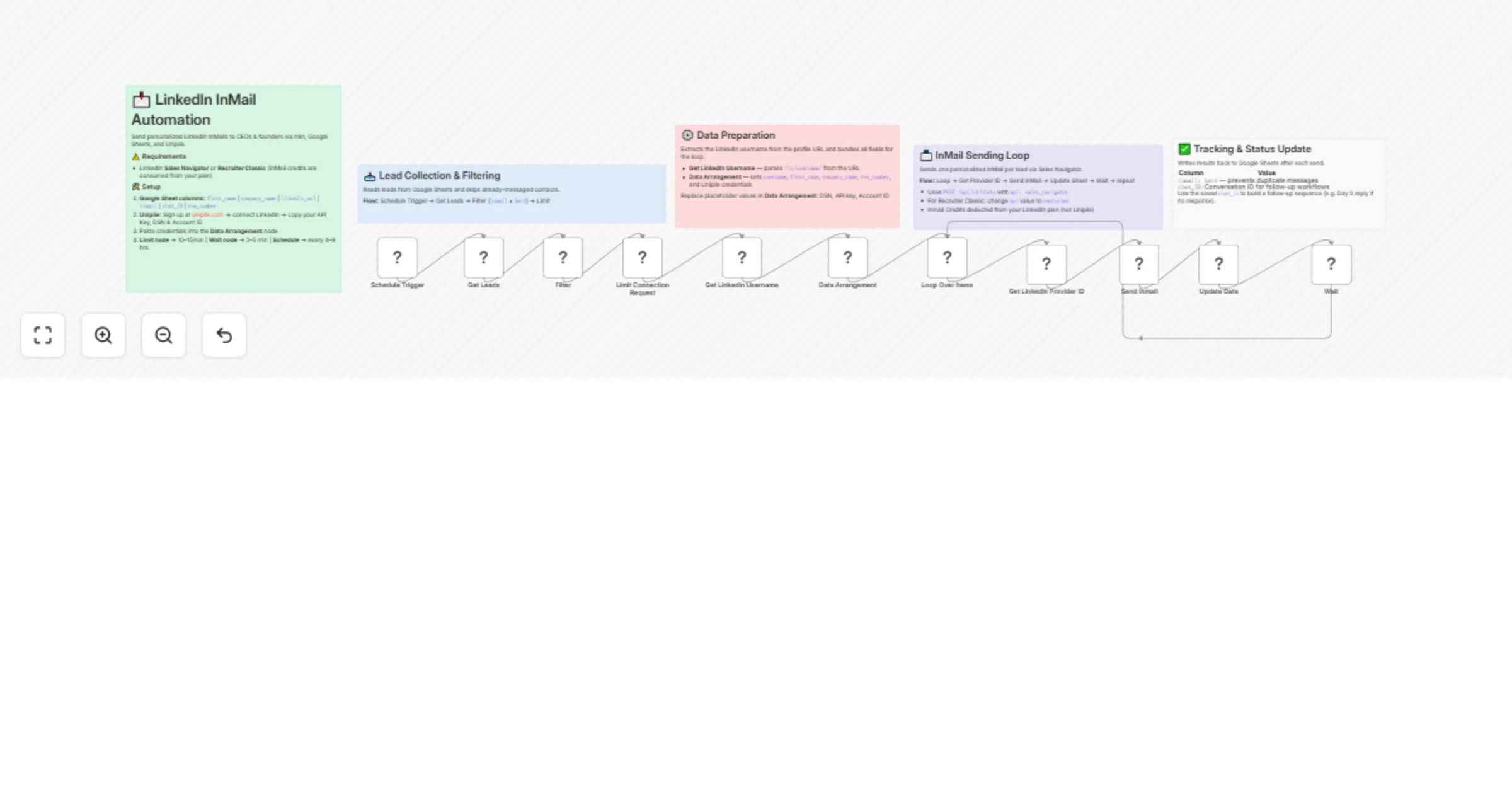
  • Schedule Trigger runs the workflow automatically at your chosen frequency
  • All leads are fetched from your Google Sheet and filtered to only those where the inmail column does not equal Sent
  • A configurable Limit node caps how many InMails go out per run to protect your monthly credit allowance
  • A Code node extracts the LinkedIn username from each profile URL
  • All required data — first name, company name, username, and Unipile credentials — is bundled in the Data Arrangement node
  • The Loop node processes leads one by one, sending each through the full InMail flow individually
  • Unipile API resolves the LinkedIn username to an internal Provider ID required for sending InMails
  • The InMail is sent via Unipile's /api/v1/chats endpoint using the sales_navigator API parameter, with the subject line and message body personalized automatically with the lead's first name and company name
  • The sheet is immediately updated with Sent status and the unique chat_id of the opened conversation
  • A Wait node pauses between each InMail to mimic human behavior and avoid LinkedIn restrictions
  • The loop continues until all leads in the current batch are processed

Set up steps

Step 1: Prepare Your Google Sheet

Create a sheet with these exact columns:

first_name | last_name | linkedin_url | company_name | inmail | chat_ID | row_number

  • Leave inmail and chat_ID empty — the workflow fills these automatically after each InMail is sent
  • Make sure company_name is filled for every lead — it is used in both the subject line and the message body

Step 2: Get Your Unipile Credentials

  • Sign up at unipile.com — a 7-day free trial is available with no credit card required
  • Connect your LinkedIn Sales Navigator or LinkedIn Recruiter Classic account from the Unipile dashboard
  • Copy your API Key, DSN, and LinkedIn Account ID
  • Open the Data Arrangement node and replace the three placeholder values with your credentials

Step 3: Set Your LinkedIn Plan in the Send InMail Node

  • Open the Send InMail node
  • The api field is set to sales_navigator by default
  • If you are using LinkedIn Recruiter Classic, change the api value to recruiter
  • Do not change this field if you are on any Sales Navigator plan

Step 4: Connect Google Sheets

  • In n8n, go to Credentials → New Credential → Google Sheets OAuth2
  • Authenticate with the Google account that owns your leads sheet
  • Update the Get Leads and Update Data nodes to point to your sheet

Step 5: Set Your Safety Limits

  • Open the Limit Connection Request node — set max items per run (recommended: 10–15)
  • Open the Wait node — set your delay between each InMail (recommended: 3–5 minutes)
  • Open the Schedule Trigger — set your run frequency (recommended: every 4–8 hours)

Requirements

  • LinkedIn Sales Navigator (Core, Advanced, or Advanced Plus) or LinkedIn Recruiter Classic — required to send InMails via the API
  • Unipile account with your LinkedIn account connected — starts at €49/$55/month for up to 10 accounts, 7-day free trial available
  • Google Sheet with lead data in the required column format
  • n8n instance (cloud or self-hosted)

Customising this workflow

  • Build a follow-up message workflow using the stored chat_id to send a reply into the same conversation thread if there is no response after a set number of days
  • Add an AI node to auto-generate unique personalized InMail messages per lead based on their job title, industry, or company size
  • Replace the Schedule Trigger with a webhook to fire outreach instantly when a new lead is added to your CRM
  • Add a Slack or email notification node to receive a daily summary of InMails sent
  • Add error handling nodes to catch failed API calls and flag those leads in a separate sheet tab for manual review
  • Combine this workflow with the LinkedIn Connection Request workflow to build a full outreach sequence — connection request first, InMail after acceptance

For assistance and support: [email protected] Linkedin: https://www.linkedin.com/in/salman-mehboob-pro/

1.2 Logical Blocks

This catalog entry is organized from the workflow JSON. The node-level section below shows the executable blocks available for review before importing the template.

2. Block-by-Block Analysis

Block 1 - Wait

Type / Role
n8n-nodes-base.wait - wait
Config choices
Version 1.1

Block 2 - Get Linkedin Provider ID

Type / Role
n8n-nodes-base.httpRequest - httpRequest
Config choices
Version 4.2

Block 3 - Limit Connection Request

Type / Role
n8n-nodes-base.limit - limit
Config choices
Version 1

Block 4 - Data Arrangement

Type / Role
n8n-nodes-base.set - set
Config choices
Version 3.4

Block 5 - Get Linkedin Username

Type / Role
n8n-nodes-base.code - code
Config choices
Version 2

Block 6 - Filter

Type / Role
n8n-nodes-base.filter - filter
Config choices
Version 2.3

Block 7 - Get Leads

Type / Role
n8n-nodes-base.googleSheets - googleSheets
Config choices
Version 4.7

Block 8 - Schedule Trigger

Type / Role
n8n-nodes-base.scheduleTrigger - scheduleTrigger
Config choices
Version 1.3

Block 9 - Loop Over Items

Type / Role
n8n-nodes-base.splitInBatches - splitInBatches
Config choices
Version 3

Block 10 - Send Inmail

Type / Role
n8n-nodes-base.httpRequest - httpRequest
Config choices
Version 4.2

Block 11 - Update Data

Type / Role
n8n-nodes-base.googleSheets - googleSheets
Config choices
Version 4.7

Block 12 - 📖 Setup Instructions

Type / Role
n8n-nodes-base.stickyNote - stickyNote
Config choices
Version 1

Block 13 - 📥 Lead Collection & Filtering

Type / Role
n8n-nodes-base.stickyNote - stickyNote
Config choices
Version 1

Block 14 - ⚙️ Data Preparation

Type / Role
n8n-nodes-base.stickyNote - stickyNote
Config choices
Version 1

Block 15 - 📨 InMail Sending Loop

Type / Role
n8n-nodes-base.stickyNote - stickyNote
Config choices
Version 1

Block 16 - ✅ Tracking & Status Update

Type / Role
n8n-nodes-base.stickyNote - stickyNote
Config choices
Version 1

3. Summary Table

Workflow Send personalized LinkedIn InMails to CEOs and founders with Google Sheets and Unipile
Complexity advanced
Nodes 16
Categories Lead Nurturing
Author Salman Mehboob
Published 29 Mar 2026

4. Reproducing the Workflow from Scratch

  1. 1. Download the workflow JSON

    Use the JSON export at /data/workflows/14445/14445.json as the source template for this automation.

  2. 2. Import the template into n8n

    Open n8n, import the downloaded JSON, and review each node before activating the workflow.

  3. 3. Configure credentials and variables

    Replace placeholder credentials, API keys, webhook URLs, account IDs, and environment-specific values with your own settings.

  4. 4. Test with sample data

    Run the workflow manually or in a staging workspace, inspect node output, and confirm downstream systems receive the expected data.

  5. 5. Activate and monitor

    Enable the workflow only after testing, then monitor executions, errors, and rate limits during the first production runs.

5. General Notes & Resources

Review imported nodes carefully before activation. This catalog entry is intended to help you inspect the workflow structure, understand required services, and find related templates faster.

Node names, credentials, schedules, webhook paths, and external service limits may need adjustment for your workspace.

Frequently asked questions

What does Send personalized LinkedIn InMails to CEOs and founders with Google Sheets and Unipile do?

Send personalized LinkedIn InMails automatically to CEOs and founders using n8n, Google Sheets, and Unipile — with built in duplicate prevention, credit tracking, and full conversation ID logging. ...

What do I need before importing this workflow?

Review the workflow JSON, configure any required credentials in n8n, and test the automation in a safe workspace before using it in production.

Can I customize this workflow?

Yes. Use the block-by-block analysis and the downloadable JSON to inspect each node, then adjust credentials, prompts, schedules, filters, or destinations for your Lead Nurturing use case.