Send personalized connection requests to LinkedIn post commenters with ConnectSafely.ai

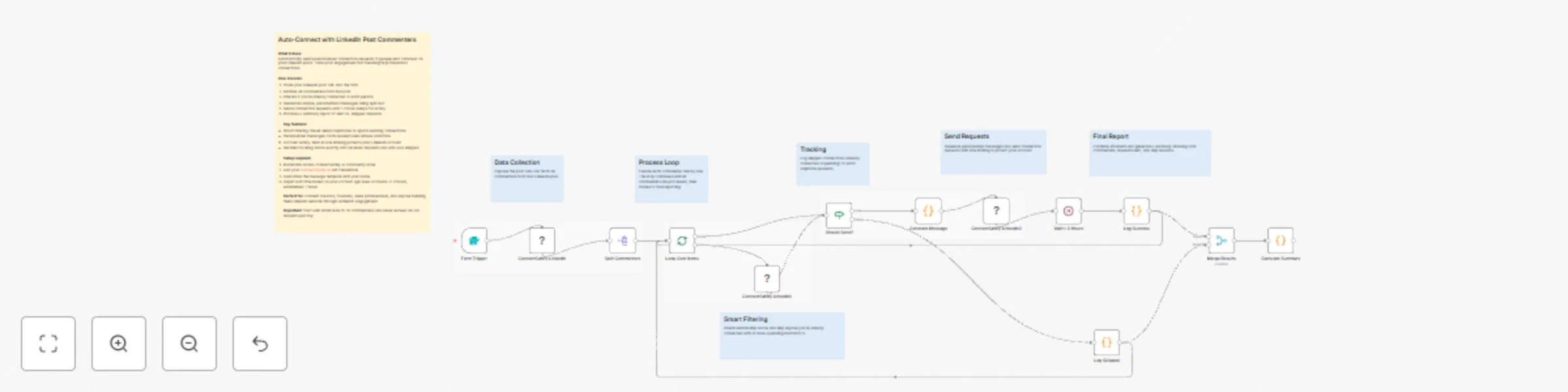
Workflow preview

Workflow preview
100%
Send personalized connection requests to LinkedIn post commenters with ConnectSafely.ai preview
Open on n8n.io

Important notice

This workflow is provided as-is. Please review and test before using in production.

1. Workflow Overview

Send Connection Requests to LinkedIn Post Commenters Automated Outreach with Personalized Messages using ConnectSafely.AI Who's it for This workflow is built for content creators, founders, sales p...

Best for

  • Lead Nurturing automation workflows
  • Multimodal AI automation workflows
  • advanced n8n builders looking for reusable templates

Tools used

n8n-nodes-base.formtrigger, n8n-nodes-base.splitout, n8n-nodes-base.splitinbatches, n8n-nodes-base.if, n8n-nodes-base.code, n8n-nodes-base.wait, n8n-nodes-base.merge, n8n-nodes-base.stickynote

Source and attribution

This workflow is cataloged by N8N Workflows and links back to its original n8n.io source page by ConnectSafely.

Original n8n.io source

1.1 Workflow description

Title
Send personalized connection requests to LinkedIn post commenters with ConnectSafely.ai
Workflow name
Send personalized connection requests to LinkedIn post commenters with ConnectSafely.ai

Send Connection Requests to LinkedIn Post Commenters - Automated Outreach with Personalized Messages using ConnectSafely.AI

Who's it for

This workflow is built for content creators, founders, sales professionals, and LinkedIn thought leaders who want to convert post engagement into real connections. Perfect for anyone who creates content that attracts comments but doesn't have time to manually connect with every person who engages.

If you're publishing LinkedIn content regularly and want to build your network with warm leads (people already interested in what you're saying), this automation handles the tedious work of sending personalized connection requests while you focus on creating more content.

How it works

The workflow automates the entire connection request process by combining intelligent filtering with personalized messaging through ConnectSafely.ai's API.

The process flow:

  1. Displays a web form where you paste your LinkedIn post URL
  2. Fetches all comments from the specified post via ConnectSafely.ai API
  3. Splits commenters into individual items for sequential processing
  4. Loops through each commenter one at a time
  5. Checks relationship status (already connected? pending request?)
  6. Filters out existing connections and pending invitations
  7. Generates unique personalized messages using spin text variations
  8. Sends connection request with the personalized message
  9. Waits 1-2 hours between requests for rate limiting
  10. Loops back to process the next commenter until complete

The smart filtering ensures you never send duplicate requests or spam existing connections.


Setup steps

Step 1: Install ConnectSafely.ai Community Node

Install the Package
  1. Go to SettingsCommunity Nodes in your n8n instance
  2. Search for n8n-nodes-connectsafely.ai
  3. Click Install
  4. IMPORTANT: Restart n8n completely after installation

Alternative (Command Line):

npm install n8n-nodes-connectsafely.ai

Documentation: https://connectsafely.ai/n8n-docs

Step 2: Configure ConnectSafely.ai API Credentials

Obtain API Key
  1. Log into ConnectSafely.ai Dashboard
  2. Navigate to SettingsAPI Keys
  3. Generate a new API key
  4. Copy your Account ID from the Accounts section
Add Credentials in n8n
  1. Go to Credentials in n8n
  2. Click Add CredentialConnectSafely API
  3. Paste your API key
  4. Save the credential

This credential is used by all ConnectSafely nodes in the workflow.

Step 3: Configure the Form Trigger

The workflow uses a Form Trigger to capture your LinkedIn post URL:

Field Configuration
Form Title 🔗 LinkedIn Post Engagement Automation
Form Description Enter your LinkedIn post URL below to automatically send personalized connection requests
Field Label LinkedIn Post URL
Placeholder https://www.linkedin.com/posts/your-post-url...
Required Yes

To get your form URL:

  1. Click Test Workflow button
  2. Copy the webhook URL that appears
  3. Open this URL in your browser to access the form

Step 4: Customize Your Connection Message

Edit the spin text template in the Generate Personalized Message code node:

const template = `{Thanks for|Really appreciate|Awesome to see|Loved seeing|Grateful for} {you|you taking a moment to|you recently} {liking|engaging with|reacting to|showing interest in|checking out} {my|our|the} {post|recent post|latest content piece|content|update} on {this topic|that topic|the subject}. 

{Would love to|Happy to|Let's definitely|Open to|Excited to} connect {and|so we can|to} {exchange ideas|share insights|continue the conversation|explore potential collaborations|stay connected professionally}. {Always enjoy connecting with|Always excited to meet|Love meeting|Great connecting with} {like-minded people|professionals in the space|people exploring similar topics|others in this domain}.

{Cheers|Best regards|Thanks again|Looking forward|Talk soon|Warm regards},
YourName
`;

Spin Text Syntax:

  • Use {option1|option2|option3} for random variations
  • Each request gets a unique combination
  • Keep total message under 300 characters (LinkedIn limit)

Step 5: Configure Rate Limiting

The Wait (Rate Limiting) node controls the delay between connection requests:

Setting Recommended Value Description
Wait Time 1-2 hours Time between each connection request
Unit Hours Keeps your account safe from spam detection

Pro Tip: Start with 2-hour delays for new accounts, reduce to 1 hour once your account is warmed up.

Step 6: Test the Workflow

  1. Click Test Workflow to get the form URL
  2. Open the form URL in your browser
  3. Paste a LinkedIn post URL with comments
  4. Submit the form
  5. Verify each step:
    • Comments are fetched correctly
    • Relationship check returns status
    • Messages generate with variations
    • Connection request sends successfully

First Run Tips:

  • Start with a post that has 5-10 comments
  • Test during off-hours
  • Monitor closely for any errors

Customization

Message Personalization

The workflow automatically includes the commenter's name in the greeting:

customMessage: "Hi {{ $('🔄 Loop Over Items').item.json.authorName }},\n\n{{ $json.generatedMessage }}"

Add more personalization by referencing the comment text:

// Access the actual comment they left
const theirComment = $('🔄 Loop Over Items').item.json.commentText;

Filter Logic

Edit the Should Send Request? IF node conditions:

Current Logic (Both must be TRUE):

  • connected = false (not already connected)
  • invitationSent = false (no pending request)

Additional Filters You Can Add:

  • Filter by connection degree (2nd vs 3rd degree)
  • Filter by profile completeness
  • Filter by follower count
// Example: Only connect with 2nd degree connections
$json.connectionDegree === "DISTANCE_2"

Rate Limiting Adjustments

Account Status Recommended Delay Daily Limit
New Account 2 hours 10-12 requests
Warmed Up (1-2 weeks) 1 hour 20-24 requests
Established (1+ month) 45 minutes 30-35 requests

Use Cases

  • Content Creator Growth: Convert every engaged follower into a connection automatically
  • Thought Leadership: Build relationships with people who resonate with your ideas
  • Sales Prospecting: Connect with warm leads who already showed interest in your content
  • Community Building: Expand your network with like-minded professionals
  • Event Promotion: Connect with commenters before launching webinars or courses
  • Recruiting: Reach candidates who engage with your company culture posts

Troubleshooting

Common Issues & Solutions

Issue: ConnectSafely node not appearing after install

  • Solution: Completely restart n8n (not just refresh). Kill the process and start again.

Issue: "Invalid Profile ID" error

  • Solution: The workflow uses publicIdentifier (username), not the full URL. Verify the mapping is correct.

Issue: Connection request fails with "already connected"

  • Solution: The relationship check should filter these out. Verify the IF node conditions are set correctly.

Issue: Messages appear identical

  • Solution: Check that the spin text syntax uses {option1|option2} format with the pipe character, not commas.

Issue: Workflow stops after first person

  • Solution: Ensure the Wait node connects back to the Loop node, and the Loop node has Reset: FALSE configured.

Issue: Form URL not appearing

  • Solution: You must click "Test Workflow" first to generate the webhook URL.

Issue: Rate limiting warnings from LinkedIn

  • Solution: Increase the wait time between requests. Start with 2-hour delays and ensure your account is warmed up.

Documentation & Resources

Official Documentation

Support Channels


Connect With Us

Stay updated with the latest automation tips, LinkedIn strategies, and platform updates:


Need Custom Workflows?

Looking to build sophisticated LinkedIn automation workflows tailored to your business needs?

Contact our team for custom automation development, strategy consulting, and enterprise solutions.

We specialize in:

  • Multi-channel engagement workflows
  • AI-powered personalization at scale
  • Lead scoring and qualification automation
  • CRM integration and data synchronization
  • Custom reporting and analytics pipelines

1.2 Logical Blocks

This catalog entry is organized from the workflow JSON. The node-level section below shows the executable blocks available for review before importing the template.

2. Block-by-Block Analysis

Block 1 - Form Trigger

Type / Role
n8n-nodes-base.formTrigger - formTrigger
Config choices
Version 2

Block 2 - Split Commenters

Type / Role
n8n-nodes-base.splitOut - splitOut
Config choices
Version 1

Block 3 - Loop Over Items

Type / Role
n8n-nodes-base.splitInBatches - splitInBatches
Config choices
Version 3

Block 4 - Should Send?

Type / Role
n8n-nodes-base.if - if
Config choices
Version 2

Block 5 - Generate Message

Type / Role
n8n-nodes-base.code - code
Config choices
Version 2

Block 6 - Wait 1-2 Hours

Type / Role
n8n-nodes-base.wait - wait
Config choices
Version 1.1

Block 7 - Log Success

Type / Role
n8n-nodes-base.code - code
Config choices
Version 2

Block 8 - Log Skipped

Type / Role
n8n-nodes-base.code - code
Config choices
Version 2

Block 9 - Merge Results

Type / Role
n8n-nodes-base.merge - merge
Config choices
Version 2.1

Block 10 - Generate Summary

Type / Role
n8n-nodes-base.code - code
Config choices
Version 2

Block 11 - Sticky Note

Type / Role
n8n-nodes-base.stickyNote - stickyNote
Config choices
Version 1

Block 12 - Sticky Note1

Type / Role
n8n-nodes-base.stickyNote - stickyNote
Config choices
Version 1

Block 13 - Sticky Note2

Type / Role
n8n-nodes-base.stickyNote - stickyNote
Config choices
Version 1

Block 14 - Sticky Note3

Type / Role
n8n-nodes-base.stickyNote - stickyNote
Config choices
Version 1

Block 15 - Sticky Note4

Type / Role
n8n-nodes-base.stickyNote - stickyNote
Config choices
Version 1

Block 16 - Sticky Note5

Type / Role
n8n-nodes-base.stickyNote - stickyNote
Config choices
Version 1

Block 17 - Sticky Note6

Type / Role
n8n-nodes-base.stickyNote - stickyNote
Config choices
Version 1

Block 18 - ConnectSafely LinkedIn

Type / Role
n8n-nodes-connectsafely-ai.connectSafelyLinkedIn - connectSafelyLinkedIn
Config choices
Version 1

Block 19 - ConnectSafely LinkedIn1

Type / Role
n8n-nodes-connectsafely-ai.connectSafelyLinkedIn - connectSafelyLinkedIn
Config choices
Version 1

Block 20 - ConnectSafely LinkedIn2

Type / Role
n8n-nodes-connectsafely-ai.connectSafelyLinkedIn - connectSafelyLinkedIn
Config choices
Version 1

Block 21 - Sticky Note7

Type / Role
n8n-nodes-base.stickyNote - stickyNote
Config choices
Version 1

Block 22 - Sticky Note8

Type / Role
n8n-nodes-base.stickyNote - stickyNote
Config choices
Version 1

Block 23 - Sticky Note9

Type / Role
n8n-nodes-base.stickyNote - stickyNote
Config choices
Version 1

3. Summary Table

Workflow Send personalized connection requests to LinkedIn post commenters with ConnectSafely.ai
Complexity advanced
Nodes 23
Categories Lead Nurturing, Multimodal AI
Author ConnectSafely
Published 05 Dec 2025

4. Reproducing the Workflow from Scratch

  1. 1. Download the workflow JSON

    Use the JSON export at /data/workflows/11530/11530.json as the source template for this automation.

  2. 2. Import the template into n8n

    Open n8n, import the downloaded JSON, and review each node before activating the workflow.

  3. 3. Configure credentials and variables

    Replace placeholder credentials, API keys, webhook URLs, account IDs, and environment-specific values with your own settings.

  4. 4. Test with sample data

    Run the workflow manually or in a staging workspace, inspect node output, and confirm downstream systems receive the expected data.

  5. 5. Activate and monitor

    Enable the workflow only after testing, then monitor executions, errors, and rate limits during the first production runs.

5. General Notes & Resources

Review imported nodes carefully before activation. This catalog entry is intended to help you inspect the workflow structure, understand required services, and find related templates faster.

Node names, credentials, schedules, webhook paths, and external service limits may need adjustment for your workspace.

Frequently asked questions

What does Send personalized connection requests to LinkedIn post commenters with ConnectSafely.ai do?

Send Connection Requests to LinkedIn Post Commenters Automated Outreach with Personalized Messages using ConnectSafely.AI Who's it for This workflow is built for content creators, founders, sales p...

What do I need before importing this workflow?

Review the workflow JSON, configure any required credentials in n8n, and test the automation in a safe workspace before using it in production.

Can I customize this workflow?

Yes. Use the block-by-block analysis and the downloadable JSON to inspect each node, then adjust credentials, prompts, schedules, filters, or destinations for your Lead Nurturing, Multimodal AI use case.