Block 1 - Sticky Note1
- Type / Role
- n8n-nodes-base.stickyNote - stickyNote
- Config choices
- Version 1


 Early Deal
This workflow is provided as-is. Please review and test before using in production.
Description This workflow sends a personalized email when a task in a Google Sheet is marked as Urgent, but only once per task. It prevents duplicate notifications by updating the sheet after the e...
n8n-nodes-base.stickynote, n8n-nodes-base.googlesheetstrigger, n8n-nodes-base.googlesheets, n8n-nodes-base.if, n8n-nodes-base.gmail
This workflow is cataloged by N8N Workflows and links back to its original n8n.io source page by Yassin Zehar.
Original n8n.io sourceThis workflow sends a personalized email when a task in a Google Sheet is marked as Urgent, but only once per task.
It prevents duplicate notifications by updating the sheet after the email is sent. Ideal for collaborative task tracking where multiple people edit the same spreadsheet.
When working with shared task lists in Google Sheets, it’s easy to miss critical updates — or worse, trigger multiple alerts for the same task.
This workflow ensures that each "Urgent" task only sends one email notification, and then marks it as “Notified” to avoid duplicates.
Google Sheets account with edit access
Gmail account for sending notifications
Google Sheet with columns:
Priority
Notified
Task
Owner
Deadline
Status
Next Step
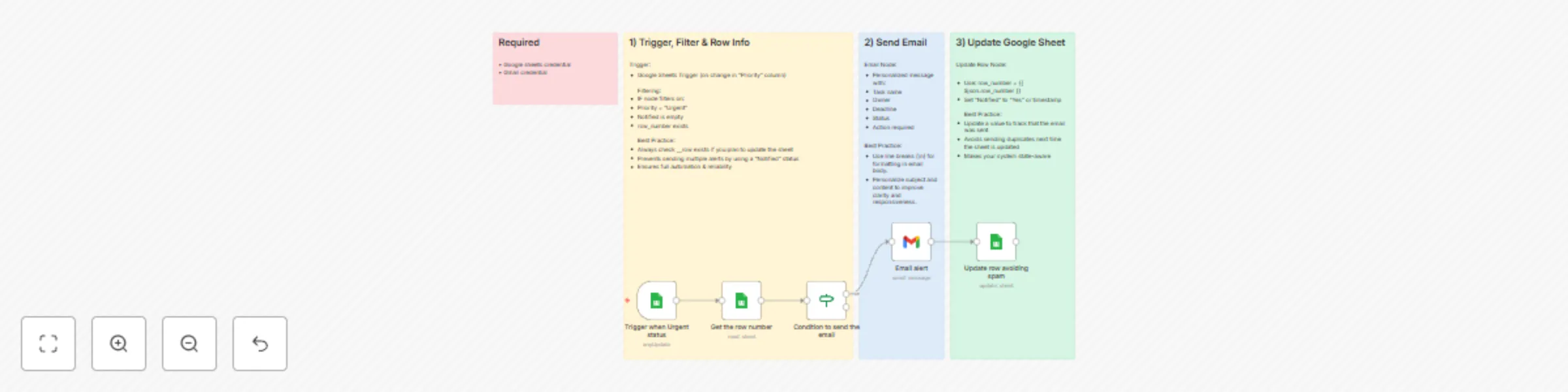
Trigger: Watches for changes in Google Sheets (e.g., edits to the "Priority" column)
IF Node – Checks that:
Priority = Urgent
Notified is empty
row exists (required for update)
Send Email: Sends a personalized message with task details
Update Row: Writes “Yes” in the Notified column to avoid duplicate alerts
To set up this workflow:
Connect your Google Sheets and Gmail credentials in n8n.
Copy the spreadsheet structure or use your own
Import the workflow, select your Sheet (and the column to check if you use a different Google Sheets template), and test by marking a task as “Urgent”.
Check that an email is sent and the “Notified” column updates to “Yes”.-
✅ One email per urgent task — prevents duplicates 📧 Dynamic email content with task info 🧠 Built-in anti-spam logic 📋 Simple to configure and reuse 💬 Customizable for any team’s needs
An email alert is sent only once per task marked as Urgent
The Notified field is updated in the Google Sheet
A clean and scalable alert system with no duplicates
Watch the Youtube Tutorial video
I’m Yassin a Project & Product Manager Scaling tech products with data-driven project management. 📬 Feel free to connect with me on Linkedin
This catalog entry is organized from the workflow JSON. The node-level section below shows the executable blocks available for review before importing the template.
| Workflow | Send one-time email alerts for urgent tasks with Google Sheets and Gmail |
|---|---|
| Complexity | intermediate |
| Nodes | 9 |
| Categories | Project Management |
| Author | Yassin Zehar |
| Published | 06 Oct 2025 |
Use the JSON export at /data/workflows/9324/9324.json as the source template for this automation.
Open n8n, import the downloaded JSON, and review each node before activating the workflow.
Replace placeholder credentials, API keys, webhook URLs, account IDs, and environment-specific values with your own settings.
Run the workflow manually or in a staging workspace, inspect node output, and confirm downstream systems receive the expected data.
Enable the workflow only after testing, then monitor executions, errors, and rate limits during the first production runs.
Review imported nodes carefully before activation. This catalog entry is intended to help you inspect the workflow structure, understand required services, and find related templates faster.
Node names, credentials, schedules, webhook paths, and external service limits may need adjustment for your workspace.
Description This workflow sends a personalized email when a task in a Google Sheet is marked as Urgent, but only once per task. It prevents duplicate notifications by updating the sheet after the e...
Review the workflow JSON, configure any required credentials in n8n, and test the automation in a safe workspace before using it in production.
Yes. Use the block-by-block analysis and the downloadable JSON to inspect each node, then adjust credentials, prompts, schedules, filters, or destinations for your Project Management use case.