Block 1 - Customer Bot Listener
- Type / Role
- n8n-nodes-base.telegramTrigger - telegramTrigger
- Config choices
- Version 1.1


 Early Deal
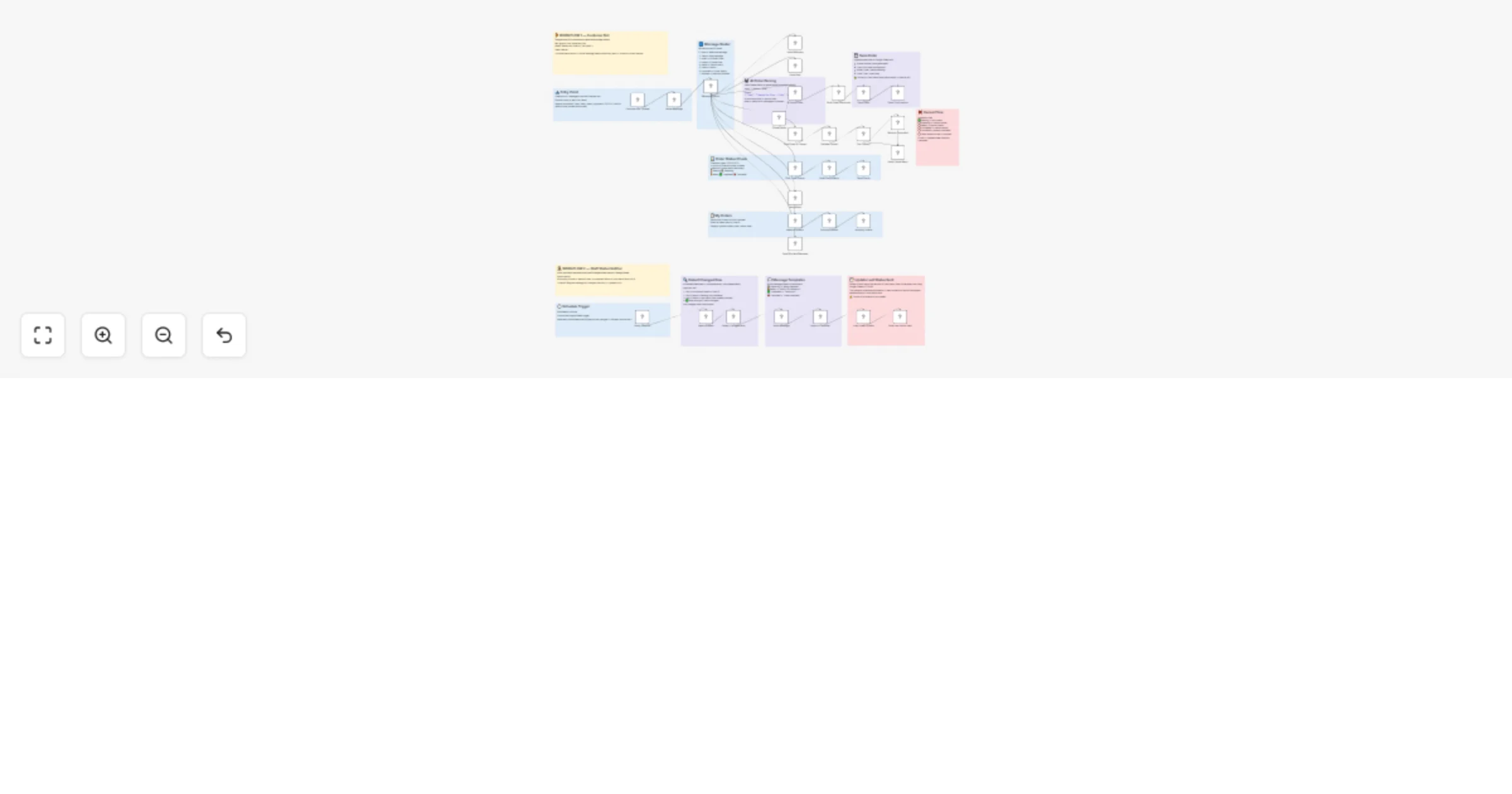
AI Powered Restaurant Order & Notification System A Complete n8n Workflow for Automated Ordering and Customer Updates This professional n8n workflow provides an end to end solution for small res...
n8n-nodes-base.telegramtrigger, n8n-nodes-base.code, n8n-nodes-base.switch, n8n-nodes-base.telegram, @n8n/n8n-nodes-langchain.agent, @n8n/n8n-nodes-langchain.lmchatanthropic, n8n-nodes-base.googlesheets, n8n-nodes-base.if
This workflow is cataloged by N8N Workflows and links back to its original n8n.io source page by Nirav Gajera.
Original n8n.io sourceThis professional n8n workflow provides an end-to-end solution for small restaurants. It includes a Telegram Customer Bot for placing orders and an Automated Notification System that updates customers via Google Sheets.
This system eliminates the need for manual order taking and status updates. It features:
| Command | Description |
|---|---|
/start |
Welcome message and instructions |
/menu |
View today's food and drink offerings |
/help |
See all available commands |
STATUS [Queue #] |
Check the live status of an order |
CANCEL [Queue #] |
Cancel an order (only if Pending) |
/myorders |
View your last 5 orders |
Your spreadsheet acts as your Admin Dashboard. Ensure Row 1 has these exact headers in order:
| Column | Header Name | Description |
|---|---|---|
| A | Queue Number |
Auto-generated by the bot (e.g., #4582) |
| B | Chat ID |
Customer's Telegram ID — captured automatically |
| C | Name |
Customer's first name |
| D | Order |
Items ordered — parsed and cleaned by AI |
| E | Status |
Dropdown: Pending, Preparing, Ready, Completed, Cancelled |
| F | Order Time |
Timestamp of when the order was placed |
| G | Order Date |
Date of the order |
| H | Last Status Sent |
Internal: Tracks last notification sent to prevent duplicates |
> ⚠️ Important: Set up a Data Validation dropdown on column E with the values: Pending, Preparing, Ready, Completed, Cancelled. This is how staff update order status.
> ⚠️ Important: In the Read All Rows node, go to Options → Output Row Number and ensure it is enabled. The workflow uses row_number to write back to the correct cell.
You need 3 credentials set up in n8n before activating:
| Credential Type | Where Used | Notes |
|---|---|---|
| Anthropic API | Claude Haiku node | Required for AI order parsing |
| Google Sheets OAuth2 API | All Google Sheets nodes | Connect your Google account |
| Telegram Bot API | All Telegram nodes | Use your bot token from @BotFather |
Steps:
Read All Rows node optionsLast Status Sent) with the current Status for all existing rows to prevent old rows from firing notifications on first runCustomer texts bot
↓
Route Message — detects command type
↓
┌─────────────────────────────────────┐
│ /start → Welcome message │
│ /help → Help guide │
│ /menu → Today's menu │
│ /myorders → Last 5 orders │
│ STATUS → Live order status │
│ CANCEL → Cancel if Pending only │
│ [order] → AI parses → saves │
└─────────────────────────────────────┘
↓
Order saved to Google Sheet (Status = Pending)
Customer receives queue number + wait time
Every 1 minute — Schedule Trigger fires
 ↓
Read ALL rows from Google Sheet
 ↓
For EACH row independently (runOnceForEachItem):
 - Skip if no Queue Number or Chat ID
 - Skip if Status = Pending
 - Skip if Status = Last Status Sent (already notified)
 - ✅ Send notification if Status changed
 ↓
Send Telegram message to that customer only
 ↓
Write new Status into column H (Last Status Sent)
→ Prevents duplicate notification next minute
| Staff sets Status to | Customer receives |
|---|---|
Preparing |
👨🍳 "Your order is being Prepared! We'll notify you when it's ready." |
Ready |
🍕 "Your order is READY for collection! Please collect from the counter." |
Completed |
✅ "Order marked as Completed. Thank you for dining with us!" |
Cancelled |
❌ "Your order has been Cancelled. We apologise for the inconvenience." |
Customers can only cancel orders in Pending status. All other states are protected:
| Current Status | Customer tries CANCEL | Response |
|---|---|---|
| Pending | CANCEL 1234 |
✅ Cancelled successfully |
| Preparing | CANCEL 1234 |
⚠️ Cannot cancel — being prepared |
| Ready | CANCEL 1234 |
⚠️ Already ready — please collect |
| Completed | CANCEL 1234 |
⚠️ Already completed |
| Cancelled | CANCEL 1234 |
⚠️ Already cancelled |
| Someone else's order | CANCEL 1234 |
❌ You can only cancel your own orders |
| Credential | Provider | Free Tier |
|---|---|---|
| Anthropic API | anthropic.com | Paid — ~$5 minimum deposit |
| Google Sheets OAuth2 API | Google Cloud Console | Free |
| Google Sheets Trigger OAuth2 API | Google Cloud Console | Free |
| Telegram Bot API | @BotFather on Telegram | Free forever |
Run these in order to verify the full system:
/start → Should receive welcome message/menu → Should see the menu with prices2 pizza + 1 coke → Should get queue numberSTATUS [queue] → Should show ⏳ PendingPreparing → Within 1 min, customer gets 👨🍳 messageReady → Customer gets 🍕 messageSTATUS [queue] → Should now show 🍕 ReadyCANCEL [queue] → Should say "already ready, please collect"Completed → Customer gets ✅ message/myorders → Should show order history with final statusLast Status Sent column must exist in your sheet. Without it, every row will fire a notification on every pollrestaurant_WITH_STICKIES.json — Complete workflow (W1 + W2) with sticky notes
restaurant_workflow_docs.md — This documentation file
Built with n8n • Claude Haiku AI • Google Sheets • Telegram Bot API
This catalog entry is organized from the workflow JSON. The node-level section below shows the executable blocks available for review before importing the template.
Showing the first 24 of 43 workflow blocks. Download the JSON for the full node graph.
| Workflow | Send AI-parsed restaurant orders and status updates via Telegram and Google Sheets |
|---|---|
| Complexity | advanced |
| Nodes | 43 |
| Categories | Support Chatbot, AI Chatbot |
| Author | Nirav Gajera |
| Published | 18 Mar 2026 |
Use the JSON export at /data/workflows/14136/14136.json as the source template for this automation.
Open n8n, import the downloaded JSON, and review each node before activating the workflow.
Replace placeholder credentials, API keys, webhook URLs, account IDs, and environment-specific values with your own settings.
Run the workflow manually or in a staging workspace, inspect node output, and confirm downstream systems receive the expected data.
Enable the workflow only after testing, then monitor executions, errors, and rate limits during the first production runs.
Review imported nodes carefully before activation. This catalog entry is intended to help you inspect the workflow structure, understand required services, and find related templates faster.
Node names, credentials, schedules, webhook paths, and external service limits may need adjustment for your workspace.
AI Powered Restaurant Order & Notification System A Complete n8n Workflow for Automated Ordering and Customer Updates This professional n8n workflow provides an end to end solution for small res...
Review the workflow JSON, configure any required credentials in n8n, and test the automation in a safe workspace before using it in production.
Yes. Use the block-by-block analysis and the downloadable JSON to inspect each node, then adjust credentials, prompts, schedules, filters, or destinations for your Support Chatbot, AI Chatbot use case.