Scrape Google Maps leads and find emails with Apify and Anymailfinder

Workflow preview

Workflow preview
100%
Scrape Google Maps leads and find emails with Apify and Anymailfinder preview
Open on n8n.io

Important notice

This workflow is provided as-is. Please review and test before using in production.

1. Workflow Overview

Scrape Google Maps leads and find emails with Apify and Anymailfinder Short Description This workflow automates lead generation by scraping business data from Google Maps using [Apify](https://www....

Best for

  • Lead Generation automation workflows
  • advanced n8n builders looking for reusable templates

Tools used

n8n-nodes-base.formtrigger, n8n-nodes-base.httprequest, n8n-nodes-base.set, n8n-nodes-base.code, n8n-nodes-base.merge, n8n-nodes-base.if, n8n-nodes-base.splitinbatches, n8n-nodes-base.nocodb

Source and attribution

This workflow is cataloged by N8N Workflows and links back to its original n8n.io source page by Alexandra Spalato.

Original n8n.io source

1.1 Workflow description

Title
Scrape Google Maps leads and find emails with Apify and Anymailfinder
Workflow name
Scrape Google Maps leads and find emails with Apify and Anymailfinder

Scrape Google Maps leads and find emails with Apify and Anymailfinder

Short Description

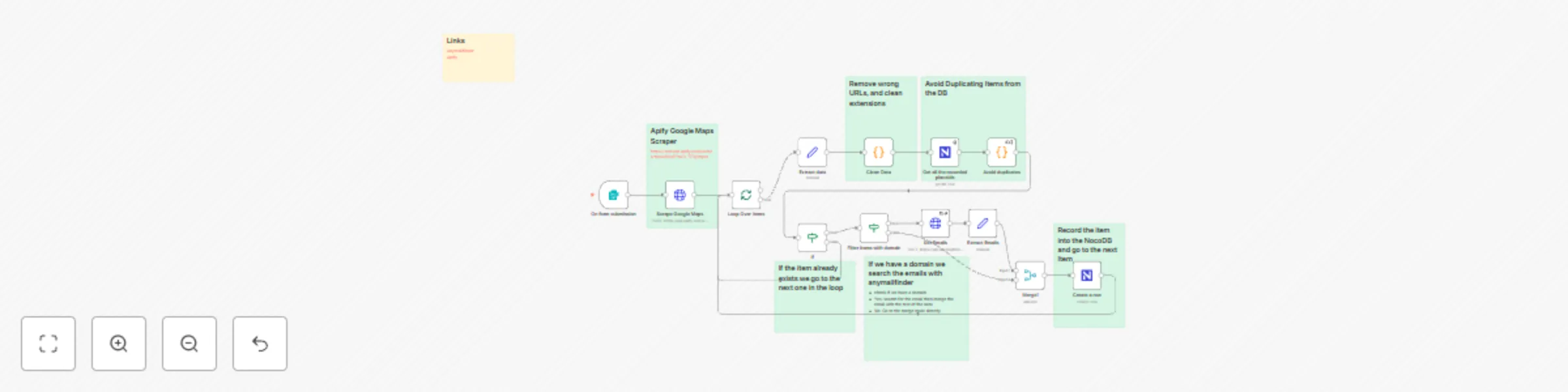
This workflow automates lead generation by scraping business data from Google Maps using Apify, enriching it with verified email addresses via Anymailfinder, and storing the results in a NocoDB database. It's designed to prevent duplicates by checking against existing records before saving new leads.


Key Features

  • Automated Scraping: Kicks off a Google Maps search based on your query, city, and country.
  • Email Enrichment: For businesses with a website, it automatically finds professional email addresses.
  • Data Cleaning: Cleans website URLs to extract the root domain, ignoring social media links.
  • Duplicate Prevention: Checks against existing entries in NocoDB using the Google placeId to avoid adding the same lead twice.
  • Structured Storage: Saves enriched lead data into a structured NocoDB database.
  • Batch Processing: Efficiently handles and loops through all scraped results.

Who This Workflow Is For

  • Sales Teams looking for a source of local business leads.
  • Marketing Agencies building outreach campaigns for local clients.
  • Business Developers prospecting for new partnerships.
  • Freelancers seeking clients in specific geographical areas.

How It Works

  1. Trigger: The workflow starts when you submit the initial form with a business type (e.g., "plumber"), a city, a country code, and the number of results you want.
  2. Scrape Google Maps: It sends the query to Apify to scrape Google Maps for matching businesses.
  3. Process Leads: The workflow loops through each result one by one.
  4. Clean Data: It extracts the main website domain from the URL provided by Google Maps.
  5. Check for Duplicates: It queries your NocoDB database to see if the business (placeId) has already been saved. If so, it skips to the next lead.
  6. Find Emails: If a valid website domain exists, it uses Anymailfinder to find associated email addresses.
  7. Store Lead: The final data, including the business name, address, phone, website, and any found emails, is saved as a new row in your NocoDB table.

Setup Requirements

Required Credentials

  • Apify API Key: To use the Google Maps scraping actor.
  • Anymailfinder API Key: For email lookup.
  • NocoDB API Token: To connect to your database for storing and checking leads.

Database Structure

You need to create a table in your NocoDB instance with the following columns. The names should match exactly.

Table: leads (or your preferred name)

  • title (SingleLineText)
  • website (Url)
  • phone (PhoneNumber)
  • email (Email)
  • email_validation (SingleLineText)
  • address (LongText)
  • neighborhood (SingleLineText)
  • rating (Number)
  • categories (LongText)
  • city (SingleLineText)
  • country (SingleLineText)
  • postal code (SingleLineText)
  • domain (Url)
  • placeId (SingleLineText) - Important for duplicate checking
  • date (Date)

Customization Options

  • Change Trigger: Replace the manual Form Trigger with a Schedule Trigger to run searches automatically or an HTTP Request node to start it from another application.
  • Modify Scraper Parameters: In the "Scrape Google Maps" node, you can adjust the Apify actor's JSON input to change language, include reviews, or customize other advanced settings.
  • Use a Different Database: Replace the NocoDB nodes with nodes for Google Sheets, Baserow, Airtable, or any SQL database to store your leads.

Installation Instructions

  1. Import the workflow into your n8n instance.
  2. Create the required table structure in your NocoDB instance as detailed above.
  3. Configure the credentials for Apify, Anymailfinder, and NocoDB in the respective nodes.
  4. In the two NocoDB nodes ("Get all the recorded placeIds" and "Create a row"), select your project and table from the dropdown menus.
  5. Activate the workflow. You can now run it by filling out the form in the n8n UI.

1.2 Logical Blocks

This catalog entry is organized from the workflow JSON. The node-level section below shows the executable blocks available for review before importing the template.

2. Block-by-Block Analysis

Block 1 - On form submission

Type / Role
n8n-nodes-base.formTrigger - formTrigger
Config choices
Version 2.3

Block 2 - Scrape Google Maps

Type / Role
n8n-nodes-base.httpRequest - httpRequest
Config choices
Version 4.2

Block 3 - Get Emails

Type / Role
n8n-nodes-base.httpRequest - httpRequest
Config choices
Version 4.2

Block 4 - Extract data

Type / Role
n8n-nodes-base.set - set
Config choices
Version 3.4

Block 5 - Extract Emails

Type / Role
n8n-nodes-base.set - set
Config choices
Version 3.4

Block 6 - Clean Data

Type / Role
n8n-nodes-base.code - code
Config choices
Version 2

Block 7 - Avoid duplicates

Type / Role
n8n-nodes-base.code - code
Config choices
Version 2

Block 8 - Merge1

Type / Role
n8n-nodes-base.merge - merge
Config choices
Version 3.2

Block 9 - Filter items with domain

Type / Role
n8n-nodes-base.if - if
Config choices
Version 2.2

Block 10 - Loop Over Items

Type / Role
n8n-nodes-base.splitInBatches - splitInBatches
Config choices
Version 3

Block 11 - Get all the recorded placeIds

Type / Role
n8n-nodes-base.nocoDb - nocoDb
Config choices
Version 3

Block 12 - If

Type / Role
n8n-nodes-base.if - if
Config choices
Version 2.2

Block 13 - Sticky Note

Type / Role
n8n-nodes-base.stickyNote - stickyNote
Config choices
Version 1

Block 14 - Sticky Note1

Type / Role
n8n-nodes-base.stickyNote - stickyNote
Config choices
Version 1

Block 15 - Sticky Note2

Type / Role
n8n-nodes-base.stickyNote - stickyNote
Config choices
Version 1

Block 16 - Sticky Note3

Type / Role
n8n-nodes-base.stickyNote - stickyNote
Config choices
Version 1

Block 17 - Sticky Note4

Type / Role
n8n-nodes-base.stickyNote - stickyNote
Config choices
Version 1

Block 18 - Sticky Note5

Type / Role
n8n-nodes-base.stickyNote - stickyNote
Config choices
Version 1

Block 19 - Create a row

Type / Role
n8n-nodes-base.nocoDb - nocoDb
Config choices
Version 3

Block 20 - Sticky Note6

Type / Role
n8n-nodes-base.stickyNote - stickyNote
Config choices
Version 1

3. Summary Table

Workflow Scrape Google Maps leads and find emails with Apify and Anymailfinder
Complexity advanced
Nodes 20
Categories Lead Generation
Author Alexandra Spalato
Published 11 Sept 2025

4. Reproducing the Workflow from Scratch

  1. 1. Download the workflow JSON

    Use the JSON export at /data/workflows/8472/8472.json as the source template for this automation.

  2. 2. Import the template into n8n

    Open n8n, import the downloaded JSON, and review each node before activating the workflow.

  3. 3. Configure credentials and variables

    Replace placeholder credentials, API keys, webhook URLs, account IDs, and environment-specific values with your own settings.

  4. 4. Test with sample data

    Run the workflow manually or in a staging workspace, inspect node output, and confirm downstream systems receive the expected data.

  5. 5. Activate and monitor

    Enable the workflow only after testing, then monitor executions, errors, and rate limits during the first production runs.

5. General Notes & Resources

Review imported nodes carefully before activation. This catalog entry is intended to help you inspect the workflow structure, understand required services, and find related templates faster.

Node names, credentials, schedules, webhook paths, and external service limits may need adjustment for your workspace.

Frequently asked questions

What does Scrape Google Maps leads and find emails with Apify and Anymailfinder do?

Scrape Google Maps leads and find emails with Apify and Anymailfinder Short Description This workflow automates lead generation by scraping business data from Google Maps using [Apify](https://www....

What do I need before importing this workflow?

Review the workflow JSON, configure any required credentials in n8n, and test the automation in a safe workspace before using it in production.

Can I customize this workflow?

Yes. Use the block-by-block analysis and the downloadable JSON to inspect each node, then adjust credentials, prompts, schedules, filters, or destinations for your Lead Generation use case.