Scrape Google Maps business leads with Apify & GPT-4 email extraction

Workflow preview

Workflow preview
100%
Scrape Google Maps business leads with Apify & GPT-4 email extraction preview
Open on n8n.io

Important notice

This workflow is provided as-is. Please review and test before using in production.

1. Workflow Overview

Automate Scrape Google Maps Business Leads (Email, Phone, Website) using Apify AI Powered Business Prospecting Workflow (Google M...

Best for

  • Lead Generation automation workflows
  • AI Summarization automation workflows
  • advanced n8n builders looking for reusable templates

Tools used

@apify/n8n-nodes-apify.apify, n8n-nodes-base.removeduplicates, n8n-nodes-base.splitinbatches, n8n-nodes-base.googlesheets, n8n-nodes-base.wait, n8n-nodes-base.telegramtrigger, n8n-nodes-base.code, n8n-nodes-base.telegram

Source and attribution

This workflow is cataloged by N8N Workflows and links back to its original n8n.io source page by Dr. Firas.

Original n8n.io source

1.1 Workflow description

Title
Scrape Google Maps business leads with Apify & GPT-4 email extraction
Workflow name
Scrape Google Maps business leads with Apify & GPT-4 email extraction

đź’Ą Automate Scrape Google Maps Business Leads (Email, Phone, Website) using Apify

đź§  AI-Powered Business Prospecting Workflow (Google Maps + Email Enrichment)

Who is this for?

This workflow is designed for entrepreneurs, sales teams, marketers, and agencies who want to automate lead discovery and build qualified business contact lists — without manual searching or copying data.
It’s perfect for anyone seeking an AI-driven prospecting assistant that saves time, centralizes business data, and stays fully compliant with GDPR.


What problem is this workflow solving?

Manually searching for potential clients, copying their details, and qualifying them takes hours — and often leads to messy spreadsheets.
This workflow automates the process by:

  • Gathering publicly available business information from Google Maps
  • Enriching that data with AI-powered summaries and contact insights
  • Compiling it into a clean, ready-to-use Google Sheet database

This means you can focus on closing deals, not collecting data.


What this workflow does

This automation identifies, analyzes, and organizes business opportunities in just a few steps:

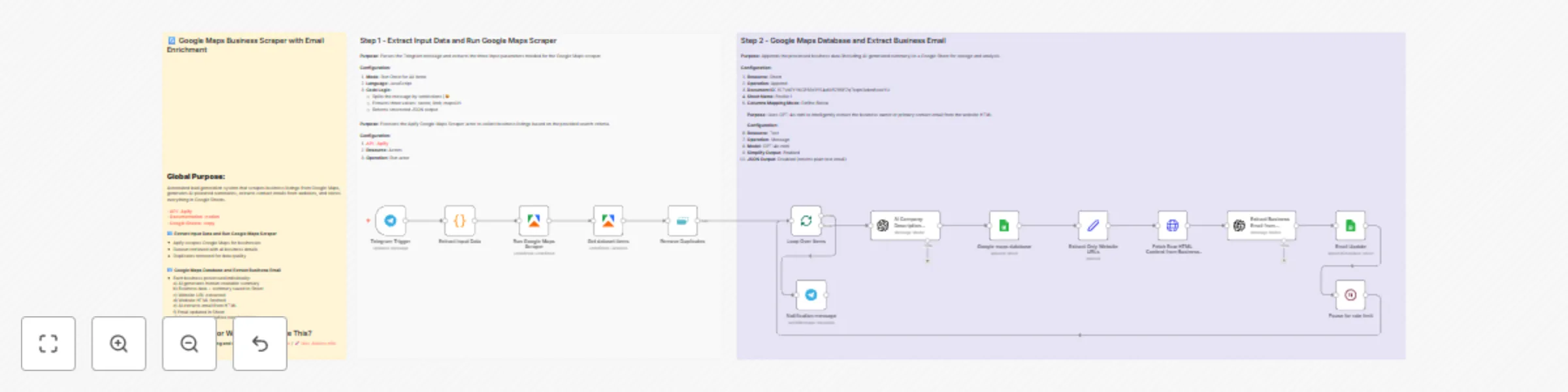
  1. Telegram Trigger → Send a message specifying your business type, number of leads, and Google Maps URL.
  2. Apify Integration → Fetches business information from Google Maps (public data).
  3. Duplicate Removal → Ensures clean, non-redundant results.
  4. AI Summarization (GPT-4) → Generates concise business summaries for better understanding.
  5. Email Extraction (GPT-4) → Finds and extracts professional contact emails from company websites.
  6. Google Sheets Integration → Automatically stores results (name, category, location, phone, email, etc.) in a structured sheet.
  7. Telegram Notification → Confirms when all businesses are processed.

All data is handled ethically and transparently — only from public sources and without any unsolicited contact.


Setup

  1. Telegram Setup

    • Create a Telegram bot via BotFather
    • Copy the API token and paste it into the Telegram Trigger node credentials.
  2. Apify Setup

    • Create an account on Apify
    • Get your API token and connect it to the “Run Google Maps Scraper” node.
  3. Google Sheets Setup

    • Connect your Google account under the “Google Maps Database” node.
    • Specify the target spreadsheet and worksheet name.
  4. OpenAI Setup

    • Add your OpenAI API key to the AI nodes (“Company Summary Info” and “Extract Business Email”).
  5. Test

    • Send a Telegram message like:
      restaurants, 5, https://www.google.com/maps/search/restaurants+in+Paris

How to customize this workflow to your needs

  • Change search region or business type by modifying the Telegram input message format.
  • Adjust the number of leads via the maxCrawledPlacesPerSearch parameter in Apify.
  • Add filters or enrichments (e.g., websites with social links, review counts, or opening hours).
  • Customize AI summaries by tweaking the prompt inside the “Company Summary Info” node.
  • Integrate CRM tools like HubSpot or Pipedrive by adding a connector after the Google Sheets node.

⚙️ Expected Outcome

âś… A clean, enriched, and ready-to-use Google Sheet of businesses with:

  • Name, category, address, and city
  • Phone number and website
  • AI-generated business summary
  • Extracted professional email (if available)

âś… Telegram confirmation once all businesses are processed

âś… Fully automated, scalable, and GDPR-compliant prospecting workflow


đź’ˇ This workflow provides a transparent, ethical way to streamline your B2B lead research while staying compliant with privacy and anti-spam regulations.

🎥 Watch This Tutorial


đź‘‹ Need help or want to customize this?

đź“© Contact: LinkedIn
📺 YouTube: @DRFIRASS
🚀 Workshops: Mes Ateliers n8n


đź“„ Documentation: Notion Guide

Need help customizing?

Contact me for consulting and support : Linkedin / Youtube / 🚀 Mes Ateliers n8n

1.2 Logical Blocks

This catalog entry is organized from the workflow JSON. The node-level section below shows the executable blocks available for review before importing the template.

2. Block-by-Block Analysis

Block 1 - Get dataset items

Type / Role
@apify/n8n-nodes-apify.apify - apify
Config choices
Version 1

Block 2 - Remove Duplicates

Type / Role
n8n-nodes-base.removeDuplicates - removeDuplicates
Config choices
Version 2

Block 3 - Run Google Maps Scraper

Type / Role
@apify/n8n-nodes-apify.apify - apify
Config choices
Version 1

Block 4 - Loop Over Items

Type / Role
n8n-nodes-base.splitInBatches - splitInBatches
Config choices
Version 3

Block 5 - Google maps database

Type / Role
n8n-nodes-base.googleSheets - googleSheets
Config choices
Version 4.7

Block 6 - Pause for rate limit

Type / Role
n8n-nodes-base.wait - wait
Config choices
Version 1.1

Block 7 - Telegram Trigger

Type / Role
n8n-nodes-base.telegramTrigger - telegramTrigger
Config choices
Version 1.2

Block 8 - Extract Input Data

Type / Role
n8n-nodes-base.code - code
Config choices
Version 2

Block 9 - Notification message

Type / Role
n8n-nodes-base.telegram - telegram
Config choices
Version 1.2

Block 10 - Extract Only Website URLs

Type / Role
n8n-nodes-base.set - set
Config choices
Version 3.4

Block 11 - Fetch Raw HTML Content from Business Website

Type / Role
n8n-nodes-base.httpRequest - httpRequest
Config choices
Version 4.2

Block 12 - Extract Business Email from Website HTML (GPT-4)

Type / Role
@n8n/n8n-nodes-langchain.openAi - openAi
Config choices
Version 1.8

Block 13 - Email Update

Type / Role
n8n-nodes-base.googleSheets - googleSheets
Config choices
Version 4.7

Block 14 - Step 2 - Extract Input Data Documentation

Type / Role
n8n-nodes-base.stickyNote - stickyNote
Config choices
Version 1

Block 15 - Sticky Note8

Type / Role
n8n-nodes-base.stickyNote - stickyNote
Config choices
Version 1

Block 16 - AI Company Description Generator

Type / Role
@n8n/n8n-nodes-langchain.openAi - openAi
Config choices
Version 1.8

Block 17 - Workflow Overview Documentation

Type / Role
n8n-nodes-base.stickyNote - stickyNote
Config choices
Version 1

3. Summary Table

Workflow Scrape Google Maps business leads with Apify & GPT-4 email extraction
Complexity advanced
Nodes 17
Categories Lead Generation, AI Summarization
Author Dr. Firas
Published 08 Nov 2025

4. Reproducing the Workflow from Scratch

  1. 1. Download the workflow JSON

    Use the JSON export at /data/workflows/10640/10640.json as the source template for this automation.

  2. 2. Import the template into n8n

    Open n8n, import the downloaded JSON, and review each node before activating the workflow.

  3. 3. Configure credentials and variables

    Replace placeholder credentials, API keys, webhook URLs, account IDs, and environment-specific values with your own settings.

  4. 4. Test with sample data

    Run the workflow manually or in a staging workspace, inspect node output, and confirm downstream systems receive the expected data.

  5. 5. Activate and monitor

    Enable the workflow only after testing, then monitor executions, errors, and rate limits during the first production runs.

5. General Notes & Resources

Review imported nodes carefully before activation. This catalog entry is intended to help you inspect the workflow structure, understand required services, and find related templates faster.

Node names, credentials, schedules, webhook paths, and external service limits may need adjustment for your workspace.

Frequently asked questions

What does Scrape Google Maps business leads with Apify & GPT-4 email extraction do?

Automate Scrape Google Maps Business Leads (Email, Phone, Website) using Apify AI Powered Business Prospecting Workflow (Google M...

What do I need before importing this workflow?

Review the workflow JSON, configure any required credentials in n8n, and test the automation in a safe workspace before using it in production.

Can I customize this workflow?

Yes. Use the block-by-block analysis and the downloadable JSON to inspect each node, then adjust credentials, prompts, schedules, filters, or destinations for your Lead Generation, AI Summarization use case.