Schedule and optimize Twitter and LinkedIn posts from Google Sheets with OpenAI GPT-4o-mini

Workflow preview

Workflow preview
100%
Schedule and optimize Twitter and LinkedIn posts from Google Sheets with OpenAI GPT-4o-mini preview
Open on n8n.io

Important notice

This workflow is provided as-is. Please review and test before using in production.

1. Workflow Overview

Schedule and optimize social media posts to Twitter and LinkedIn using AI This workflow automates the entire lifecycle of social media management—from fetching draft content to AI driven optimizati...

Best for

  • Social Media automation workflows
  • Multimodal AI automation workflows
  • advanced n8n builders looking for reusable templates

Tools used

n8n-nodes-base.stickynote, n8n-nodes-base.scheduletrigger, n8n-nodes-base.webhook, n8n-nodes-base.merge, n8n-nodes-base.googlesheets, n8n-nodes-base.code, n8n-nodes-base.if, @n8n/n8n-nodes-langchain.lmchatopenai

Source and attribution

This workflow is cataloged by N8N Workflows and links back to its original n8n.io source page by yu-ya.

Original n8n.io source

1.1 Workflow description

Title
Schedule and optimize Twitter and LinkedIn posts from Google Sheets with OpenAI GPT-4o-mini
Workflow name
Schedule and optimize Twitter and LinkedIn posts from Google Sheets with OpenAI GPT-4o-mini

Schedule and optimize social media posts to Twitter and LinkedIn using AI

This workflow automates the entire lifecycle of social media management—from fetching draft content to AI-driven optimization and multi-platform publishing.

Who’s it for

Social media managers, marketing teams, and content creators who use Google Sheets to plan their content but want to leverage AI for better engagement and automate the repetitive task of cross-platform posting.

How it works

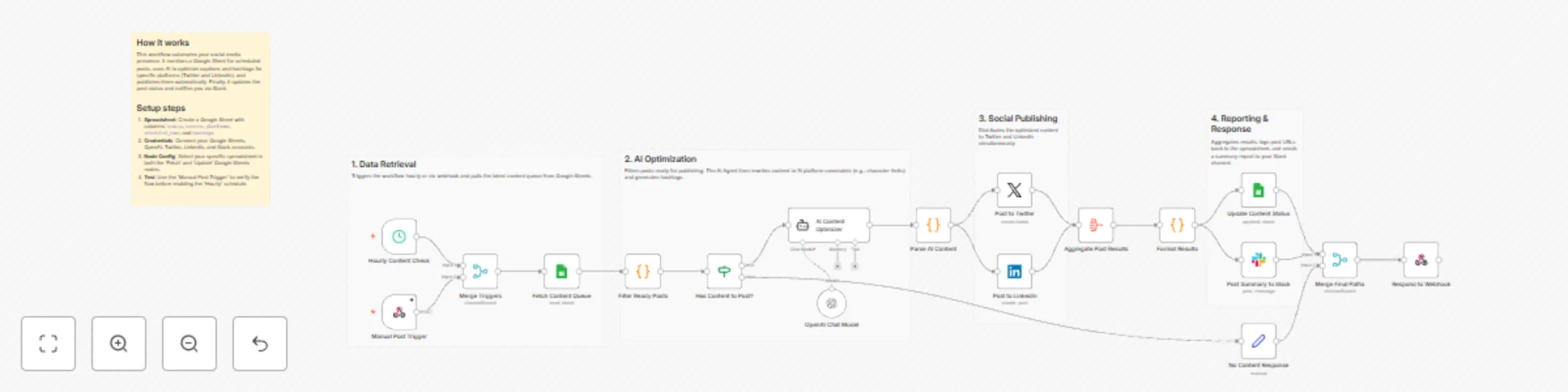
The workflow is triggered either hourly or manually via a webhook. It fetches scheduled content from a designated Google Sheet and identifies posts ready for publication.

An AI Agent (OpenAI) then analyzes the raw content to generate two optimized versions: a punchy, character-limited post for Twitter and a more professional, detailed version for LinkedIn. After generating relevant hashtags and engagement tips, the workflow publishes the posts simultaneously. Finally, it logs the live URLs back to your spreadsheet and sends a performance summary to a Slack channel for easy tracking.

How to set up

  1. Google Sheet: Create a sheet with columns for status, content, platforms, scheduled_time, hashtags, and tone.
  2. Credentials: Connect your Google Sheets, OpenAI, Twitter (X), LinkedIn, and Slack accounts.
  3. Node Configuration: Select your specific spreadsheet and worksheet in both the "Fetch Content" and "Update Content" nodes.
  4. Slack: Specify the channel name or ID in the Slack node to receive notifications.
  5. Activation: Test with the Manual Webhook, then toggle the workflow to "Active."

Requirements

  • Google Sheets OAuth2
  • OpenAI API Key (using GPT-4o-mini or higher)
  • Twitter (X) OAuth2
  • LinkedIn OAuth2
  • Slack Bot Token

How to customize the workflow

  • AI Tone: Modify the "System Message" in the AI Content Optimizer node to match your brand's unique voice.
  • Additional Platforms: Extend the branching logic after the AI Parse node to include platforms like Discord, Facebook, or Mastodon.
  • Advanced Scheduling: Adjust the Filter node's JavaScript code if you use a different date format or status labels in your spreadsheet.

1.2 Logical Blocks

This catalog entry is organized from the workflow JSON. The node-level section below shows the executable blocks available for review before importing the template.

2. Block-by-Block Analysis

Block 1 - Main Overview

Type / Role
n8n-nodes-base.stickyNote - stickyNote
Config choices
Version 1

Block 2 - Section Sticky 1

Type / Role
n8n-nodes-base.stickyNote - stickyNote
Config choices
Version 1

Block 3 - Section Sticky 2

Type / Role
n8n-nodes-base.stickyNote - stickyNote
Config choices
Version 1

Block 4 - Section Sticky 3

Type / Role
n8n-nodes-base.stickyNote - stickyNote
Config choices
Version 1

Block 5 - Section Sticky 4

Type / Role
n8n-nodes-base.stickyNote - stickyNote
Config choices
Version 1

Block 6 - Hourly Content Check

Type / Role
n8n-nodes-base.scheduleTrigger - scheduleTrigger
Config choices
Version 1.2

Block 7 - Manual Post Trigger

Type / Role
n8n-nodes-base.webhook - webhook
Config choices
Version 2

Block 8 - Merge Triggers

Type / Role
n8n-nodes-base.merge - merge
Config choices
Version 3

Block 9 - Fetch Content Queue

Type / Role
n8n-nodes-base.googleSheets - googleSheets
Config choices
Version 4.5

Block 10 - Filter Ready Posts

Type / Role
n8n-nodes-base.code - code
Config choices
Version 2

Block 11 - Has Content to Post?

Type / Role
n8n-nodes-base.if - if
Config choices
Version 2

Block 12 - OpenAI Chat Model

Type / Role
@n8n/n8n-nodes-langchain.lmChatOpenAi - lmChatOpenAi
Config choices
Version 1.2

Block 13 - AI Content Optimizer

Type / Role
@n8n/n8n-nodes-langchain.agent - agent
Config choices
Version 1.7

Block 14 - Parse AI Content

Type / Role
n8n-nodes-base.code - code
Config choices
Version 2

Block 15 - Post to Twitter

Type / Role
n8n-nodes-base.twitter - twitter
Config choices
Version 2

Block 16 - Post to LinkedIn

Type / Role
n8n-nodes-base.linkedIn - linkedIn
Config choices
Version 1

Block 17 - Aggregate Post Results

Type / Role
n8n-nodes-base.aggregate - aggregate
Config choices
Version 1

Block 18 - Format Results

Type / Role
n8n-nodes-base.code - code
Config choices
Version 2

Block 19 - Update Content Status

Type / Role
n8n-nodes-base.googleSheets - googleSheets
Config choices
Version 4.5

Block 20 - Post Summary to Slack

Type / Role
n8n-nodes-base.slack - slack
Config choices
Version 2.2

Block 21 - No Content Response

Type / Role
n8n-nodes-base.set - set
Config choices
Version 3.4

Block 22 - Merge Final Paths

Type / Role
n8n-nodes-base.merge - merge
Config choices
Version 3

Block 23 - Respond to Webhook

Type / Role
n8n-nodes-base.respondToWebhook - respondToWebhook
Config choices
Version 1.1

3. Summary Table

Workflow Schedule and optimize Twitter and LinkedIn posts from Google Sheets with OpenAI GPT-4o-mini
Complexity advanced
Nodes 23
Categories Social Media, Multimodal AI
Author yu-ya
Published 19 Dec 2025

4. Reproducing the Workflow from Scratch

  1. 1. Download the workflow JSON

    Use the JSON export at /data/workflows/11969/11969.json as the source template for this automation.

  2. 2. Import the template into n8n

    Open n8n, import the downloaded JSON, and review each node before activating the workflow.

  3. 3. Configure credentials and variables

    Replace placeholder credentials, API keys, webhook URLs, account IDs, and environment-specific values with your own settings.

  4. 4. Test with sample data

    Run the workflow manually or in a staging workspace, inspect node output, and confirm downstream systems receive the expected data.

  5. 5. Activate and monitor

    Enable the workflow only after testing, then monitor executions, errors, and rate limits during the first production runs.

5. General Notes & Resources

Review imported nodes carefully before activation. This catalog entry is intended to help you inspect the workflow structure, understand required services, and find related templates faster.

Node names, credentials, schedules, webhook paths, and external service limits may need adjustment for your workspace.

Frequently asked questions

What does Schedule and optimize Twitter and LinkedIn posts from Google Sheets with OpenAI GPT-4o-mini do?

Schedule and optimize social media posts to Twitter and LinkedIn using AI This workflow automates the entire lifecycle of social media management—from fetching draft content to AI driven optimizati...

What do I need before importing this workflow?

Review the workflow JSON, configure any required credentials in n8n, and test the automation in a safe workspace before using it in production.

Can I customize this workflow?

Yes. Use the block-by-block analysis and the downloadable JSON to inspect each node, then adjust credentials, prompts, schedules, filters, or destinations for your Social Media, Multimodal AI use case.