Block 1 - When clicking "Test workflow"
- Type / Role
- n8n-nodes-base.manualTrigger - manualTrigger
- Config choices
- Version 1


 Early Deal
This workflow is provided as-is. Please review and test before using in production.
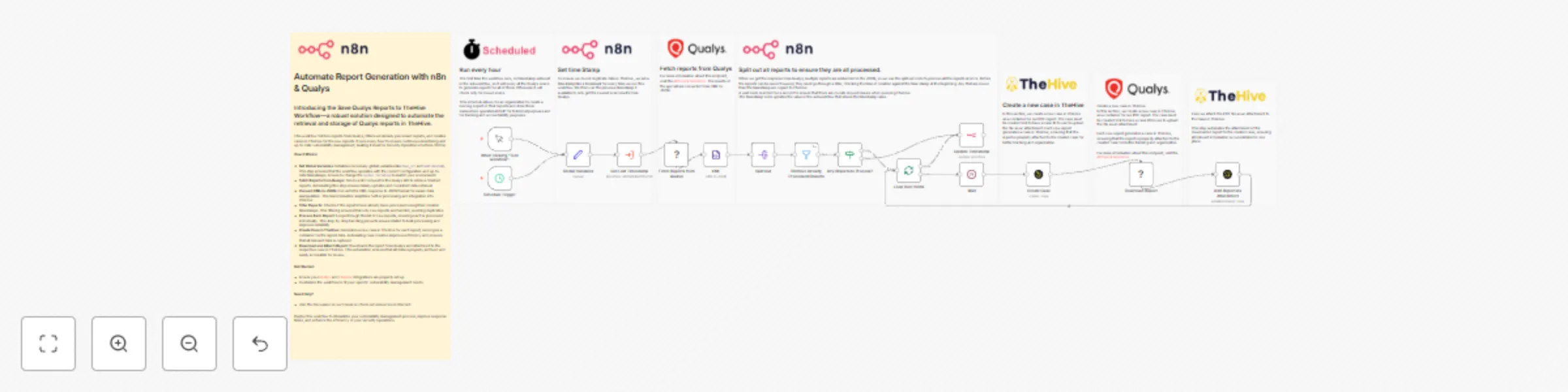
Automate Report Generation with n8n & Qualys Introducing the Save Qualys Reports to TheHive Workflow—a robust solution designed to automate the retr...
n8n-nodes-base.manualtrigger, n8n-nodes-base.set, n8n-nodes-base.httprequest, n8n-nodes-base.filter, n8n-nodes-base.if, n8n-nodes-base.splitinbatches, n8n-nodes-base.wait, n8n-nodes-base.n8n
This workflow is cataloged by N8N Workflows and links back to its original n8n.io source page by Angel Menendez.
Original n8n.io sourceThis workflow fetches reports from Qualys, filters out already processed reports, and creates cases in TheHive for the new reports. It runs every hour to ensure continuous monitoring and up-to-date vulnerability management, making it ideal for Security Operations Centers (SOCs).
How It Works:
Set Global Variables: Initializes necessary global variables like base_url and newtimestamp. This step ensures that the workflow operates with the correct configuration and up-to-date timestamps. Ensure to change the Global Variables to match your environment.
Fetch Reports from Qualys: Sends a GET request to the Qualys API to retrieve finished reports. Automating this step ensures timely updates and consistent data retrieval.
Convert XML to JSON: Converts the XML response to JSON format for easier data manipulation. This transformation simplifies further processing and integration into TheHive.
Filter Reports: Checks if the reports have already been processed using their creation timestamps. This filtering ensures that only new reports are handled, avoiding duplicates.
Process Each Report: Loops through the list of new reports, ensuring each is processed individually. This step-by-step handling prevents issues related to bulk processing and improves reliability.
Create Case in TheHive: Generates a new case in TheHive for each report, serving as a container for the report data. Automating case creation improves efficiency and ensures that all relevant data is captured.
Download and Attach Report: Downloads the report from Qualys and attaches it to the respective case in TheHive. This automation ensures that all data is properly archived and easily accessible for review.
Get Started:
Need Help?
Deploy this workflow to streamline your vulnerability management process, improve response times, and enhance the efficiency of your security operations.
This catalog entry is organized from the workflow JSON. The node-level section below shows the executable blocks available for review before importing the template.
| Workflow | Save Qualys reports to TheHive |
|---|---|
| Complexity | advanced |
| Nodes | 23 |
| Categories | SecOps |
| Author | Angel Menendez |
| Published | 05 Nov 2024 |
Use the JSON export at /data/workflows/2531/2531.json as the source template for this automation.
Open n8n, import the downloaded JSON, and review each node before activating the workflow.
Replace placeholder credentials, API keys, webhook URLs, account IDs, and environment-specific values with your own settings.
Run the workflow manually or in a staging workspace, inspect node output, and confirm downstream systems receive the expected data.
Enable the workflow only after testing, then monitor executions, errors, and rate limits during the first production runs.
Review imported nodes carefully before activation. This catalog entry is intended to help you inspect the workflow structure, understand required services, and find related templates faster.
Node names, credentials, schedules, webhook paths, and external service limits may need adjustment for your workspace.
Automate Report Generation with n8n & Qualys Introducing the Save Qualys Reports to TheHive Workflow—a robust solution designed to automate the retr...
Review the workflow JSON, configure any required credentials in n8n, and test the automation in a safe workspace before using it in production.
Yes. Use the block-by-block analysis and the downloadable JSON to inspect each node, then adjust credentials, prompts, schedules, filters, or destinations for your SecOps use case.