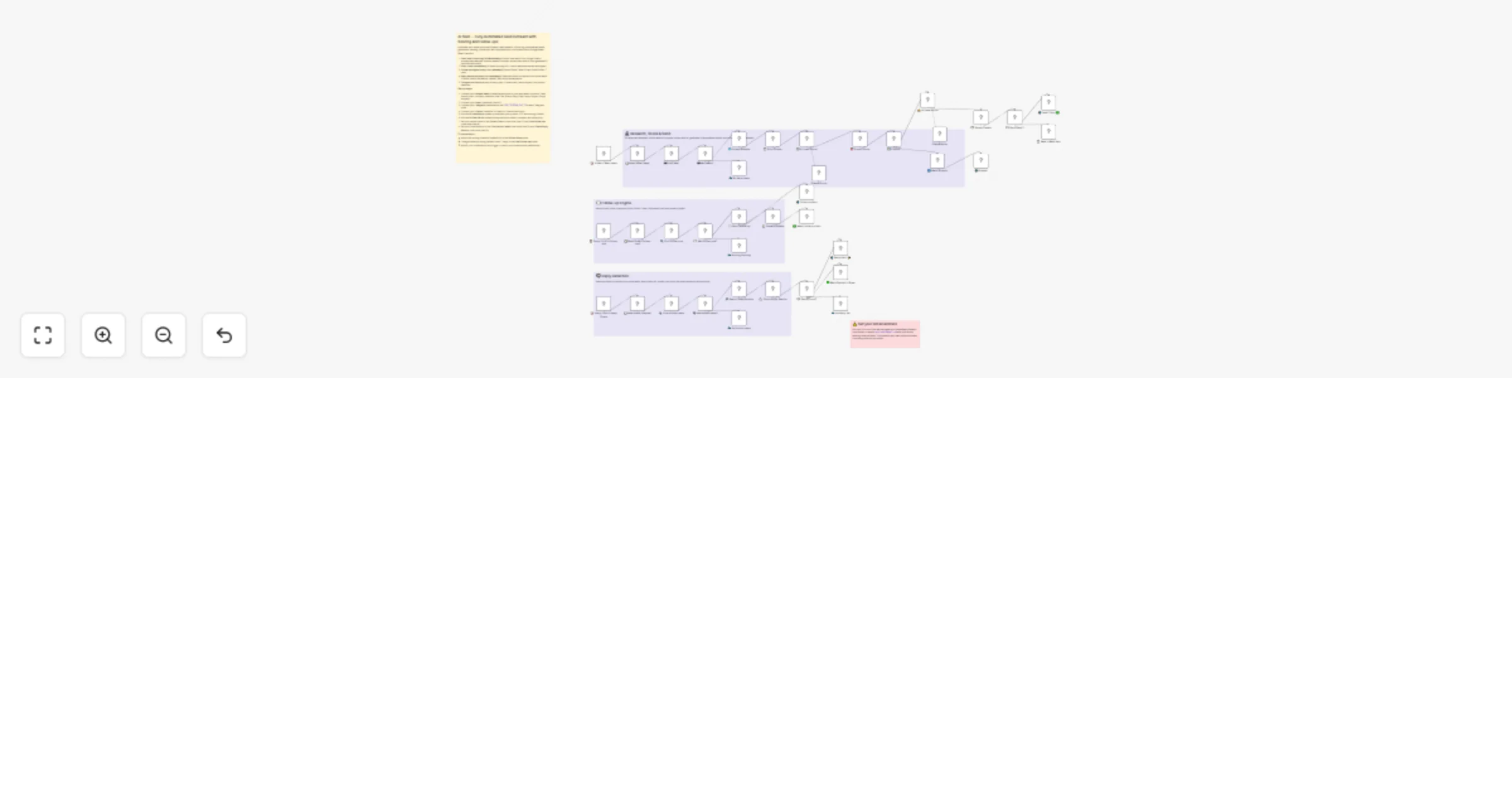
Run AI-scored cold email outreach and follow-ups with Ollama and Gmail

Workflow preview

Workflow preview
100%
Run AI-scored cold email outreach and follow-ups with Ollama and Gmail preview
Open on n8n.io

1. Workflow Overview

Who is this for? This workflow is built for founders, sales teams, solopreneurs, and agencies who want to automate outbound sales without expensive tools. Perfect for anyone doing cold email outrea...

Best for

  • Lead Nurturing automation workflows
  • AI Summarization automation workflows
  • advanced n8n builders looking for reusable templates

Tools used

n8n-nodes-base.stickynote, n8n-nodes-base.scheduletrigger, n8n-nodes-base.googlesheets, n8n-nodes-base.code, n8n-nodes-base.if, @n8n/n8n-nodes-langchain.agent, n8n-nodes-base.gmail, n8n-nodes-base.telegram

Source and attribution

This workflow is cataloged by N8N Workflows and links back to its original n8n.io source page by Tony Adijah.

Original n8n.io source

1.1 Workflow description

Title
Run AI-scored cold email outreach and follow-ups with Ollama and Gmail
Workflow name
Run AI-scored cold email outreach and follow-ups with Ollama and Gmail

Who is this for?

This workflow is built for founders, sales teams, solopreneurs, and agencies who want to automate outbound sales without expensive tools. Perfect for anyone doing cold email outreach who wants AI-powered personalization at scale.

What it does

The workflow runs three automated flows:

Flow 1 — New Lead Processing (8 AM weekdays):

  • Reads new leads from Google Sheets
  • Scrapes the lead's website to build a research dossier
  • AI scores each lead (0–100) on company fit, role fit, timing signals, and engagement potential
  • For leads scoring 40+, AI generates 3 personalized cold emails with different angles
  • Sends Email 1 immediately and saves all 3 emails to the sheet
  • Low-fit leads are marked as skipped

Flow 2 — Follow-up Engine (every 2 hours weekdays):

  • Checks for leads that need follow-ups
  • Sends Email 2 after 3 days, Email 3 after 7 days
  • Automatically marks sequence as complete after Email 3
  • Skips leads that have already replied

Flow 3 — Reply Detection (every 2 hours weekdays):

  • Searches Gmail for replies from active leads
  • Filters out your own sent emails to avoid false positives
  • When a reply is found, marks the lead as "replied" and stops the sequence
  • Sends a Telegram alert with the reply preview

Setup steps

  1. Google Sheets — Create a spreadsheet with columns: Lead Name, Email, Company, Website, Role/Title, Status, Reply Date, Reply Subject, Reply Snippet, and email tracking columns (see sticky notes in the workflow for full list)
  2. Gmail OAuth2 — Connect your Gmail account for sending emails and searching replies
  3. Ollama — Install locally and pull your preferred model (e.g., ollama pull mistral). You can also swap for OpenAI or Anthropic
  4. Telegram Bot — Create via @BotFather, get your bot token and chat ID
  5. AI Lead Scorer prompt — Edit the system prompt with your product, ICP, and scoring criteria
  6. AI Email Writer prompt — Edit with your name, company, value prop, and one specific result
  7. Sender name — Update the sender name in the Extract Emails code node (line 12) and Find Follow-ups code node (line 9)
  8. Gmail address — Set your sending Gmail address in the Filter Active Leads code node (line 10) and Check Reply Results code node (line 10)
  9. Test — Add a test lead with status "new", run the research flow manually, verify emails generate correctly, then enable all schedules

Requirements

  • Self-hosted n8n (uses Ollama nodes)
  • Ollama running locally with at least one model installed
  • Google Sheets OAuth2 credentials
  • Gmail OAuth2 credentials
  • Telegram Bot credentials

How to customize

  • Adjust the scoring threshold (default 40) in the Extract Score node to be more or less selective
  • Change follow-up timing (default 3 and 7 days) in the Find Follow-ups code node
  • Modify cron schedules on any trigger to match your timezone and preferences
  • Swap Ollama for OpenAI or Anthropic by replacing the LLM nodes
  • Add a LinkedIn enrichment step before the dossier builder for richer research
  • Customize email tone and sign-off in the AI Email Writer system prompt

1.2 Logical Blocks

This catalog entry is organized from the workflow JSON. The node-level section below shows the executable blocks available for review before importing the template.

2. Block-by-Block Analysis

Block 1 - Sticky Note

Type / Role
n8n-nodes-base.stickyNote - stickyNote
Config choices
Version 1

Block 2 - Sticky Note2

Type / Role
n8n-nodes-base.stickyNote - stickyNote
Config choices
Version 1

Block 3 - Sticky Note3

Type / Role
n8n-nodes-base.stickyNote - stickyNote
Config choices
Version 1

Block 4 - Sticky Note4

Type / Role
n8n-nodes-base.stickyNote - stickyNote
Config choices
Version 1

Block 5 - Sticky Note1

Type / Role
n8n-nodes-base.stickyNote - stickyNote
Config choices
Version 1

Block 6 - ⏰ 8 AM — New Leads

Type / Role
n8n-nodes-base.scheduleTrigger - scheduleTrigger
Config choices
Version 1.2

Block 7 - 📋 Read Sheet (New)

Type / Role
n8n-nodes-base.googleSheets - googleSheets
Config choices
Version 4.6

Block 8 - 🆕 Filter New

Type / Role
n8n-nodes-base.code - code
Config choices
Version 2

Block 9 - 🆕 Has Leads?

Type / Role
n8n-nodes-base.if - if
Config choices
Version 2.2

Block 10 - 🌐 Scrape Website

Type / Role
n8n-nodes-base.code - code
Config choices
Version 2

Block 11 - 📄 Build Dossier

Type / Role
n8n-nodes-base.code - code
Config choices
Version 2

Block 12 - 📊 AI Lead Scorer

Type / Role
@n8n/n8n-nodes-langchain.agent - agent
Config choices
Version 2.1

Block 13 - 🎯 Extract Score

Type / Role
n8n-nodes-base.code - code
Config choices
Version 2

Block 14 - 📊 Pursue?

Type / Role
n8n-nodes-base.if - if
Config choices
Version 2.2

Block 15 - ✍️ AI Email Writer

Type / Role
@n8n/n8n-nodes-langchain.agent - agent
Config choices
Version 2.1

Block 16 - 📝 Extract Emails

Type / Role
n8n-nodes-base.code - code
Config choices
Version 2

Block 17 - 📧 Send Email 1

Type / Role
n8n-nodes-base.gmail - gmail
Config choices
Version 2.1

Block 18 - 💾 Save + Mark Sent

Type / Role
n8n-nodes-base.googleSheets - googleSheets
Config choices
Version 4.6

Block 19 - 📲 Email 1 Sent ✅

Type / Role
n8n-nodes-base.telegram - telegram
Config choices
Version 1.2

Block 20 - ⏭️ Mark Skipped

Type / Role
n8n-nodes-base.googleSheets - googleSheets
Config choices
Version 4.6

Block 21 - 📲 Skipped

Type / Role
n8n-nodes-base.telegram - telegram
Config choices
Version 1.2

Block 22 - 💤 No New Leads

Type / Role
n8n-nodes-base.code - code
Config choices
Version 2

Block 23 - ⏰ Every 2hrs — Follow-ups

Type / Role
n8n-nodes-base.scheduleTrigger - scheduleTrigger
Config choices
Version 1.2

Block 24 - 📋 Read Sheet (Follow-ups)

Type / Role
n8n-nodes-base.googleSheets - googleSheets
Config choices
Version 4.6

Showing the first 24 of 44 workflow blocks. Download the JSON for the full node graph.

3. Summary Table

Workflow Run AI-scored cold email outreach and follow-ups with Ollama and Gmail
Complexity advanced
Nodes 44
Categories Lead Nurturing, AI Summarization
Author Tony Adijah
Published 17 Feb 2026

4. Reproducing the Workflow from Scratch

  1. 1. Download the workflow JSON

    Use the JSON export at /data/workflows/13466/13466.json as the source template for this automation.

  2. 2. Import the template into n8n

    Open n8n, import the downloaded JSON, and review each node before activating the workflow.

  3. 3. Configure credentials and variables

    Replace placeholder credentials, API keys, webhook URLs, account IDs, and environment-specific values with your own settings.

  4. 4. Test with sample data

    Run the workflow manually or in a staging workspace, inspect node output, and confirm downstream systems receive the expected data.

  5. 5. Activate and monitor

    Enable the workflow only after testing, then monitor executions, errors, and rate limits during the first production runs.

5. General Notes & Resources

Review imported nodes carefully before activation. This catalog entry is intended to help you inspect the workflow structure, understand required services, and find related templates faster.

Node names, credentials, schedules, webhook paths, and external service limits may need adjustment for your workspace.

Frequently asked questions

What does Run AI-scored cold email outreach and follow-ups with Ollama and Gmail do?

Who is this for? This workflow is built for founders, sales teams, solopreneurs, and agencies who want to automate outbound sales without expensive tools. Perfect for anyone doing cold email outrea...

What do I need before importing this workflow?

Review the workflow JSON, configure any required credentials in n8n, and test the automation in a safe workspace before using it in production.

Can I customize this workflow?

Yes. Use the block-by-block analysis and the downloadable JSON to inspect each node, then adjust credentials, prompts, schedules, filters, or destinations for your Lead Nurturing, AI Summarization use case.