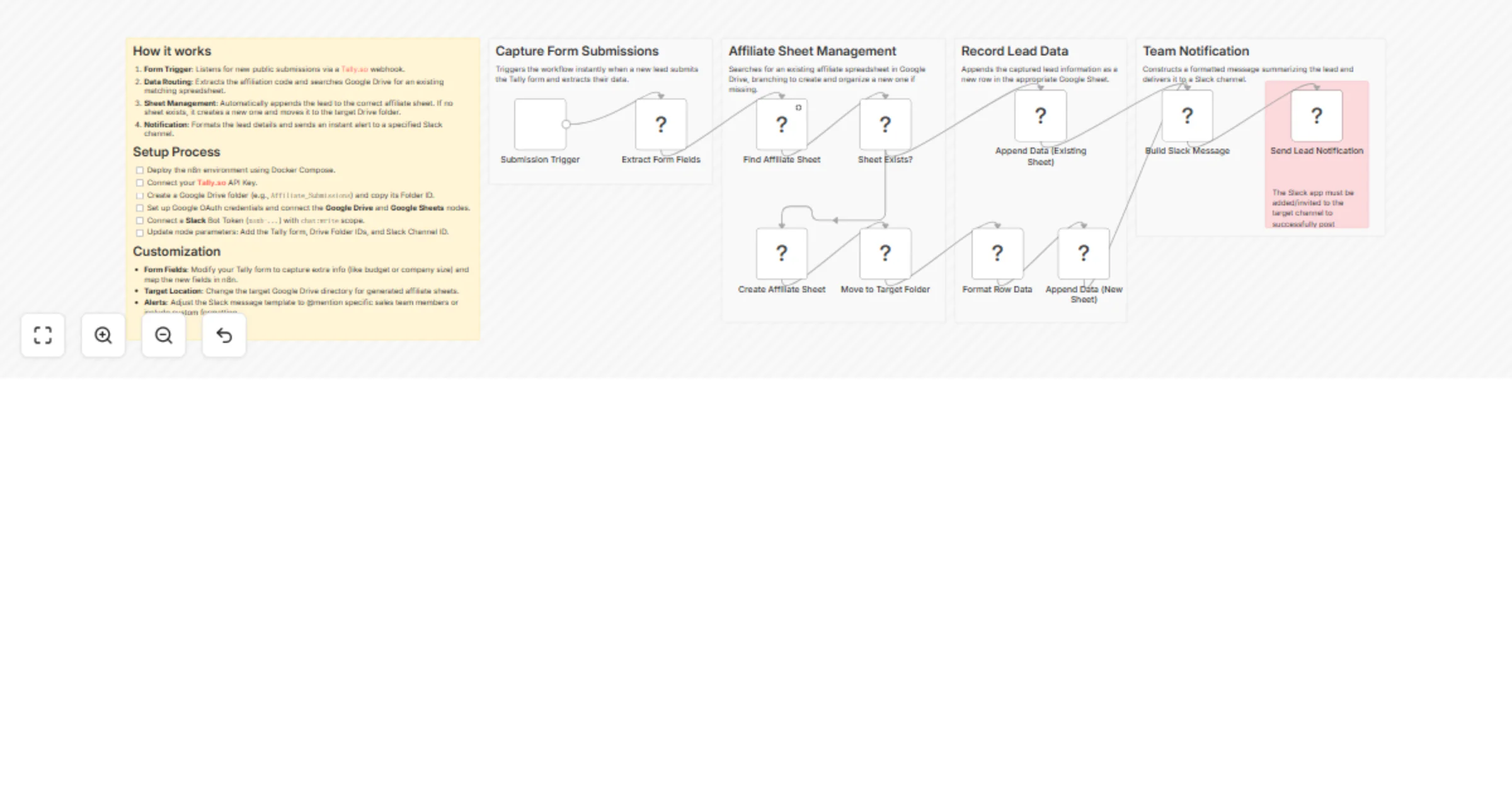
Route Tally affiliate leads to Google Sheets and notify teams in Slack

Workflow preview

Workflow preview
100%
Route Tally affiliate leads to Google Sheets and notify teams in Slack preview
Open on n8n.io

1. Workflow Overview

Who’s it for Affiliate managers , partner programs, and teams collecting leads via public forms who want automated, error free routing to separate spreadsheets per affiliate — no more manual copyin...

Best for

  • Lead Generation automation workflows
  • advanced n8n builders looking for reusable templates

Tools used

n8n-nodes-base.slack, n8n-nodes-tallyforms.tallytrigger, n8n-nodes-base.googlesheets, n8n-nodes-base.set, n8n-nodes-base.googledrive, n8n-nodes-base.if, n8n-nodes-base.code, n8n-nodes-base.stickynote

Source and attribution

This workflow is cataloged by N8N Workflows and links back to its original n8n.io source page by Neloy Barman.

Original n8n.io source

1.1 Workflow description

Title
Route Tally affiliate leads to Google Sheets and notify teams in Slack
Workflow name
Route Tally affiliate leads to Google Sheets and notify teams in Slack

Who’s it for

Affiliate managers, partner programs, and teams collecting leads via public forms who want automated, error-free routing to separate spreadsheets per affiliate — no more manual copying or sheet hunting.

What it does

This workflow captures new submissions from a Tally.so form, extracts the affiliate code, finds or creates the corresponding Google Sheet, appends the lead data, and sends a real-time Slack notification. New affiliates are handled automatically: if no sheet exists for the submitted code, the workflow creates one and places it in a designated Google Drive folder.

Key features

  • 📝 Real-time Tally form capture (Name, Email, Affiliation Code, Phone)
  • 🔍 Smart routing by affiliation code
  • 📊 Auto-creates new affiliate sheets when needed
  • 📁 Organized storage in a single Google Drive folder
  • 🔔 Instant Slack notifications with full lead details

🔄 How it works

  1. Tally submission → Webhook trigger
  2. Extract fields: Name, Email Address, Phone Number, Affiliation Code
  3. Add current Submission Date and Submission Time
  4. Search Google Drive for sheet matching the Affiliation Code
  • ✅ Found → Append row with all data
  • ❌ Not found → Create new sheet → Move to folder → Append row
  1. Send formatted Slack alert with full lead info

📋 Requirements

  • Tally.so form including Name, Email Address, Phone Number, and Affiliation Code fields
  • Google Drive folder for storing affiliate sheets
  • Google Sheets & Drive OAuth2 credentials (with Drive + Sheets APIs enabled)
  • Slack bot token with chat:write scope
  • Slack channel ID where notifications will be sent

⚙️ How to set up

  1. Import the workflow into n8n
  2. Create credentials:
  • Tally API
  • Google Sheets OAuth2
  • Google Drive OAuth2
  • Slack Bot
  1. Configure nodes:
  • Select your Tally form in the webhook
  • Set the parent Folder ID for affiliate sheets
  • Enter your Slack Channel ID
  1. Activate the workflow and start receiving leads!

🛠️ How to customize

  • Add extra fields: Capture additional data (e.g., UTM parameters, notes, referral source) by adding the fields to your Tally form, then map them in the webhook parsing and Google Sheets Append nodes.
  • Change notification channels: Replace the Slack node with Discord Webhook, Send Email, Microsoft Teams, or any other notification node to fit your team’s preferred platform.
  • Add validation & duplicate checks: Insert IF nodes or a Code node before the sheet append to validate data quality, reject incomplete entries, or check for duplicate emails/phone numbers.
  • Support multiple programs or priority routing: Extend the routing logic with Switch nodes or additional Drive searches to handle different affiliate programs, tiers, or priority queues.

1.2 Logical Blocks

This catalog entry is organized from the workflow JSON. The node-level section below shows the executable blocks available for review before importing the template.

2. Block-by-Block Analysis

Block 1 - Send Lead Notification

Type / Role
n8n-nodes-base.slack - slack
Config choices
Version 2.3

Block 2 - Submission Trigger

Type / Role
n8n-nodes-tallyforms.tallyTrigger - tallyTrigger
Config choices
Version 1

Block 3 - Append Data (New Sheet)

Type / Role
n8n-nodes-base.googleSheets - googleSheets
Config choices
Version 4.7

Block 4 - Append Data (Existing Sheet)

Type / Role
n8n-nodes-base.googleSheets - googleSheets
Config choices
Version 4.7

Block 5 - Extract Form Fields

Type / Role
n8n-nodes-base.set - set
Config choices
Version 3.4

Block 6 - Find Affiliate Sheet

Type / Role
n8n-nodes-base.googleDrive - googleDrive
Config choices
Version 3

Block 7 - Sheet Exists?

Type / Role
n8n-nodes-base.if - if
Config choices
Version 2.2

Block 8 - Create Affiliate Sheet

Type / Role
n8n-nodes-base.googleSheets - googleSheets
Config choices
Version 4.7

Block 9 - Format Row Data

Type / Role
n8n-nodes-base.code - code
Config choices
Version 2

Block 10 - Build Slack Message

Type / Role
n8n-nodes-base.code - code
Config choices
Version 2

Block 11 - Move to Target Folder

Type / Role
n8n-nodes-base.googleDrive - googleDrive
Config choices
Version 3

Block 12 - Sticky Note6

Type / Role
n8n-nodes-base.stickyNote - stickyNote
Config choices
Version 1

Block 13 - Sticky Note

Type / Role
n8n-nodes-base.stickyNote - stickyNote
Config choices
Version 1

Block 14 - Sticky Note1

Type / Role
n8n-nodes-base.stickyNote - stickyNote
Config choices
Version 1

Block 15 - Sticky Note2

Type / Role
n8n-nodes-base.stickyNote - stickyNote
Config choices
Version 1

Block 16 - Sticky Note3

Type / Role
n8n-nodes-base.stickyNote - stickyNote
Config choices
Version 1

Block 17 - Sticky Note4

Type / Role
n8n-nodes-base.stickyNote - stickyNote
Config choices
Version 1

3. Summary Table

Workflow Route Tally affiliate leads to Google Sheets and notify teams in Slack
Complexity advanced
Nodes 17
Categories Lead Generation
Author Neloy Barman
Published 13 Feb 2026

4. Reproducing the Workflow from Scratch

  1. 1. Download the workflow JSON

    Use the JSON export at /data/workflows/13369/13369.json as the source template for this automation.

  2. 2. Import the template into n8n

    Open n8n, import the downloaded JSON, and review each node before activating the workflow.

  3. 3. Configure credentials and variables

    Replace placeholder credentials, API keys, webhook URLs, account IDs, and environment-specific values with your own settings.

  4. 4. Test with sample data

    Run the workflow manually or in a staging workspace, inspect node output, and confirm downstream systems receive the expected data.

  5. 5. Activate and monitor

    Enable the workflow only after testing, then monitor executions, errors, and rate limits during the first production runs.

5. General Notes & Resources

Review imported nodes carefully before activation. This catalog entry is intended to help you inspect the workflow structure, understand required services, and find related templates faster.

Node names, credentials, schedules, webhook paths, and external service limits may need adjustment for your workspace.

Frequently asked questions

What does Route Tally affiliate leads to Google Sheets and notify teams in Slack do?

Who’s it for Affiliate managers , partner programs, and teams collecting leads via public forms who want automated, error free routing to separate spreadsheets per affiliate — no more manual copyin...

What do I need before importing this workflow?

Review the workflow JSON, configure any required credentials in n8n, and test the automation in a safe workspace before using it in production.

Can I customize this workflow?

Yes. Use the block-by-block analysis and the downloadable JSON to inspect each node, then adjust credentials, prompts, schedules, filters, or destinations for your Lead Generation use case.