Retrieve and answer Gmail email queries with Llama 3.2, mxbai-embed, and Qdrant

Workflow preview

Workflow preview
100%
Retrieve and answer Gmail email queries with Llama 3.2, mxbai-embed, and Qdrant preview
Open on n8n.io

1. Workflow Overview

Self Hosted This workflow provides a complete end to end system for automatically managing your inbox by reading incoming questions, matching them to approved guidelines, and sending consistent, 24...

Best for

  • Ticket Management automation workflows
  • AI RAG automation workflows
  • advanced n8n builders looking for reusable templates

Tools used

n8n-nodes-base.googledrivetrigger, n8n-nodes-base.googledrive, n8n-nodes-base.extractfromfile, n8n-nodes-qdrant.qdrant, n8n-nodes-base.if, n8n-nodes-base.gmailtrigger, n8n-nodes-base.merge, n8n-nodes-base.code

Source and attribution

This workflow is cataloged by N8N Workflows and links back to its original n8n.io source page by Neloy Barman.

Original n8n.io source

1.1 Workflow description

Title
Retrieve and answer Gmail email queries with Llama 3.2, mxbai-embed, and Qdrant
Workflow name
Retrieve and answer Gmail email queries with Llama 3.2, mxbai-embed, and Qdrant

Self-Hosted

This workflow provides a complete end-to-end system for automatically managing your inbox by reading incoming questions, matching them to approved guidelines, and sending consistent, 24/7 replies. By combining local AI processing with an automated retrieval-augmented generation (RAG) pipeline, it ensures fast resolution times without compromising data privacy or incurring ongoing AI API costs.

Who is this for?

This is designed for University Admissions, Student Support Teams, Customer Service Staff, or professionals in any industry who are overwhelmed by their inboxes and spend countless hours answering repetitive questions. It is particularly useful for any organization looking to automate routine FAQs across various fields, maintaining personalized, human-like, and threaded email conversations while keeping data completely in-house.

🛠️ Tech Stack

  • n8n: For workflow orchestration of both the ingestion pipeline and response automation.
  • Docker & Docker Compose: For containerizing and orchestrating the n8n and Qdrant services locally.
  • Google Drive: To host and trigger updates from the approved FAQ knowledge base.
  • Gmail: For real-time incoming email triggers and threaded outbound replies.
  • Qdrant: For self-hosted vector database storage and similarity matching.
  • LM Studio: To host the local AI models via an OpenAI-compatible API for two primary tasks:
  • Embedding Generation: Uses the mxbai-embed-large-v1 model to convert FAQ data and incoming questions into high-dimensional vectors for semantic matching.
  • Response Generation: Uses the llama-3.2-3b-instruct model to process the retrieved context and craft a polite, personalized HTML email reply.

✨ How it works

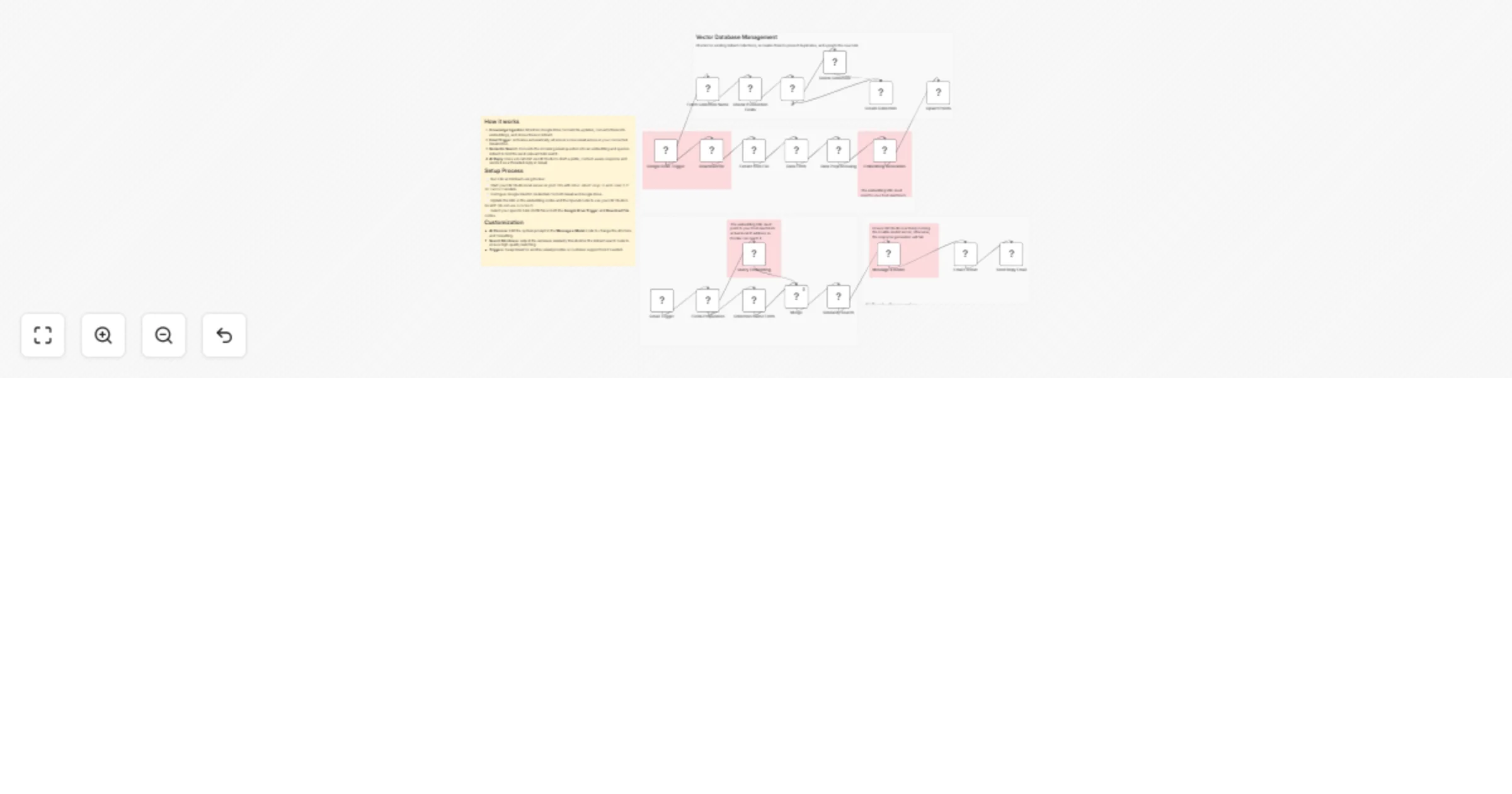
  1. Knowledge Base Ingestion: The workflow automatically detects updates to a specific FAQ JSON file in Google Drive, converts the Q&A pairs into vector embeddings using the local mxbai model, and stores them in Qdrant.
  2. Email Trigger: The resolution pipeline kicks off instantly when a new incoming email arrives via the Gmail trigger.
  3. Semantic Search: The incoming question is converted to an embedding using the mxbai-embed-large-v1 model and checked against the Qdrant database to retrieve the top 3 most relevant FAQ answers, enforcing a minimum 0.7 similarity threshold for quality control.
  4. LLM Response Generation: The OpenAI node (pointing to LM Studio) processes the retrieved context and the student's email using the llama-3.2-3b-instruct model to craft a polite, personalized HTML email response.
  5. Threaded Reply: The Gmail node sends the generated response directly back into the original email thread, exactly like a human would.

📋 Requirements

  • Docker and Docker Compose installed to run n8n and Qdrant locally.
  • LM Studio running a local server on port 1234.
  • mxbai-embed-large-v1 (GGUF) and llama-3.2-3b-instruct (GGUF) models loaded in LM Studio.
  • Google Cloud Console account with Gmail and Google Drive APIs enabled.
  • An FAQ JSON file properly formatted and hosted in Google Drive.

🚀 How to set up

  1. Prepare your Local AI:
  • Open LM Studio, download both the embedding and LLM models.
  • Start the Local Server on port 1234.
  • Note your machine's local IP address (e.g., 192.168.1.50).
  1. Spin up Services:
  • Clone the repository and configure the .env file with your QDRANT_COLLECTION name.
  • Run docker compose up -d to start the n8n and Qdrant containers.
  1. Import the Workflow:
  • Open n8n at http://localhost:5678 and import the provided JSON workflow file.
  1. Link Services:
  • Update the Google Drive nodes with the File ID of your FAQ JSON document.
  • Update the embedding and AI nodes with your local IP address in the Base URL.
  1. Test and Activate:
  • Execute the ingestion pipeline manually to populate Qdrant.
  • Toggle the workflow to Active.
  • Send a test email to your connected Gmail address to verify the automated reply.

🔑 Credential Setup

To run this workflow, you must configure the following credentials in n8n:

  • Google (Gmail & Drive):
  • Create new Gmail OAuth2 API and Google Drive OAuth2 API credentials.
  • Enter your Client ID and Client Secret obtained from the Google Cloud Console (the same credentials can be used for both).
  • Qdrant API:
  • Create a new Qdrant API credential.
  • REST URL: Set this to http://host.docker.internal:6333.
  • Leave the API key blank for the self-hosted Docker setup.
  • OpenAI API (Local):
  • Create a new OpenAI API credential for connecting to LM Studio.
  • API Key: Enter any placeholder text (e.g., lm-studio).
  • Base URL: Set this to your machine's local IP address (e.g., http://<LM_STUDIO_IP>:1234/v1) to ensure n8n can connect to the local AI server from within the Docker network.

⚙️ How to customize

  • Refine Response Tone: Update the System Message in the AI node to change the personality, signature, or formatting rules of the generated email reply.
  • Switch to Cloud AI: If you prefer not to host models locally, swap out the local LM Studio connection for external APIs like OpenAI (GPT-4o), Anthropic (Claude), or Cohere for both embeddings and text generation.
  • Change Embedding Models: While the workflow uses a local model by default, anyone can easily swap the embedding nodes to use alternative models like OpenAI (text-embedding-3-small) or Google Gemini (text-embedding-004) if desired.
  • Adjust Similarity Threshold: Modify the semantic search threshold (default 0.7) in the Qdrant node to be stricter or more lenient depending on your knowledge base accuracy.
  • Alternative Triggers & Channels: Replace the Gmail nodes with Outlook / Microsoft 365, Zendesk, Intercom, or Slack to resolve queries across different communication platforms.

1.2 Logical Blocks

This catalog entry is organized from the workflow JSON. The node-level section below shows the executable blocks available for review before importing the template.

2. Block-by-Block Analysis

Block 1 - Google Drive Trigger

Type / Role
n8n-nodes-base.googleDriveTrigger - googleDriveTrigger
Config choices
Version 1

Block 2 - Download file

Type / Role
n8n-nodes-base.googleDrive - googleDrive
Config choices
Version 3

Block 3 - Extract from File

Type / Role
n8n-nodes-base.extractFromFile - extractFromFile
Config choices
Version 1.1

Block 4 - Create Collection

Type / Role
n8n-nodes-qdrant.qdrant - qdrant
Config choices
Version 1

Block 5 - Check If Collection Exists

Type / Role
n8n-nodes-qdrant.qdrant - qdrant
Config choices
Version 1

Block 6 - If

Type / Role
n8n-nodes-base.if - if
Config choices
Version 2.2

Block 7 - Delete Collection

Type / Role
n8n-nodes-qdrant.qdrant - qdrant
Config choices
Version 1

Block 8 - Upsert Points

Type / Role
n8n-nodes-qdrant.qdrant - qdrant
Config choices
Version 1

Block 9 - Gmail Trigger

Type / Role
n8n-nodes-base.gmailTrigger - gmailTrigger
Config choices
Version 1.3

Block 10 - Merge

Type / Role
n8n-nodes-base.merge - merge
Config choices
Version 3.2

Block 11 - Fetch Collection Name

Type / Role
n8n-nodes-base.code - code
Config choices
Version 2

Block 12 - Data Preprocessing

Type / Role
n8n-nodes-base.code - code
Config choices
Version 2

Block 13 - Embedding Generation

Type / Role
n8n-nodes-base.httpRequest - httpRequest
Config choices
Version 4.3

Block 14 - Data Fetch

Type / Role
n8n-nodes-base.set - set
Config choices
Version 3.4

Block 15 - Query Embedding

Type / Role
n8n-nodes-base.httpRequest - httpRequest
Config choices
Version 4.3

Block 16 - Fields Preparation

Type / Role
n8n-nodes-base.set - set
Config choices
Version 3.4

Block 17 - Collection Name Fetch

Type / Role
n8n-nodes-base.code - code
Config choices
Version 2

Block 18 - Similarity Search

Type / Role
n8n-nodes-qdrant.qdrant - qdrant
Config choices
Version 1

Block 19 - Send Repy Email

Type / Role
n8n-nodes-base.gmail - gmail
Config choices
Version 2.1

Block 20 - Message a model

Type / Role
@n8n/n8n-nodes-langchain.openAi - openAi
Config choices
Version 2

Block 21 - Email Format

Type / Role
n8n-nodes-base.set - set
Config choices
Version 3.4

Block 22 - Sticky Note

Type / Role
n8n-nodes-base.stickyNote - stickyNote
Config choices
Version 1

Block 23 - Sticky Note1

Type / Role
n8n-nodes-base.stickyNote - stickyNote
Config choices
Version 1

Block 24 - Sticky Note2

Type / Role
n8n-nodes-base.stickyNote - stickyNote
Config choices
Version 1

Showing the first 24 of 30 workflow blocks. Download the JSON for the full node graph.

3. Summary Table

Workflow Retrieve and answer Gmail email queries with Llama 3.2, mxbai-embed, and Qdrant
Complexity advanced
Nodes 30
Categories Ticket Management, AI RAG
Author Neloy Barman
Published 23 Mar 2026

4. Reproducing the Workflow from Scratch

  1. 1. Download the workflow JSON

    Use the JSON export at /data/workflows/14268/14268.json as the source template for this automation.

  2. 2. Import the template into n8n

    Open n8n, import the downloaded JSON, and review each node before activating the workflow.

  3. 3. Configure credentials and variables

    Replace placeholder credentials, API keys, webhook URLs, account IDs, and environment-specific values with your own settings.

  4. 4. Test with sample data

    Run the workflow manually or in a staging workspace, inspect node output, and confirm downstream systems receive the expected data.

  5. 5. Activate and monitor

    Enable the workflow only after testing, then monitor executions, errors, and rate limits during the first production runs.

5. General Notes & Resources

Review imported nodes carefully before activation. This catalog entry is intended to help you inspect the workflow structure, understand required services, and find related templates faster.

Node names, credentials, schedules, webhook paths, and external service limits may need adjustment for your workspace.

Frequently asked questions

What does Retrieve and answer Gmail email queries with Llama 3.2, mxbai-embed, and Qdrant do?

Self Hosted This workflow provides a complete end to end system for automatically managing your inbox by reading incoming questions, matching them to approved guidelines, and sending consistent, 24...

What do I need before importing this workflow?

Review the workflow JSON, configure any required credentials in n8n, and test the automation in a safe workspace before using it in production.

Can I customize this workflow?

Yes. Use the block-by-block analysis and the downloadable JSON to inspect each node, then adjust credentials, prompts, schedules, filters, or destinations for your Ticket Management, AI RAG use case.