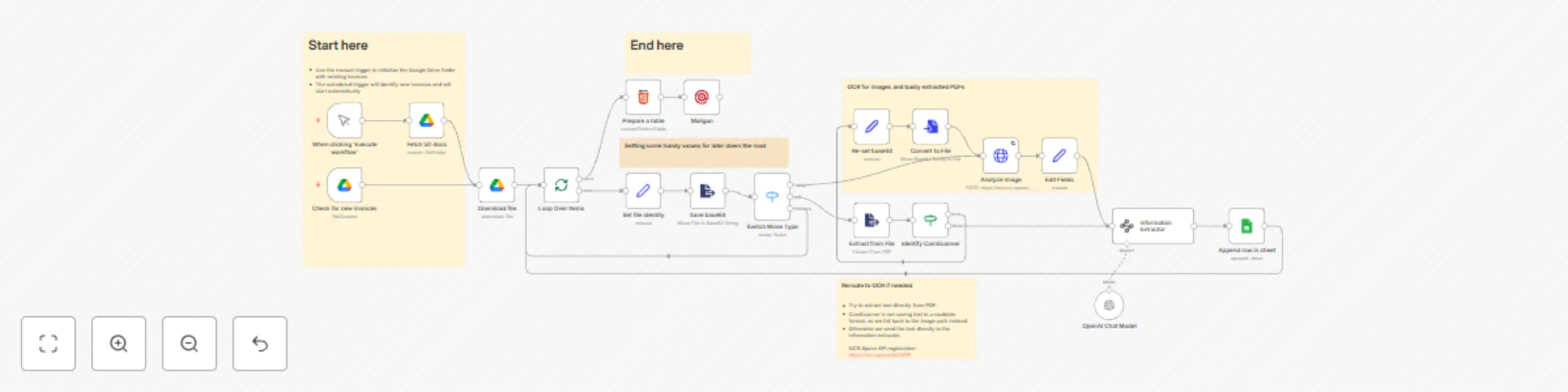
Process scanned invoices with Google Drive, OCR & OpenAI to Google Sheets

Workflow preview

Workflow preview
100%
Process scanned invoices with Google Drive, OCR & OpenAI to Google Sheets preview
Open on n8n.io

Important notice

This workflow is provided as-is. Please review and test before using in production.

1. Workflow Overview

This template allows you to automatically process scanned invoices from Google Drive, extract key information using AI, and organize the data in Google Sheets with email notifications. Overview Thi...

Best for

  • Invoice Processing automation workflows
  • Multimodal AI automation workflows
  • advanced n8n builders looking for reusable templates

Tools used

n8n-nodes-base.manualtrigger, @n8n/n8n-nodes-langchain.lmchatopenai, n8n-nodes-base.converttofile, n8n-nodes-base.switch, n8n-nodes-base.splitinbatches, n8n-nodes-base.set, n8n-nodes-base.extractfromfile, n8n-nodes-base.googledrivetrigger

Source and attribution

This workflow is cataloged by N8N Workflows and links back to its original n8n.io source page by Ovadia Rocks.

Original n8n.io source

1.1 Workflow description

Title
Process scanned invoices with Google Drive, OCR & OpenAI to Google Sheets
Workflow name
Process scanned invoices with Google Drive, OCR & OpenAI to Google Sheets

This template allows you to automatically process scanned invoices from Google Drive, extract key information using AI, and organize the data in Google Sheets with email notifications.

Overview

This comprehensive workflow automates the entire invoice processing pipeline by monitoring a Google Drive folder for new invoice uploads, intelligently processing both PDF and image formats, extracting structured data using AI-powered information extraction, and automatically organizing the results in a Google Sheet while sending email notifications. The system handles various file formats and includes smart fallback mechanisms for challenging documents like CamScanner PDFs.

How it Works

  1. File Monitoring: The workflow continuously monitors a specified Google Drive folder for new invoice files using a trigger that checks every minute for newly created files.

  2. File Processing: When new files are detected, the system downloads them and determines the file type (PDF or image) using a smart switch mechanism.

  3. Text Extraction:

    • For PDFs: Attempts direct text extraction first
    • For Images: Uses OCR.Space API for optical character recognition
    • For problematic PDFs (like CamScanner): Falls back to OCR processing
  4. AI Information Extraction: Processes the extracted text through OpenAI's language model to identify and extract key invoice information including:

    • Company name
    • Total amount
    • Currency
    • Invoice date
    • Invoice number
  5. Data Storage: Automatically appends the extracted information to a Google Sheet with links back to the original scanned documents.

  6. Notification: Sends formatted email notifications via Mailgun when new invoices are processed, including an HTML table summary.

How to Use

  1. Setup Google Drive: Create a dedicated folder in Google Drive for invoice uploads and note the folder ID.

  2. Configure Credentials: Set up the following credential connections in n8n:

    • Google Drive OAuth2 API
    • Google Sheets OAuth2 API
    • OpenAI API
    • OCR.Space API
    • Mailgun API
  3. Update Configuration:

    • Replace the Google Drive folder ID with your target folder
    • Replace the Google Sheets document ID with your destination spreadsheet
    • Update email addresses in the Mailgun node
  4. Test the Workflow: Use the manual trigger to process existing invoices in your folder for initial testing.

  5. Activate: Enable the workflow to start automatic monitoring of new invoice uploads.

Requirements

External APIs:

  • OpenAI API - For AI-powered information extraction from invoice text
  • OCR.Space API - For optical character recognition of image-based invoices
  • Mailgun API - For sending email notifications

Google Services:

  • Google Drive API - For monitoring folders and downloading files
  • Google Sheets API - For storing extracted invoice data

Setup Prerequisites:

  • Google Drive folder dedicated to invoice uploads
  • Google Sheet with appropriate column headers (date, company name, total, currency, invoice number, scan link, etc.)
  • Email domain configured with Mailgun (or alternative email service)
  • OCR.Space account for image processing capabilities: https://ocr.space/OCRAPI

Recommended Settings:

  • Set the Google Drive trigger to check for new files every minute
  • Ensure sufficient API rate limits for your expected invoice volume
  • Configure proper error handling for failed OCR or AI extraction attempts

1.2 Logical Blocks

This catalog entry is organized from the workflow JSON. The node-level section below shows the executable blocks available for review before importing the template.

2. Block-by-Block Analysis

Block 1 - When clicking 'Execute workflow'

Type / Role
n8n-nodes-base.manualTrigger - manualTrigger
Config choices
Version 1

Block 2 - OpenAI Chat Model

Type / Role
@n8n/n8n-nodes-langchain.lmChatOpenAi - lmChatOpenAi
Config choices
Version 1.2

Block 3 - Convert to File

Type / Role
n8n-nodes-base.convertToFile - convertToFile
Config choices
Version 1.1

Block 4 - Switch Mime Type

Type / Role
n8n-nodes-base.switch - switch
Config choices
Version 3.2

Block 5 - Loop Over Items

Type / Role
n8n-nodes-base.splitInBatches - splitInBatches
Config choices
Version 3

Block 6 - Set file identity

Type / Role
n8n-nodes-base.set - set
Config choices
Version 3.4

Block 7 - Save base64

Type / Role
n8n-nodes-base.extractFromFile - extractFromFile
Config choices
Version 1

Block 8 - Re-set base64

Type / Role
n8n-nodes-base.set - set
Config choices
Version 3.4

Block 9 - Check for new invoices

Type / Role
n8n-nodes-base.googleDriveTrigger - googleDriveTrigger
Config choices
Version 1

Block 10 - Download file

Type / Role
n8n-nodes-base.googleDrive - googleDrive
Config choices
Version 3

Block 11 - Fetch 50 docs

Type / Role
n8n-nodes-base.googleDrive - googleDrive
Config choices
Version 3

Block 12 - Extract from File

Type / Role
n8n-nodes-base.extractFromFile - extractFromFile
Config choices
Version 1

Block 13 - Identify CamScanner

Type / Role
n8n-nodes-base.if - if
Config choices
Version 2.2

Block 14 - Analyze Image

Type / Role
n8n-nodes-base.httpRequest - httpRequest
Config choices
Version 4.2

Block 15 - Edit Fields

Type / Role
n8n-nodes-base.set - set
Config choices
Version 3.4

Block 16 - Information Extractor

Type / Role
@n8n/n8n-nodes-langchain.informationExtractor - informationExtractor
Config choices
Version 1.2

Block 17 - Append row in sheet

Type / Role
n8n-nodes-base.googleSheets - googleSheets
Config choices
Version 4.6

Block 18 - Sticky Note

Type / Role
n8n-nodes-base.stickyNote - stickyNote
Config choices
Version 1

Block 19 - Sticky Note1

Type / Role
n8n-nodes-base.stickyNote - stickyNote
Config choices
Version 1

Block 20 - Sticky Note2

Type / Role
n8n-nodes-base.stickyNote - stickyNote
Config choices
Version 1

Block 21 - Sticky Note3

Type / Role
n8n-nodes-base.stickyNote - stickyNote
Config choices
Version 1

Block 22 - Mailgun

Type / Role
n8n-nodes-base.mailgun - mailgun
Config choices
Version 1

Block 23 - Prepare a table

Type / Role
n8n-nodes-base.html - html
Config choices
Version 1.2

Block 24 - Sticky Note4

Type / Role
n8n-nodes-base.stickyNote - stickyNote
Config choices
Version 1

3. Summary Table

Workflow Process scanned invoices with Google Drive, OCR & OpenAI to Google Sheets
Complexity advanced
Nodes 24
Categories Invoice Processing, Multimodal AI
Author Ovadia Rocks
Published 13 Aug 2025

4. Reproducing the Workflow from Scratch

  1. 1. Download the workflow JSON

    Use the JSON export at /data/workflows/7321/7321.json as the source template for this automation.

  2. 2. Import the template into n8n

    Open n8n, import the downloaded JSON, and review each node before activating the workflow.

  3. 3. Configure credentials and variables

    Replace placeholder credentials, API keys, webhook URLs, account IDs, and environment-specific values with your own settings.

  4. 4. Test with sample data

    Run the workflow manually or in a staging workspace, inspect node output, and confirm downstream systems receive the expected data.

  5. 5. Activate and monitor

    Enable the workflow only after testing, then monitor executions, errors, and rate limits during the first production runs.

5. General Notes & Resources

Review imported nodes carefully before activation. This catalog entry is intended to help you inspect the workflow structure, understand required services, and find related templates faster.

Node names, credentials, schedules, webhook paths, and external service limits may need adjustment for your workspace.

Frequently asked questions

What does Process scanned invoices with Google Drive, OCR & OpenAI to Google Sheets do?

This template allows you to automatically process scanned invoices from Google Drive, extract key information using AI, and organize the data in Google Sheets with email notifications. Overview Thi...

What do I need before importing this workflow?

Review the workflow JSON, configure any required credentials in n8n, and test the automation in a safe workspace before using it in production.

Can I customize this workflow?

Yes. Use the block-by-block analysis and the downloadable JSON to inspect each node, then adjust credentials, prompts, schedules, filters, or destinations for your Invoice Processing, Multimodal AI use case.