O

Ovadia Rocks

1
Workflow

Workflows by Ovadia Rocks

Workflow preview: Process scanned invoices with Google Drive, OCR & OpenAI to Google Sheets
Free advanced

Process scanned invoices with Google Drive, OCR & OpenAI to Google Sheets

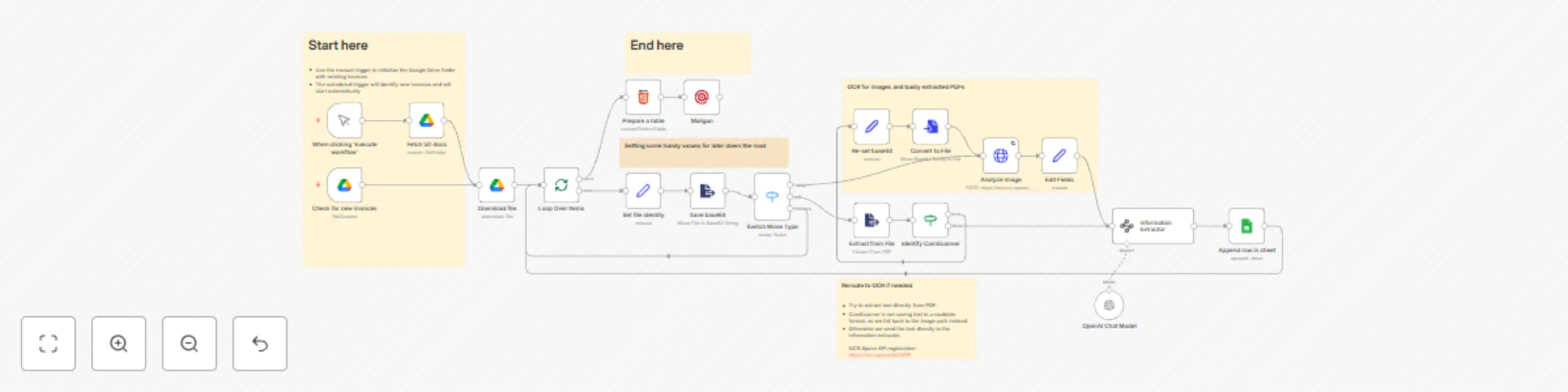
### This template allows you to automatically process scanned invoices from Google Drive, extract key information using AI, and organize the data in Google Sheets with email notifications. ### Overview This comprehensive workflow automates the entire invoice processing pipeline by monitoring a Google Drive folder for new invoice uploads, intelligently processing both PDF and image formats, extracting structured data using AI-powered information extraction, and automatically organizing the results in a Google Sheet while sending email notifications. The system handles various file formats and includes smart fallback mechanisms for challenging documents like CamScanner PDFs. ### How it Works 1. **File Monitoring**: The workflow continuously monitors a specified Google Drive folder for new invoice files using a trigger that checks every minute for newly created files. 2. **File Processing**: When new files are detected, the system downloads them and determines the file type (PDF or image) using a smart switch mechanism. 3. **Text Extraction**: - For PDFs: Attempts direct text extraction first - For Images: Uses OCR.Space API for optical character recognition - For problematic PDFs (like CamScanner): Falls back to OCR processing 4. **AI Information Extraction**: Processes the extracted text through OpenAI's language model to identify and extract key invoice information including: - Company name - Total amount - Currency - Invoice date - Invoice number 5. **Data Storage**: Automatically appends the extracted information to a Google Sheet with links back to the original scanned documents. 6. **Notification**: Sends formatted email notifications via Mailgun when new invoices are processed, including an HTML table summary. ### How to Use 1. **Setup Google Drive**: Create a dedicated folder in Google Drive for invoice uploads and note the folder ID. 2. **Configure Credentials**: Set up the following credential connections in n8n: - Google Drive OAuth2 API - Google Sheets OAuth2 API - OpenAI API - OCR.Space API - Mailgun API 3. **Update Configuration**: - Replace the Google Drive folder ID with your target folder - Replace the Google Sheets document ID with your destination spreadsheet - Update email addresses in the Mailgun node 4. **Test the Workflow**: Use the manual trigger to process existing invoices in your folder for initial testing. 5. **Activate**: Enable the workflow to start automatic monitoring of new invoice uploads. ## Requirements **External APIs:** - **OpenAI API** - For AI-powered information extraction from invoice text - **OCR.Space API** - For optical character recognition of image-based invoices - **Mailgun API** - For sending email notifications **Google Services:** - **Google Drive API** - For monitoring folders and downloading files - **Google Sheets API** - For storing extracted invoice data **Setup Prerequisites:** - Google Drive folder dedicated to invoice uploads - Google Sheet with appropriate column headers (date, company name, total, currency, invoice number, scan link, etc.) - Email domain configured with Mailgun (or alternative email service) - OCR.Space account for image processing capabilities: https://ocr.space/OCRAPI **Recommended Settings:** - Set the Google Drive trigger to check for new files every minute - Ensure sufficient API rate limits for your expected invoice volume - Configure proper error handling for failed OCR or AI extraction attempts

O
Ovadia Rocks
Invoice Processing
13 Aug 2025
1057
0