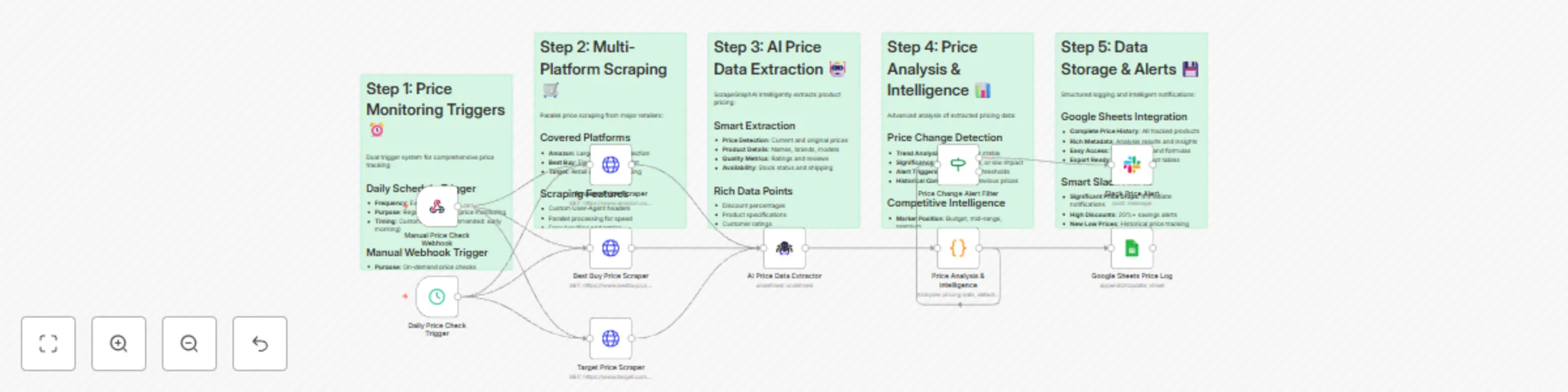
Price monitoring dashboard with AI component and alerts

Workflow preview

Workflow preview
100%
Price monitoring dashboard with AI component and alerts preview
Open on n8n.io

Important notice

This workflow is provided as-is. Please review and test before using in production.

1. Workflow Overview

Competitor Price Monitoring Dashboard with AI and Real time Alerts Target Audience E commerce managers and pricing analysts Retail business owners monitoring competitor pricing Marketing teams t...

Best for

  • Market Research automation workflows
  • AI Summarization automation workflows
  • advanced n8n builders looking for reusable templates

Tools used

n8n-nodes-base.scheduletrigger, n8n-nodes-base.webhook, n8n-nodes-base.httprequest, n8n-nodes-scrapegraphai.scrapegraphai, n8n-nodes-base.code, n8n-nodes-base.googlesheets, n8n-nodes-base.if, n8n-nodes-base.slack

Source and attribution

This workflow is cataloged by N8N Workflows and links back to its original n8n.io source page by vinci-king-01.

Original n8n.io source

1.1 Workflow description

Title
Price monitoring dashboard with AI component and alerts
Workflow name
Price monitoring dashboard with AI component and alerts

Competitor Price Monitoring Dashboard with AI and Real-time Alerts

🎯 Target Audience

  • E-commerce managers and pricing analysts
  • Retail business owners monitoring competitor pricing
  • Marketing teams tracking market positioning
  • Product managers analyzing competitive landscape
  • Data analysts conducting pricing intelligence
  • Business strategists making pricing decisions

🚀 Problem Statement

Manual competitor price monitoring is inefficient and often leads to missed opportunities or delayed responses to market changes. This template solves the challenge of automatically tracking competitor prices, detecting significant changes, and providing actionable insights for strategic pricing decisions.

🔧 How it Works

This workflow automatically monitors competitor product prices using AI-powered web scraping, analyzes price trends, and sends real-time alerts when significant changes are detected.

Key Components

  1. Scheduled Trigger - Runs the workflow at specified intervals to maintain up-to-date price data
  2. AI-Powered Scraping - Uses ScrapeGraphAI to intelligently extract pricing information from competitor websites
  3. Price Analysis Engine - Processes historical data to detect trends and anomalies
  4. Alert System - Sends notifications via Slack and email when price changes exceed thresholds
  5. Dashboard Integration - Stores all data in Google Sheets for comprehensive analysis and reporting

📊 Google Sheets Column Specifications

The template creates the following columns in your Google Sheets:

Column Data Type Description Example
timestamp DateTime When the price was recorded "2024-01-15T10:30:00Z"
competitor_name String Name of the competitor "Amazon"
product_name String Product name and model "iPhone 15 Pro 128GB"
current_price Number Current price in USD 999.00
previous_price Number Previous recorded price 1099.00
price_change Number Absolute price difference -100.00
price_change_percent Number Percentage change -9.09
product_url URL Direct link to product page "https://amazon.com/iphone15"
alert_triggered Boolean Whether alert was sent true
trend_direction String Price trend analysis "Decreasing"

🛠️ Setup Instructions

Estimated setup time: 15-20 minutes

Prerequisites

  • n8n instance with community nodes enabled
  • ScrapeGraphAI API account and credentials
  • Google Sheets account with API access
  • Slack workspace for notifications (optional)
  • Email service for alerts (optional)

Step-by-Step Configuration

1. Install Community Nodes
# Install required community nodes
npm install n8n-nodes-scrapegraphai
npm install n8n-nodes-slack
2. Configure ScrapeGraphAI Credentials
  • Navigate to Credentials in your n8n instance
  • Add new ScrapeGraphAI API credentials
  • Enter your API key from ScrapeGraphAI dashboard
  • Test the connection to ensure it's working
3. Set up Google Sheets Connection
  • Add Google Sheets OAuth2 credentials
  • Grant necessary permissions for spreadsheet access
  • Create a new spreadsheet for price monitoring data
  • Configure the sheet name (default: "Price Monitoring")
4. Configure Competitor URLs
  • Update the websiteUrl parameters in ScrapeGraphAI nodes
  • Add URLs for each competitor you want to monitor
  • Customize the user prompt to extract specific pricing data
  • Set appropriate price thresholds for alerts
5. Set up Notification Channels
  • Configure Slack webhook or API credentials
  • Set up email service credentials (SendGrid, SMTP, etc.)
  • Define alert thresholds and notification preferences
  • Test notification delivery
6. Configure Schedule Trigger
  • Set monitoring frequency (hourly, daily, etc.)
  • Choose appropriate time zones for your business hours
  • Consider competitor website rate limits
7. Test and Validate
  • Run the workflow manually to verify all connections
  • Check Google Sheets for proper data formatting
  • Test alert notifications with sample data

🔄 Workflow Customization Options

Modify Monitoring Targets

  • Add or remove competitor websites
  • Change product categories or specific products
  • Adjust monitoring frequency based on market volatility

Extend Price Analysis

  • Add more sophisticated trend analysis algorithms
  • Implement price prediction models
  • Include competitor inventory and availability tracking

Customize Alert System

  • Set different thresholds for different product categories
  • Create tiered alert systems (info, warning, critical)
  • Add SMS notifications for urgent price changes

Output Customization

  • Add data visualization and reporting features
  • Implement price history charts and graphs
  • Create executive dashboards with key metrics

📈 Use Cases

  • Dynamic Pricing: Adjust your prices based on competitor movements
  • Market Intelligence: Understand competitor pricing strategies
  • Promotion Planning: Time your promotions based on competitor actions
  • Inventory Management: Optimize stock levels based on market conditions
  • Customer Communication: Proactively inform customers about price changes

🚨 Important Notes

  • Respect competitor websites' terms of service and robots.txt
  • Implement appropriate delays between requests to avoid rate limiting
  • Regularly review and update your monitoring parameters
  • Monitor API usage to manage costs effectively
  • Keep your credentials secure and rotate them regularly
  • Consider legal implications of automated price monitoring

🔧 Troubleshooting

Common Issues:

  • ScrapeGraphAI connection errors: Verify API key and account status
  • Google Sheets permission errors: Check OAuth2 scope and permissions
  • Price parsing errors: Review the Code node's JavaScript logic
  • Rate limiting: Adjust monitoring frequency and implement delays
  • Alert delivery failures: Check notification service credentials

Support Resources:

  • ScrapeGraphAI documentation and API reference
  • n8n community forums for workflow assistance
  • Google Sheets API documentation for advanced configurations
  • Slack API documentation for notification setup

1.2 Logical Blocks

This catalog entry is organized from the workflow JSON. The node-level section below shows the executable blocks available for review before importing the template.

2. Block-by-Block Analysis

Block 1 - Daily Price Check Trigger

Type / Role
n8n-nodes-base.scheduleTrigger - scheduleTrigger
Config choices
Version 1.2

Block 2 - Manual Price Check Webhook

Type / Role
n8n-nodes-base.webhook - webhook
Config choices
Version 1.1

Block 3 - Amazon Price Scraper

Type / Role
n8n-nodes-base.httpRequest - httpRequest
Config choices
Version 4.2

Block 4 - Best Buy Price Scraper

Type / Role
n8n-nodes-base.httpRequest - httpRequest
Config choices
Version 4.2

Block 5 - Target Price Scraper

Type / Role
n8n-nodes-base.httpRequest - httpRequest
Config choices
Version 4.2

Block 6 - AI Price Data Extractor

Type / Role
n8n-nodes-scrapegraphai.scrapegraphAi - scrapegraphAi
Config choices
Version 1

Block 7 - Price Analysis & Intelligence

Type / Role
n8n-nodes-base.code - code
Config choices
Version 2

Block 8 - Google Sheets Price Log

Type / Role
n8n-nodes-base.googleSheets - googleSheets
Config choices
Version 4.4

Block 9 - Price Change Alert Filter

Type / Role
n8n-nodes-base.if - if
Config choices
Version 2

Block 10 - Slack Price Alert

Type / Role
n8n-nodes-base.slack - slack
Config choices
Version 2.2

Block 11 - Sticky Note - Triggers

Type / Role
n8n-nodes-base.stickyNote - stickyNote
Config choices
Version 1

Block 12 - Sticky Note - Scraping

Type / Role
n8n-nodes-base.stickyNote - stickyNote
Config choices
Version 1

Block 13 - Sticky Note - AI Extraction

Type / Role
n8n-nodes-base.stickyNote - stickyNote
Config choices
Version 1

Block 14 - Sticky Note - Analysis

Type / Role
n8n-nodes-base.stickyNote - stickyNote
Config choices
Version 1

Block 15 - Sticky Note - Storage & Alerts

Type / Role
n8n-nodes-base.stickyNote - stickyNote
Config choices
Version 1

3. Summary Table

Workflow Price monitoring dashboard with AI component and alerts
Complexity advanced
Nodes 15
Categories Market Research, AI Summarization
Author vinci-king-01
Published 25 Jul 2025

4. Reproducing the Workflow from Scratch

  1. 1. Download the workflow JSON

    Use the JSON export at /data/workflows/6428/6428.json as the source template for this automation.

  2. 2. Import the template into n8n

    Open n8n, import the downloaded JSON, and review each node before activating the workflow.

  3. 3. Configure credentials and variables

    Replace placeholder credentials, API keys, webhook URLs, account IDs, and environment-specific values with your own settings.

  4. 4. Test with sample data

    Run the workflow manually or in a staging workspace, inspect node output, and confirm downstream systems receive the expected data.

  5. 5. Activate and monitor

    Enable the workflow only after testing, then monitor executions, errors, and rate limits during the first production runs.

5. General Notes & Resources

Review imported nodes carefully before activation. This catalog entry is intended to help you inspect the workflow structure, understand required services, and find related templates faster.

Node names, credentials, schedules, webhook paths, and external service limits may need adjustment for your workspace.

Frequently asked questions

What does Price monitoring dashboard with AI component and alerts do?

Competitor Price Monitoring Dashboard with AI and Real time Alerts Target Audience E commerce managers and pricing analysts Retail business owners monitoring competitor pricing Marketing teams t...

What do I need before importing this workflow?

Review the workflow JSON, configure any required credentials in n8n, and test the automation in a safe workspace before using it in production.

Can I customize this workflow?

Yes. Use the block-by-block analysis and the downloadable JSON to inspect each node, then adjust credentials, prompts, schedules, filters, or destinations for your Market Research, AI Summarization use case.