Block 1 - has email been opened?
- Type / Role
- n8n-nodes-base.if - if
- Config choices
- Version 1


 Early Deal
This workflow is provided as-is. Please review and test before using in production.
This n8n workflow serves as an incident response and notification system for handling potentially malicious emails flagged by Sublime Security. It begins with a Webhook trigger that Sublime Securit...
n8n-nodes-base.if, n8n-nodes-base.webhook, n8n-nodes-base.httprequest, n8n-nodes-base.jira, n8n-nodes-base.stickynote, n8n-nodes-base.slack, n8n-nodes-base.noop, n8n-nodes-base.code
This workflow is cataloged by N8N Workflows and links back to its original n8n.io source page by n8n Team.
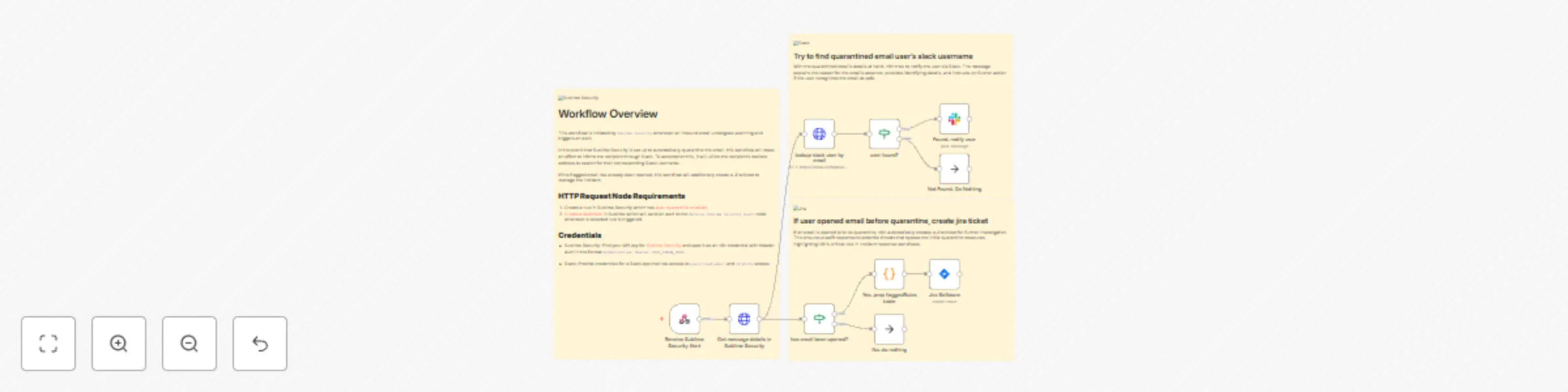
Original n8n.io sourceThis n8n workflow serves as an incident response and notification system for handling potentially malicious emails flagged by Sublime Security. It begins with a Webhook trigger that Sublime Security uses to initiate the workflow by POSTing an alert. The workflow then extracts message details from Sublime Security using an HTTP Request node, based on the provided messageId, and subsequently splits into two parallel paths.
In the first path, the workflow looks up a Slack user by email, aiming to find the recipient of the email that triggered the alert. If a user is found in Slack, a notification is sent to them, explaining that they have received a potentially malicious email that has been quarantined and is under investigation. This notification includes details such as the email's subject and sender.
The second path checks whether the flagged email has been opened by inspecting the read_at value from Sublime Security. If the email was opened, the workflow prepares a table summarizing the flagged rules and creates a corresponding issue in Jira Software. The Jira issue contains information about the email, including its subject, sender, and recipient, along with the flagged rules.
Issues that someone might encounter when setting up this workflow for the first time include potential problems with the Slack user lookup if the user information is not available or if Slack API integration is not configured correctly. Additionally, the issue creation in Jira Software may not work as expected, as indicated by the note that mentions a need for possible node replacement. Thorough testing and validation with sample data from Sublime Security alerts can help identify and resolve any potential issues during setup.
This catalog entry is organized from the workflow JSON. The node-level section below shows the executable blocks available for review before importing the template.
| Workflow | Notify user in Slack of quarantined email and create Jira ticket if opened |
|---|---|
| Complexity | intermediate |
| Nodes | 13 |
| Categories | SecOps |
| Author | n8n Team |
| Published | 13 Nov 2023 |
Use the JSON export at /data/workflows/1975/1975.json as the source template for this automation.
Open n8n, import the downloaded JSON, and review each node before activating the workflow.
Replace placeholder credentials, API keys, webhook URLs, account IDs, and environment-specific values with your own settings.
Run the workflow manually or in a staging workspace, inspect node output, and confirm downstream systems receive the expected data.
Enable the workflow only after testing, then monitor executions, errors, and rate limits during the first production runs.
Review imported nodes carefully before activation. This catalog entry is intended to help you inspect the workflow structure, understand required services, and find related templates faster.
Node names, credentials, schedules, webhook paths, and external service limits may need adjustment for your workspace.
This n8n workflow serves as an incident response and notification system for handling potentially malicious emails flagged by Sublime Security. It begins with a Webhook trigger that Sublime Securit...
Review the workflow JSON, configure any required credentials in n8n, and test the automation in a safe workspace before using it in production.
Yes. Use the block-by-block analysis and the downloadable JSON to inspect each node, then adjust credentials, prompts, schedules, filters, or destinations for your SecOps use case.