N

n8n Team

90
Workflows

Workflows by n8n Team

Workflow preview: RAG Starter Template using Simple Vector Stores, Form trigger and OpenAI
Free intermediate

RAG Starter Template using Simple Vector Stores, Form trigger and OpenAI

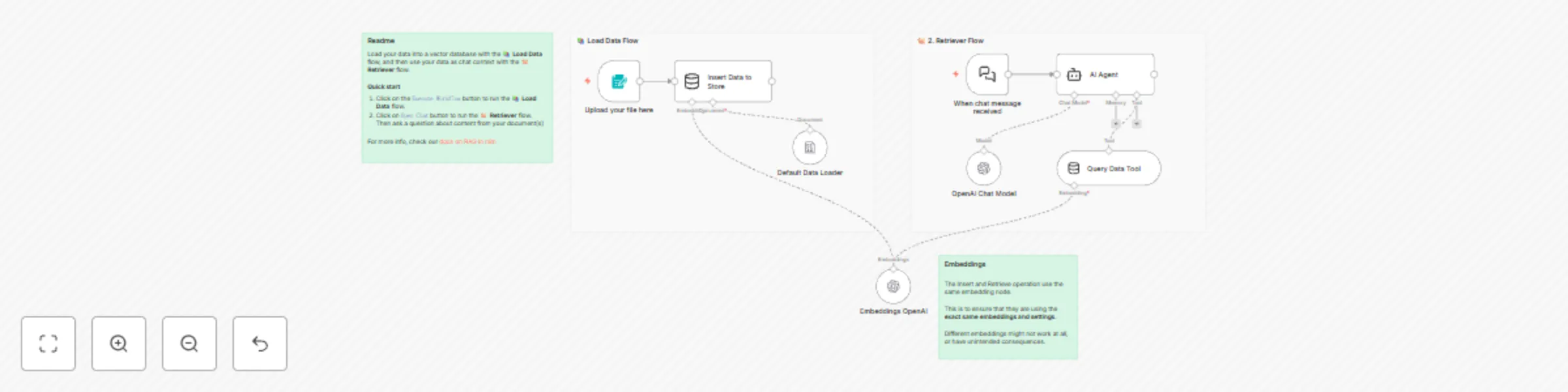
This template quickly shows how to use RAG in n8n. ## Who is this for? This template is for everyone who wants to start giving knowledge to their Agents through RAG. ## Requirements Have a PDF with custom knowledge that you want to provide to your agent. ## Setup No setup required. Just hit `Execute Workflow`, upload your knowledge document and then start chatting. ## How to customize this to your needs 1. Add custom instructions to your Agent by changing the prompts in it. 2. Add a different way to load in knowledge to your vector store, e.g. by looking at some Google Drive files or loading knowledge from a table. 2. Exchange the `Simple Vector Store` nodes with your own vector store tools ready for production. 3. Add a more sophisticated way to rank files found in the vector store. For more information read our [docs on RAG in n8n](https://docs.n8n.io/advanced-ai/rag-in-n8n/).

n
n8n Team
Internal Wiki
18 Jun 2025
80767
0
Workflow preview: Webhook-enabled AI PDF analyzer
Free advanced

Webhook-enabled AI PDF analyzer

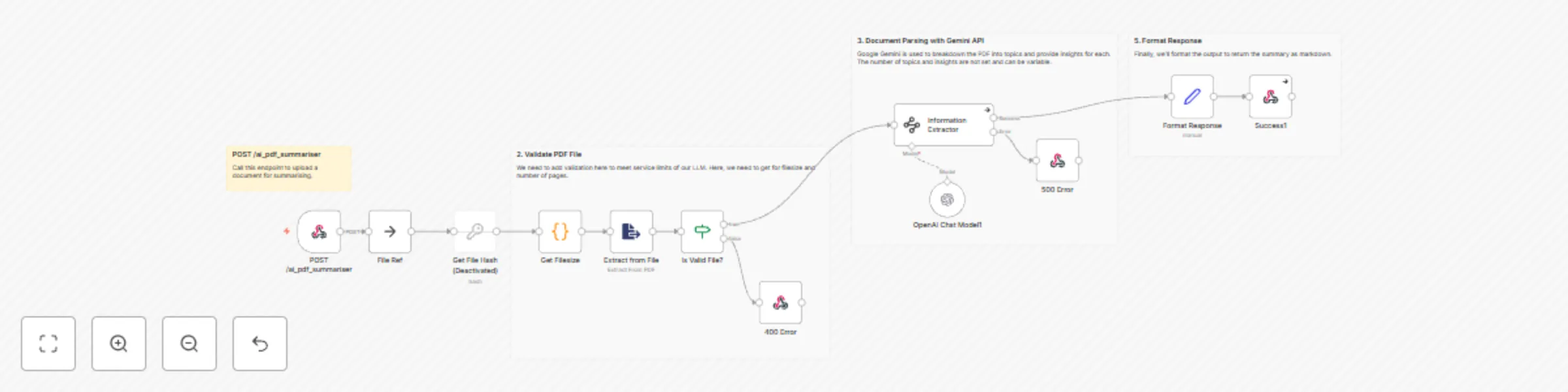
## Who this template is for This template is for researchers, students, professionals, or content creators who need to quickly extract and summarize key insights from PDF documents using AI-powered analysis. ## Use case Converting lengthy PDF documents into structured, digestible summaries organized by topic with key insights. This is particularly useful for processing research papers, reports, whitepapers, or any document where you need to quickly understand the main topics and extract actionable insights without reading the entire document. ## How this workflow works 1. **Document Upload**: Receives PDF files through a POST endpoint at `/ai_pdf_summariser` 2. **File Validation**: Checks that the PDF is under 10MB and has fewer than 20 pages to meet API limits 3. **Content Extraction**: Extracts text content from the PDF file 4. **AI Analysis**: Uses OpenAI's GPT-4o-mini to analyze the document and break it down into distinct topics 5. **Insight Generation**: For each topic, generates 3 key insights with titles and detailed explanations 6. **Format Response**: Converts the structured data into markdown format for easy reading 7. **Return Results**: Provides the formatted summary along with document metadata (file hash) ## Set up steps 1. **Configure OpenAI API**: Set up your OpenAI credentials for the GPT-4o-mini model 2. **Deploy Webhook**: The workflow automatically creates a POST endpoint at `/ai_pdf_summariser` 3. **Test Upload**: Send a PDF file to the endpoint using a multipart/form-data request 4. **Adjust Limits**: Modify the file size (10MB) and page count (20) validation limits if needed based on your requirements 5. **Customize Prompts**: Update the system prompt in the Information Extractor node to change how topics and insights are generated The workflow includes comprehensive error handling for file validation failures (400 error) and processing errors (500 error), ensuring reliable operation even with problematic documents.

n
n8n Team
Document Extraction
23 May 2025
9087
0
Workflow preview: AI image generator from text built on fal.ai
Free intermediate

AI image generator from text built on fal.ai

## Who this template is for This template is for developers, content creators, or application builders who want to integrate an AI-powered text-to-image generation service into their applications or systems via an API endpoint. ## Use case Creating a secure API endpoint that converts text prompts into AI-generated images, with built-in content moderation to prevent inappropriate content generation. This can be used for creative applications, content creation tools, prototyping interfaces, or any system that needs on-demand image generation. ## How this workflow works 1. Receives text prompt through a webhook endpoint 2. Filters the prompt for inappropriate content using AI moderation 3. Submits valid prompts to the Fal.ai Flux image generation service 4. Polls for completion status and retrieves the generated image when ready 5. Returns the image results in a structured JSON format to the client ## Set up steps 1. Create a Fal.ai account and obtain API credentials 2. Configure the HTTP Header Auth credentials with your Fal.ai API key 3. Set up an OpenAI API key for the content moderation component 4. Deploy the workflow and note the webhook URL for your API endpoint 5. Test the endpoint by sending a POST request with a JSON body containing a "prompt" field

n
n8n Team
Content Creation
16 May 2025
26683
0
Workflow preview: Csv to JSON converter with error handling and Slack notifications
Free advanced

Csv to JSON converter with error handling and Slack notifications

## Who this template is for This template is for developers or teams who need to convert CSV data into JSON format through an API endpoint, with support for both file uploads and raw CSV text input. ## Use case Converting CSV files or raw CSV text data into JSON format via a webhook endpoint, with error handling and notifications. This is particularly useful when you need to transform CSV data into JSON as part of a larger automation or integration process. ## How this workflow works 1. Receives POST requests through a webhook endpoint at ``` /tool/csv-to-json ``` 2. Uses a Switch node to handle different input types: - File uploads (binary data) - Plain text CSV data - JSON format data 3. Processes the CSV data: - For files: Uses the Extract From File node - For raw text: Converts the text to CSV using a custom Code node that handles both comma and semicolon delimiters 4. Aggregates the processed data and returns: - Success response (200): Converted JSON data - Error response (500): Error message with details 5. In case of errors, sends notifications to a Slack error channel with execution details and a link to debug ## Set up steps 1. Configure the webhook endpoint by deploying the workflow 2. Set up Slack integration for error notifications: - Update the Slack channel ID (currently set to "C0832GBAEN4") - Configure OAuth2 authentication for Slack 3. Test the endpoint using either: - CURL for file uploads: ```bash bash Copy curl -X POST "https://yoururl.com/webhook-test/tool/csv-to-json" \ -H "Content-Type: text/csv" \ --data-binary @path/to/your/file.csv ``` - Or send raw CSV data as text/plain content type

n
n8n Team
Document Extraction
15 Jan 2025
3367
0
Workflow preview: Convert an XML file to JSON via webhook call
Free beginner

Convert an XML file to JSON via webhook call

## Who this template is for This template is for everyone who needs to work with XML data a lot and wants to convert it to JSON instead. ## Use case Many products still work with XML files as their main language. Unfortunately, not every software still supports XML, as many switched to more modern storing languages such as JSON. This workflow is designed to handle the conversion of XML data to JSON format via a webhook call, with error handling and Slack notifications integrated into the process. ## How this workflow works 1. **Triggering the workflow:** - This workflow initiates upon receiving an HTTP POST request at the webhook endpoint specified in the "POST" node. The endpoint, designated as <WEBHOOK_URL>, can be accessed externally by sending a POST request to that URL. 2. **Data routing and processing:** - Upon receiving the POST request, the Switch node routes the workflow's path based on conditions determined by the content type of the incoming data or any encountered errors. - The Extract From File and Edit Fields (Set) nodes manage XML input processing, adapting their actions according to the data's content type. 3. **XML to JSON conversion**: - The XML data extracted from the input is passed through the "XML" node, which performs the conversion process, transforming it into JSON format. 4. **Response handling:** - If the XML-to-JSON conversion is successful, a success response is sent back with a status of "OK" and the converted JSON data. - If there are any errors during the XML-to-JSON conversion process, an error response is sent back with a status of "error" and an error message. - Error handling: in case of an error during processing, the workflow sends a notification to a Slack channel designated for error reporting. ## **Set up steps** 1. Set up your own <WEBHOOK_URL> in the Webhook node. While building or testing a workflow, use a test webhook URL. When your workflow is ready, switch to using the production webhook URL. 2. Set credentials for Slack.

n
n8n Team
Document Extraction
9 Apr 2024
4667
0
Workflow preview: Telegram AI bot with LangChain nodes
Free beginner

Telegram AI bot with LangChain nodes

This workflow connects Telegram bots with LangChain nodes in n8n. The main AI Agent Node is configured as a Conversation Agent. It has a custom System Prompt which explains the reply formatting and provides some additional instructions. The AI Agent has several connections: - OpenAI GPT-4 model is called to generate the replies - Window Buffer Memory stores the history of conversation with each user separately - There is an additional Custom n8n Workflow tool (Dall-E 3 Tool). AI Agent uses this tool when the user requests an image generation. In the lower part of the workflow, there is a series of nodes that call Dall-E 3 model with the user Telegram ID and a prompt for a new image. Once image is ready, it is sent back to the user. Finally, there is an extra Telegram node that masks HTML syntax for improved stability in case the AI Agent replies using the unsupported format.

n
n8n Team
Support Chatbot
29 Dec 2023
71017
0
Workflow preview: Telegram echo-bot
Free beginner

Telegram echo-bot

This is a workflow for a Telegram-echo bot. This bot is useful for debugging and learning purposes of the Telegram platform. 1. Add your Telegram bot credentials for both nodes. 2. Activate the workflow. 3. Send data to the bot (i.e. a message, a forwarded message, sticker, emoji, voice, file, an image...). 4. Second node will fetch the incoming JSON object, format it and send back.

n
n8n Team
Engineering
7 Dec 2023
7126
0
Workflow preview: Suspicious login detection
Free advanced

Suspicious login detection

This n8n workflow is designed for security monitoring and incident response when suspicious login events are detected. It can be initiated either manually from within the n8n UI for testing or automatically triggered by a webhook when a new login event occurs. The workflow first extracts relevant data from the incoming webhook payload, including the IP address, user agent, timestamp, URL, and user ID. It then splits into three parallel processing paths. In the first path, it queries GreyNoise's Community API to retrieve information about the investigated IP address. Depending on the classification and trust level received from GreyNoise, the alert is given a High, Medium, or Low priority. This priority is assigned based on the best practices documentation from GreyNoise on how to apply their data to analysis. Once a priority is assigned, a message is sent to a Slack channel to notify users about the alert. The second path involves fetching geolocation data about the IP address using IP-API's Geolocation API and merging it with data from the UserParser node. This data is then combined with the data obtained from GreyNoise. In the third path, the UserParser node queries the Userparser IP address and user agent lookup API to obtain information about the user's IP and user agent. This data is merged with the IP-API data and GreyNoise data. The workflow then checks if the IP address is considered an unknown threat by examining both the noise and riot fields from GreyNoise. If it is considered an unknown threat, the workflow proceeds to retrieve the last 10 login records for the same user from a Postgres database. If there are any discrepancies in the login information, indicating a new location or device/browser, the user is informed via email. Potential issues when setting up this workflow include ensuring that credentials are correctly entered for GreyNoise and UserParser nodes, and addressing any discrepancies in the data sources that could lead to false positives or negatives in threat detection. Additionally, the usage of hardcoded API keys should be replaced with credentials for security and flexibility. Thorough testing and validation with sample data are crucial to ensure the workflow performs as expected and aligns with security incident response procedures.

n
n8n Team
SecOps
27 Nov 2023
7157
0
Workflow preview: Phishing analysis - URLScan.io and VirusTotal
Free advanced

Phishing analysis - URLScan.io and VirusTotal

This n8n workflow automates the analysis of email messages received in a Microsoft Outlook inbox to identify indicators of compromise (IOCs), specifically suspicious URLs. It can be triggered manually or scheduled to run daily at midnight. The workflow begins by retrieving up to 100 read email messages from the Outlook inbox. However, there seems to be a configuration issue as it should retrieve unread messages, not read ones. It then marks these messages as read to avoid processing them again in the future. The messages are then split into individual items using the Split In Batches node for sequential processing. For each email, the workflow analyzes its content to find URLs, which are considered potential IOCs. If URLs are found, the workflow proceeds to check these URLs for potential threats using two services, URLScan.io and VirusTotal, in parallel. In the first path, URLScan.io scans each URL, and if there are no errors, the results from URLScan.io and VirusTotal are merged. If there are errors, the workflow waits 1 minute before attempting to retrieve the URLScan results again. The loop then continues for the next email. In the second path, VirusTotal is used to scan the URLs, and the results are retrieved. Finally, the workflow checks if the data field is not empty, filtering out items where no data was found. It then sends a summarized Slack message to report details about the analyzed email, including the subject, sender, date, URLScan report URL, and VirusTotal verdict for URLs that were reported as malicious. Potential issues during setup include configuring the Outlook node to retrieve unread messages, resolving a configuration issue in the VirusTotal node, and handling authentication and API keys for both URLScan.io and VirusTotal nodes. Additionally, proper error handling and testing with various email content types and URLs are essential to ensure the workflow accurately identifies IOCs and reports them to the Slack channel.

n
n8n Team
SecOps
27 Nov 2023
57717
0
Workflow preview: Analyze email headers for IPs and spoofing
Free advanced

Analyze email headers for IPs and spoofing

This n8n workflow is designed to analyze email headers received via a webhook. The workflow splits into two main paths based on the presence of the received and authentication results headers. In the first path, if received headers are present, the workflow extracts IP addresses from these headers and then queries the IP Quality Score API to gather information about the IP addresses, including fraud score, abuse history, organization, and more. Geolocation data is also obtained from the IP-API API. The workflow collects and aggregates this information for each IP address. In the second path, if authentication-results headers are present, the workflow extracts SPF, DKIM, and DMARC authentication results. It then evaluates these results and sets fields accordingly (e.g., SPF pass/fail/neutral). The paths merge their results, and the workflow responds to the original webhook with the aggregated analysis, including IP information and authentication results. Potential issues during setup include ensuring proper configuration of the webhook calls with header authentication, handling authentication and API keys for the IP Quality Score API, and addressing any discrepancies or errors in the logic nodes, such as handling SPF, DKIM, and DMARC results correctly. Additionally, thorough testing with various email header formats is essential to ensure accurate analysis and response.

n
n8n Team
SecOps
27 Nov 2023
5041
0
Workflow preview: Use an open-source LLM (via HuggingFace)
Free beginner

Use an open-source LLM (via HuggingFace)

This workflow demonstrates how to connect an open-source model to a Basic LLM node. The workflow is triggered when a new manual chat message appears. The message is then run through a Language Model Chain that is set up to process text with a specific prompt to guide the model's responses. Note that open-source LLMs with a small number of parameters require slightly different prompting with more guidance to the model. You can change the default Mistral-7B-Instruct-v0.1 model to any other LLM supported by HuggingFace. You can also connect other nodes, such as Ollama. Note that to use this template, you need to be on n8n version 1.19.4 or later.

n
n8n Team
Engineering
16 Nov 2023
42190
0
Workflow preview: Personalize marketing emails using customer data and AI
Free advanced

Personalize marketing emails using customer data and AI

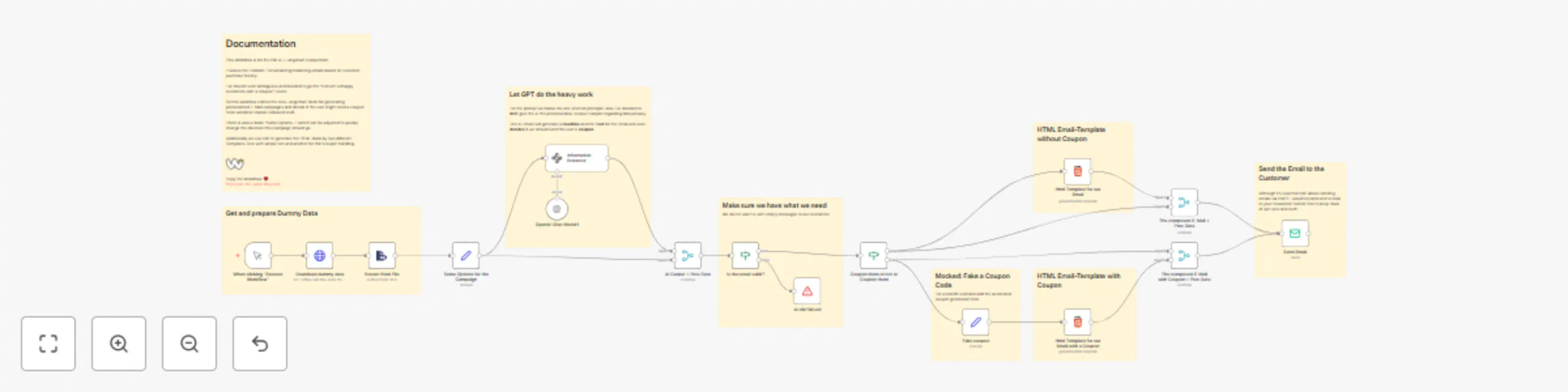
This workflow uses AI to analyze customer sentiment from product feedback. If the sentiment is negative, AI will determine whether offering a coupon could improve the customer experience. Upon completing the sentiment analysis, the workflow creates a personalized email templates. This solution streamlines the process of engaging with customers post-purchase, particularly when addressing dissatisfaction, and ensures that outreach is both personalized and automated. This workflow won the 1st place in our last AI contest. Note that to use this template, you need to be on n8n version 1.19.4 or later.

n
n8n Team
Social Media
14 Nov 2023
84315
0
Workflow preview: Weekly Shodan query - report accidents
Free advanced

Weekly Shodan query - report accidents

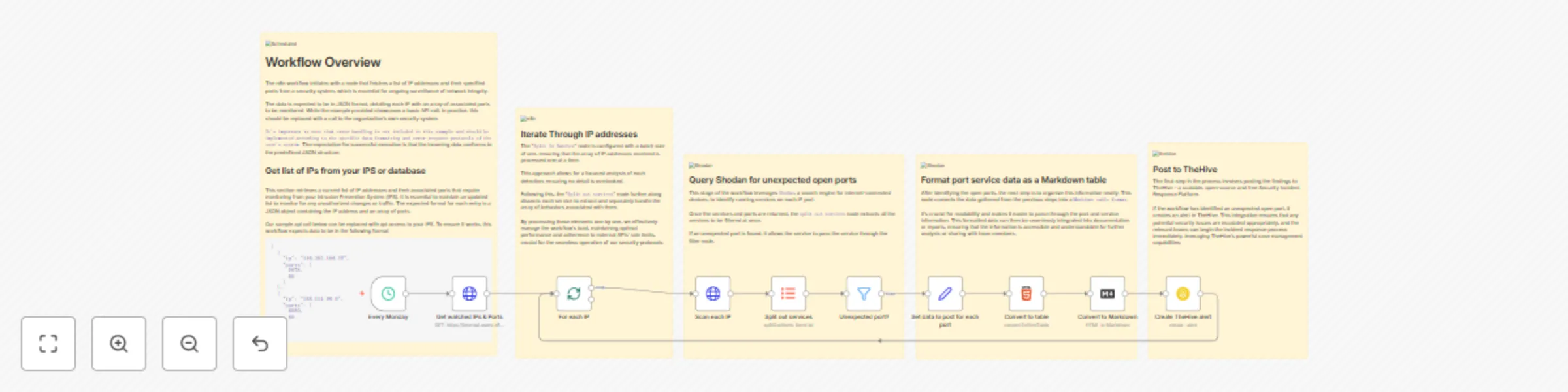
This n8n workflow, which runs every Monday at 5:00 AM, initiates a comprehensive process to monitor and analyze network security by scrutinizing IP addresses and their associated ports. It begins by fetching a list of watched IP addresses and expected ports through an HTTP request. Each IP address is then processed in a sequential loop. For every IP, the workflow sends a GET request to Shodan, a renowned search engine for internet-connected devices, to gather detailed information about the IP. It then extracts the data field from Shodan's response, converting it into an array. This array contains information on all ports Shodan has data for regarding the IP. A filter node compares the ports returned from Shodan with the expected list obtained initially. If a port doesn't match the expected list, it is retained for further processing; otherwise, it's filtered out. For each such unexpected port, the workflow assembles data including the IP, hostnames from Shodan, the unexpected port number, service description, and detailed data from Shodan like HTTP status code, date, time, and headers. This collected data is then formatted into an HTML table, which is subsequently converted into Markdown format. Finally, the workflow generates an alert in TheHive, a popular security incident response platform. This alert contains details like the title indicating unexpected ports for the specific IP, a description comprising the Markdown table with Shodan data, medium severity, current date and time, tags, Traffic Light Protocol (TLP) set to Amber, a new status, type as 'Unexpected open port', the source as n8n, a unique source reference combining the IP with the current Unix time, and enabling follow and JSON parameters options. This comprehensive workflow thus aids in the proactive monitoring and management of network security.

n
n8n Team
SecOps
13 Nov 2023
12427
0
Workflow preview: Receive and analyze emails with rules in Sublime Security
Free intermediate

Receive and analyze emails with rules in Sublime Security

This n8n workflow provides a comprehensive automation solution for processing email attachments, specifically targeting enhanced security protocols for organizations that use platforms like Outlook. It starts with the IMAP node, which is set to ingest emails and identify those with .eml attachments. Once an email with an attachment is ingested, the workflow progresses to a conditional operation where it checks for the presence of attachments. If an attachment is found, the binary data is moved and converted to JSON format, preparing it for further analysis. This meticulous approach to detecting attachments is crucial for maintaining a robust security posture, allowing for the proactive identification and handling of potentially malicious content. In the subsequent stage, the workflow leverages the capabilities of Sublime Security by analyzing the email attachment. The binary file is scrutinized for threats, and upon detection, the information is split to matched and unmatched data. This process not only speeds up the threat detection mechanism but also ensures compatibility with other systems, such as Slack, resulting in a smooth and efficient workflow. This automation emphasizes operational efficiency with minimal user involvement, enhancing the organization's defense against cyber threats. The final phase of the workflow involves preparing the output for a Slack report. Whether a threat is detected or not, n8n ensures that stakeholders are immediately informed by dispatching comprehensive reports or notifications to Slack channels. This promotes a culture of transparency and prompt action within the team.

n
n8n Team
SecOps
13 Nov 2023
2198
0
Workflow preview: Notify user in Slack of quarantined email and create Jira ticket if opened
Free intermediate

Notify user in Slack of quarantined email and create Jira ticket if opened

This n8n workflow serves as an incident response and notification system for handling potentially malicious emails flagged by Sublime Security. It begins with a Webhook trigger that Sublime Security uses to initiate the workflow by POSTing an alert. The workflow then extracts message details from Sublime Security using an HTTP Request node, based on the provided messageId, and subsequently splits into two parallel paths. In the first path, the workflow looks up a Slack user by email, aiming to find the recipient of the email that triggered the alert. If a user is found in Slack, a notification is sent to them, explaining that they have received a potentially malicious email that has been quarantined and is under investigation. This notification includes details such as the email's subject and sender. The second path checks whether the flagged email has been opened by inspecting the read_at value from Sublime Security. If the email was opened, the workflow prepares a table summarizing the flagged rules and creates a corresponding issue in Jira Software. The Jira issue contains information about the email, including its subject, sender, and recipient, along with the flagged rules. Issues that someone might encounter when setting up this workflow for the first time include potential problems with the Slack user lookup if the user information is not available or if Slack API integration is not configured correctly. Additionally, the issue creation in Jira Software may not work as expected, as indicated by the note that mentions a need for possible node replacement. Thorough testing and validation with sample data from Sublime Security alerts can help identify and resolve any potential issues during setup.

n
n8n Team
SecOps
13 Nov 2023
1982
0
Workflow preview: Monitor security advisories
Free advanced

Monitor security advisories

This n8n workflow automates the monitoring and notification of Palo Alto Networks security advisories. It is triggered manually from within the n8n UI or scheduled to run daily at midnight using the Schedule Trigger. The workflow begins by fetching the latest security advisories from Palo Alto Networks' RSS feed. Each advisory is then processed, and relevant information is extracted and categorized, including the advisory type, subject, and severity. The workflow checks the publication date of each advisory to ensure that it was posted within the last 24 hours, filtering out older advisories. The workflow then splits into two paths based on the advisory type: GlobalProtect and Traps. In the GlobalProtect path, advisories related to GlobalProtect are identified and used to create Jira issues. The Jira issues include a summary with the advisory title and a description that provides details about the advisory, its severity, link, and publication date. In the Traps path, advisories related to Traps are recognized, and dummy data (which should be replaced with logic to retrieve valid user emails) is generated for sample purposes. These email addresses are then used to send email notifications using the Gmail node. Each email's subject includes the type of advisory, while the body contains the advisory title and a link for more information. Potential issues when setting up this workflow for the first time might involve configuring the Schedule Trigger to match the desired time zone. Additionally, ensuring that the Jira and Gmail nodes are configured correctly with the required credentials and email addresses is crucial. The placeholder for generating dummy data for email recipients should be replaced with logic to retrieve valid user emails. Proper error handling and testing with real and sample advisories can help identify and resolve any potential issues during setup.

n
n8n Team
SecOps
13 Nov 2023
6579
0
Workflow preview: Analyze CrowdStrike detections - Search for IOCs in VirusTotal - Create a ticket in Jira, and post a message in Slack
Free advanced

Analyze CrowdStrike detections - Search for IOCs in VirusTotal - Create a ticket in Jira, and post a message in Slack

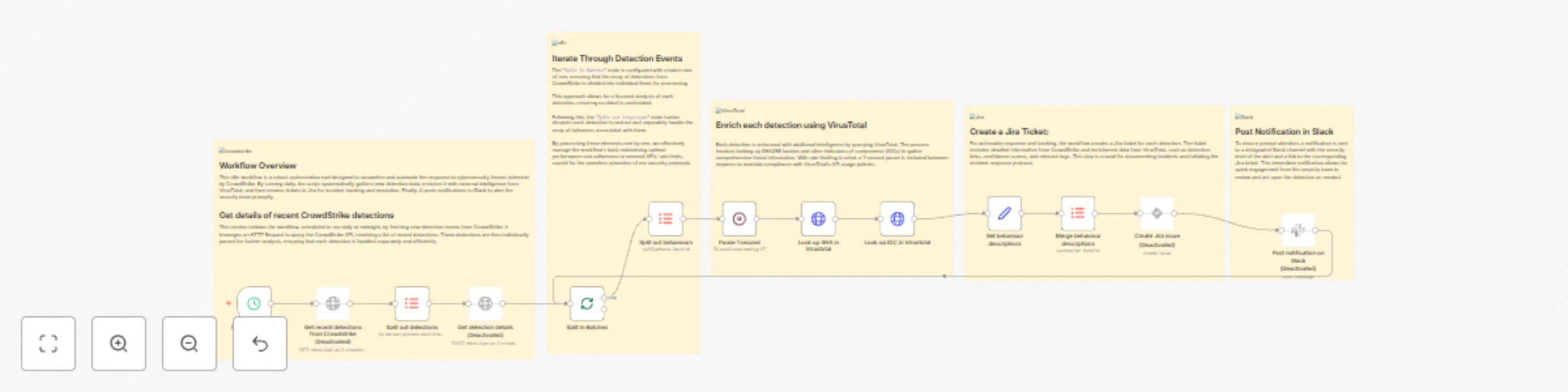
This n8n workflow automates the handling of security detections from CrowdStrike, streamlining incident response and notification processes. The workflow is triggered daily at midnight by the Schedule Trigger node. It begins by fetching recent security detections from CrowdStrike using an HTTP Request node. The response is then split into individual detections for further processing. Each detection is enriched by querying the CrowdStrike API for detailed information using another HTTP Request node. The workflow then processes these detections sequentially using the Split In Batches node. Next, it looks up behavioral information associated with each detection in VirusTotal using two HTTP Request nodes. One node queries VirusTotal based on SHA256 values, and the other based on IOC (Indicator of Compromise) values. The workflow includes a 1-second pause using the Wait node to prevent rate limiting when making requests to the VirusTotal API. Subsequently, the workflow sets fields with relevant details from both CrowdStrike and VirusTotal, including detection links, confidence scores, filenames, usernames, and more. These details are concatenated using an Item Lists node for each detection. The final step involves creating Jira issues for each detection, including summaries with CrowdStrike alert severity and hostnames, as well as descriptions that incorporate information from CrowdStrike and VirusTotal. Information about this issue is then sent via a Slack message to a Slack user. Potential issues during setup might include configuring the Schedule Trigger node to trigger at the correct time zone and handling potential rate limiting from the VirusTotal API, which could lead to throttled requests. Additionally, the note about a possible typo in the URL for the Virustotal nodes should be addressed to ensure correct API calls. The Jira node may need to be replaced with the latest version for compatibility. Properly configuring API credentials and handling errors that may occur during API requests are essential for a smooth workflow operation. Careful testing with sample data is recommended to validate the workflow's functionality and ensure it aligns with your organization's security incident response processes.

n
n8n Team
SecOps
13 Nov 2023
5518
0
Workflow preview: URL and IP lookups through Greynoise and VirusTotal
Free advanced

URL and IP lookups through Greynoise and VirusTotal

This n8n workflow serves as a powerful cybersecurity and threat intelligence tool to look up URLs or IP addresses through industry standard threat intelligence vendors. It starts with either a form submission or a webhook trigger, allowing users to input data, URLs or IPs that require analysis. The workflow then splits into two paths depending on whether the input data is an IP or URL. If an IP was given, it sets the ip variable to the IP; however if a URL was given the workflow will perform a DNS lookup using Google Public DNS and sets the ip variable based on the results from Google. The workflow then checks the obtained IP addresses against GreyNoise services, with one branch utilizing GreyNoise RIOT IP Lookup to assess IP reputation and association with known benign services, and the other using GreyNoise IP Context to evaluate potential threats. The results from both GreyNoise services are merged to create a comprehensive analysis which includes the IP, classification (benign, malicious, or unknown), IP location, tags to identify activity or malware, category, and trust level. In parallel, a VirusTotal scan is initiated for the URL/IP to identify if it is malicious. A 5-second wait ensures proper processing, and the workflow subsequently polls the scan result to determine when the analysis is complete. The workflow then summarizes the analysis including the overall security vendor analysis results, blockList analysis, OpenPhish analysis, the URL, and the IP. Finally, the workflow combines the summarized intelligence from both GreyNoise and VirusTotal to provide a thorough analysis of the URL/IP. This summarized intelligence can then be emailed to the user that filled out the form via Gmail or it can be sent to the user via a Slack message. Setting up this workflow may require proper configuration of the form submission or webhook trigger, and ensuring that the GreyNoise and VirusTotal API credentials are correctly integrated. Users should also consider the potential volume of data and API rate limits, as excessive requests could lead to issues. Proper documentation and validation of input data are crucial to ensure accurate and meaningful results in the final report.

n
n8n Team
SecOps
7 Nov 2023
9668
0
Workflow preview: Create unique Jira tickets from Splunk alerts
Free intermediate

Create unique Jira tickets from Splunk alerts

The workflow is an automated process designed for incident management and tracking, specifically by integrating Splunk alerts with a Jira ticketing system using n8n. The initial step in the workflow is a Webhook Trigger, which is set up to receive POST requests with data from Splunk to initiate the workflow. Once the workflow is triggered, the "Set Host Name" node cleans up the hostname received from Splunk, ensuring that it is alphanumeric for consistency and security purposes. Subsequently, the "Search Ticket" node interacts with Jira through a Jira Query Language (JQL) request to locate any existing issues that match the sanitized hostname. The workflow splits at the "IF Ticket Not Exists" node, which checks for the presence of a key indicating a matching issue. If an issue exists, the workflow proceeds to add a comment to the identified issue, and if not, it creates a new Jira issue. At the false path, the "Add Ticket Comment" node appends a new comment to the existing Jira issue, encapsulating details from the Splunk alert, such as the timestamp and the alert description.

n
n8n Team
DevOps
7 Nov 2023
2647
0
Workflow preview: Import CSV from URL to Google Sheets
Free beginner

Import CSV from URL to Google Sheets

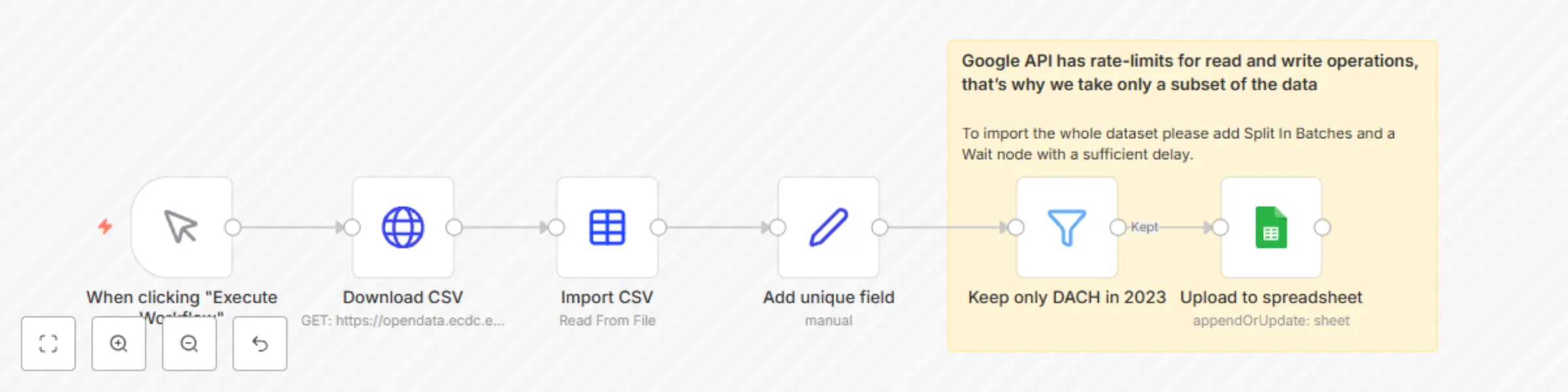
This workflow automatically imports data from a CSV file located at a specific URL and then updates the Google Sheets document with the provided data. Below is a step-by-step description of what this workflow does: 1. The workflow is started manually using the "When you click 'Execute Workflow'" node. 2. The CSV file is then uploaded from the specified URL "https://opendata.ecdc.europa.eu/covid19/testing/csv/data.csv" using the "Upload CSV" node. 3. The "Import CSV" node accepts the uploaded CSV file and converts it into JSON formatted data. 4. The "Add Unique Field" node generates a unique key by combining the 'country_code' and 'year_week' fields from the JSON data, which will be further used in the Google Sheets document. 5. The 'Keep only DACH in 2023' node filters the data to keep only records where 'country_code' is either 'DE', 'AT', or 'CH' and 'year_week' starts with '2023'. Google's API has limitations on the speed of read and write operations, so only a subset of the data is taken. 6. The filtered data is loaded into the specified Google Sheets document via the 'Load to Spreadsheet' node. The operation is set to 'appendOrUpdate' and the document ID and sheet name are specified. Also, the previously generated 'unique_key' key is set as the key to match the columns.

n
n8n Team
File Management
30 Oct 2023
5718
0
Workflow preview: Import multiple CSV to Google Sheets
Free beginner

Import multiple CSV to Google Sheets

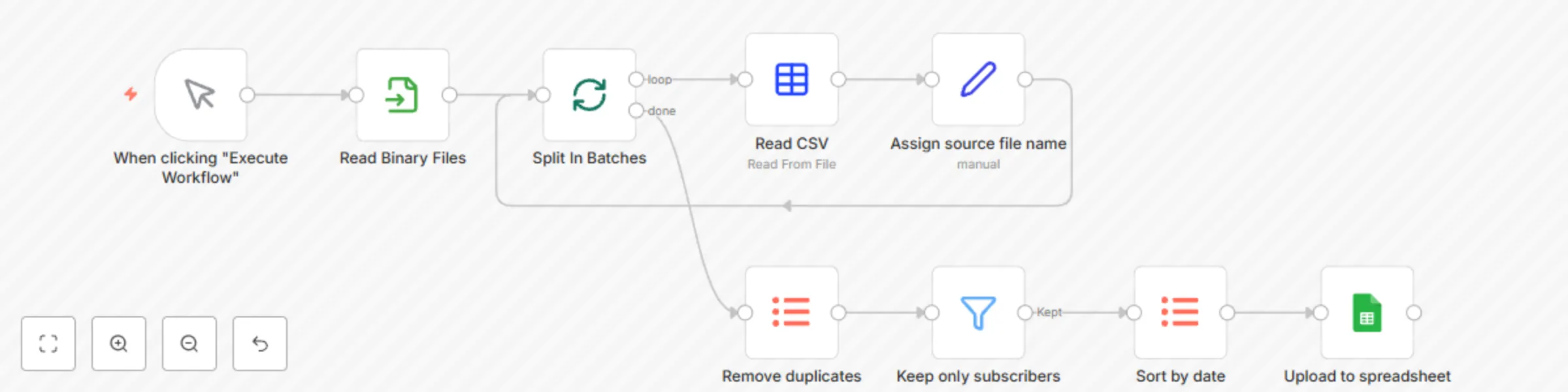
This workflow imports multiple CSV files and appends or updates them to a Google Sheets document. Here's a step-by-step breakdown: 1. When clicked "Execute Workflow", the process starts. 2. The "Read Binary Files" node reads all the '.csv' files from the specified directory. 3. The files are then split into batches (one file in a batch) by the "Split In Batches" node. 4. For each file, the "Read CSV" node reads the data from the CSV file. 5. The "Assign source file name" node assigns the source file name to the data. 6. The data is then processed by the "Remove duplicates" node. This removes any duplicate entries based on the 'user_name' field. 7. The "Keep only subscribers" node filters the data to keep only those entries where the 'subscribed' field is set to 'TRUE'. 8. The data is then sorted by the 'date_subscribed' field using the "Sort by date" node. 9. Finally, the processed data is appended or updated to a specified Google Sheets document using the "Upload to spreadsheet" node. It checks for the 'user_name' field, if the data corresponding to that 'user_name' already exists, it updates the data, otherwise appends the new data.

n
n8n Team
Document Extraction
30 Oct 2023
6060
0
Workflow preview: Prepare CSV files with GPT-4
Free beginner

Prepare CSV files with GPT-4

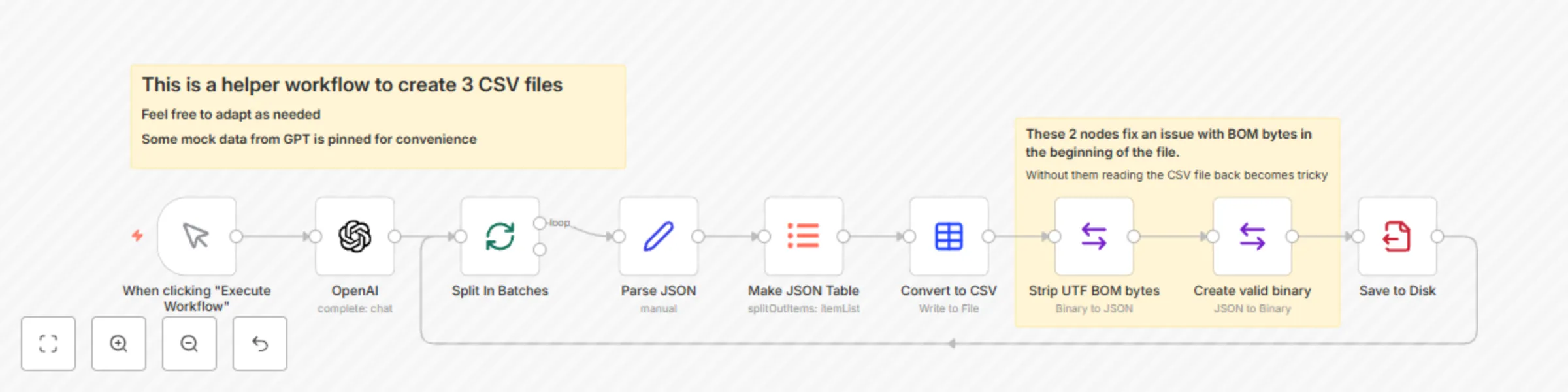
This workflow generates CSV files containing a list of 10 random users with specific characteristics using OpenAI's GPT-4 model. It then splits this data into batches, converts it to CSV format, and saves it to disk for further use. 1. The execution of the workflow begins from here when triggered manually. 2. "OpenAI" Node. This uses the OpenAI API to generate random user data. The input to the OpenAI API is a fixed string, which asks for a list of 10 random users with some specific attributes. The attributes include a name and surname starting with the same letter, a subscription status, and a subscription date (if they are subscribed). There is also a short example of the JSON object structure. This technique is called one-shot prompting. 3. "Split In Batches" Node. This node is used to handle the OpenAI responses one by one. 4. "Parse JSON" Node. This node converts the content of the message received from the OpenAI node (which is in string format) into a JSON object. 5. "Make JSON Table" Node. This node is used to convert the JSON data into a tabular format, which is easier to handle for further data processing. 6. "Convert to CSV" Node. This node converts the table format data received from the "Make JSON Table" node into CSV format and assigns a file name. 7. "Save to Disk" Node. This node is used to save the CSV generated in the previous node to disk in the ".n8n" directory. The workflow is designed in a circular manner. So, after saving the file to disk, it goes back to the "Split In Batches" node to process the OpenAI output, until all batches are processed.

n
n8n Team
Document Extraction
30 Oct 2023
7588
0
Workflow preview: itemMatching() usage example
Free beginner

itemMatching() usage example

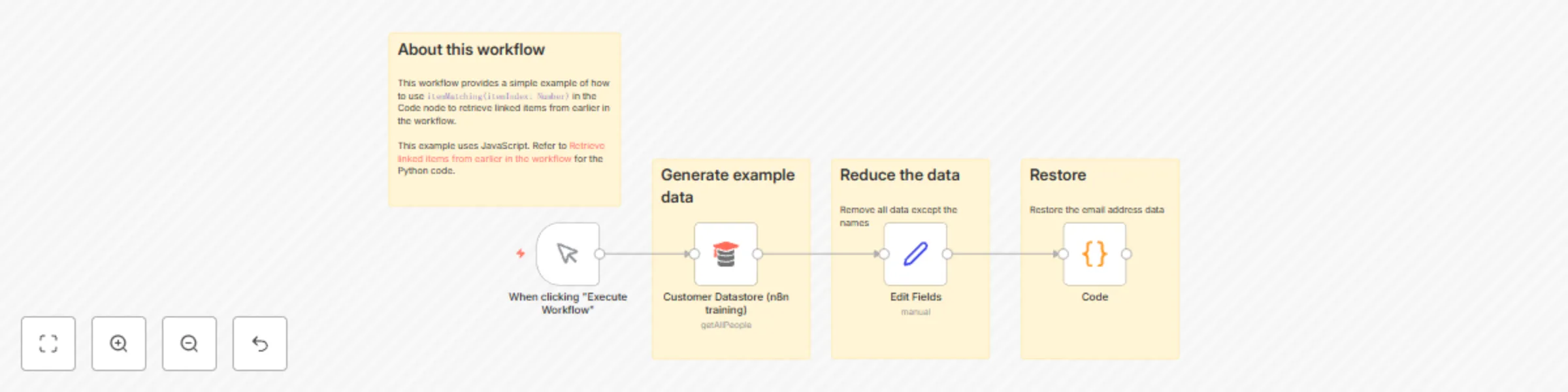
This workflow provides a simple example of how to use `itemMatching(itemIndex: Number)` in the Code node to retrieve linked items from earlier in the workflow.

n
n8n Team
Engineering
19 Oct 2023
3617
0
Workflow preview: Sync Google Sheets data with MySQL
Free beginner

Sync Google Sheets data with MySQL

This workflow performs several data integration and synchronization tasks between Google Sheets and a MySQL database. Here is a step-by-step description of what this workflow does: 1. Manual Trigger: The workflow starts when the user clicks "Execute Workflow." 2. Schedule Trigger: This node schedules the workflow to run at specific intervals on weekdays (Monday to Friday) between 6 AM and 10 PM. It ensures regular data synchronization. 3. Google Sheet Data: This node connects to a specific Google Sheets document and retrieves data from the "Form Responses 1" sheet, filtering by the "DB Status" column. 4. SQL Get inquiries from Google: This node retrieves data from a MySQL database table named "ConcertInquiries" where the "source_name" is "GoogleForm." 5. Rename GSheet variables: This node renames the columns retrieved from Google Sheets and transforms the data into a format suitable for MySQL, assigning a value for "source_name" as "GoogleForm." 6. Compare Datasets: This node compares the data retrieved from Google Sheets and the MySQL database based on timestamp and source_name fields. It identifies changes and updates. 7. No reply too long?: This node checks if there has been no reply within the last four hours, using the "timestamp" field from the Google Sheets data. 8. DB Status assigned?: This node checks if the "DB Status" field is not empty in the compared dataset. 9. Update GSheet status: If conditions are met in the previous nodes, this node updates the "DB Status" field in Google Sheets with the corresponding value from the MySQL dataset. 10. DB Status in sync?: This node checks if the "source_name" field in Google Sheets is not empty. 11. Sync MySQL data: If conditions are met in the previous nodes, this node updates the "source_name" field in the MySQL database to "GoogleFormSync." 12. Send Notifications: If conditions are met in the "No reply too long?" node, this node sends notifications or performs actions as needed. 13. Sticky Notes: These nodes provide additional information and documentation links for users.

n
n8n Team
Engineering
6 Oct 2023
9154
0