Block 1 - Schedule Trigger
- Type / Role
- n8n-nodes-base.scheduleTrigger - scheduleTrigger
- Config choices
- Version 1.2


 Early Deal
This workflow is provided as-is. Please review and test before using in production.
This workflow automates the process of publishing content from a Google Sheet to multiple social media platforms using the Blotato API. It retrieves content details (caption and Google Drive video ...
n8n-nodes-base.scheduletrigger, n8n-nodes-base.googlesheets, n8n-nodes-base.set, n8n-nodes-base.httprequest, @n8n/n8n-nodes-langchain.openai, n8n-nodes-base.stickynote
This workflow is cataloged by N8N Workflows and links back to its original n8n.io source page by Sam Yassine.
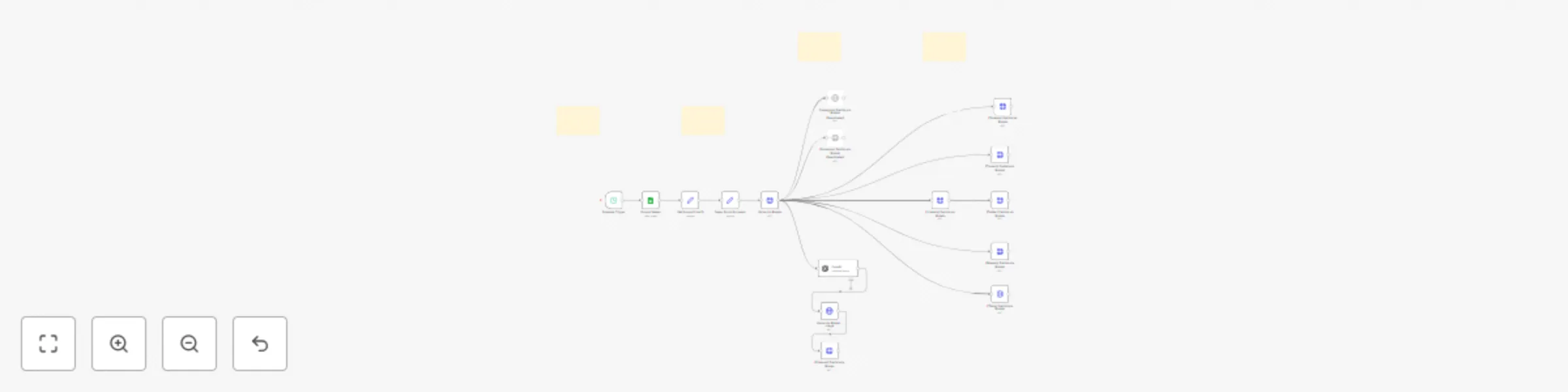
Original n8n.io sourceThis workflow automates the process of publishing content from a Google Sheet to multiple social media platforms using the Blotato API. It retrieves content details (caption and Google Drive video URL) from a Google Sheet, uploads the media to Blotato, and then distributes it to Instagram, Facebook, LinkedIn, TikTok, YouTube, Threads, Twitter, Bluesky, and Pinterest. It also includes a separate branch for generating and publishing an AI-created image to Pinterest.
Content Source: Google Sheets (for captions, status, and Google Drive video URLs)
Social Media Publishing API: Blotato API (for media upload and posting to all platforms)
OpenAI (DALL-E for generating an image for Pinterest)
Instagram Facebook (Pages) LinkedIn TikTok YouTube Threads Twitter (X) Bluesky Pinterest
This automation performs the following steps:
The Schedule Trigger node initiates the workflow on a defined schedule (e.g., every interval). The Google Sheets node reads data from a specified sheet (Sheet1 of "Publish to 9 Social Platforms"). It filters for rows where the "Status" column is "Ready to Post" and returns the first match. This provides the caption and the Google Drive URL for the video content. The Get Google Drive ID node (a Set node) extracts the unique Google Drive file ID from the video URL obtained from the sheet. Configuration & Media Preparation for Blotato: The Setup Social Accounts node (a Set node) defines placeholders for the Blotato API key and various social media account IDs required by the Blotato API. These need to be manually filled with your actual credentials and IDs. The Upload to Blotato node (HTTP Request) uploads the video content to Blotato's media endpoint. It constructs the downloadable Google Drive URL using the extracted file ID and sends it to Blotato along with the API key. Blotato then fetches and stores the media, returning a Blotato media URL.
The Blotato media URL (from the previous step) and the caption (from Google Sheets) are used to make individual POST requests to the Blotato API (/v2/posts) for each target platform. Each request is an HTTP Request node configured for a specific platform: [Instagram] Publish via Blotato (Disabled by default): Posts to the configured Instagram account.
Posts to the configured Facebook Page.
Posts to the configured LinkedIn account.
Posts to the configured TikTok account, with specific privacy and feature settings.
Uploads the video as a public YouTube short/video with a title and notifying subscribers.
Posts to the configured Threads account (caption sliced to 500 chars).
Posts to the configured Twitter (X) account (caption sliced to 280 chars).
Posts text-only (no media URL used in the example body) to the configured Bluesky account (caption sliced to 280 chars).
This branch demonstrates an alternative content type. The OpenAI node generates an image based on a prompt ("Image of a manatee staring in the mirror at its AI avatar") and returns image URLs. The Upload to Blotato - Image node (HTTP Request) takes one of these generated image URLs and uploads it to Blotato's media endpoint. The [Pinterest] Publish via Blotato node then posts this AI-generated image to the configured Pinterest account and board, along with the caption from the Google Sheet and a link.
This catalog entry is organized from the workflow JSON. The node-level section below shows the executable blocks available for review before importing the template.
| Workflow | Multi-platform video publishing from Google Sheets to 9 social networks via Blotato API |
|---|---|
| Complexity | advanced |
| Nodes | 20 |
| Categories | Social Media, Multimodal AI |
| Author | Sam Yassine |
| Published | 19 May 2025 |
Use the JSON export at /data/workflows/4227/4227.json as the source template for this automation.
Open n8n, import the downloaded JSON, and review each node before activating the workflow.
Replace placeholder credentials, API keys, webhook URLs, account IDs, and environment-specific values with your own settings.
Run the workflow manually or in a staging workspace, inspect node output, and confirm downstream systems receive the expected data.
Enable the workflow only after testing, then monitor executions, errors, and rate limits during the first production runs.
Review imported nodes carefully before activation. This catalog entry is intended to help you inspect the workflow structure, understand required services, and find related templates faster.
Node names, credentials, schedules, webhook paths, and external service limits may need adjustment for your workspace.
This workflow automates the process of publishing content from a Google Sheet to multiple social media platforms using the Blotato API. It retrieves content details (caption and Google Drive video ...
Review the workflow JSON, configure any required credentials in n8n, and test the automation in a safe workspace before using it in production.
Yes. Use the block-by-block analysis and the downloadable JSON to inspect each node, then adjust credentials, prompts, schedules, filters, or destinations for your Social Media, Multimodal AI use case.