Sam Yassine
Workflows by Sam Yassine

Shopify multi-module automation with GPT-4o, Langchain agents & integrations
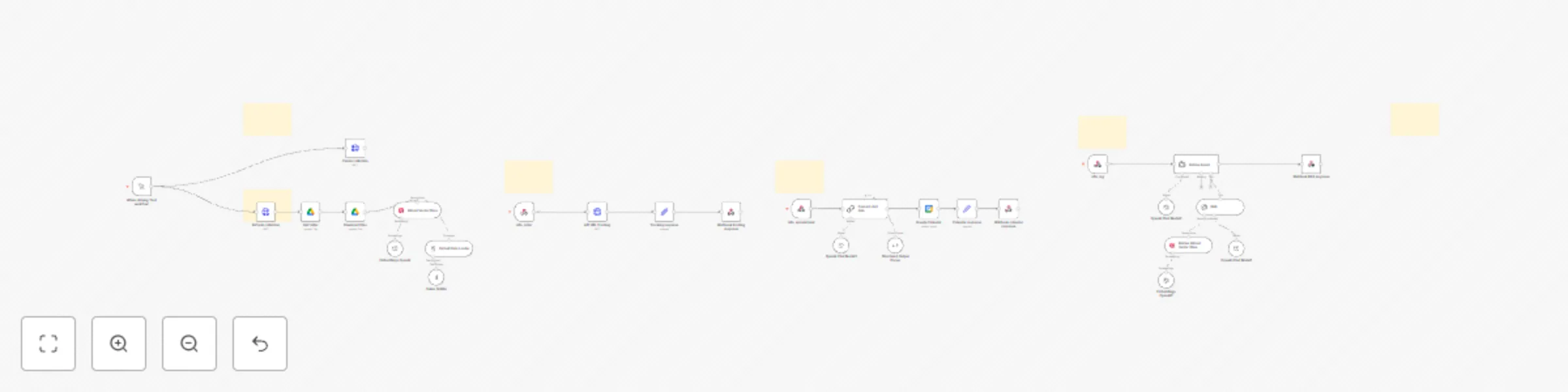
**This n8n workflow orchestrates a powerful suite of AI Agents and automations to manage and optimize various aspects of an e-commerce operation, particularly for platforms like Shopify. It leverages Langchain AI Agents powered by OpenAI, along with a variety of integrated services, to handle customer support, product recommendations, abandoned cart recovery, inventory management, post-purchase engagement, review monitoring, marketing campaigns, and operational alerts.** # Tools & Services Used - **n8n:** Core automation and orchestration platform. - **Langchain AI Agents:** For intelligent decision-making, task execution, and natural language processing across multiple modules. - **OpenAI (e.g., GPT-4o Mini):** Powers the AI Agents and direct LLM calls for tasks like sentiment analysis and content generation. - **Shopify (Conceptual - requires specific API/Webhook setup):** For triggers (abandoned cart, order delivered) and actions (fetching products/inventory, creating discounts). - **Google Sheets:** Used as a data store for FAQs, logging low stock, review databases, and campaign outcomes. - **Slack:** For internal team notifications (escalations, low stock, negative reviews). - **Twilio (or similar SMS service):** For sending SMS alerts (cart recovery, restock notifications). - **Email (Generic SMTP/API):** For sending various emails (AI responses, recovery emails, review requests, campaign emails). - **Notion:** For logging customer interactions. - **HTTP Request Nodes:** For generic API interactions (fetching customer info, product search, CRM, campaign tracking). - **Webhook Nodes:** For receiving external triggers (incoming messages, product inquiries, review submissions, restock signals). - **Cron Nodes:** For scheduled tasks (hourly inventory checks, daily campaigns). # Workflow Overview This workflow is a collection of interconnected sub-workflows, each designed to automate a specific e-commerce process: ## 1. Customer Support & Escalation Handles incoming customer messages, attempts to answer with FAQs or order status using an AI Agent, and escalates to a human agent via Slack if necessary. Logs interactions to Notion. ## 2. Product Inquiry & Recommendation Processes product inquiries, searches a product catalog, filters/sorts results, uses an AI Agent for selection refinement, and can build a product carousel for user response. ## 3. Abandoned Cart Recovery Detects abandoned carts, fetches customer data, uses an AI Agent to strategize recovery (e.g., offer discounts), and sends follow-up communications via email/SMS. ## 4. Inventory Management (Low Stock Alert) Periodically checks inventory levels, identifies low-stock items, uses an AI Agent to format reports, and notifies relevant teams via Slack/email, logging to Google Sheets. ## 5. Post-Purchase Review Request After a set period post-delivery, an AI Agent drafts and initiates sending a personalized product review request email to the customer. ## 6. Review Monitoring & Flagging Listens for new product reviews, uses an AI model for sentiment analysis, alerts a support team for negative reviews via Slack, and logs all reviews. ## 7. Scheduled Marketing Campaigns Fetches target audiences, segments them, uses AI Agents to generate tailored email content, sends campaigns, tracks basic metrics, and employs another AI Agent to suggest campaign adjustments. ## 8. Manual Restock Alert & Logging Allows triggering a restock notification via webhook, sends an SMS alert, and uses an LLM to log the event. # Prerequisites Ensure you have active accounts and necessary API keys/credentials for: - OpenAI - Shopify (or your e-commerce platform API) - Google Cloud (for Google Sheets API) - Slack (Bot Token) - Twilio (Account SID, Auth Token, From Number) - Your Email Sending Service (SMTP details or API key) - Notion (Integration Token) - Any other external APIs used (e.g., CRM, Product Search, Customer Info, Campaign Tracking) # How to Use This Template ## Step 1: Import the Template - Open your n8n instance. - Go to “Workflows” > “Create Workflow”. - Click the three dots (…) > “Import from File”. - Upload the downloaded JSON file of this workflow. ## Step 2: Configure Critical Nodes & Credentials This is the most crucial step. Systematically go through each of the 8 sections outlined in the Sticky Notes within the workflow and configure the relevant nodes: - **SECTION 1 (Customer Support):** - `Get FAQs Data` (Google Sheets): Set `sheetId` to **YOUR_SHEET_ID_HERE** and configure Google API credentials. - `Lookup Order API` (HTTP Request): Set `url` to **YOUR_ORDER_LOOKUP_API_ENDPOINT_HERE**. - `Notify Human Agent` (Slack): Configure Slack API credentials and `channel`. - `Send AI Response to Customer` (HTTP Request): Set `url` to **YOUR_CUSTOMER_RESPONSE_API_ENDPOINT_HERE**. - `Store to Notion` (Notion): Set `pageId` (Database ID) to **YOUR_NOTION_DATABASE_URL_OR_ID_HERE** and Notion API credentials. - **SECTION 2 (Product Inquiry):** - `Search Products API` (HTTP Request): Set `url` to **YOUR_PRODUCT_SEARCH_API_ENDPOINT_HERE**. - `Build Product Carousel` (Function): Update **YOUR_DEFAULT_PRODUCT_IMAGE_URL_HERE** and **YOUR_FALLBACK_PRODUCT_URL_HERE**. - `Respond to User with Carousel` (HTTP Request): Set `url` for sending carousel data. - **SECTION 3 (Abandoned Cart):** - `Detect Abandoned Cart` (Shopify Trigger): Configure Shopify credentials and ensure the correct trigger event. - `Fetch Customer Info` (HTTP Request): Set `url` to **YOUR_CUSTOMER_INFO_API_ENDPOINT_HERE**. - `Create Discount (if applicable)` (Shopify): Configure Shopify credentials and review discount creation parameters. - `Send Recovery Email` (HTTP Request/Email Send): Set email API endpoint or SMTP credentials. - `Send SMS Reminder` (Twilio): Configure Twilio credentials and `from` number (**YOUR_TWILIO_PHONE_NUMBER_HERE**). - **SECTION 4 (Low Stock Alerts):** - `Fetch Inventory` (Shopify): Configure Shopify credentials. - `Notify Slack (Low Stock)` (Slack): Configure Slack API credentials and `channel`. - `Generate Email Report (Low Stock)` (Email Send): Configure SMTP/email credentials and `to` address. - `Export to Sheets (Low Stock Log)` (Google Sheets): Set `sheetId` to **YOUR_INVENTORY_LOG_SHEET_ID_HERE** and Google API credentials. - **SECTION 5 (Review Request):** - `Order Delivered Trigger` (Shopify Trigger): Configure Shopify credentials. - `Fetch Customer Data (for Review)` (HTTP Request): Set `url` to **YOUR_CUSTOMER_INFO_API_ENDPOINT_HERE**. - `DraftReviewRequestEmail` (Tool): Update **YOUR_PRODUCT_PAGE_URL_BASE_HERE** and **YOUR_WEBSITE_URL_HERE**. - `Send Review Request Email` (Email Send): Configure SMTP/email credentials. - **SECTION 6 (Review Monitoring):** - `OpenAI` node (currently Assistant Create): **IMPORTANT:** For sentiment analysis, **change this node type to `@n8n/n8n-nodes-langchain.lmChatOpenAi`**. Then configure its prompt for sentiment analysis (e.g., System: "Analyze sentiment. Respond with positive, negative, or neutral." User: "Review: {{ $('Listen for Review Webhook').first().json.body.review_text }}"). Set OpenAI credentials. - `Notify Support Team (Negative Review)` (Slack): Configure Slack API credentials and `channel`. - `Add Review to Database` (Google Sheets): Set `sheetId` to **YOUR_REVIEWS_DATABASE_SHEET_ID_HERE** and Google API credentials. - **SECTION 7 (Marketing Campaigns):** - `Fetch Target Audience API` (HTTP Request): Set `url` to **YOUR_CRM_API_FOR_AUDIENCE_HERE**. - `GenerateCampaignEmailVariant` (Tool): Update **YOUR_CAMPAIGN_LANDING_PAGE_HERE**. - `Send Campaign Email` (Email Send): Configure SMTP/email credentials. - `Track Campaign Metrics API` (HTTP Request): Set `url` for **YOUR_CAMPAIGN_TRACKING_API_ENDPOINT_HERE**. - `Log Campaign Outcome & Adjustments` (Google Sheets): Set `sheetId` to **YOUR_CAMPAIGN_LOG_SHEET_ID_HERE** and Google API credentials. - **SECTION 8 (Manual Restock):** - `Send SMS Alert (Restock)` (Twilio): Configure Twilio credentials, `from` number (**YOUR_TWILIO_PHONE_NUMBER_HERE**), and `to` (**WAREHOUSE_MANAGER_PHONE_NUMBER_HERE**). - `OpenAI Chat Model` (for Basic LLM Chain): Configure OpenAI credentials. - `Send restock Request Email1` (Email Send): Configure SMTP/email credentials and `to` address. ## Step 3: Implement Tool Logic - Go into each `@n8n/n8n-nodes-langchain.toolCode` node (e.g., `SearchFAQs`, `RefineProductSelection`, `DetermineDiscount`, etc.). - The current JavaScript is placeholder. **You MUST replace this with actual JavaScript logic** that performs the intended action for each tool, often by making API calls or processing data based on the agent's input. ## Step 4: Review AI Agent Prompts & Tool Connections - Carefully review the `systemMessage` for each AI Agent node to ensure it accurately reflects its role and how it should use its tools. - **CRITICAL:** Verify the `index` for tools connected to each AI Agent. Each tool connected to a single agent must have a unique, sequential index (0, 1, 2, ...). - **AI Agent (*ID `cd71629d-...`* in your JSON):** `SearchFAQs` tool should be `index: 0`, `LookupOrderStatus` tool should be `index: 1`. *(Please double-check and correct the connection indices in your actual workflow file if they are still both pointing to index 0).* - **AI Agent6 (*ID `4c24879b-...`* in your JSON):** `AnalyzeCampaignPerformance` tool should be `index: 0`, `SuggestCampaignAdjustments` tool should be `index: 1`. *(Please double-check and correct the connection indices in your actual workflow file if they are still both pointing to index 0).* # Initial Test Run - Disable most of the workflow sections initially. - Focus on one section at a time (e.g., Section 1: Customer Support). - Manually trigger the first node (e.g., simulate an incoming webhook). - Execute node by node, checking the output and debugging configurations and tool logic. - For time-based triggers (Cron, Wait nodes), temporarily shorten the durations for faster testing. - Once a section is working, move to the next. # Use Cases - **E-commerce Businesses (Shopify, etc.):** To automate customer service, marketing, sales recovery, and operations. - **Digital Marketing Agencies:** To offer advanced automation services to e-commerce clients. - **Freelancers & Consultants:** To build and deploy sophisticated AI-driven e-commerce solutions. - **n8n Developers:** As a comprehensive template and learning resource for building complex multi-agent systems.
AI real estate agent: end-to-end ops automation (web, data, voice)
**This suite automates distinct aspects of real estate operations: incoming web lead qualification, scheduled/manual data research and content generation, and automated voice call outreach with lead qualification. It leverages AI (primarily OpenAI GPT-4o Mini via Langchain), data processing nodes, and integrations with external APIs and Google Workspace.** # Workflow 1: Incoming Web Lead Qualification & Scoring This workflow captures leads from a web source, validates their input, uses AI to classify intent and urgency, checks against a property database, scores the lead, and prepares a structured lead object. # Tools & Services Used: AI Core & Processing: OpenAI (GPT-4o Mini via Langchain Agent and Chat Model nodes) Data Processing: n8n Set, If, Code nodes External API: HTTP Request node (for PropertyCheckAPI) # Workflow Overview: Trigger: Incoming Web Lead Webhook (/incoming-lead): Captures new leads submitted via a web form. Lead Data Ingestion & Validation: Set & Rename Incoming Lead Fields: Standardizes input field names from the webhook. IF User Message Valid: Checks if the userMessage field is present and meets a minimum length. Clean User Message Text (Code): Pre-processes the user's message (e.g., removes extra spaces). AI-Powered Lead Analysis: AI Classify Lead Intent & Urgency (Langchain Agent): Analyzes the cleaned user message to determine the lead's primary intent (e.g., buying, selling, inquiry) and the urgency of their request. Powered by: LLM for Lead Intent/Urgency Classification (OpenAI Chat Model - GPT-4o Mini). Extract Intent & Urgency from AI Output (Set): Structures the AI's classification into distinct fields. Data Standardization & Enrichment: Standardize All Lead Data Fields (Code): Further standardizes all collected data points for consistency. Call Property Check API (HTTP Request): Sends lead/property details to an external API (https://api.example.com/property-check) to verify listing status or gather more information. Lead Scoring & Finalization: IF Property is Known Listing: Checks the API response to see if a matchFound was "true". Calculate Web Lead Score (Code): If a known listing (or based on other criteria), this node assigns a numerical or categorical score to the lead. Set Final Structured Web Lead Data (Set): Consolidates all original, processed, classified, and scored data into a final, comprehensive lead object. ## Workflow 2: Scheduled/Manual AI-Powered Data Research & Content Generation (Red Background) This workflow fetches data from external URLs, extracts information using AI, allows a sophisticated AI agent to perform research and generate analysis using various tools, and outputs results to Google Sheets, Google Docs, and potentially other AI processing steps. # Tools & Services Used: Orchestration & Automation: n8n AI Core & Processing: OpenAI (GPT-4o Mini via Langchain Information Extractor, Langchain Agent, and direct OpenAI nodes) AI Tools: Langchain Calculator, Langchain SerpAPI Data Storage & Output: Google Sheets, Google Docs Data Input: HTTP Request node # Workflow Overview: Triggers: Manual Trigger for Data Analysis Flow: Allows on-demand execution. Scheduled Trigger for Data Analysis Flow: Automates execution on a defined schedule. Data Ingestion & Initial Extraction: Fetch External Data for AI Analysis (HTTP Request): Retrieves content from a specified URL. AI Extract Information from Fetched Data (Langchain Information Extractor): Uses an AI model to extract structured data from the fetched content. Powered by: LLM for Data Information Extractor (OpenAI Chat Model - GPT-4o Mini). Advanced AI Analysis & Tasking: AI Agent for Research & Content Generation (Langchain Agent): Processes the extracted information to perform in-depth research, analysis, or content creation. Powered by: LLM for Research & Content AI Agent (OpenAI Chat Model - GPT-4o Mini). Utilizes Tools: Calculator Tool for AI Agent: For numerical calculations. SerpAPI Web Search Tool for AI Agent: For performing real-time web searches to gather additional context or verify information. Output & Dissemination: The AI Agent's output is routed to multiple destinations: Update Google Doc with AI Agent Analysis (Google Docs): Inserts the generated analysis/content into a Google Document. Split AI Agent Output Items (Split Out) -> Log AI Analysis Data to Google Sheets (Google Sheets): If the agent produces multiple data items, they are split and logged individually into a Google Sheet. OpenAI: Generate Text from Agent (Output 1) & OpenAI: Generate Text from Agent (Output 2): These nodes likely take the agent's output for further specialized AI processing (e.g., summarization for different purposes, reformatting). ## Workflow 3: Automated Lead Outreach & Voice Call Qualification (Green Background) This workflow automates the initial contact with new leads via a voice call, uses AI to understand the lead's responses during the call, qualifies them, and logs the detailed interaction and a summary. # Tools & Services Used: Orchestration & Automation: n8n AI Core & Processing: OpenAI (GPT-4o Mini via Langchain Agent and Chat Model nodes) Voice Services: ElevenLabs (Text-to-Speech via HTTP Request), Twilio (Place Call via HTTP Request) Data Storage & Output: Google Sheets Error Handling: n8n Execute Workflow Trigger # Workflow Overview: Trigger: Webhook for Voice Call Lead (/new-lead): Captures new leads designated for an automated voice call. Call Preparation & Initiation: Set Initial Voice Call Lead Details: Extracts basic lead info (name, phone, property ref, email) from the webhook. Generate Voice Call Introduction Script (Function): Creates a personalized script for the call. ElevenLabs: Convert Intro Script to Voice (HTTP Request): Sends the script to ElevenLabs API to generate natural-sounding audio. Twilio: Initiate Voice Call to Lead (HTTP Request): Uses Twilio API to place the call and play the generated audio. AI-Powered Call Interaction Analysis: AI Agent: Extract Info from Voice Call (Langchain Agent): Processes the interaction from the call (e.g., a transcript of the lead's responses, or DTMF inputs if designed to capture them) to extract key qualification data like budget, timeline, and interest level. Powered by: LLM for Voice Call Info Extraction Agent (OpenAI Chat Model - GPT-4o Mini). Structure Extracted Voice Call Info (Function): Organizes the AI-extracted data into a structured JSON object. Lead Qualification & Data Logging: Set Lead Status Based on Call Interest: Updates the lead's status (e.g., "Interested" or "Not Interested") based on the AI's interpretation of the call. IF Lead Interested (from Voice Call): Branches the workflow based on lead status. If Interested: Assign Score to Interested Voice Lead (Function): Calculates a lead score based on budget, timeline, etc. Format Current Timestamp for Logging (DateTime): Generates a timestamp. Log Qualified Voice Lead to Google Sheets: Appends the detailed, qualified lead information to a 'Leads' Google Sheet. AI Agent: Generate Voice Call Lead Summary (Langchain Agent): Creates a concise summary of the entire lead interaction and qualification. Powered by: LLM for Voice Call Lead Summary Agent (OpenAI Chat Model - GPT-4o Mini). Log Voice Call Lead Summary to Google Sheets: Appends this summary to a separate 'LeadsSummary' Google Sheet. Error Handling (for Sheets Logging): IF Voice Lead Logging to Sheets Failed: Checks if the Google Sheets logging operation was unsuccessful. Error Trigger: Notify Admin of Sheets Failure (Execute Workflow Trigger): If logging fails, triggers a separate workflow to alert an administrator.
Automated SEO keyword & SERP analysis with DataForSEO for high-converting content
# Overall Purpose: The workflow automates the process of gathering extensive keyword data for a "Main Keyword." It starts by reading initial parameters from a Google Sheets template, creates a new dedicated Google Sheet for the research, queries multiple DataForSEO API endpoints for different types of keyword information (related, suggestions, ideas, autocomplete, subtopics, SERP, and PAA), and populates the newly created Google Sheet with this data across various tabs. A "Master All KW Variations" sheet is also populated to consolidate various keyword types. # Tools & Services Used: ## Google Sheets: As an input source for the main keyword and initial parameters (from a template). As the output destination for all collected keyword data, organized into multiple sheets within a new spreadsheet file. ## Google Drive: To create a new folder for each keyword research session. To copy the Google Sheets template into this new folder. ## DataForSEO API: The primary source for all keyword research data. Specific endpoints utilized: v3/dataforseo_labs/google/related_keywords/live v3/dataforseo_labs/google/keyword_suggestions/live (used for both "suggestions" and "ideas") v3/serp/google/autocomplete/live/advanced v3/content_generation/generate_sub_topics/live v3/serp/google/organic/live/advanced (for SERP and People Also Ask data) # Implementation Steps for Businesses: ## Define Core Business Keywords: Start with the primary products, services, or solutions the business offers. ## Regularly Run the Workflow: Schedule the workflow to run for new keywords or to refresh data on existing important keywords. ## Collaborative Review: Marketing, sales, and even product teams should review the generated Google Sheets. Marketing focuses on content ideas, SEO opportunities, and competitor SERP positions. Sales focuses on understanding customer questions (PAA, Autocomplete) to refine pitches. ## Integrate into Content Calendar: Use the insights to plan blog posts, articles, FAQs, and social media content. Update Sales Training: Share common customer questions and keyword insights with the sales team. ## Track & Measure: Monitor rankings for targeted keywords and the performance of content created based on this research to demonstrate ROI. ** By leveraging this automated workflow, businesses can save significant time on manual keyword research, gain deeper insights into their market and competitors, and ultimately create more effective sales and marketing strategies that drive growth.**
Multi-platform video publishing from Google Sheets to 9 social networks via Blotato API
**This workflow automates the process of publishing content from a Google Sheet to multiple social media platforms using the Blotato API. It retrieves content details (caption and Google Drive video URL) from a Google Sheet, uploads the media to Blotato, and then distributes it to Instagram, Facebook, LinkedIn, TikTok, YouTube, Threads, Twitter, Bluesky, and Pinterest. It also includes a separate branch for generating and publishing an AI-created image to Pinterest.** # Tools & Services Used Content Source: Google Sheets (for captions, status, and Google Drive video URLs) ## Media Hosting: Google Drive (for source videos) Social Media Publishing API: Blotato API (for media upload and posting to all platforms) ## AI Image Generation: OpenAI (DALL-E for generating an image for Pinterest) ## Target Social Platforms: Instagram Facebook (Pages) LinkedIn TikTok YouTube Threads Twitter (X) Bluesky Pinterest # Workflow Overview This automation performs the following steps: ## Trigger & Content Retrieval: The Schedule Trigger node initiates the workflow on a defined schedule (e.g., every interval). The Google Sheets node reads data from a specified sheet (Sheet1 of "Publish to 9 Social Platforms"). It filters for rows where the "Status" column is "Ready to Post" and returns the first match. This provides the caption and the Google Drive URL for the video content. The Get Google Drive ID node (a Set node) extracts the unique Google Drive file ID from the video URL obtained from the sheet. Configuration & Media Preparation for Blotato: The Setup Social Accounts node (a Set node) defines placeholders for the Blotato API key and various social media account IDs required by the Blotato API. These need to be manually filled with your actual credentials and IDs. The Upload to Blotato node (HTTP Request) uploads the video content to Blotato's media endpoint. It constructs the downloadable Google Drive URL using the extracted file ID and sends it to Blotato along with the API key. Blotato then fetches and stores the media, returning a Blotato media URL. ## Content Distribution to Social Platforms via Blotato (Parallel Branches from "Upload to Blotato"): The Blotato media URL (from the previous step) and the caption (from Google Sheets) are used to make individual POST requests to the Blotato API (/v2/posts) for each target platform. Each request is an HTTP Request node configured for a specific platform: [Instagram] Publish via Blotato (Disabled by default): Posts to the configured Instagram account. ## Publish to Facebook: Posts to the configured Facebook Page. ## Publish to LinkedIn: Posts to the configured LinkedIn account. ## Publish to Tiktok: Posts to the configured TikTok account, with specific privacy and feature settings. ## Publish to Youtube: Uploads the video as a public YouTube short/video with a title and notifying subscribers. ## Publish to Threads: Posts to the configured Threads account (caption sliced to 500 chars). ## Publish to Twitter: Posts to the configured Twitter (X) account (caption sliced to 280 chars). ## Publish to Bluesky: Posts text-only (no media URL used in the example body) to the configured Bluesky account (caption sliced to 280 chars). ## AI Image Generation & Pinterest Publishing (Separate Branch from "Upload to Blotato"): This branch demonstrates an alternative content type. The OpenAI node generates an image based on a prompt ("Image of a manatee staring in the mirror at its AI avatar") and returns image URLs. The Upload to Blotato - Image node (HTTP Request) takes one of these generated image URLs and uploads it to Blotato's media endpoint. The [Pinterest] Publish via Blotato node then posts this AI-generated image to the configured Pinterest account and board, along with the caption from the Google Sheet and a link.
AI sales agent: WhatsApp, FB, IG, OpenAI, Airtable, Supabase auto-booking
**This workflow automates multi-channel AI-driven sales engagement for lead qualification, service information delivery, and consultation booking. It integrates WhatsApp, Facebook Messenger, Instagram DM, and an n8n chat interface with a backend CRM (Airtable), a knowledge base (Supabase), and conversational AI (OpenAI), all orchestrated by n8n.** # Tools & Services Used Messaging Platforms: WhatsApp, Facebook Messenger, Instagram DM, n8n Built-in Chat AI Core & Processing: OpenAI (GPT-4o for main agent logic, Whisper for audio transcription) CRM & Data Management: Airtable (for initial WhatsApp lead lookup, lead form submissions, and as the backend for the crmAgent sub-workflow operations) Knowledge Base: Supabase (Vector Store for technical_and_sales_knowledge tool) Chat Memory: PostgreSQL (for the main AI Agent's conversation history) Orchestration & Automation: n8n (Self-hosted, utilizing Langchain community nodes) Calendar Service: Integrated via the calendarAgent sub-workflow CRM Service: Integrated via the crmAgent sub-workflow (interacting with Airtable) # Workflow Overview ## This automation performs the following steps: Trigger: A new interaction is initiated through one of the following channels: A new message is received via the WhatsApp Trigger. A new message is received via the Facebook Trigger (Webhook). A new message is received via the Instagram Trigger (Webhook). A new message is received via the n8n Chat Trigger. Alternatively, a new lead is submitted via the Airtable Form Submitted Webhook. Channel-Specific Ingestion & Pre-processing: ## For WhatsApp: The system attempts to find an existing lead in Airtable using the sender's phone number. Incoming messages are routed by the Handle Message Types switch: Text messages are passed to the Edit Fields - chat1 node to prepare input for the AI Agent, including any found lead information. Audio messages are processed: the WhatsApp Business Cloud node gets the media URL, the HTTP Request node downloads the audio, OpenAI transcribes it to text, and Edit Fields - chat2 prepares this transcribed text and lead information for the AI Agent. Unsupported message types trigger the Reply To User1 node to send a notification that the message type cannot be processed. ## For Facebook Messenger: The system responds to webhook verification (Respond to Webhook - facebook get) and acknowledges new messages (Respond to Webhook - facebook post). The If is not echo - facebook node filters out messages sent by the page. The Sales Agent Demo - typing_on node sends a typing indicator. The Edit Fields - facebook node prepares the message text, sender ID, and Facebook-specific context for the AI Agent. ## For Instagram DM: The system responds to webhook verification (Respond to Webhook - instagram get) and acknowledges new messages (Respond to Webhook - instagram post). The If is not echo - instagram node filters out messages sent by the business account. The Edit Fields - instagram node prepares the message text, sender ID, and Instagram-specific context for the AI Agent. ## For n8n Chat: The Edit Fields - chat node prepares the user's input and session information for the AI Agent. ## Input Aggregation for AI Agent: Processed data from all active messaging channels (WhatsApp text/audio, Facebook, Instagram, n8n Chat) is funneled through the No Operation, do nothing node to the main AI Agent. ## AI Sales Conversation & Tool Utilization: The AI Agent (using OpenAI Chat Model - GPT-4o, and Postgres Chat Memory) engages the user according to its system prompt, aiming to qualify them for Paint Protection Film (PPF), Ceramic Coating, or Window Tint. The AI Agent uses the technical_and_sales_knowledge tool (which queries the Demo Supabase vector store via Embeddings OpenAI and OpenAI Chat Model1) to provide service details and answer questions. The AI Agent uses the crmAgent tool (a sub-workflow) to log contact details (Name, Email, service interest) and update opportunity statuses in Airtable. The AI Agent uses the calendarAgent tool (a sub-workflow) to book consultation appointments once preferred dates/times are provided. This occurs after contact details are logged in the CRM. ## Response Delivery: The AI Agent's final textual response is passed to the Switch node. The Switch node routes the response to the appropriate node for delivery on the original channel: Reply To User for WhatsApp. Facebook Graph API - Sales Agent Demo for Facebook Messenger. Instagram Graph API - smb.sales.agent.demo for Instagram DM. Output - chat for the n8n Chat interface. ## Airtable Form Submission Processing (Separate Branch): When the Airtable Form Submitted webhook receives data, the Airtable node fetches the full record. The Create Contact node creates a new contact in the Airtable 'Contacts' table. The Edit Fields - form node prepares data for a notification. The WhatsApp Business Cloud2 node sends a templated WhatsApp message to the lead, confirming their form submission.
AI-powered RAG Q&A chatbot with OpenAI, Google Sheets, Glide & Supabase
**Automate AI-Powered RAG System with Contextual Q&A, Google Sheets Integration, and Glide Frontend—Powered by n8n, OpenAI, Supabase, and Google Apps Script.** # Tools & Services Used Glide (Frontend for user interactions) Google Sheets (Stores questions and answers) Google Apps Script (Forms + media upload handling) OpenAI (Embeddings + GPT-4 to rank and generate answers) Supabase (Optional for image hosting) n8n (Automation logic and backend glue) # Workflow Overview ## This automation performs the following steps: Trigger: Webhook receives a user question from a Glide frontend. Fetch Data: Retrieves Q&A entries (and optionally, image URLs) from a connected Google Sheet. Rank Relevance: OpenAI Embeddings rank the relevance of stored questions to the new input. Top matches are passed to a GPT-4 prompt for answer generation. Generate Answer: GPT-4 creates a contextual answer using the best match. Optional: Includes media URL if attached to the matched answer. Response: Sends the formatted answer back to Glide frontend (text + optional image). # Prerequisites ## Active accounts and API keys for: OpenAI (API key with GPT-4 and embedding access) Google Sheets (linked via Service Account or OAuth2 credentials) Glide App (with a form to submit questions) Supabase (optional, if hosting user-uploaded media) n8n Self-hosted (for community nodes and webhook access) # How to Use This Template ## Step 1: Import the Template Upload the provided JSON into your self-hosted n8n instance. Requires installation of the Community Node: @n8n/n8n-nodes-openai-embeddings ## Step 2: Configure Credentials Webhook Trigger: Replace the Glide webhook URL with your actual endpoint from your app. Google Sheets Node: Set the spreadsheet ID and worksheet name to fetch your Q&A dataset. OpenAI Nodes: Insert your OpenAI API key. Confirm that both text-embedding-ada-002 (or similar) and gpt-4 are available. Supabase or Apps Script (Optional): Ensure image links are correctly formed in the Sheet. ## Step 3: Customize Prompts and Thresholds Update the OpenAI ranking prompt or similarity threshold in the Function or Code node. Tailor GPT-4 prompts to return concise or detailed answers based on your use case. # Initial Test Run Simulate a Question: Trigger the Glide form with a sample question. Check n8n logs for: Matching score/ranking success Correct retrieval from Sheets GPT-4 answer generation Image URL handling (if enabled) # Production Prep Add error-handling nodes for cases when Sheets are empty or GPT-4 fails. Set up logging via Google Sheets, Supabase, or external database. Rate-limit or debounce requests from Glide if needed. # Use Cases Customer Support Portals: Offer instant Q&A with your business data. Internal Knowledgebase: Employees can query training manuals and SOPs. AI Concierge: Combine structured answers with friendly tone for guest interactions. # Disclaimer Validate Glide form inputs before full deployment. Ensure your OpenAI and Google Sheets usage stays within quota limits.
Automate AI phone booking & CRM updates with GPT-4, VAPI.ai, and GHL
**Automate AI-driven appointment booking with phone call confirmations, real-time lead validation, CRM updates, and email notifications—powered by n8n, OpenAI, VAPI.ai, and GoHighLevel.** # Tools & Services Used - GoHighLevel (CRM & appointment management) - VAPI.ai (AI phone calls) - OpenAI (GPT-4 for lead validation and post-call analysis) - Email Service (transactional email notifications) - n8n (Self-hosted required for Community Nodes) # Workflow Overview ## This automation performs the following steps: - Trigger: A new lead arrives via the GHL Webhook. - Validation: OpenAI (GPT-4) checks lead quality and relevance. - AI Phone Call: VAPI.ai initiates an automated call to confirm appointment details. - Post-Call Analysis: OpenAI interprets the call result (booking_made=YES/NO). ## Conditional Actions: If YES: Updates GoHighLevel CRM and sends confirmation emails to the client and owner. If NO: Alerts the owner via email about the failed booking. # Prerequisites Active accounts and API keys for: - GoHighLevel (webhook setup) - VAPI.ai (phone call API) - OpenAI (GPT-4 access) - Email service (e.g., SMTP, SendGrid, or Gmail) # How to Use This Template ## Step 1: Import the Template Import the JSON into your self-hosted n8n instance (requires Community Nodes like @n8n/n8n-nodes-langchain). ## Step 2: Configure Credentials GHL Webhook: Replace YOUR_WEBHOOK_ID with your GoHighLevel webhook ID. OpenAI Nodes: Add your OpenAI API key (replace placeholder BxLbA94QZt0ifZsC). VAPI Call Node: Ensure the VAPI.ai endpoint (https://api.vapi.ai/call/phone) has valid API credentials. Email Nodes: Configure SMTP or API credentials for your email service. ## Step 3: Enable Disabled Nodes Activate the Post-call Analysis node if needed (disabled by default). Finding Your GHL Webhook ID In GoHighLevel, navigate to Automations → Webhooks. Create a new webhook and copy its unique ID into the GHL Webhook node. # Initial Test Run Simulate a Lead: Manually trigger the GHL webhook with test lead data. # Debugging: Verify OpenAI validates the lead. Check if VAPI.ai initiates a call (use a test phone number). Confirm CRM updates and emails are sent conditionally. # Production Prep: Enable error-handling loops for failed calls. Adjust GPT-4 prompts for stricter validation. # Use Cases - Medical Clinics: Reduce no-shows with automated appointment confirmations. - Salons/Spas: Streamline booking updates and client reminders. - Consultants: Sync client meetings to CRM in real time. # Disclaimer Requires self-hosted n8n (Community Nodes are unsupported on n8n Cloud). Test phone call and email nodes extensively before scaling.
Create AI news videos with HeyGen avatars and auto-post to social media
Automatically generate short AI avatar videos based on trending news, then post them across social media platforms—fully automated using n8n, HeyGen, ChatGPT, and Blotato. ### Tools & Services Used: - n8n (Self-hosted required due to Community Nodes) - HeyGen (for creating AI avatar videos) - OpenAI (for script and caption generation) - Blotato (for social media distribution) - Hacker News (for sourcing trending articles) ### Workflow Overview: This automation performs the following steps: 1. Fetches trending news from Hacker News 2. Generates a short script using ChatGPT 3. Creates an AI avatar video with HeyGen 4. Generates platform-specific captions 5. Posts the content across social media with Blotato ### Prerequisites: Make sure you have active accounts and API keys for: - HeyGen - OpenAI - Blotato ### How to Use This Template Step 1: Import the Template 1. Open your self-hosted n8n instance 2. Go to "Workflows" > "Create Workflow" 3. Click the three dots (…) > "Import from File" 4. Upload the downloaded JSON file Step 2: Configure API Keys Only two nodes need customization: - `Setup HeyGen`: Add your HeyGen API key, avatar ID, and voice ID - `Prepare for Publish`: Add your Blotato API key, account IDs, and page IDs Optional platforms like Pinterest and Bluesky are already disabled by default. ### Finding Your HeyGen Avatar & Voice IDs To customize the AI avatar video: Log into your HeyGen Dashboard Navigate to "Avatars" → choose or create an avatar → copy the Avatar ID Navigate to "Voices" → select a preferred voice → copy the Voice ID You can upload a custom avatar or voice if you have access to those features in your plan This allows you to align the video style with your brand’s tone and personality. ### Initial Test Run For your first run: 1. Shorten the AI script in the prompt to 5 seconds 2. Enable only one social media platform 3. Adjust the wait time to 2 minutes to speed up testing 4. Verify that the video is created and successfully posted Once successful, enable more platforms and scale your automation. Workflow Diagram:  ### Use Cases - Business owners automating daily content - Creators scaling short-form video production - Freelancers offering automation as a service - Anyone building an AI-driven media workflow ### Disclaimer This workflow uses Community Nodes, which only function on self-hosted n8n instances. This workflow may not work on n8n Cloud without some modifications.