Block 1 - Schedule Trigger
- Type / Role
- n8n-nodes-base.scheduleTrigger - scheduleTrigger
- Config choices
- Version 1.2


 Early Deal
This workflow is provided as-is. Please review and test before using in production.
️ Notice: Community nodes like @custom js/n8n nodes pdf toolkit can only be installed on self hosted instances of n8n. This n8n workfl...
n8n-nodes-base.scheduletrigger, n8n-nodes-base.googlesheets, @custom-js/n8n-nodes-pdf-toolkit.scraper, n8n-nodes-base.code, n8n-nodes-base.if, n8n-nodes-base.slack
This workflow is cataloged by N8N Workflows and links back to its original n8n.io source page by CustomJS.
Original n8n.io source> ⚠️ Notice:
> Community nodes like @custom-js/n8n-nodes-pdf-toolkit can only be installed on self-hosted instances of n8n.
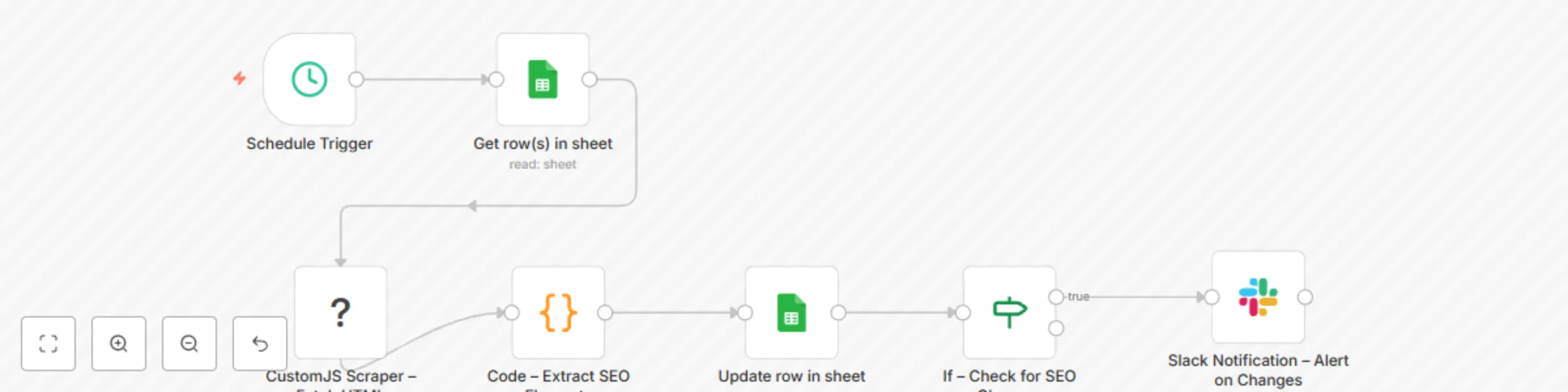
This n8n workflow demonstrates how to monitor competitor websites for SEO changes by scraping content and updating a Google Sheet. It uses the Scraper node from customjs.space to extract HTML content and parse key SEO elements like title, <h1>, <h2>, and meta description.
title <h1> headings <h2> headings Schedule Trigger
Runs automatically (weekly by default, adjustable as needed).
Google Sheets – Get Competitor URLs
Reads competitor website URLs from the configured sheet.
CustomJS Scraper – Fetch HTML
Code – Extract SEO Elements
Parses the HTML to extract:
Google Sheets – Update SEO Data
Updates the sheet with the new SEO data and a current date.
If – Check for SEO Changes
Compares old vs. new values.
Slack Notification – Alert on Changes
Sends a message to Slack when updates are detected.
Get API key from CustomJS
Set Credentials for CustomJS API in n8n
CustomJS credential.Prepare your Google Sheet
https://).Run or schedule the workflow
Google Sheet after update:
| Websites | Title | Meta Description | H1s | H2s | Date |
|---|---|---|---|---|---|
| https://example.com | Example Title | Example meta description | Example H1 Heading | Example H2s | 2025-09-07 12:00:00 |
> ⚠️ Competitor SEO Change Detected!
Website: https://example.com
Title
Meta Description
H1s
H2s
Date: 2025-09-07 12:00:00
This catalog entry is organized from the workflow JSON. The node-level section below shows the executable blocks available for review before importing the template.
| Workflow | Monitor competitor SEO changes with CustomJS Scraper, Google Sheets & Slack alerts |
|---|---|
| Complexity | intermediate |
| Nodes | 7 |
| Categories | Market Research |
| Author | CustomJS |
| Published | 24 Jun 2025 |
Use the JSON export at /data/workflows/5203/5203.json as the source template for this automation.
Open n8n, import the downloaded JSON, and review each node before activating the workflow.
Replace placeholder credentials, API keys, webhook URLs, account IDs, and environment-specific values with your own settings.
Run the workflow manually or in a staging workspace, inspect node output, and confirm downstream systems receive the expected data.
Enable the workflow only after testing, then monitor executions, errors, and rate limits during the first production runs.
Review imported nodes carefully before activation. This catalog entry is intended to help you inspect the workflow structure, understand required services, and find related templates faster.
Node names, credentials, schedules, webhook paths, and external service limits may need adjustment for your workspace.
️ Notice: Community nodes like @custom js/n8n nodes pdf toolkit can only be installed on self hosted instances of n8n. This n8n workfl...
Review the workflow JSON, configure any required credentials in n8n, and test the automation in a safe workspace before using it in production.
Yes. Use the block-by-block analysis and the downloadable JSON to inspect each node, then adjust credentials, prompts, schedules, filters, or destinations for your Market Research use case.