Block 1 - Schedule Trigger
- Type / Role
- n8n-nodes-base.scheduleTrigger - scheduleTrigger
- Config choices
- Version 1.2


 Early Deal
This workflow is provided as-is. Please review and test before using in production.
This workflow continuously monitors the Meta Ads Library for new creatives from a specific competitor pages, logs them into Google Sheets, and sends a concise Telegram notification with the number ...
n8n-nodes-base.scheduletrigger, n8n-nodes-base.httprequest, n8n-nodes-base.switch, n8n-nodes-base.if, n8n-nodes-base.code, n8n-nodes-base.set, n8n-nodes-base.telegram, n8n-nodes-base.googlesheets
This workflow is cataloged by N8N Workflows and links back to its original n8n.io source page by Kirill Khatkevich.
Original n8n.io sourceThis workflow continuously monitors the Meta Ads Library for new creatives from a specific competitor pages, logs them into Google Sheets, and sends a concise Telegram notification with the number of newly discovered ads. It is built as a safe, idempotent loop that can run on a schedule without creating duplicates in your sheet.
Manually checking the Meta Ads Library for competitor creatives is time‑consuming, and it’s easy to lose track of which ads you’ve already seen. This workflow is ideal if you want to:
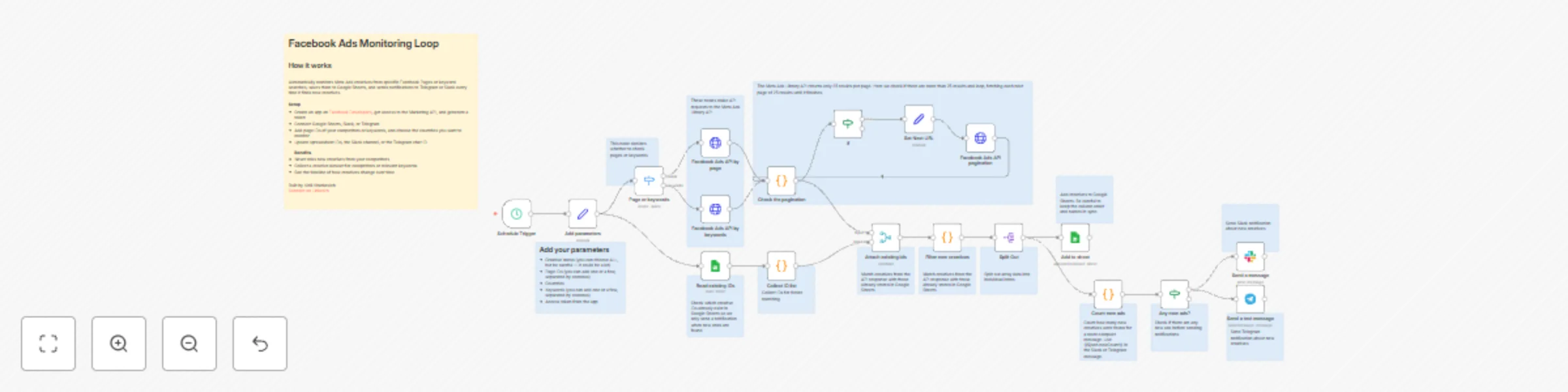
id field.The workflow is organized into three logical blocks:
1. Fetch Ads & Handle Pagination
Add parameters Set node stores all key request variables:ad_active_status (e.g. active),search_page_ids (competitor page IDs),ad_reached_countries,access_token.Page or keywords routes execution into one of two HTTP Request nodes:Facebook Ads API by page — the main branch that queries ads by page ID.Facebook Ads API by keywords — an optional branch for keyword‑based searches.Facebook Ads API by ... returns the raw ads_archive response. Check the pagination then:data (array of ad objects) into a dedicated field,paging.next into next_url for pagination.If checks whether next_url is not empty. Set Next URL assigns next_url to a generic url field. Facebook Ads API pagination requests the next page and feeds it back into Check the pagination.next_url, ensuring all pages of the Ads Library response are processed.2. De‑duplicate Ads & Log to Google Sheets
Read existing IDs pulls the existing id column from your Google Sheet (configured to read a specific column/range). Collect ID list converts these into a unique, normalized string array existingIds, which represents all ads you have already logged.Attach existing ids (Merge node) combines, for each execution, the freshly fetched Meta response (data) with the historical existingIds array from Sheets.Filter new creatives Code node compares each ad’s id (string) against the existingIds set and builds a new data array containing only ads that are not yet present in the sheet. Set.Split Out expands the filtered data array into individual items (one item per new ad). Add to sheet then performs an appendOrUpdate into Google Sheets, mapping core fields such as id, ad_creation_time, page_name, ad_creative_bodies, ad_snapshot_url, languages, publisher_platforms, and link fields. id as the matching column so that existing rows can be updated if needed.3. Count New Ads & Notify in Telegram
Split Out also feeds into Count new ads. newCount = items.length, i.e. the total number of new creatives processed in this run.Any new ads? checks whether newCount is greater than 0. If not, the workflow ends silently and no message is sent, avoiding noise.Send a text message sends a Telegram message to the configured chatId. {{$json.newCount}} and a fixed link to the Google Sheet, giving you a quick heads‑up without listing individual ads.To use this template, configure the following components.
1. Credentials
Meta Ads HTTP Header credentials used by:Facebook Ads API by page,Facebook Ads API by keywords,Facebook Ads API pagination.Read existing IDs,Add to sheet.Telegram account credentials in Send a text message.2. The Add parameters Node
Open the Add parameters Set node and customize:
ad_active_status: Which ads to monitor (active, all, etc.).search_page_ids: The numeric ID of the competitor Facebook Page you want to track.ad_reached_countries: Comma‑separated list of country codes (US, US, CA, etc.).access_token: A valid long‑lived access token with permission to query the Ads Library.3. Google Sheets Configuration
Read existing IDs documentId and sheetName to your tracking spreadsheet and sheet (e.g. an ads tab). id values.Add to sheet documentId and sheetName to the same spreadsheet/sheet. id, creation time, page, title, description, delivery_start_time, snapshot, languages, platforms, link). id is included in matchingColumns so de‑duplication works correctly.4. Telegram Configuration
Send a text message, set:chatId: Your target Telegram chat or channel ID.text: Customize the message template as needed, but keep {{$json.newCount}} to show the number of new creatives.5. Schedule
Schedule Trigger and configure when you want the workflow to run (e.g. every morning). This workflow is a solid foundation for systematic competitor monitoring. You can extend it to:
search_page_ids into a list and iterating over it with a loop or separate executions.ad_id from Meta, and merges the metrics back.This catalog entry is organized from the workflow JSON. The node-level section below shows the executable blocks available for review before importing the template.
Showing the first 24 of 34 workflow blocks. Download the JSON for the full node graph.
| Workflow | Monitor competitor Meta Ads creatives and send alerts with Google Sheets & Telegram |
|---|---|
| Complexity | advanced |
| Nodes | 34 |
| Categories | Market Research |
| Author | Kirill Khatkevich |
| Published | 27 Nov 2025 |
Use the JSON export at /data/workflows/11270/11270.json as the source template for this automation.
Open n8n, import the downloaded JSON, and review each node before activating the workflow.
Replace placeholder credentials, API keys, webhook URLs, account IDs, and environment-specific values with your own settings.
Run the workflow manually or in a staging workspace, inspect node output, and confirm downstream systems receive the expected data.
Enable the workflow only after testing, then monitor executions, errors, and rate limits during the first production runs.
Review imported nodes carefully before activation. This catalog entry is intended to help you inspect the workflow structure, understand required services, and find related templates faster.
Node names, credentials, schedules, webhook paths, and external service limits may need adjustment for your workspace.
This workflow continuously monitors the Meta Ads Library for new creatives from a specific competitor pages, logs them into Google Sheets, and sends a concise Telegram notification with the number ...
Review the workflow JSON, configure any required credentials in n8n, and test the automation in a safe workspace before using it in production.
Yes. Use the block-by-block analysis and the downloadable JSON to inspect each node, then adjust credentials, prompts, schedules, filters, or destinations for your Market Research use case.